Activity monitoring screenshots
Activity Monitoring is the new main application for screenshot capture, replacing the legacy screenshot capture in the workspace settings. Screenshots provide Workspace Admins or Team Managers an additional layer of verification and visual proof of work to validate member activity, resolve specific productivity questions, or identify potential security risks.
Screenshots feature is included in Activity Monitoring, which you can access if you subscribe to Pro, Enterprise, or Bundle plan.
For existing users: Existing workspaces retain access to legacy screenshots in the Workspace settings, which will be marked with a “Legacy” badge until January 1, 2027. We recommend switching to Activity Monitoring for real-time tracking, privacy controls, and background capture.
Activate screenshots #
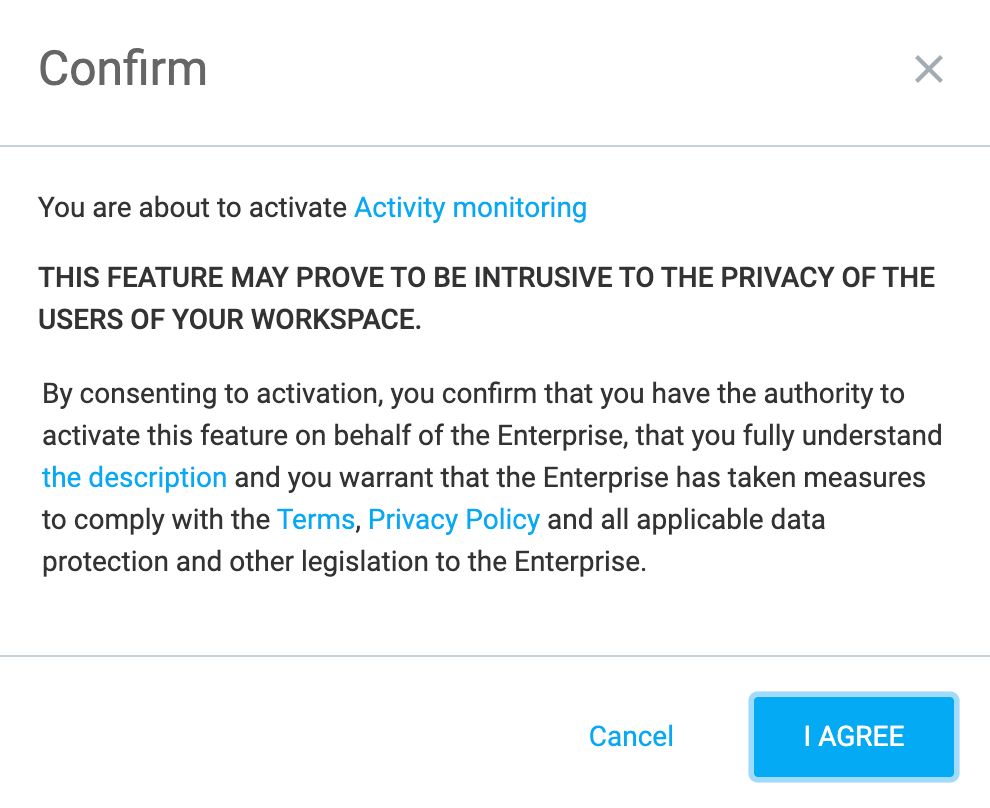
When you enable Activity Monitoring, a confirmation dialog box pops-up. Because activity monitoring involves user privacy, you must provide consent before activation.
By agreeing to the activation, you confirm that:
- You have the authority to activate the feature on behalf of your enterprise.
- You fully understand the feature description.
- Your enterprise complies with the applicable privacy laws, terms, and data protection legislation.
How screenshot capture works #
To capture screenshots, your workspace must have the following configured:
- Desktop agent must be installed and running in the background
- Screenshots are enabled in Monitoring > General settings under Settings section
Upon detecting user activity, the desktop agent automatically captures screenshots based on the interval configured in the Agent apps settings (between 30 to 1800 seconds). If a specific device configuration does not exist, the interval defaults to the general setting.
For users using multiple monitors, all active monitors will be captured together in a single screenshot capture event.
Screenshots will not be captured while the user is idle.
Manage screenshots #
Review captured screenshots to analyze activity details for the workspace, team, or individual member.
View screenshots #
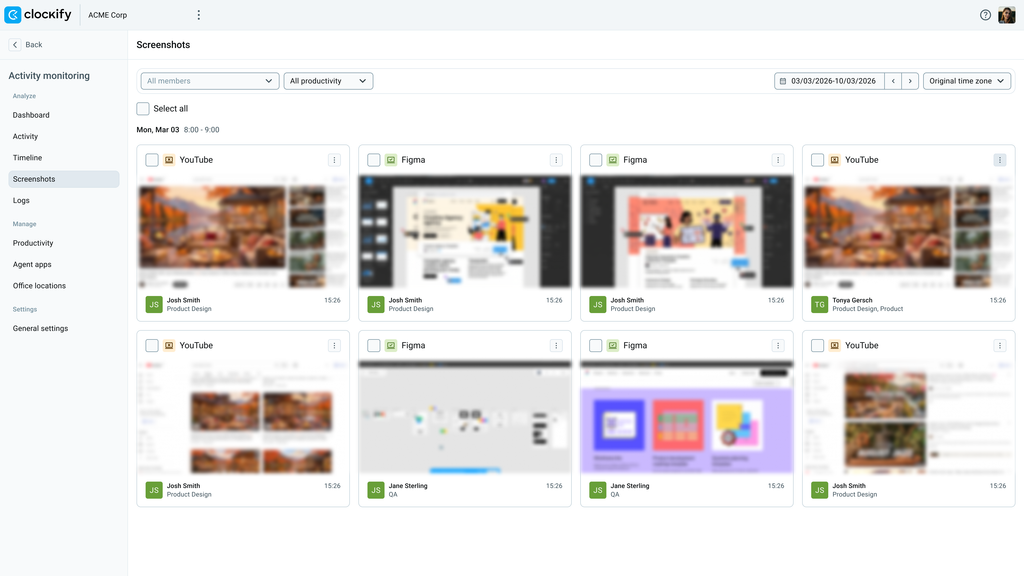
Screenshots are displayed chronologically, with the newest screenshot first and grouped by date and hour. Images are blurred by default and have the productivity indicator icon.
You can view specific screenshots by using the available filters at the top of the page: Scope (Workspace/Group/Member), Productivity, Date range, and Time zone. Check this article for more information on monitoring filters.
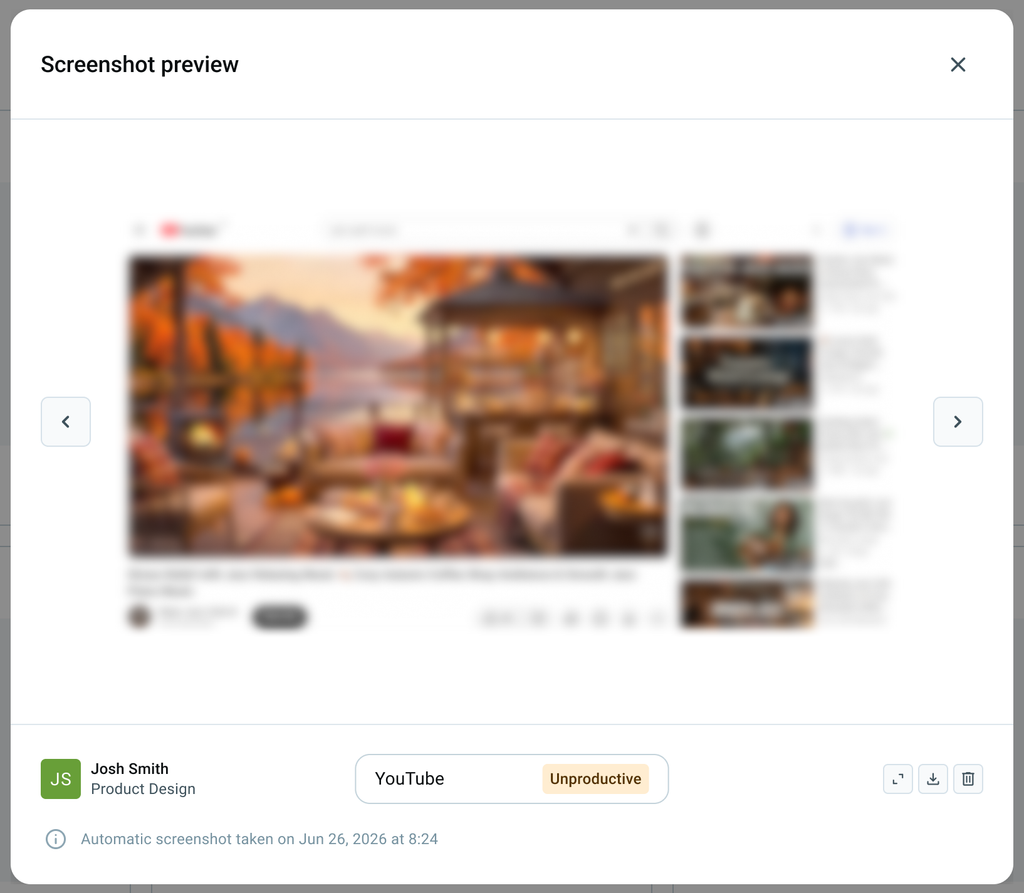
You can open an image to display the single screenshot preview, which displays navigation controls, full screen, download and delete buttons, and details including member name, group, timestamp, application or site name, and productivity type (Productive, Unproductive, Neutral, or Undefined).
If your workspace has unassigned devices, a dynamic global alert banner will be displayed at the top of the page with the message “You have X unassigned agents. Assign members to these agents to view activity data and unlock full insights.”
Click Assign on the banner to assign the agents on the Agent apps page.
Delete screenshots #
To delete screenshots:
- Navigate to Monitoring > Screenshots
- To delete a single screenshot: Select the three-dot icon in the upper right corner of the screenshot and select Delete
- To delete multiple screenshots at once, do either of the following:
a. Select the checkbox on the upper left corner of the screenshots and click Delete
b. Select the checkbox beside Select All and click Delete
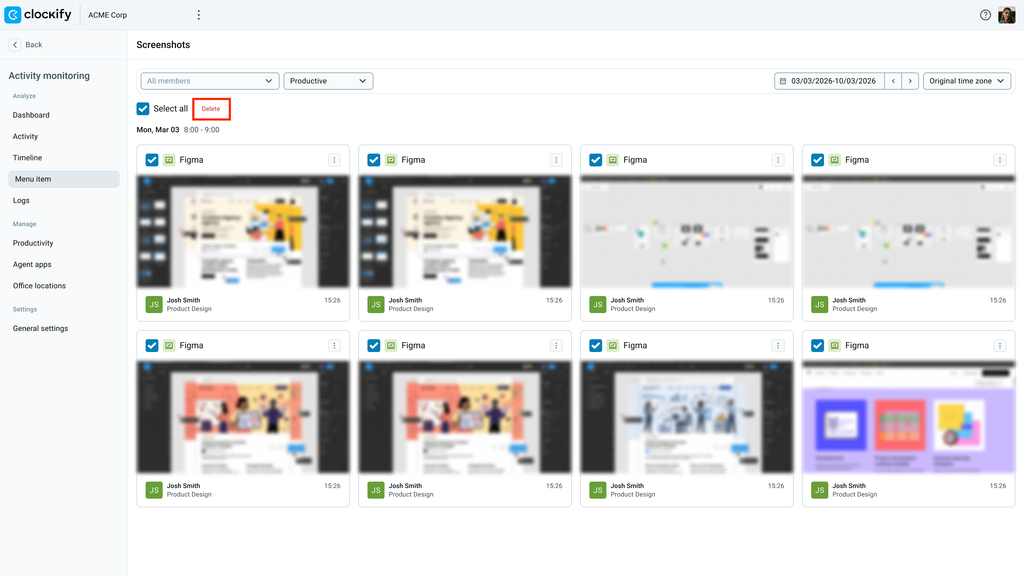
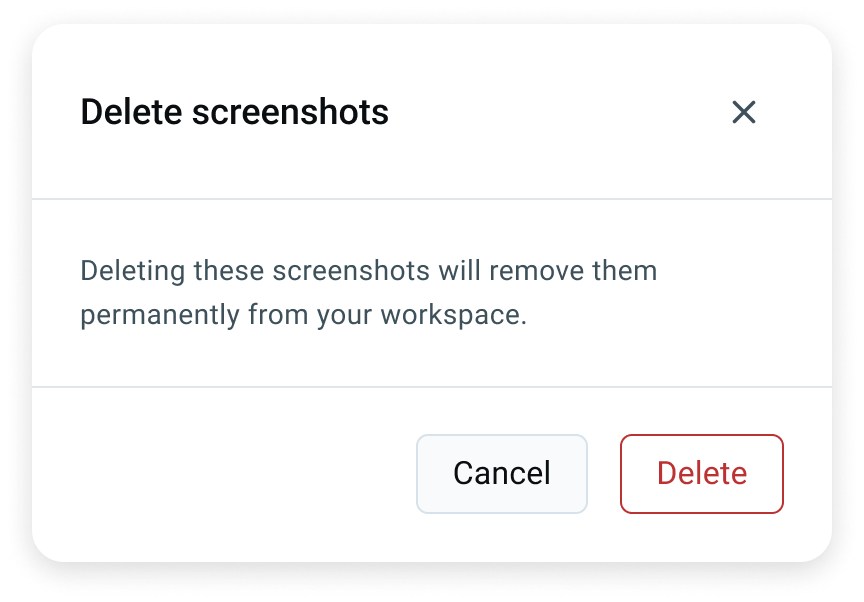
4. Click Delete on the Delete screenshots dialog box
Download screenshots #
Workspace admins can download single screenshots to their device. To do this:
- Navigate to Monitoring > Screenshots
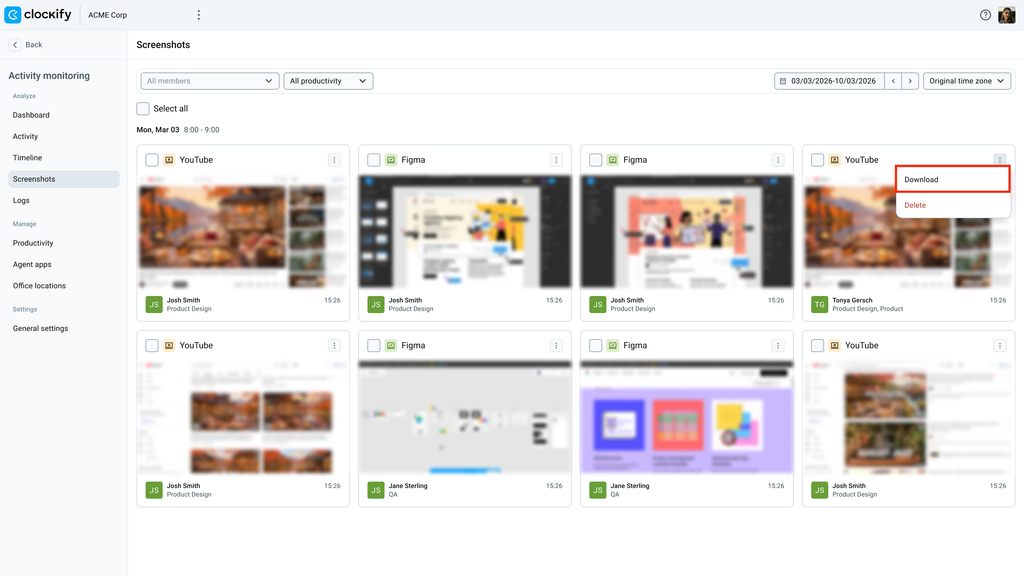
- Select the three-dot icon in the upper right corner of the screenshot and select Download
3. Save the image to your device
The screenshot is downloaded with the following format: “Clockify_Screenshot_<date>.jpg”
Data retention period #
Screenshots are stored in the system for 60 days before they are automatically deleted, with no admin action required. Once deleted, images cannot be viewed or filtered, and will show as a broken image if you select a date range beyond the retention period.
FAQs #
When will legacy screenshots stop working?
Legacy screenshots will be retired on January 1, 2027. New workspaces are onboarded directly to Activity Monitoring screenshots.
Are screenshots taken when a user is inactive?
No. Screenshots are not captured during idle time.
How are multi-monitor displays captured?
If a member uses multiple monitors, all active displays are captured together in a single screenshot event.
How long are screenshots kept in the system?
Screenshots are automatically and permanently deleted after 60 days.
Why does the page display “No data to show”?
This appears when there are no captures for the selected date range or if the Activity Monitoring desktop agent is not installed.