Check your assigned role
1 min read
In Clockify, user roles define the level of access and permissions you have within the workspace. Knowing your role provides a better insight into what you can and cannot do in Clockify.
Here’s how you can check your user role:
- Log in to your Clockify account
- Go to the Team page
- Locate the Role column and find your name
Here, you can see the role assigned to you within the workspace (e.g. Owner, Admin, Team Manager, Project Manager, or Member)
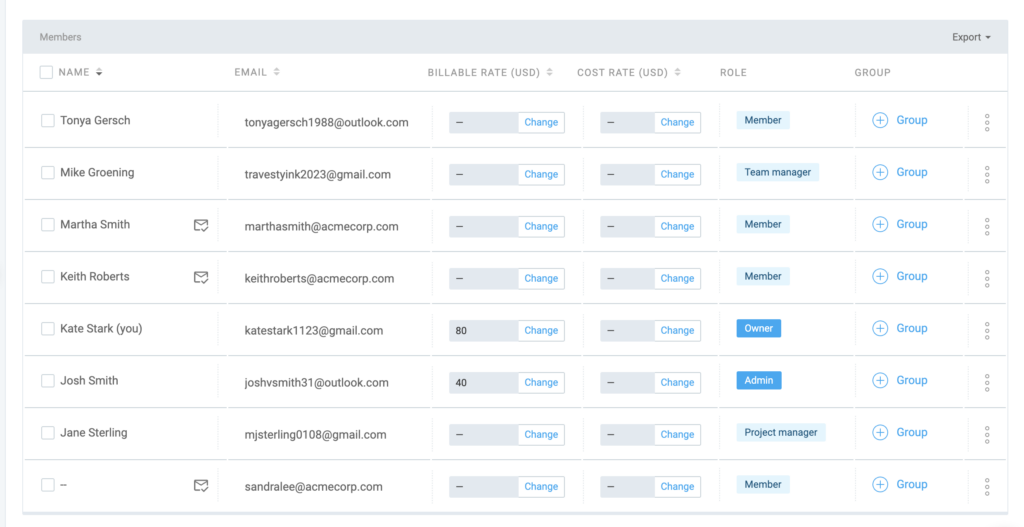
User roles in Clockify #
- Admin: Full access to manage all aspects of the workspace, including user management, permissions, and billing
- Manager: Can manage teams, track time, and view reports, but cannot change workspace settings or billing
- Member: Can track time and view reports but does not have permissions to manage teams or settings
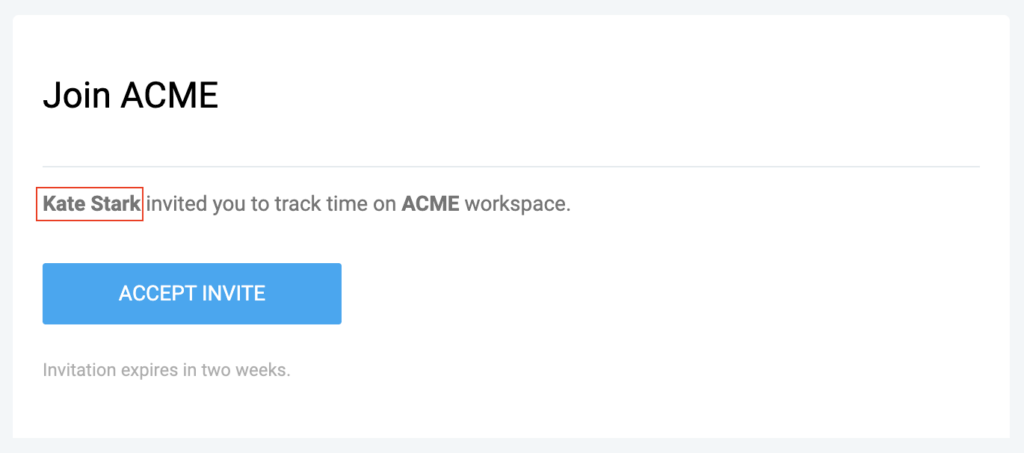
If you don’t see the Team page in your sidebar, you may not have permission to view it. In that case, contact your workspace owner/admin or the person who invited you to the workspace.
You can check who that is in the workspace invitation email:
Was this article helpful?
Thank you! If you’d like a member of our support team to respond to you, please drop us a note at support@clockify.me