Integrate Google/Outlook with your Clockify account
Clockify allows you to integrate your Google calendar or Outlook calendar (Office 365) with your account, so you can view your calendar events directly within Clockify.
Benefits of the integration:
- Side-by-side view: Compare your calendar’s planned events with the actual time you’ve tracked.
- Create time entries: Create time entries based on calendar events and track time for your scheduled activities.
- View calendar events: See all your scheduled events in a new column within Clockify.
Important to note:
- Only events with start and end times will appear in Clockify. All-day events will not be displayed.
- Any changes made in your external calendar will automatically reflect in Clockify.
- The integration is available for Google Calendar and cloud-based Outlook Office 365 and doesn’t work with private or company-hosted Outlook servers.
Connect to Google/Outlook calendar #
- Go to the Calendar page
- Click on the
 gear icon next to the Teammates view option
 - Click the Connect button next to Google/Outlook Calendar
- Follow the prompts to connect your calendar
- Wait for the Connected badge to appear next to the calendar
- Click Close
After you’ve authorized the connection, all your events from the selected calendar will be displayed in a new column inside Clockify.
If you make any changes to your external calendar (e.g., adding or editing events), those changes will be reflected in Clockify automatically.
View events in Clockify #
Once your calendar is connected, Clockify will display your calendar events in a new column on the Calendar page. You can interact with these events in the following ways:
Start a timer for an event #
If you’re working on an activity from your calendar, you can start a timer directly from the event.
To start timer from an event:
- Go to Calendar page
- Hover over the event
- Click the
 play icon to start the timer
Create a time entry from the event #
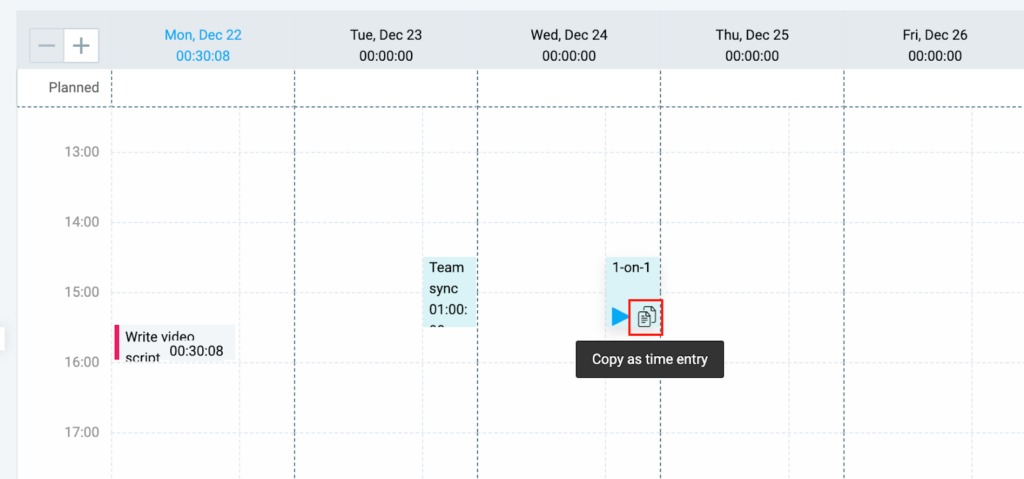
You can create a time entry in Clockify based on the event details.
To create time entries from calendar events:
- Go to Calendar page
- Hover over the event
- Click Copy as time entry
- Enter the details of the time entry
- Duration
- Start/end time
- Description
- Project
- Billable/Non-billable
- Tags
5. Click Add
Open events from calendar #
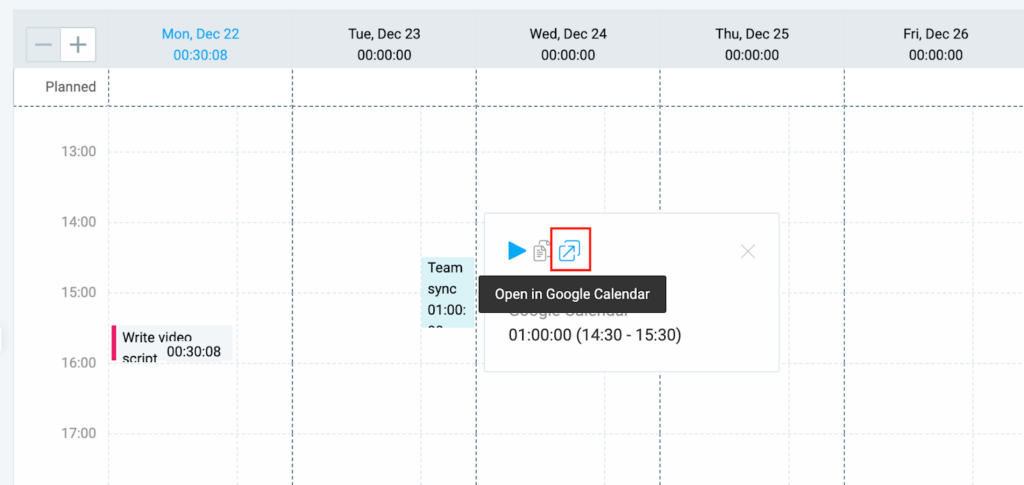
You can open events in your Google or Outlook calendars directly from the Clockify calendar page.
To open events from the Calendar page:
- Go to the Calendar page
- Hover over the event you want to open
- Click the
 new window icon to open the event in Google or Outlook
Work with multiple calendars #
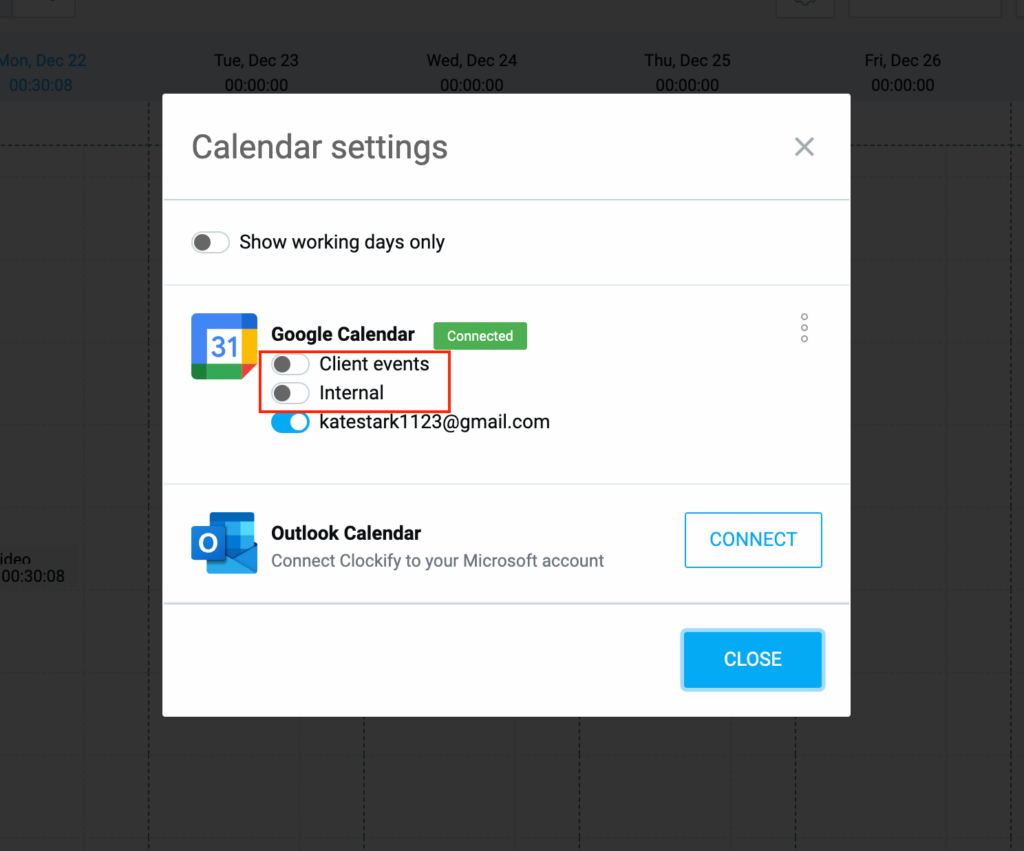
Clockify lets you add multiple calendars connected to your Google or Outlook account.
To display multiple calendars:
- Go to the Calendar page
- Click the gear icon
- Enable the calendars you want to display
- Click Close
Disconnect Google or Outlook calendar #
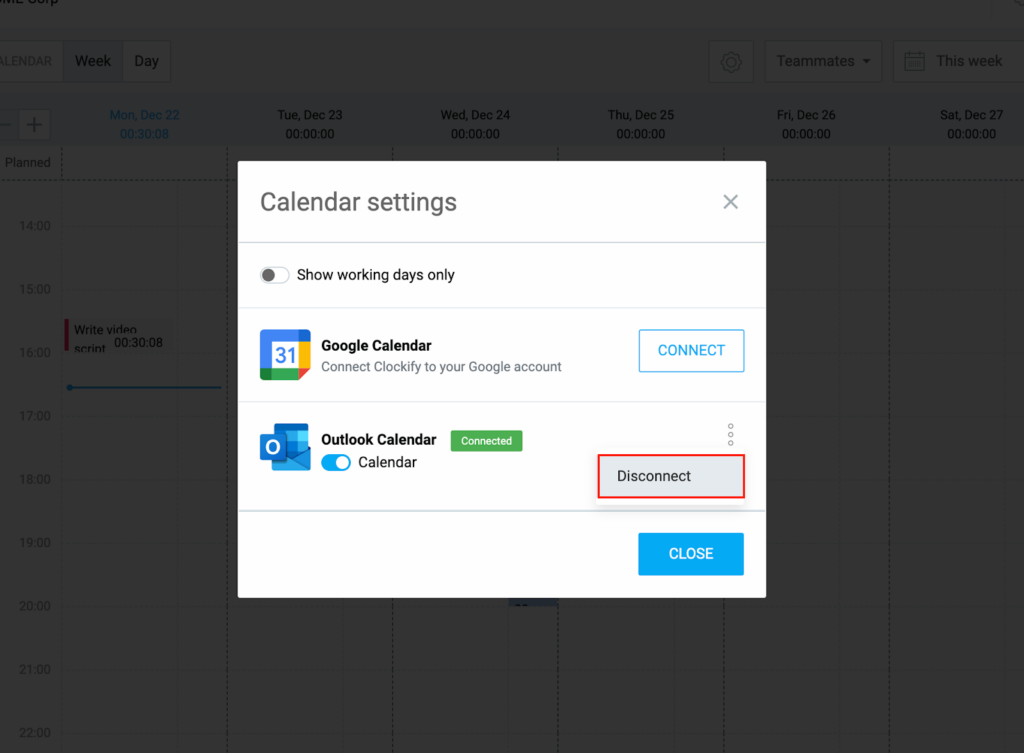
To disconnect your calendars from Clockify:
- Open the Calendar settings
- Click on the
 three-dot icon next to the calendar you want to disconnect
 - Click Disconnect
Revoke access from Google #
To revoke or remove access of your Google calendar from Clockify:
- Click on your Google profile photo and select Manage your Google Account
- Select Security & sign-in on the left sidebar
- Scroll down to Your connections to third party apps & devices
- Click Clockify Calendar Integration
- Click See details
- Click Remove all access
- Click Confirm on the pop-up message
Revoke access from Outlook #
- Go to your Outlook mail account
- Click on your profile photo and select My profile
- Select Privacy on the left sidebar
- Locate and click App access
- Find Clockify on the list of apps
- Click Don’t Allow
FAQ #
Can I make changes to my Google or Outlook calendar events within Clockify?
No, but any changes made in your external calendar will automatically reflect in Clockify.
Is my private calendar info visible to my boss?
No. While your manager can see the time entries you officially log, they cannot see your actual Google or Outlook calendar events.
Can I see what my teammates have on their calendars?
No. For privacy reasons, you can’t see their personal Google or Outlook events. However, if you are an Admin or Manager, you can switch to the Teammates view on the Calendar page to see a visual map of the time they’ve already tracked.