Create invoice from reports
1 min read
Create invoices on billable entries directly from filtered time reports in Clockify.
Since you’re no longer manually entering your data, this can save you time and help you accurately bill your clients.
Note
This feature is available on Standard and higher subscription plans.
How it works #
To create invoice from a report:
- Go to Reports page
- Choose type of report, client and filter out the report based on time entries you want to bill for
- Click Create invoice button
- In the Create invoice window, fill out all the required details:
– Display time: Group entries or display them individually
– Group by: If grouped, select the criteria (e.g. project, task)
– Currency: Currency set up in the workspace settings
– Invoice ID: Manually set invoice ID
– Issue date: Date when the invoice is issued
– Due date: Date by which invoice should be paid
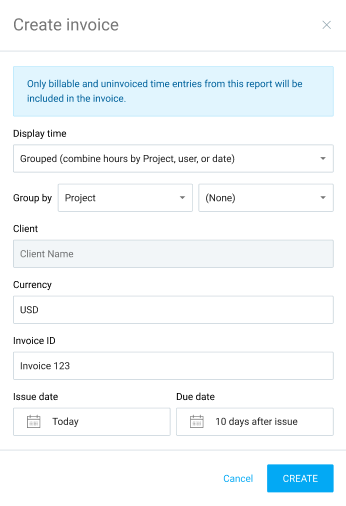
Click Create to complete the process.
The generated invoice will automatically appear on the Invoices page where you can review and send it.
Was this article helpful?
Thank you! If you’d like a member of our support team to respond to you, please drop us a note at support@clockify.me