Notifications in Clockify
Clockify notifications help you stay on top of your tasks, time entries, approvals, and team activities.
Select a notification type below to jump to its details:
Timesheet notifications [Notifications for timesheet submissions]
Timesheet reminders [Reminders to submit/approve timesheets]
Time off notifications
Workspace activity notifications
Set up notification preferences
You can choose which notifications you receive (or don’t receive).
To manage your individual notifications:
- Click your Profile settings in the top-right corner
- Select Preferences
- Go to the Email Notifications tab
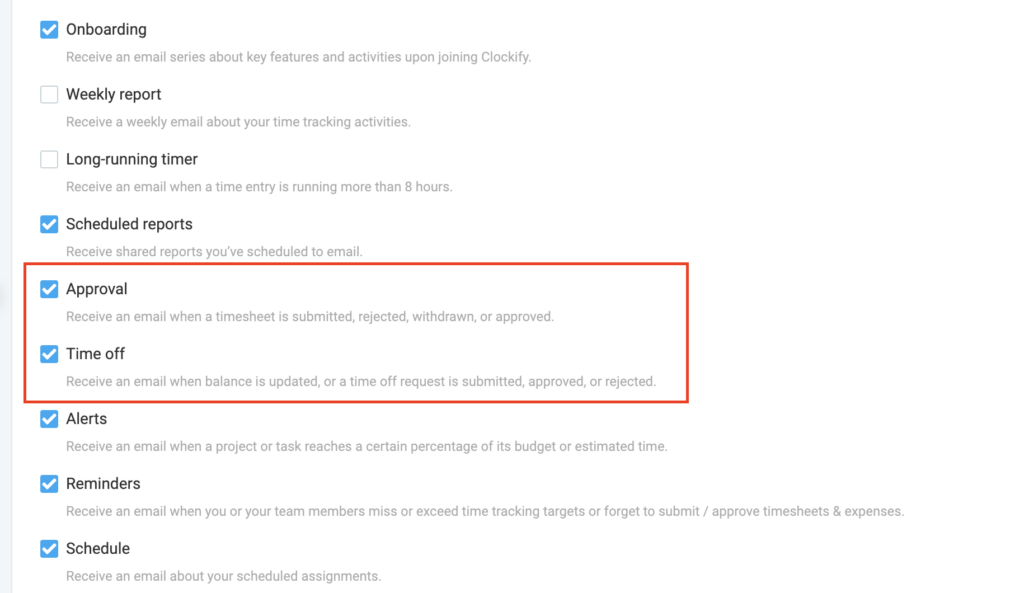
- Check or uncheck the boxes to enable or disable specific alerts
Notifications about timesheet submissions and time off requests are sent if these options are enabled in the Profile settings of the admin, manager, or workspace owner.
Timesheet notifications
Notifications about timesheets are sent to the assigned role specified in your Workspace settings.
To check who can approve or reject timesheets:
- Click on the
 three dot icon next to your workspace name
 - Select Workspace settings
- Go to Permissions tab
- Locate the Who can approve submitted timesheets and expenses section

Depending on this setting, here’s an overview of who gets timesheet notifications:
| Workspace setting | Timesheets submissions |
|---|---|
| Admins and team managers | Team managers |
| Admins and Project managers | For assigned projects: The Project manager receives the notification. For unassigned projects: If a user tracks time but it isn’t assigned to a specific project, the Workspace owner receives the notification. |
Admins are not notified in either setting but retain the ability to view/approve/reject all requests.
Timesheet submitted
Notifications are sent to the manager or workspace owner every time a team member submits their timesheet.
How it works:
- User submits timesheet for a specific date range
- Manager receives Timesheet submitted email notification and clicks on the Review button
- Manager is taken to the Approvals page (Pending tab) and clicks Approve All
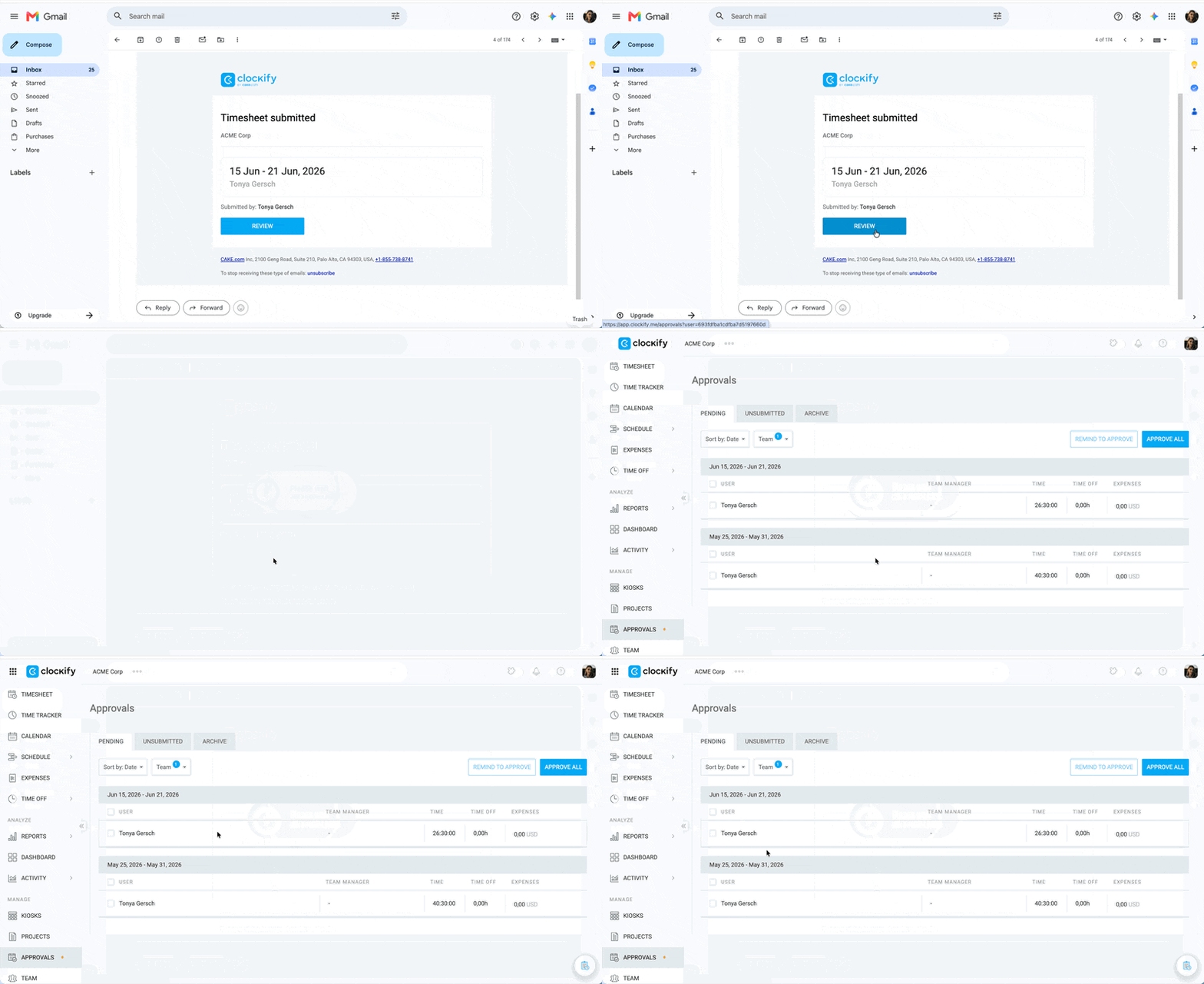
- User receives an email notification that the timesheet was approved
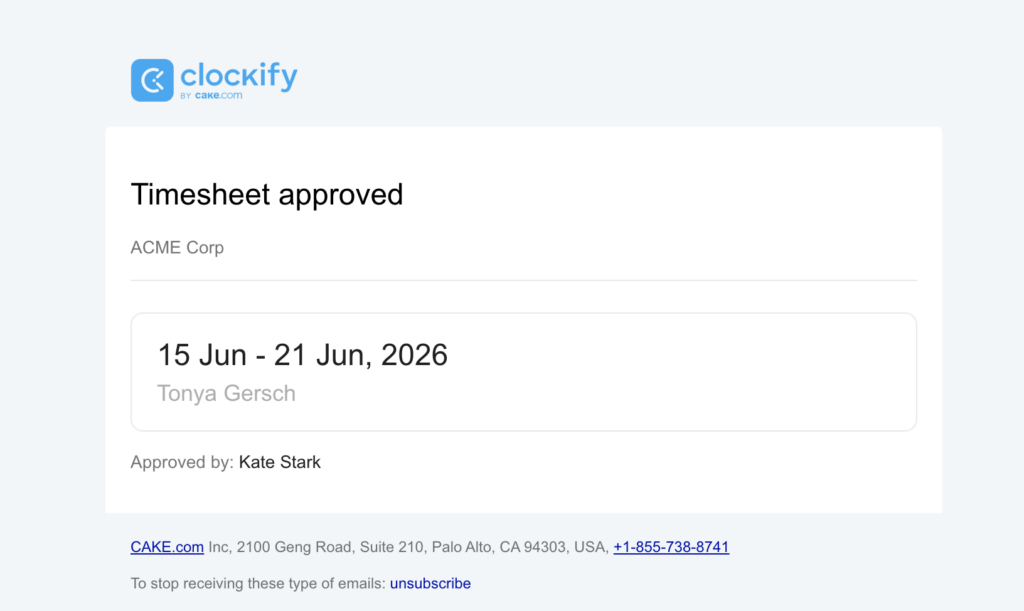
Timesheet approved/rejected
Team members receive notifications when their timesheets are either approved or rejected by their managers.
How it works:
- The approver (manager, workspace owner, or admin) approves or rejects a submitted timesheet.
- User receives the Timesheet approved/rejected email notification. The reason for rejection will be included in the email.
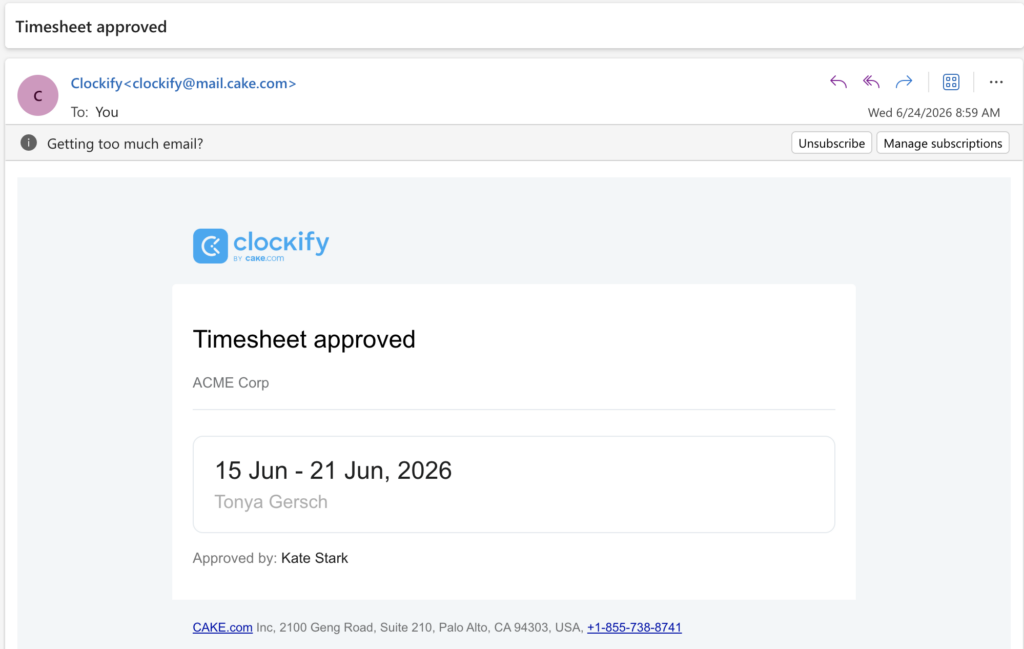
Approved timesheet
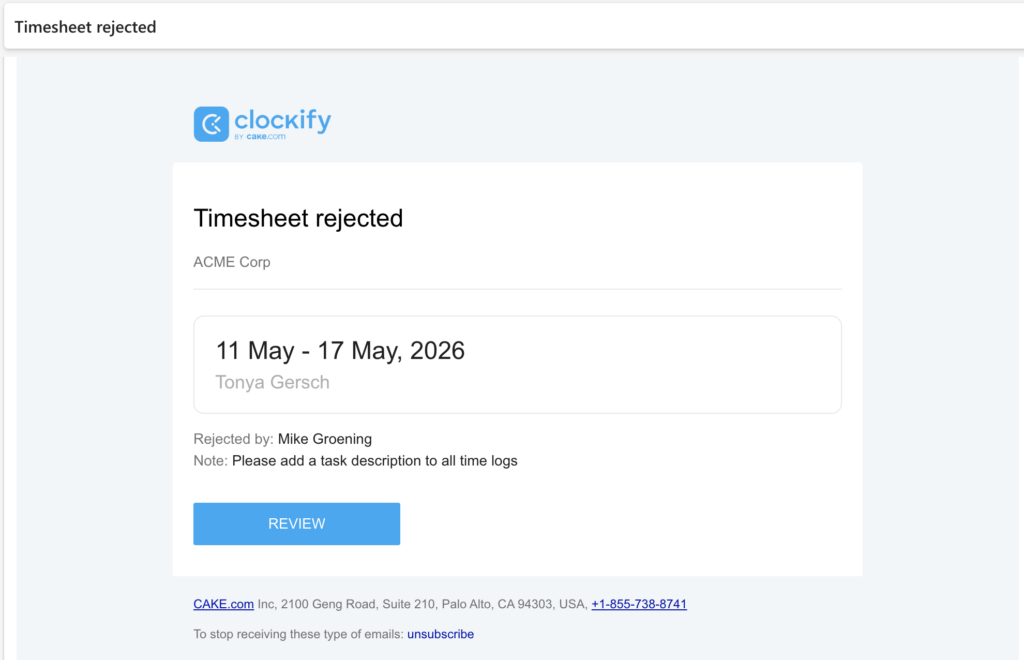
Rejected timesheet
Timesheet reminders
Reminders are alerts that are sent to remind:
- Team members to submit timesheets for a specific time range
- Managers to approve all submitted timesheets
Remind to submit #
- Workspace owners and admins can send reminders to any user in the workspace who has unsubmitted time.
- Team managers can send reminders, but only to the specific members assigned to their team.
How it works:
- A manager, admin, or workspace owner clicks the Remind to submit button in the Approvals page (Unsubmitted tab)
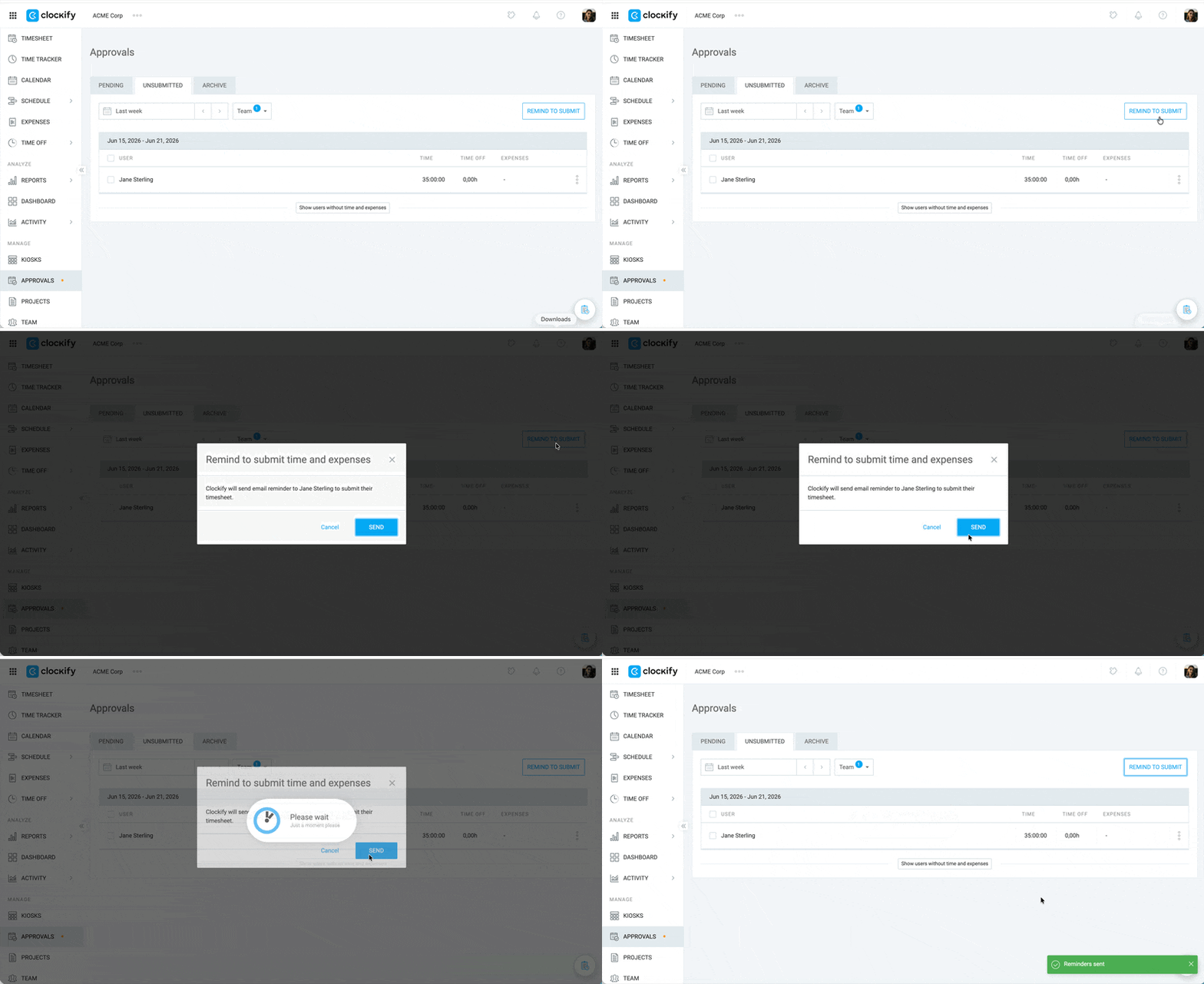
- Users who haven’t submitted their timesheets for that defined period get Reminder to submit your timesheet email notification
- User clicks on Submit in the email, lands on the Timesheet page, and clicks Submit for approval
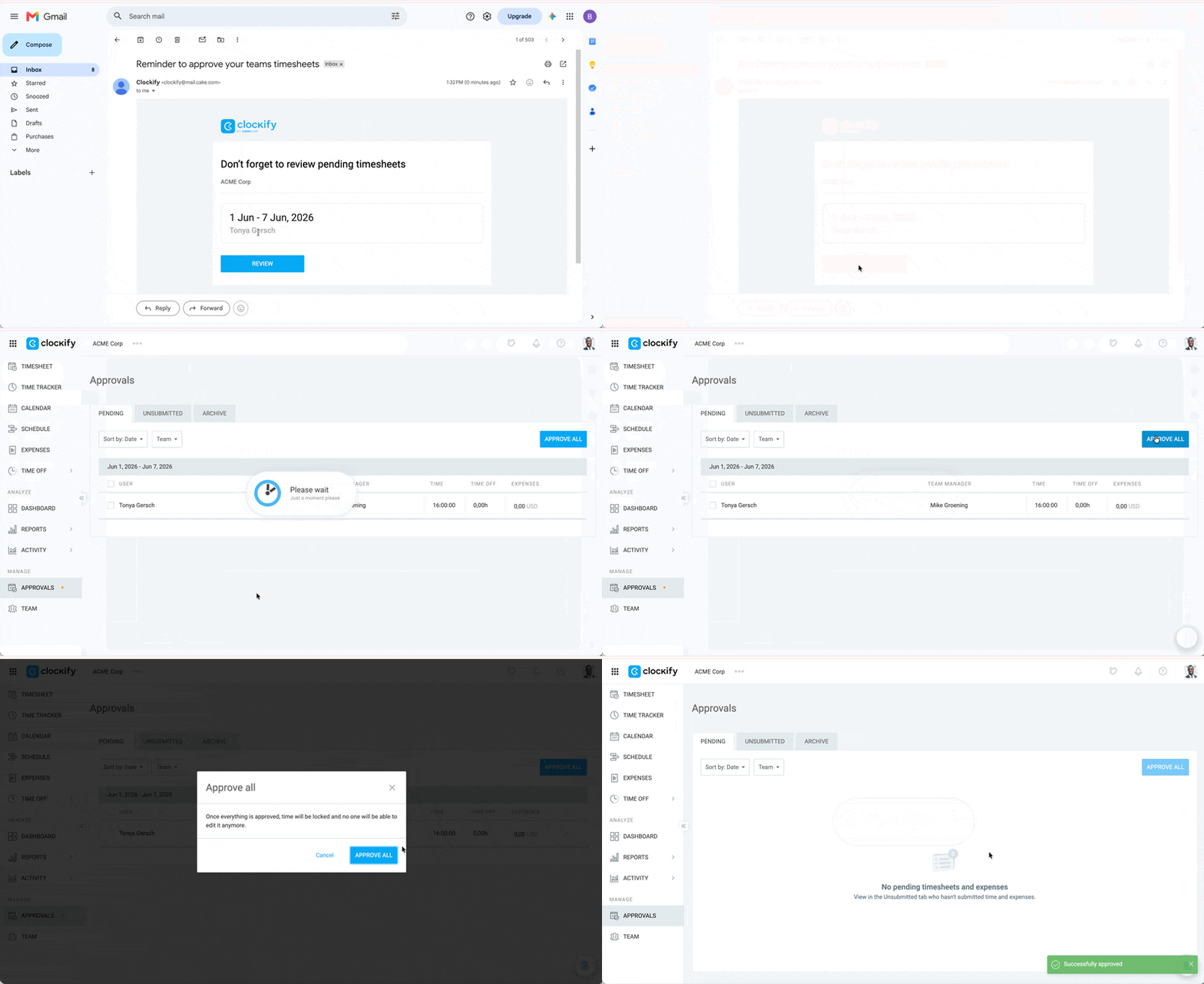
Remind to approve #
Only workspace owners and admins can send reminders to approve timesheets.
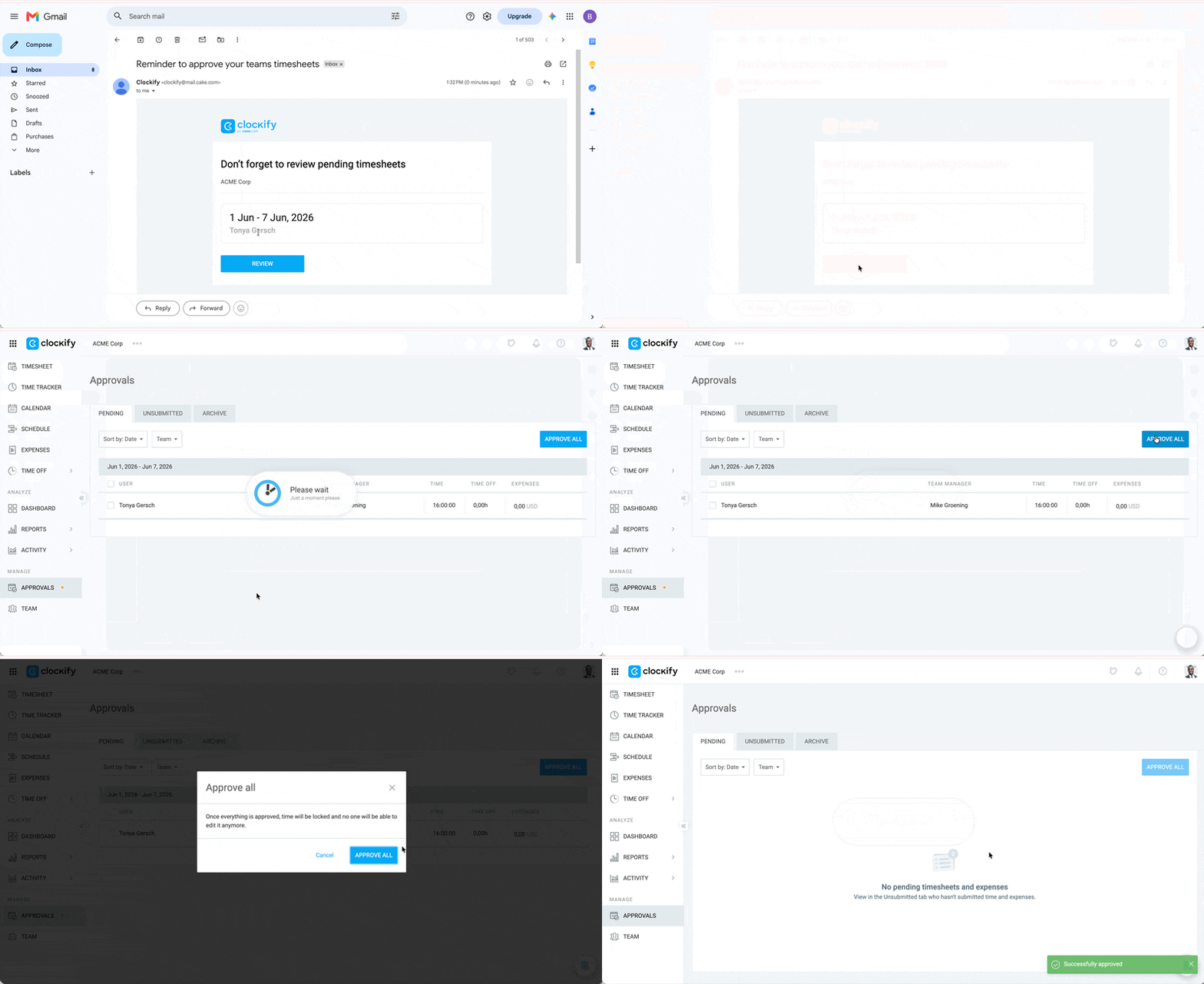
How it works:
- Admin or workspace owner clicks the Remind to approve button on the Approvals page (Pending tab)
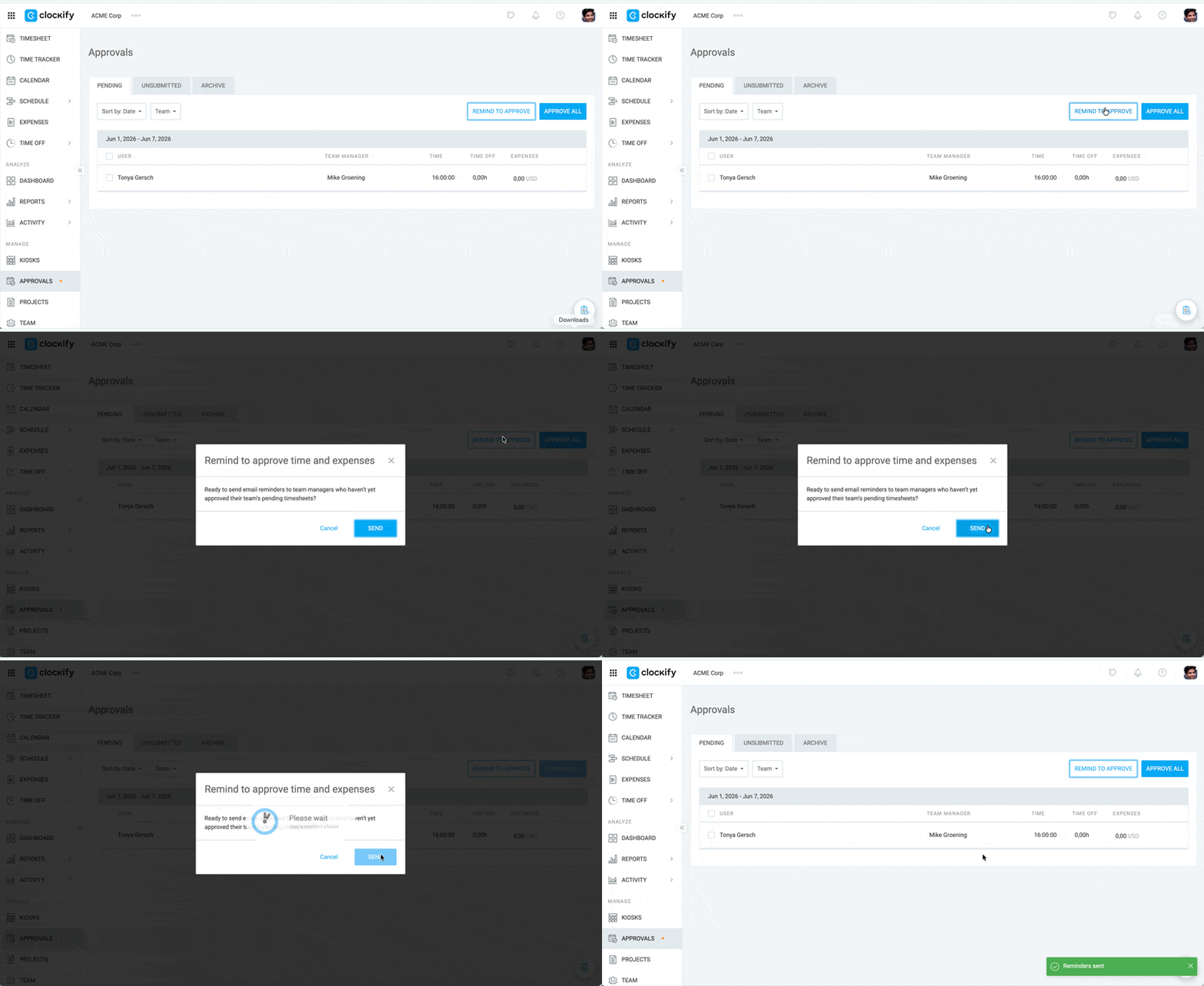
- Managers who haven’t approved all submitted timesheets receive a Reminder to approve email notification
- Manager clicks Approve on the email, lands on the Approvals page, and clicks Approve All
Time off notifications
Team managers receive time off notifications. If a user has no team manager assigned, the workspace owner will receive the notification instead.
Time off request approved
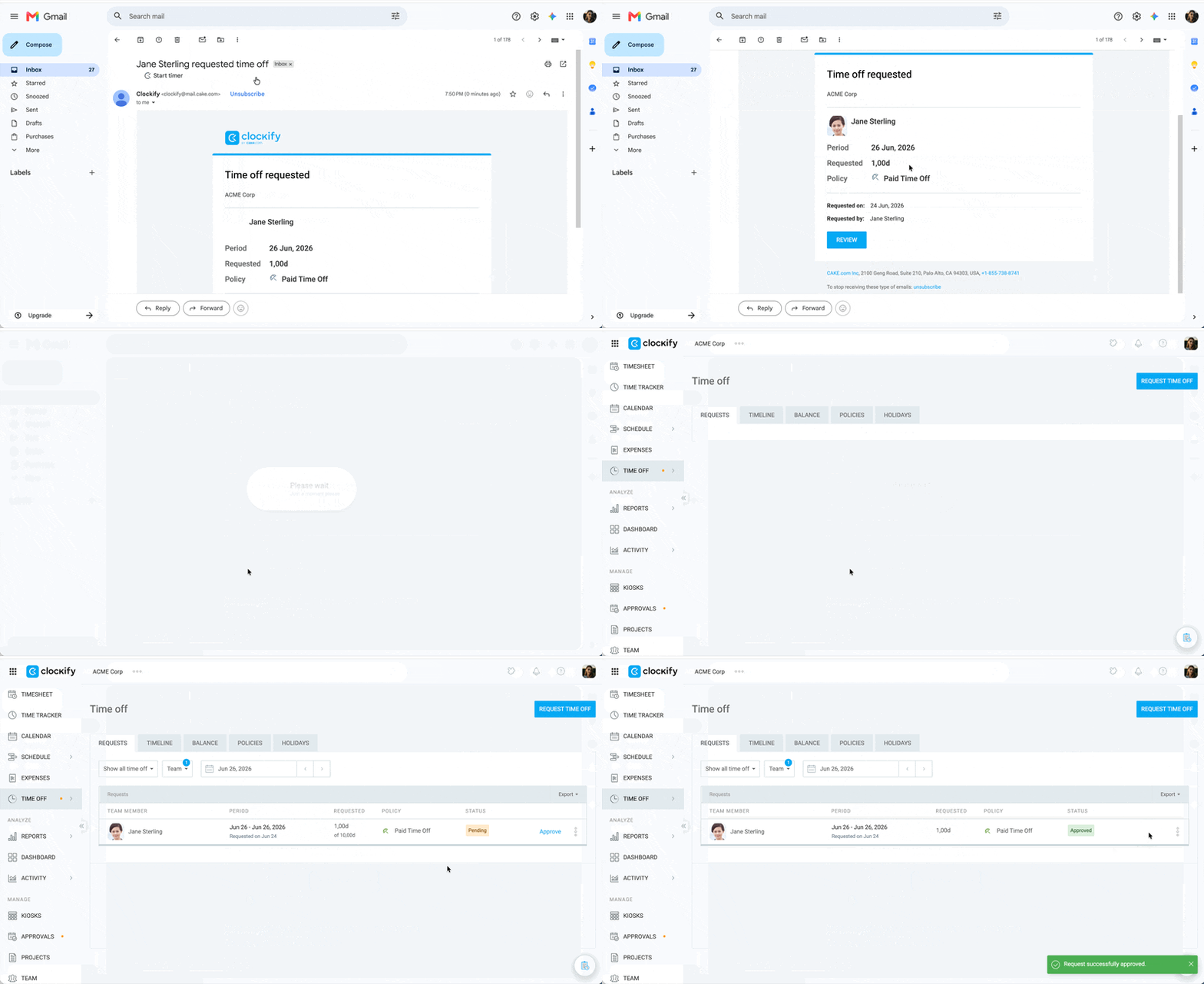
How it works:
- User submits a time off request
- Team manager or workspace owner receives Time off request submitted email notification
- Team manager or workspace owner clicks on the Review button, lands on the Time Off page, and approves the request
- User and the approver (team manager or workspace owner) receive an email notification that the time off is approved
- For the user, the email subject will be Your time off has been approved
- For the approver, the email subject will be [User’s name]’s time off was approved
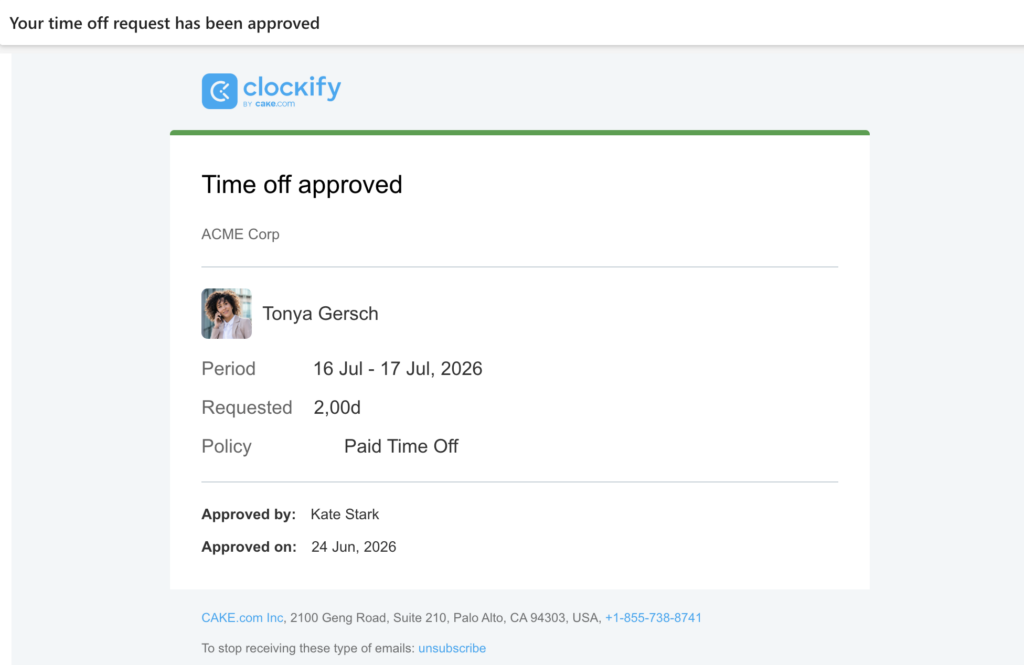
User’s email
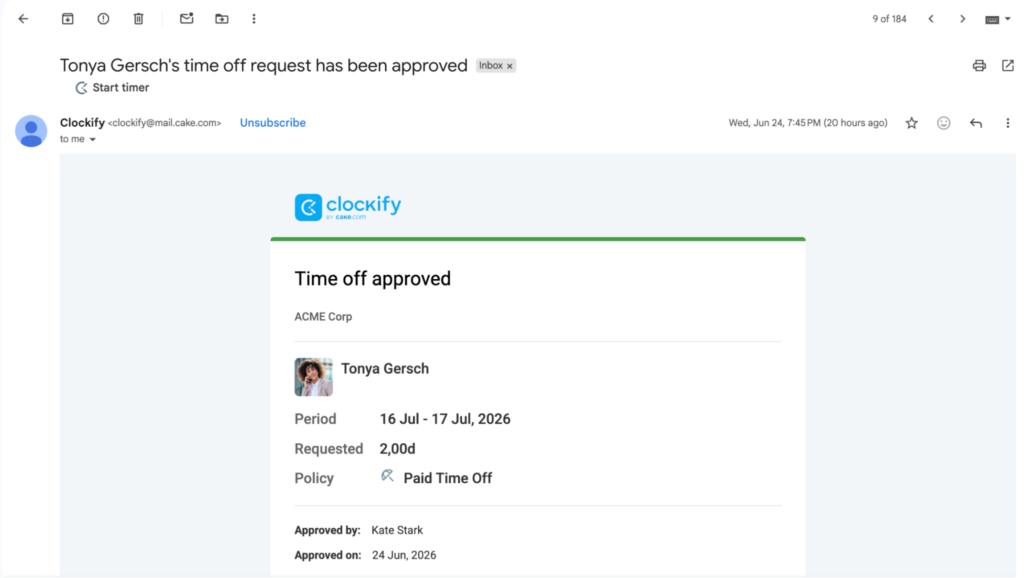
Approver’s email
Time off request rejected #
How it works:
- User submits time off request
- The approver (team manager or workspace owner) receives Time off request submitted email notification
- The approver clicks on the Review button, lands on the Time Off page, and rejects the request
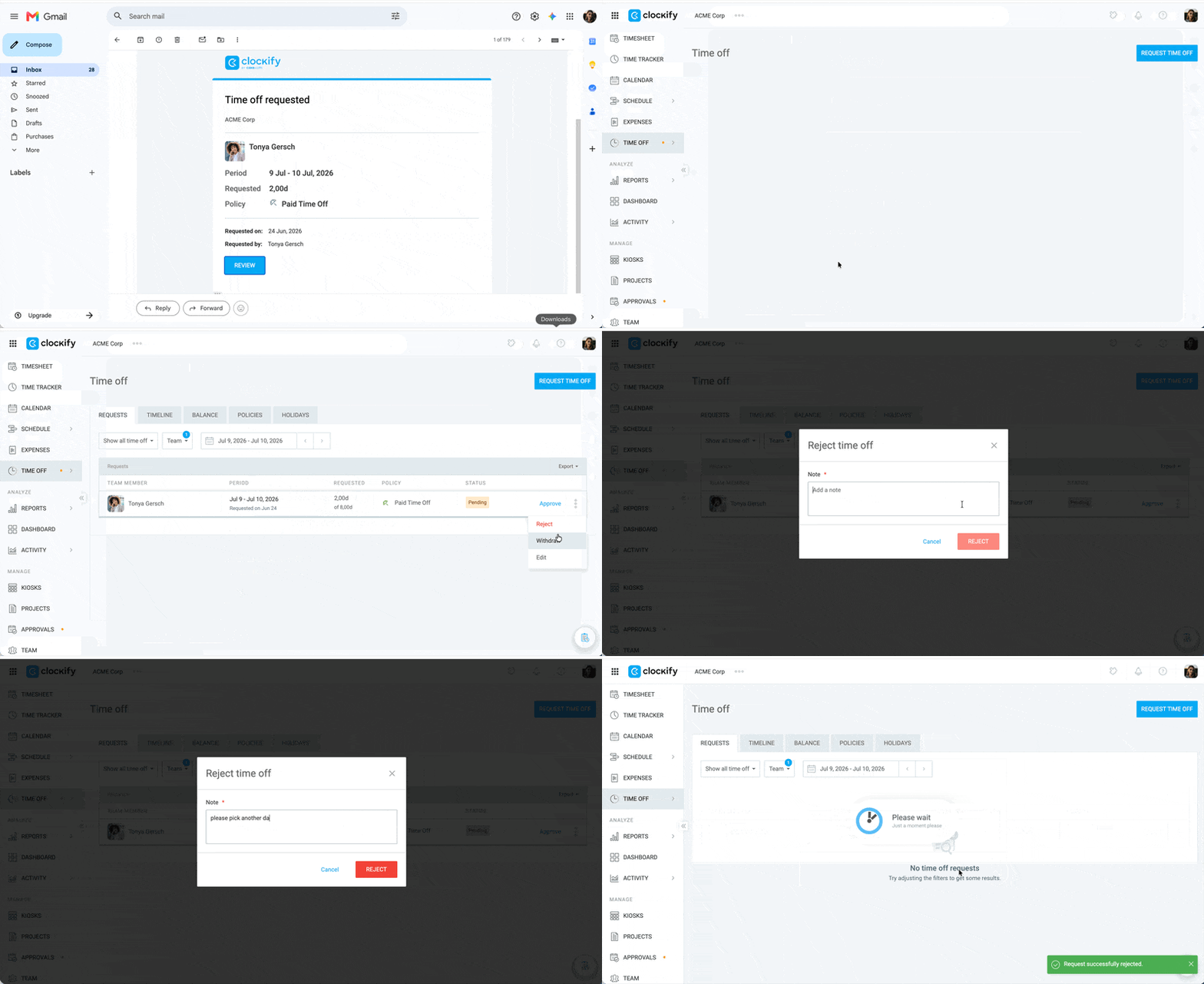
- The user and the approver receive Time off rejected email with the reason for rejection
- The user’s email subject will show as Your time off request has been rejected
- The approver’s email subject will show as [User’s name]’s time off request has been rejected
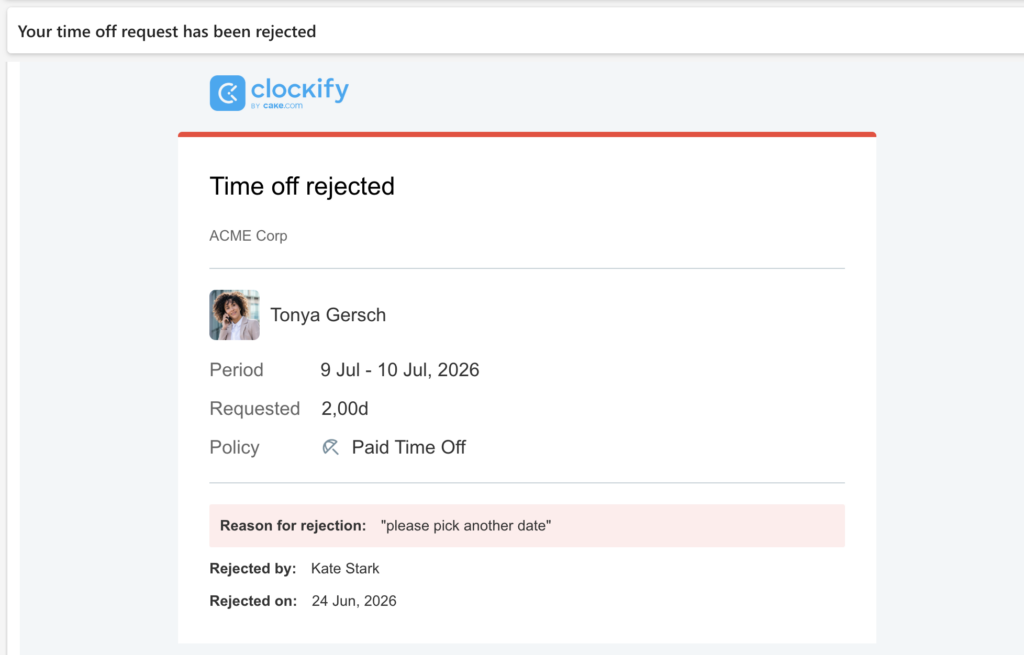
User’s email
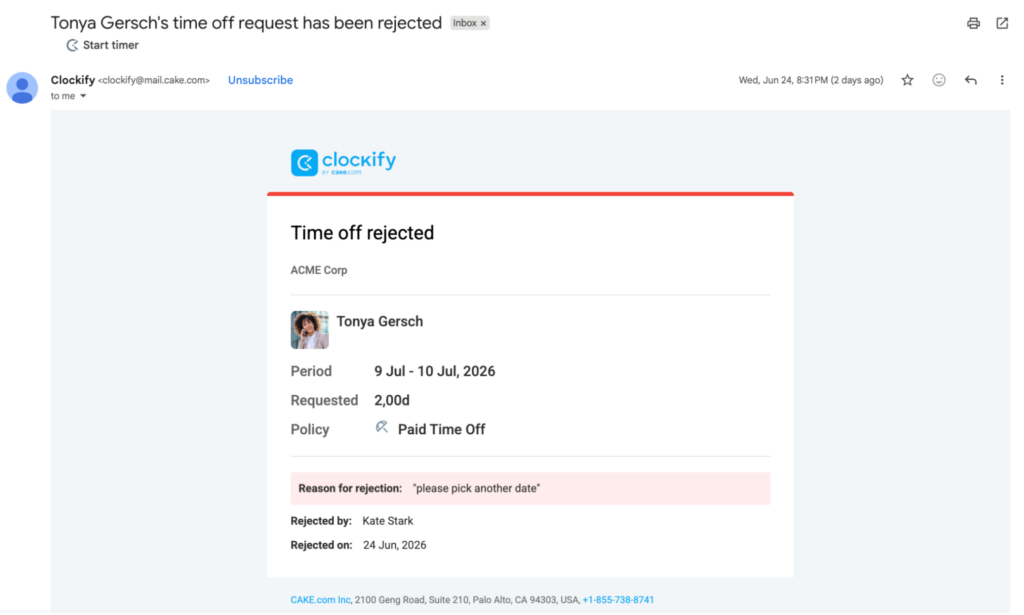
Approver’s email
Workspace activity notifications
These are in-app notifications (visible on the bell icon in your Clockify dashboard) that let you know of important changes in the workspace, such as enabling screenshots or GPS.
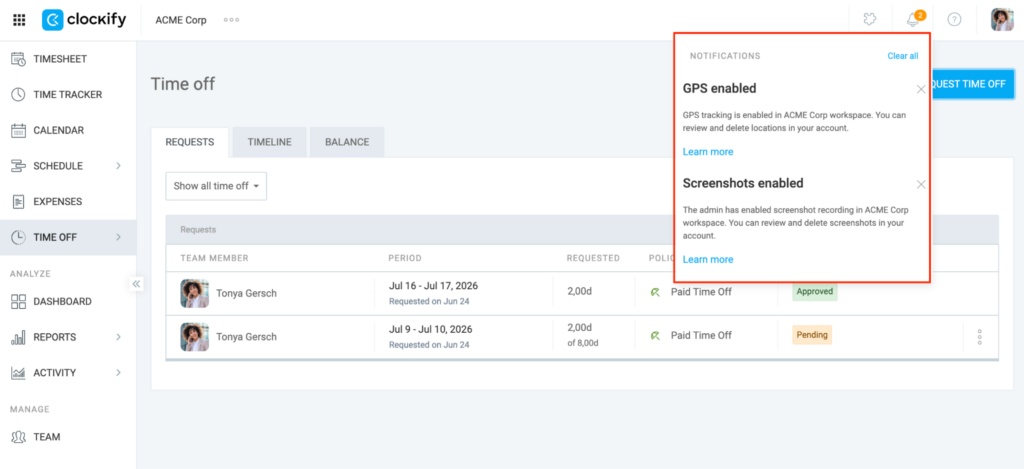
These notifications include links to articles where users can learn more about the feature/workspace update.
FAQs #
Can I receive notifications on my mobile device instead of via email?
Yes, you can receive push notifications directly on your smartphone by downloading the Clockify app for iOS or Android.
Why am I not receiving email notifications even though they are enabled?
If you aren’t receiving expected emails, first check your spam or junk folders to ensure Clockify messages aren’t being filtered out. Additionally, verify that your workspace role grants you the right to receive those specific alerts, such as being the designated manager for a user’s time off policy.
Is it possible to get Clockify notifications in Slack or Microsoft Teams?
Clockify does not natively send standard timesheet or time off notifications directly to Slack or Microsoft Teams. However, you can connect Clockify to your preferred communication channels using third-party automation platforms like Zapier.
How do I unsubscribe from Clockify’s mailing list?
You can unsubscribe from Clockify’s automated emails by clicking Unsubscribe located at the bottom of any notification email you receive. Alternatively, you can manually disable these alerts by navigating to your Profile settings, selecting Preferences, and unchecking the boxes under the Email Notifications tab.