Unable to add a team member
If you’re trying to invite someone to your workspace and the Send Invite button is unresponsive or greyed out, here are a few things to check.
The invite button is unclickable #
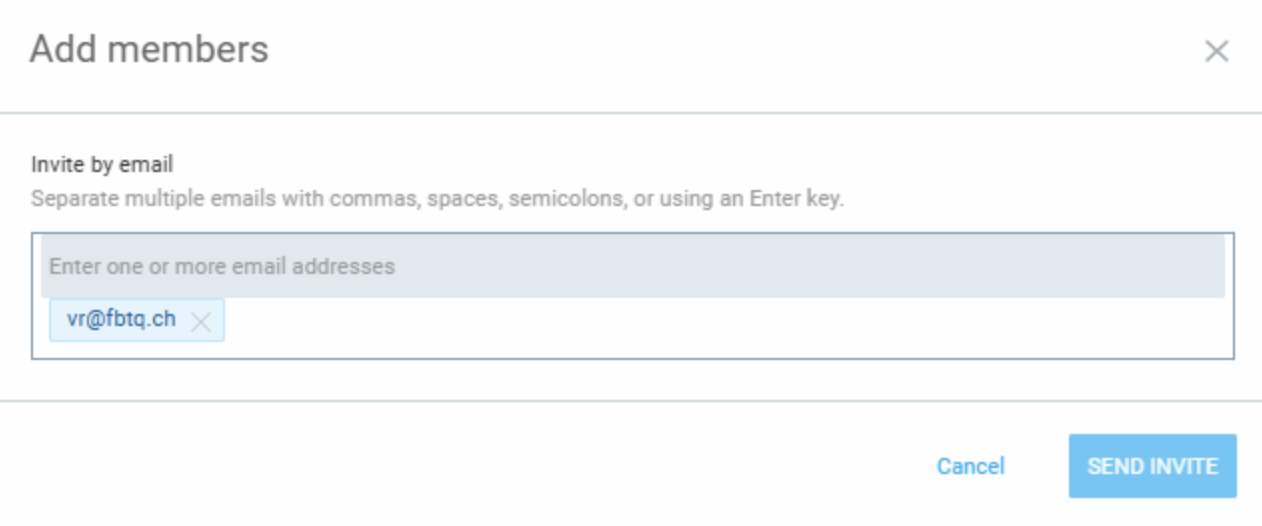
If the Send Invite button is not working:
- Try using an incognito/private window
- Try a different browser if you have access to it
- Clear your browser cache and cookies
You may not have enough available seats #
If you are currently using a paid plan, you might not have enough seats available. If that’s the case, after attempting to invite the user, you’ll get a message informing you that you do not have enough seats left. You need to purchase additional seats to be able to invite additional team members in the workspace.
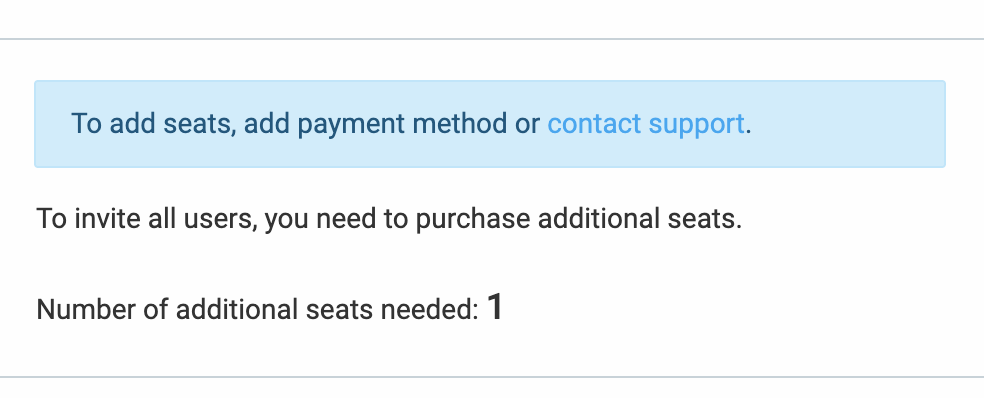
To purchase additional seats:
- Click on the three dots next to your workspace name
- Click “Subscription”
- Click on the “Add” button next to the seat count
- Enter how many seats you wish to purchase and proceed
Seats will automatically become available for use, allowing you to invite new members.
You’re trying to invite too many people at once (FREE Plan) #
To prevent spam and system abuse, you can only invite up to 5 users at a time on a free plan.
- If you’ve entered more than 5 email addresses, the Send Invite button will be disabled
- Break the list into smaller groups and send the invites in batches
On a free plan, you can only have up to 5 active members in the workspace, including the workspace owner. Here’s how you can update your workspace to be able to invite team members:
- Delete pending invites: Check if you have pending invites since they are also counted as active members.
- Deactivate users: If you have users that are no longer active in the workspace, deactivate them to free up a seat in the workspace.
- Upgrade subscription: Consider upgrading to a paid subscription plan to accommodate more team members in the workspace.
Still having issues? The Clockify Support Team will be happy to look into it and assist you further. Please contact us at support@clockify.me and include the following details:
- A screenshot of the invite screen
- Your browser and browser version
- Your current subscription plan