Understanding project estimates, budgets, and alerts
Clockify gives you multiple ways to track progress and stay informed through time estimates, budget estimates, and alerts. These features can help you make informed decisions to ensure that the project has enough support and that the amount of work is billed correctly to the client. This article will guide you through how these features work.
Time estimate vs. Budget estimate #
Clockify allows you to track a project’s progress using two types of estimates: time estimates and budget estimates.
- A time estimate refers to the number of hours you expect to spend on a project. It’s based purely on tracked time entries and is ideal when you’re managing internal workload, capacity, or effort.
- A budget estimate refers to the monetary value you expect to bill for a project. It depends on having hourly rates set up, either at the project or task level.
Check your project settings #
To see what type of estimate is tracked in a project:
- Go to Projects page
- Click on the project
- Go to Settings tab
- Scroll down to Project estimate
This section shows how the project estimate is configured – if it’s manual, task based, or recurring.
If you downgrade your subscription to a Free plan or if your free trial has ended, Project estimate will be set to No estimate. Upgrade your plan to regain access to this feature.
Task-level estimates also support alerts #
You can assign estimates and alerts to tasks, not just full projects. This allows you to see which task is taking up the estimate.
You can notify:
- Task assignees
- Project Manager
- Workspace admin
Only one role can be selected per alert rule, but you can create multiple rules to notify several roles.
Estimate progress bars can exceed 100% #
Clockify will continue to keep track of your time and budget even if it goes beyond the estimate. When this happens, the project progress bar will go past 100% to reflect overage.
- 125% = 25% over the estimate
- This behavior is intentional and helps you measure how much you’ve exceeded
Recurring budgets reset automatically #
If you’ve set a weekly, monthly, or yearly recurring estimate, Clockify resets the budget automatically at the end of each cycle based on the project’s start date.
What this means:
- Budgets don’t disappear; they just start fresh for the new period
- Project status only shows progress for the current cycle
How to preserve historical data #
Export the project information before the reset date:
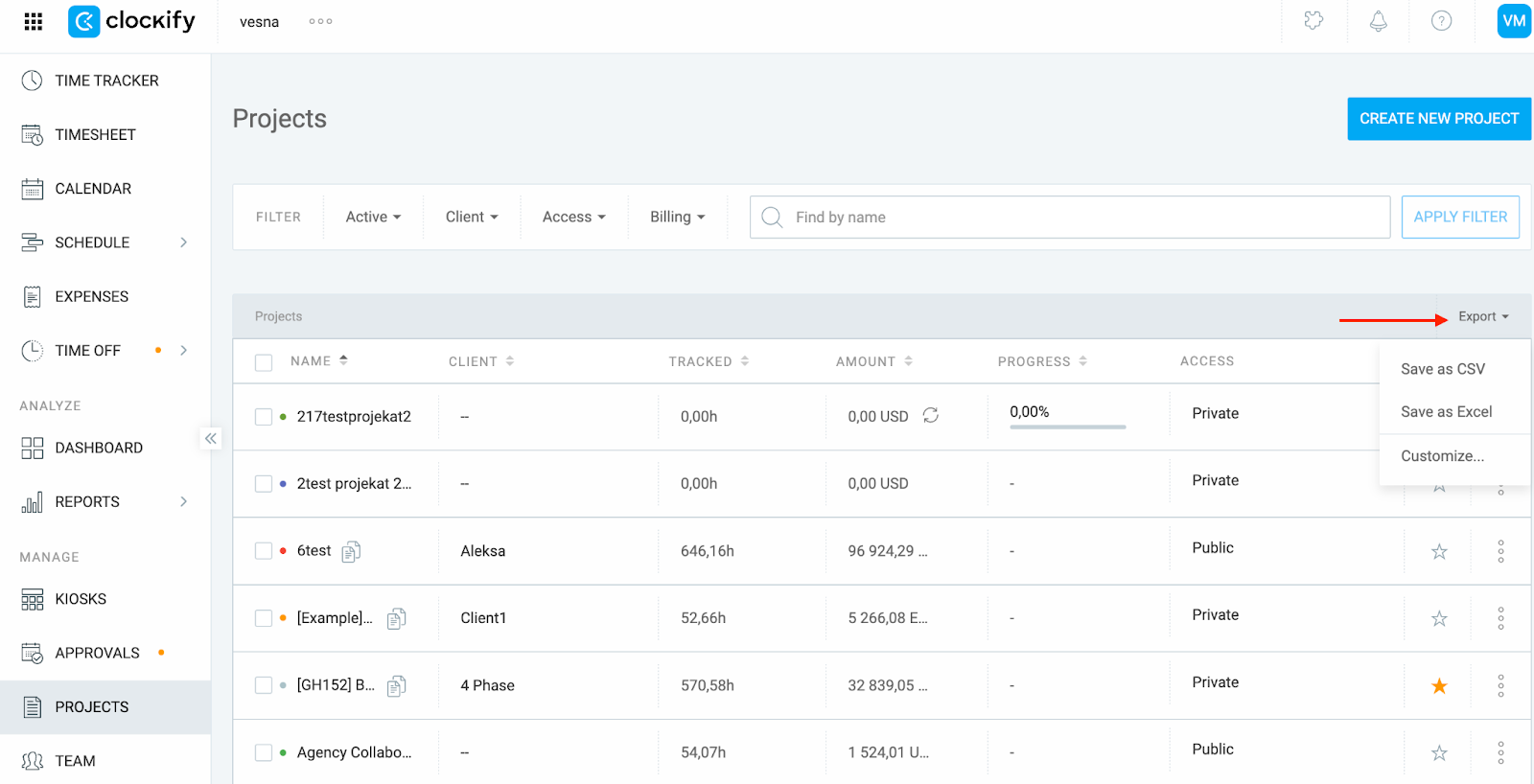
- Go to the Projects page
- Click Export (CSV or Excel)
- Save the file
The export includes tracked time, budget, estimate, overage, progress, and other information about the project. This serves as a backup or a reference if you want to compare performance across periods.
Alerts may not trigger if not configured at that threshold #
Estimate alerts are only sent for thresholds that are explicitly defined in the workspace.
Example:
If you set an alert only at 80% and not at 100%, you won’t receive anything when the estimate is fully reached.
Set alerts at all relevant thresholds #
Create an alert for each threshold you want to monitor in the project:
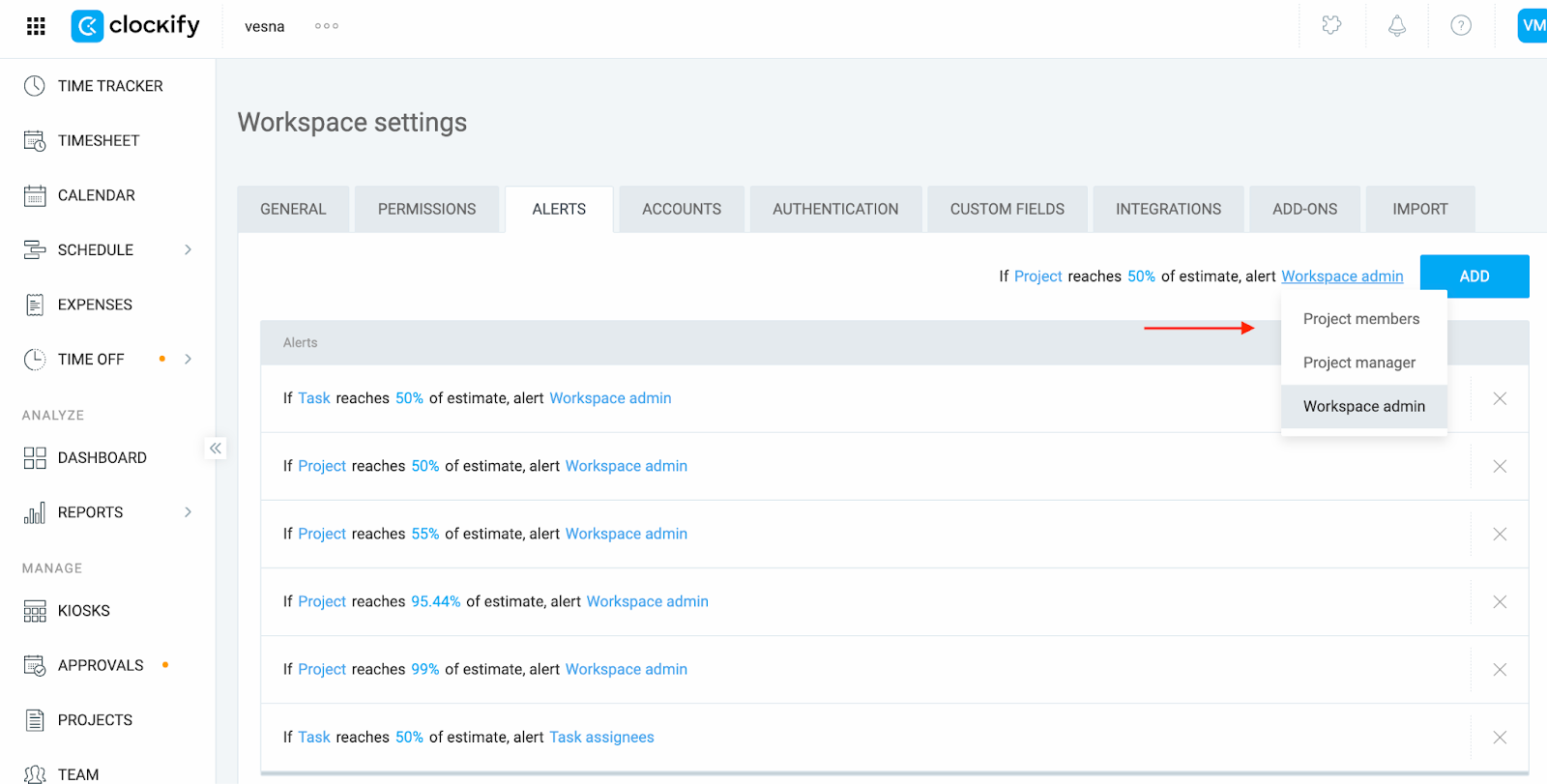
- Go to Workspace Settings
- Go to Alerts tab
- Click Add and change the estimate value
Repeat the last step to create alerts at all relevant thresholds (e.g., 50%, 80%, 100%).
Estimate alerts are only sent once per threshold #
You’ll receive one alert per threshold (e.g., 80%, 100%). If the progress jumps over multiple thresholds at once (e.g., from 75% to 95%), only the highest one will trigger an alert.
An alert for a threshold will only trigger again if the project estimate drops below that value and then crosses it again.
Alerts are not retroactive #
If you create or edit an alert rule after a threshold is already passed, Clockify will not trigger the alert retroactively.
Clockify doesn’t block tracking beyond estimates #
Estimates are for informational purposes only. Clockify will not automatically prevent time tracking on those projects once an estimate or a budget is used up.
What you can do instead:
- Set up alerts to notify when the estimate is near or exceeded
- Use the Projects > Status page to view the current status
- Create clear internal guidelines for stopping work manually
Optional control method:
Once the project reaches its estimate or a budget limit, an Admin or a Project Manager can:
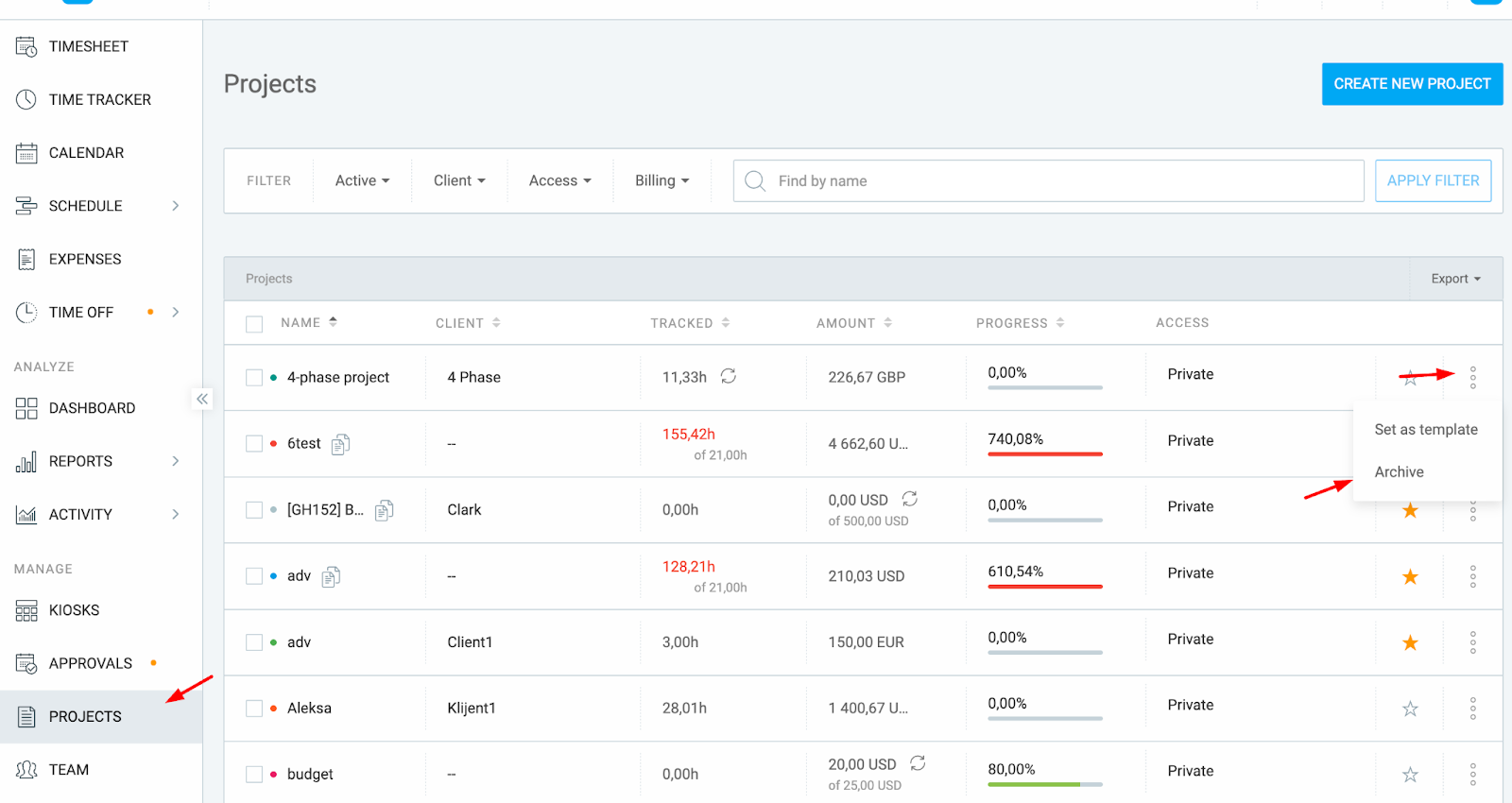
- Go to the Projects page
- Click on the project
- Click Archive
This will prevent team members from tracking additional time on that project, effectively enforcing a soft stop.