Time off balance
Clockify gives you the flexibility to define how and when your team uses their time off.
Update your time off policy to have full control of time of balance and improve time off management of your team.
Edit time off policy #
To edit time off policy:
- Go to the Time off page and click Settings
- Choose Manage policies
- Choose policy and click Edit from the three-dot menu next to your policy
- Update the following settings:
– Balance expiry: Has expiration date or Never expires
– Automatic accrual: How and when new days are added
– Negative balance: Enable negative balance and set maximum limit
– Reset rules: Set if/when negative balance automatically resets to zero - Save changes
Set policy expiration #
You can define if the balance for a specific time off policy expires or never expires. This setting affects all users under that policy.
- Go to Time off page and open Manage policies in Settings
- Click Edit next to the policy you want to change
- Go to the Balance expiry section and choose one of two options:
- Never expires (default)
- Has expiry dates
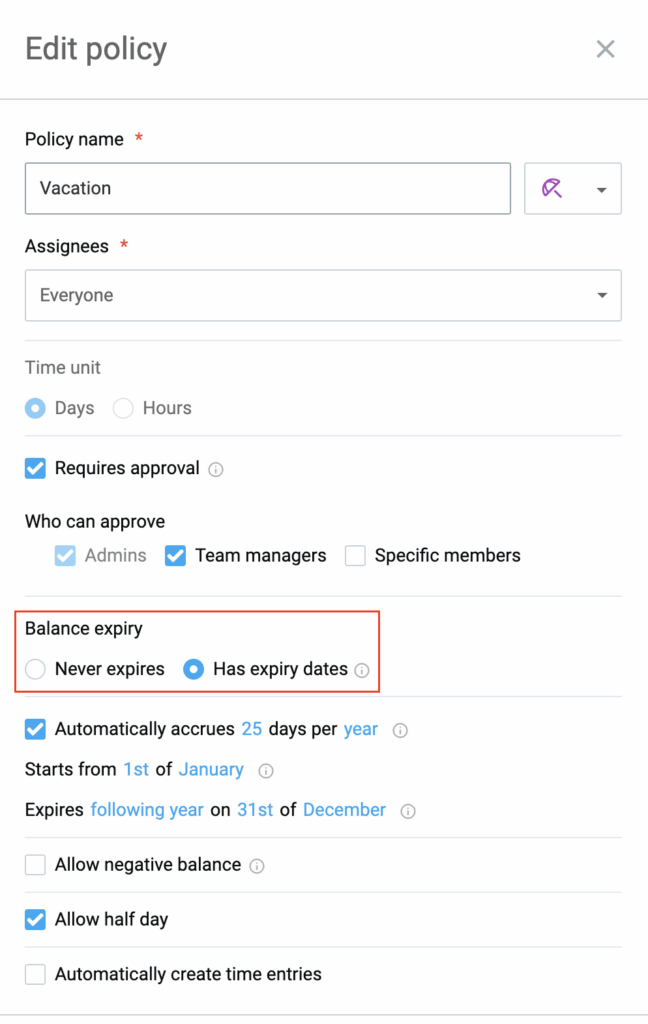
The balance that Never expires doesn’t have an expiry date and start/end date.
If you choose Has expiry dates, all future accruals and balances for this policy require a defined start and end date.
When changing policies you switch from Has expiry dates to Never expires, all existing dates will be removed.
If you switch to Has expiry dates, all existing balances will automatically be given a start date of today and future balance additions will require defined dates.
Choose right expiry date #
Choose an expiry date for time off balances based on your company’s policy, give employees clear deadlines for using their time and reduce unused paid time off.
You can set Never expires for permanent balances (e.g. sick leave) or Has expiry dates for time-limited balance (e.g. annual vacation).
| Option | Use case | Benefit |
| Never expires (default) | Sick leave, religious holidays, permanent leave types | Simplifies managing specific end dates for balances that don’t expire |
| Has expiry date | Annual vacation, fiscal year leave, time-limited perks | Encourages employees to take breaks and prevents large accrual payouts |
Allow negative balance #
If you allow negative balance, all workspace members will be able to request time off even if they don’t have enough available hours/days (e.g. for Sick leave).
To allow negative balance:
- Go to Time off page and open Manage policies in Settings
- Click Edit next to the policy you want to change
- Check Allow negative balance option
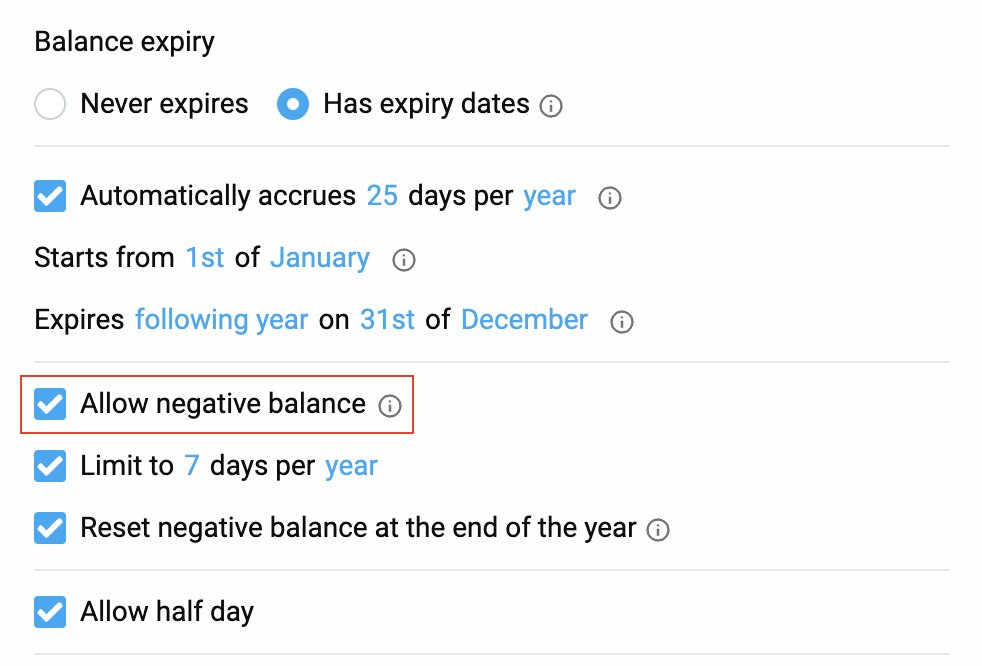
- Limit the number of days that user can request within a specific period
- Choose to Reset negative balance at the end of the year to automatically clear all negative time off and return balances to 0 at the end of the year
By resetting negative balance, you’ll clear all negative days without affecting any time off days that the employee has earned.
Manage individual user balance #
Owners and admins can apply a specific validity period (start and end date) to any user’s balance. This way users request time off during a specific timeframe. Once that period ends, the balance will expire and be automatically removed.
To add/edit user’s balance:
- Go to the Time off page and open the Balance tab
- Choose policy and select User from the dropdown to display team members
- Click Manage balance (or Add next to the user’s name)
- In the popup, enter the number of days, define the timeline (start and end dates) and add any optional notes
- Click Add to save changes
In the Balance tab, owners and admins can see all balance components in one place, including any remaining separate negative balance.
Bulk add balances #
You can add balances to multiple users on a single policy at once:
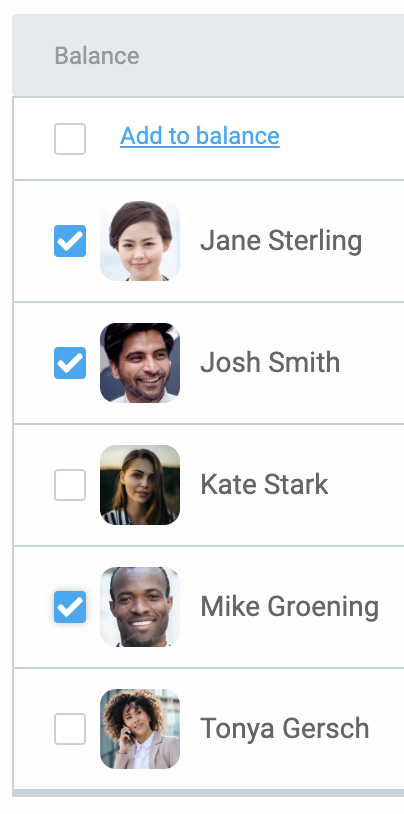
- On the Balance tab, check the box next to each team member you want to edit
- Click Add to balance
- Enter number of days and timeframe and click Add to complete the process
Important to remember #
When a user requests time off, Clockify always deducts days from the balance that is expiring the soonest. You can view a user’s balance history by selecting History next to their name.
You’ll receive an email with validity period details when your balance is updated.