Bulk activate or deactivate team members
Use the bulk management tools on the Team page to activate or deactivate multiple team members.
Permissions #
Both owners and admins can use the bulk activate and deactivate features, but there are a few important distinctions:
- Owners can activate or deactivate anyone in the workspace
- Admins can bulk manage all regular roles (Team Members, Project Managers, etc.)
- Admins cannot manage owners or other admins
How to bulk activate users #
If your workspace was recently downgraded to the Free plan (which automatically limits your active team to the Owner and the 4 oldest active users), you can quickly reactivate your team once you upgrade again.
- Go to the Team page
- Check the box next to the names of the deactivated users you want to reactivate
- Click the Activate button that appears at the top of the list
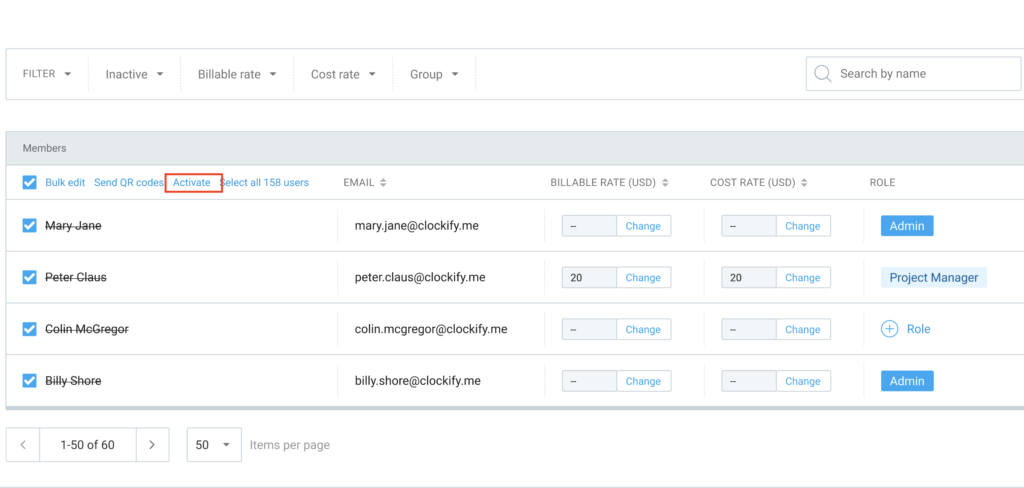
You must only select currently inactive users. The Activate button will not appear if your selection includes a mix of active and inactive statuses.
How to bulk deactivate users #
Deactivating users in bulk is a quick way to free up seats or manage your workspace after a project ends.
- Go to the Team page
- Check the box next to the names of the active users you want to deactivate
- Click the Deactivate button that appears at the top of the list
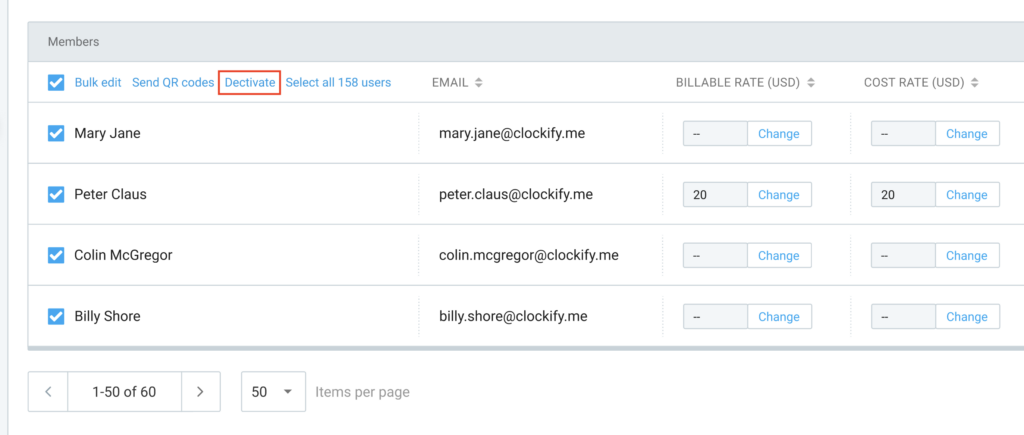
To see the Deactivate option, you must only select currently active users. If you select a mix of active and inactive users, the bulk action buttons will be hidden.
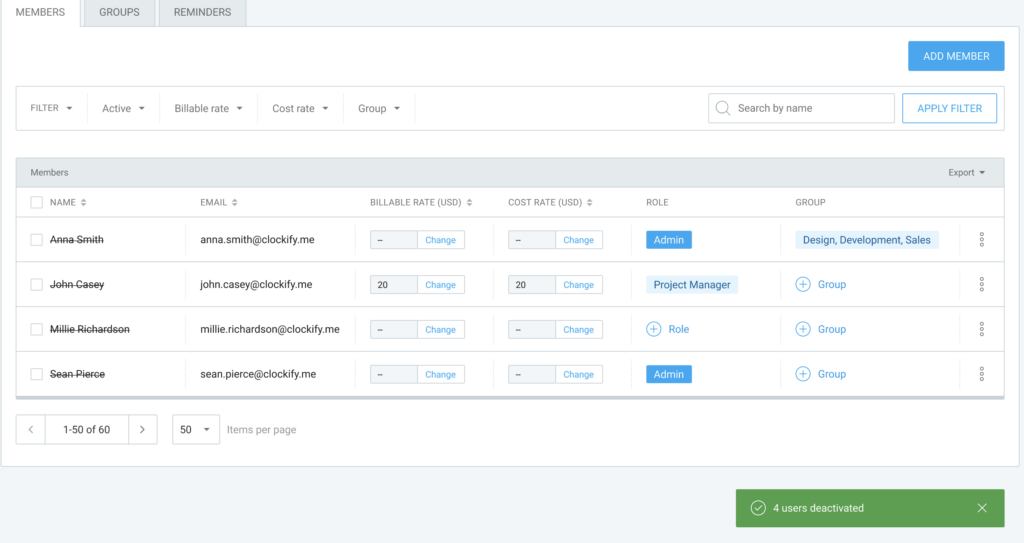
After deactivating users, they will remain visible on your screen regardless of your current filters. This allows you to review your changes before refreshing or navigating away from the page.
Billing and seat requirements #
Activating multiple users at once may affect your billing, depending on your current plan and available seats. Here is what to expect when you click Activate:
| Scenario | What Happens |
| You are on the Free plan | You can activate users up to the Free plan limit (5 total active users, including the owner). |
| You have enough paid empty seats | The users will be activated immediately. |
| You don’t have enough paid seats | You will be prompted to purchase the exact number of additional seats needed to cover the activation. |
| You are missing a payment method (but have empty seats) | The users will be activated immediately using your available empty seats. |
| You are missing a payment method (and need more seats) | You will be prompted to add your payment information or contact support before proceeding. |
| You have an unpaid invoice (and need more seats) | The activation will be blocked. You will see an explanation and a link to review and pay your unpaid invoices. |
These same billing rules apply if you are activating a single user via the three-dot menu next to their name.