Monitoring filters and retention limits
To display data at the exact level of detail that you need for analysis, you can use the available filter options. You can filter data from a workspace level or drill down to an individual member or specific application.
Filter productivity rules #
When you navigate to Activity Monitoring and click Productivity under the Manage section, there are three tabs that display the data depending on the scope where the productivity rule is applied to: Workspace rules, Group rules, and Member rules.
- Workspace rules: Displays data across the entire workspace.
- Group rules: Displays data for a specific team or group. Use the dropdown list to select the specific team.

- Member rules: Displays data for an individual member. Use the search field to locate the specific member.

Check Classify apps and websites for a step-by-step guide on how to configure your productivity rules and learn how conflicting rules are resolved by the system.
Filter date range #
You can adjust the date range whenever you view an analytics page to modify the timeframe of the displayed data.
To do this:
- Click the current date range on the upper-right corner to open the calendar
- Select from preset date ranges (Yesterday, This week, This month, etc.) or set a start and end date to further customize your data
- Click Apply
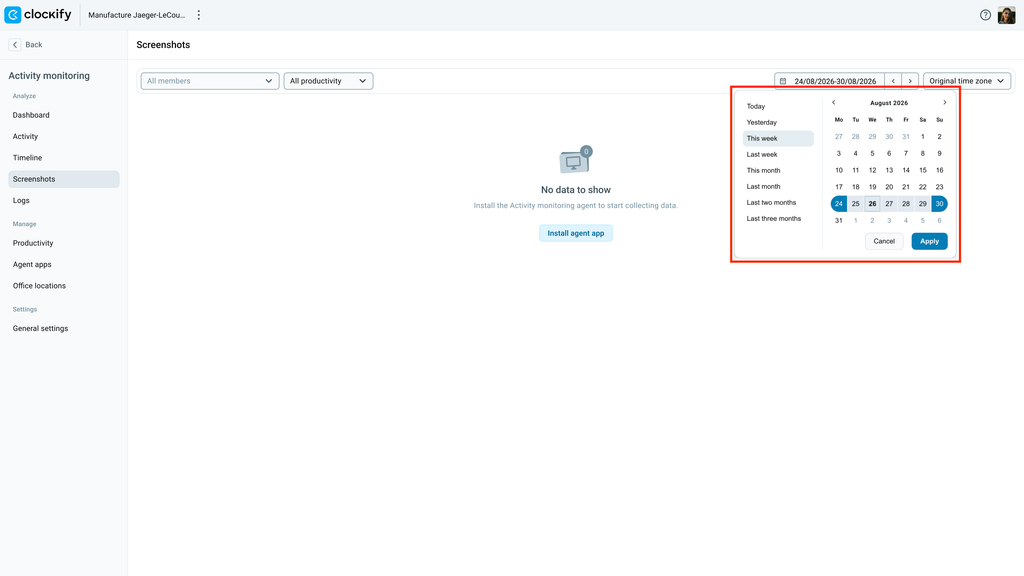
The system stores the following data for a limited period of time.
- Screenshots: Data is stored up to 60 days. If you select a date range beyond 2 months, single/bulk previews will be empty and you will be prompted to select a shorter timeframe.
- Activity logs: Data is stored up to 90 days. If you select a date range beyond 3 months, the result will be empty due to this limit.
FAQs #
Why am I seeing an empty state when selecting historical dates?
Monitoring data is stored for a limited period of time in the system: screenshots are kept for up to 60 days while activity logs are accessible for up to 90 days. Make sure to select a timeframe within these limits.
How do I view data for employees who have left the company?
If you wish to view data for inactive members, go to the Members tab and search for the member’s name to display their recorded data.