Set up alerts & reminders for your Workspace members
Alerts and reminders help you monitor project progress and help your team track their time accurately.
Alerts and reminders #
Alerts and reminders are types of notifications you can set up in your workspace settings. Here’s how they differ:
- Alerts (Projects) are used to notify team members when a specific project reaches a certain percentage of its estimated time or budget.
- Reminders are used to notify team members if they haven’t logged their target number of hours, or if they have logged too much time.
Permissions #
Each workspace role has specific permissions regarding the creation of alerts.
| Role | Permission |
| Admin | Can create project alerts |
| Project Manager | Can receive alerts if set to receive notifications for their projects |
| Team Manager | Can receive alerts for their team’s progress Can be notified if team members exceed or miss their time tracking targets |
Alerts apply only to projects that have an estimate (time or budget).
Set up project alerts #
Project alerts notify you when a project reaches a certain percentage of its estimated time or budget.
If you have a project estimated to take 100 hours and you want to be notified before it goes over the estimated time, you can set an alert for when the project is 80% completed. When the team tracks 80 hours on that project, Clockify will automatically email the selected recipients so they can take action before the limit is reached.
Project estimates used for alerts will not include non-billable time if you choose to exclude it. This means the excluded time will not contribute to the targeted time setting for the alert.
To set up project alerts:
1. Open Projects on the side bar
2. Click the alerts icon
3. Choose if you want alerts for Projects or Tasks, and specify the percentage of estimated time at which the alert should trigger
4. Select who should receive the alerts:
- Project managers (for their projects)
- Project Members (for project alerts)
- Workspace Admin (all admins)
5. Click Add to save the alert.
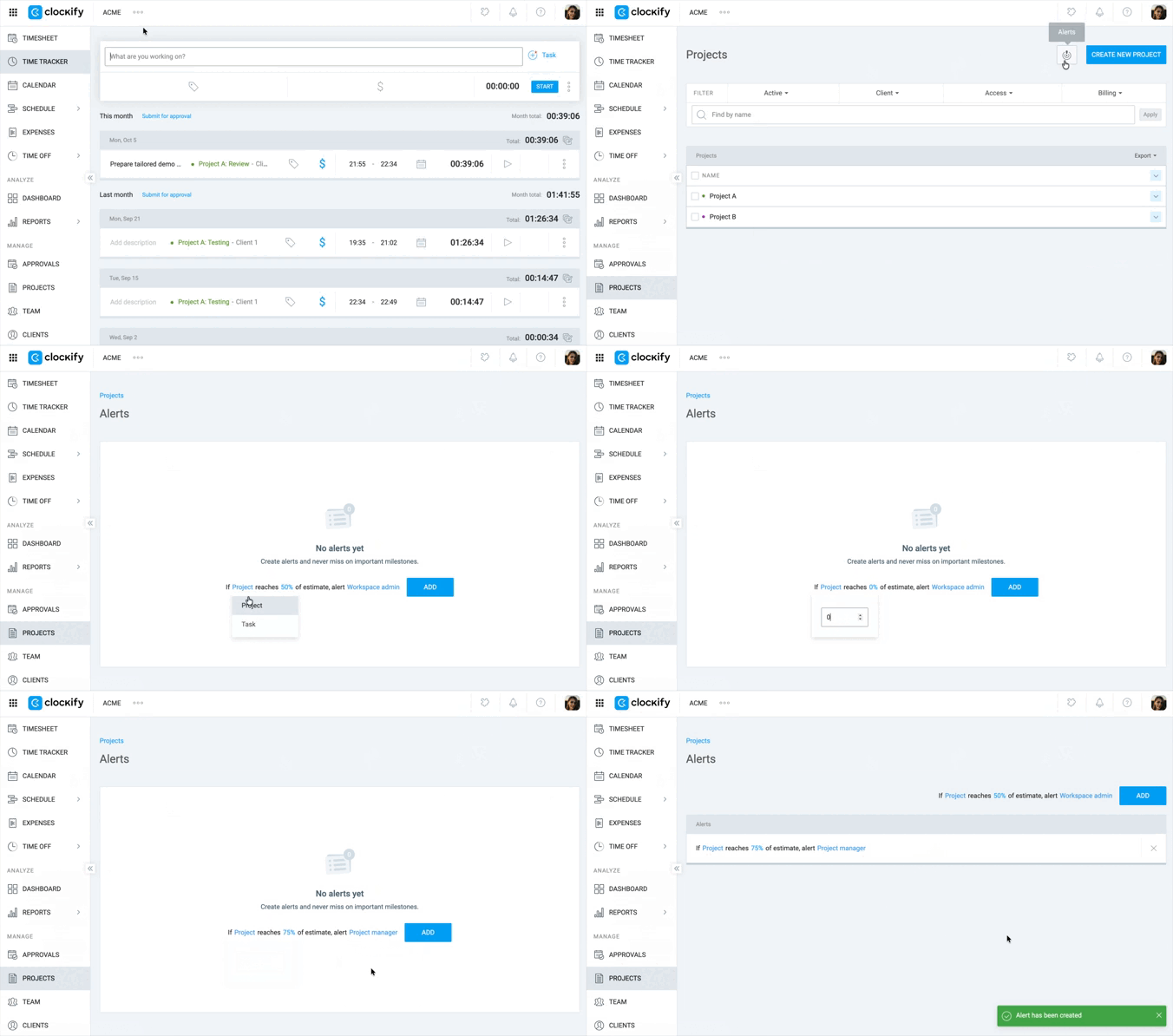
Alerts are generated at the 30-minute mark of each hour.
Remove alerts #
To delete an alert:
- Click the X next to the alert you want to delete
- Select Delete
Set up time tracking alerts & reminders #
You can set time tracking targets for your team (daily, weekly, or monthly) and automatically remind them to log their hours via email if they miss their targets or log too many hours.
Based on their configuration, reminders can be divided in three different ways:
- Daily reminder: Sent the next day if targets aren’t met
- Weekly reminder: Sent on the first day of the next week
- Monthly reminder: Sent on the first day of the next month
To set up Timesheet reminders:
- Go to the Team page
- Click on the Reminders tab
- Set your reminder rules:
- Team members (individual or group)
- More or Less than the target number of hours
- Target number of hours
- Select Daily/Weekly/Monthly basis
- Select to send reminders to one or all of the following:
- Team members
- Team managers
- Admins
- Click Add to save the reminder
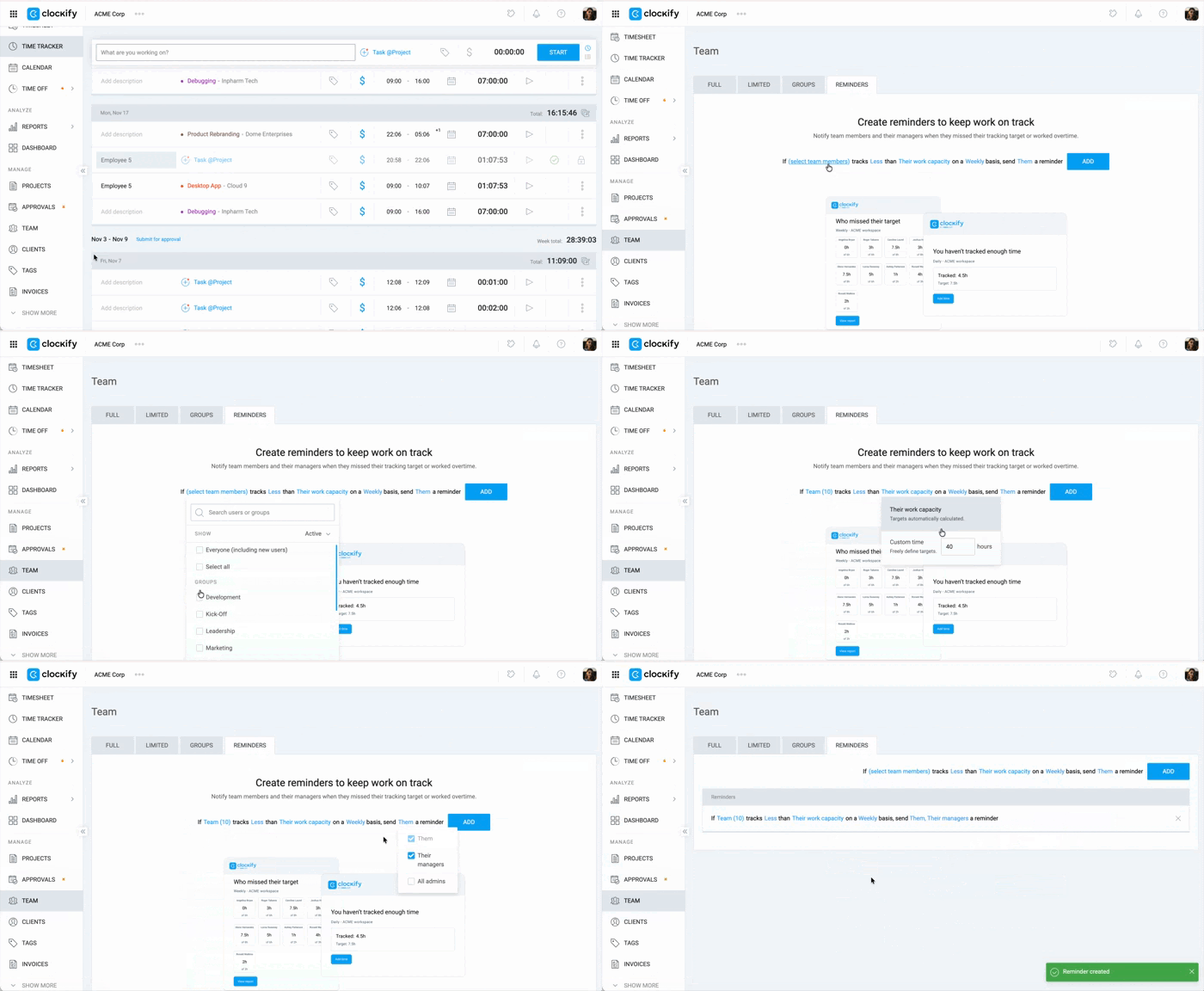
Team members will not receive reminders if they are on time off or a holiday.
You can set multiple reminders for each user (e.g. 7 hours per day, 40 hours per week, 150 hours per month)
Email notifications for Managers & Admins #
Managers and admins can receive daily, weekly, or monthly emails about team members who missed their time targets or logged more than the target.
How to receive email notifications:
- Click on the Them section of your reminder
- Select who should receive the email notifications:
- Admins: All admins will receive emails
- Team managers: Only for their own team members
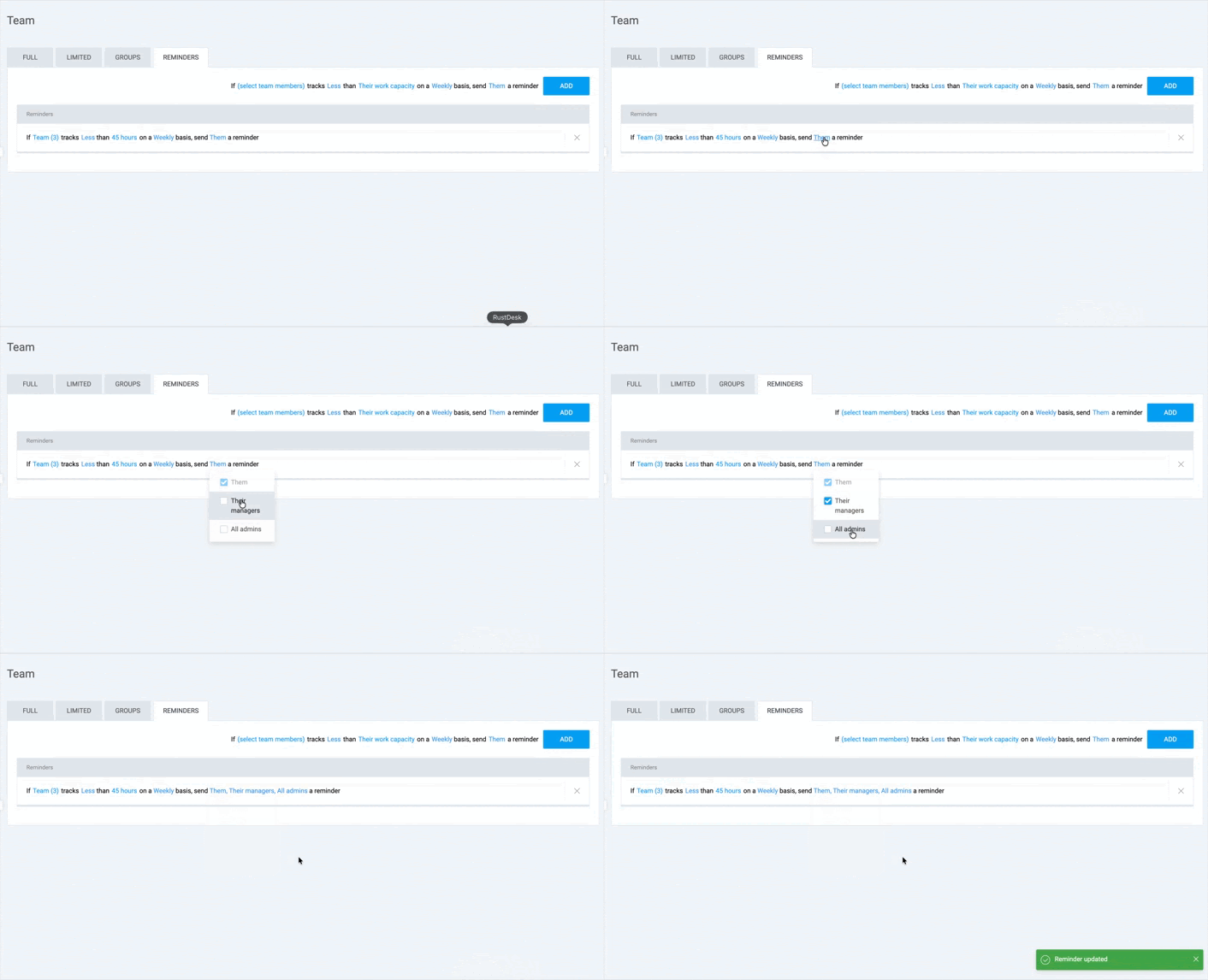
Admins and managers will receive email summaries according to their personal Day Start and Timezone settings. The email will list everyone who has either missed or exceeded their target hours.
Edit or remove reminders #
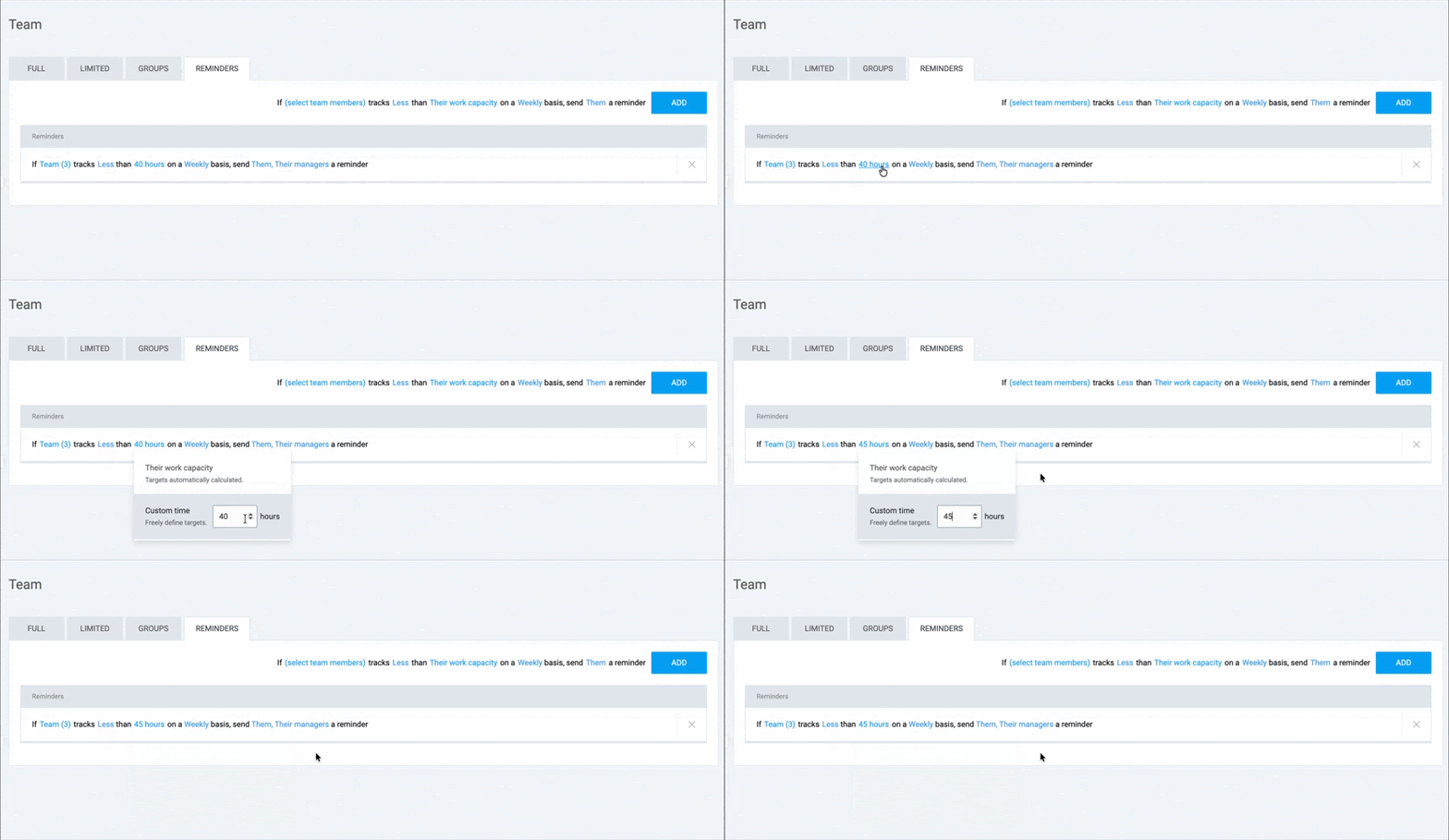
You can update existing reminders if you need to change the target hours or adjust the recipients.
To edit reminders:
- Go to the Reminders tab
- Click on the highlighted section (e.g. users, hours, etc.) to make adjustments
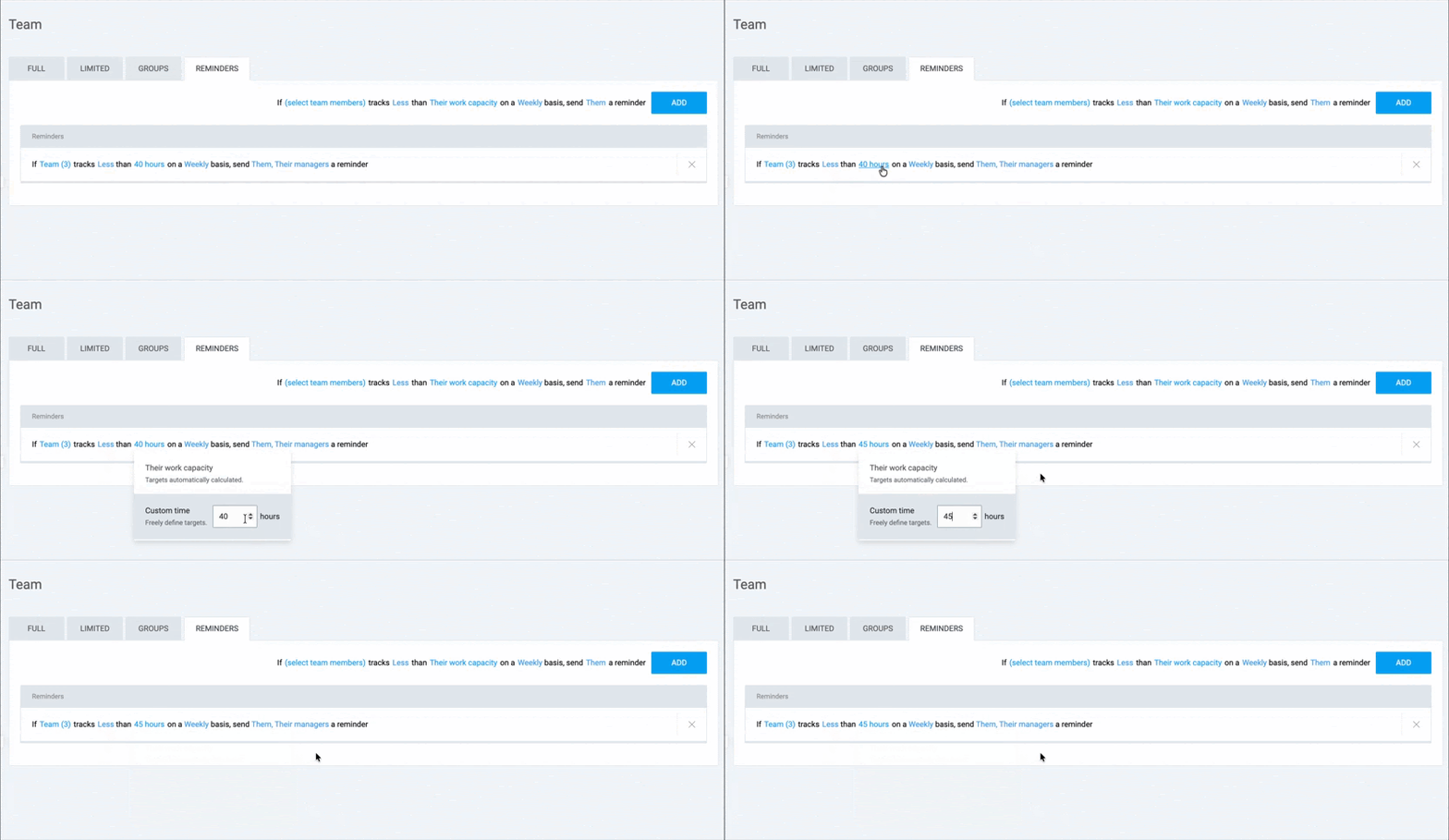
To remove a reminder:
- Click the X next to the reminder you want to delete
- Click Delete on the pop-up window
FAQs #
Can I receive an alert for both time estimates and expenses?
Yes, you can set alerts for both time and expenses, as long as the project has estimates for these.
Can reminders be set for more than one user at once?
Yes, you can allocate users to user groups and apply reminders to the whole group at once.