Clock in and out via kiosk
The kiosk is launched on a shared device so users can clock in and track their activities. Only assigned users can clock in the kiosk.
Clock in / clock out #
There are two ways to clock in the kiosk depending on the authentication method enabled by your Workspace owner/admin in the workspace.
Clock in via QR code #
To log in to kiosk via QR code:
- Open your kiosk app
- Choose Scan QR code
- Scan your personal QR code (sent via email)
After you scan it, you’ll be able to clock in to kiosk.
If QR fails, you can use your 6-digit PIN as a fallback.
Clock in via PIN (4- or 6-digit) #
To log in to kiosk via PIN code:
- Launch kiosk
- Choose your profile
- Enter your personal PIN
- Click Clock in
If you can’t remember your PIN, click the Forgot your PIN? link and confirm the action. This will notify the owner/admin to reset the member PIN.
People who are clocked-in will have a green dot next to them on the kiosk list.
To see who’s currently clocked-in in the web app, go to the team Dashboard.
To end the shift, follow the same steps and click Clock out.
Keep in mind that if you don’t clock out, your timer will continue running even after the Kiosk locks automatically. If this happens, contact your admin to stop your timer.
Track activities #
Once logged in the kiosk, you can now start tracking your tasks and activities.
Choose project/task #
To choose a project or task:
- Navigate to the launched kiosk
- Tap Choose project button
- You’ll get a list of all projects/tasks
- Tap to clock in to a project, or expand and choose a specific task
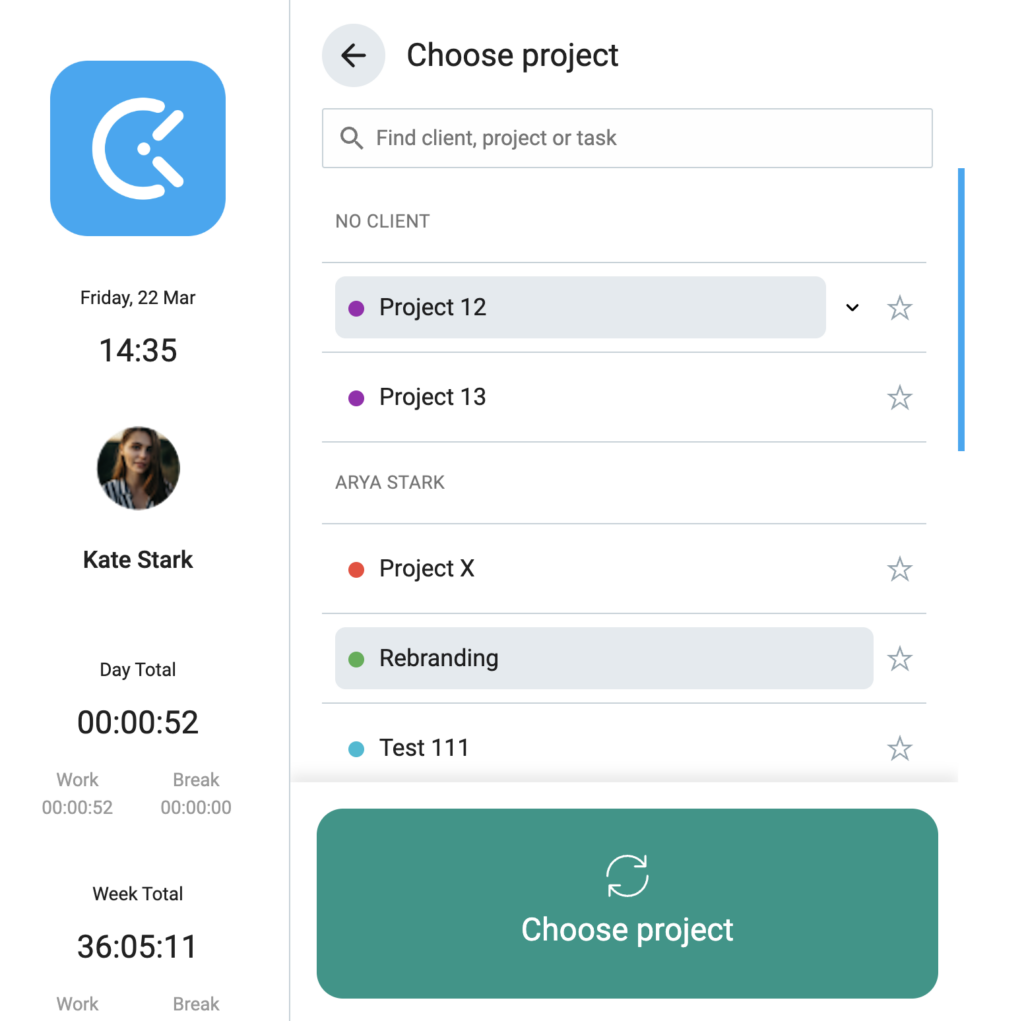
Any modifications made to projects or tasks on the kiosk will also be reflected on the web app.
Switch between project/task #
If enabled in the workspace, you can switch from the default project to a different project or task while clocked in the kiosk.
To switch project/task:
- Open the project list
- Pick new project/task
- Tap Switch
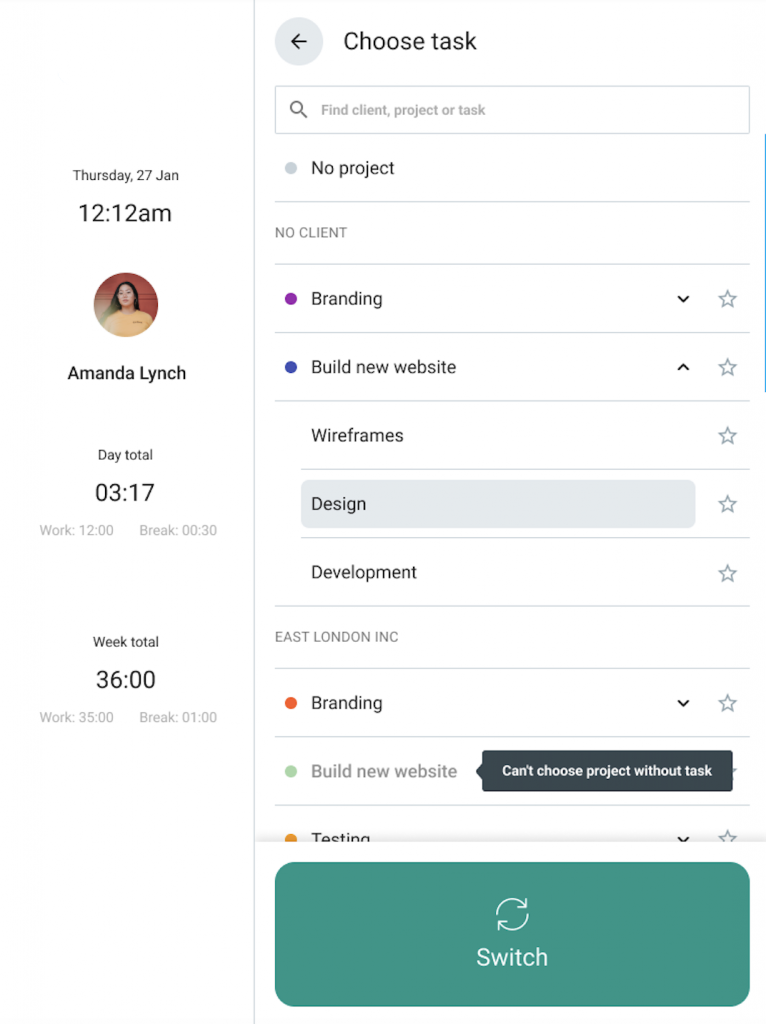
Switching to a different project or task will stop the current time entry and start a new one.
If the Breaks feature is enabled in your workspace, you can start a break when you sign into the kiosk.
All the changes made here in the kiosk are synced to your main Clockify workspace.