Lock timesheets
Locking timesheets prevents team members from adding new time entries or editing old ones for a specific period.
This is a paid feature available on Standard, Pro, and Enterprise plans.
Permissions #
When a timesheet is locked, permissions vary based on a user’s role. The table below defines who is permitted to edit timesheets and who is not after the locking process.
| Role | Affected by lock? | Can edit locked entries? |
| Regular user | Yes | No |
| Manager | Yes | No |
| Administrator | No | Yes |
| Workspace Owner | No | Yes |
Manually or automatically lock timesheets #
You can choose to manually lock time entries or set a schedule.
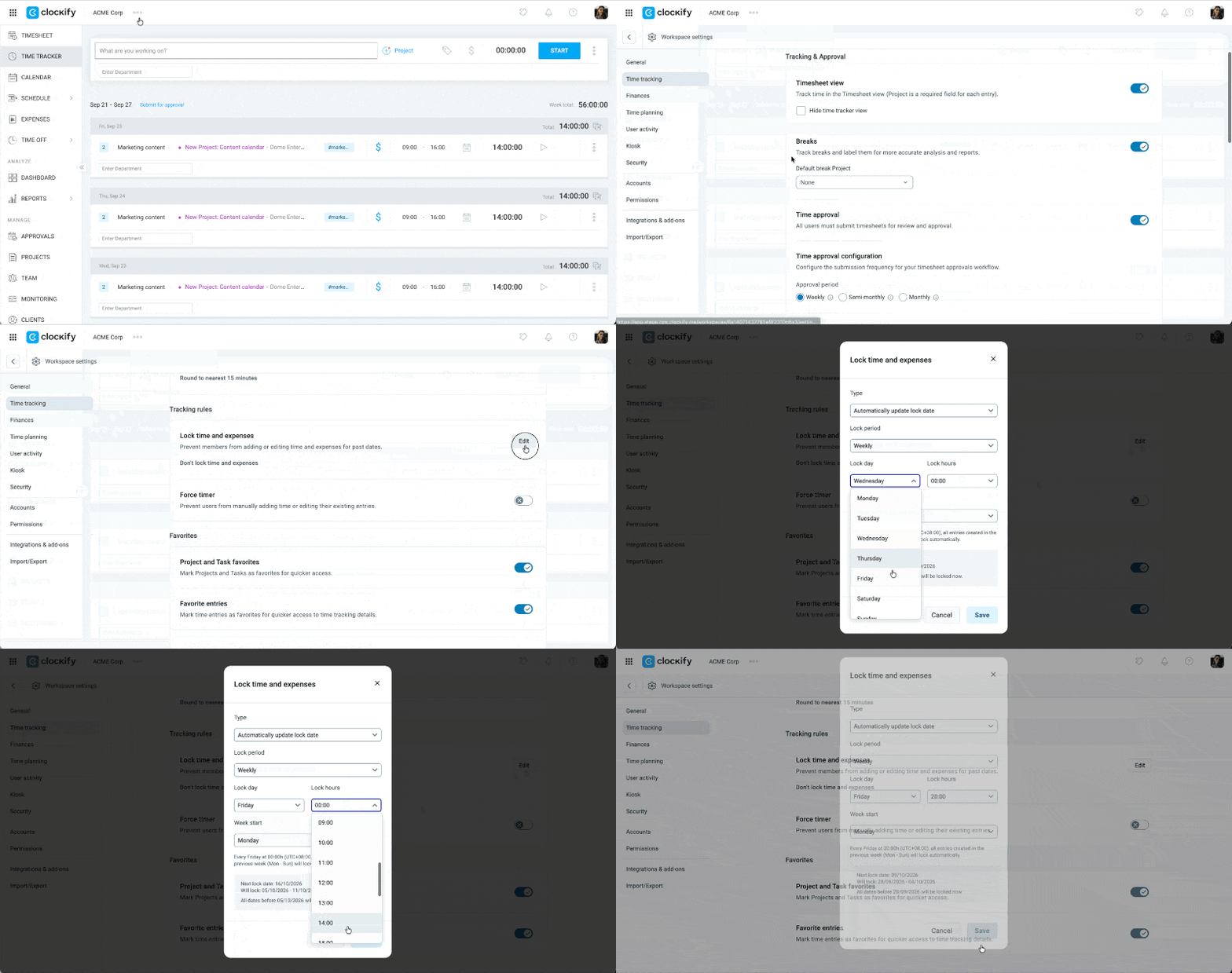
To lock time entries:
- Click on the three-dot icon next to your Workspace name
- Select Workspace settings
- Click Time tracking from the sidebar
- Click the Edit button next to Lock time and expenses
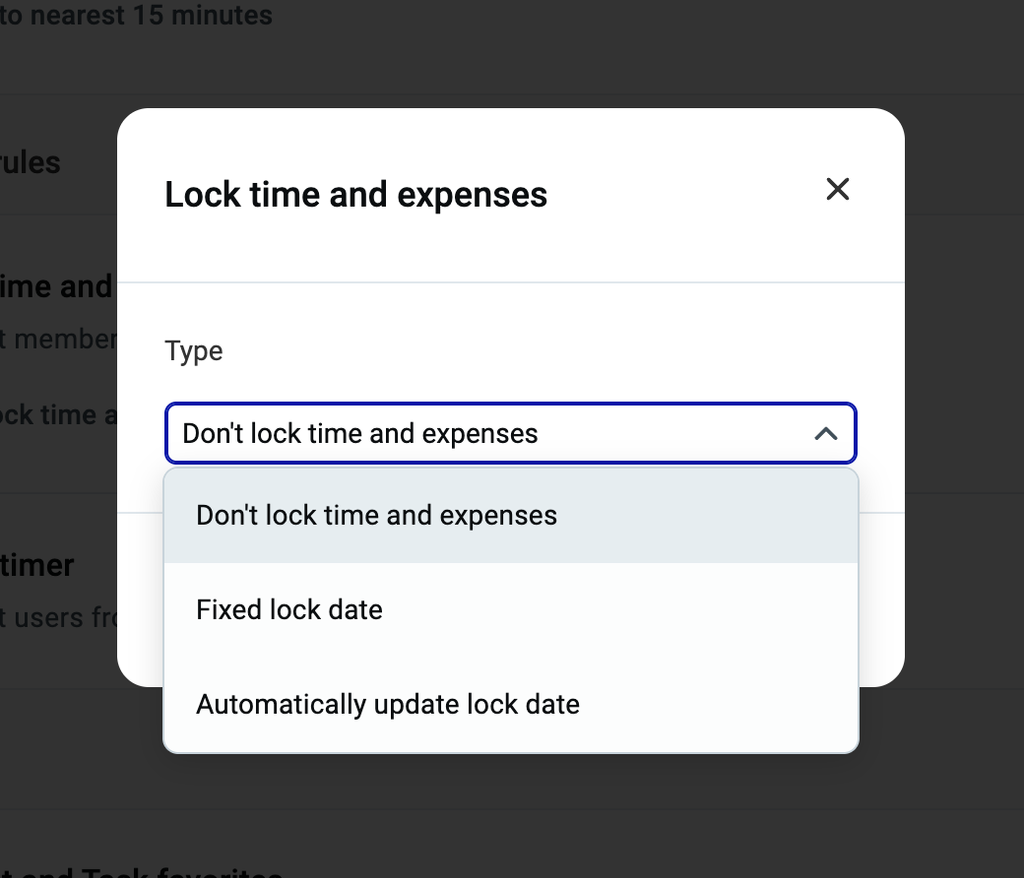
- Select the options from the drop down menu on the pop-up window:
- Don’t lock time and expenses: Leaves all time and expense entries unlocked, meaning no restrictions are placed on editing past entries.
- Fixed lock date: Allows you to choose a specific date on the calendar, immediately locking all entries made prior to that chosen date.
- Automatically update lock date: Lets you set a recurring schedule such as weekly or monthly to automatically lock previous entries on a designated day and time without manual updates.
6. Click Save
Unlock timesheets #
To unlock timesheets in your workspace:
1. Go to Workspace settings
2. Click on Time tracking
3. Click Edit next to Lock time and expenses
4. Select Don’t lock time and expenses
For teams in different time zones #
If your team works across different timezones, avoid locking on the 1st of the month.
This is to allow team members in later timezones to finish their entries for the final day of the previous month without being prematurely locked out.
We recommend setting the lock date to the 2nd of the month instead.
Lock for current day or future dates #
You cannot use the Lock feature for current or future dates.
If you want to prevent users from manually entering time for the current day, you can use another feature called Force Timer.
Lock expenses #
If you have the Expenses feature enabled, the lock date applies to both time and expenses simultaneously. Users cannot add or modify expense receipts after a timesheet has been locked.