Manage subscription & billing for your workspace
As a Workspace owner or admin, you can manage your Clockify subscription, update payment details, change your plan, and handle user seats to ensure uninterrupted access to paid features.
Only Workspace Owners and Admins have the ability to manage subscriptions and user seats.
Definition of terms #
Understanding these terms is crucial for managing your subscription:
| Term | Description | Important notes |
| User seats | Each active user in your workspace occupies a “seat.” Your bill is based on a total number of active seats, regardless of whether features are actively being used. | Deactivating a user frees up their seat and gives you the option to invite a new team member or activate an old one. Vacant seats are non-refundable once purchased and removed. |
| Full users | Team members with an email address linked to their Clockify account and can access most, but not all, workspace features. | |
| Limited users | Team members who don’t have a registered email with their Clockify account and can only clock in/out using the Kiosk. | Requires a paid subscription. |
| Bundle seats | The number of active members in the CAKE.com Productivity Suite (Clockify, Pumble, Plaky). | Applicable only if you subscribe to the CAKE.com bundle. |
Seat types #
Here’s a detailed breakdown of the difference between a user with a Full seat and a user with a Limited seat:
| Feature | Full seat | Limited seat |
| Access | Full access to the web app, timer, and personal reports | Restricted to Clock in/Clock out via a shared Kiosk |
| Time tracking | Uses timer, manual entry, and auto-tracker | Can’t use the web or mobile app to track time, but can use link to Kiosk |
Manage subscription page #
All billing-related settings are managed on the Subscription page in your Clockify workspace.
To go to Subscriptions page:
1. Click the  three-dot icon next to your workspace name
2. Select Subscription
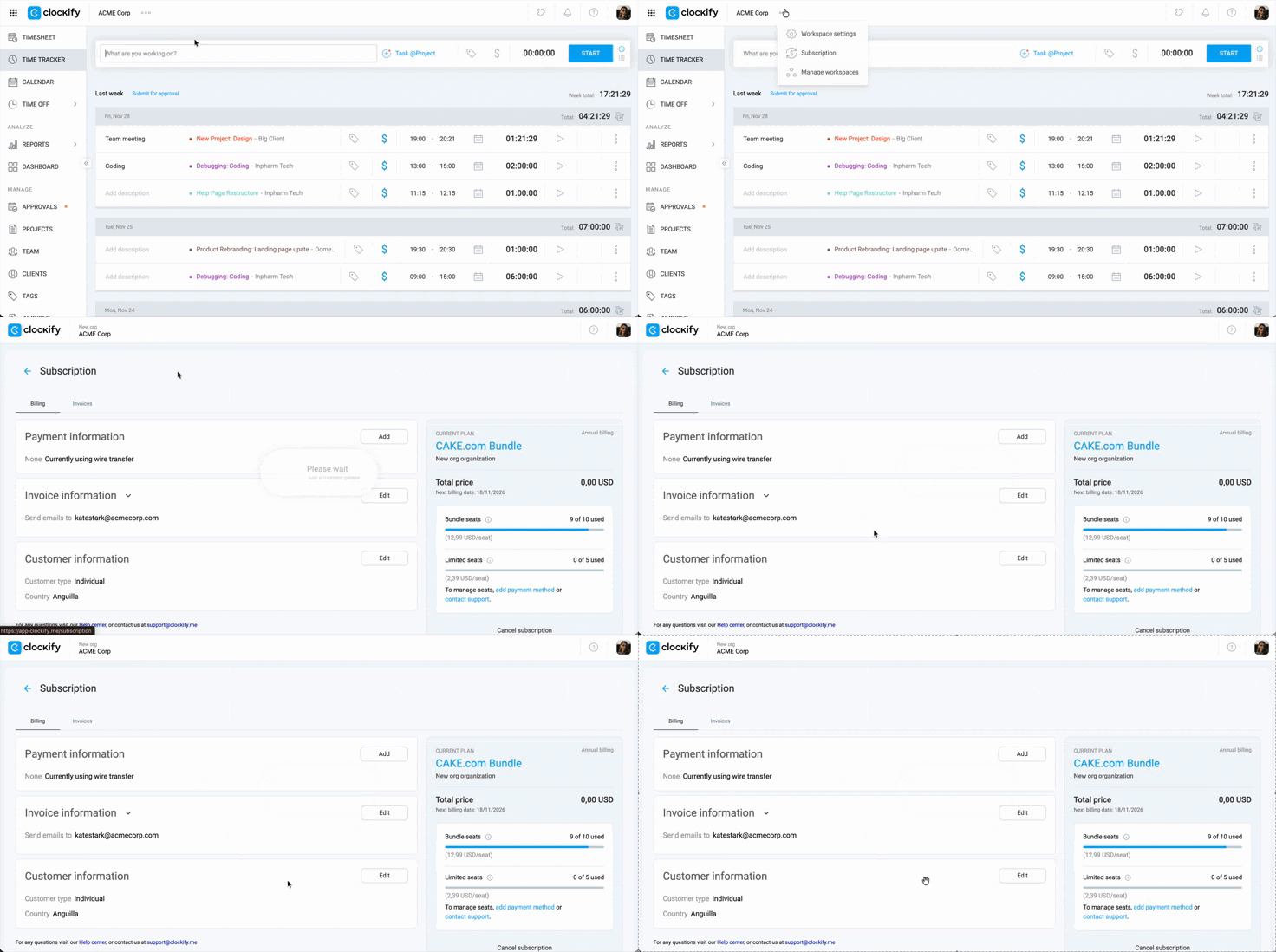
This page contains three main tabs:
- Billing – View your current plan, used vs. available seats, and update your payment information
- Invoices – Access and download all past invoices and billing statements
- Plans – View all available subscription tiers (Basic, Standard, Pro, etc.) to upgrade or downgrade your plan
Manage user seats #
Your billing is calculated based on the total number of active seats you have purchased.
| Action | Billing impact |
| Purchase more seats | You will be charged a prorated price based on the remaining time in your current billing cycle. |
| Remove vacant seats | You can remove extra vacant seats, and although no refunds are provided for removed seats, your next bill will be adjusted to reflect the updated number of seats. |
Change your subscription plan #
You can switch between plans and billing intervals at any time from the Plans section.
To upgrade your subscription: #
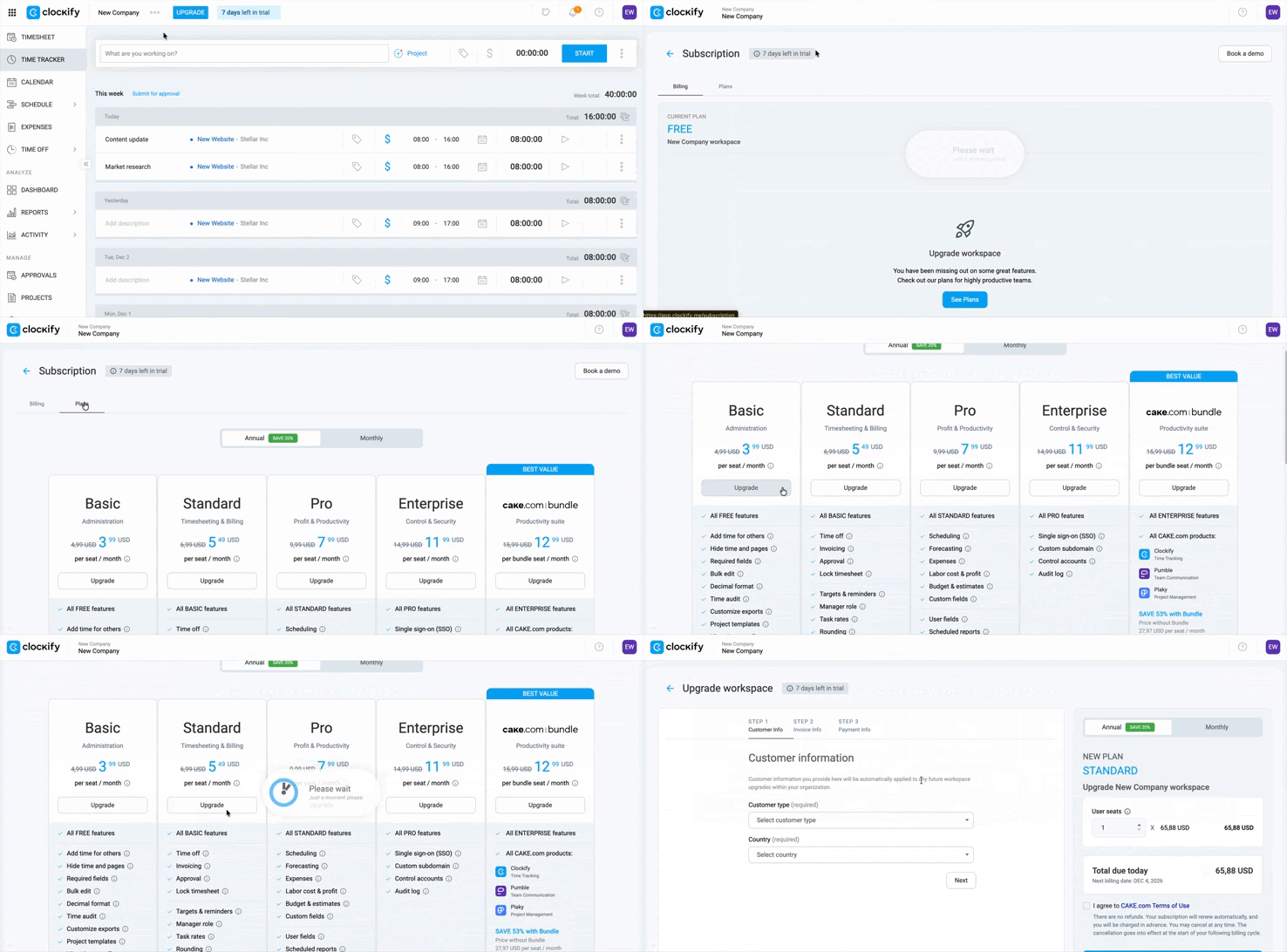
1. Click on the three-dot icon next to your workspace name
2. Select Subscription
3. Click Plans
4. Click Upgrade on the plan you want
5. Complete the next steps to upgrade your plan
A Limited user is strictly for the Kiosk functionality. If your user needs to log in to the mobile app or website to start a timer, Limited users can do so using a Kiosk link.
What happens next?
You are charged a prorated price immediately, and you instantly gain access to the new features.
To downgrade your subscription:
- Go to the Subscription page
- Click Plans
- Click Downgrade below the desired lower-tier plan
- Confirm the action
What happens next?
Your access to premium features will continue until the end of your current paid billing period.
At that time, your workspace will switch to the lower-tier plan, and features from the higher plan will be removed. Your data remains intact.
Billing intervals #
You can choose to pay Monthly or select Annual Billing to receive a discount on your total bill.
| Switch from | Switch to | When the Change Takes Effect |
| Monthly | Annual | Immediately. You will be charged a prorated price for the remaining time on your current plan to start the annual cycle. |
| Annual | Monthly | At the end of your current annual subscription year. |
Cancel or reactivate your subscription #
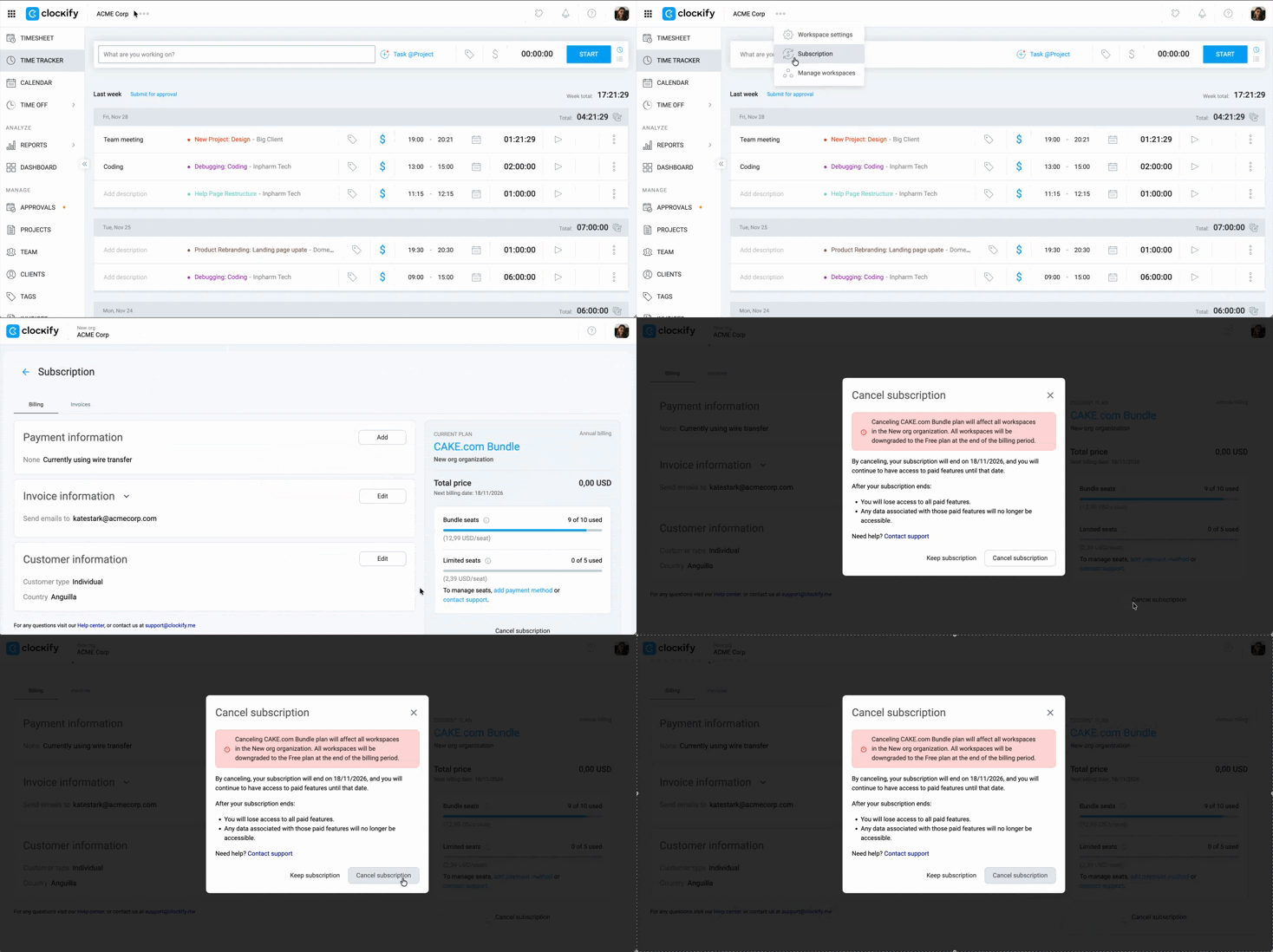
To cancel your subscription:
- Go to the Subscription page
- Click Billing
- On the right side of the screen, click Cancel subscription
- Click Cancel subscription in the confirmation window
What happens after cancellation?
- No further charges will be made.
- You can continue using your premium features until the end of your current billing period.
- After the paid period ends, your workspace automatically switches to the Free plan.
To reactivate your subscription: #
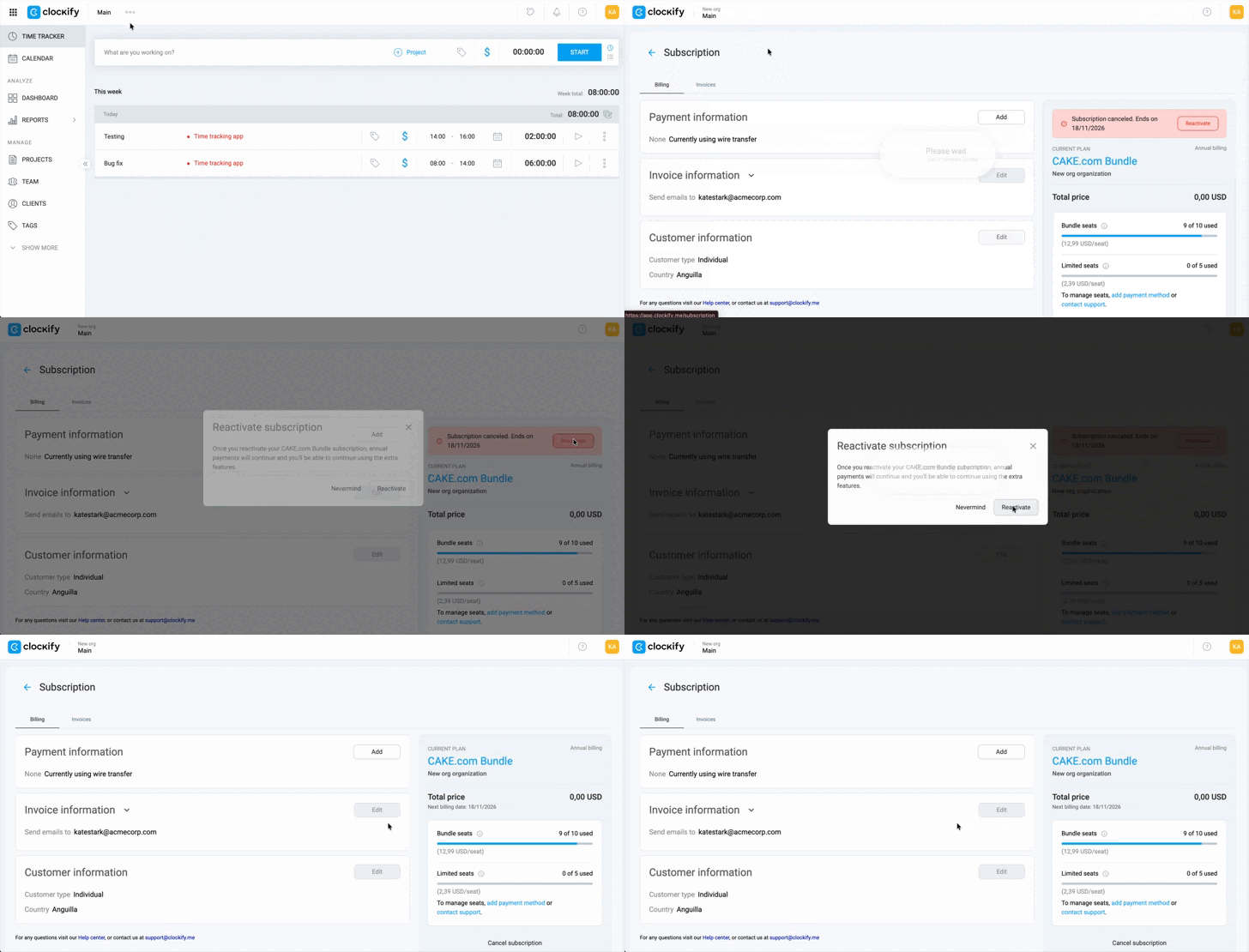
- Return to the Subscription page
- Click the Reactivate button on the right side of the page
- Click Reactivate on the confirmation window
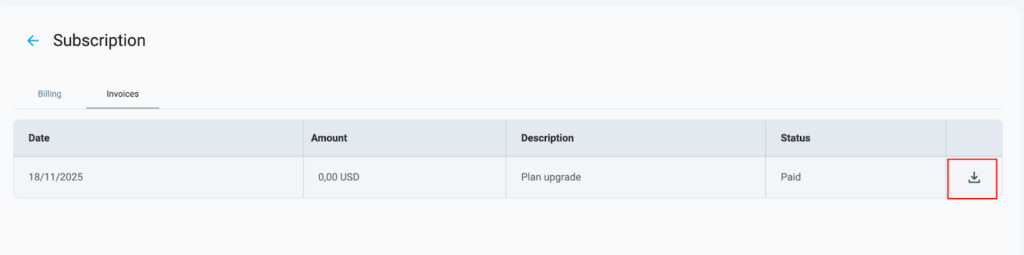
Download invoice #
- Go to the Subscription page
- Switch to the Invoices section
- Click the
 download button
FAQ #
How is billing calculated?
Clockify charges per seat, not per active user. You pay for a specific number of slots.
- Annual Billing – You pay for the year upfront for a set number of seats.
- Monthly Billing – You pay month-to-month. If you add seats mid-cycle, you will be charged a prorated amount for the remainder of the period.
Can I add more seats after upgrading my plan?
Yes, you can always add more user seats through the Subscription page. When you add seats, you will be charged based on the prorated cost for the remaining billing period.
How do I switch between monthly and annual billing?
You can switch from monthly to annual billing or vice versa from the Subscription page. Switching from annual to monthly will take effect at the end of your current subscription period. Switching from monthly to annual will be prorated based on the remaining time left on your current plan.
Can I get a refund for unused seats?
No, Clockify does not provide refunds for removed user seats. You can only free up seats by deactivating users, and then you can add new users to occupy those seats.
Can I download past invoices?
Yes, you can download all your past invoices from the Invoices tab on the Subscription page.
Can I update my billing information (Address, VAT, Email)?
Yes. You can modify your invoicing details in the Subscription page. Please refer to this article for instructions on updating your billing information.