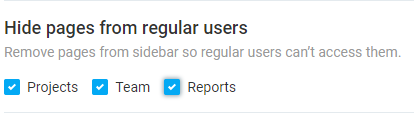
Hide entries & pages
By default, all members of your workspace can see all time entries and expenses. However, you can hide this information, if necessary.
Hide tracked time and expenses #
Hiding tracked time and expenses from other users in your workspace is a paid feature, which you can enable by upgrading your workspace to any of our paid plans.
To hide tracked time and expenses:
- Open Workspace settings
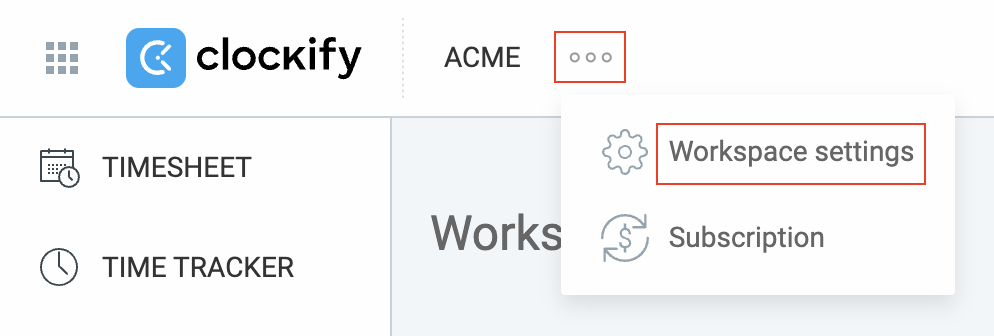
- Choose Permissions page
- Find Regular users can see section
- Check the option that fits your preferences
You can choose if regular users can see:
- and expenses: regular users are allowed to see the time entries and expenses made by other people on every project
- Only time and expenses on public projects: regular users are allowed to see the time entries and expenses recorded on public projects
- Only their own time and expenses:regular users are only allowed to see their own time entries and expenses
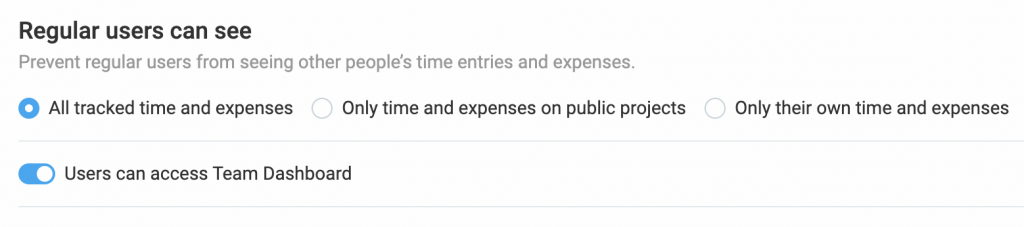
You can also choose whether users can access the Team Dashboard and if they can access the Status tab for projects (so they can track progress and how much of the estimate remains). If users can access status but can’t see billable rates, they’ll only be able to see progress and all amounts will remain hidden.
This setting doesn’t affect project managers. Project managers, even though they’re regular users, can see all tracked time on projects where they have the manager role.
Learn more about roles and permissions in the workspace.
Hide pages #
Additionally, you can hide Projects, Team, and reports pages from Regular users’ side bar.
Hiding pages affects managers differently:
- Project managers always see Reports and Projects pages
- Team managers always see Reports page