Overlapping time entries
Overlapping time entries occur when two or more time logs cover the same exact timeframe. By default, Clockify allows overlapping entries because many users need flexibility when tracking multitasking.
However, if you need to keep your timeline perfectly clean, here is how to identify, fix, and prevent overlaps.
How to find and fix existing overlaps #
If you or your team have already created overlapping time entries, you can easily clean them up:
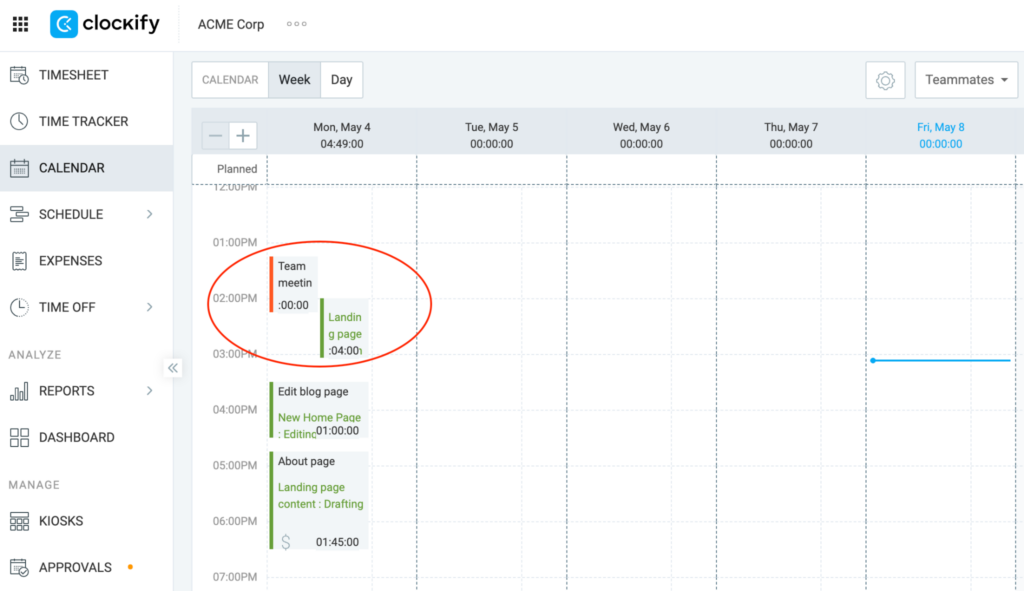
Method 1: Use the Calendar view
- Go to the Calendar page
- Look for blocks of time that are layered next to each other
- Click and drag the top or bottom edges of a time block to visually adjust the start and end times so they no longer overlap
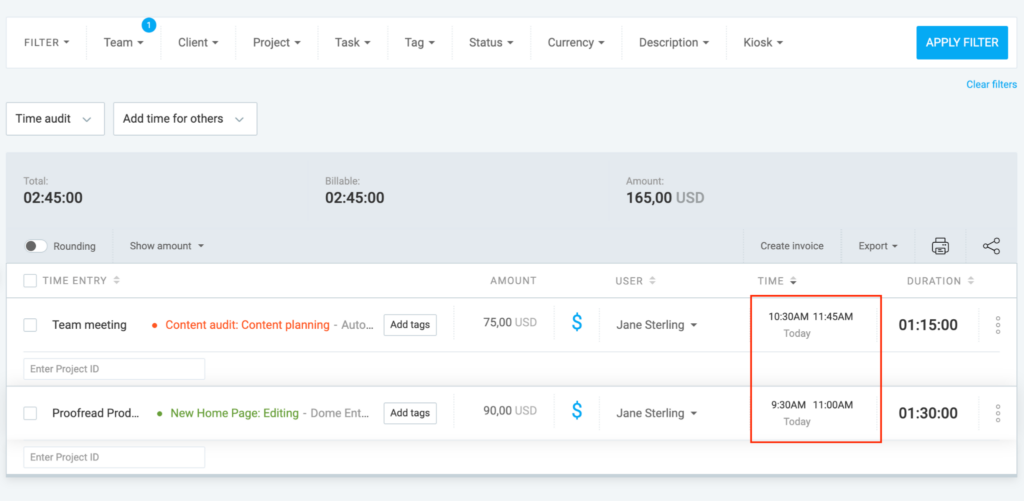
Method 2: Use the Detailed Report (For Workspace Admins)
- Go to Reports page
- Select Detailed
- Filter by the specific user or date where you suspect overlaps
- Review the Start and End times
- Click directly on the start/end times of the overlapping entry to edit it manually
How to prevent overlapping entries #
If you want to allow manual time entries but reduce overlaps, inform your team to:
- Check the Calendar before logging manually: Instruct users to look at their Calendar view before adding a manual duration to ensure the slot is empty.
- Stop timers before starting new ones: If a user uses the timer, make sure they click “Stop” before clicking “Start” on a completely new task.
- Use the “Compact Mode” carefully: If a user stops a timer and immediately starts another in compact mode, they might occasionally trigger a one-minute overlap.
Enable Force Timer #
Force Timer is a paid feature available on the Pro and Enterprise plans.
To enable Force timer:
- Click on the three dots icon next to your workspace name
- Select Workspace settings
- Click Time tracking from the sidebar
- Enable Force timer in the Tracking rules section
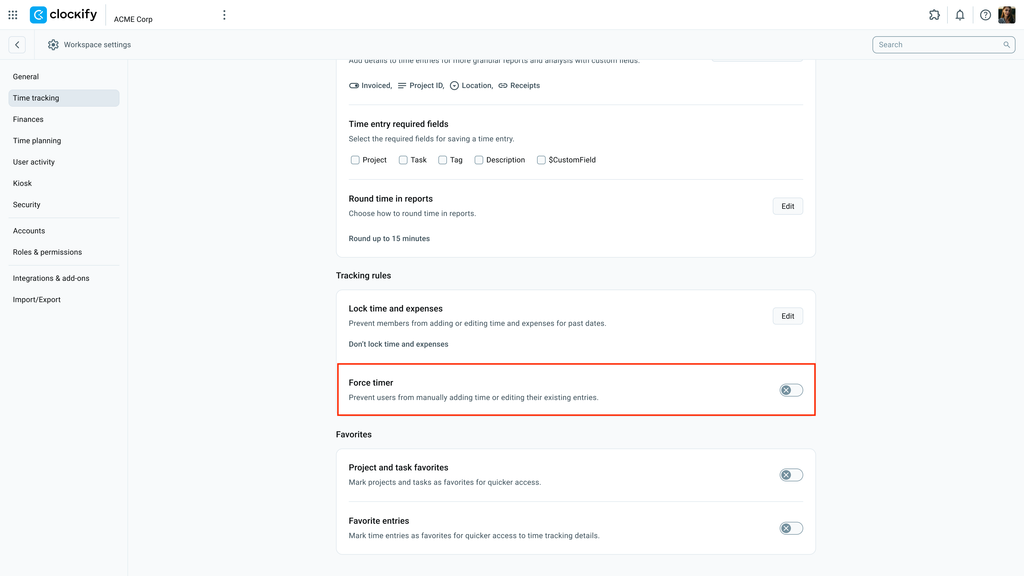
This is a workspace-wide setting and will apply to all users
Why do overlapping time entries happen? #
Usually, overlaps are accidental. The most common scenarios include:
- Mixing timers and manual entries: A user is running a live timer from 10:00 AM to 12:00 PM, but forgets and manually logs 2 hours of work from 11:00 AM to 1:00 PM.
- Typing durations instead of exact times: A user types “2h” into the manual duration box without checking the start time, accidentally laying that 2 hours over an existing entry.
Still having issues?
The Clockify Support Team is happy to help! Contact us at support@clockify.me and include:
- A screenshot of the overlapping entries from your Detailed Report.
- Information on whether the Force Timer feature is enabled.
- Your current duration format