Not receiving project estimate alerts
If you’ve set up a time or budget estimate on a project or a task but aren’t receiving alerts when the threshold is crossed, here’s how to troubleshoot the issue and ensure alerts are properly delivered.
Check your subscription #
If your Workspace owner/admin downgrades the subscription plan to a lower tier or if your free trial has ended, project estimates and alerts will be disabled. To reactivate access to these features, subscribe to Pro plan or higher.
Alerts are not sent immediately #
Estimate alerts are sent approximately 30 minutes after the threshold is reached, meaning that if your estimate is set to trigger at 80%, an alert won’t appear instantly. It will typically be delivered via email within 30-40 minutes.
Alerts are only sent once per threshold #
Clockify sends a single alert when the estimate threshold is reached, for example, 80% or 100%. If your tracked time jumps rapidly past multiple thresholds, you’ll only receive the alert for the highest one reached, not for the lower thresholds passed.
Workspace alert rules may be misconfigured #
Admins define who can receive alerts and when they are sent. Alerts won’t be delivered if the rules don’t exist or are assigned to the wrong user group.
How to check alert rules (Admins): #
- Go to Projects
- Click the Alerts icon
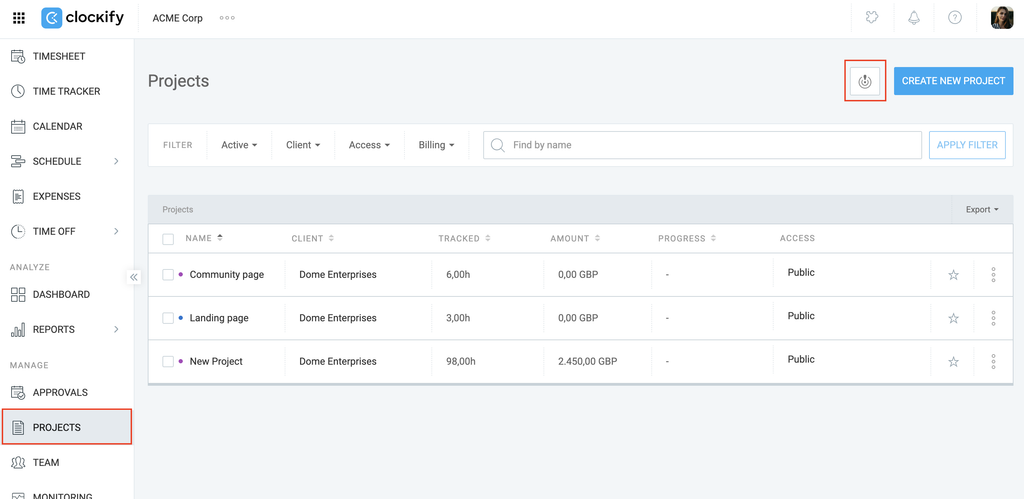
3. Review the rules and confirm which group is selected:
- Admins
- Project Managers
- Project Members
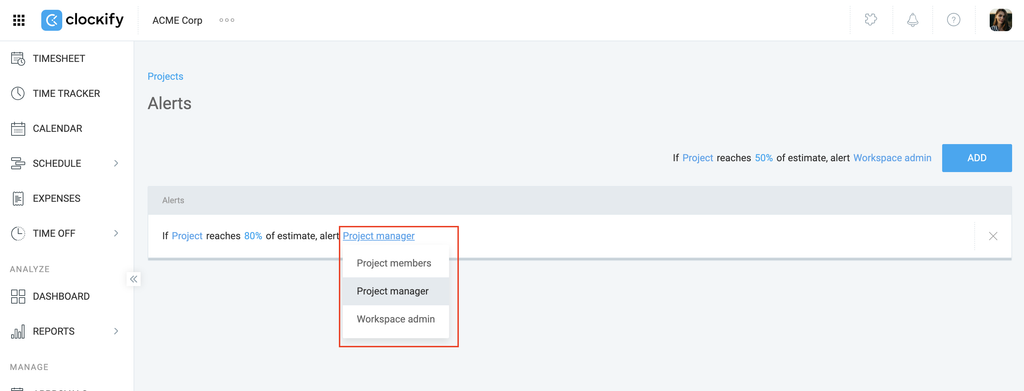
You can define multiple rules that include all groups. Click here to know more about setting up alerts.
Your role doesn’t match the alert rule #
Even if you are a part of the workspace, you won’t receive alerts unless your role matches the selected rule.
Examples:
- If the rule says Project managers, you must be assigned as a project manager on that project.
- If the rule says Project members, you must be added to the project access list.
How to verify project assignments: #
For Project Managers:
- Navigate to the Projects page from the sidebar
- Check the list of projects for that specific project
Clockify only shows you the projects you are officially assigned to manage.
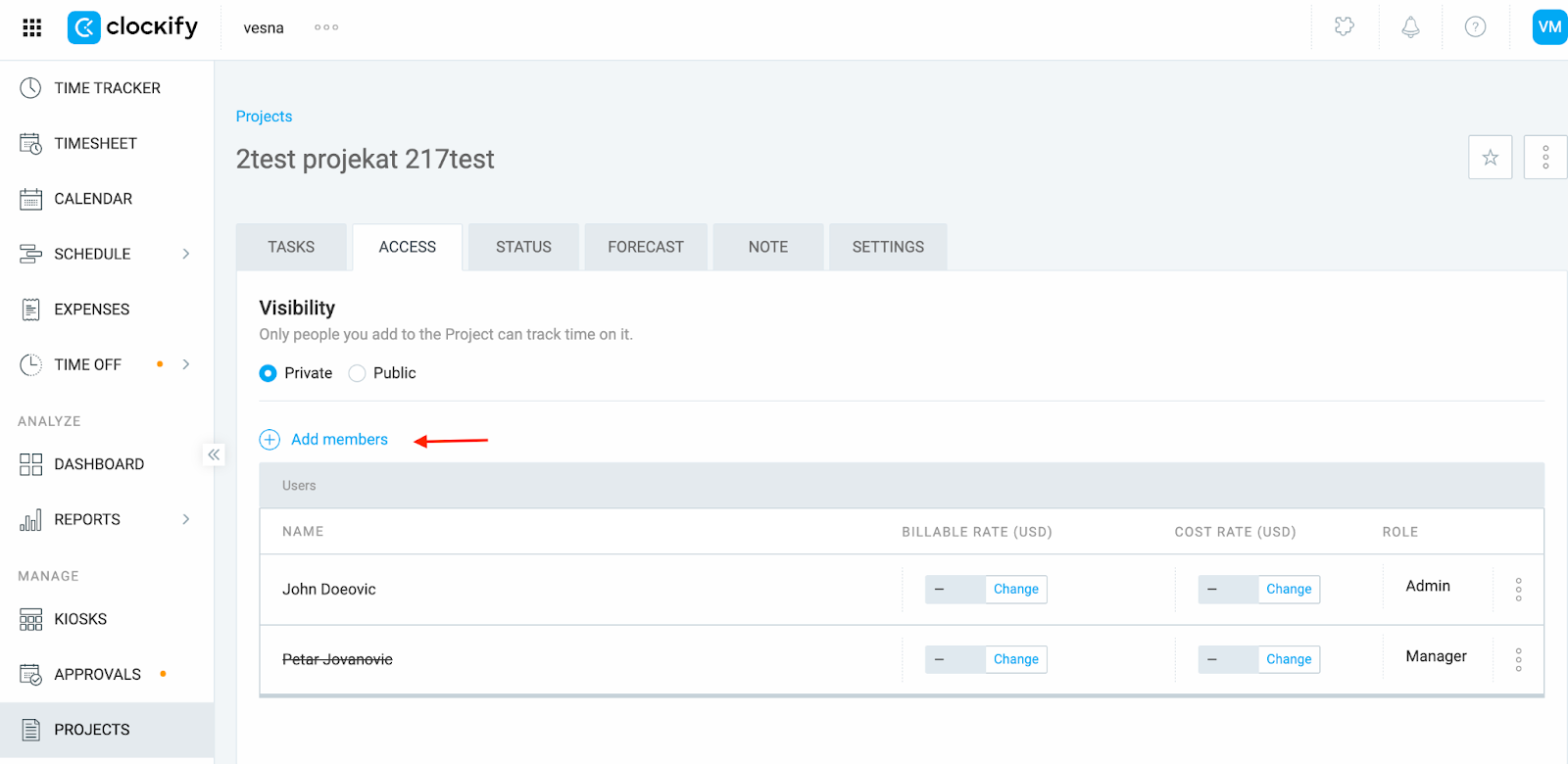
For regular users (verified by Admins or Project Managers):
- Navigate to the Projects page from the sidebar
- Click on the project to open it
- Go to the Access tab
- Check if the team member in question is listed under the Members section
Your personal email preferences may be disabled #
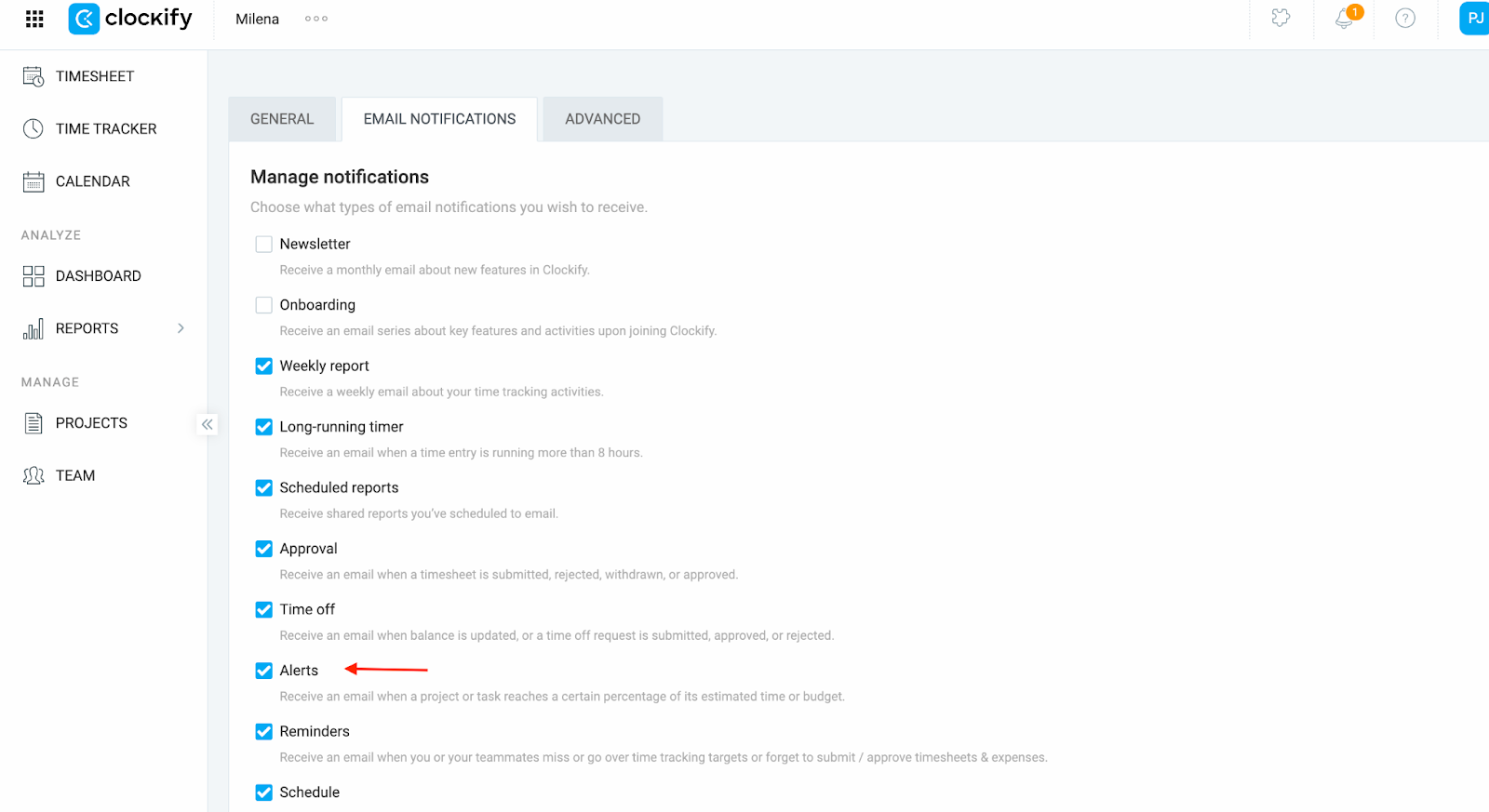
Even if the alert rules are correct, you won’t receive alerts if you’ve disabled notifications in your email preferences.
- Click on your profile picture located in the upper-right corner and click Preferences
- Go to the Email Notifications tab
- Make sure Alerts option is selected
Still having issues? The Clockify Support Team will be happy to look into it and assist you further. Please contact us at support@clockify.me and include the following details:
- A screenshot of the workspace alert rules from the workspace settings
- Information about your role in the workspace
- A screenshot of your email preferences