The rate change won’t apply to time entries
If your updated hourly rate isn’t showing up in reports, it’s likely because something else is overriding it or preventing the update. Here’s what to check and how to fix it.
A more specific rate is overriding the one you changed #
Clockify prioritizes rates in the following order (from lowest to highest priority):
- Workspace rate (general)
- Project rate
- Team rate
- Task rate
- Project member rate (most specific)
More specific rates will override less specific ones. Even if you change the team rate, for example, the project member rate will take precedence.
How to update billable rates #
Check and adjust the specific rate that may be overriding the one you intended to change:
- To view the billable rate fields, the Activate billable hours must be toggled ON in the Workspace settings. Check your workspace setup by going to Workspace settings > Finances to ensure this is active. Otherwise, the billable rate fields and the billable icon will be hidden in the workspace.
- You must be subscribed to Basic plan or higher to access this feature.
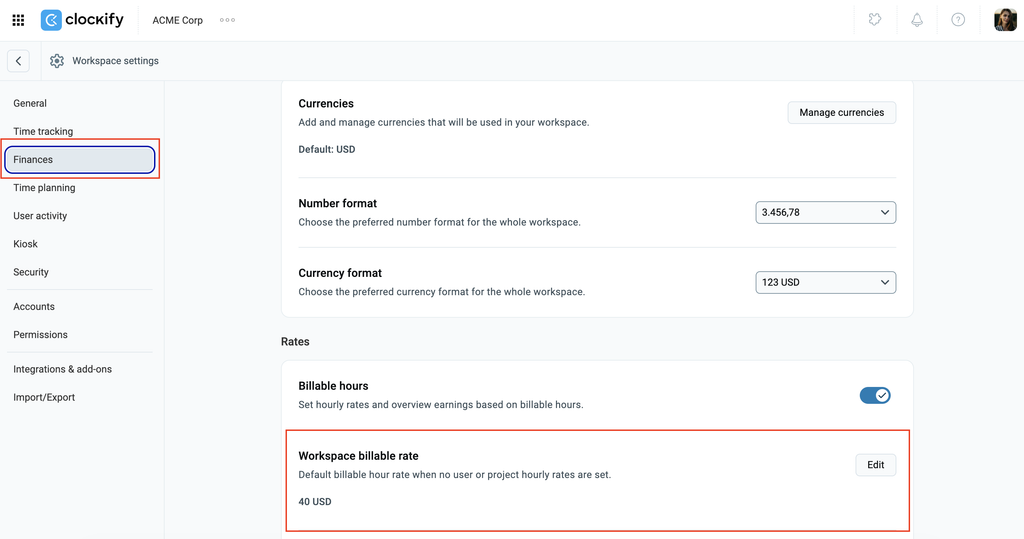
Workspace rate
- Click on the three dots next to the workspace name
- Select Workspace settings
- Click Finances from the sidebar
- Check the Workspace billable rate in the Rates section
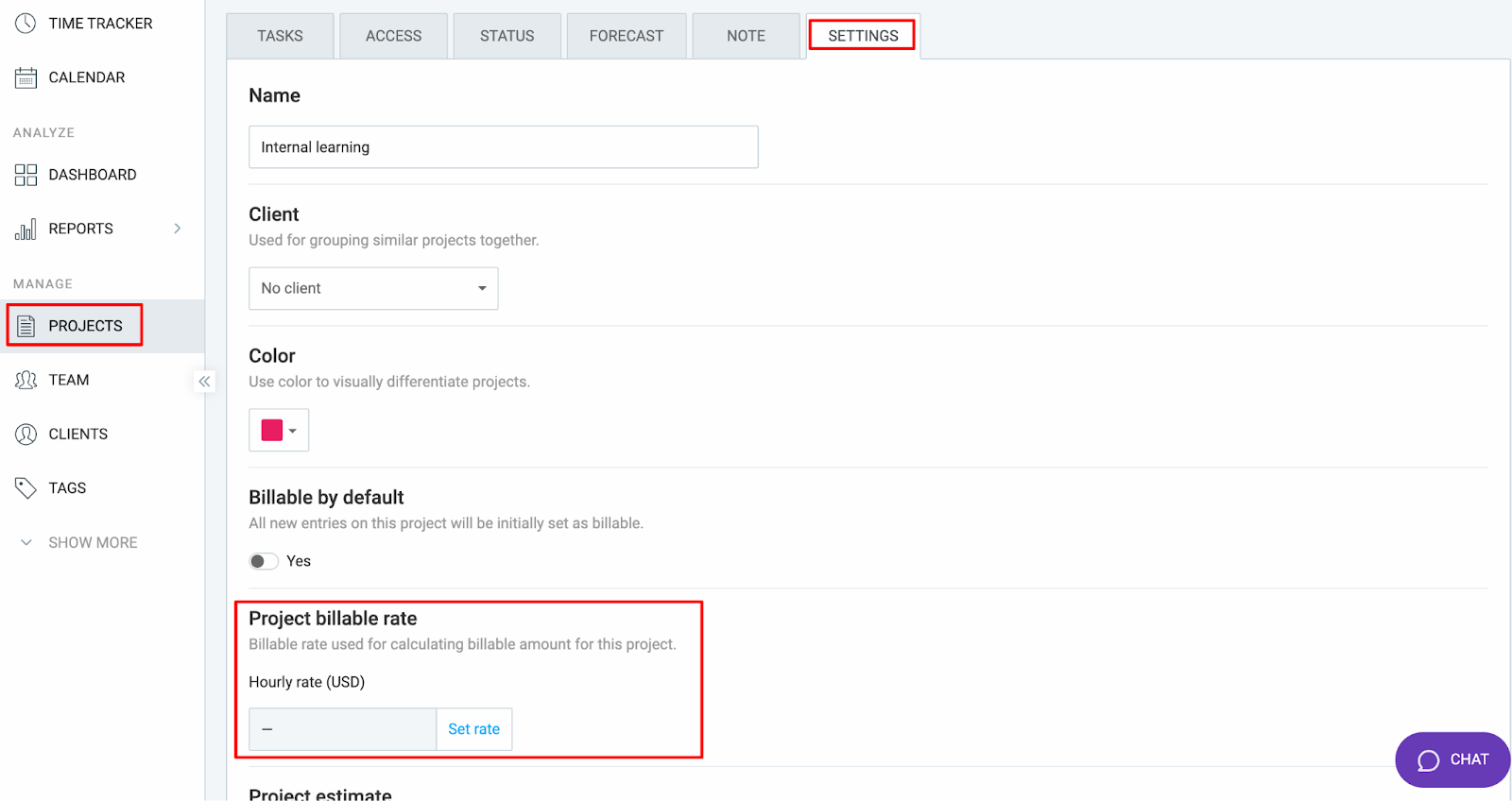
Project rate
- Navigate to the Projects page from the sidebar
- Find the project from the list and click to open it
- Go to the Settings tab and check the hourly rate
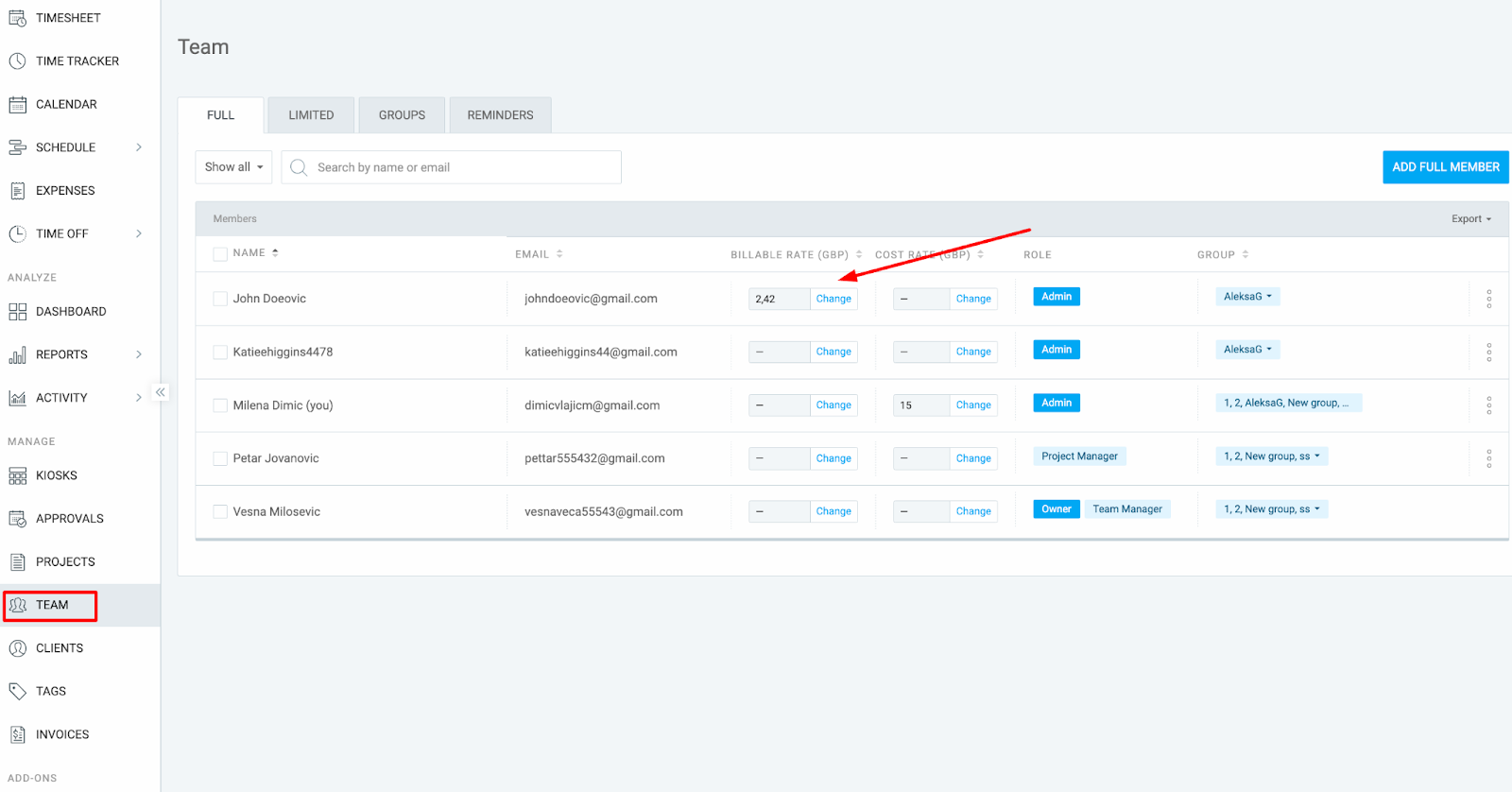
Team member rate
- Navigate to the Team page from the sidebar
- Check the Billable rate column next to each user
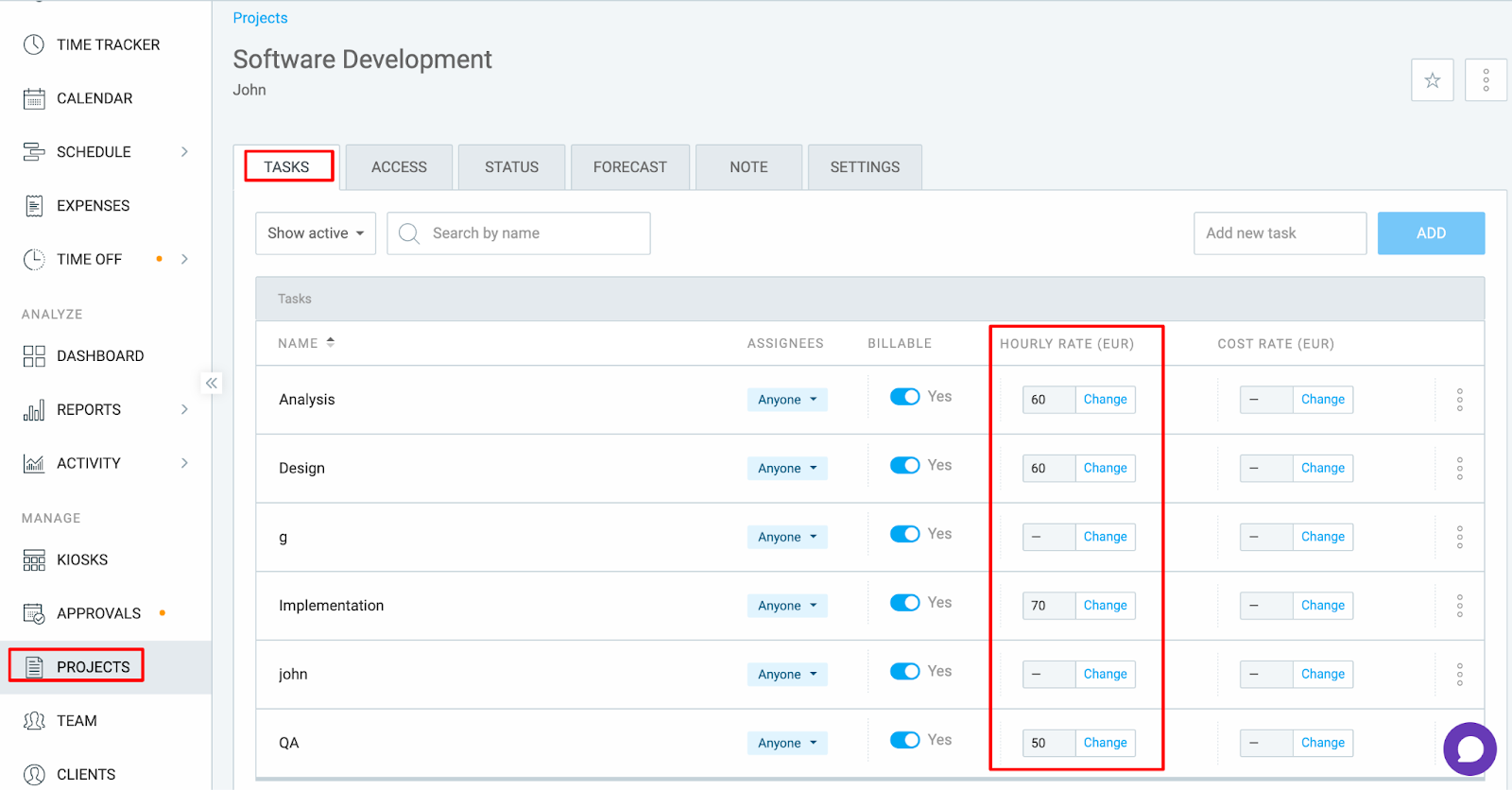
Task rate
- Navigate to the Projects page from the sidebar
- Click on a project to open it
- Go to the Tasks tab
- Check the Hourly rate next to each task
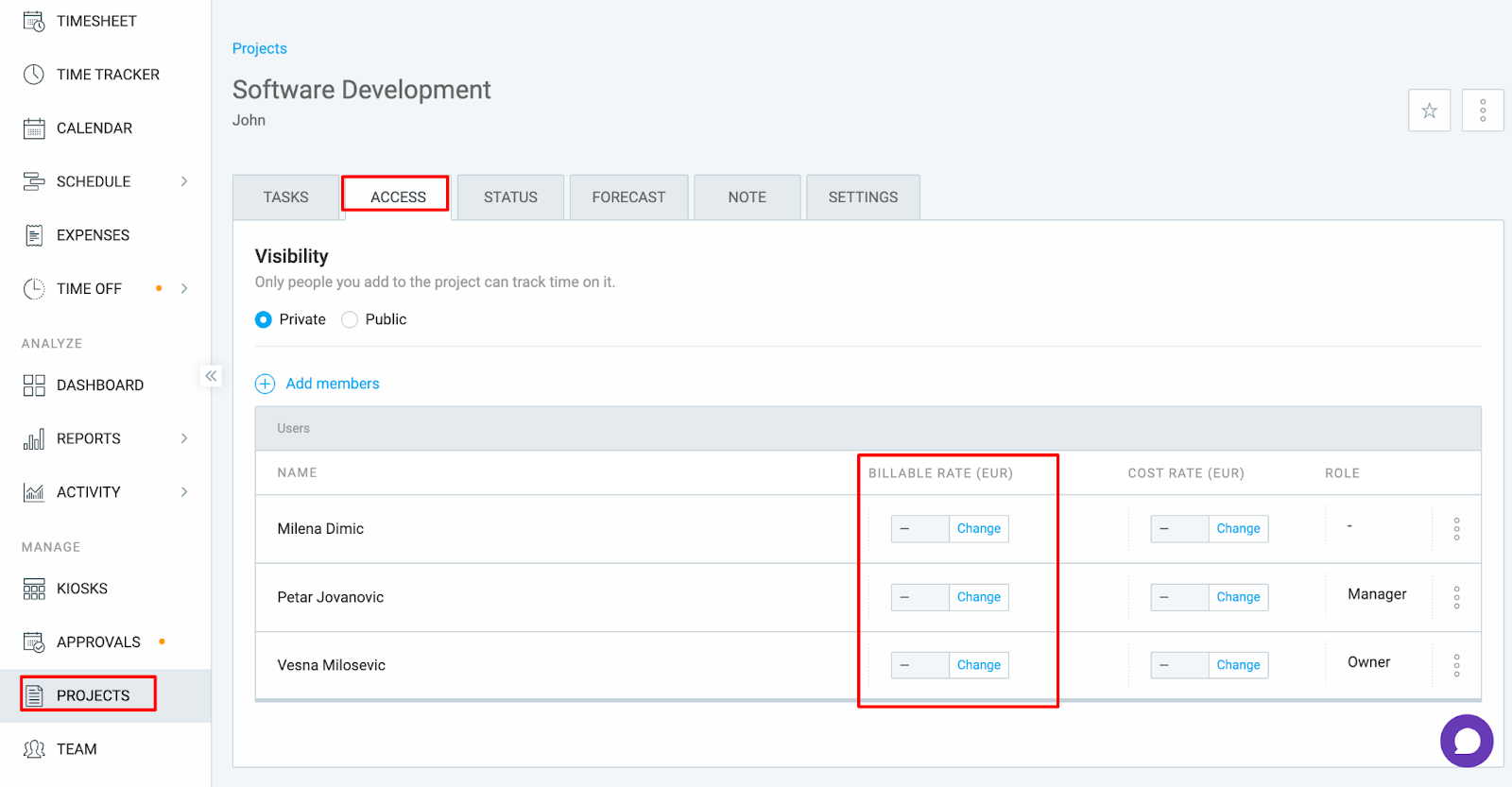
Project member rate
- Navigate to the Projects page
- Click on the project to open it
- Go to the Access tab
- Check or change the Billable rate next to each user
The rate wasn’t applied to past time entries #
Even if you set the right rate, Clockify won’t retroactively apply it to past time entries unless you explicitly choose to do so. You need to manually apply the new rate to past time entries to reflect the change.
How to apply rate changes to past entries #
To change a rate retroactively:
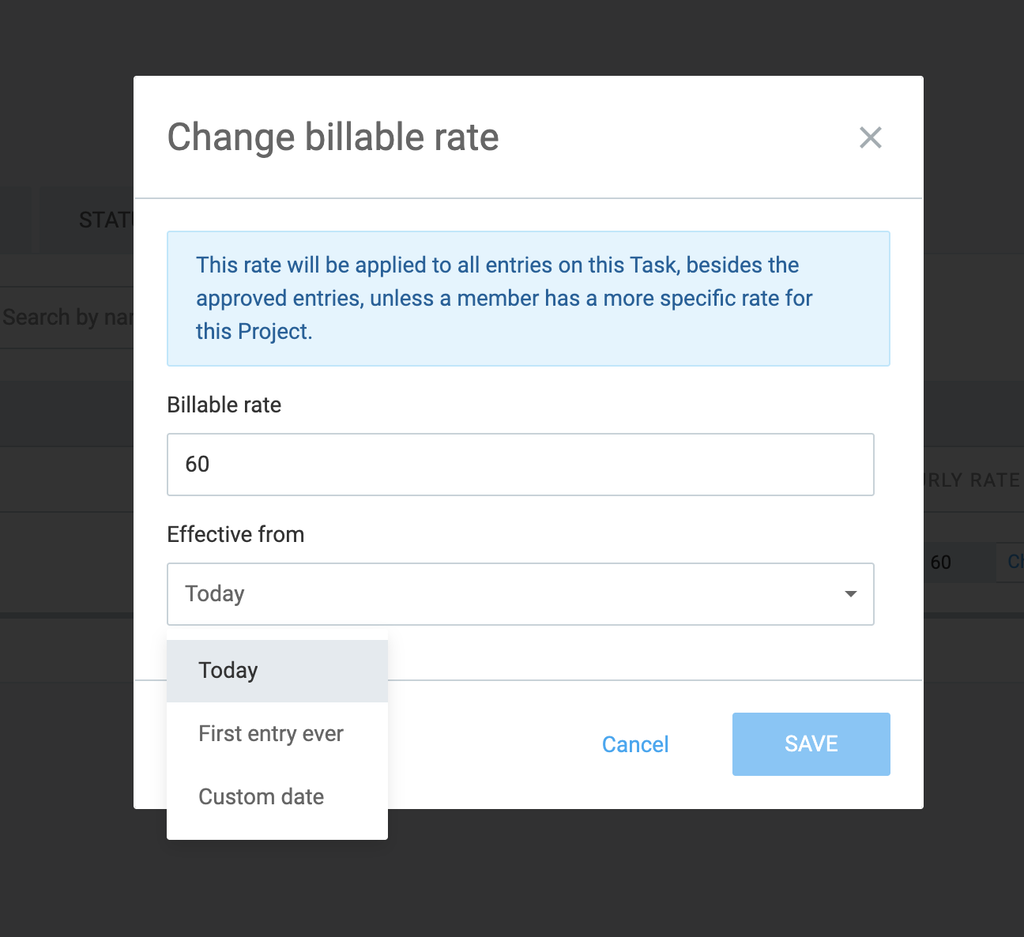
- Click Change or Edit on the rate settings page
- Click the drop down for Effective from
- Select one of the two options:
- First entry ever – Applies the new rate to the first time entry onwards
- Custom date – Set a date when the new rate applies
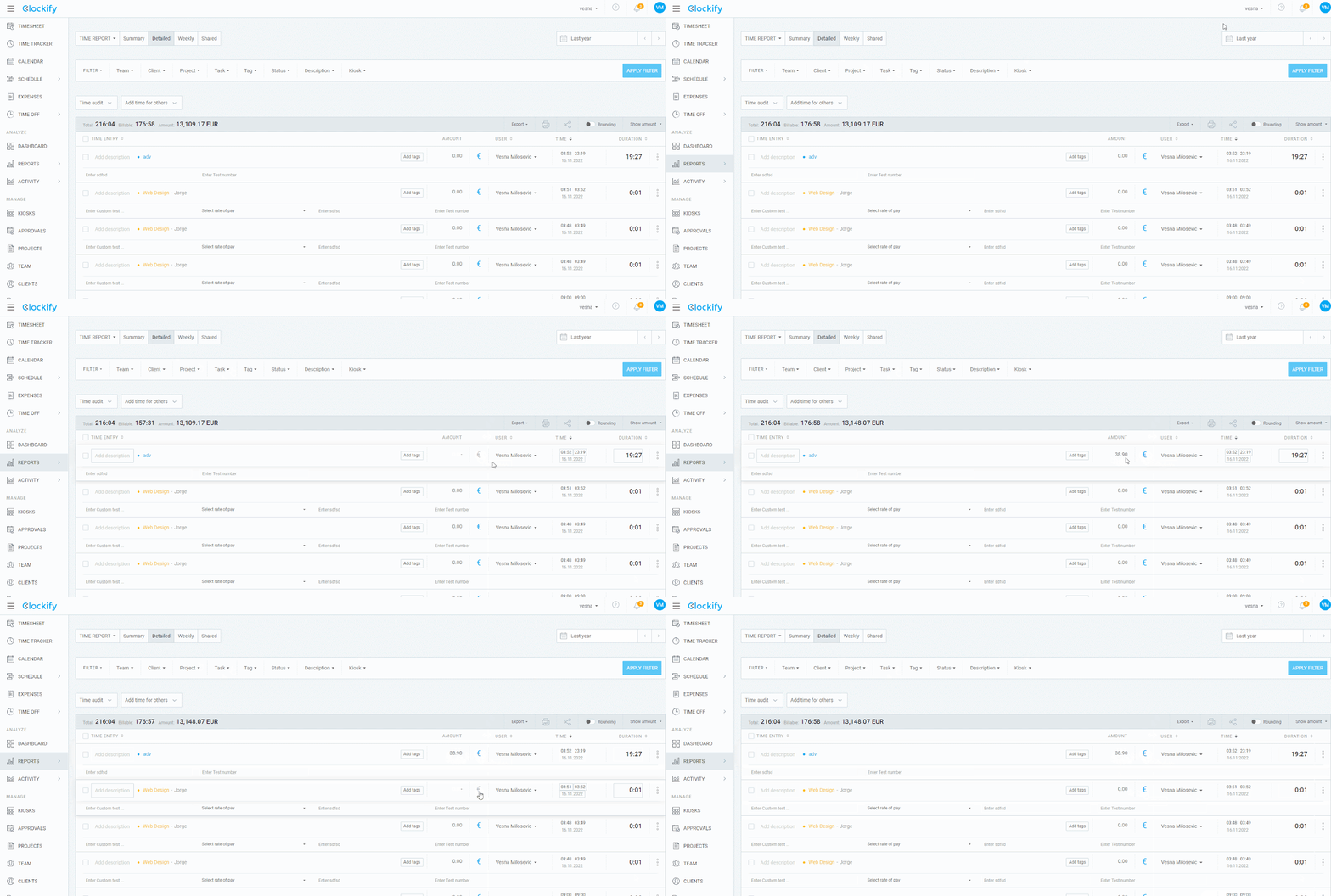
Alternatively, go to the Detailed report, find the affected time entries, and toggle the billable icon off and on to manually refresh the rate for that entry.
Changing the rates to past entries will affect the total amount in your reports. Make sure that previously sent invoices are not affected when you apply this change.
If the rate change didn’t apply to the past time entries, it might be because the time entries are already locked and approved.
The time entries are approved #
Approved time entries are locked, including their hourly rate. If a time entry is already approved, changing the rate won’t apply even if everything else is correct. You need to withdraw the approved timesheet before changing the rate so that the update will be applied to the time entries.
How to unlock approved time entries #
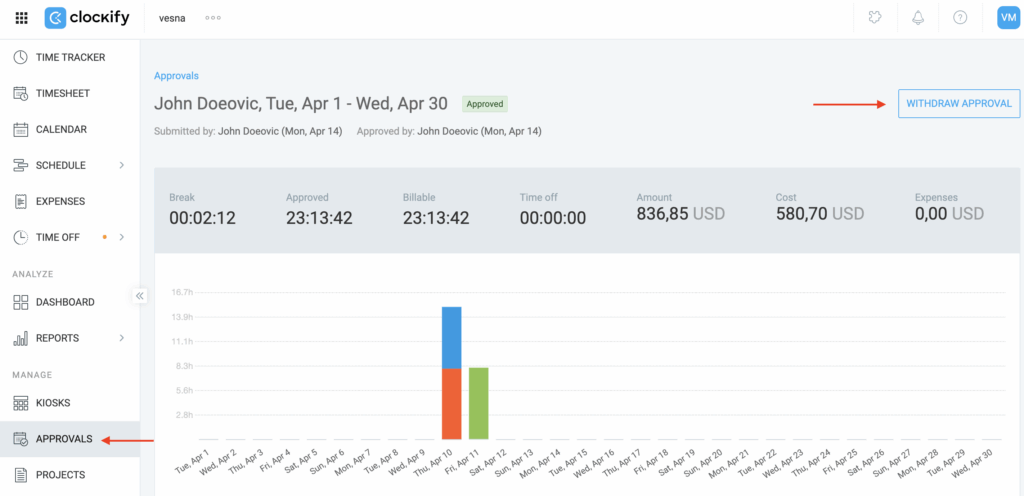
You’ll need to withdraw the timesheet to unlock the time entries and update it. To do this:
- Go to the Approvals page from the sidebar
- Open the Archive tab
- Locate the timesheet in question and click to open it
- In the upper right corner, click Withdraw
- Go back to your rate settings and update the rate
- Once the rate is correctly applied, you can resubmit the timesheet for approval
Still having issues? The Clockify Support Team will be happy to look into it and assist you further. Please contact us at support@clockify.me and include the following details:
- Information about which rate you’re trying to apply
- Whether you’re on a free or a paid plan
- A screenshot of the rate settings you’ve changed