Manage users’ accounts
The Accounts tab in Workspace settings lets workspace owners access user accounts for several reasons, including troubleshooting technical issues, stopping a running timer, correcting time entries, or as a security measure.
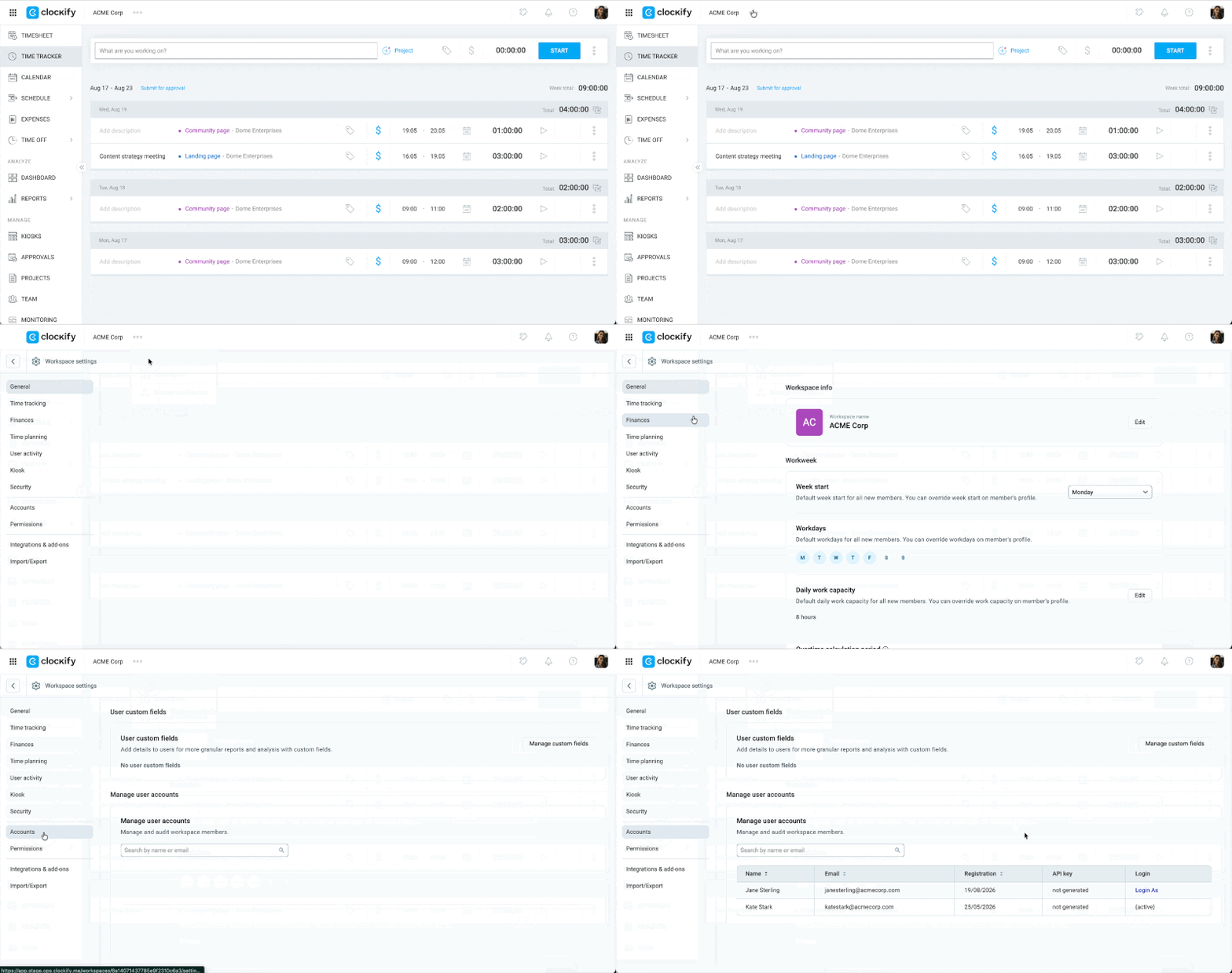
Access accounts tab #
Only workspace owners on the Enterprise plan can access the Accounts page.
- Click on the three dots next to your workspace name
- Select Workspace settings
- Select Accounts from the sidebar
Log in as a user #
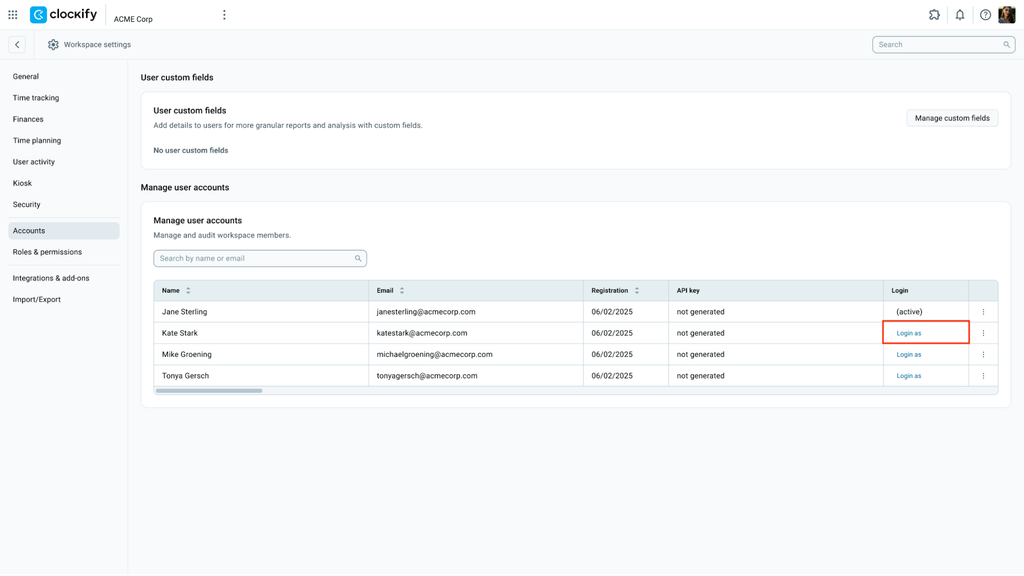
If you’re an admin or workspace owner, you can log in as another user for troubleshooting purposes.
To log in as another user:
- Go to Workspace settings > Accounts
- Click Log in as across from the name of the team member whose account you want to access
- Proceed with the necessary actions or troubleshooting
If you are on a custom subdomain, you will only be able to log in as that user inside your workspace.
Deactivate API key #
- Click the three dots menu next to the user
- Select Deactivate API key
- Click Deactivate to confirm the action
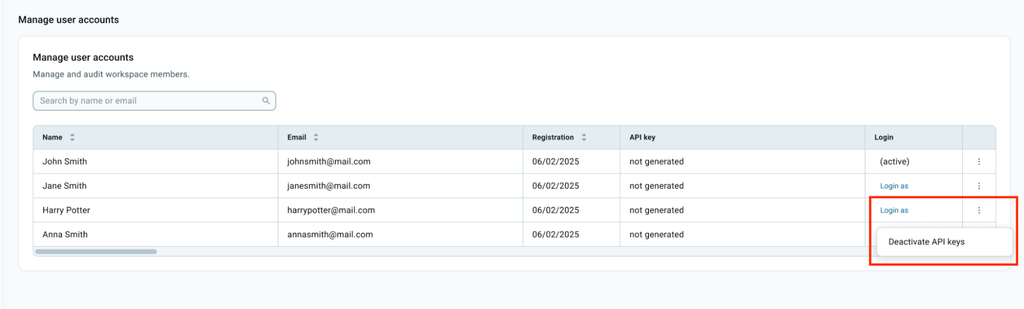
After deactivation, the key can no longer be used, and its status will update automatically on the Manage API keys page.
Stop the timer for another user #
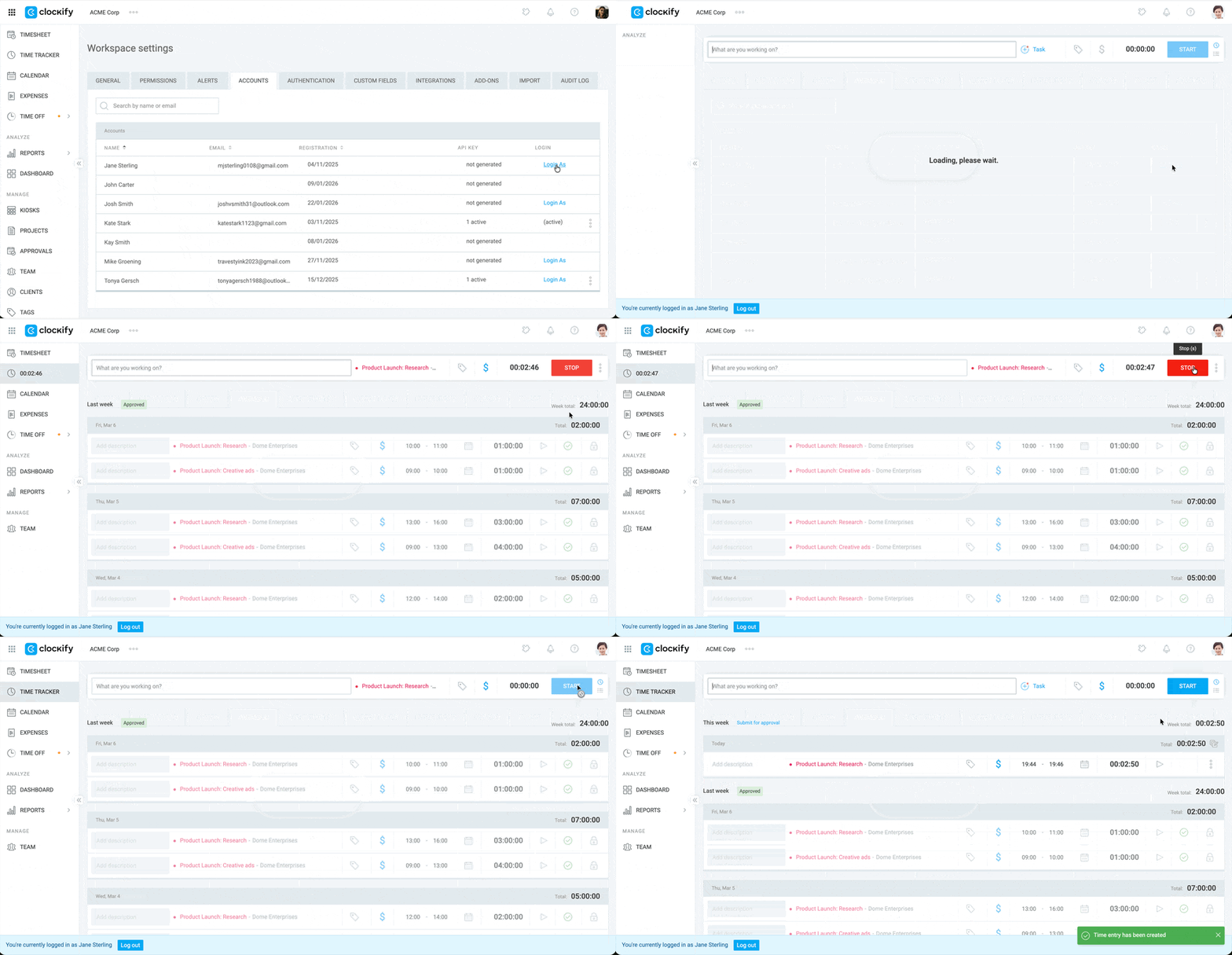
If a team member forgets to stop their timer, you can stop the timer for them, make any necessary corrections to the time, and save the entry.
To stop the timer for another user:
- Go to the Accounts page
- Select Log in as next to the user’s name
- Click the Stop button on the user’s timer
FAQ #
Why can’t I see the Accounts tab?
You might not see the Accounts tab for two reasons:
- The Accounts tab is only available on the Enterprise plan.
- Only Workspace Owners can view and access the Accounts tab. Admins and other user roles will not see it, even on the Enterprise plan.
Can I view a user’s actual API key?
No. For security reasons, this page only displays the number of active API keys a user has. You cannot see the actual characters of the key, but you can deactivate it if necessary.
What happens if I log in as a user while on a subdomain?
If you are using a custom subdomain, the Log in as user feature allows you to access that user’s account only within the context of your specific workspace. You will not be able to navigate to their other workspaces outside of your subdomain.
Will a user know if I stop their timer?
The timer will stop immediately on their end, but they do not receive a specific notification that you stopped it. It is helpful to let them know you have made changes to ensure their timesheets remain accurate.