Approve entries & time off requests for Workspace members
As a Workspace Admin or Owner, managing time entries and time off requests is crucial to make sure that team members’ time is accurately tracked, and that planned absences are accounted for. This guide will walk you through the process of approving time entries and time off requests, including how to edit, reject, and send reminders.
Key concepts #
- Time entries: Hours tracked by team members for their work on various projects or tasks
- Time off requests: Requests submitted by employees to take time off, such as vacation or sick leave
- Approval workflow: The process by which you review and either approve or reject time entries and time off requests
Access permissions #
Before you can manage entries, you must define who has the authority to approve them.
| Role | Scope | Approve/Reject | Edit |
| Workspace Admin/Owner | All team members | Yes | Yes |
| Team Manager | Members of their assigned teams | Yes | Yes |
| Project Manager | Members working on their projects | Yes | No* |
*Project Managers can approve or reject entries but typically cannot edit them unless they also hold a Team Manager or Admin role.
Project manager is a paid feature available on any paid plan.
Configure approval permissions #
To configure approval permissions for your workspace:
- Click on the
 three-dot icon next to your workspace name
 - Select Workspace settings
- Click on Permissions from the sidebar
- Locate the Who can approve submitted timesheets and expenses section and select one of the following:
- Admins and team managers: Team members can approve time entries for users they manage
- Admins and project managers: Project managers can approve time entries for users on their assigned projects
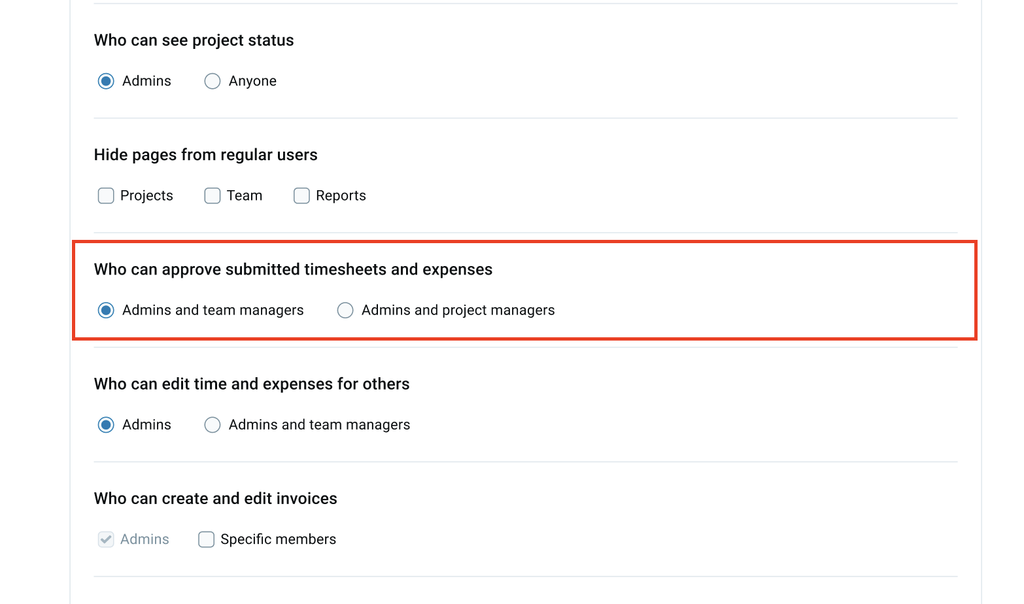
If a user has both Admin and Manager roles, the Admin role will override the other roles. For example, an Admin who is also a Team Manager will have the permissions of both roles.
Approve time entries #
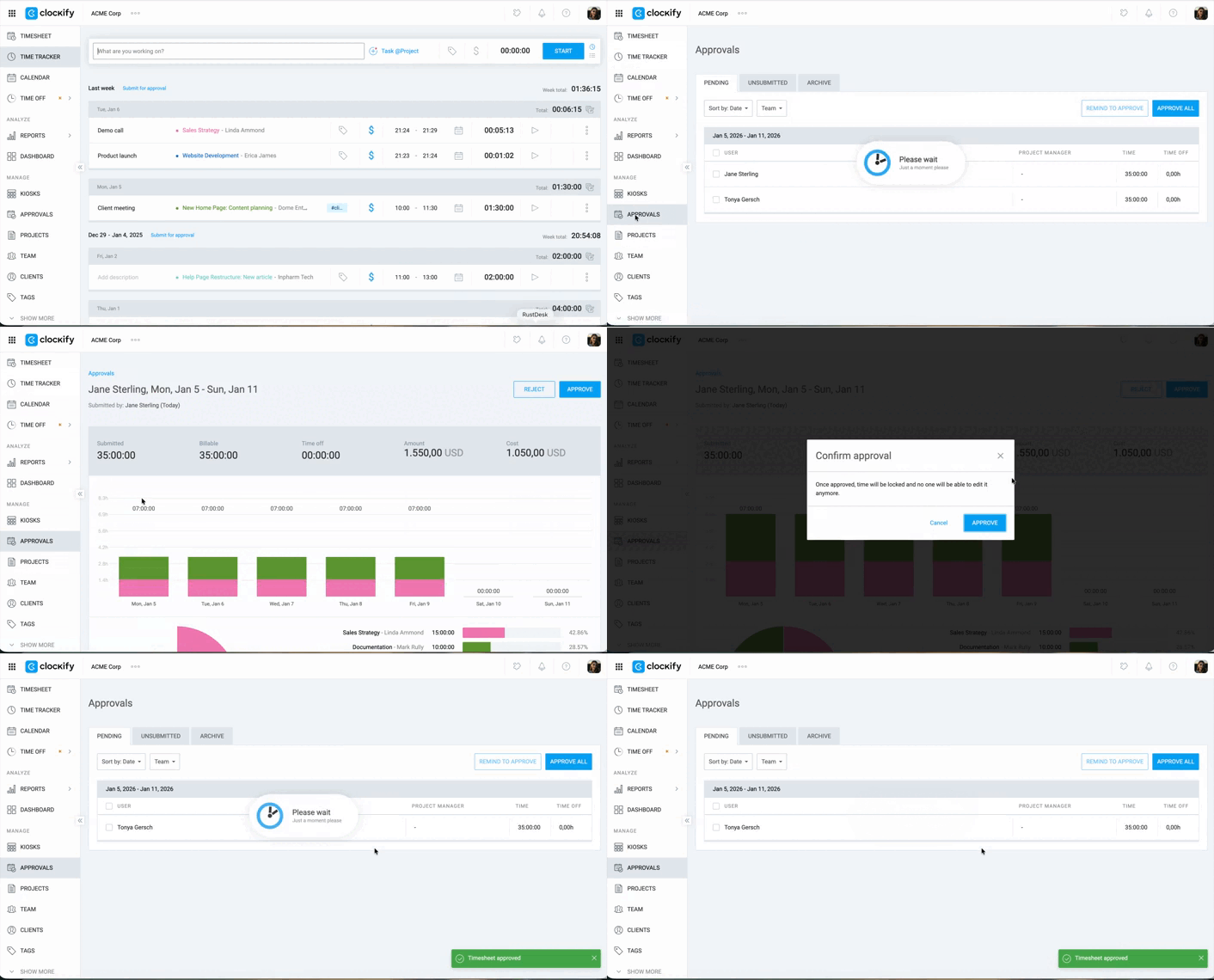
To approve time entries:
- Go to Approvals
- Locate the name of the user (make sure they’re on the Pending tab)
- Click the team member’s name
- Click the Approve button in the top-right corner
Bulk approve time entries #
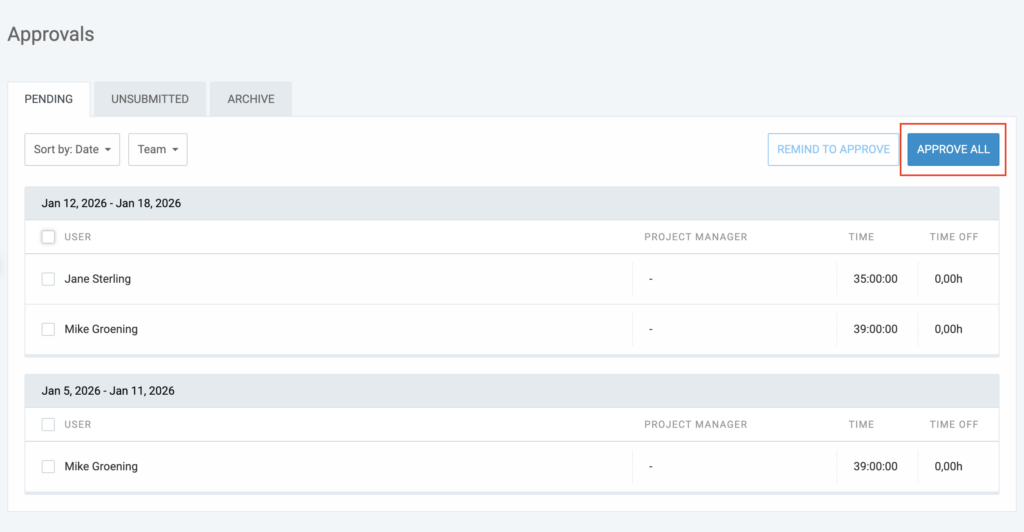
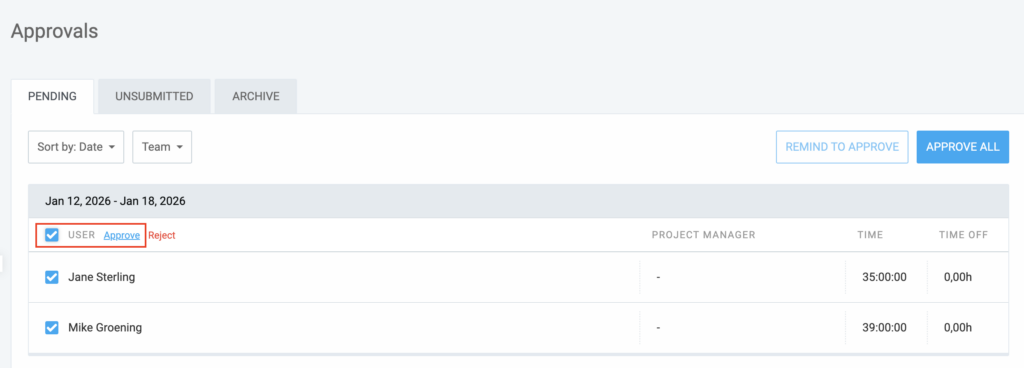
To approve multiple time entries, you can:
- Click the Approve All button
- Check the box next to User and click Approve
Reject time entries #
Rejecting a time entry is a necessary part of the workflow when an entry does not meet your workspace’s tracking requirements.
You should reject an entry for the following reasons:
- Inaccurate hours: The logged time seems significantly higher or lower than expected.
- Incorrect categorization: The entry is assigned to the wrong project, task, or client.
- Missing information: The description is required but left blank or is too vague.
- Policy non-compliance: The entry violates internal rules (e.g., logging time on a holiday without prior approval).
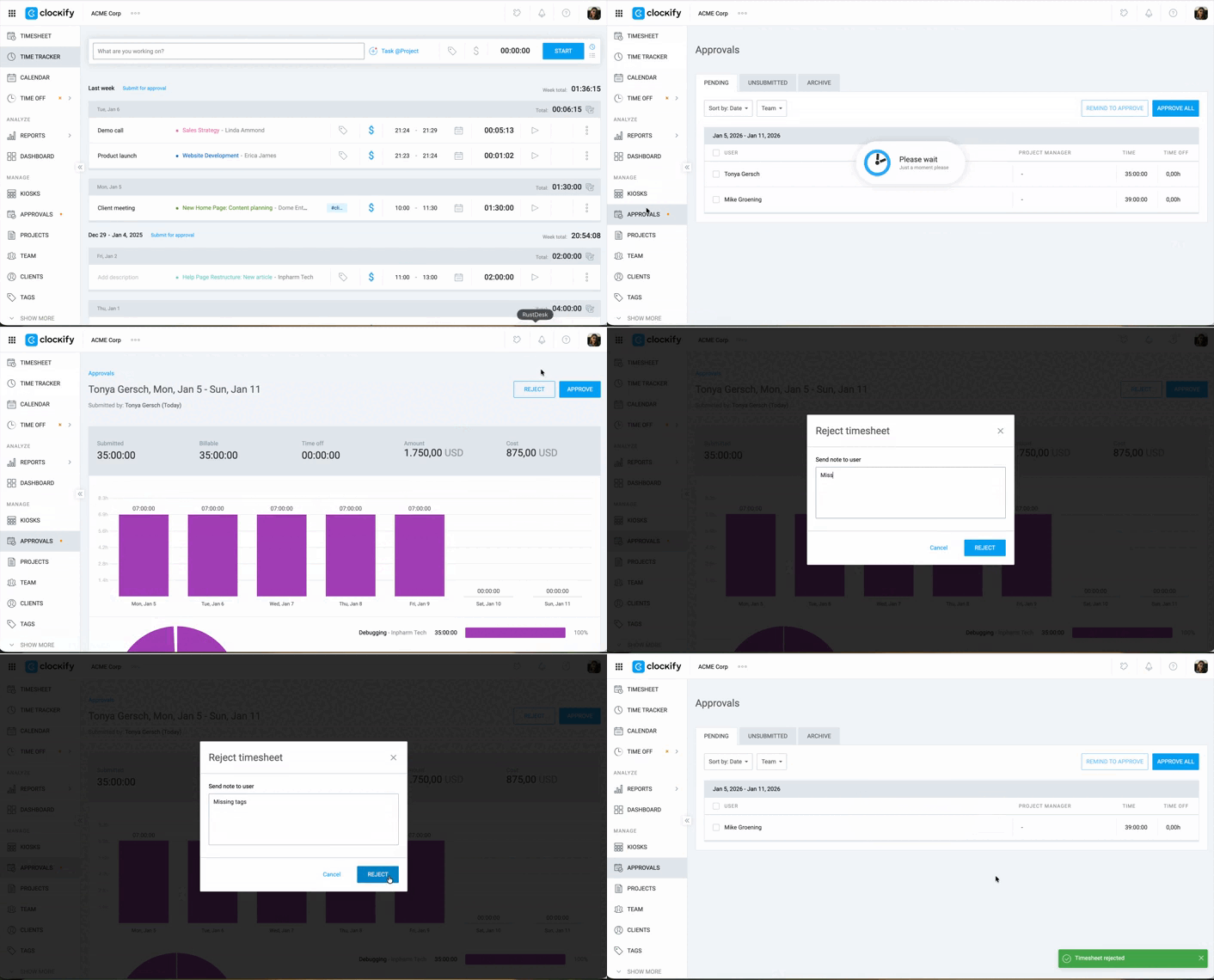
To reject time entries:
- Go to Approvals
- Click on the team member’s name
- Click the Reject button in the top-right corner
- Enter a reason for the rejection
- Click Reject
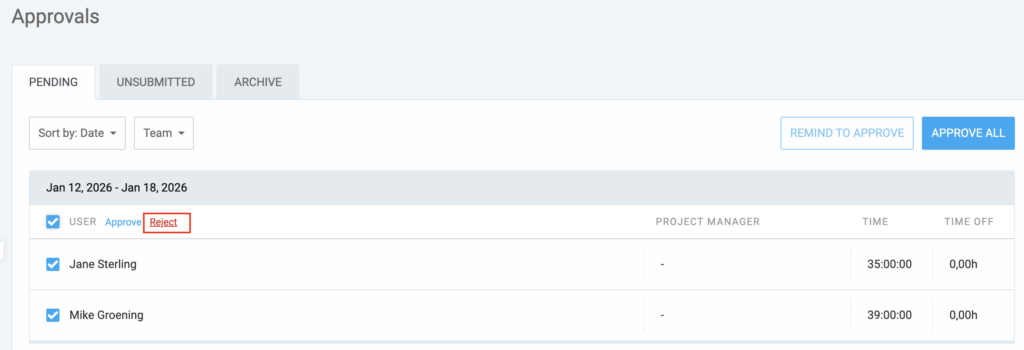
To reject time entry submissions from multiple team members:
- Go to Approvals
- Check the box (next to Users) at the top of the table
- Click Reject
Bulk submit entries for others #
The ability to submit time for others is a paid feature available on Pro and Enterprise plans and can only be performed by Workspace Admins.
Bulk Submit for Others allows Workspace Admins to submit entries on behalf of other team members.
This feature is most useful at the end of a billing cycle or payroll period. If a team member has logged their hours but forgotten to click Submit, an Admin can submit the timesheet for them to ensure project reports and payroll are processed on time without waiting for the user to log back in.
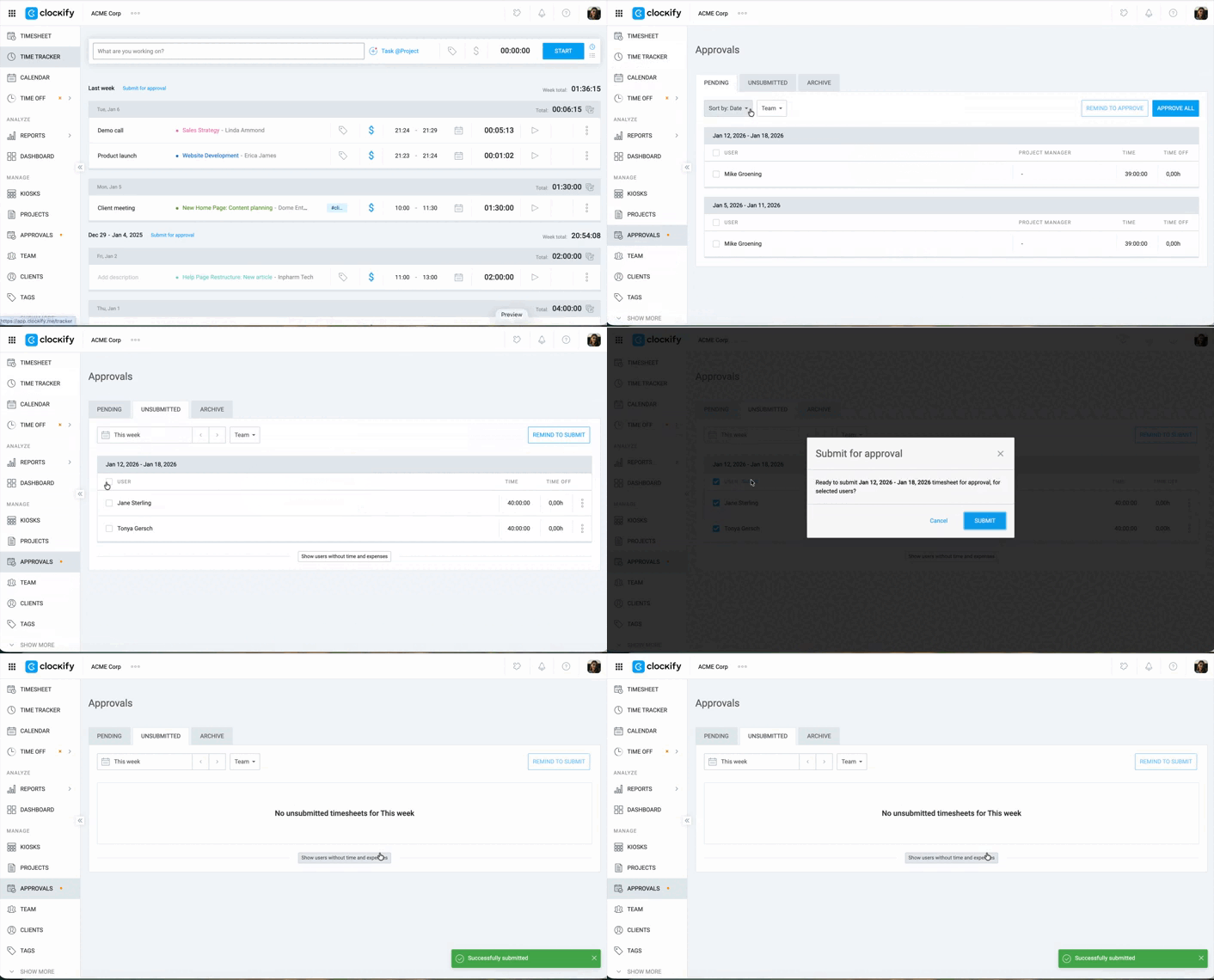
To bulk submit time for others:
- Go to the Approvals page
- Select the Unsubmitted tab
- Check the boxes next to the individual timesheets you wish to submit, or use the checkbox at the top of the column to select all
- Click Submit at the top of the page
- Confirm the action in the pop-up window
Edit pending time entries #
Admins can edit any user’s pending time entries directly. Team managers can only edit pending time entries for their team members.
To edit a pending time entry:
- Go to the Pending tab on the Approvals page
- Click on the edit pen icon next to the time entry
- Update the following fields as needed:
- Time and date
- Description
- Project/task
- Tags
- Billability status
4. Click Save to finalize the change
Approval notifications #
- The user will receive an email notification when their time entry is approved
- The manager will be notified when a time entry is submitted for approval
- Admins will be notified when a user submits their timesheet (if they have the necessary Manager role for that user)
Approve time off requests #
Time off requests can be approved through the Requests tab under the Time Off page.
Filter requests by status (pending, approved, rejected), by group, or by a specific team member or over a time range.
Each request will show:
- Team member: The employee requesting time off
- Period: The start and end dates of the requested time off
- Requested time: Number of requested days/hours
- Policy: Policy under which the request has been submitted
- Status: Pending, approved, or rejected
When you request time off, the app checks your available balance. If you have insufficient leave, the request will appear in red and cannot be approved until the balance is adjusted.
If negative balance is enabled, Clockify will display the number of negative days or hours allowed. You won’t be able to submit a request if it exceeds this limit.
Approve time off requests #
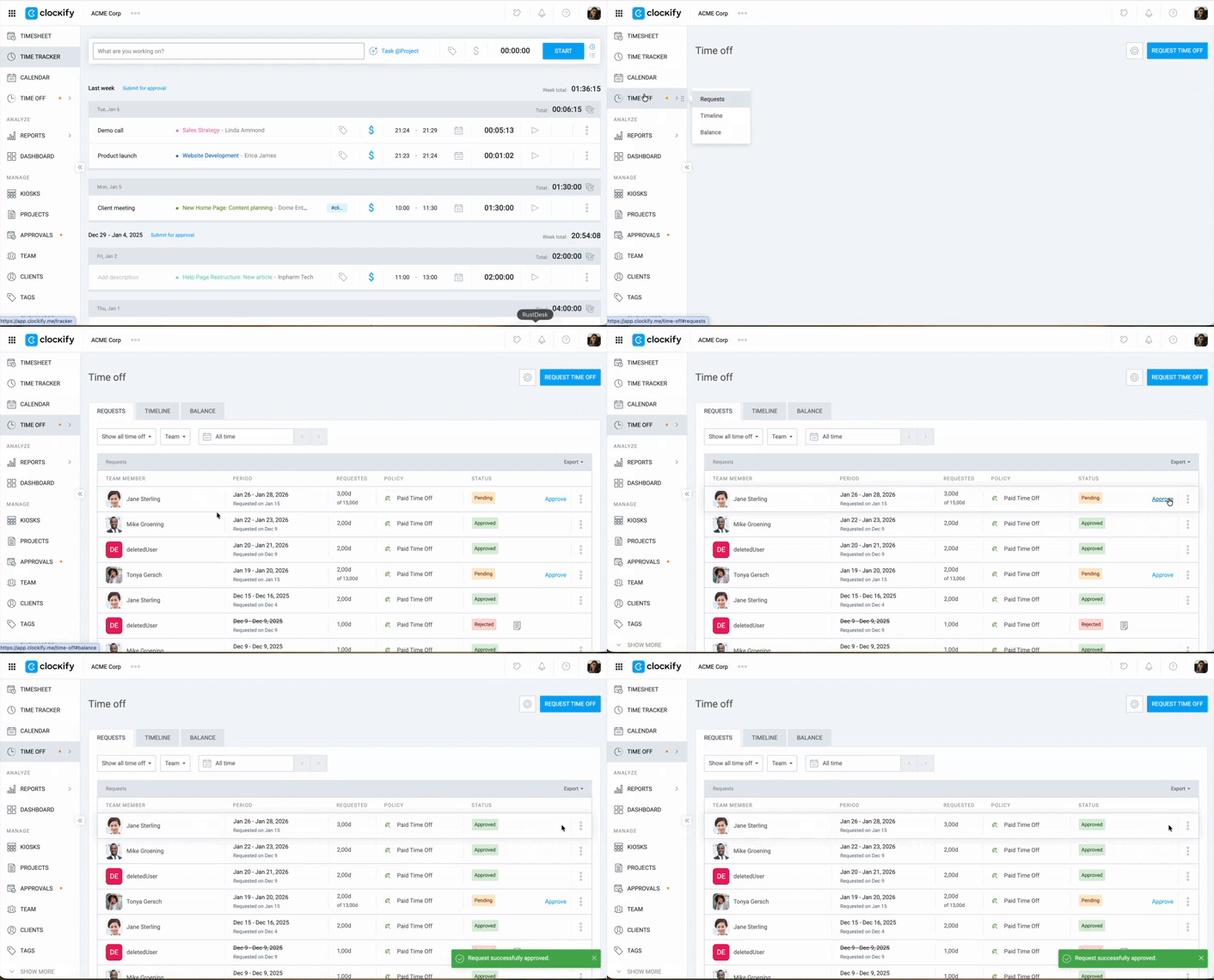
To approve or reject a time off request:
- Go to the Time Off page
- Click on the Requests tab
- Click Approve next to the request
Reject time off requests #
To reject time off requests:
- Go to Time Off
- Click the
 three-dot icon next to the request
 - Select Reject
- Enter a reason for the rejection
- Click Reject to confirm the action
Reject previously approved time off requests #
If circumstances change after a request has been approved, Admins can withdraw that approval to return the days to the user’s balance or to cancel the leave.
This is typically used for scheduling conflicts, project emergencies, or if an employee decides they no longer need the time off (e.g., a canceled trip).
To reject previously approved time off requests:
- Go to Time Off
- Click the three-dot icon next to the approved request
- Click Reject
- Enter a reason for the rejection
- Click Reject to confirm the action
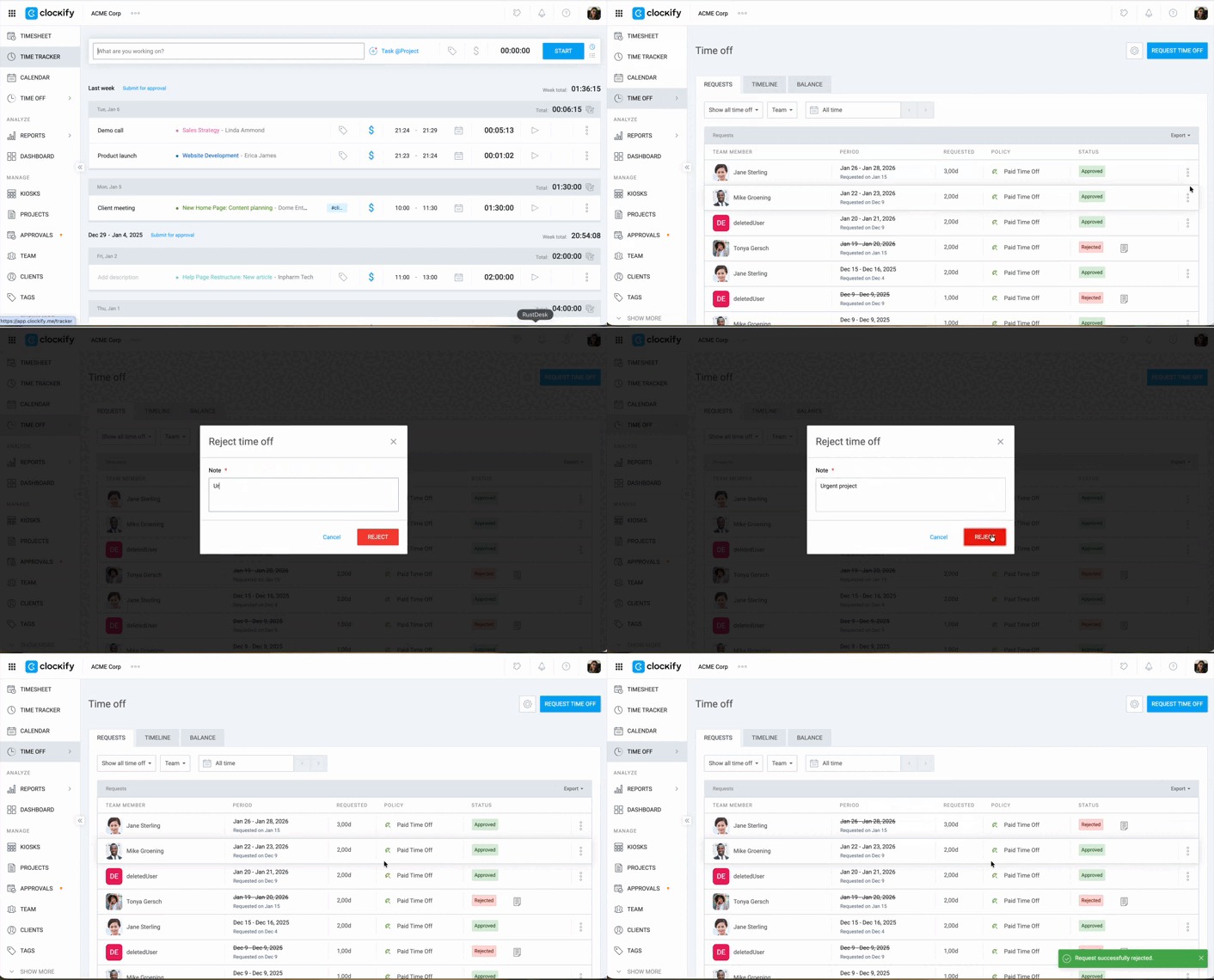
Rejecting an approved request automatically restores the hours or days to the team member’s available balance, and the user will be notified immediately.
Time off in Timeline view #
To get a quick overview of upcoming time off for your team, use the Timeline view:
- Go to Time Off
- Switch to the Timeline tab
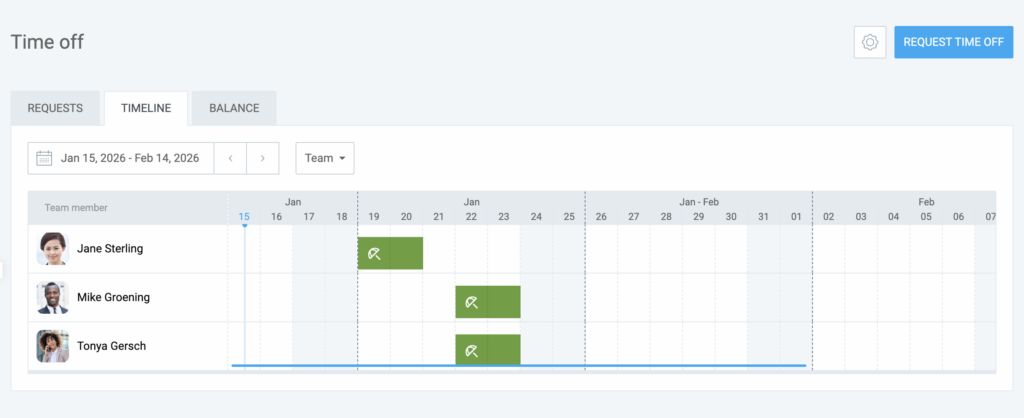
The timeline shows a 30-day view of all upcoming leaves, with each entry marked by its time off policy color.
Customize policy colors #
You can customize the colors that appear in the timeline for time off and holidays.
To customize time off colors:
- Go to Time Off
- Click on the
 gear icon
 - Select Manage policies
- Click the three-dot icon next to the policy
- Select Edit
- Click the dropdown menu next to the policy name (with the default green icon)
- Select a color for the policy
- Click Save
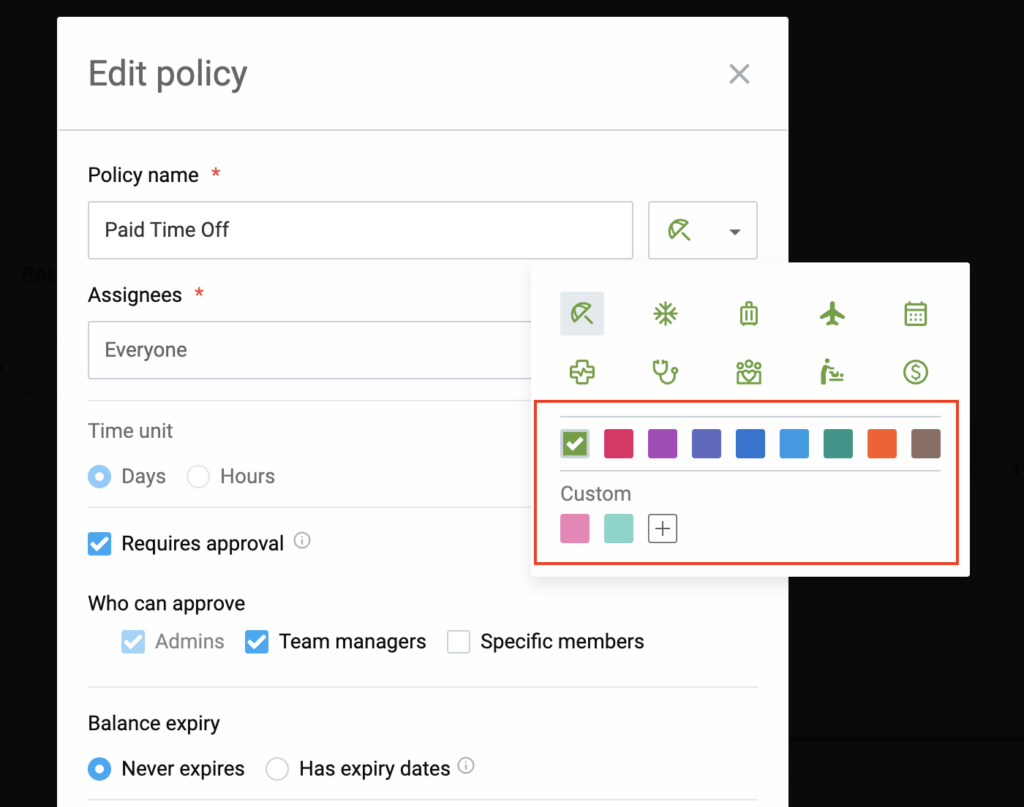
While you can customize the colors for different types of leave policies, please note:
- Policy colors: You can change these colors in the Time off policy settings.
- Status colors: Colors representing request statuses (e.g., Rejected, Pending, Approved) cannot be customized and appear in the Requests tab.
- Timeline visibility: Status-based colors do not appear in the Timeline view and only the policy-assigned color is displayed.
Manage Team and Project manager roles #
As an Admin, you can assign Team manager or Project manager roles to team members, allowing them to approve time entries and time off requests for their team or project members.
To assign a manager role:
- Go to the Team page
- Find the team member you want to assign a manager role to and click + Role
- Select Team manager or Project manager
- For Team managers, select the users/groups they will be responsible for
- For Project managers, select the projects they will manage
4. Click Save
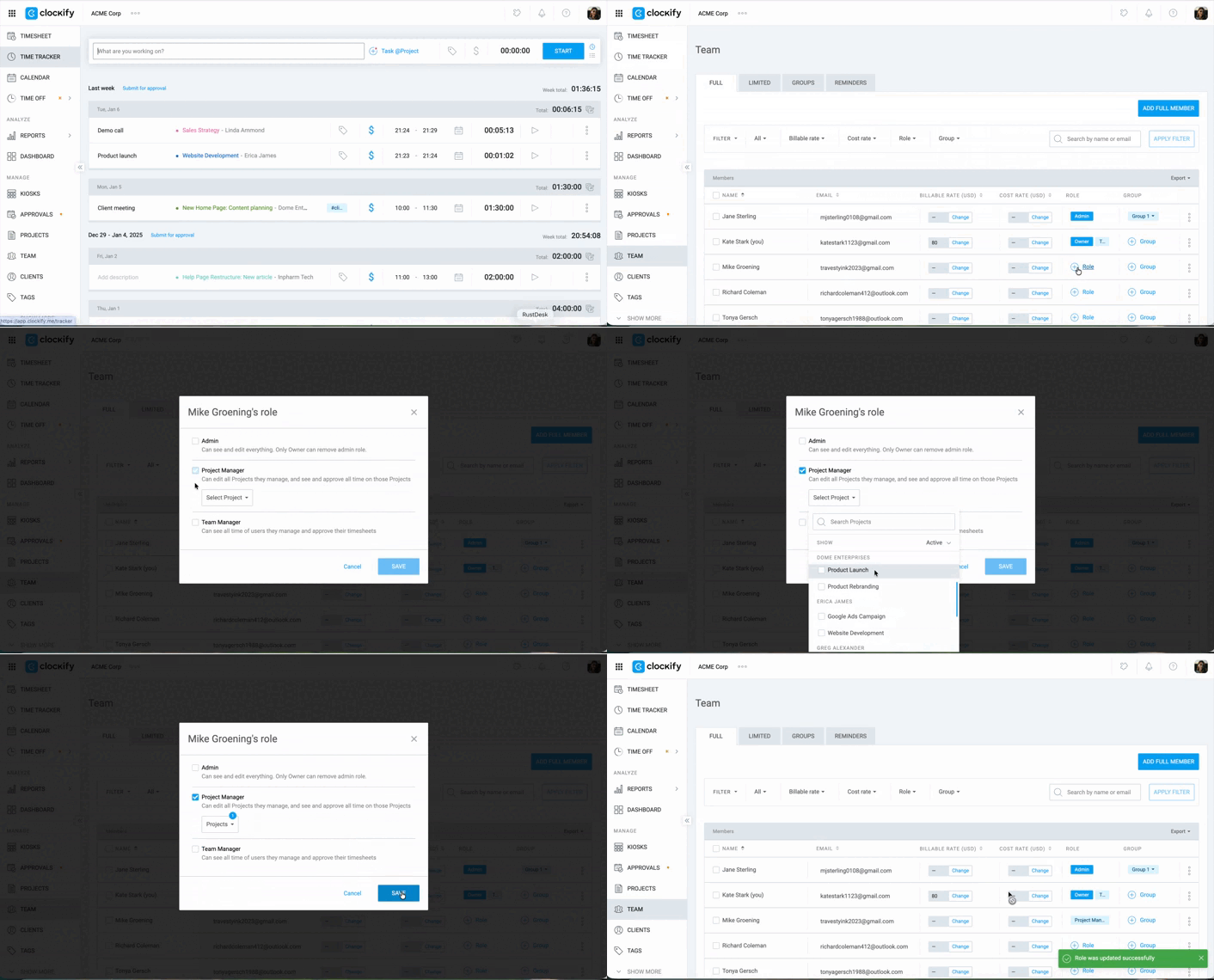
Once a user has a manager role, they will have access to the Approvals page to manage timesheets and time off requests for their assigned team or project.
Send reminders to approve time entries #
As an Admin, you can send reminders to Team or Project managers who have pending time entries to approve.
To send reminders:
- Go to Approvals
- Click the Remind to Approve button on the top-right corner
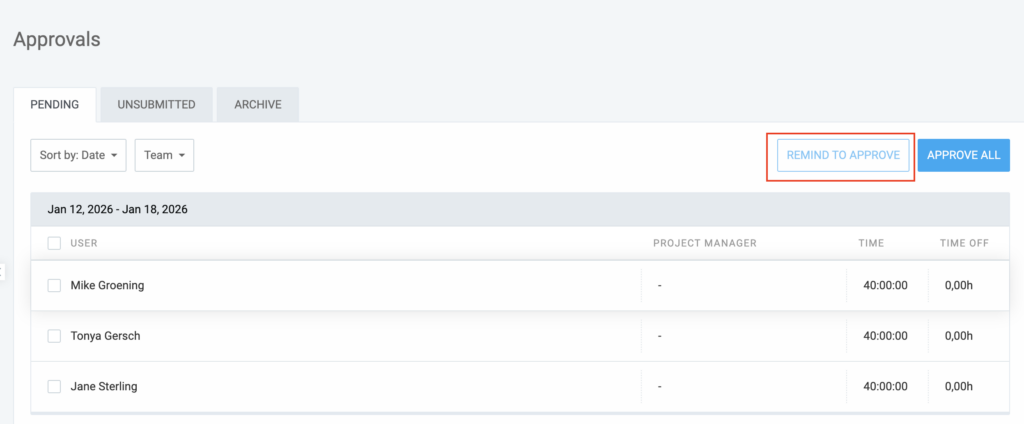
Managers will receive an email notification to approve pending timesheets.
Notifications for time entries & time off requests #
| Action type | Recipient | Alert type |
| Time entry submitted / approved | User | In-app Notification |
| Time entry rejected | User | Email (includes notes) |
| Time off submitted / approved | User | In-app Notification |
| Time off rejected | User | Email (includes notes) |
| Approved time entry/time off withdrawn | User & Admin |
FAQs #
Can I edit a time entry after it has been approved?
No, once a time entry is approved, it is locked and cannot be edited. However, as an Admin, you can withdraw approval, make edits, and then re-approve the entry.
Can a user edit their own time entry after submission?
No, users cannot edit their own time entries once submitted. Only Admins and managers with the appropriate permissions can edit or approve time entries. If a user needs changes, they can ask a manager to edit it on their behalf.
What should I do if a user claims they submitted a time entry, but I can’t find it?
Check if the user might have submitted their time in a different workspace. Each user has their own personal workspace, and sometimes they may accidentally track time there instead of the correct workspace. As an Admin, you can check their personal workspace to see if the time was logged there.
What happens if I reject a time entry by mistake?
If you accidentally reject a time entry, you can ask the user to resubmit it. Alternatively, as an Admin, you can manually edit the time entry and approve it again.
How do I update a billable rate in Clockify for approved time entries?
To update the billable rate for an approved time entry, you must first unlock the entry by withdrawing the timesheet from the Approvals > Archive page. Once the timesheet is withdrawn, you can update the applicable billable rate in your workspace or project settings. After the rate is correctly applied to the time entries, you can resubmit the timesheet for approval.