Request time off (regular user)
Clockify simplifies time off requests with an all-in-one process for schedule management and team coordination. This guide details how to request time off, select a policy, specify details, and submit for approval.
Submit time off request #
Here’s how you can request time off:
- Go to the Time off page
- Click Request time off
- Choose your time off policy
- Specify the dates for your request
- Add a note to explain your time off request to your manager or approver (optional)
- Click Submit
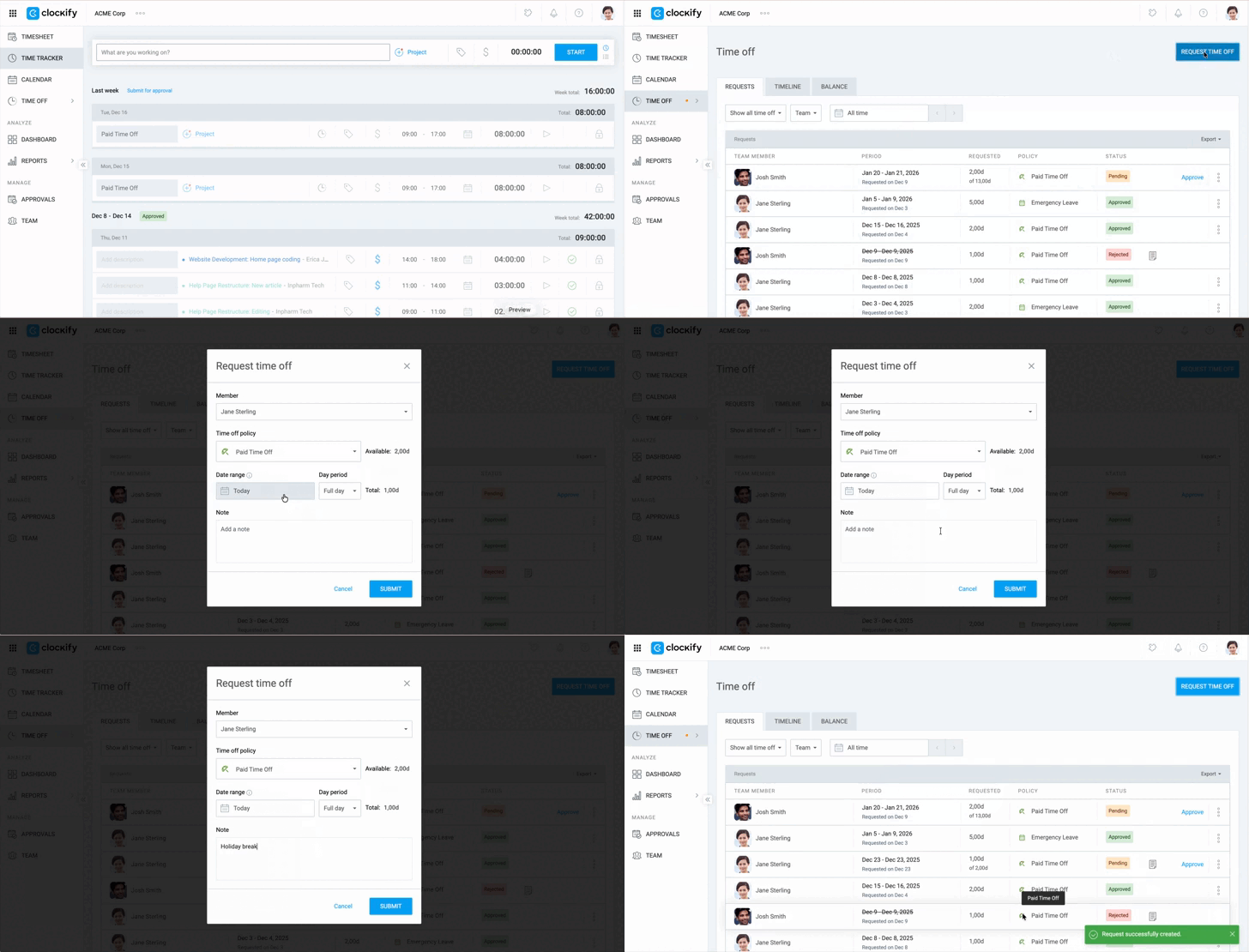
Your manager will receive a notification to review and approve (or reject) your request.
Time off policies #
When requesting time off, the dropdown menu shows available policies and remaining time. Your workspace may have multiple time off policies (e.g., vacation, sick leave), each with different rules for entitlement and allowing negative balances.
Please note that:
- You won’t be able to request time off if you don’t have enough balance in a specific policy, unless that policy allows negative balances.
- You can view your available balance for each policy directly from the dropdown menu.
- Holidays and weekends are automatically excluded from your total time off count, so you don’t need to manually adjust for those days
- A Time off feature update allows you to see both positive and negative balance in the Balance tab.
Manage time off request #
You can manage your own time off requests from the Time Off page. This includes viewing the status of your requests (e.g., pending, approved, rejected) and making updates as needed.
Withdraw time off #
If you realize you made a mistake or need to change your request, you can withdraw your pending request.
To withdraw:
- Click on the
 three dot icon next to your request
 - Select Withdraw
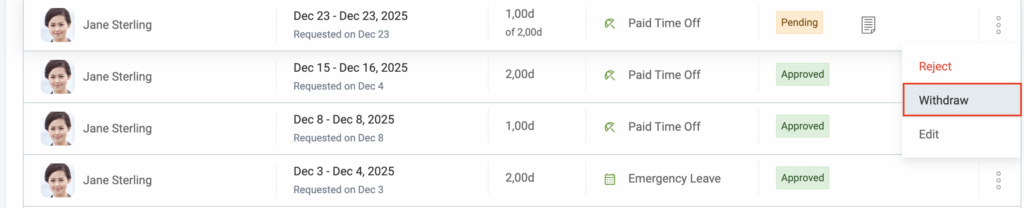
Approved time off requests cannot be withdrawn. You’ll need to contact a Workspace Admin to withdraw the approval before any changes can be made.
View other users #
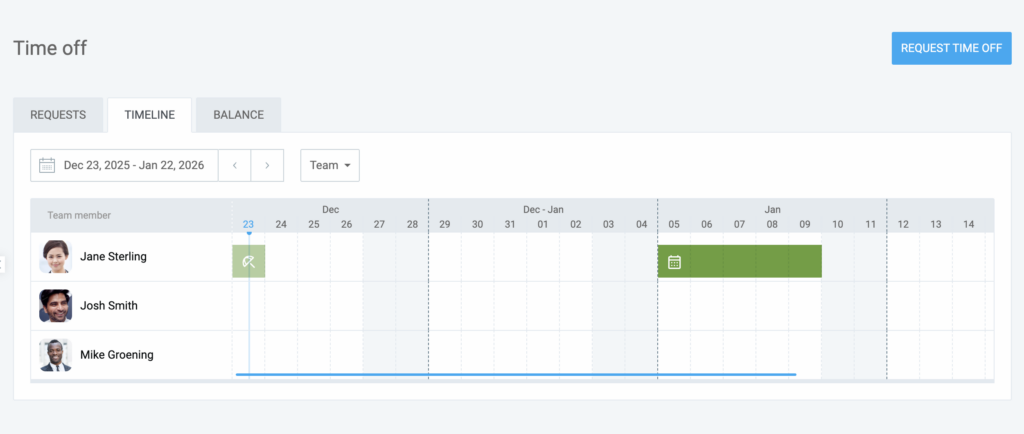
The Timeline tab allows you to see all users in your workspace and their pending or approved time off requests. This way your team will have better coordination and less time off overlaps.
To view other users:
- Go to Time Off page
- Click on the Timeline tab
View time off balance #
The Balance tab serves as your personal time-off dashboard. It breaks down your time into three specific categories so you can see exactly where you stand with each policy.
- Accrued: This is your total time earned or granted since your start date or the current period began, including your base entitlement plus accumulated time.
- Used: This represents all the time off you have already taken or that has been approved for future dates. It’s the total amount “deducted” from your earned balance.
- Available: Your “spendable” balance is your Accrued time minus your Used time. Check this before planning new requests, as it’s the most crucial number.
If you’ve taken more time off than you actually have (creating a negative balance), we’ll show that usage separately in your balance table. That number is the total days you’ve used from your allowed negative balance.
To check your time off balance:
- Go to the Time Off page
- Click on the Balance tab
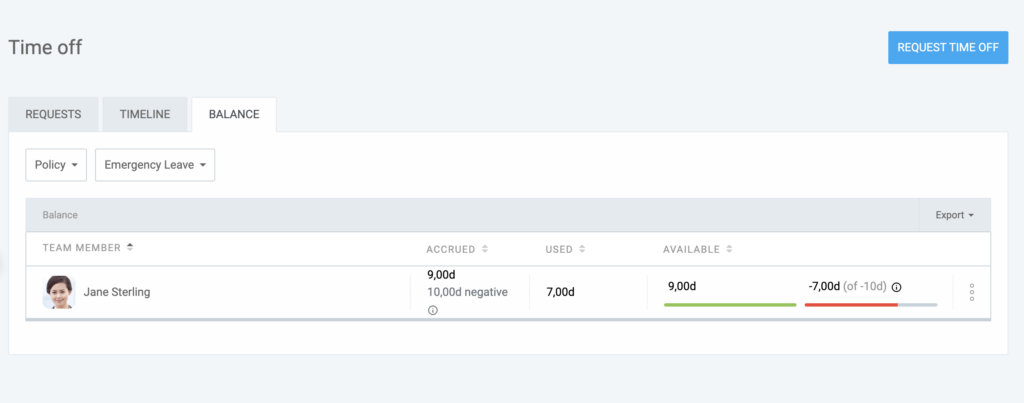
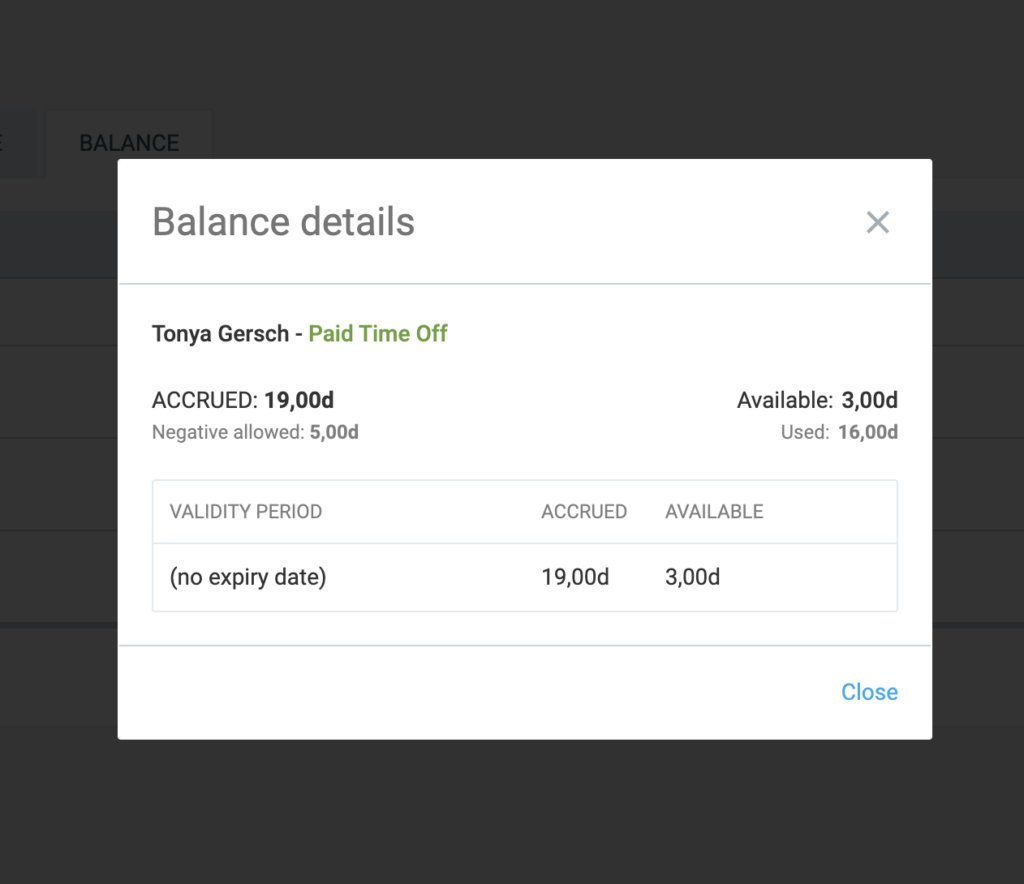
You can further click on the three-dot icon next to the balance and choose Manage balance (Balance details) or History (Balance history).
Balance details – A real-time snapshot of your current standing for every time off policy you belong to. It shows you:
- Accrued balance vs. Available
- Used balance
- Negative balance (if applicable)
- Validity period (if applicable)
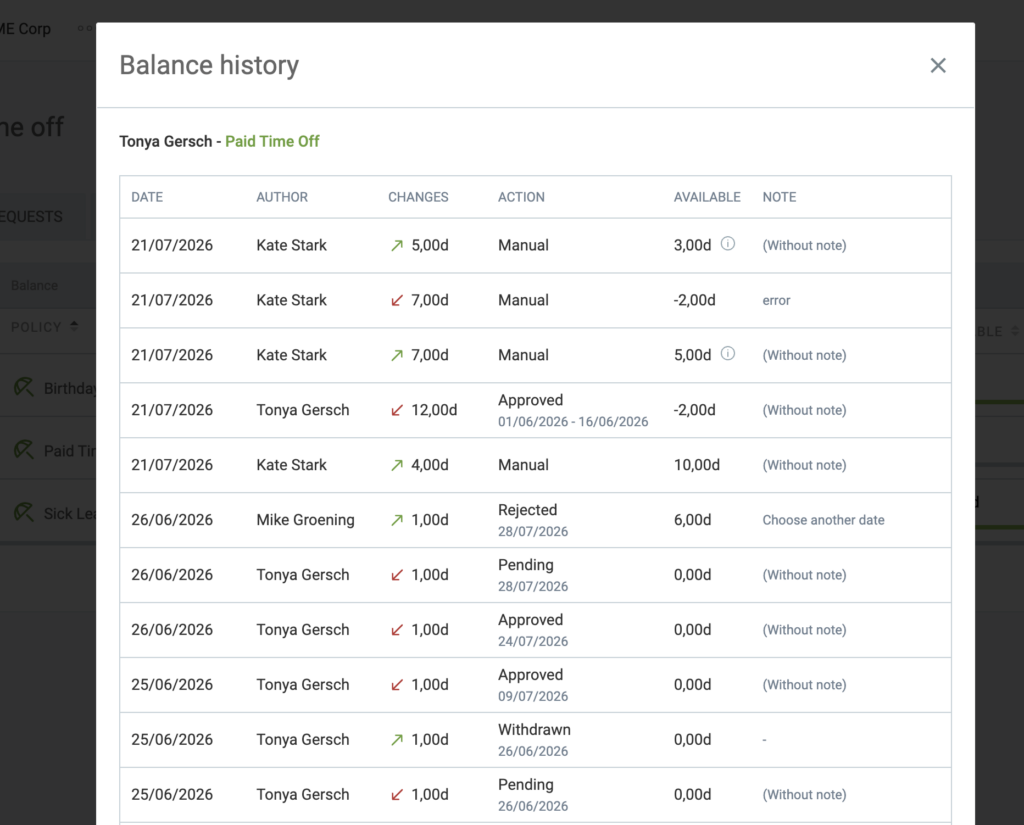
Balance history – A chronological record for your time off. It lists every transaction that has affected your balance, including:
- Changes – Balance that was added or deducted from your available leave credits
- Action – Balance that was manually added/removed by your manager or approved/rejected time off requests
- Available – Your current available balance
- Note – Any notes included with the time off request or actions taken by your manager
Email notifications #
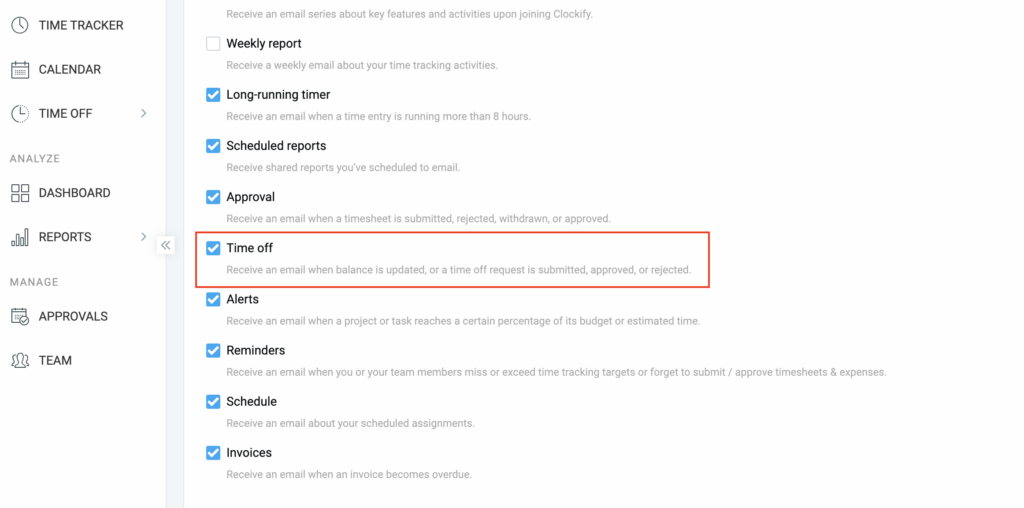
Clockify automatically sends email notifications for key actions related to time off requests, such as when your time off is approved or rejected.
To change email preferences for time off notifications:
- Go to Profile settings
- Click the Email notifications tab
- Check or uncheck the option for Time off
FAQ #
Can I request time off on behalf of someone else?
Only admins and team managers can submit time off requests for other users by selecting their name from the dropdown menu.
Does my unused time off balance expire at the end of the year?
It depends on the policy settings. Clockify allows administrators to set balances to never expire or to have specific expiry dates. If a policy has an expiry date, any remaining balance will be automatically removed once that period ends.