Manage member’s time
As a Team manager or Admin, you can oversee and manage the time entries and expenses submitted by the members of your workspace or team.
Imagine you’re a department manager overseeing a team of marketing specialists. Each team member submits their tracked time entries and expenses for various marketing campaigns and projects. As the manager, you review these submissions to verify the accuracy of tracked hours and expenses to make sure that they align with project budgets and client agreements.
Permissions #
Access to management features depends on your subscription level and user role:
- Time management: Available on Standard plans and higher.
- Expense management: Available on Pro plans and higher.
| Action | Workspace Admin | Team Manager |
| Send Reminders | ✅ | ✅ (Own team only) |
| Submit time for others | ✅ | ✅ (Own team only) |
| Withdraw/Edit Approved Time | ✅ | ✅ (Own team only) |
Identify missing time #
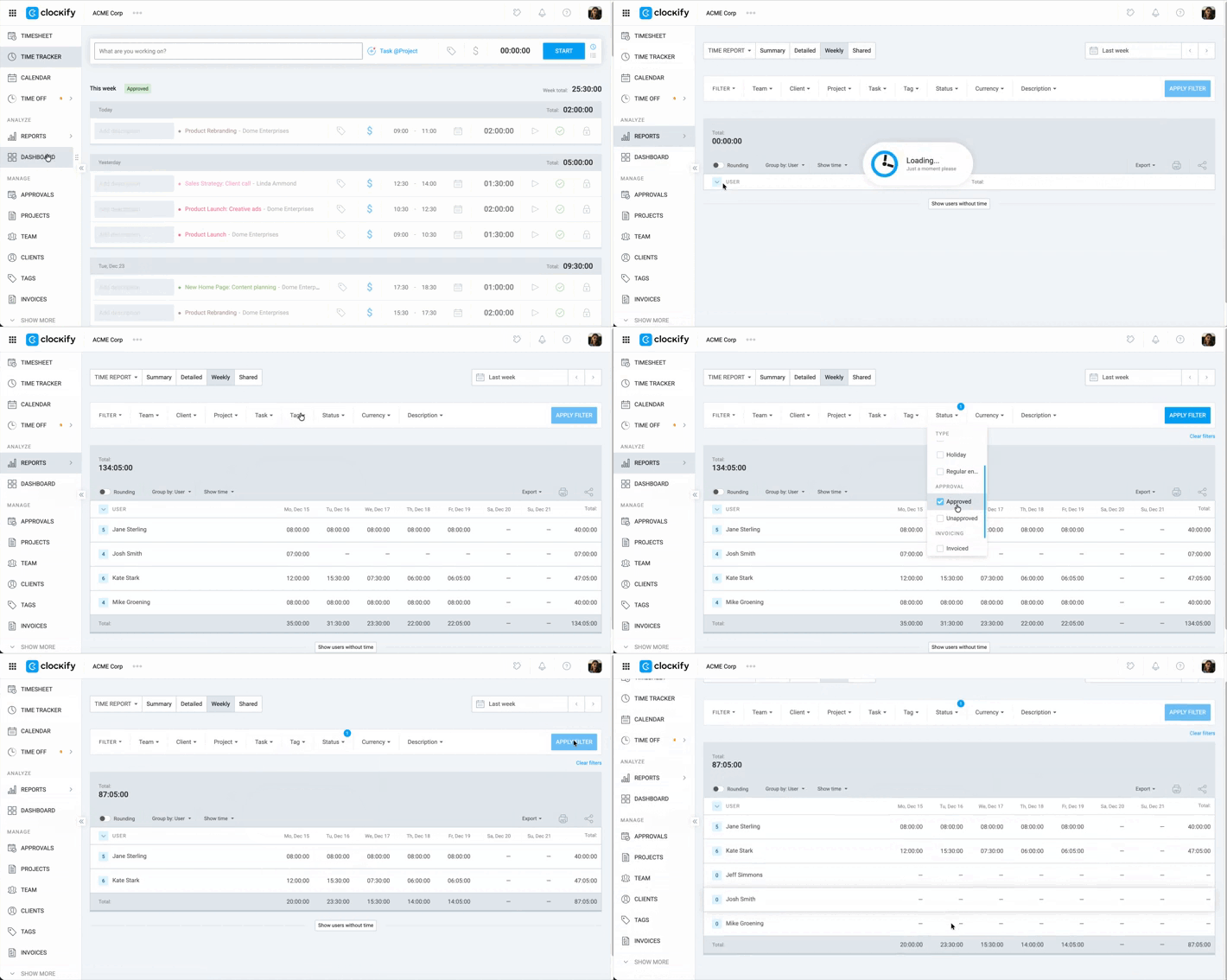
There are two ways to check team members who don’t have any approved time (team members who forgot to fill out and submit timesheets):
Option 1: Weekly report #
- Go to the Weekly report
- Group report by user
- Select the week you wish to review
- Click the Status filter
- Choose Approved and click Apply filter
- Click Show users without time
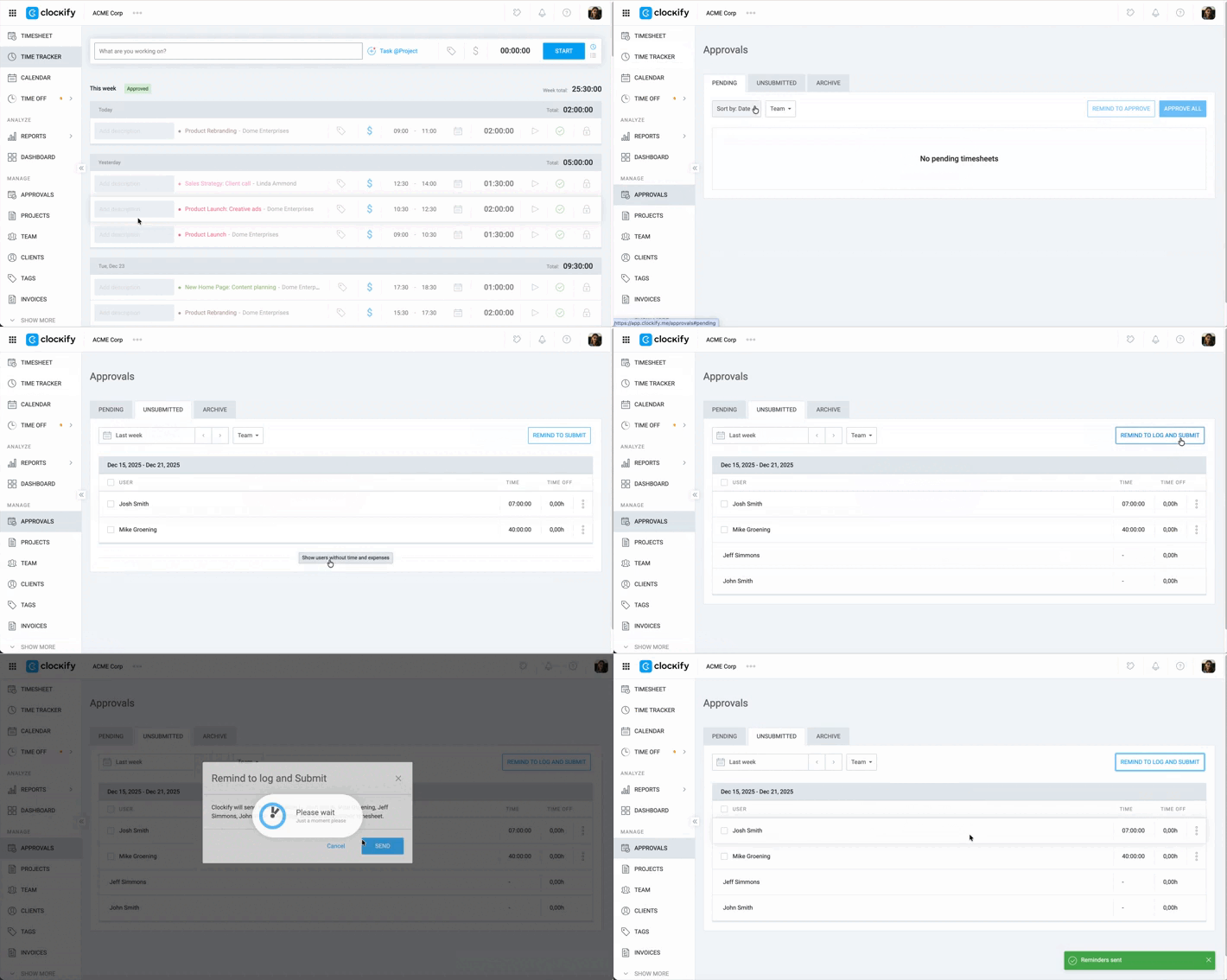
Option 2: Approvals page #
- Go to the Approvals page
- Choose the Unsubmitted tab
- Click Show users without time
- Click Remind to log and submit
- Review the list of team members who are getting the reminder
- Click Send to complete the action
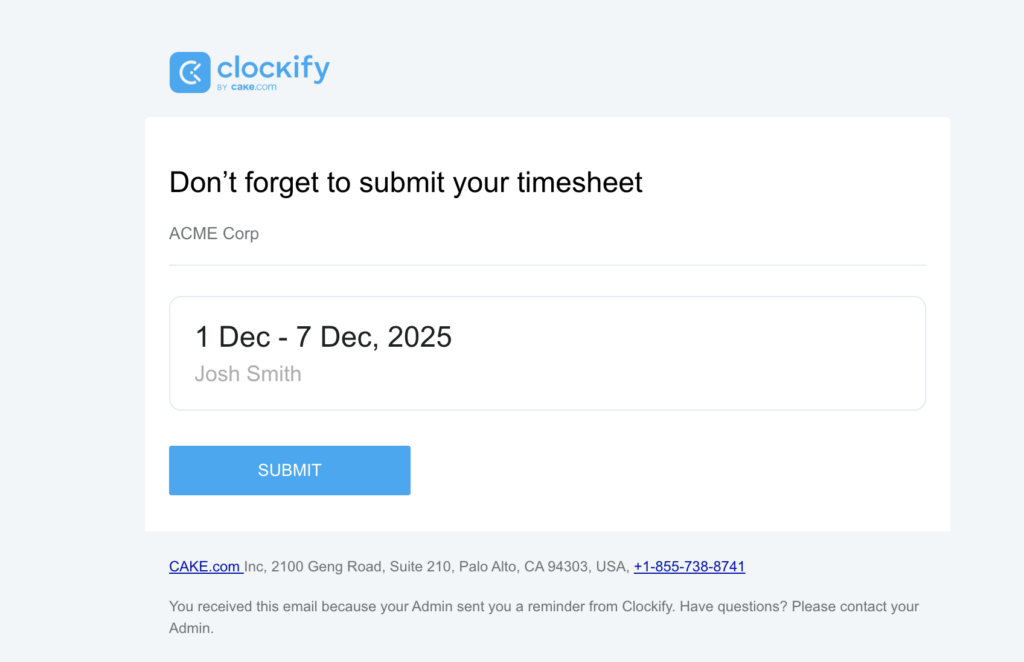
As a result:
- Team members who didn’t submit their timesheet get an email reminder to submit
- Team members who have untracked time get a reminder to log their time and submit their timesheet
Remind team members to submit time
Admins and Team managers (for members of their team) can check whether team members added their time entries during the week and send reminders to team members who didn’t track time or submit their timesheets.
This functionality is part of the Approvals feature and is available to team members who have Approvals enabled in Workspace settings.
Team members who didn’t log their time during the week are displayed in the Unsubmitted tab.
Inactive members are not displayed in the Unsubmitted tab.
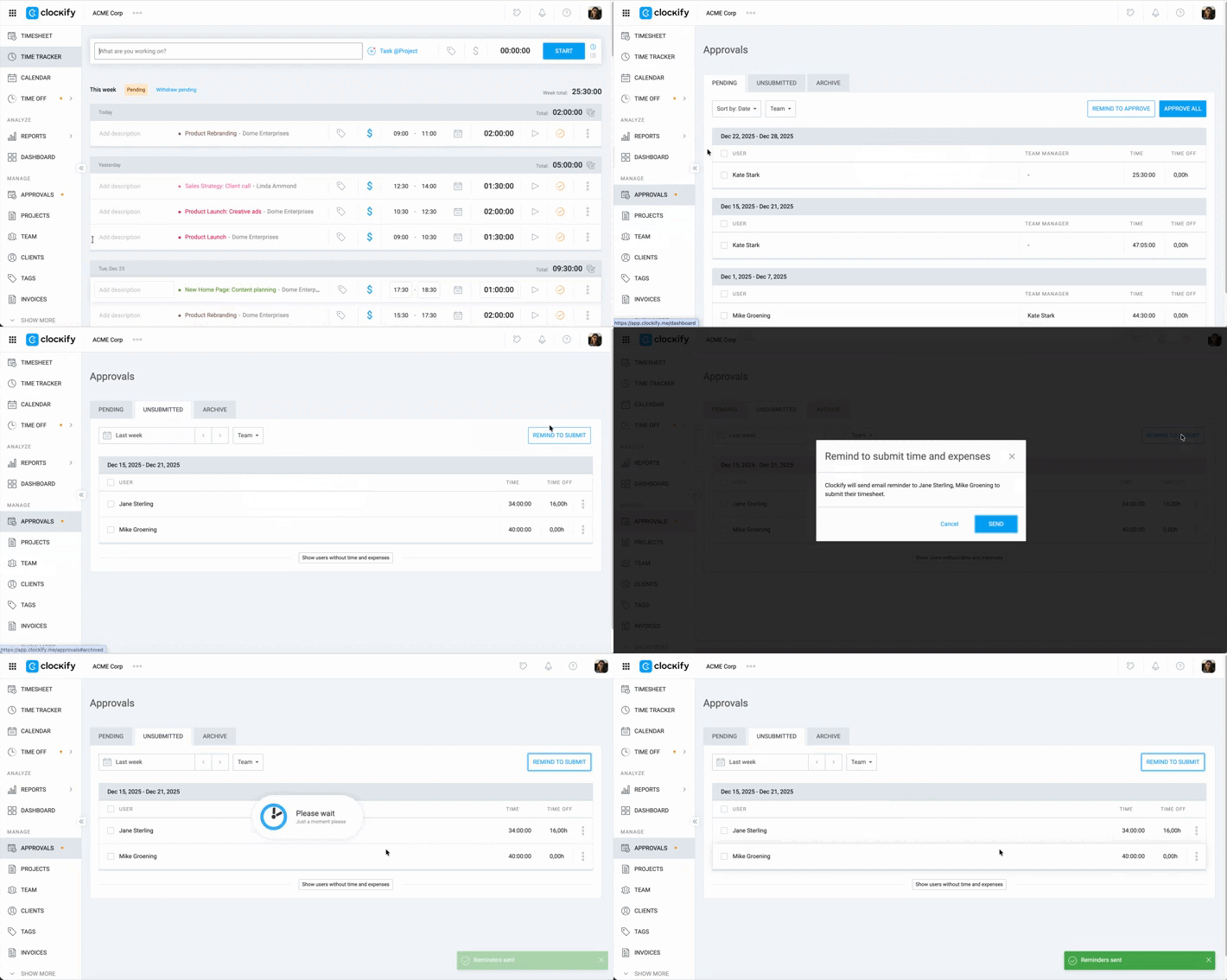
To send reminders to team members with unsubmitted time:
- Go to Approvals
- Click the Unsubmitted tab
- Click the Remind to submit button in the top-right corner
- Click Send in the pop-up window
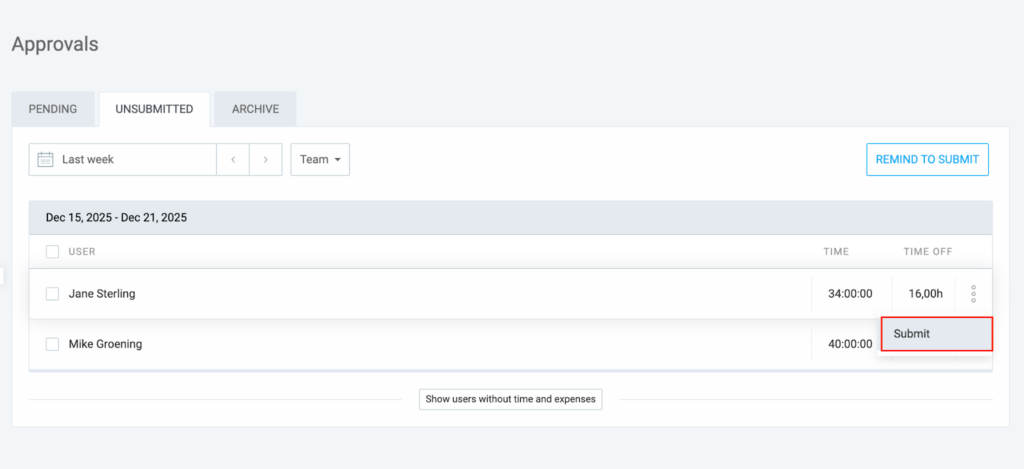
Alternatively, you can submit a timesheet for a team member by clicking the three-dot icon next to their name, then selecting Submit.
Change approved timesheets #
Approved timesheets are locked and can’t be changed or edited, even if you turn off Approvals or downgrade the account.
Regular users can still add new hours to an already approved period, as long as those dates aren’t locked. This new time has to go through the approval process again. The manager can then only approve or reject the added time; the previously approved time remains unchanged.
Withdraw approval #
- Go to Approval
- Choose the Archive tab
- Find the time period that needs fixing
- Click on the approval request to open its details
- Click Withdraw approval in the upper right corner
- Leave a note detailing what was wrong, why, and what needs changing
- Click Withdraw
When time approval is withdrawn, the corresponding time entries become editable.
- Who can edit: Admins can edit withdrawn entries in the Detailed report, while the team member can edit it in their Timesheet or Time Tracker page.
- Notification: The team member and all admins will receive an email containing a note about the withdrawal.
- Audit trail: For auditing purposes, a permanent copy of the previously approved time entries, including their original hourly rates, is moved to the Withdrawn section.
Check withdrawn time entries #
To see all withdrawn time entries:
- Go to Approvals
- Click the Archive tab
- Click the Show all filter
- Select Show withdrawn
- Select the team member to view their withdrawn time entries