Not every monitoring tool monitors the same things. Some log app and website usage. Others record every keystroke and full screen continuously.
After testing them out for weeks, I compiled this guide with 10 user activity monitoring (UAM) tools worth considering in 2026. The focus is on what they capture — screenshots, keystroke logging, screen recording — and whether they lean toward productivity reporting or full surveillance.
WHY TRUST US?
The apps we talk about are selected, tested, and written about by human reviewers who follow strict review and editorial guidelines. We pick solutions that are practical, purposeful, and can offer real value for the specific use case or business context we’re covering — while also being justified in their pricing. Our methodology is transparent, clear, and available to everyone:
| Tool | Best for | Screenshots | Keystroke logging | Screen recording | Entry price for monitoring features (annually) |
|---|---|---|---|---|---|
| Clockify | Teams that track time and want lighter-touch activity data in the same workspace | Yes, blurred by default | No | No | $7.99/seat/month |
| Insightful | Teams that need per-employee control over exactly what’s captured | Yes, configurable | No | Add-on | $8/seat/month |
| ActivTrak | Teams who may not specifically need screenshots for monitoring | Add-on only | No | Add-on | $10/seat/month |
| Teramind | Security teams that need DLP and insider threat detection alongside UAM | Yes | Yes | Yes | $14/seat/month (5 seats minimum) |
| SolarWinds | IT/security teams doing compliance-driven log auditing, not desktop monitoring | No | No | No | $8/node/month |
| Hubstaff | Teams that want one simple activity-percentage metric instead of category breakdowns | Yes, optional blur | No | No | $4.99/seat/month (2 seats minimum) |
| DeskTime | Teams that want automatic classification without employees tagging their own time | Yes, optional blur | No | No | $6.42/seat/month |
| CurrentWare | Regulated (government, health, finance) or education-sector teams that need on-prem deployment | Add-on | No | No | $12/seat/month |
| Veriato | Security-focused teams tracking mobile and desktop from one license | Yes | Yes | Yes | $18/seat/month (5 seats minimum) |
| Controlio | Teams that want continuous screen recording and keystroke logging in one platform | Yes (video) | Yes | Yes | $6.67/seat/month |
What is user activity monitoring (UAM) software?
User activity monitoring (UAM) software records what employees do on their work devices and turns that activity into reports for managers or IT admins. This includes app and website usage, screenshots, idle time, and, in some tools, keystrokes and screen recordings.
UAM sits between 2 software categories: One is employee monitoring, built for productivity and accountability. The other is insider-threat detection, built for security and compliance. Tools like Teramind and Veriato lean toward security, while tools like Clockify and ActivTrak lean toward productivity.
Don’t confuse UAM with application performance monitoring (APM). APM tools track software performance, such as response times, uptime, and error rates. UAM tracks the people using computers, not the code running on servers.
Activity monitoring vs. surveillance
Activity data helps managers spot burnout, verify billable hours, and catch actual misuse. But if employees feel like every keystroke is logged, trust may erode faster than the data can rebuild it.
The most direct way to lower that tension is to limit what the software captures in the first place. Keystroke logging and continuous screen recording are the 2 features employees object to most because both capture content, not just usage patterns.
That said, Clockify’s Activity monitoring excludes both keystroke logging and screen recording by design. In fact, screenshots are blurred by default across the workspace and auto-delete after 60 days.
What UAM software actually sees
Most UAM tools, including Clockify, see 3 categories of data on a work device:
- Which apps and websites were open
- How long the mouse or keyboard went untouched
- Periodic screenshots of the screen that an employee had
Tools like Teramind, Veriato, and Controlio go further, adding keystroke content and continuous screen recording.
None of the tools in this guide monitor personal devices or personal accounts unless an employer explicitly requires personal-device use for work and discloses that in policy. In fact, monitoring scope is set by the employer’s configuration, not the software’s default behavior alone.
If you’re an employee wondering what’s actually captured on your work computer, the honest answer depends entirely on which tool your employer uses and how it’s configured.
💡 CLOCKIFY PRO TIP
To learn how to track and measure employee productivity without breaking the team’s trust, check out this article:
That said, let’s now go over our list of 10 best user monitoring software in 2026.
#1: Clockify by CAKE.com — best for time tracking and activity data
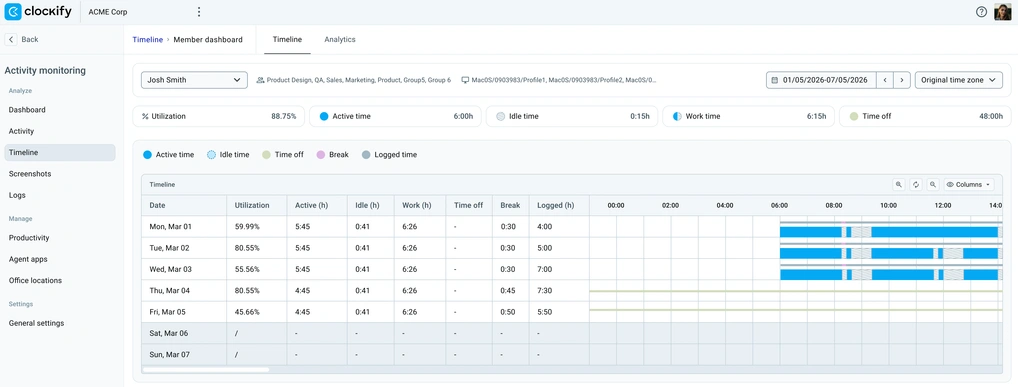
Clockify by CAKE.com is a time tracking and project profitability platform. Clockify recently launched Activity monitoring, a feature that fits well with the app’s work tracker, budgeting, invoicing, and estimates.
The new Activity monitoring in Clockify is built around:
- 2-minute default screenshot interval, configurable from 30 seconds to 10 minutes.
- Screenshots blurred by default, workspace-wide, with 60-day automatic screenshot deletion.
- Configurable idle time, based on keyboard and mouse input (not keystroke logging or screen recording).
- Web and app usage categorization with 4 different configurable categories (Productive, Neutral, Unproductive, and Undefined).
- Utilization calculated from data Clockify already holds, such as approved time off, daily work capacity, and working schedule.
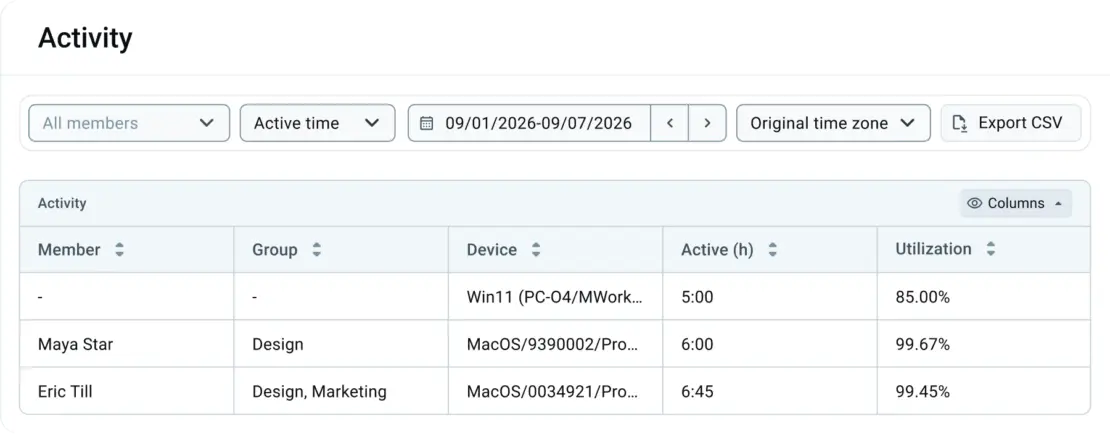
Since Activity monitoring shares data with Clockify’s time tracking and project profitability tools, managers can check whether the hours billed to a client actually match real screen activity or catch a mismatch before they send an invoice. In my opinion, that link between activity and margin isn’t something that most single-purpose monitoring tools offer natively.
As a workforce analytics tool, I find Clockify to lean more toward productivity and time tracking than an insider-threat security suite. Right now, Activity monitoring in Clockify is an admin-configured feature, meaning employees don’t yet get a self-view dashboard of their own tracked activity. In my opinion, this is worth considering for your rollout plan if you want your employees to have visibility into their own data.
Clockify by CAKE.com pros
When it comes to Clockify pros, here are a few to consider:
- Setup requires no separate infrastructure, as the monitoring agent installs in the same app you already use for logging hours.
- The amount of features available on the plan that includes Activity monitoring is very competitive for the price.
Clockify by CAKE.com cons
Some of the pesky Clockify cons include:
- Activity monitoring is available on the Pro plan and above — see Clockify’s pricing plans.
- The monitoring agent currently only runs on Windows and macOS.
To get an idea of what Clockify offers, explore Clockify’s features and try the Pro plan for 7 days for free, no credit card required.
What’s new in Clockify by CAKE.com?
The Clockify September 2026 update launched the new Activity monitoring feature and added Expense approval notifications in the Pumble integration, along with other fixes.
| Free plan | Yes, for up to 5 users |
| Free trial | 7 days (with a possible extension after reaching out to support) |
| Starting price | $3.99/user/month; $7.99/user/month for monitoring features billed annually |
| Availability | Windows, macOS, Linux, Web, Android, iOS (Windows and macOS only for monitoring agent) |
Best for: Teams that already use Clockify (or a similar time tracker) for client billing and project margin, and want activity data without adding a 2nd per-seat tool.
Assess Productivity Trends
Get employee productivity insights to identify productivity patterns in the work of your teams.

#2: Insightful — best for per-employee control
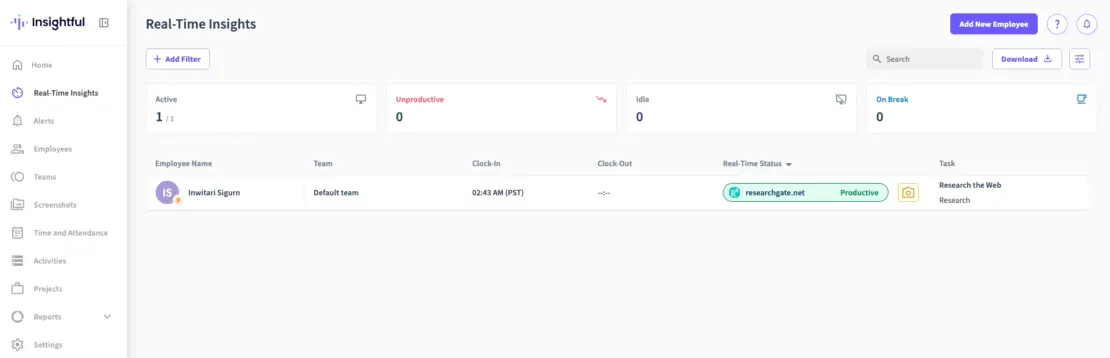
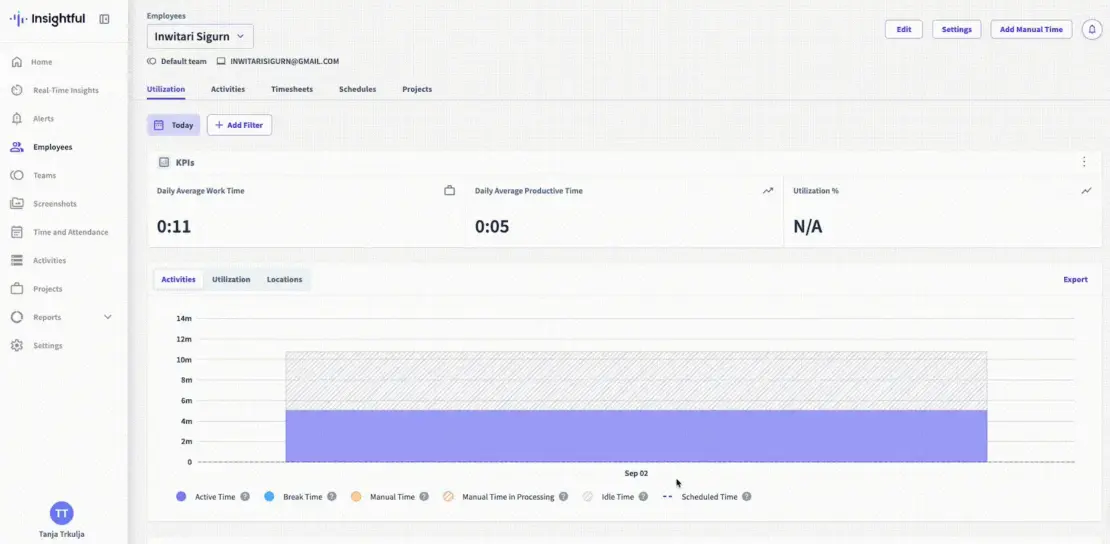
Insightful (formerly Workpuls) splits its work intelligence platform into 3 plans — Workforce Analytics, Workflow Optimization, and a Combo tier.
What separates Insightful from most tools on this list is how granular the capture settings get:
- Screenshot frequency, blur, and stealth-vs-visible deployment can each be set independently, per employee, group, or company-wide.
- Screen recording, on-demand manager-triggered screenshots, and a Workspace Security module for tighter data-loss control are available as paid add-ons.
- Automatic Time Mapping sorts app and website activity into projects and tasks based on usage history, without manual entry.
For a manager overseeing a mixed team, contractors under closer watch, and full-time staff under lighter monitoring, Insightful’s granularity means applying different rules to each group without running 2 separate tools. It also lets managers temporarily increase monitoring for one employee under review, then dial it back, instead of locking in one policy for everyone, which I find very practical.
After testing out the tool, I have to say that Automatic Time Mapping needs real usage history to calibrate. I wasn’t able to get reliable project splits during the trial window. That’s worth knowing before judging the feature too early.
Insightful pros
When we talk about the upsides of Insightful, bear in mind the following:
- No seat minimum, so a manager can test out the tool on one employee before rolling it out further.
- Free trial is enough to test capture settings against a live team before signing an annual contract.
Insightful cons
As for disadvantages, here are a few considerations:
- No free plan available.
- App doesn’t support monitoring on mobile devices.
What’s new in Insightful?
With the release of Insightful’s July 2026 product updates, came an improved macOS Agent, a better Settings and Workflow Optimization experience, and enhanced personalization options.
| Free plan | No |
| Free trial | 7 days |
| Starting price | $8/user/month billed annually |
| Availability | Windows, macOS, Linux, Web |
Best for: Ops and finance teams that want per-employee control over exactly how much is captured instead of a single fixed monitoring setting applied company-wide.
#3: ActivTrak — best for less invasive user activity monitoring
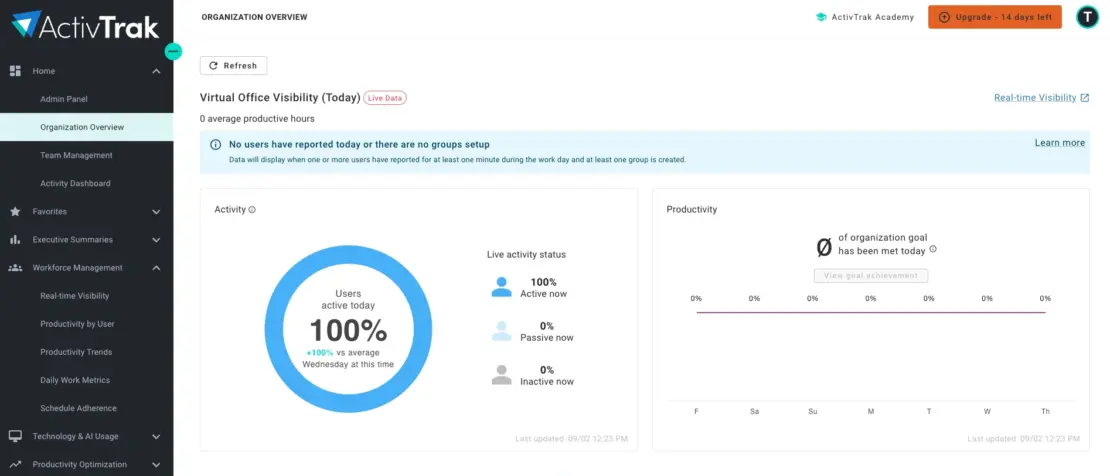
ActivTrak is a user activity monitoring tool that purposefully leaves out major capture categories from its core product. Aside from no keystroke logging, it doesn’t offer screenshots or screen recording unless you buy them as add-ons.
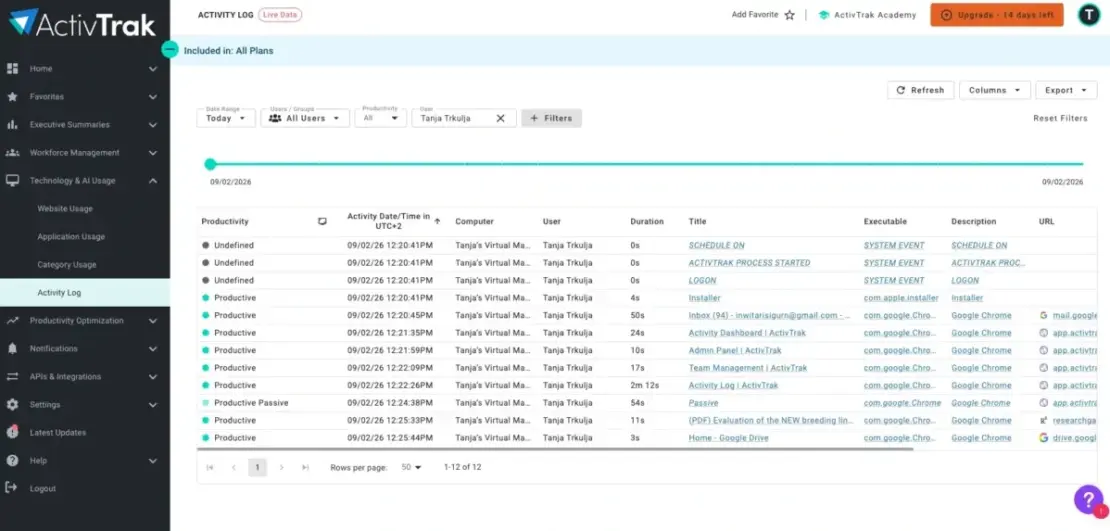
The base product runs entirely on app and website usage data, which still adds up to a real picture:
- Productivity score blends active time, focus time, and category mix into a single number per user or team.
- Passive time detection flags sessions where a device sits open without real input.
- Custom classification rules let admins reclassify any app or site as productive, neutral, or unproductive based on their definition of work.
With no screenshot or keystroke data to review, managers spend less time scrolling through evidence and more time acting on the Productivity score/category breakdown. I believe that can shorten the path from noticing a dip in engagement to having a conversation about it, since the numbers point straight at which apps or categories changed.
I find that ActivTrak solves a specific, recurring problem better than most tools on this list: what to do when employees push back hard on screenshots specifically, but leadership still wants usage data.
Leaving screenshots and screen recording out of the core plan means there’s no visual capture to defend in the first place. I think that’s a real advantage during rollout, since a lot of the resistance to monitoring tools comes from employees picturing a manager scrolling through screenshots of their day.
The Productivity score and classification rules still give a manager enough signal to spot disengagement or misclassified tools.
ActivTrak pros
When considering the advantages of ActivTrak, keep in mind the following:
- Productivity scores update as usage data comes in, so managers see current, relevant metrics.
- Free plan (up to 3 users) runs the same classification engine as the paid tiers, not just a stripped-down version.
ActivTrak cons
As for ActivTrak’s downsides, don’t forget about these:
- The agent isn’t supported on Linux-based devices yet.
- Custom classification rules take manual setup per app or website, with no bulk import from a previous tool.
What’s new in ActivTrak?
In August 2026, ActivTrak released a new feature overview, including AI Insights for measuring AI ROI, among other things. You can use the Ask Work Advisor and MCP server to answer workforce questions with conversational AI.
| Free plan | Yes, up to 3 users |
| Free trial | 14 days |
| Starting price | $10/user/month billed annually |
| Availability | Windows, macOS, ChromeOS |
Best for: Teams where user activity monitoring may break trust and less invasive methods such as usage-pattern data may be enough to work from.
#4: Teramind — best for insider-threat detection
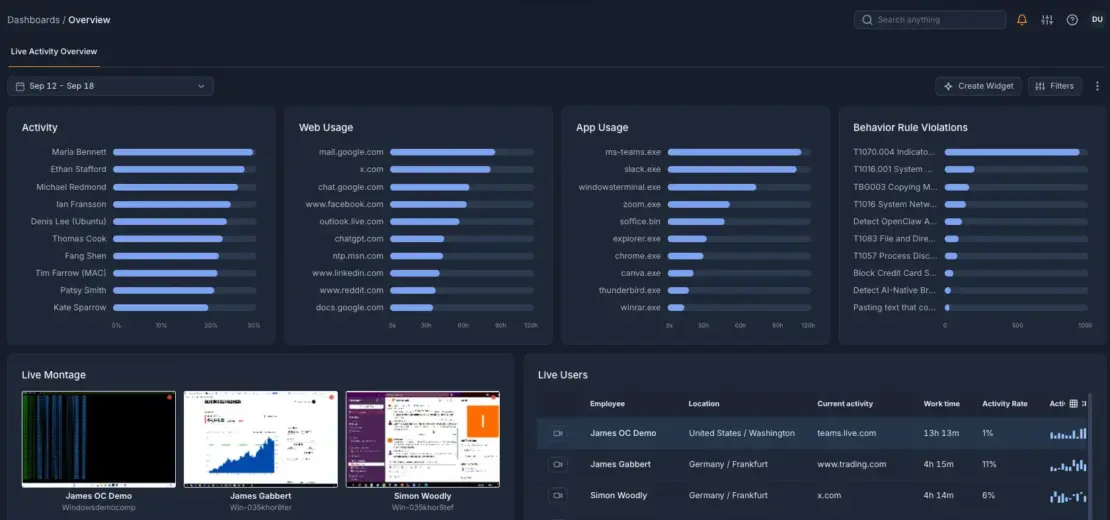
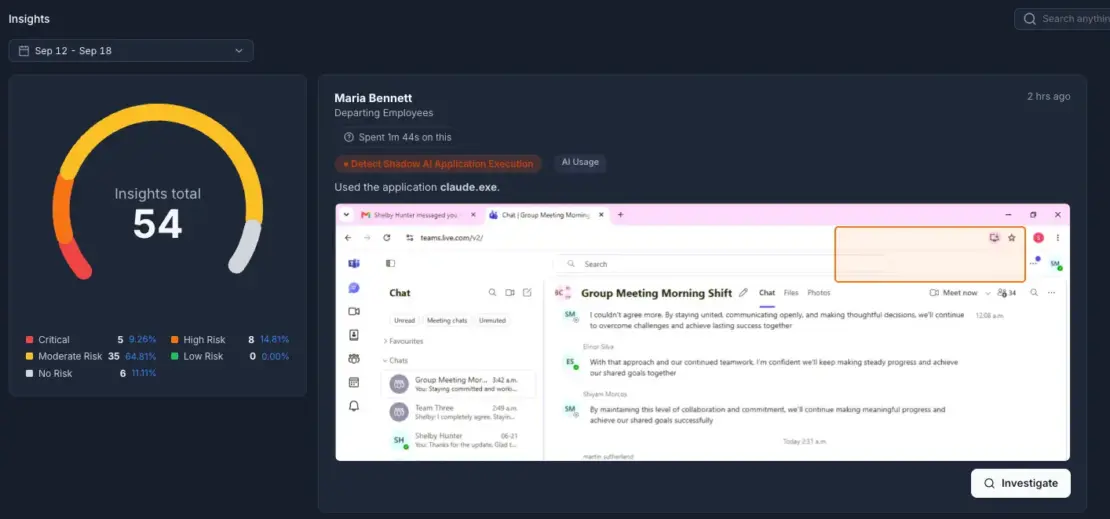
Teramind is a security-first platform that combines UAM with data loss prevention (DLP) and behavioral risk detection for organizations handling sensitive data.
Key monitoring features of Teramind include:
- Keystroke logging and continuous screen recording.
- Data loss prevention rules that can block file transfers, uploads, or clipboard actions in real time.
- User behavior analytics that flag anomalies against a baseline.
- Both cloud and on-premises deployment.
For a manager building a case for the HR or legal team after an incident, all necessary evidence comes from the same audit trail, instead of reconciling logs from a monitoring tool and a separate DLP product. That single source cuts down the back-and-forth of proving a timeline when you review it after the fact.
I think Teramind is the right call only when the issue is genuinely security and not productivity. Companies handling financial records, health data, or client IP tend to face different problems than teams in other industries. They need to prove, after the fact, exactly what a specific user did on a specific system, down to the keystroke.
Bundling DLP rules with keystroke logging and screen recording means a security team doesn’t have to use 2 separate tools to get both prevention and evidence.
I also find behavior analytics genuinely useful for flagging the kind of anomaly a manager would otherwise catch only by accident, like a sudden spike in file transfers before someone resigns.
Teramind pros
These pros are what make Teramind stand out:
- The on-premises trial runs twice as long as the cloud trial (14 vs. 7 days), giving security teams more room to test DLP rules against real network traffic.
- The app is available on Citrix and VMware alongside Windows and macOS, which matters for security teams running virtualized desktop environments.
Teramind cons
Here are a few cons of Teramind that I found annoying:
- The starting price is roughly double most productivity-focused tools on this list.
- A 5-seat minimum makes it a poor fit for very small teams.
What’s new in Teramind?
In March 2026, Teramind launched Teramind AI Governance, extending the enterprise-grade behavioral oversight to every AI tool and autonomous agent operating across the modern workforce. This should prevent AI-related breaches and further improve insider risk management.
| Free plan | No |
| Free trial | 7 days for cloud-based and 14 days for on-premises plans |
| Starting price | $14/seat/month billed annually (5 seats minimum) |
| Availability | Windows, macOS, Citrix, VMware |
Best for: Security and compliance teams in finance, healthcare, or other regulated industries that need DLP and insider-threat detection, alongside productivity data.
#5: SolarWinds — best for compliance-driven log auditing
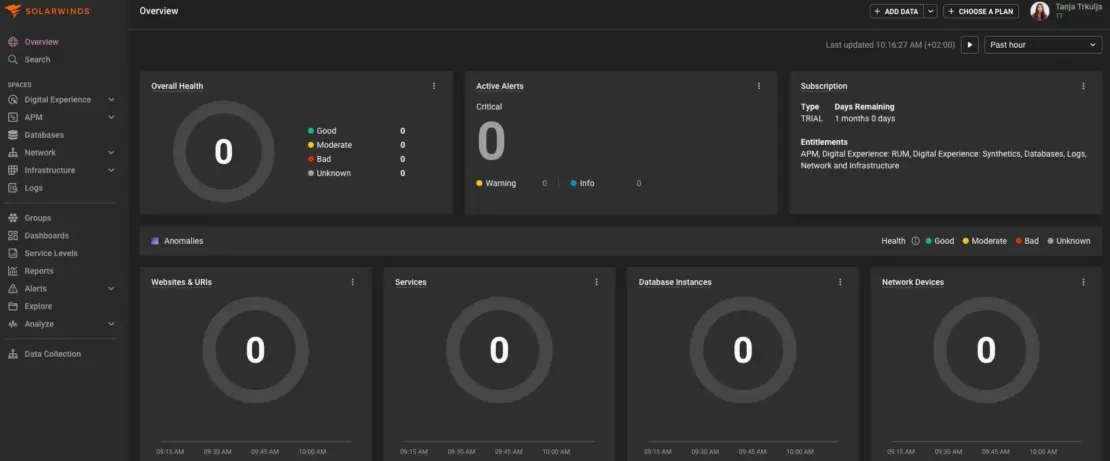
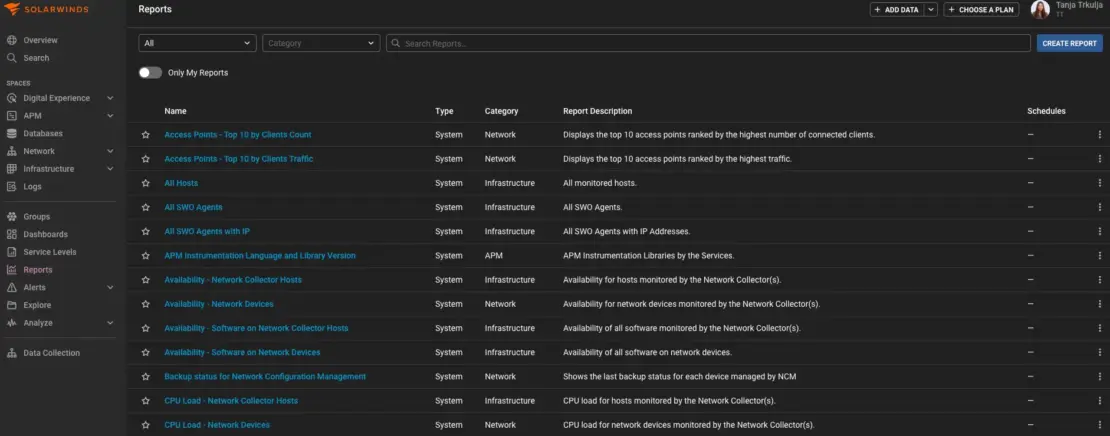
SolarWinds is a security information and event management (SIEM) tool, not a desktop-monitoring agent. It tracks user activity through login/logoff events, Active Directory logs, and file-access records across servers and network devices, rather than screenshots or keystrokes on an individual’s laptop.
Key monitoring features of SolarWinds include:
- Real-time log collection and correlation across servers, workstations, and network devices.
- Automated alerts for privileged-account abuse or unauthorized software installs.
- Compliance-reporting templates for standards like PCI, HIPAA, and SOX.
- Per-node, on-premises licensing (virtual appliance deployment).
For a manager preparing for an audit, access history and privileged-account changes are already organized into a report format that examiners recognize instead of raw logs someone has to translate before a review. Automated alerts also flag policy violations as they happen, not weeks later.
I find the pain point SolarWinds addresses is compliance auditing: proving who logged into what system and when (instead of whether an employee spent the afternoon on streaming platforms or social media). Automated alerts for privileged-account abuse are genuinely valuable for an IT security team, but they tell you nothing about productivity.
If what you actually need is per-employee screenshots or productivity scoring, I’d skip SolarWinds entirely. However, if you need an audit trail of who accessed what system and when, across servers and network devices rather than individual laptops, it’s built for exactly that.
SolarWinds pros
Here are a few pros of the app:
- Deployment extends to AWS and Azure virtual machines in addition to on-prem servers, so hybrid-cloud environments don’t need a separate audit tool.
- 30-day trial option gives compliance teams enough time to run a full audit cycle before committing.
SolarWinds cons
As for disadvantages, bear in mind the following:
- There’s no free plan available.
- Agent isn’t available for macOS platforms at the moment.
What’s new in SolarWinds?
In June 2026, SolarWinds released version 2026.2 of the SolarWinds Platform, introducing expanded AI capabilities, alert noise reduction, and modern interface navigation.
| Free plan | No |
| Free trial | 14/30 days, depending on the product type |
| Starting price | $8/node/month billed annually |
| Availability | Windows, Linux/Unix, AWS, Azure VMs |
Best for: IT and security teams that need compliance-grade access logs across infrastructure, not per-seat productivity monitoring.
Monitor productivity with Clockify
#6: Hubstaff — best for activity-percentage metric
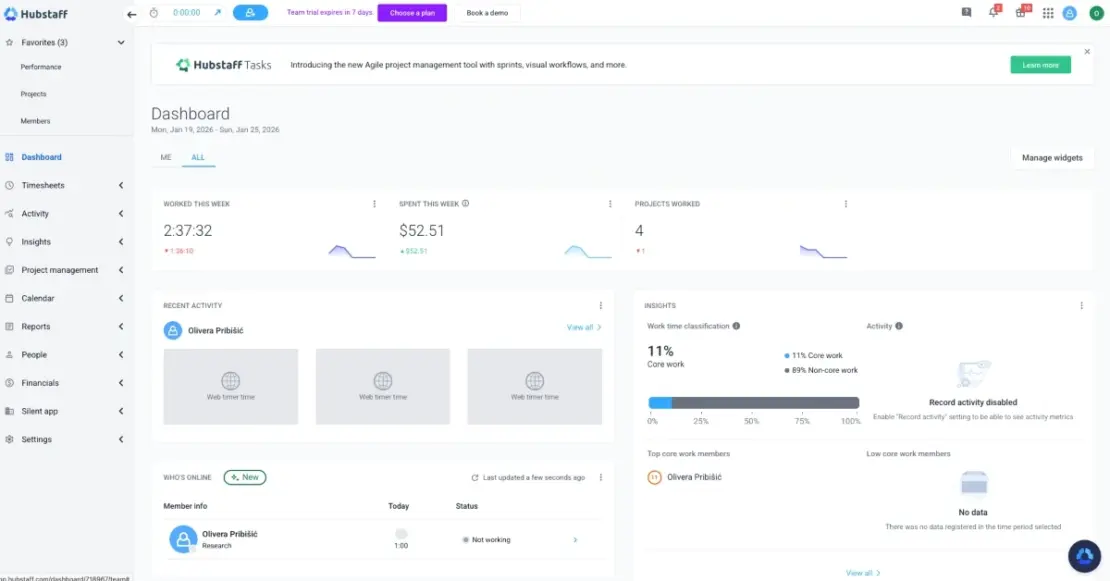
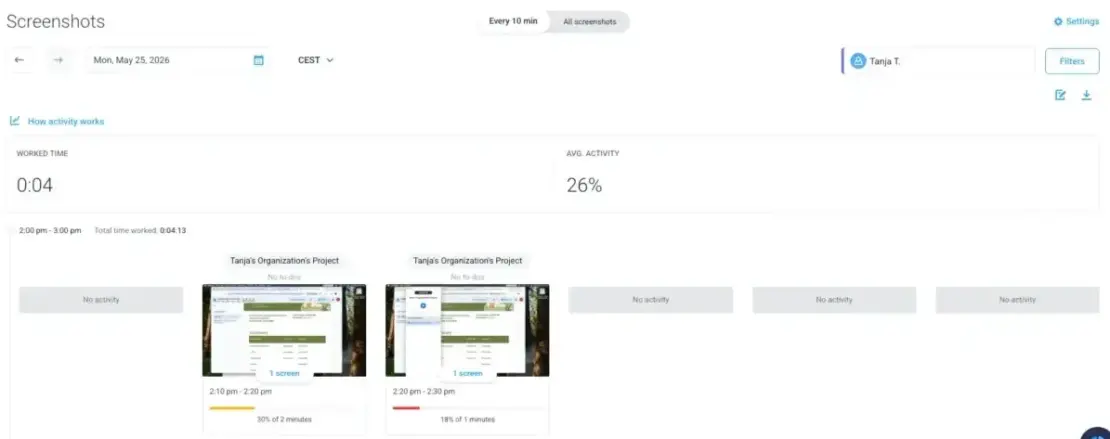
Hubstaff’s activity levels work differently from most tools on this list. Instead of a productive/unproductive classification, it calculates a single Activity percentage per tracked interval from mouse and keyboard input — a measure of engagement, not a category of the work itself.
Hubstaff’s activity monitoring also utilizes the following:
- Up to 3 screenshots captured over 10 minutes, with configurable frequency and screenshot blur.
- Automatic GPS location and geofencing, efficient for tracking field workers and starting/ending their shifts.
- URL and app tracking that tracks time spent at each visited site or application.
Since Hubstaff turns everything into one percentage, managers can quickly scan a team roster and spot who’s disengaged without opening several reports per person.
In my opinion, Hubstaff’s single Activity-percentage number solves a problem many smaller teams run into. Too many monitoring tools report data in a way that requires a manager to interpret many different categories before drawing a conclusion. One number, calculated from mouse and keyboard input, is easier to explain in a team meeting and for an employee to understand about their own day.
I also think the GPS layer is easy to undersell. For a team managing field staff, location verification solves a different pain point than screen activity does, and Hubstaff handles both without a separate contract.
Hubstaff pros
As for Hubstaff pros, here are a few:
- Entry pricing is the lowest per-seat rate among the cloud tools on this list.
- Native iOS and Android apps mean field workers get the same GPS and time tracking experience on either platform.
Hubstaff cons
Before committing to a paid plan, consider these Hubstaff cons:
- Screenshot volume is capped by plan tier.
- Activity-percentage model doesn’t distinguish between types of work the way category-based tools do.
What’s new in Hubstaff?
As of Q2 2026, Hubstaff has several updates, including remote vs. in-office productivity analytics that compare the 2 in a single dashboard.
| Free plan | Yes, for 1 user |
| Free trial | 14 days |
| Starting price | $4.99/user/month billed annually (2 seats minimum) |
| Availability | Windows, macOS, Linux, Android, iOS, Chrome |
Best for: Teams that want a simple, single activity-percentage metric rather than a multi-category productivity breakdown.
#7: DeskTime — best for automatic time classification
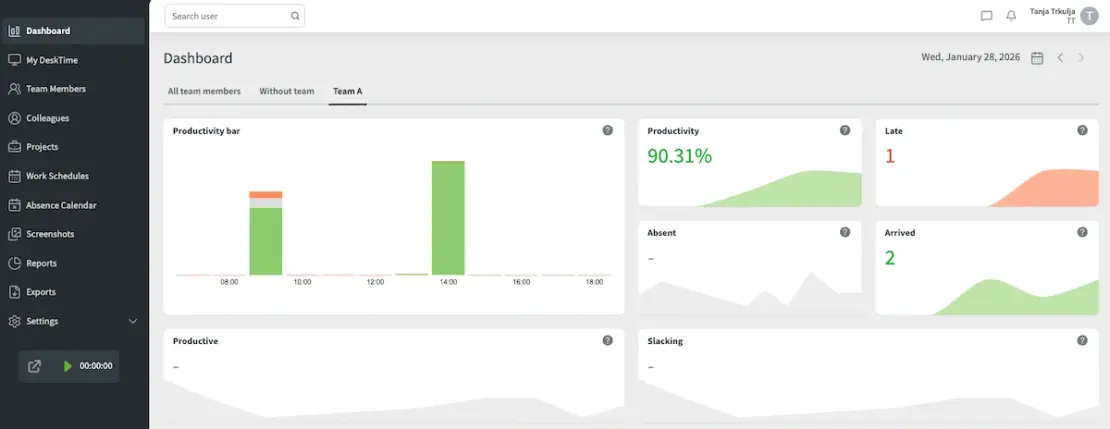
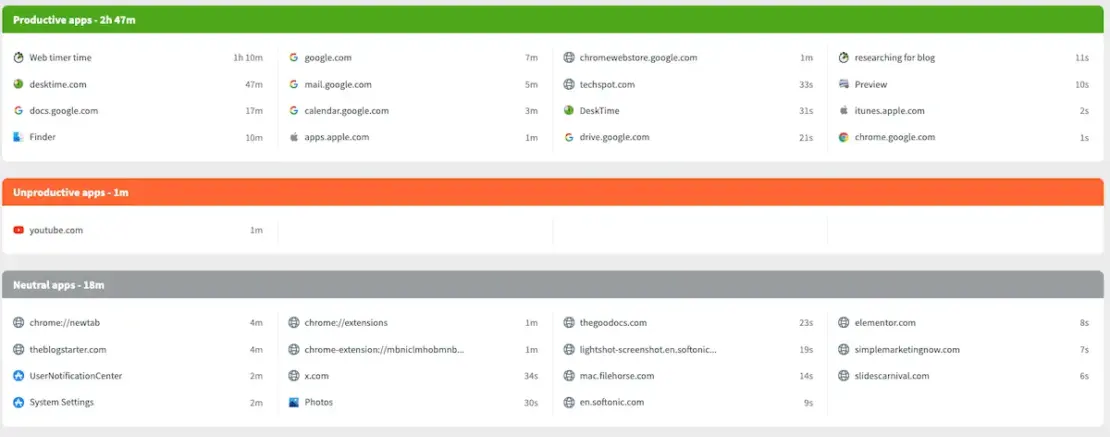
DeskTime’s core mechanism is automatic: it sorts every tracked app and URL into a productive, unproductive, or neutral bucket in real time, without the employee tagging anything.
DeskTime’s monitoring features include:
- Configurable screenshots with optional blur.
- Editable URL and app tracking for productivity categories.
- Offline Time toggle, which lets employees log calls, meetings, or other non-computer work directly in the app.
- Separate Private Time control, which pauses tracking and excludes that stretch from reports entirely rather than logging it as idle time.
Because the records build automatically without employee input, managers get consistent, comparable data across the whole team from the get-go. That consistency makes it easier for admins and managers to compare 2 people’s workdays side by side without wondering whether one of them was just more careful with labels.
I believe the Offline Time toggle fixes a problem that shows up in almost every automatic time tracking rollout. A manager sees a block of idle time and has to ask whether the employee was actually away from the desk or just on a phone call. Letting employees log that time themselves removes an awkward, recurring conversation.
I also find the Private Time control meaningfully different from a simple pause button. Excluding that stretch from reports entirely, rather than logging it as idle time, means a manager never sees the gap and never has to ask about it. That’s a small design choice, but in my opinion, it does a lot of the trust-building work other tools try to solve with a longer privacy policy.
DeskTime pros
Here are 2 notable DeskTime pros:
- Managers can reclassify dozens of tools at once by productivity level.
- Mobile apps for Android and iOS let managers oversee hybrid teams and categorize phone activity, too.
DeskTime cons
These are 2 cons that could make you think twice:
- No keystroke logging or DLP features, so it isn’t built for security-driven use cases.
- Behavioral analytics (focus scoring, burnout signals) are lighter than what Insightful or ActivTrak offer.
What’s new in DeskTime?
Thanks to the Q2 2026 DeskTime update, admins and managers can now bulk-edit app categories by productivity level. For those managing creative and research-focused teams, this update makes productivity categorization more efficient.
| Free plan | No |
| Free trial | 14 days |
| Starting price | $6.42/user/month billed annually |
| Availability | Windows, macOS, Linux, Android, iOS |
Best for: Teams that want automatic activity classification without requiring employees to categorize their own time.
#8: CurrentWare — best for on-premises deployment in regulated sectors
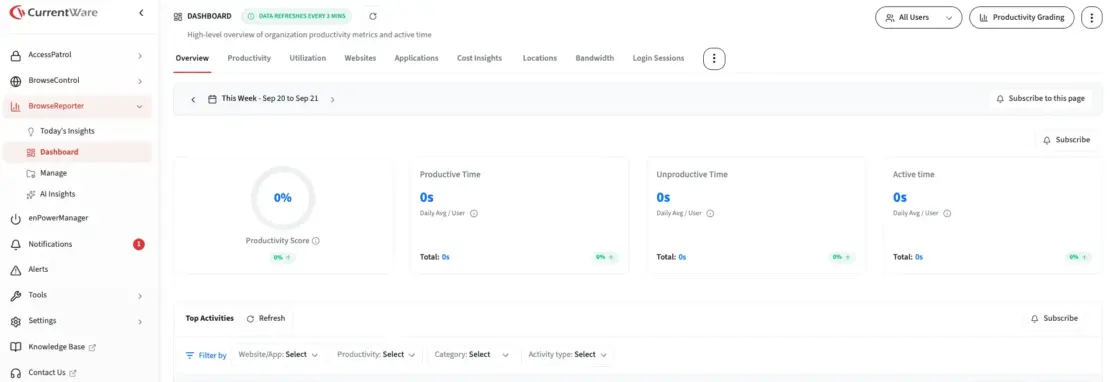
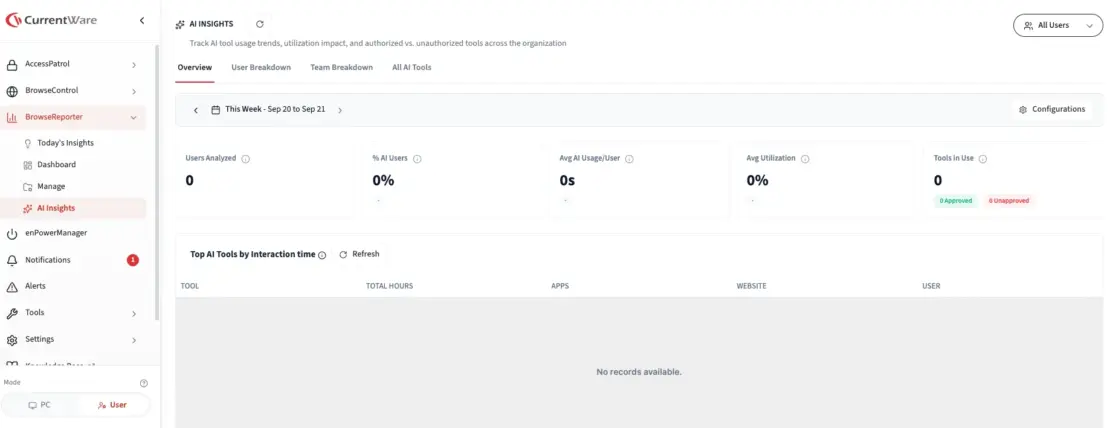
CurrentWare tracks internet and application usage for enforcing acceptable-use policies, with a self-hosted deployment option.
Key monitoring features of CurrentWare include:
- Web browsing and application usage logs, including bandwidth consumption.
- Active vs. idle time and schedule-adherence reporting.
- Mouse-jiggler detection, flagging activity-simulation tools.
- On-premises, self-hosted deployment as a standard option, not an enterprise-only upsell.
For a manager in a regulated industry, keeping activity data entirely inside the organization’s own infrastructure means monitoring doesn’t become a compliance liability in itself. Mouse-jiggler detection also gives managers a concrete, defensible reason to flag an employee, rather than relying on a vague sense that someone seems less responsive than usual.
I think CurrentWare can be very useful for organizations legally or contractually barred from sending activity data to a third-party cloud, such as schools, government offices, and other environments where activity data can’t leave an organization’s infrastructure.
I also find the mouse-jiggler detection a practical, specific answer to a problem most other tools on this list don’t even mention — an employee simulating activity to appear active without doing any actual work. Where I think it falls short is on visual evidence. Without native screenshot capture in the core product, a company that eventually needs to show, not just log, what happened on a screen will need a separate add-on.
CurrentWare pros
Before deciding on whether to sign up for CurrentWare, consider these pros:
- Deployment support extends to Citrix, Azure Virtual Desktop, and Azure WorkSpaces.
- Schedule-adherence reporting flags when someone logs on late or logs off early relative to their assigned shift, without a manager having to cross-reference a separate schedule.
CurrentWare cons
As for some disadvantages of using CurrentWare, bear in mind the following:
- The Windows agent currently supports x64 only, so older or 32-bit machines can’t run it.
- The interface and reporting feel more functional than other analytics-first tools.
What’s new in CurrentWare?
In September 2026, CurrentWare Version 12.0.5 was released, which added Utilization rate in hours and percentage, PC data transfer, the ability to group users by AD attributes, Live capture improvements, etc.
| Free plan | No |
| Free trial | 14 days |
| Starting price | $6/seat/month billed annually for BrowserControl; $12/seat/month billed annually for BrowserReporter |
| Availability | Windows, macOS, Citrix/Azure Virtual Desktop/AWS WorkSpaces (agent available for Windows x64 currently) |
Best for: Regulated or education-sector organizations that need on-premises deployment as a default.
#9: Veriato — best for tracking mobile and desktop activity
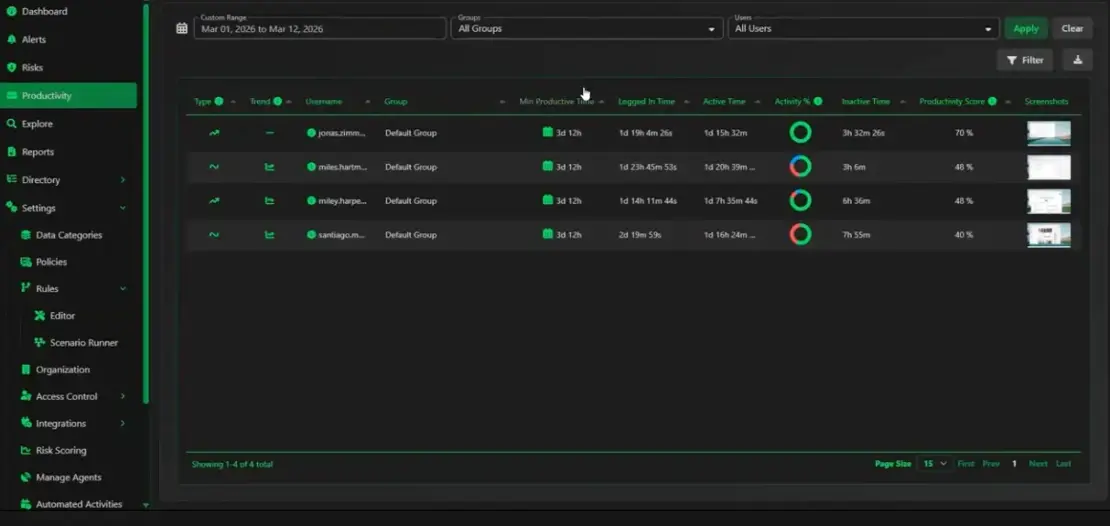
Veriato is a UAM software that offers insider-risk detection alongside activity monitoring, including AI-driven sentiment analysis of employee communications.
Key monitoring features of Veriato include:
- Keystroke logging and session recording.
- Productivity scoring layered on top of raw activity data.
- Cross-device tracking (Windows, macOS, Chromebook, Android) under a single per-user license.
- Sensitive-data detection and redaction rules.
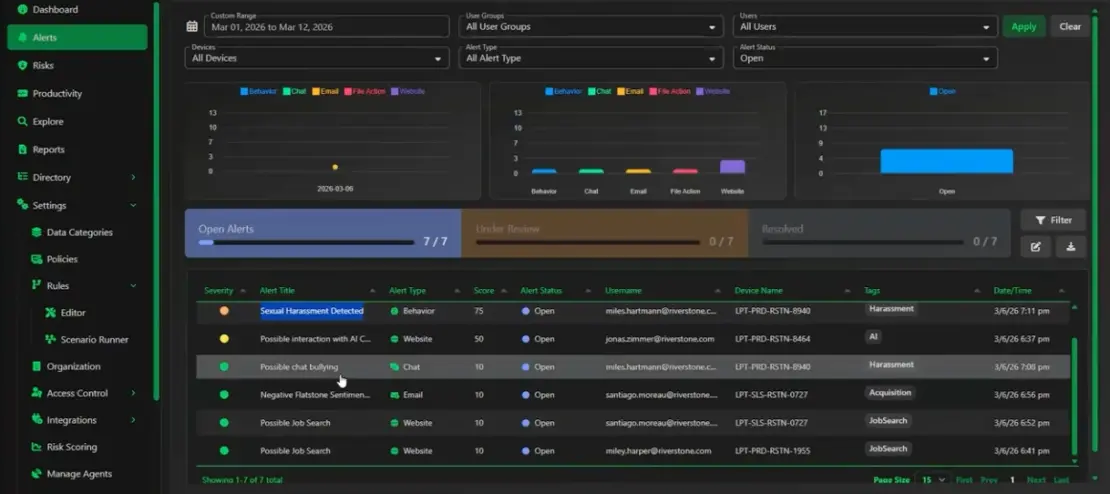
Considering that sentiment analysis runs across internal communications, managers can catch a disengagement signal that wouldn’t show up in usage data, e.g., someone is still logged in and working, but their tone in messages has shifted. Bundling insider-risk scoring with mobile coverage also means that admins and managers investigating a concern don’t have to piece together data from separate tools.
I find Veriato’s per-user licensing solves a cost problem that catches a lot of companies off guard with other vendors. Monitoring an employee’s laptop and phone often means paying for 2 separate device licenses instead of 1.
I also think sentiment analysis is worth taking seriously as an insider-risk signal, since a sudden shift in tone across internal communications can flag a disengaged or departing employee earlier than activity data alone.
Veriato pros
Here are 2 notable Veriato pros:
- Sensitive data detection and redaction rules apply automatically.
- Configurable alerts go off in real time when sensitive data or behavioral-risk rules are triggered.
Veriato cons
Consider these cons before signing up for the app:
- No free plan.
- A 5-seat minimum is required for using the Veriato UAM tier, while the Veriato IRM plan requires a minimum of 20 users.
What’s new in Veriato?
In March 2026, Veriato launched its new Behavioral Visibility Platform, combining AI-driven risk scoring and productivity tracking into a single unified system.
| Free plan | No |
| Free trial | 7 days, on request |
| Starting price | $18/seat/month (5 seats minimum) |
| Availability | Windows, macOS, Chromebook, Android |
Best for: Security-conscious teams that need mobile and desktop coverage without buying separate licenses for each device type.
#10: Controlio — best for heavy user monitoring
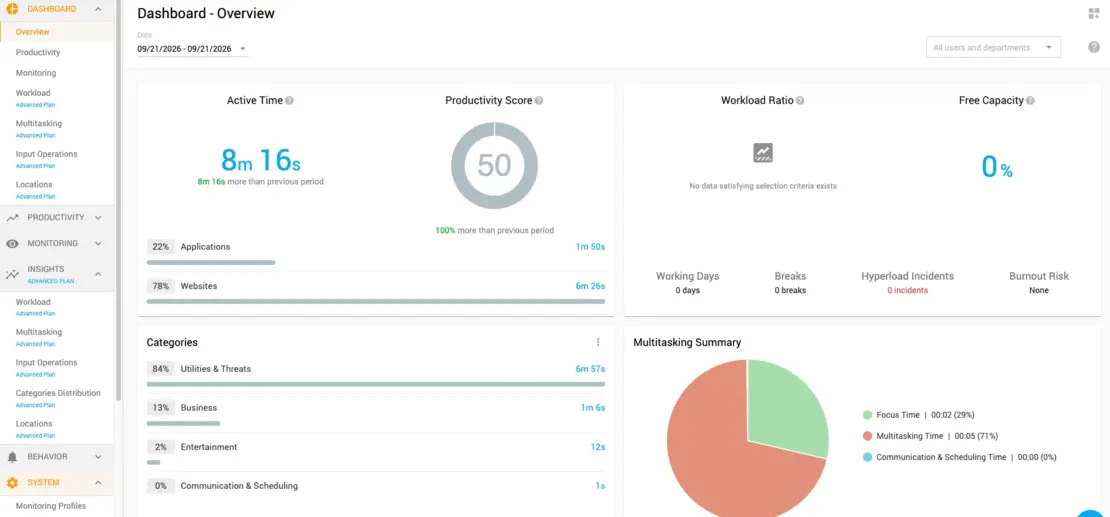
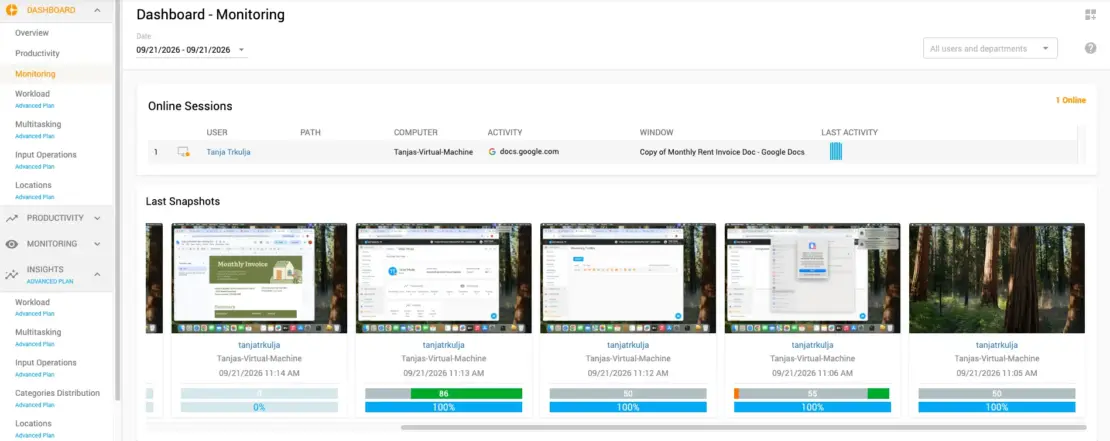
Controlio is a cloud-based (with optional on-premises) monitoring platform built around continuous screen recording rather than periodic screenshots. It markets itself explicitly as employee surveillance software.
Key monitoring features of Controlio include:
- Continuous screen recording, archived as searchable video rather than static screenshots.
- Live desktop viewing, letting a manager watch a screen in real time or on request.
- Keystroke logging, synchronized with the recorded video and event timeline.
- Email and print-job capture, alongside standard app and website usage tracking.
- AI-based productivity scoring calculated from tracked app and URL activity.
Since live desktop viewing lets managers check in on a screen in the moment rather than waiting for the next scheduled screenshot, Controlio closes the lag between something happening and a manager finding out about it. Capturing email and print jobs alongside screen activity also means an investigation into a data leak isn’t limited to what happened on-screen.
In my opinion, Controlio fills a role on the UAM market that screenshot-only tools don’t — reconstructing exactly what happened during a single incident, rather than sampling activity every few minutes. A continuous, searchable recording synced to keystroke events means a security team doesn’t have to guess what happened between 2 screenshots. They can just watch it.
However, continuous screen recording paired with keystroke logging is about as invasive as monitoring gets, and I don’t think it’s the right starting point for a team that hasn’t already ruled out lighter tools.
Controlio pros
Here are a few Controlio pros:
- Managers can check in on a specific employee’s screen in real time.
- Monitoring is extended beyond the screen, catching activity that screenshot-only tools would miss entirely.
Controlio cons
Consider these Controlio cons before committing:
- Controlio is one of the most invasive user activity monitoring software.
- No free plan available.
What’s new in Controlio?
In the September 2026 Controlio dashboard update, the software made several adjustments and fixes, including localization improvements, account settings, and subscription fixes.
| Free plan | No |
| Free trial | 14 days |
| Starting price | $6.67/seat/month |
| Availability | Windows, macOS |
Best for: Security-focused teams that specifically need a synchronized video-and-keystroke record for incident investigation, not just productivity trends.
Employee Activity Monitoring
Get better visibility into how your team spends work time with Clockify’s data-driven insights.

FAQs about user activity monitoring software
Let’s go over some of the commonly asked questions about user activity monitoring and UAM software.
What is the best software for monitoring user activity?
There’s no single best tool for monitoring user activity — it depends on what you need. Insightful and ActivTrak fit teams focused on productivity data. Teramind and Veriato fit teams that need insider-threat detection and DLP. Clockify fits teams that want lighter-touch activity data inside a tool they already use for time tracking and billing.
How can I monitor user activity?
To monitor user activity, install a UAM tool’s tracking agent on each work device, either through admin deployment or an install link sent to employees. Once installed, the agent logs activity in the background and reports it to a manager dashboard, based on the capture settings (screenshots, idle detection, keystroke logging) the admin has configured.
What is the best employee monitoring software in 2026?
The best employee monitoring software fit depends on whether you need productivity data (ActivTrak, DeskTime, Clockify), security-grade insider-threat detection (Teramind, Veriato), or compliance-driven log auditing (SolarWinds).
What is the best free software to monitor employee computer activity?
There’s no fully functional and free software that monitors employee computer activity. ActivTrak’s free plan covers up to 3 users with basic activity visibility. Hubstaff’s free plan covers 1 user. Clockify’s free plan supports up to 5 users on core time tracking, though Activity monitoring itself sits on the paid Pro plan.
💡 CLOCKIFY PRO TIP
For the specific category of remote employee monitoring software comparison, check out the following article:
Can my boss see what I’m doing on my work computer?
If your employer has deployed UAM software on that device, yes, they can see what you’re doing on your work computer — within whatever scope that tool is configured to capture. That could range from app and website usage only to keystrokes and screen recording, depending on the tool and tier your employer uses.
Can I tell if my work computer is being monitored?
Sometimes you can tell if your work computer is being monitored and sometimes you can’t. Tools running in stealth mode, like Insightful’s optional stealth deployment or Controlio’s live desktop viewing, are designed to be invisible to the employee. Tools running in visible mode typically show a persistent icon or notification. Company policy, not just the software, usually determines which mode is used.