

Alex Beadon
Founder of Together We Launch
"We use Clockify to see where our time is going and how to solve any problems. It’s just so beneficial."
More stories

Find new apps that fit you team's needs
It’s an age-old question — or a question as old as the time tracker Hubstaff: How invasive is Hubstaff, and can it actually help you increase your team’s productivity?
To get the answers to questions like this one, read this detailed Hubstaff review.

Hubstaff is a time-tracking app that focuses primarily on employee productivity tracking, scheduling, time-off approval, and related features.
I rated all of Hubstaff’s key functionalities on a scale of 1 to 5. Each rating reflects how much the pros of the feature outweigh the cons.
Before we get into the full Hubstaff app review, here’s a summary of the main pros and cons.
| Hubstaff pros | Hubstaff cons |
| ✅ 14-day free trial | ❌ Most features are only available in the most expensive plans |
| ✅ User-friendly interface | ❌ Timer sometimes doesn’t work properly |
| ✅ Schedule shows who is on time and who is late | ❌ No option to track overtime, only to prevent it |
| ✅ Integrates with payment tools like Wise | ❌ Distracting pop-ups in the mobile app |
| ✅ Well-developed productivity monitoring features | ❌ Customer support is difficult to reach |
Hubstaff has 4 pricing plans:
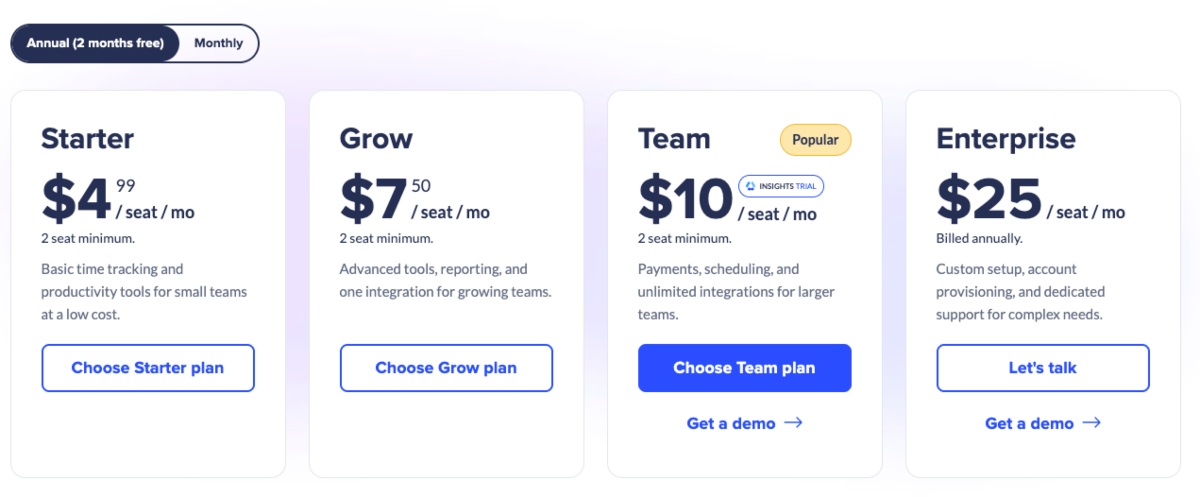
While the Starter plan isn’t too expensive, it only lets you log time (using the timer or adding entries manually). To detect idle time, you have to upgrade to the Grow plan.
Surprisingly, it’s only the Team plan that gives you interesting options like:
So, the cheaper plans lack some vital features you would expect from a time-tracking tool. This means you probably have no other choice than to subscribe to the most expensive plans (Team or Enterprise). And since you pay per user, costs can add up quickly.
Also, Hubstaff doesn’t really advertise its free plan. It’s nowhere to be found on the main pricing page. I found this information buried deep in the Hubstaff help center page. The free plan is available for 1 seat only and has very limited features.
When I tried to register for the free plan, I realized why this plan isn’t mentioned on the main pricing page. It seems it can’t be used yet — at least not at my location.
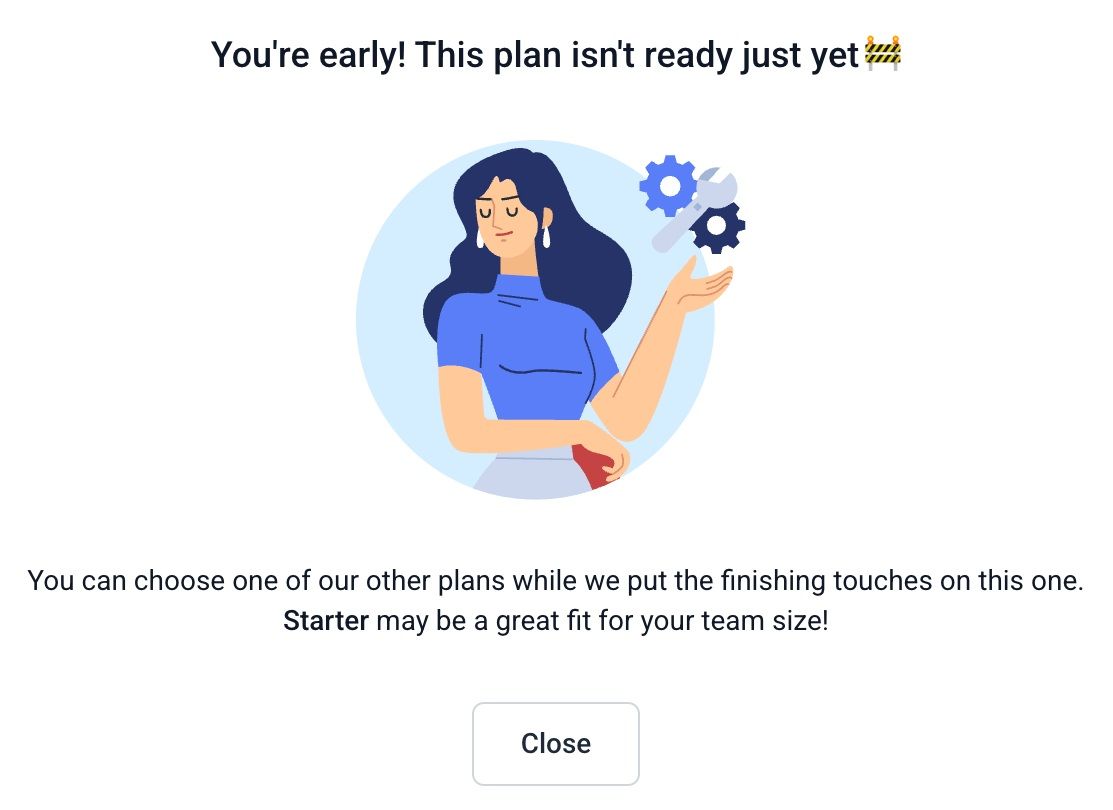
Of course, new features and plans are rolled out all the time, and waiting for them isn’t unusual. The only thing is that I found it misleading how Hubstaff presented the free plan. The pages that do mention it write about the information as if the plan already exists.
I found the Hubstaff interface to be well-designed. The dashboard is user-friendly, as it’s not cluttered with irrelevant information and displays:
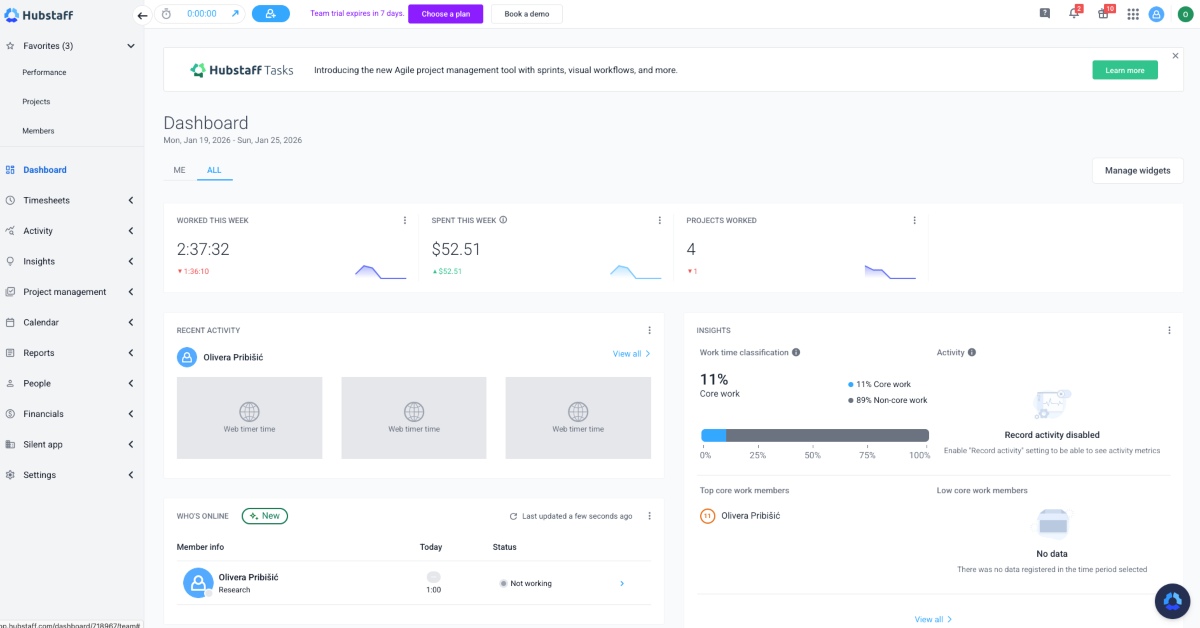
You can even customize the dashboard to show the information you need.
While the app is easy to use, I did encounter a glitch. One project I tracked time on simply didn’t show up anywhere after I stopped the timer. Even while the timer was on, it displayed the status Working, but for a previous project. (Refreshing the page didn’t fix it.)
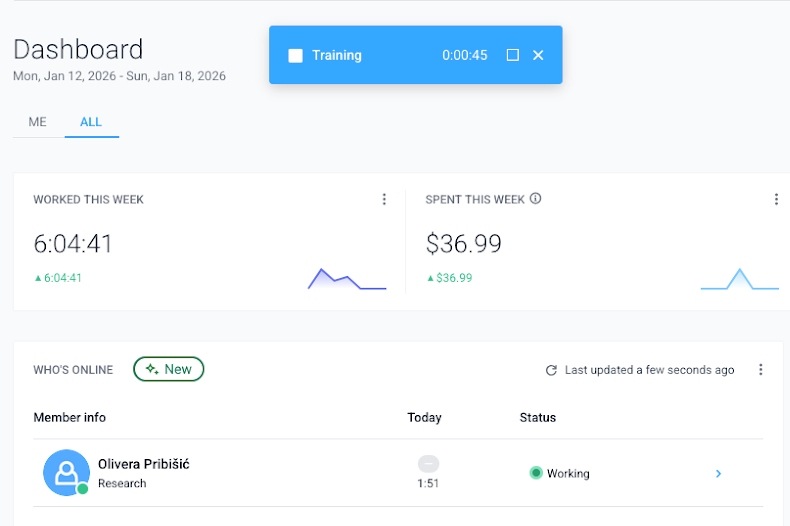
When I tried tracking time on the same project again, the timer resumed from where I left off. So, it saved time somewhere, but for some reason, this project wouldn’t appear on the list of projects I logged hours on.
The next day, when I started the timer on that same project, it worked perfectly. However, I wasn’t able to recover the tracked time from the previous day. So, it couldn’t have been my settings; something went wrong, which was disappointing.
Since Hubstaff has extensive monitoring features, many users wonder how secure the app is. And that was my first concern as well.
The first thing I looked into was how users’ screenshots were stored. I found that Hubstaff stores screenshots on Amazon’s S3 servers — and all screenshots are encrypted.
The app also doesn’t capture keyboard keystrokes or mouse clicks. It only tracks total activity (keyboard and mouse usage) within 10-minute blocks. So, you don’t have to worry that your passwords are stored somewhere.
Hubstaff also complies with the data protection frameworks — SOC 2 and GDPR. Although no app can be 100% secure, Hubstaff appears to be a legitimate tool that can generally be trusted.
If you prefer to call customer support, you’ll be disappointed. The Hubstaff support agents are only available via email and live chat. Enterprise users are the only exception — they get phone support as part of the plan.
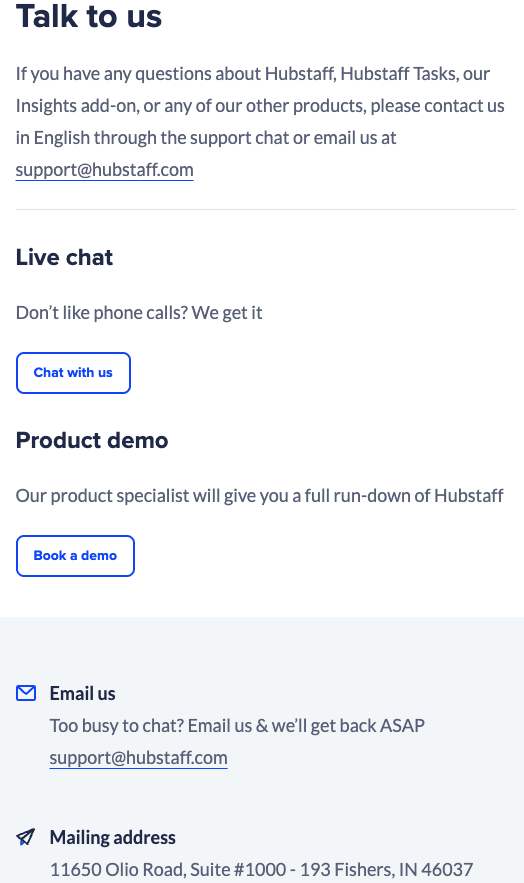
You can also book a demo with them if you just want to see how Hubstaff works.
Here’s a summary table showing how Hubstaff’s customer support compares to its 3 competitors — Clockify by CAKE.com, ClickUp, and Homebase.
| Hubstaff customer support | Clockify customer support | ClickUp customer support | Homebase customer support |
| AI chatbot, live chat, email for all users, phone support for paying users (highest tier plan only) | Phone, email, chat, virtual assistant available for free | AI chatbot and email for all users, live chat for paying users only | AI chatbot for all users, live chat and phone (for paying users only) |
| Response time unknown | Human support available 24/7 to all users for free (response time around 1 hour) | Response time up to 48 hours | Human support available Monday to Friday, 7 a.m. to 7 p.m. |
| Demo available | Demo for all users, concierge services, and tailored onboarding for eligible users | Demo available | Demo available |
Frankly, I was shocked when I read the Hubstaff reviews on Trustpilot. The total rating is surprisingly low — 2.6 out of 5 stars.
Users primarily had issues with unresponsive customer service. For example, one user complained that they hadn’t heard back from the support agents, even though they’d tried to contact them 48 hours earlier.
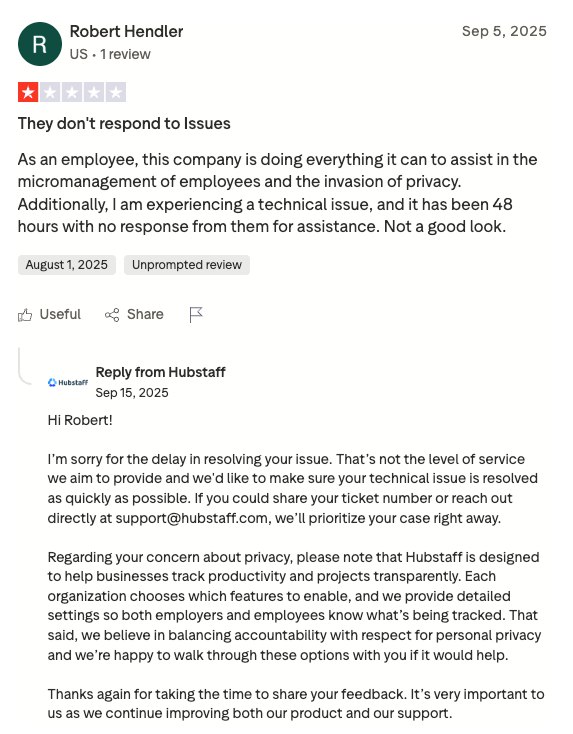
Apart from slow customer service, the most common complaint I noticed on Trustpilot had to do with their billing practices. Some customers had been on the annual plan for months and wanted to switch to a monthly plan, but Hubstaff doesn’t allow that.
To be honest, after reading the Hubstaff Terms and Conditions, I understand the confusion. I think this information should’ve been more clearly highlighted so that potential users would know what they’re getting themselves into.
Weirdly enough, Capterra reviews tell a different story. The rating is 4.5 out of 5. Capterra users praised Hubstaff for user-friendliness and easy-to-understand analytics. Some customers noticed that Hubstaff’s productivity monitoring isn’t completely accurate.
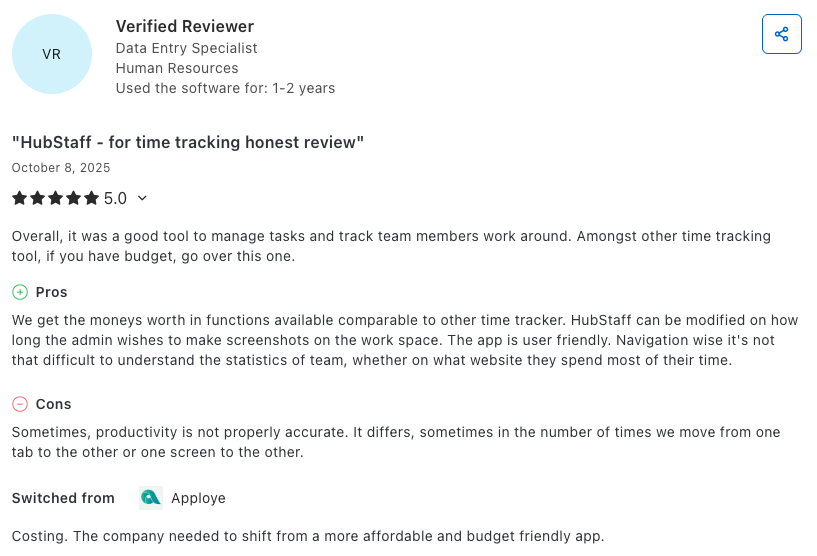
All in all, Hubstaff customers’ experience varies. The common theme is high prices and unresponsive customer support, but also easy app navigation and useful features like screenshot capture.
Now, let’s go over the main Hubstaff features. I explored the biggest pros and cons of each feature and rated them accordingly.
When it comes to time tracking, Hubstaff puts focus on the timer. Starting the timer is straightforward — you add your project (and task), and press the start button.
What I didn’t like was that the timer window kind of “floats” on top of the dashboard, partially covering the data.
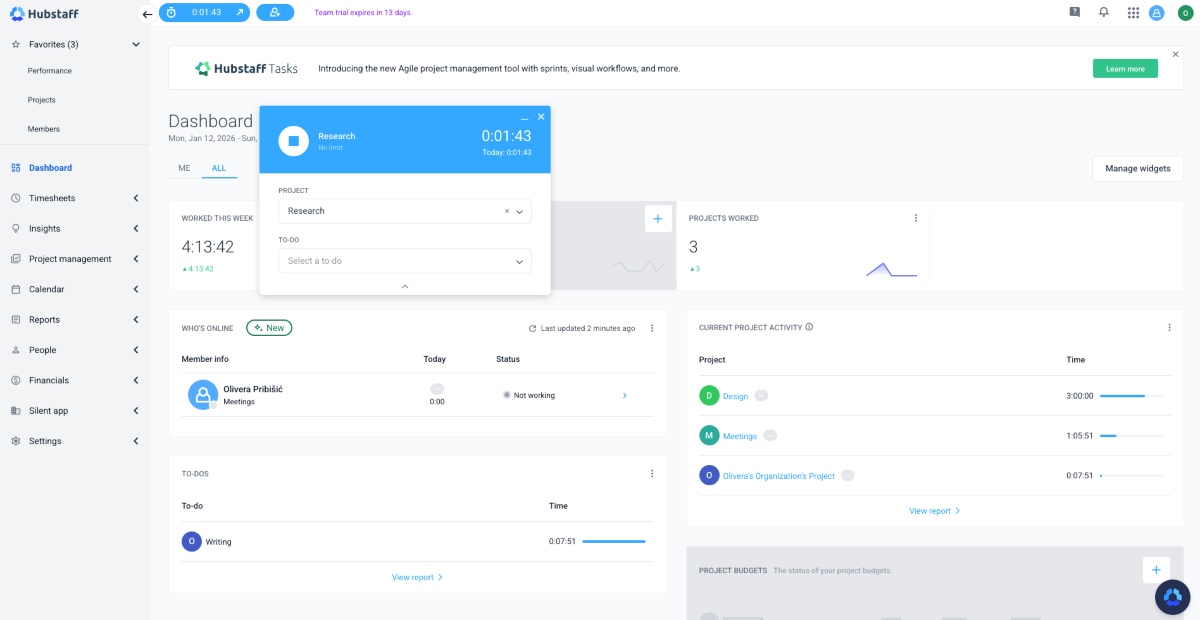
You can minimize the timer, but it’s still placed awkwardly. To be fair, you can move this window around the page or close it entirely.

However, I think a better solution would have been to have a fixed place for the timer, which can be minimized if you don’t need to see all the information. The timer that remains when you close this window is super tiny.
Hubstaff also lets you add time manually. As I mentioned, the app is very timer-oriented. It assumes your employees are adding time manually only because they couldn’t start the timer.
Because of that, employees need to select the reason why they’re adding time manually instead of using the timer. This is a required field, and the options include:
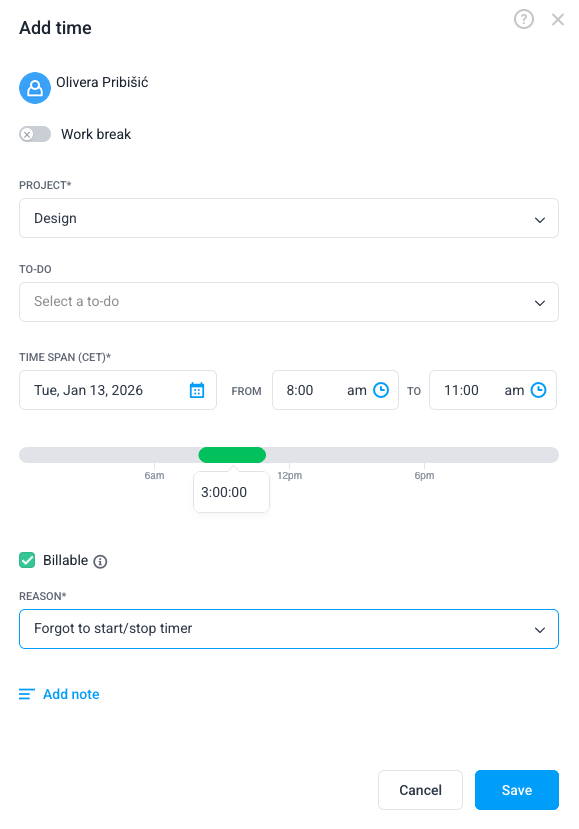
Hubstaff doesn’t allow users to add entries for future dates. So, I think this is quite limiting. Your staff can’t quickly add entries for the entire week, even if they know what they’d be working on. Instead, they’re expected to start the timer every day or add backdated time entries one by one manually. In my opinion, a big thumbs down.
If you open timesheets, you can see all your time entries within a color-coded calendar, which I found neatly packed.
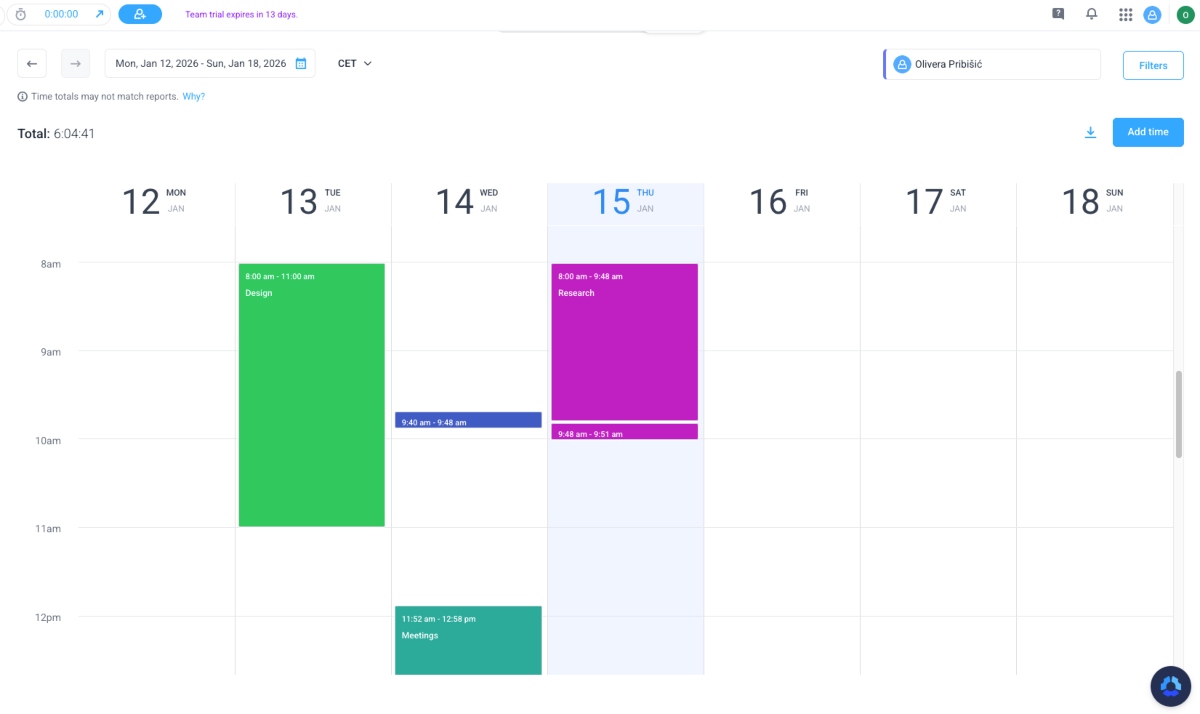
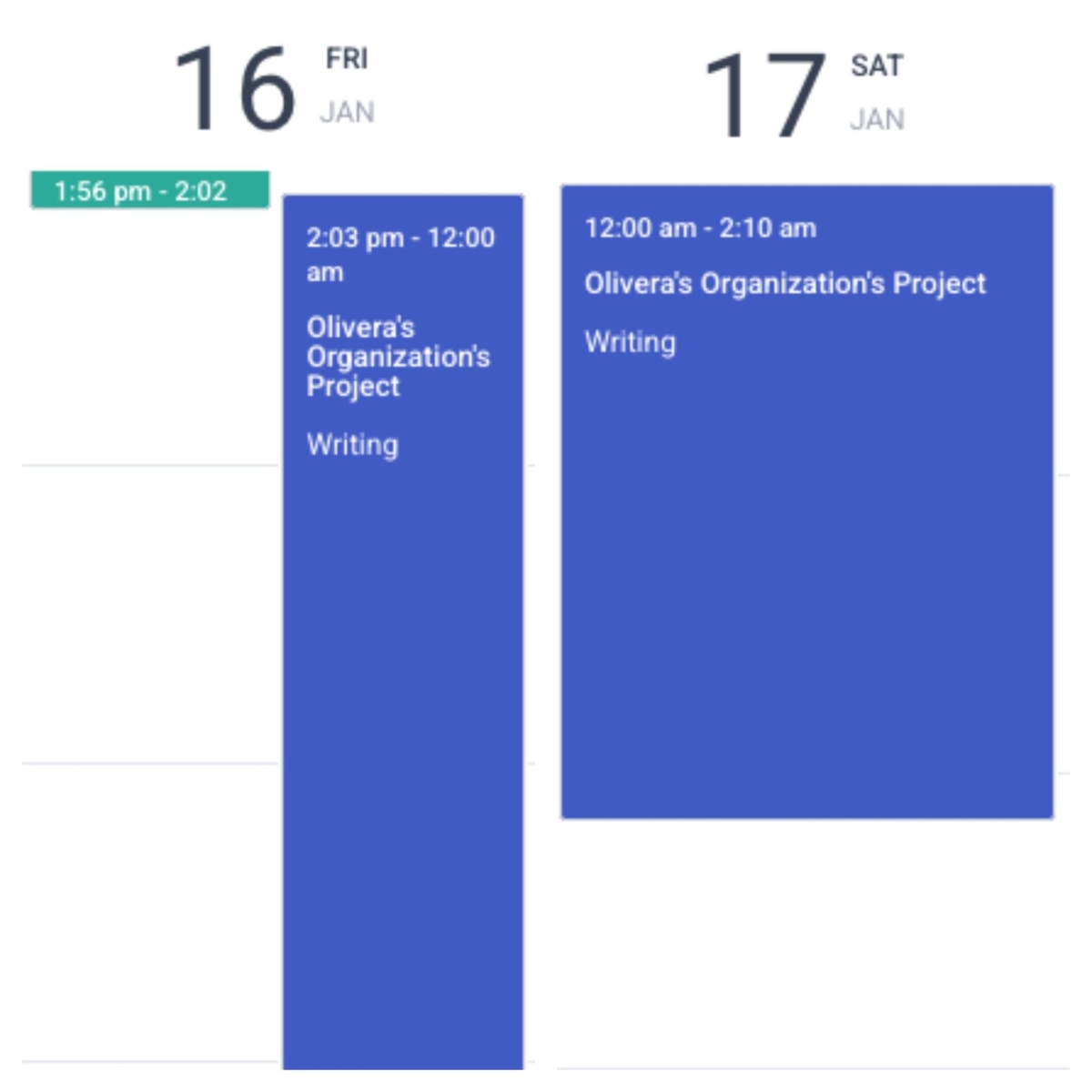
Still, the timesheet calendar is too zoomed in, so it’s difficult to see everything. For that reason, I only realized later that I had a time entry from Friday at 2:03 p.m. to Saturday at 2:10 a.m. I’m not sure what happened there since Hubstaff claims that the timer stops when you close the app.
So, Hubstaff tracked time even though I closed the web app on Friday, turned off the laptop, and deleted the mobile app.
As a timer, Hubstaff is quite useful (when it works) — but it would’ve been great if it had more time-tracking options.
For example, Hubstaff competitors like Clockify by CAKE.com and Toggl Track have a calendar mode where you can easily select desired timeframes to create time entries.
| Hubstaff time-tracking options | Clockify time-tracking options | Toggl Track time-tracking options |
|
|
|
Hubstaff is well-known for its productivity monitoring features. Judging by the number of Reddit posts on this topic, employees dread using Hubstaff for this reason.
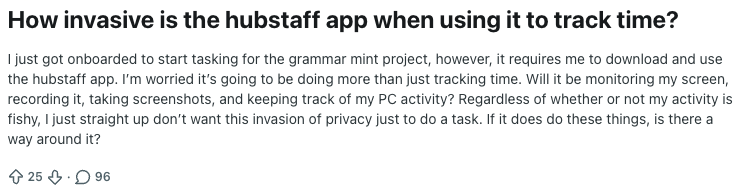
Hubstaff tracks keyboard and mouse activity, giving you insight into your team’s productivity levels. For that, your team needs to use the desktop app.
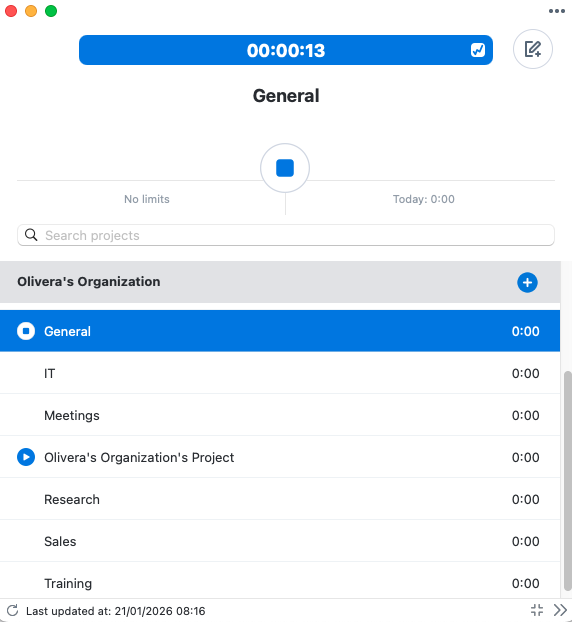
The downside of this kind of productivity measuring is that when an employee isn’t moving their mouse or typing on the keyboard, it doesn’t necessarily mean they’re not working. This method doesn’t account for time spent thinking, attending meetings, watching videos for research, or taking notes on paper.
Unlike Hubstaff, Clockify’s ’Always Active’ rule lets managers categorize specific apps or websites to keep the user’s status ’Active’ while in use. Part of Clockify’s Activity monitoring, the Always Active rule ignores whether an employee is typing or clicking.
Hubstaff can also take screenshots — which may resolve some ambiguity. If you or your employees are worried that sensitive information may be captured in screenshots, you can configure settings to blur all screenshots.
I think the blur option is quite useful, as it promotes accountability without being too invasive. However, it’s still important to speak to the team and explain what monitoring features are enabled and why.
In addition to screenshots, Hubstaff can capture the apps used and the websites visited.
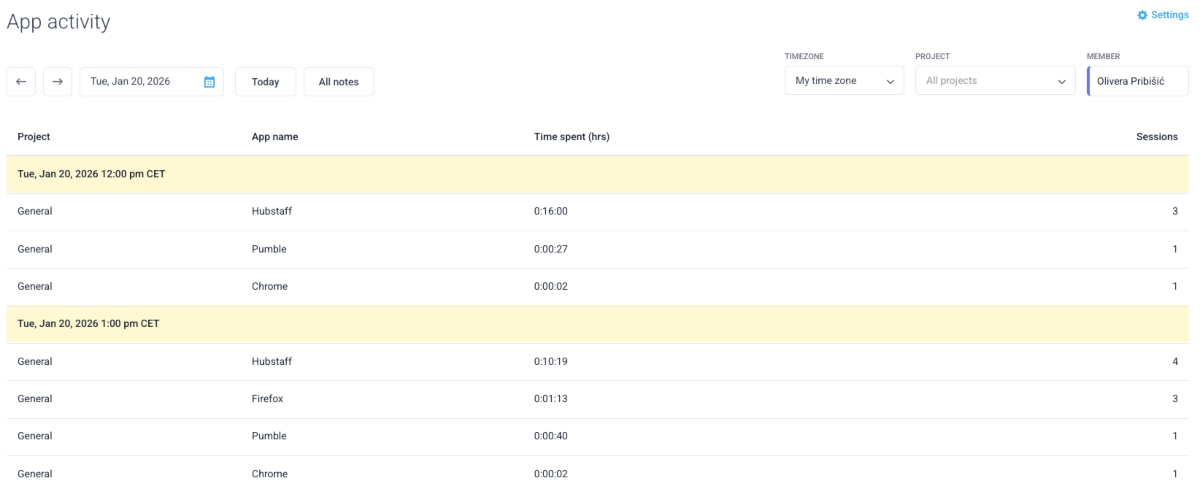
This is a more insightful metric, as it shows how much time an employee spent using a video conferencing application or watching a useful YouTube tutorial.
🎓 How to Track Employee Time Without Invading Privacy
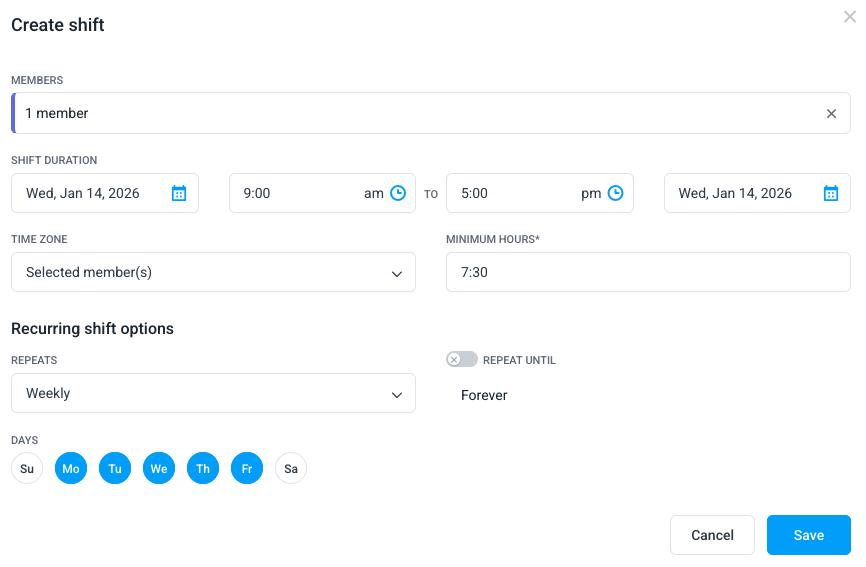
Hubstaff offers an easy way to create shifts. In fact, I like that you can choose whether the shift is recurring. If you do, you can create weekly or bi-weekly shifts.
The app even allows you to select the specific days you want your shift to recur. That way, you can quickly create shifts even for team members who don’t start work at the same time every day.
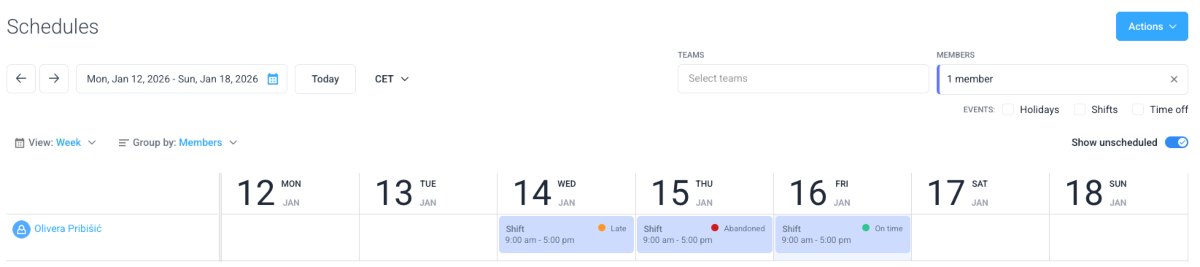
Once you create shifts, they will appear on the calendar. My favorite part was that you can immediately see if someone is late for their shift. The calendar shows the following statuses based on when/whether your team members clocked in:
I didn't find an option to set the team capacity to automatically track overtime. You can set a work limit, but instead of time tracked over that limit being marked as overtime — users simply can’t track time over that limit.
Now, this option is great for businesses that don't allow overtime. However, the lack of an actual overtime tracker would be an issue for industries where working overtime is frequent.
Creating a time off policy in Hubstaff is super easy. It only takes 2 steps:
However, I didn’t like that you can’t add the number of accrued days, since time off in Hubstaff is always counted in hours.
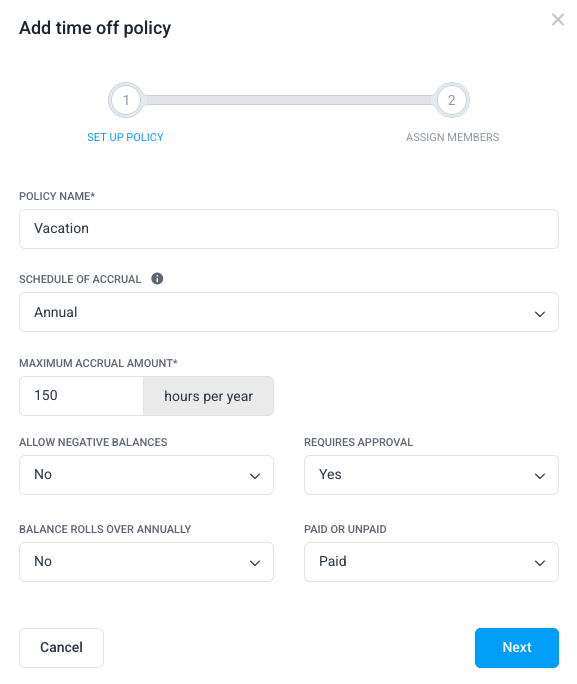
In contrast, apps like Clockify allow you to choose the time unit (hours or days). It even has the option to enable half days.
Anyway, once you create a time-off policy in Hubstaff, your team can request time off — like below.
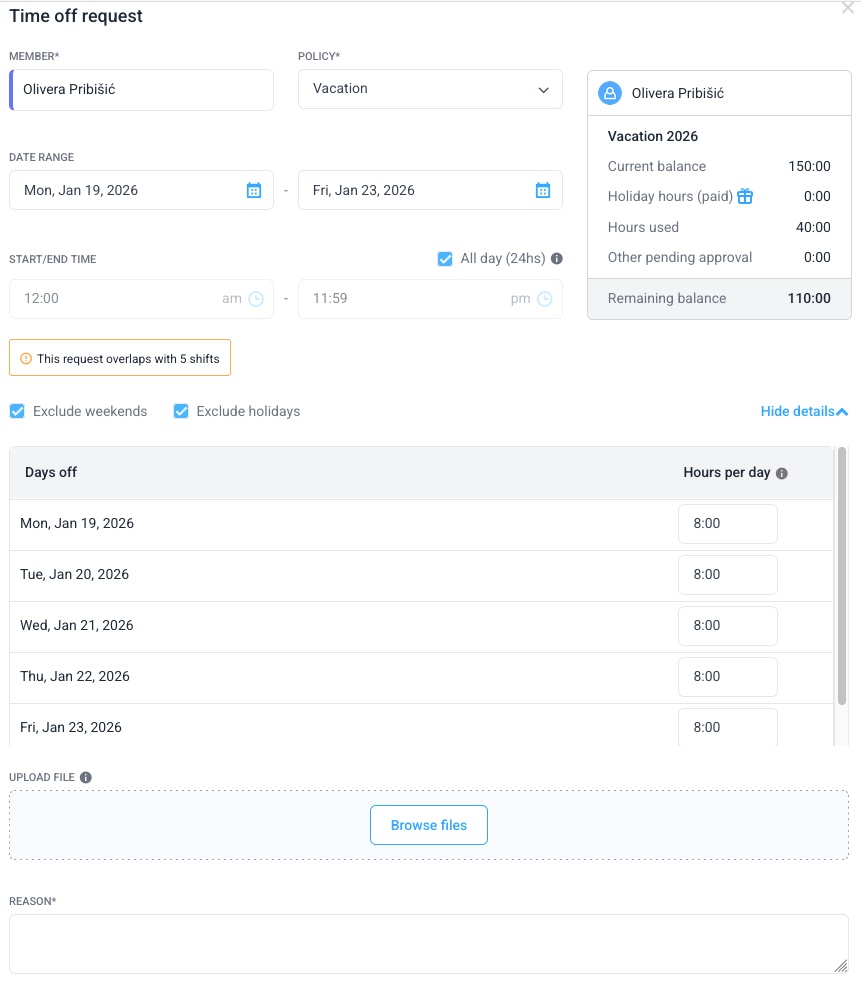
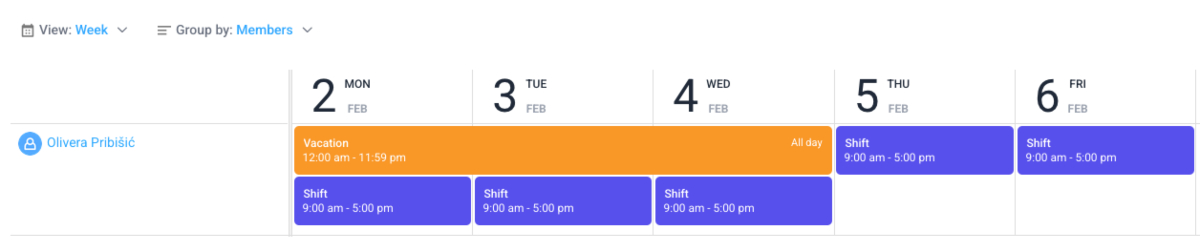
If the time-off request overlaps with existing shifts, you’ll see a pop-up window asking whether you want to keep or delete the overlapping shifts.
I may be missing something, but I didn’t see a particular benefit of this option. If a user requests time off, they won’t be working their shift during that period, even if it was previously scheduled.
It would make sense if Hubstaff had an open shifts option. In that case, once you keep a shift, it could automatically move to the open shifts section. But in Hubstaff, it remains on the user’s schedule.
I was curious why Hubstaff has this option, so I asked its AI assistant. The answer was that managers can then reschedule shifts — but they have to delete the existing shift and create a shift for a different member manually.
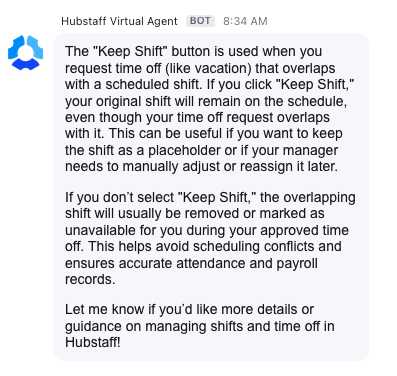
Without a feature that would allow an easy shift swap, I still don’t think this option is as useful as it could be.
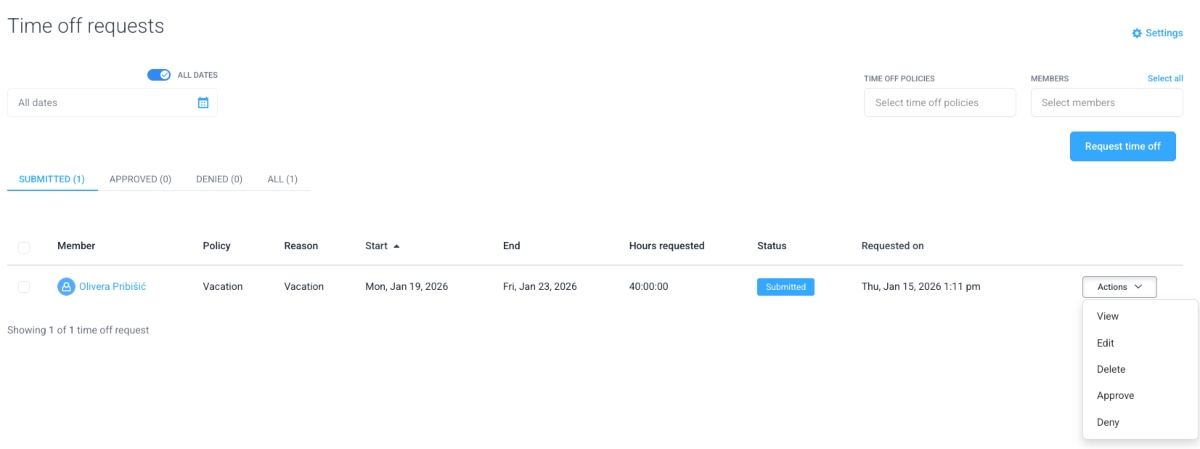
After your team submits a time-off request, you can approve or reject it. The time off approval feature is simple to use. I’d just prefer if the Approve and Deny buttons were placed better. You have to click Actions first to view them.
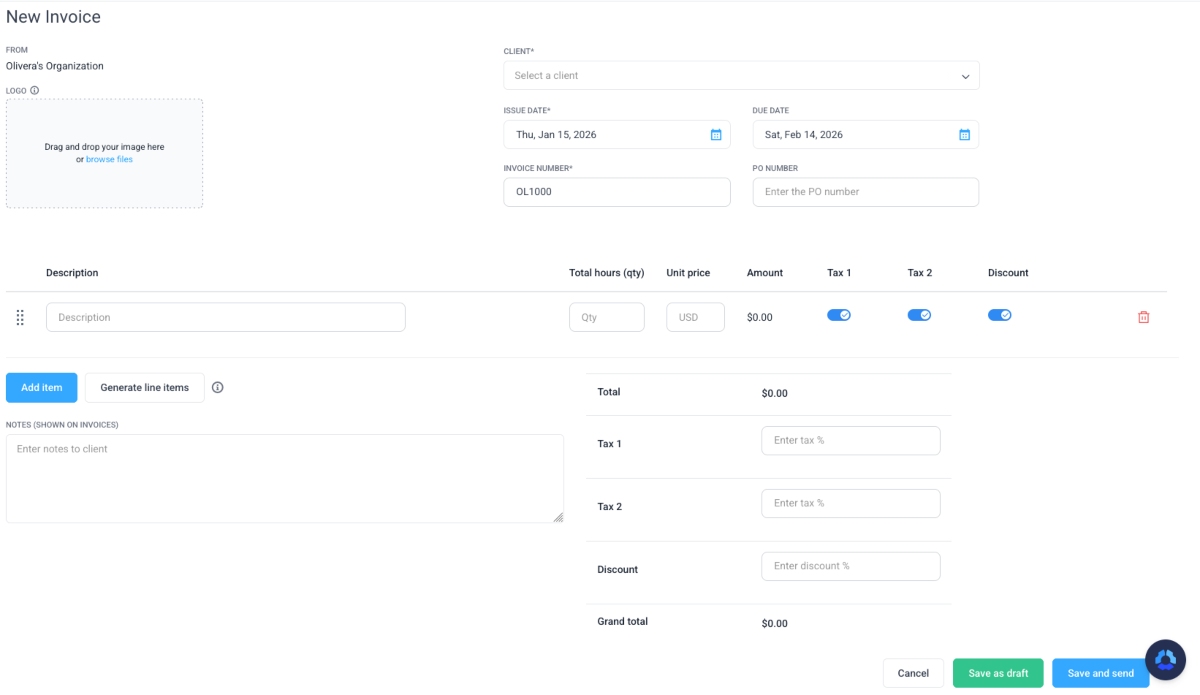
I was quite pleased with the invoicing feature in Hubstaff. It allows you to add your company logo, which is a plus.
Hubstaff can also automatically calculate tax and discount if you provide that information.
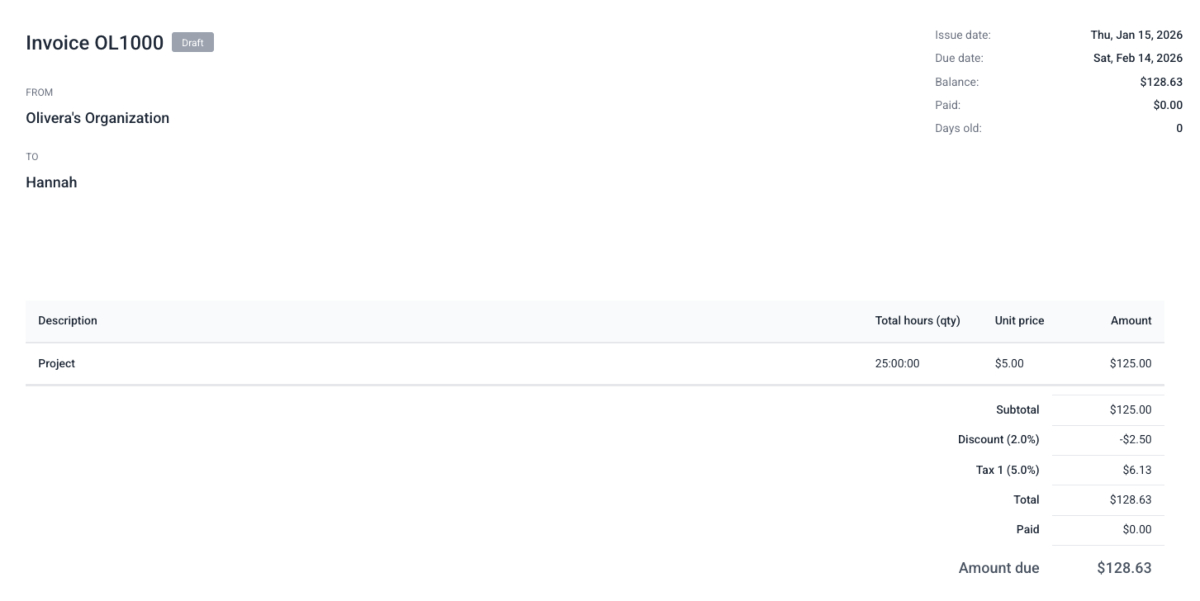
The invoices I created in Hubstaff were well organized. The most relevant information (like the due date) is displayed in the right corner.
Yet, Hubstaff doesn’t have the option to import tracked time into your invoice. You have to enter the number of hours manually. I think this is a missed opportunity, given that Hubstaff is a time-tracking tool.
This may cause issues with clients, as it makes it difficult to prove the actual number of hours spent on projects. To bypass this, you would have to share time reports with them.
On the other hand, Clockify lets you easily import tracked time and expenses into your invoices. This makes billing clients more efficient.
Managing payroll manually can be a big administrative burden: Verifying timesheets against work logs is time-consuming and error-prone. So, I was pleased to see that Hubstaff has relatively well-developed payroll features.
Hubstaff offers the option to set hourly rates for your team. This means that when your team tracks work hours, their pay will be calculated automatically.
When you open the Amounts owed report, you can see the total amount of hours tracked and the amount owed to your employees.
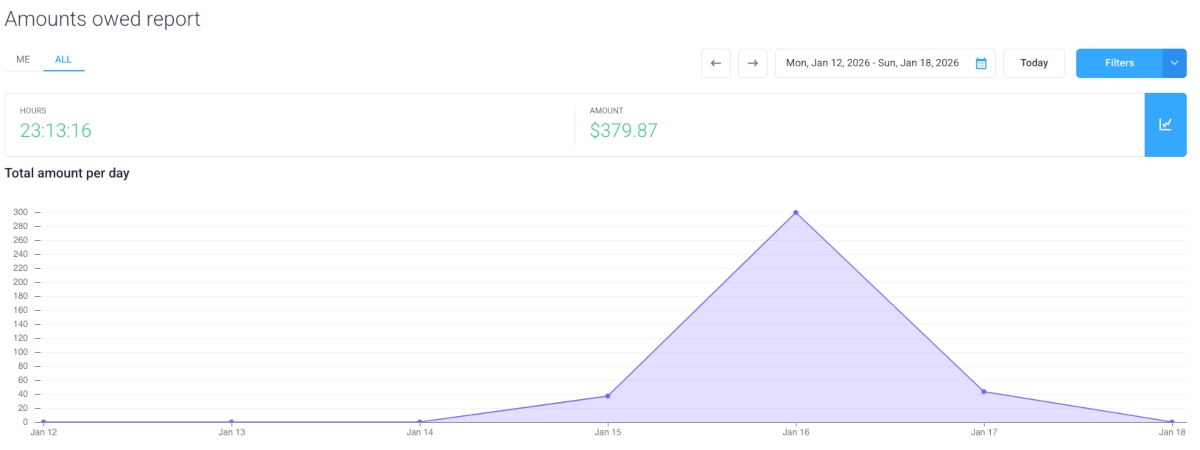
You can filter the report to show the time period you need. You can also select a specific team or team member.
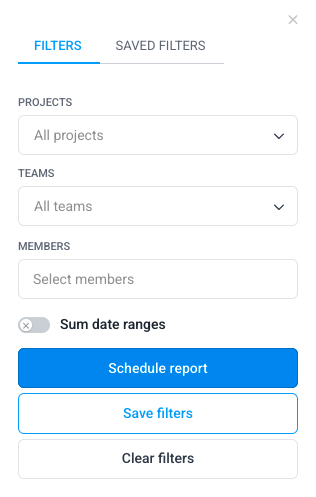
Hubstaff lets you connect your preferred payment tool so you can pay your team easily. This option works only through the integrations, which include:
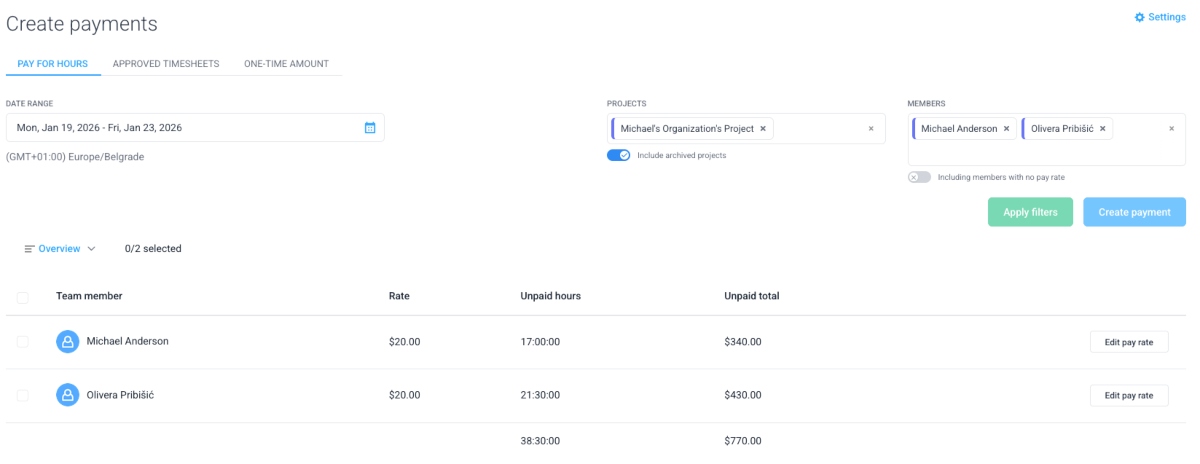
Creating payments can be confusing if you don’t know which information to enter first. The Create payments page doesn’t prompt you to add the required details — especially the pay rate and payment cycle. Instead, if you don’t head over to settings first and configure everything correctly, you won’t get any payment info.
You also need to connect your preferred payment method. After the integration is activated, you can pay your employees manually or set automatic payments.
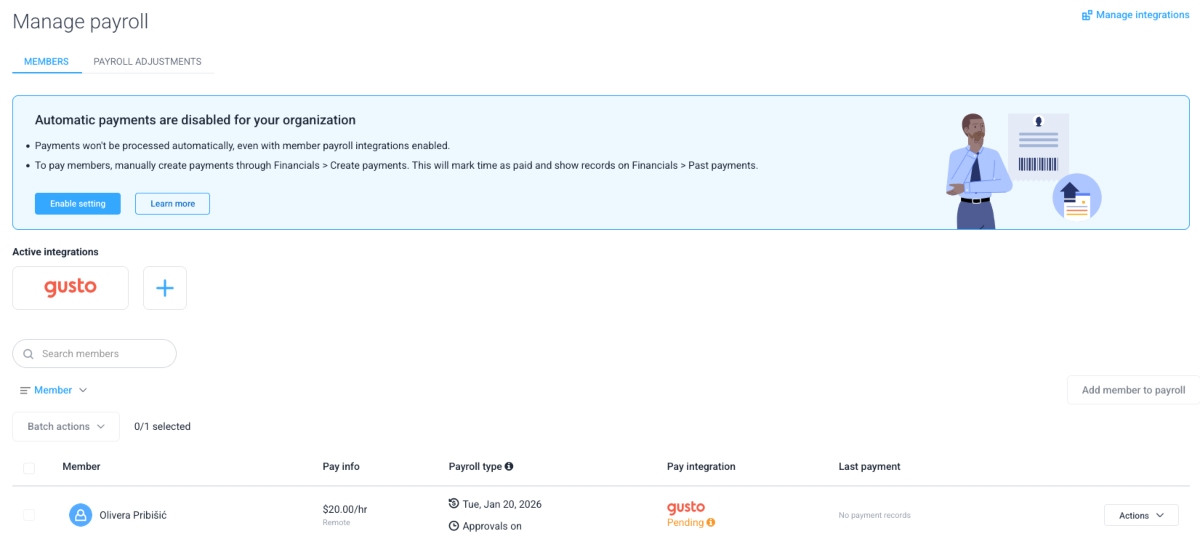
The only issue is that you may not be able to use a payment method that’s not available in Hubstaff. The list of integrations for payments isn’t extensive. In fact, it was difficult not to notice that some popular payment providers, such as Stripe and Square, were missing.
Hubstaff offers a good selection of different types of reports — as many as 19. You can star/unstar reports, so only the reports you need show up in the sidebar.
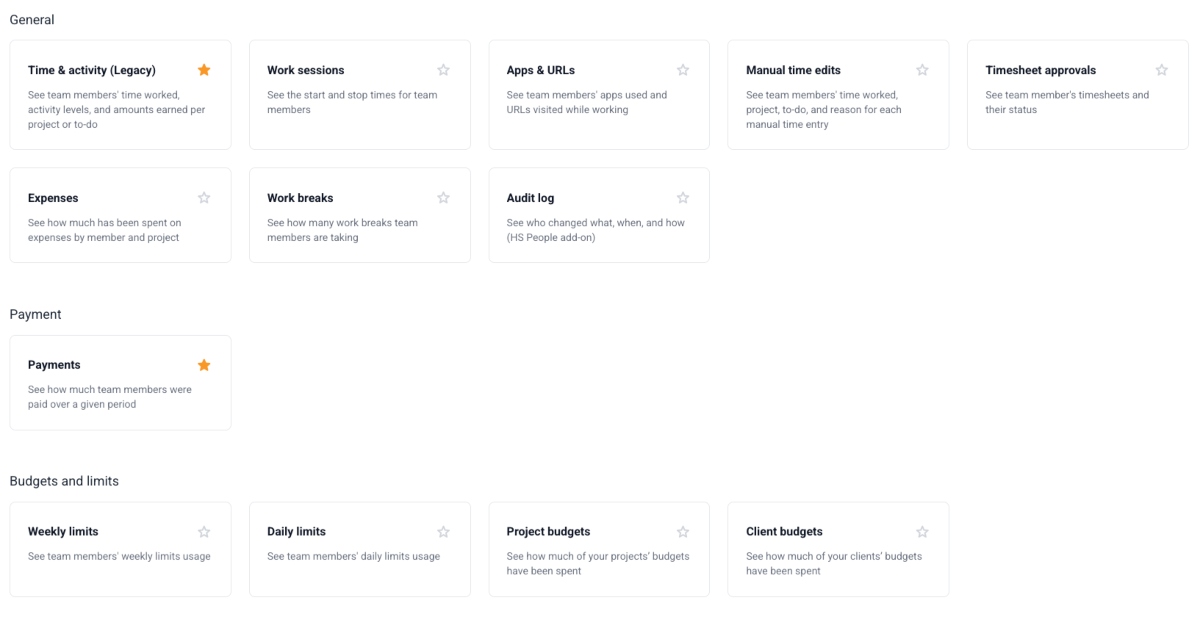
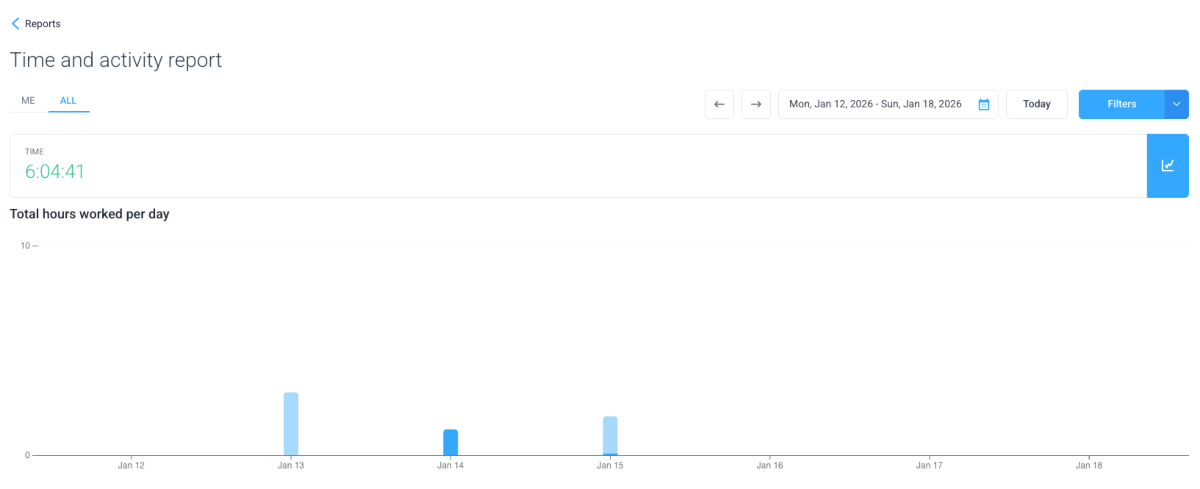
The reports cover everything from work hours and expenses to budgets and payments. The Time and activity report shows the time worked for a selected period.
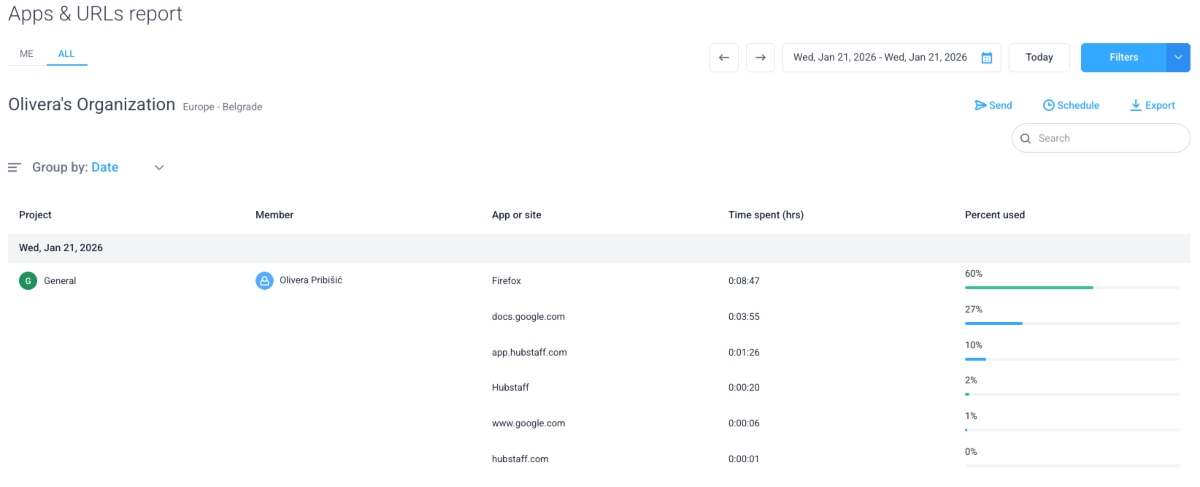
Hubstaff also has an Apps and URLs report. So, if you enable the app and URL tracking feature, you’ll be able to see what apps/websites your team spent the most time on.
I wasn’t a fan of the reports’ design, especially the Time and activity report. I found the chart to be unnecessarily small, so there was too much empty space.
But overall, the reports are well-organized and functional. They display relevant information and have filters so you can customize them.
I counted 32 integrations on the Hubstaff integrations page. This includes apps for:
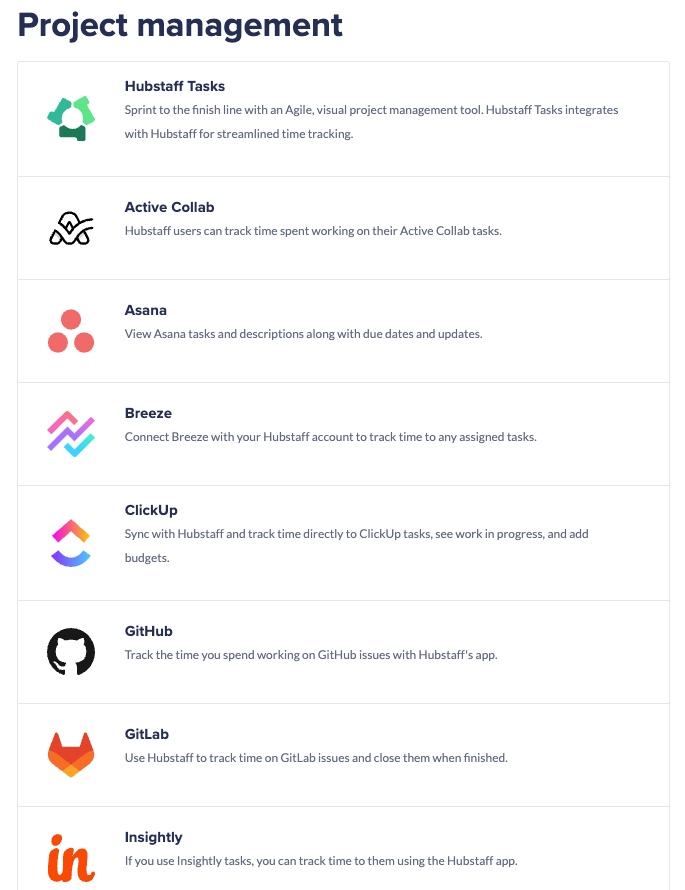
Although Hubstaff doesn’t offer nearly as many integrations as some competitor apps — I think the selection of tools is sensible.
However, I couldn’t connect my Google Calendar account. Even though I found the option within the app, nothing happened when I synced the account. The only workaround I found is to sync Google Calendar with Hubstaff using Zapier. As I’m not a Zapier user, this wasn’t convenient at all.
After calculating the average of all key features, I arrived at a final rating for the Hubstaff web app: 3.7/5.
| Hubstaff web app | Rating |
| Interface | 4/5 |
| Time tracking | 3/5 |
| Productivity tracking | 4/5 |
| Scheduling | 4/5 |
| Time off | 3.5/5 |
| Invoicing | 3/5 |
| Payroll | 4/5 |
| Reporting and analytics | 4.5/5 |
| Integrations | 3.5/5 |
| Final rating | 3.7/5 |
The Hubstaff mobile app is relatively easy to navigate. It doesn’t have many features, so I didn’t spend much time learning how to use it.
Basically, the Hubstaff mobile app allows you to:
The dashboard is neatly organized. I can easily create projects and invite members from there. It also displays the hours tracked for the current day and week. I could also see the amount earned and the time tracked per project.
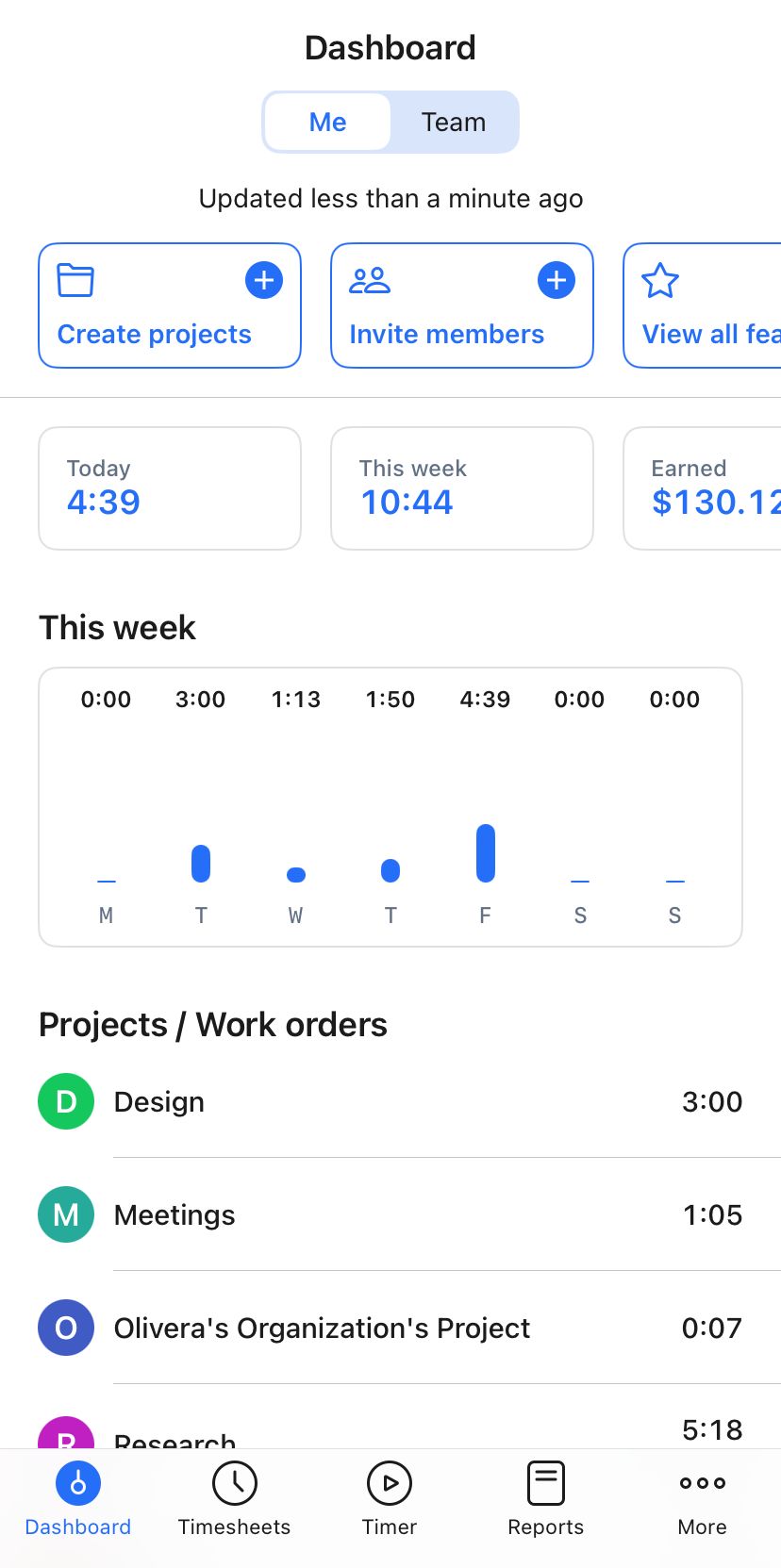
What I didn’t like about the dashboard design is that the displayed information didn’t fit well within the screen — and it easily could have. For example, you can see time tracked today and this week, but the amount earned is cut off. You have to scroll to the right to see it properly.
I was still pleasantly surprised with how easy the app was to navigate. However, I wish I didn’t get so many unnecessary pop-ups. The Explore Hubstaff page kept popping up every time I opened the dashboard.
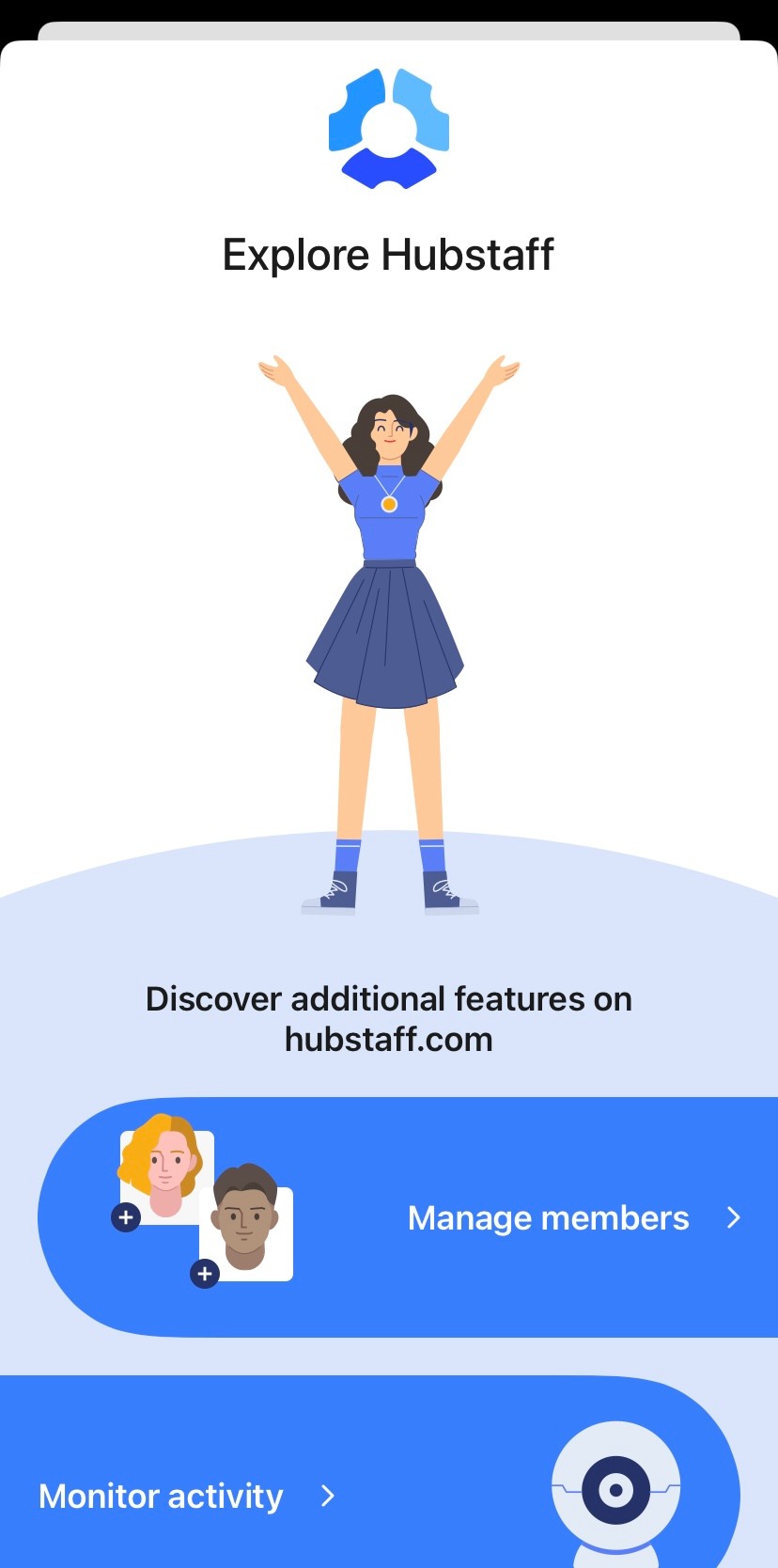
If you click on any of the options on this page, it redirects you to the web app — which is difficult to navigate from a mobile device.
Another annoying pop-up was the Send feedback window. It kept popping up after I closed it the first time — every time I opened the timer (even without leaving the app). It was terribly spammy.
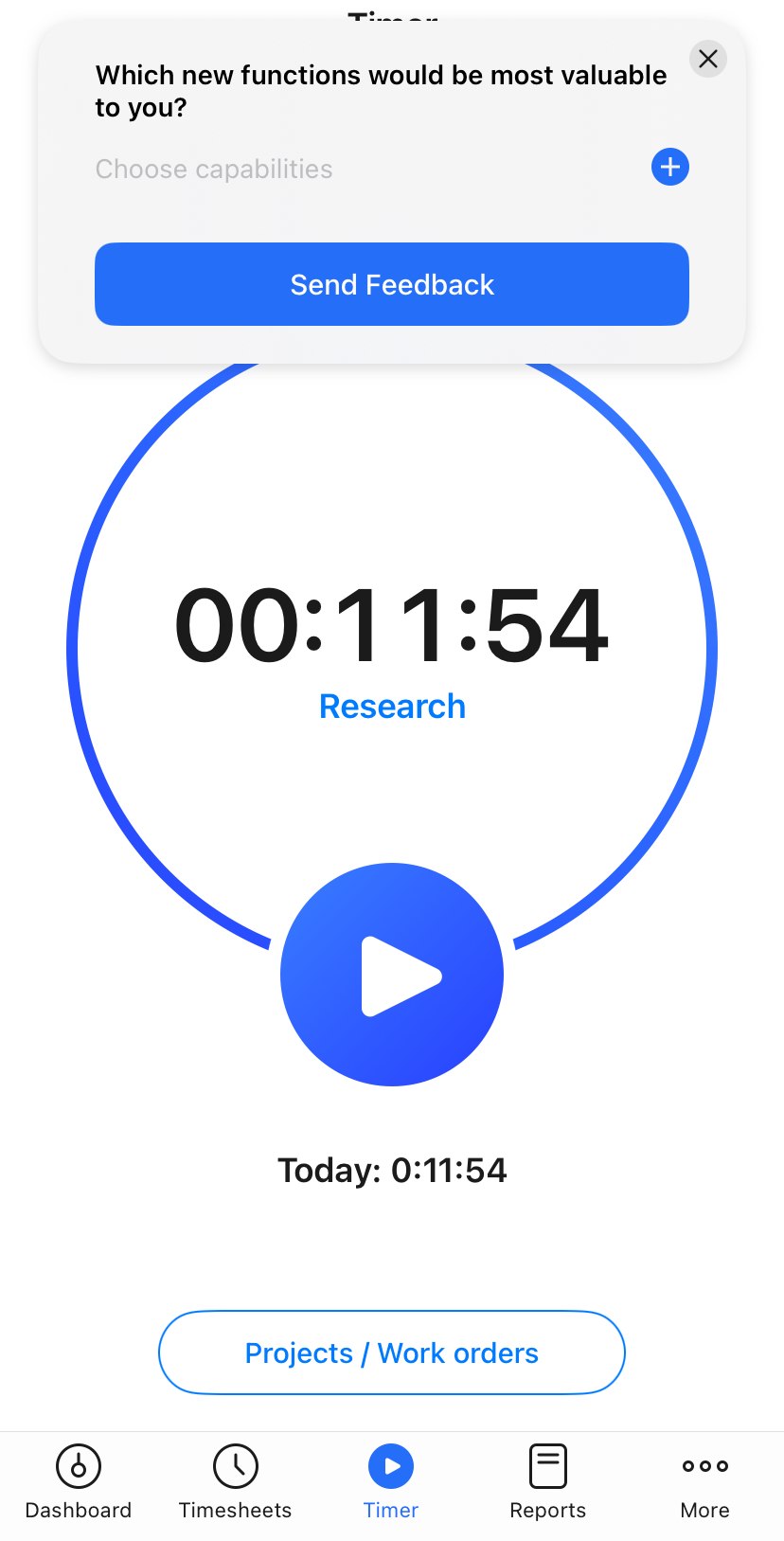
For the most part, the timer worked as expected. When I started the timer on my mobile device, it synced with the web app. My status immediately changed to Working on the web version as well.
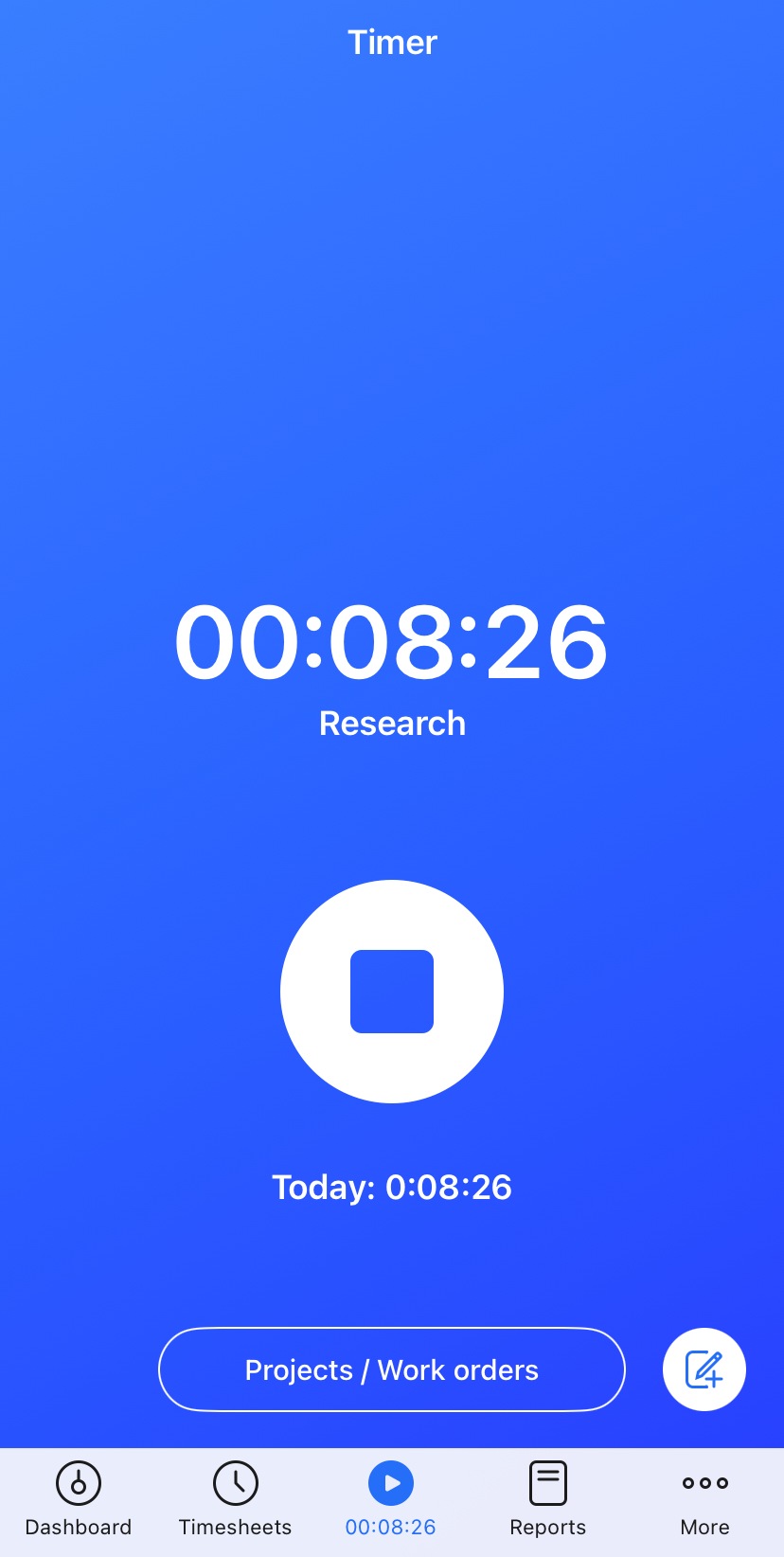
In the mobile app, the timer is visible even when you switch to other tabs — which is great. The timesheets tab shows hours tracked for each project and screenshots when you click a date. I liked the design of this page, as the information is neatly arranged.
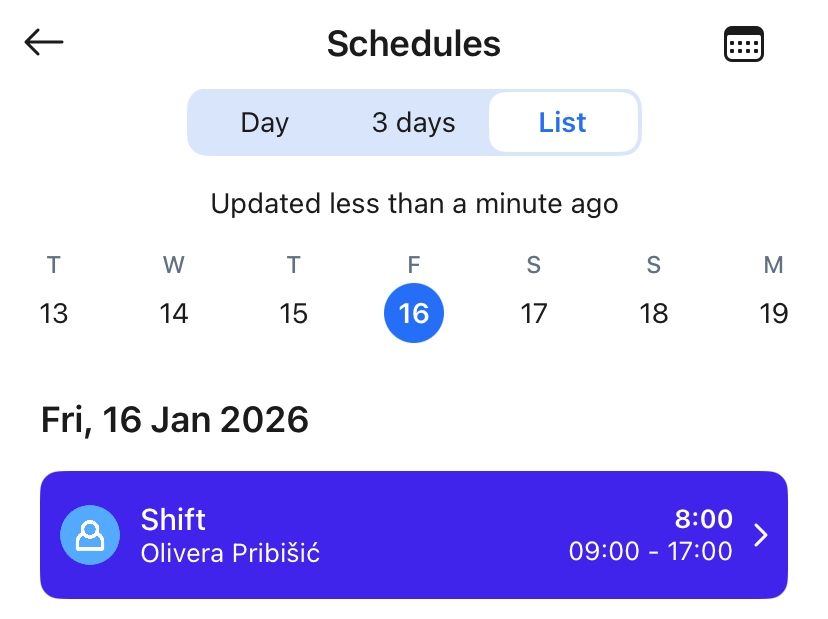
The schedule tab is consistent with the rest of the app in terms of simplicity. You can view current shifts and create new ones.
The reports in the mobile app are well-organized. However, there aren’t nearly as many reports as in the web app. You only get a Time and activity report, and a Weekly report.
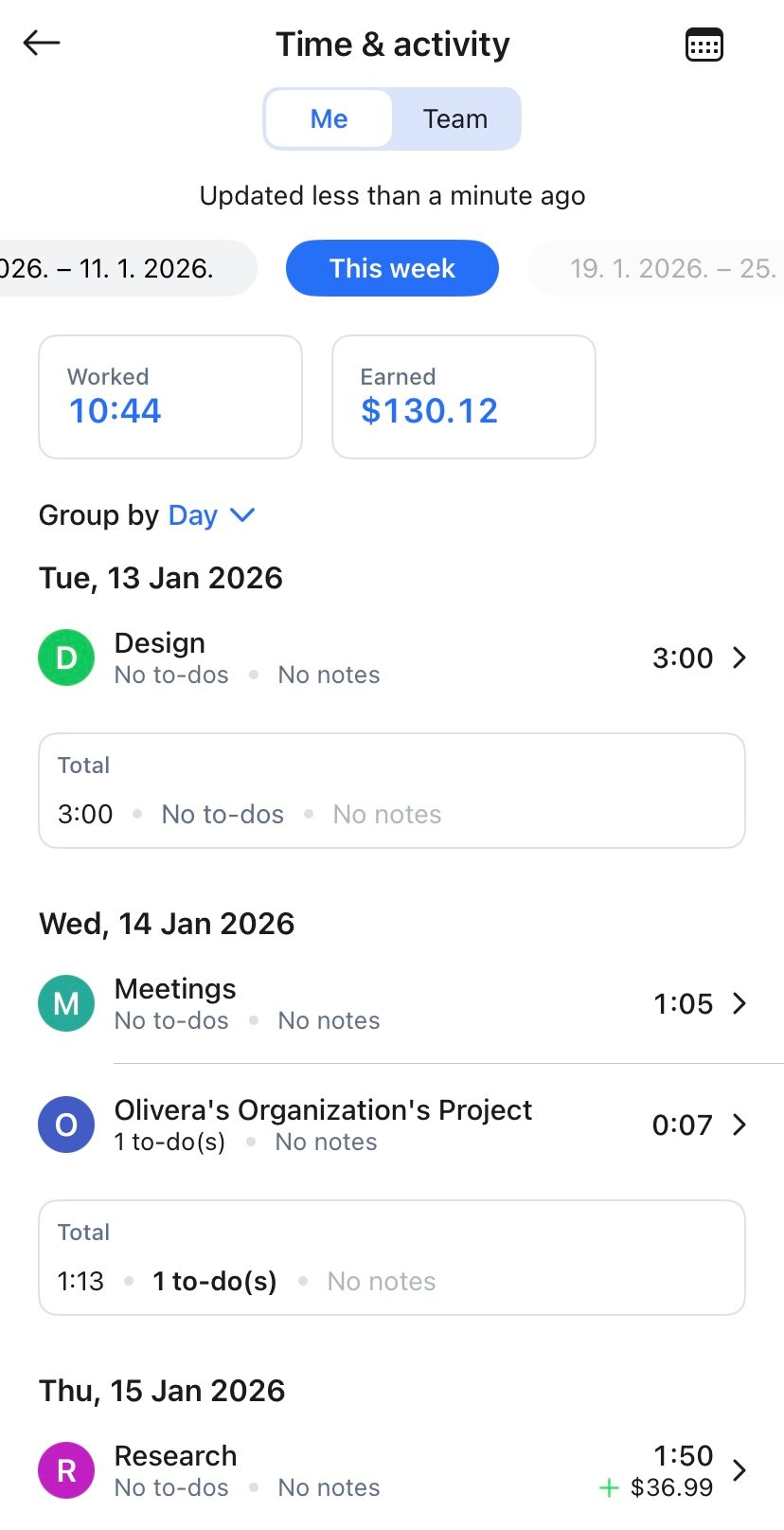
These reports show you the time spent on projects and the money earned. The hours-per-project option is already available in timesheets, so I think the reports could have been more detailed.
The overall experience of using the Hubstaff mobile app was much like using a free app with ads. If it wasn’t for this, I probably would’ve liked the app much more. My final rating for the mobile app is 3.5/5.
| Hubstaff mobile app | Rating |
| Usability and interface | 3/5 |
| Time tracking | 4/5 |
| Scheduling and reports | 3.5/5 |
| Final rating | 3.5/5 |
It seems that Hubstaff didn’t have any major feature roll-outs in the final quarter of 2025 — just minor improvements and fixes. For example, they:
Hubstaff is user-friendly overall. The timer and productivity monitoring features are solid — when they work correctly. As I mentioned, there were a couple of glitches that ruined the experience.
Relying on the timer can be inconvenient for users who switch between different projects throughout the day. I would’ve liked more time-tracking modes, as the manual mode isn’t very convenient. You have to add the reason why you’re not using the timer, can’t add entries for the future, and you have to add time one day at a time.
Still, tracking billable hours for payroll works pretty well. Also, integrating payment software with Hubstaff is useful, as you can pay your team directly through Hubstaff.
All in all, the app is easy to use and offers several noteworthy features. After I calculated all the ratings, my final score for Hubstaff is 3.6/5.
| Hubstaff | Rating |
| Web app | 3.7/5 |
| Mobile app | 3.5/5 |
| Security | 4.5/5 |
| Customer support | 3/5 |
| Customer reviews | 3.5/5 |
| Final verdict | 3.6/5 |
Hubstaff is a decent time tracker if you only need a timer. But if you want robust options to choose from — try Clockify by CAKE.com. Our reliable tool lets you track time using:
And best of all, you can enable/disable different time-tracking modes, so you have control over which option is used.
Unlike Hubstaff, Clockify lets you add future time entries. For example, your team can quickly add time for the entire week in timesheets. This is ideal when they know they’ll be working on the same project all week.
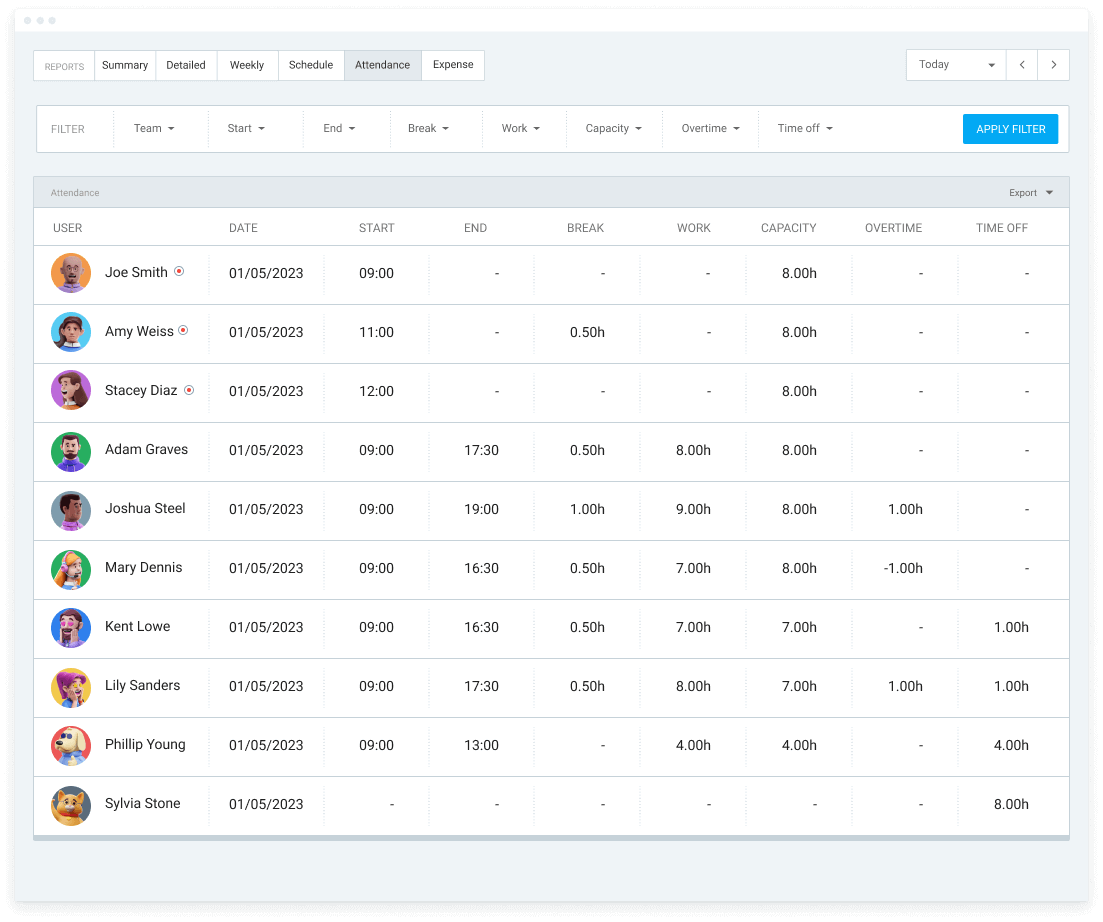
You can also set team capacity, so all overtime hours are visible in the attendance report.
Looking for a free, full-featured option? Learn more about Clockify as a Hubstaff alternative.
Clockify also offers non-invasive “proof of work” features, such as screenshot capture. For added security, you can enable screenshot blurring.
If you have questions about Clockify, you can contact human customer support — available 24/7 for free and paid users.
| Features | Hubstaff | Clockify by CAKE.com |
|---|---|---|
| Primary use | Time tracking Productivity monitoring Team scheduling Payroll Invoicing Time off |
Time tracking Team scheduling Task management Payroll Invoicing Time off Time/budget forecasting |
| Time tracking | Timer Manual mode |
Timer Manual mode Timesheets Calendar Kiosk Auto tracker |
| Project tracking | Projects/tasks | Projects/tasks Budgets Profitability Forecasting |
| Scheduling | Shift scheduling Arrival statuses |
Team/project scheduling Assignments Team capacity |
| Time off | Basic leave policy creation Time off approval |
Highly customizable leave policy Time off approval |
| Payroll | Hourly rates Overtime pay Automatic payments |
Accurate tracking of billable hours Hourly rates Overtime Calculating pay |
| Reporting | Time and activity Budgets Time off Payroll |
Time Productivity Project budgets Team performance |
| Free plan | Not available yet | Free for unlimited projects and up to 5 users |
| Suitable for | Freelancers Remote workers |
Small-to-medium-sized businesses in all industries, including IT services, accounting, construction, manufacturing, healthcare, hospitality, marketing, design, education, and more |
| Pricing | Starting at $4.99 per seat/month if billed annually | Starting at $3.99 per seat/month if billed annually |

If you’re still curious about Hubstaff and what it tracks, take a look at the answers to frequently asked questions below.
Hubstaff can detect mouse and keyboard activity and capture screenshots if these options are enabled. It doesn’t record video or audio.
Hubstaff can detect unusual activity. So, in theory, if your employees use suspicious software to mimic mouse/keyboard use, Hubstaff flags it. Keep in mind that this feature isn’t completely accurate, so if Hubstaff marks an activity as unusual, it should be investigated further.
Hubstaff isn’t 100% accurate when it comes to productivity monitoring. Even according to Hubstaff’s website, a laptop touchpad registers less productivity than a computer mouse.
Yes, it’s possible to track time in Hubstaff while offline. The tracked data is uploaded as soon as the user is online again.