

Alex Beadon
Founder of Together We Launch
"We use Clockify to see where our time is going and how to solve any problems. It’s just so beneficial."
More stories

Find new apps that fit you team's needs
Get maximum visibility across your organization. Manage your business based on tangible, data-driven insights with Clockify’s Activity monitoring.
7-day free trial · No credit card required · Cancel anytime

Boosting productivity for 7M+ users worldwide






Work in the dark, and you’ll fall over every obstacle. With Clockify’s Activity monitoring, you’ll find issues before they affect your business.

Spot security issues and unauthorized behavior as it happens.

Know how processes and resources spend or waste your budget.

See all activity that happens in your workspace, no matter how small.

Get the results and insight into how resources affect productivity.
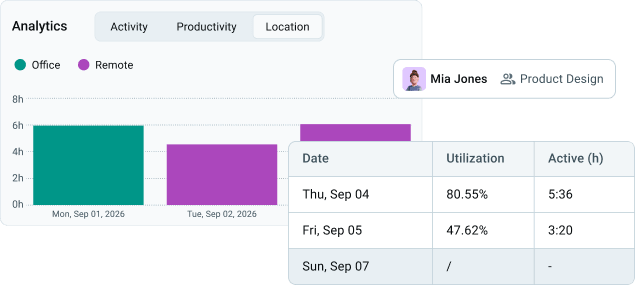
Keep everyone compliant across your enterprise without wasting resources.
Stay compliant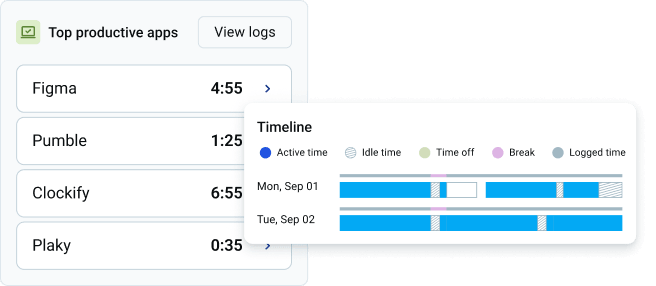
Spot roadblocks, bottlenecks, and other productivity issues instantly.
Improve efficiency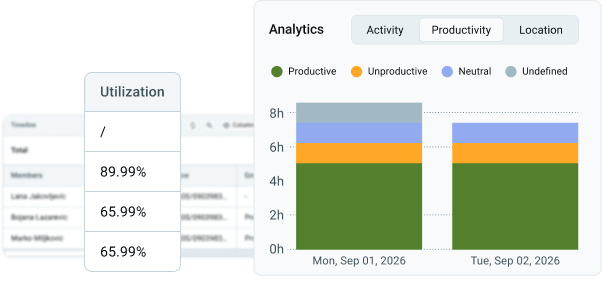
See the apps that drain your funds with unused subscriptions or workplace distractions.
Manage costsYour security is our primary goal. No one can access your tracked data, except for you.
 (SOC) 2 Type II Report
 ISO
ISO
 GDPR
GDPR
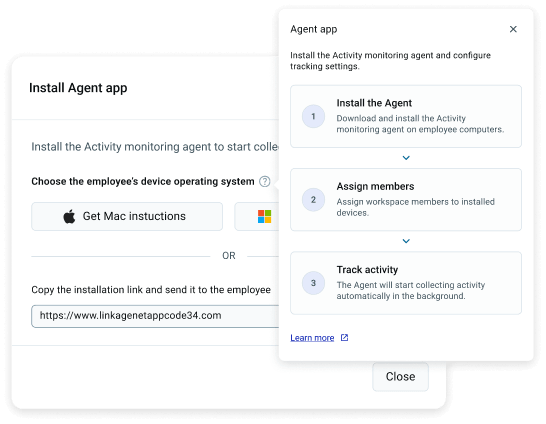
Send your team a download link or an Agent app installer file. Once it’s installed, you can manage its settings and tracked data.
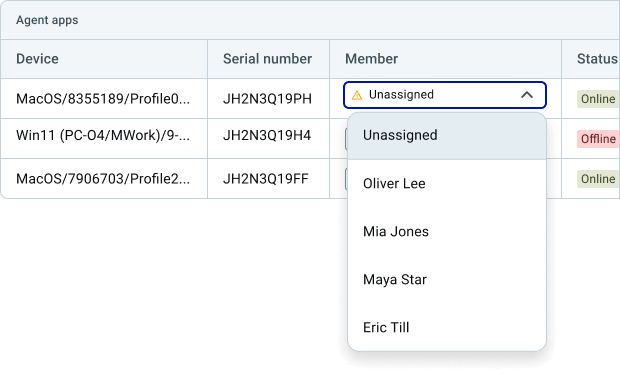
Once a device is installed, assign it to a member. This lets you compare monitored activity with tracked time.
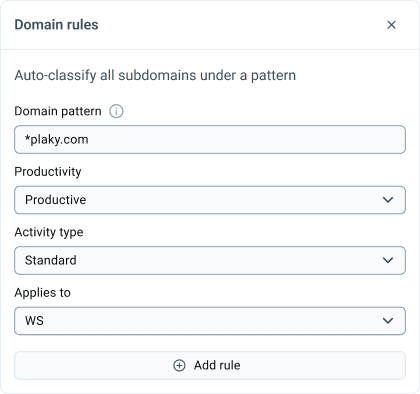
Decide what productivity looks like. Customize your analytics and manage screenshot settings across your workspace.
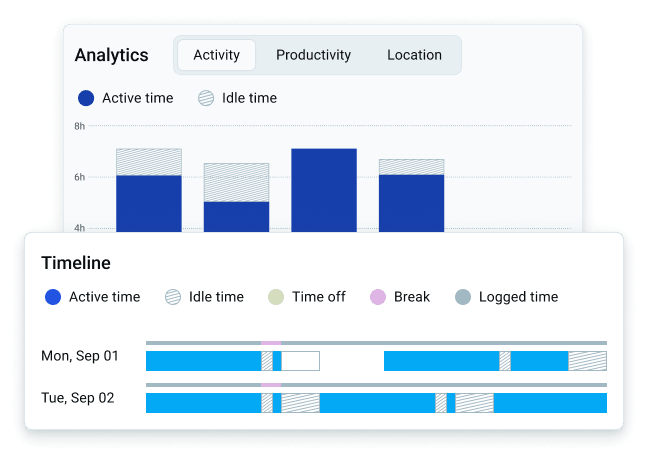
Manage productivity via Dashboard and Timeline tabs. Get an instant overview of productivity health without going over individual data entries.
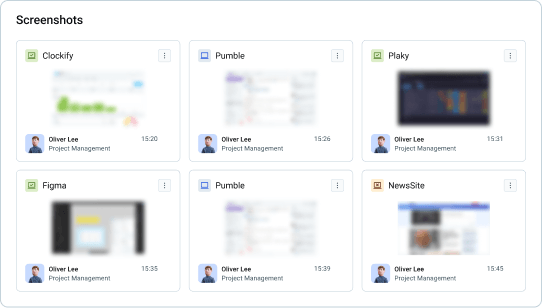
Get additional layers of confirmation. Make sure all insight is accurate, resolve conflicts, and get the exact level of detail you need.
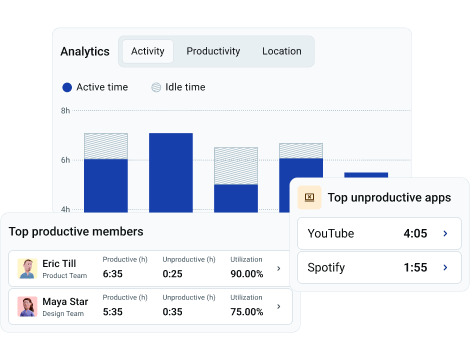
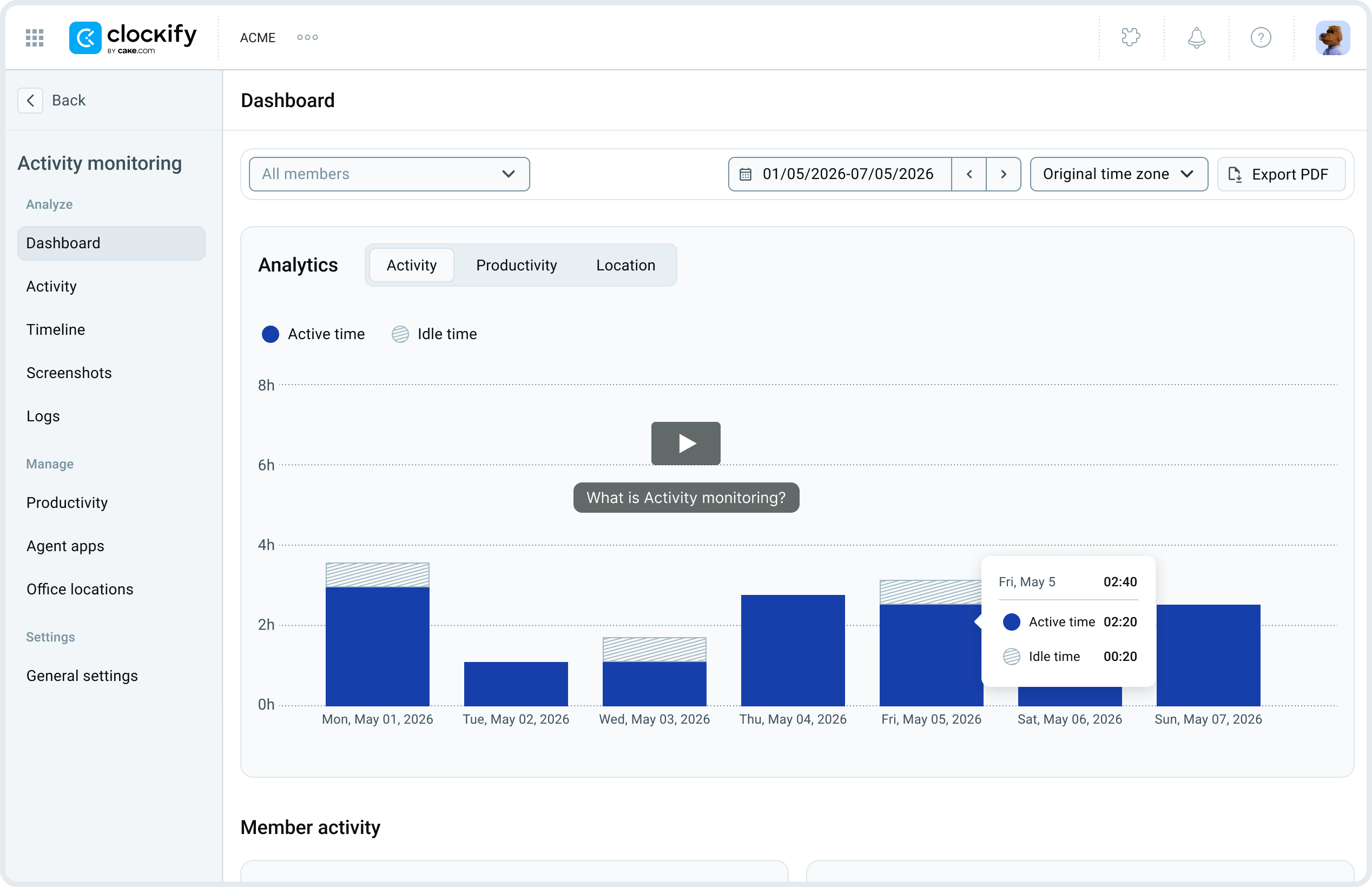
Get a high-level overview of all tracking data with charts and top productive lists.
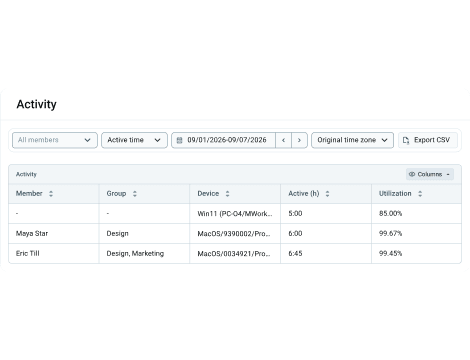
Find active members and devices with quick overviews and create reports easily.
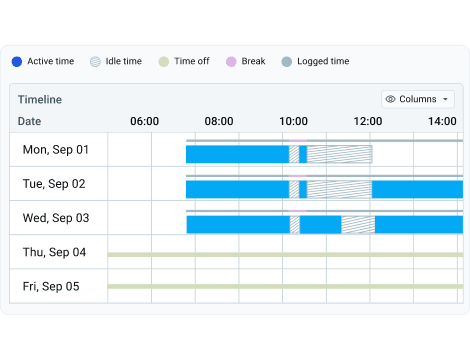
Visualize all tracked data in a chronological timeline view.
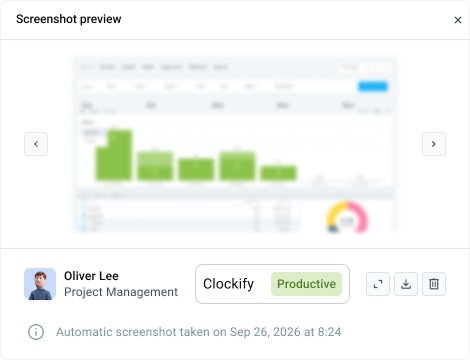
Get an additional layer of confirmation on your team’s productivity.
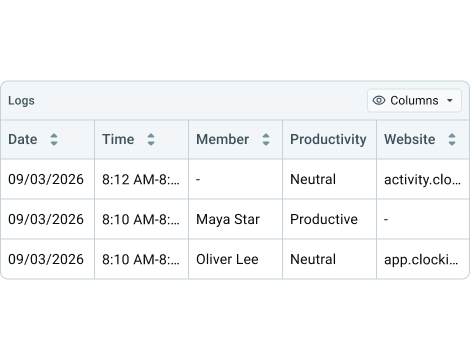
View a detailed, precise list of all interactions that happened in your workspace.
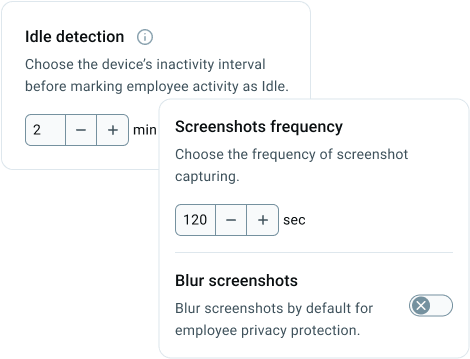
Determine how your Agent app functions and which data it collects.
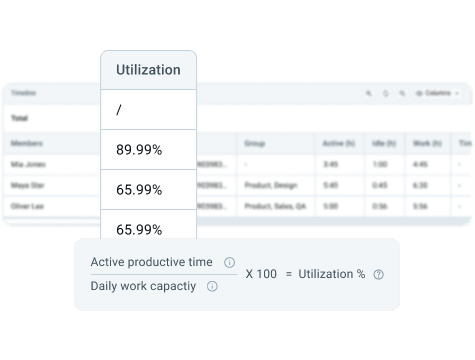
Calculate how productive your team is with parameters you decide on.
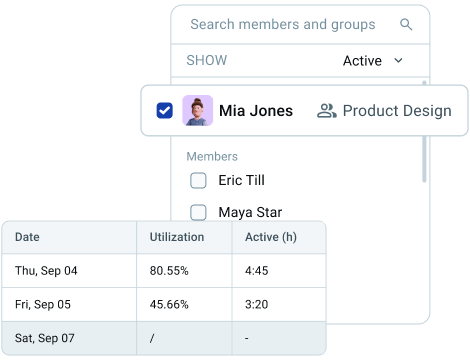
Get a page with detailed productivity insights on any specific member.
Join millions of happy customers
4.8 Rating • 9,000+ Reviews • 95% Customer Satisfaction






★★★★★
When working remotely, I can watch what employees are doing in Clockify in real time. She’s working on a graphic or he’s working on this video. If there’s no time in Clockify, are they even clocked in? It’s like a safe card.
★★★★★
I use it to monitor what you’re working on, and I know you’re not just browsing through social media and wasting your work hours, and therefore, I have full confidence in you.
★★★★★
We can now spot trends, optimize workloads, and fix inefficiencies we haven’t even seen before. Clockify helps us clearly see how time is being spent on different tasks, which allows us to better distribute workloads.
The most effective way of tracking employee activity on company devices is to use a remote monitoring software — like Clockify’s Activity monitoring. Install it on your team members’ work computers and see all activity like website visits, attendance, and location.
Clockify’s Activity monitoring is a workforce analytics software that lets Admins see exactly what happens in their workspace. It works using an Agent app, which you install on company devices, that tracks telemetry (visited websites and apps, keyboard and mouse activity, screenshots). All tracked data is then categorized, based on the settings you choose, into Active or Idle time, productivity type, location, and utilization (productivity, displayed in percentages).
The results can be viewed in the Activity monitoring app on your Clockify sidebar. You can choose to see monitored activity in Dashboard, Activity, Timeline, Screenshots, and Logs views, based on the level of detail and the specific overview you need.
If you want to know more about how it works, feel free to
contact our sales team for a demo.
To deploy the AM agent, you need to have either an Admin or Manager role.
To install the agent on your company devices, you can:
1. Enable Activity monitoring in Clockify → Workspace settings
2. Go to Activity monitoring → Agent apps
3. Click the Install agent app button in the top-right corner of your screen
4. Select whether you want to download the installer file or copy the installation link
5. Copy the link and send it to your team member so they can download and
install the Agent app
After they install the agent, you need to map the agent to that employee — simply go to Clockify → Activity monitoring → Agent apps to see all installed apps and assign team members to their devices.
If you’re having trouble or have additional questions, feel free to contact Clockify support — available 24/7.
Yes — Clockify offers specialized onboarding for Activity monitoring. You can get:
· A tailored sales demo
· Dedicated success onboarding (available for paid users)
· Our 100% human support 24/7 through live chat or phone
Yes — we can enable a new trial period so you can try out the Activity monitoring feature.
Feel free to reach out to our sales team to extend your trial, for any questions, or to book a demo.
Activity monitoring is available starting with the PRO plan — which has a yearly price of $7.99/user/month and a monthly price of $9.99/user/month.
Besides this price, there’s no additional fee for the feature itself.
By default, using your mouse and keyboard counts as Active time. Admins can set which threshold of mouse and keyboard inactivity leads to a user getting flagged as “Idle”.
Additionally, you can change activity types for each app and website. These can be:
— Standard: the user is Active if they’re using the mouse and keyboard, depending on the Idle threshold you set up.
— Always active: the user is always Active when using this app or website, regardless of mouse and keyboard input.
— Active on Call: if the microphone or camera are in use, the user is active regardless of mouse and keyboard input. Otherwise, the app and website reset to the “Standard” type.
When the Activity monitoring agent doesn’t register keyboard or mouse data after a specific threshold, the user is flagged as Idle. This threshold is determined by the workspace Admin, and it can be between 1 and 10 minutes. You can also avoid false flagging with the Always active and Active on Call options. This avoids false flagging while reviewing or viewing videos, undergoing training, waiting for uploads and downloads, etc.
Utilization is a measure of how productive teams or team members were over a period of time, displayed in percentages. The formula for calculating utilization is:
( Active productive time / Daily work capacity ) * 100 = Utilization
It basically tells you what percentage of their workday a team member spent actively working.
To ensure fair and accurate calculation, Activity monitoring pulls data like work capacity, schedules, time off, etc. directly from the user’s Clockify account. For off-days, this means your daily expected working capacity becomes 0, and there’s no risk of inaccurate data or unrealistic expectations.
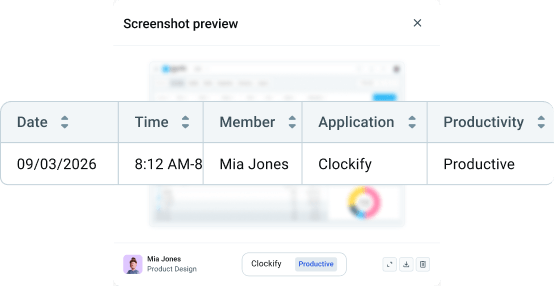
Clockify’s AM screenshot capture is an optional feature. It activates periodically on the device it’s installed on, works silently and in the background, and starts monitoring activity as soon as the agent’s installed.
You decide how frequently the system takes screenshots and whether they’re blurred to preserve maximum privacy and ensure compliance.
It’s simple — as long as you’re Active, the system takes screenshots at the determined interval. When you get registered as Idle, the system automatically stops taking screenshots.
Screenshots are best utilized as an added layer of confirmation for productivity discrepancies you notice in the Dashboard, Activity, or Timeline views. Use detailed filtering options to pinpoint the exact entries you want to check on, and see what actually went down in your workspace.
Yes — Activity monitoring is all about transparency, so team members need to install Agents on their work devices for AM to work. However, employees can’t access their own monitoring results. To increase security, only Administrators can view telemetry data.
No — currently, the Activity monitoring agent is active as long as the device it’s installed on is active.
However, we’re constantly working on improving this feature, so the option to turn off the Agent manually will be available in the future.


