

Alex Beadon
Founder of Together We Launch
"We use Clockify to see where our time is going and how to solve any problems. It’s just so beneficial."
More stories

Find new apps that fit you team's needs
DeskTime promises automatic time tracking that captures every billable minute your team works.
But does it actually recover lost revenue, or does it just create another administrative headache?
I tested DeskTime to give you a competitor’s honest take on whether this tool delivers real ROI or just surveillance theater.
So, let’s dive straight into this DeskTime review.

DeskTime is automatic time-tracking and employee-monitoring software designed for remote and hybrid teams. In a nutshell, it:
DeskTime is designed for agencies, IT companies, and consultancies that need to verify billable hours without manual timesheet entry.
Before we get into the full feature review, here’s a summary of DeskTime pros and cons.
| DeskTime pros | DeskTime cons |
| ✅ Fully automatic time tracking without the need for timers | ❌ Mobile app lacks critical admin features available in the web app |
| ✅ Detailed productivity reports show app/URL usage | ❌ Productivity categories require extensive manual configuration |
| ✅ Desktop app is lightweight and runs in the background | ❌ “Unproductive” or “neutral” labels can misclassify work (e.g., research on YouTube) |
| ✅ Private Time option allows for personal computer use without monitoring | ❌ Lack of native invoicing and budget tracking |
| ✅ Comprehensive project time tracking | ❌ No free plan |
To start off this DeskTime review, let’s talk money. In my opinion, DeskTime is on the pricier side. You can choose from 3 paid plans:
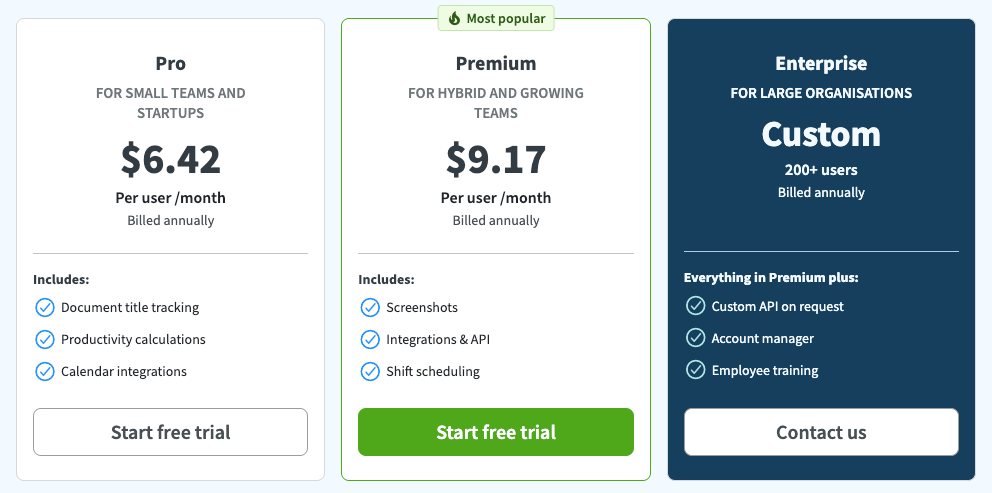
DeskTime Pro plan includes all time-tracking features and reports, together with:
The price starts at $6.42 per user per month, when billed annually — or $7 per user when billed monthly. A pretty rich set of features for a price to match it.
In the Premium plan, for $9.17 per user a month when billed annually (or $10 per user when billed monthly), in addition to all the Pro features, you get:
Now, the Enterprise plan has custom pricing for added custom API, employee training, and a dedicated account manager for support.
In any case, if you choose annual billing, you get 1 month of free use on all plans.
Finally, I learned that, once upon a time, there was a free DeskTime Lite plan for single users, but it’s no longer available. A real shame if you ask me. I think that would have balanced out the costlier plans nicely.
The desktop app installs quickly and runs quietly in the system tray. Once active, it tracks time automatically — no buttons to press, no timers to start. For teams that consistently forget to log hours, I find this a great selling point.
DeskTime’s web dashboard for leads and managers is where I find things get a bit messy. The interface feels dated, in my opinion. Navigation relies heavily on a left sidebar with a collapsing Settings menu that wasn’t very intuitive to me. That said, admins can see the following tabs on the left sidebar:
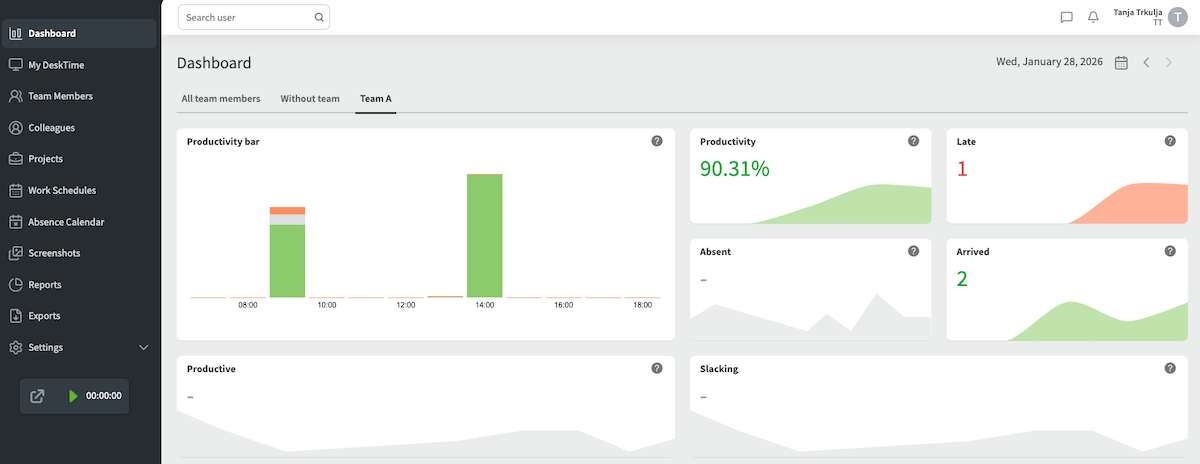
Now, don’t get me wrong, the interface isn’t bad or dysfunctional. It’s just that there’s too much back-and-forth between the tabs for information and organization, which makes the flow less smooth.
For instance, separating information from Reports and Exports or Team Members and Colleagues doesn’t seem logical to me. Fortunately, you can customize the sidebar to your liking and remove unnecessary tabs.
Interestingly, employees can see their own productivity statistics and even screenshots (if you allow it) when they access the web app. Unlike managers and admins, though, employees can’t make any changes to productivity categories.
To be honest, I feel torn about this particular feature access — for the life of me, I can’t decide whether it’s a good (or not-so-good) thing for employees to have daily insight into this type of productivity analysis.
DeskTime aligns with ISO 27001 and ISO 27701 standards for data privacy and stores information on secure servers. The company is GDPR-compliant and provides two-factor authentication (2FA) and a system uptime of 99.95%.
When enabled, DeskTime captures automated screenshots at set intervals. The app also tracks apps and URLs, but no keystrokes.
From a reviewer’s perspective, I have no qualms here. But from the user’s perspective, the screenshot feature may raise privacy concerns.
Thankfully, employees can simply click on the Private Time option, which completely stops all monitoring and screen capture. That way, they can use their computer for private purposes, too. A truly useful feature, in my opinion.
Still, for teams unfamiliar with activity tracking, this could tank morale if not introduced carefully. I think that the screenshot feature requires transparent team communication to avoid trust issues.
Unlike DeskTime, Clockify’s Activity monitoring blurs screenshots by default. That way, employee-sensitive information like personal text or passwords is automatically hidden. In fact, Clockify permanently deletes all stored pictures after exactly 60 days to protect privacy.
DeskTime offers customer support via:
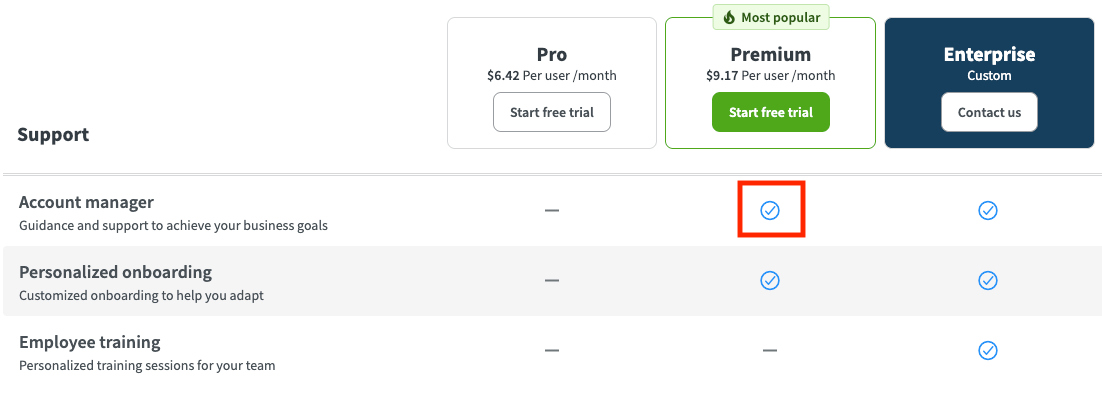
Not all plans have the same customer support options. Here’s the inconsistency I discovered: The list of features places both the dedicated account manager and personal onboarding in the Premium plan, with employee training added in the Enterprise plan. But when you look at the plans, the dedicated account manager is only reserved for Enterprise users.
Here’s what I mean by the list of features in the screenshot below:
And here’s what’s stated in the separate Enterprise plan:
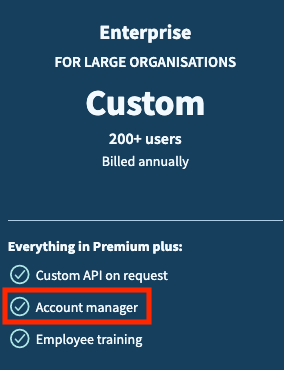
Such confusion seems unacceptable to me.
Another downside is that the support team is available for live chat only during their work hours — Mon-Fri, 9 a.m. to 10 p.m. EET. When away, you can try the chatbot. As you’d expect, that could cause some issues over the weekend or in different time zones.
Once I got in touch with a live chat agent, though, my experience was satisfactory — I bombarded Luize with questions, and she answered them all promptly and in detail.
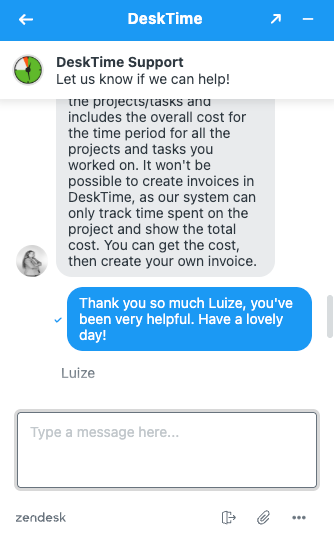
However, it seems not everyone had a positive customer support experience as I did — see the review below.
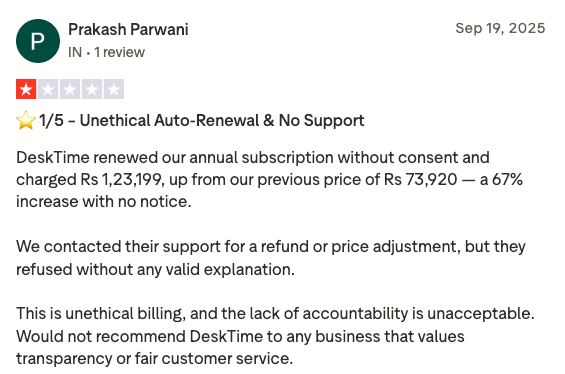
DeskTime customer reviews on popular review websites are very split. In terms of pros, users seem to be very satisfied with DeskTime’s:
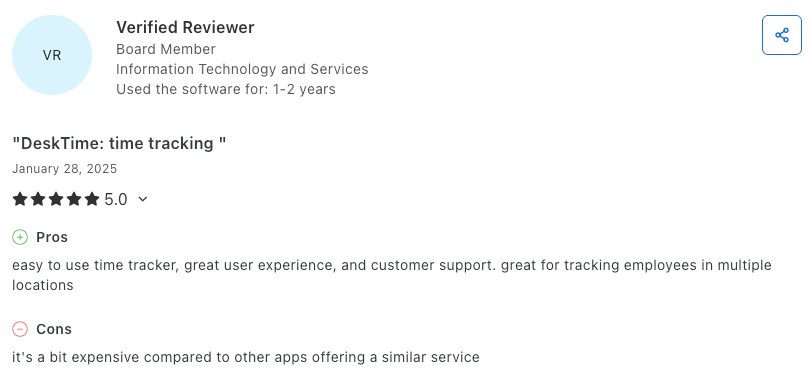
However, they also speak up about the cons, such as:
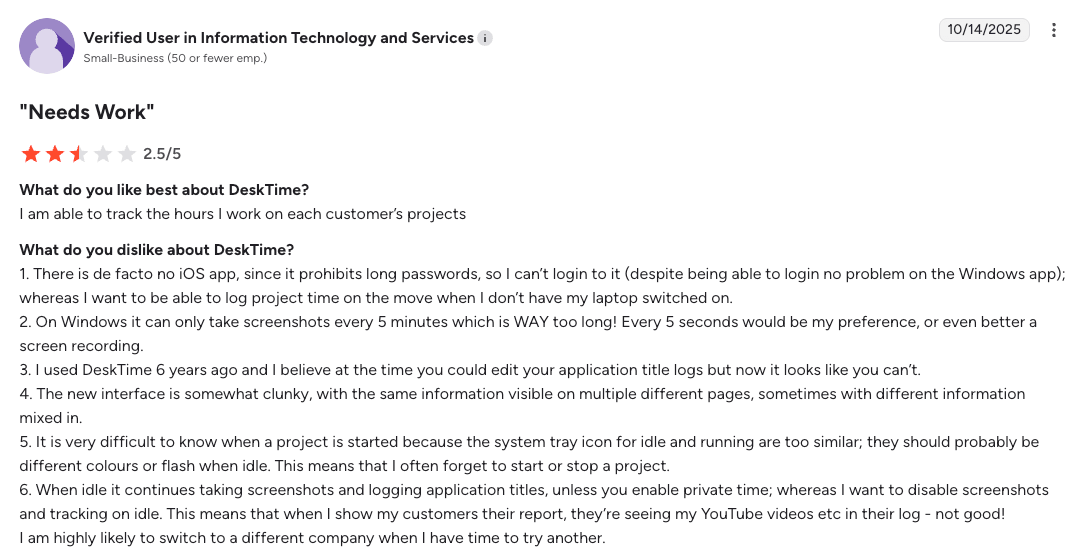
What I find a bit odd is the sparse number of reviews from this year and the last. Also, there aren’t that many reviews in general, especially on Trustpilot, where a couple of bad ratings knocked down the overall score quite a bit.
That said, here are DeskTime customer ratings on some of the popular review websites:
The tool requires some configuration, but it seems to deliver on its core promise, with a solid 4/5 average rating across 3 review websites.
DeskTime has 3 different platforms:
Now, let’s continue this DeskTime review by going through the tool’s core features.
Automatic time tracking is DeskTime’s flagship feature — and I find it works.
The DeskTime desktop app is very simple and easy to install. It’s used for automatic time tracking and is not disruptive, as it runs in the background. The app is available for Windows, Mac, and Linux users.
Employees can use the DeskTime app to:
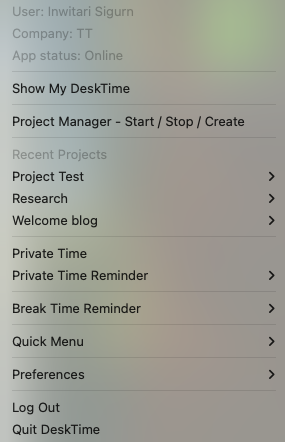
Once the desktop app is installed, it tracks every application and website your team uses without manual input. Employees can set work for specific projects and tasks in the desktop app before they begin.
The automatic tracker will capture applications and URLs, spot on, but not keyboard strokes.
Admins and managers can set how many minutes of inactivity count as idle time and customize activity — this includes mouse clicks, mouse movements, and video calls.
If you suspect billable hours are being missed due to manual entry errors or guesstimating at the end of the week, the automatic tracker should help with the issue.
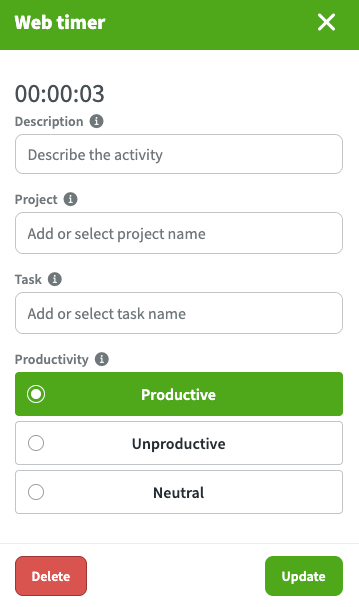
DeskTime also offers a start-and-stop web timer in the web app. It can be used without the desktop app or together in sync.

Only when they start the web timer or log in to the web app can employees add a project and task on their own (not available through the desktop app).
During testing, I worked as a copywriter as usual, and the app captured everything to the second, from Google Docs and browser to email and team communication tool.
The DeskTime web app then shows exactly what everyone worked on throughout the day/week/month — and how much. This information is available in the Reports and Dashboard tabs, as well as Team Members when you click on an employee’s name. I find this level of granularity very helpful when a client questions an invoice.
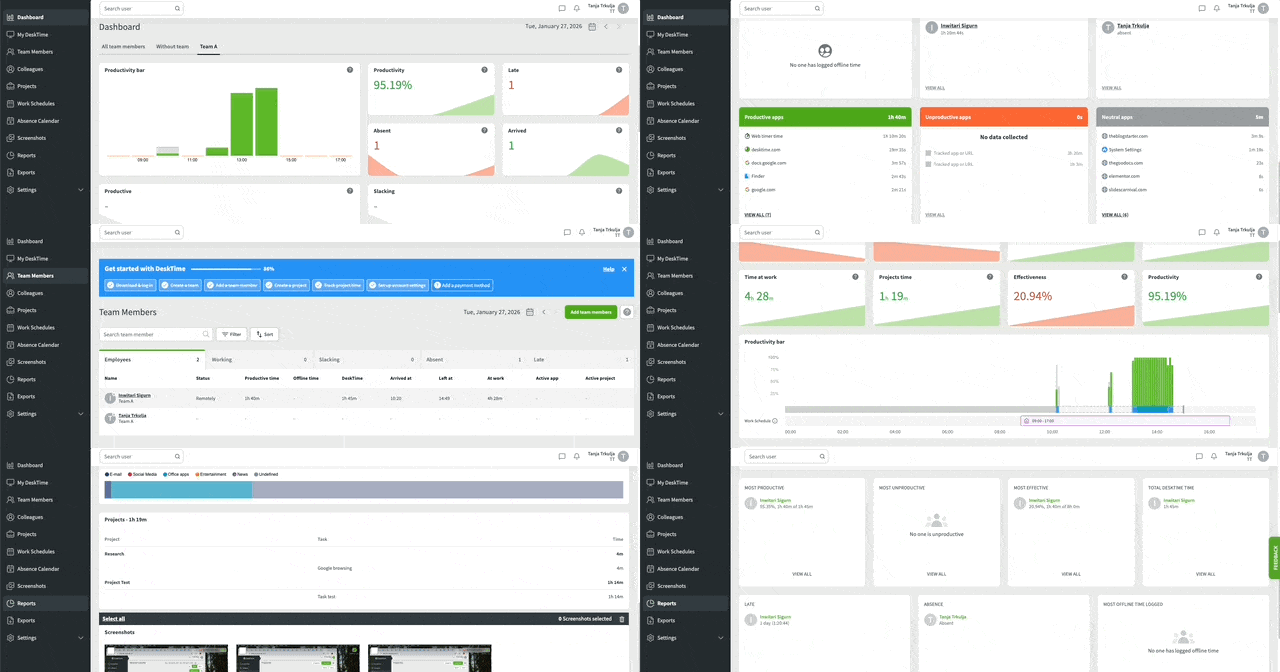
However, accuracy depends on proper app categorization, which can be:
I’ll touch upon this even more in the Productivity analysis section below, but for a copywriter’s type of work, productivity labels weren’t as accurate as I think they should be.
I tried to shift things around to switch labels from neutral to productive, but for some reason, even if you add the day’s URLs to a completely new app category under Settings > Categories, they still count as neutral.
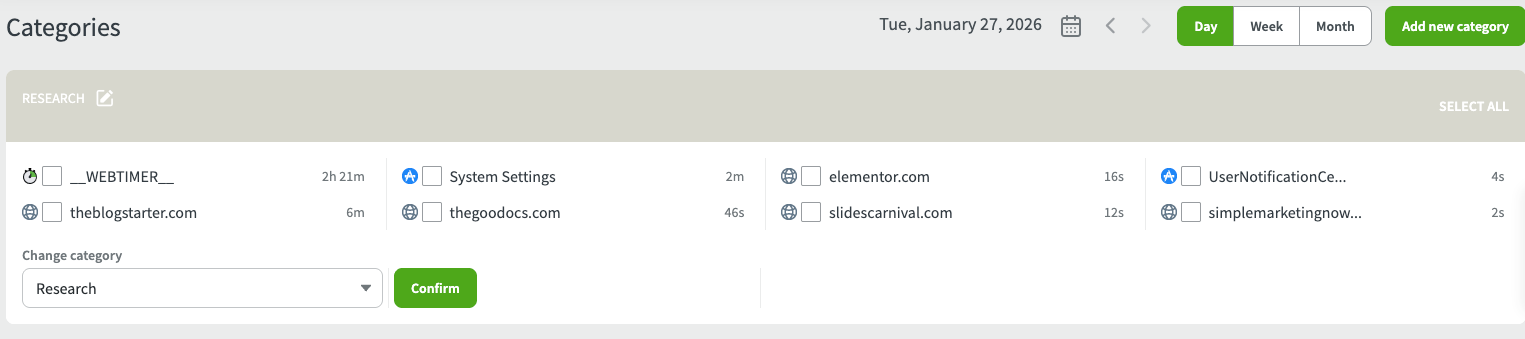
You have to go to Settings > App productivity to change the productivity label manually — after every workday, mind you.

However, you won’t find everything in the App productivity tab, so you might also need to go to the individual employee’s track record to change the app/URL label there. The change is not instant, though, and I had to wait a couple of minutes for it to take effect.
I was very surprised to learn that you can’t manually input URLs and office apps until they’re used by employees. Only once they show up in tracked data can you change productivity labels. So, no setting things up beforehand, which is far from practical.
DeskTime’s automatic tracker also captures document titles from email, Word, Google Docs, and other services.
That said, I hoped to see document title tracking instantly, but to check the titles of the documents, I had to hover over the general URL (e.g., docs.google.com and email.google.com). And this is only available in individual employee data, not in Reports or Dashboard.
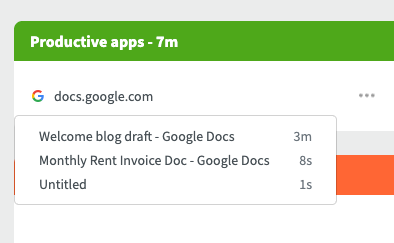
Still, when exporting apps and URLs, you can select the Window Title option to get the titles of all opened pages, apps, and documents in the exported file. This also includes your Google search, though — and I’m not sure that employees would enjoy knowing that all their search history, even if it’s for work, is visible like that.
Based on the user’s time spent in different applications, DeskTime’s productivity reports categorize work as:
The idea is to spot inefficiencies. If someone spends too much work time on unproductive or neutral apps, that’s a red flag, right? Well, in theory, this sounds correct and useful. In practice, I believe it’s oversimplified to the point of being misleading. The default productivity assumptions are too generic and lack role-specific nuances, in my opinion.
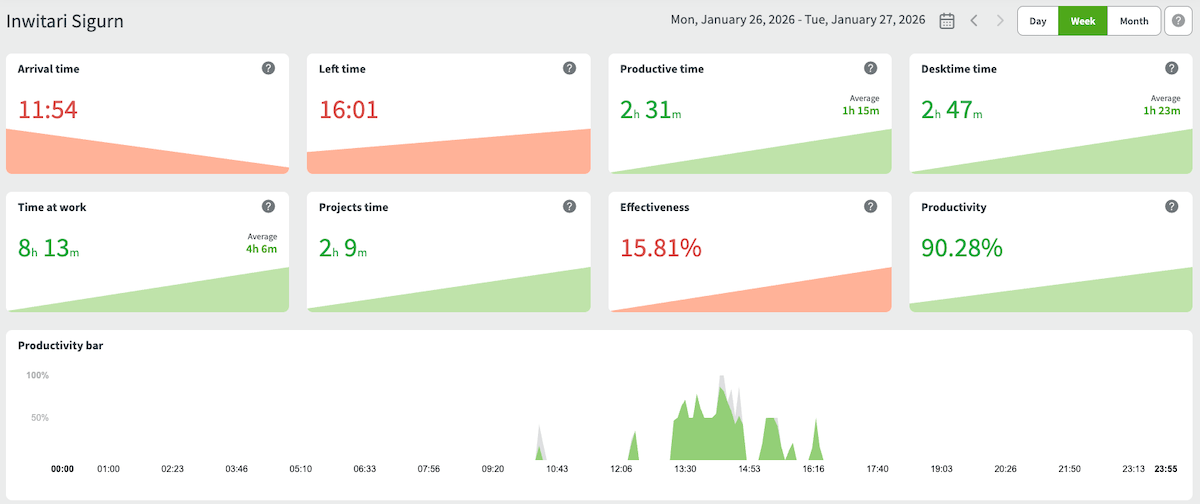
As a copywriter, I wanted to test the automatic productivity settings for writing and research — something I imagine many creative agencies and consultancies require, too.
While DeskTime tracked and screenshotted everything, the productivity categories seemed really off. Google Docs and my browser counted as productive work, while websites opened within my browser that I wanted to use for research were marked as neutral/undefined by default.
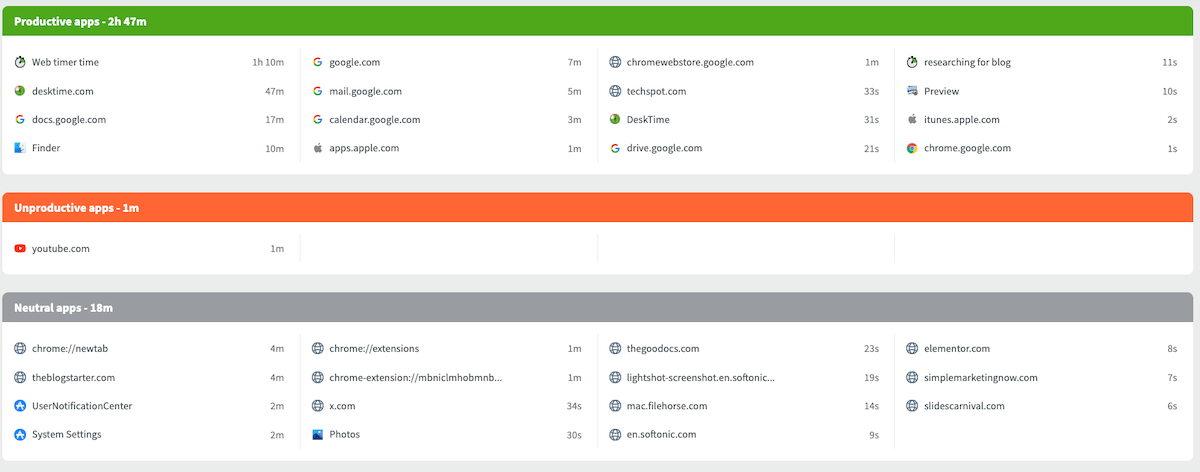
That irked me quite a bit — after all, you never know what page someone from your creative team will have to open and reference. This means you’d have to go over the list of apps/URLs after every single workday to adjust the productivity category for Googled web pages used for research (or accuse your employee of wasting work time).
Your goal may be to minimize admin overload and put a stop to chasing employees to fill out their timesheets. However, I don’t think adjusting productivity categories every day is a better alternative.
For my final conundrum in the productivity analysis, I have to wonder: If I started late, left early, and had more than 4 hours of idle time (as shown in the image below), how exactly did I get a 95.62% productivity score? This metric doesn’t seem reliable to me.

🎓 10 Fast Ways to Improve Employee Productivity in the Workplace
The automated screenshots feature is only available on DeskTime’s Premium and Enterprise plans. When enabled, the app captures screenshots of an employee’s screen at set intervals (every 3, 5, 10, 15, or 30 minutes). Managers can view these screenshots to verify work activity, or they can:
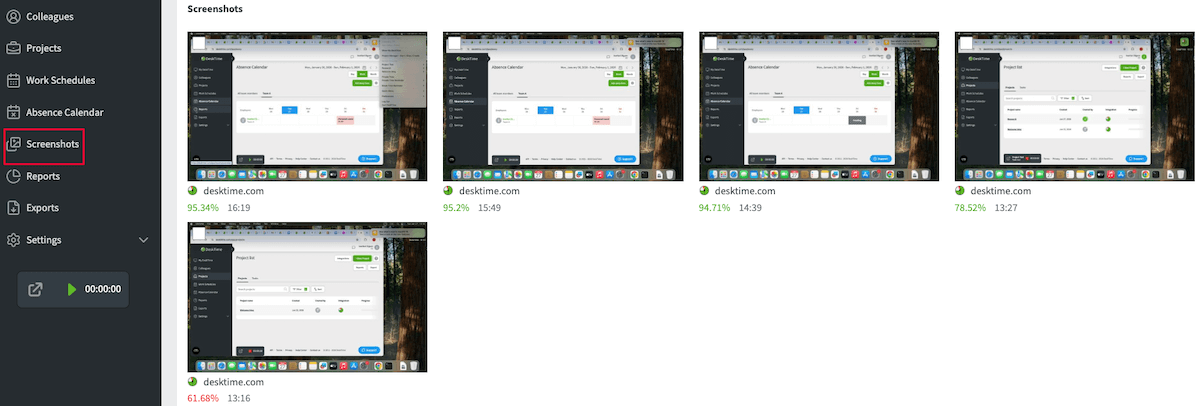
I really appreciate that employees can use the computer for personal tasks when they select the Private Time option — all screenshots and trackingstop.
However, they won’t stop if you just want to quickly Google something personal or play a YouTube video in the background without switching to Private Time. That can be problematic when you’re in the speedy flow and just want to check something for a moment. If screenshots are sent to clients, it won’t look good to include something like “search: local bus times.”
I also noticed that DeskTime will stop the automated screenshots during idle time. That seems a bit unusual to me. But, on the other hand, this also means that managers won’t have to sift through a bunch of the same screenshots taken when the employee was away from their computer.
If you want to verify work is happening without micromanaging, I can see how screenshots can be useful. But whether employees would view this as simple verification or a trust breach is something you’d have to carefully consider, as well.
Aside from the controversy over screenshots, I find that the feature works well. But employees have to be very focused on their work when not in Private Time mode.
DeskTime integrates with 4 popular project management tools:
It also supports Zapier integrations to connect other project management tools. That way, it’s easy enough to import the existing projects into DeskTime.
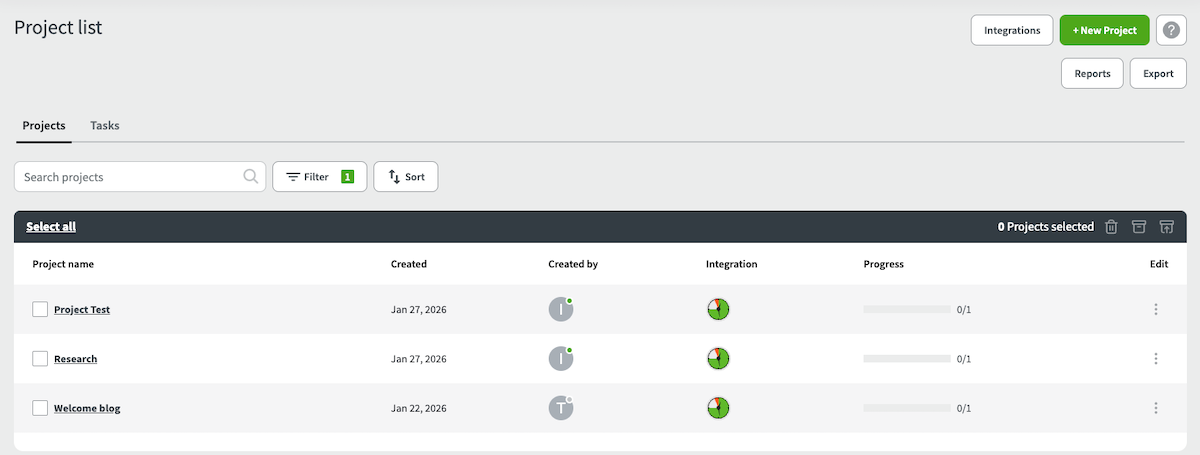
Of course, admins/managers can create and manually assign projects and tasks within the DeskTime web app, too. As mentioned, employees can create their own projects and tasks as needed when using a web timer or in the web app’s Projects tab.
Also, admins and managers can decide whether to enable (with or without approval) the manual setting for employees so that they can add productive time for activities completed away from the computer. That part is a bit clunky, in my opinion, but it still delivers.
I find project tracking in DeskTime simple yet functional. There’s nothing groundbreaking, but then again, I don’t think there has to be for something to work well.
Shift scheduling and absence calendar are only available in DeskTime’s Premium and Enterprise plans. While not the main focus of the app, I find that scheduling works rather well.
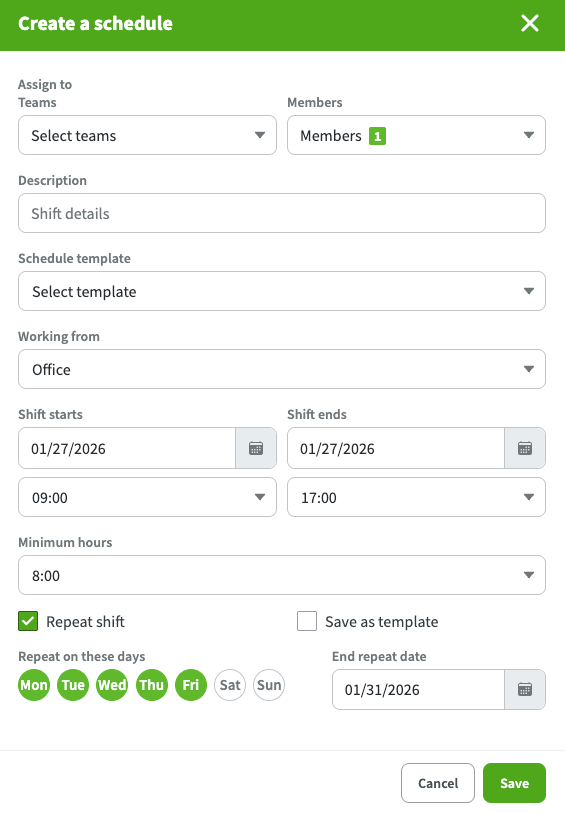
The process is pretty basic — it lets you create schedules for teams or individuals, along with templates and enough options to customize shifts. There’s no separate break option for shifts, however.
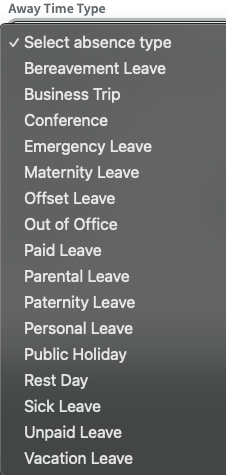
Also, employees can add their “away time” and choose from a generous set of leave types, which the admin or manager will then approve or reject.
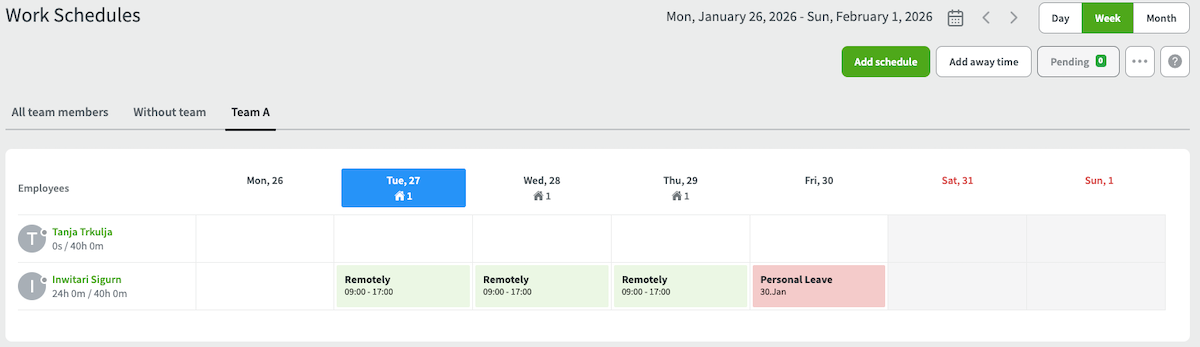
Now, here’s what bugs me — you roll out monthly schedules, and in the meantime, your employees ask for some time off. You approve it, and everything shows up properly.
But, if, during that time frame, with set schedules and absence, you need to change something about the shift (be that the work hours or location) and want to apply that change to all future shifts, you’ll overwrite the already approved absence in the future as well. It’s an unfortunate oversight, in my opinion.
In other bad news, DeskTime doesn’t have an option to create a time-off policy or balance within the app (but Clockify does). As I mentioned earlier, employees can select the leave type when requesting time off, but the balance and rules for that type of leave aren’t part of DeskTime’s features. You’d have to manage this manually in spreadsheets or in a separate HR software system.
I integrated DeskTime with Google Calendar, too, but I’m afraid that I witnessed no sync between the holidays and OOO (Out of Office) in Google Calendar and DeskTime, or vice versa — with all permissions enabled, might I add.
Reports and exports are available on all plans. When you go to the Reports tab, you’ll find a lot of information, including a visual productivity bar. As an admin or a manager, you can:
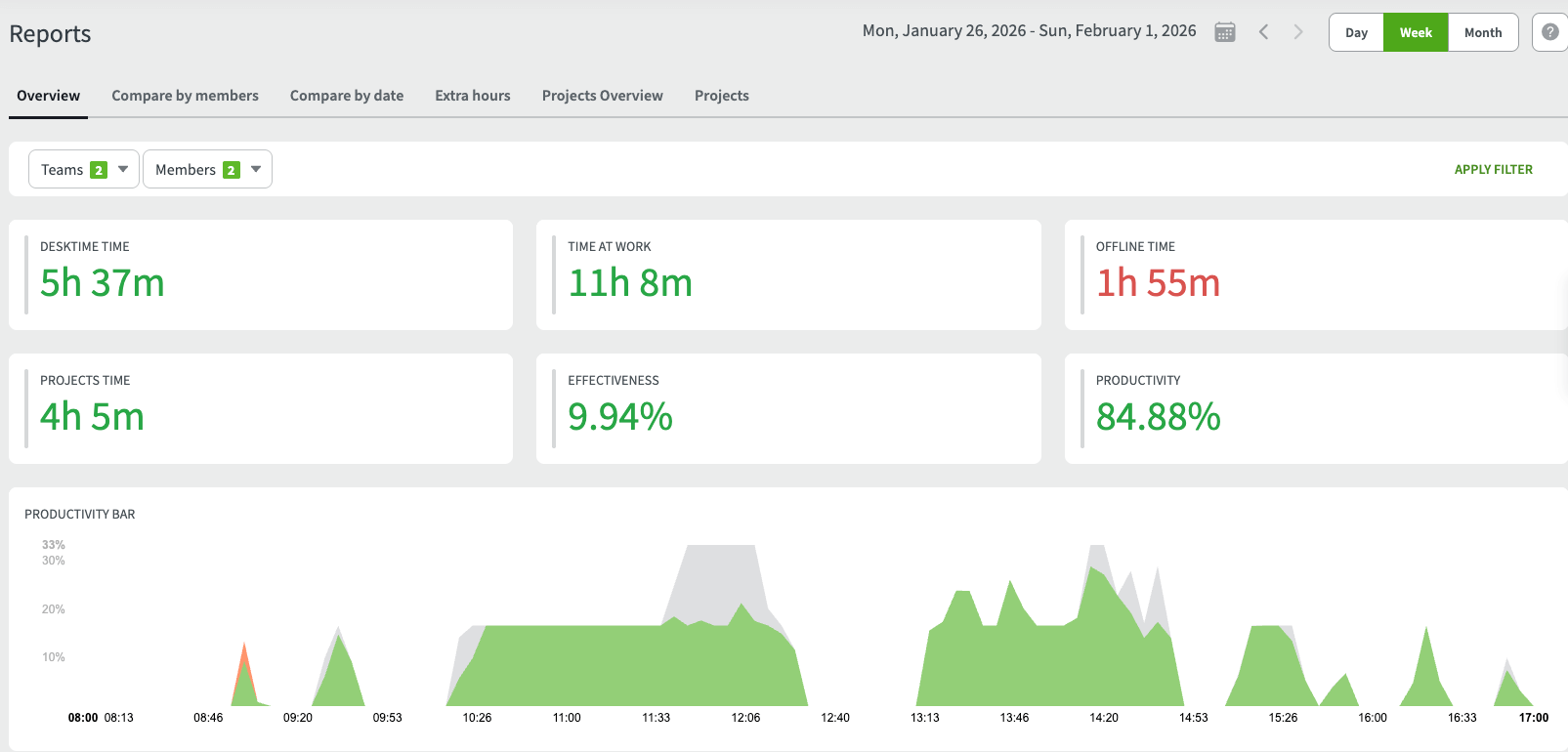
I have to say, reports are very data-rich and visually appealing. But here’s the thing — you can’t export any of it. You can just — look at it.
Exports are a separate tab where you can actually download data. But the data there is not nearly as visually pleasing or comprehensive as the data in Reports. You can export:
To customize the exports, you can choose which datasets you want to see in the options above (along with dates and teams). The end result is very dry, in my opinion. Take a look at the example below:
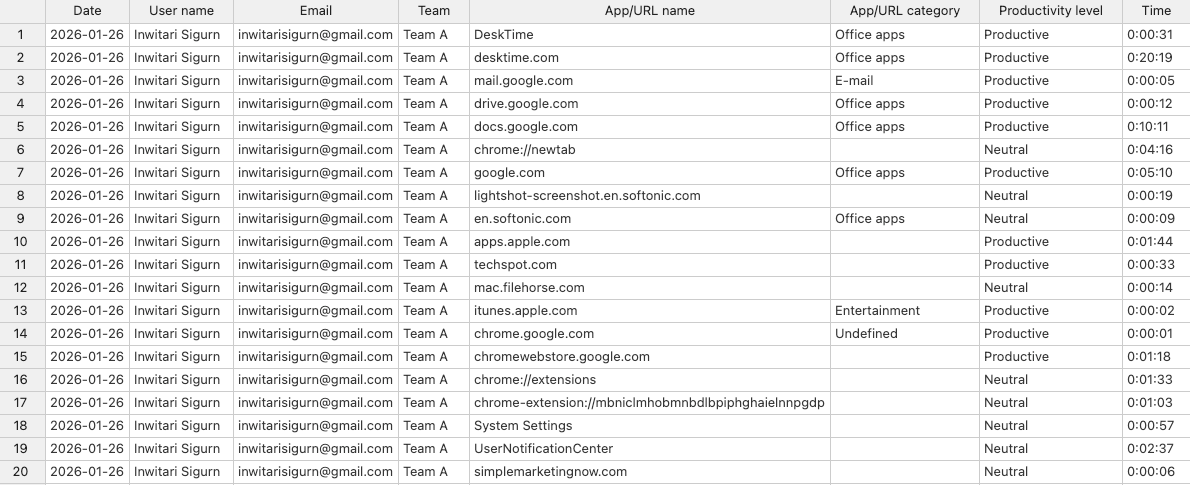
But possibly the biggest gripe I have with exports is that you can only download them as CSV or Excel files. No PDF! Or sharing the export link, for that matter. I admit I’m used to having PDF as an option, especially when Clockify by CAKE.com offers modern, visual data representation in that format.
Here’s an overview of our rating for DeskTime’s key features.
| DeskTime key features | Rating |
| Automatic time tracking | 5/5 |
| URL and application tracking | 3.5/5 |
| Document title tracking | 3.5/5 |
| Productivity analysis | 2.5/5 |
| Automated screenshots | 4.5/5 |
| Project tracking | 4.5/5 |
| Scheduling and absence | 3.5/5 |
| Reports and exports | 3/5 |
| Final rating | 3.75/5 |
DeskTime’s mobile app has a single purpose — to track time when you’re doing some work away from the computer. It’s a simple and intuitive app, available for iOS and Android. In short, employees have a My DeskTime tab where they can:
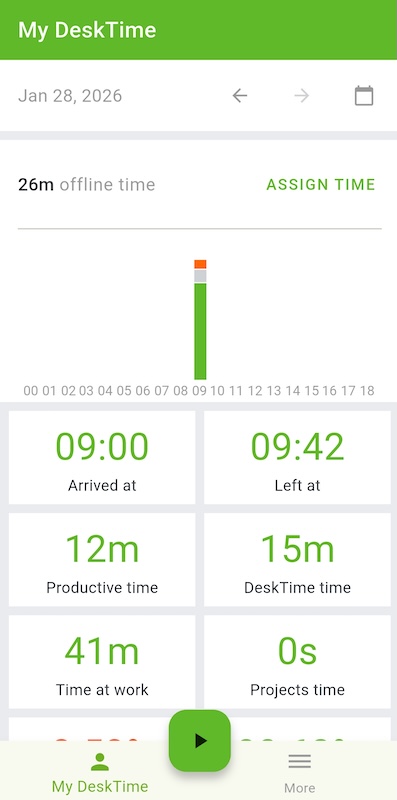
In addition, managers can view the Dashboard and Team tabs to monitor productivity and track team members’ data.
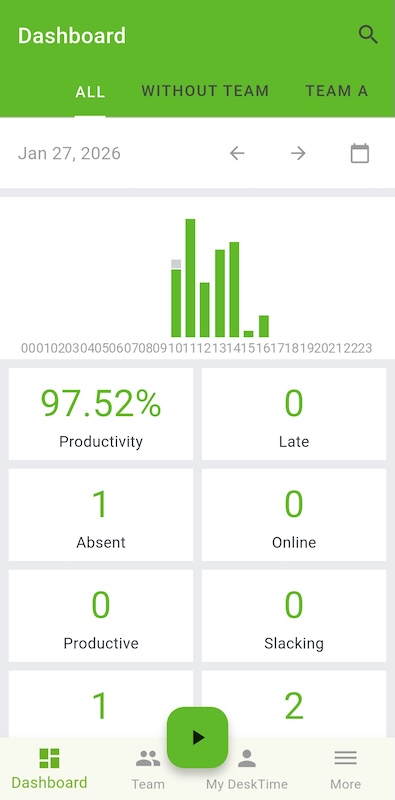
Any tracked time in the mobile app gets synchronized with the rest of the tracked computer work once the timer is stopped.
I find DeskTime’s mobile app to be straightforward. Still, data viewing is only available for specific days — you can’t choose a whole week or month like in the web app, which takes away from the app’s practicality, in my opinion.
According to the DeskTime Facebook page, their most recent update was in August 2025, when Exports got an upgrade.
The post said that the new exports system is faster and more flexible, with:
As remote work management software, I believe DeskTime delivers on its core promise — automatic time tracking that captures apps and URLs without manual timers.
It’s my opinion that DeskTime works best for:
While this may sit well with industries like IT services, marketing and advertising, or consultancies, DeskTime is not a good fit for mobile-heavy or deskless teams. Given DeskTime’s pricing, it wouldn’t make sense to me to use it only for mobile tracking.
With respect to all the user experience factors mentioned above, here’s my final verdict on DeskTime.
| DeskTime | Rating |
| Key features | 3.75/5 |
| Pricing | 3/5 |
| Usability and interface | 4/5 |
| Security and privacy | 4/5 |
| Customer support | 4/5 |
| Customer reviews | 4/5 |
| Mobile app | 4/5 |
| Final verdict | 3.8/5 |
To control project budgets, track time and resources, and maintain compliance, try out Clockify by CAKE.com. As a free DeskTime alternative, Clockify offers a more balanced approach for agency time tracking and profitability analysis.
If you’re an operations director, small business owner, or project manager, here are 8 tangible benefits you get from Clockify:
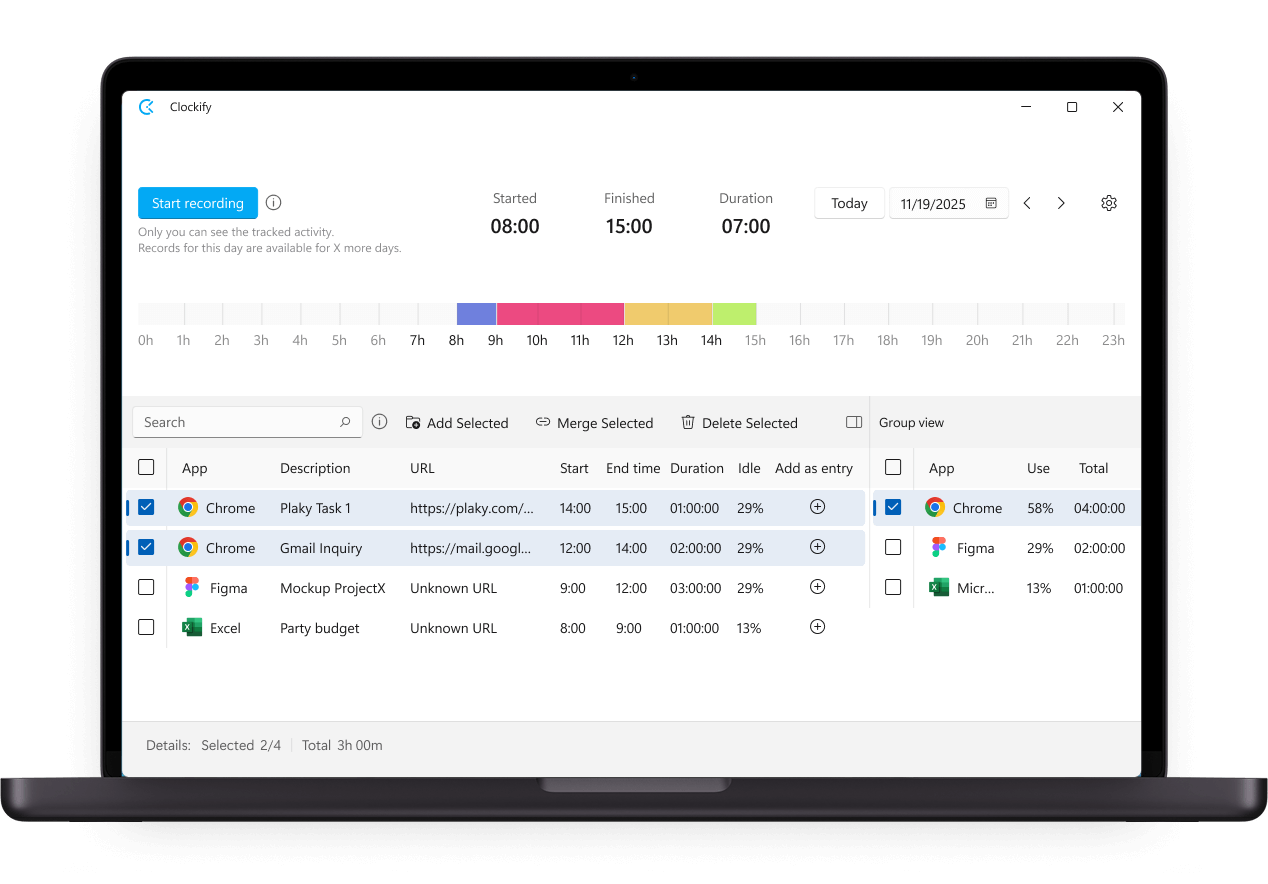
#1: Automatic tracking without the “Big Brother” baggage — Clockify offers automatic tracking via a desktop app that logs programs and window titles, website URLs, and idle time without taking screenshots. Only the person using the app can view recorded activities and add them as time entries later.
#2: Real-time budget and profitability tracking — Clockify allows you to set billable project budgets and get alerts during the project when you’re at risk of exceeding estimates. You can track billable vs. non-billable time, compare estimated vs. actual hours, and spot scope creep before it tanks your margins (features DeskTime simply doesn’t have).
#3: Plenty of integrations — Clockify integrates with 100+ tools, including Asana, Jira, Trello, GitLab, GitHub, QuickBooks, and more. The flexibility means you can build Clockify time tracking into your existing workflows rather than forcing your team into a new system.
#4: Reporting that clients want to see — Clockify generates professional, visually rich, and customizable reports (PDF, CSV, Excel) with project breakdowns, billable summaries, and more. These are client-ready documents, not raw data dumps.
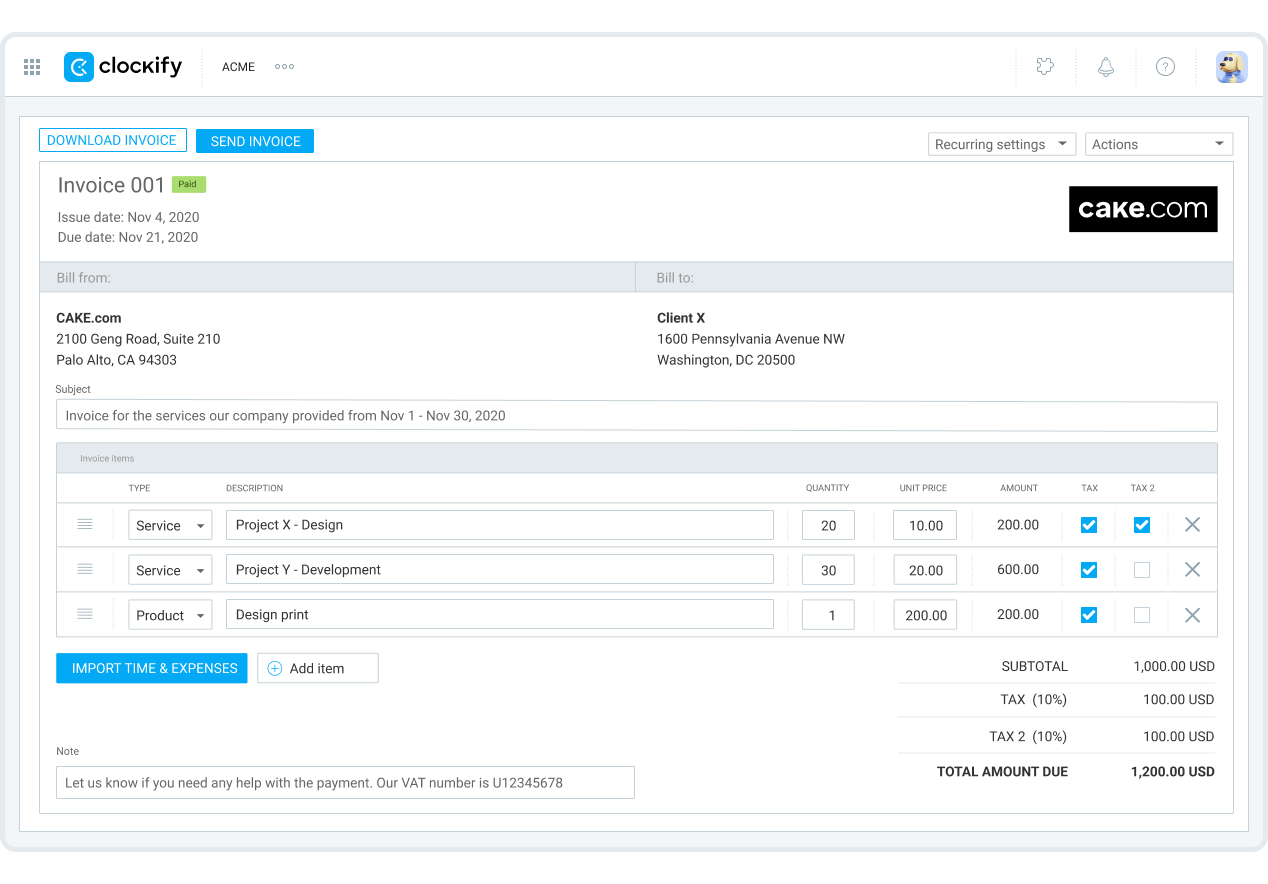
#5: Native client invoicing — Clockify allows you to generate and send professional invoices directly to clients from tracked time, so you don’t need a separate invoicing software.
#6: Flexible leave policy and available balance: Clockify lets you create custom time off policies tailored to your company’s needs. Employees can see their available balance in real time, including how much leave they have remaining.
#7: 24/7 human support with concierge services — unlike DeskTime, Clockify offers fully human live chat assistance that’s ready to help 24/7, along with a dedicated success representative for qualified teams.
#8: Part of the CAKE.com Bundle — Clockify is part of a Productivity Suite. As such, when you use Clockify, you also get access to the Pumble team communication app and the Plaky project management app. This means you can master remote work management and workflow optimization with a single ecosystem rather than a bunch of disconnected tools.
| Features | DeskTime | Clockify by CAKE.com |
| Primary use | Automatic time tracking Productivity monitoring |
Time tracking Team scheduling Invoicing |
| Time tracking | Automatic tracking Screenshots Web timer Productivity analysis |
Timer Timesheets Calendar Kiosk Auto tracker |
| Project tracking | Basic project and task tracking | Projects/tasks Budgets Profitability Forecasting |
| Scheduling | Team scheduling | Team/project scheduling Assignments Team capacity |
| Time off | Time off approval Google and Outlook Calendar integration |
Highly customizable leave policy Time off balance Time off approval Public holiday import via Google Calendar |
| Exportable reports | Work, offline, and/or idle times Projects and tasks Apps and URLs Work schedules and absences Custom |
Productivity Project budgets Team performance Attendance Assignment Audit Custom |
| Free plan | No free plan | Free for unlimited projects and up to 5 users |
| Suitable for | IT services Marketing and advertising Agencies |
All industries and work locations — off and on-site, including hospitality, retail, manufacturing, construction, agencies, IT, logistics, accounting, attorneys, transportation, security, healthcare, and more |
| Pricing | Starting at $6.42 per user/month if billed annually | Starting at $3.99 per seat/month if billed annually |

Still have questions about DeskTime? Then check out the following section.
Yes, DeskTime can take automated screenshots at intervals you configure. This feature is optional and only available on Premium and Enterprise plans.
🎓 How to Track Employee Time Without Invading Privacy
DeskTime offers 3 pricing tiers. When billed annually, the DeskTime Pro plan costs $6.42 per user/month, while Premium costs $9.17 per user/month. The Enterprise plan has custom pricing. Users also get 1 month of free use when they opt for a yearly payment.
However, DeskTime Lite (free plan for single users) isn’t available anymore. To test the app, you can sign up for a 14-day free trial, no credit card required.
The “best” time tracker depends on your specific needs. DeskTime works well if you want employee monitoring software with automatic tracking to capture unbilled hours. Clockify is better for teams that want project budgets and real-time profitability tracking.
If “keeping track” means verifying that employees are working, DeskTime offers solid surveillance features (screenshots, app and URL tracking, activity and productivity percentages).
However, if you want to help employees account for their time to improve billing and project planning, Clockify is more effective — it provides the data you need (timesheets, project breakdowns, billable hours, etc.) without the trust-breaking features.
🎓 Best Time Tracking Apps for 2025: Reviewed & Compared
DeskTime tracks:
It logs when you start and stop using your computer for work, detects idle time, and categorizes activity as productive, unproductive, and neutral based on app usage.
Yes, Clockify by CAKE.com offers a completely free plan to track employee hours, with unlimited projects, and core time tracking features including timesheets, project tracking, reporting, and tracking integrations.