

Alex Beadon
Founder of Together We Launch
"We use Clockify to see where our time is going and how to solve any problems. It’s just so beneficial."
More stories

Find new apps that fit you team's needs
ClickUp claims to “save people time by making the world more productive.”
But does the app live up to this promise?
Find out in this honest ClickUp review.

ClickUp is a work productivity tool built for time tracking, project management, and team communication.
In this review, I rated each ClickUp feature on a scale from 1 to 5. But before we get into the full review, here are the biggest pros and cons of ClickUp.
| ClickUp pros | ClickUp cons |
| ✅ Timer can be started from the timesheet page | ❌ Too many features that lack fundamental options |
| ✅ Easy task management | ❌ Few and expensive pricing plans |
| ✅ Free version allows you to create an unlimited number of tasks | ❌ No option to set billable and cost rates |
| ✅ Allows you to set task priority | ❌ Project billability not visible at a glance |
| ✅ Sorts features on the sidebar according to your preferences | ❌ Cluttered mobile app |
ClickUp’s pricing model is straightforward. You have a free plan with limited features. If you need more features, you can subscribe to one of the following plans:
Since ClickUp doesn’t have a wide range of plans, you’ll save yourself time on thinking which one to choose. However, I think they could have offered at least 1 cheaper plan, as the starting price per user is on the costly side.
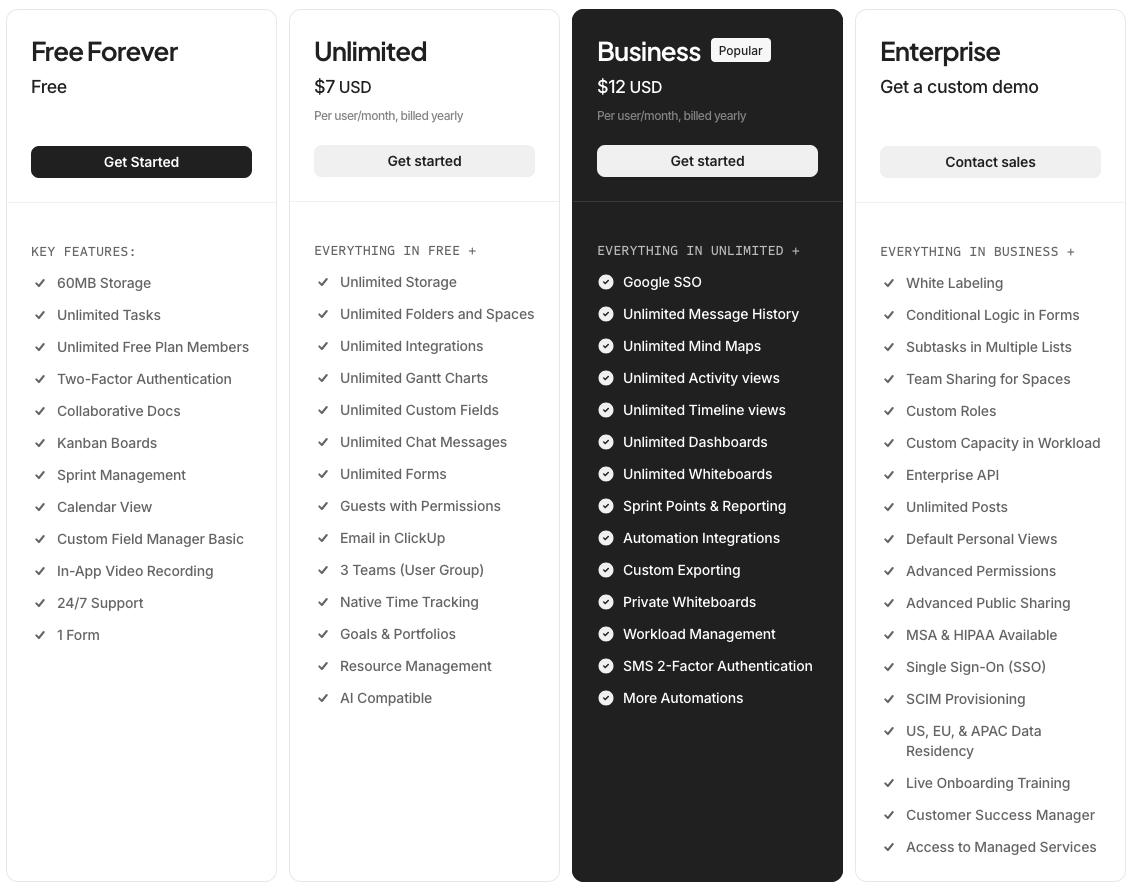
And frankly, the Unlimited plan isn’t so unlimited. You’ll have to upgrade to Business or Enterprise to:
Not only that, but timesheets are only available in the Business and Enterprise plans. And more surprisingly, you can’t use the timesheet approval feature unless you subscribe to the highest tier: the Enterprise plan.
So, in reality, you may need to pay at least $12 per user to access some vital features.
Here’s a quick breakdown of the cheapest and most expensive pricing plans of 4 prominent time-tracking apps.
| ClickUp pricing | Clockify by CAKE.com pricing | Hubstaff pricing | Time Doctor pricing |
| Cheapest plan: $7 per user/month (if billed annually) | Cheapest plan: $3.99 per user/month (if billed annually) | Cheapest plan: $4.99per user/month (if billed annually) | Cheapest plan: $6.67 per user/month (if billed annually) |
| Most expensive plan: $12 per user/month (if billed annually) | Most expensive plan: $11.99 per user/month (if billed annually) | Most expensive plan: $25.99per user/month (if billed annually) | Most expensive plan: $16.70 per user/month (if billed annually) |
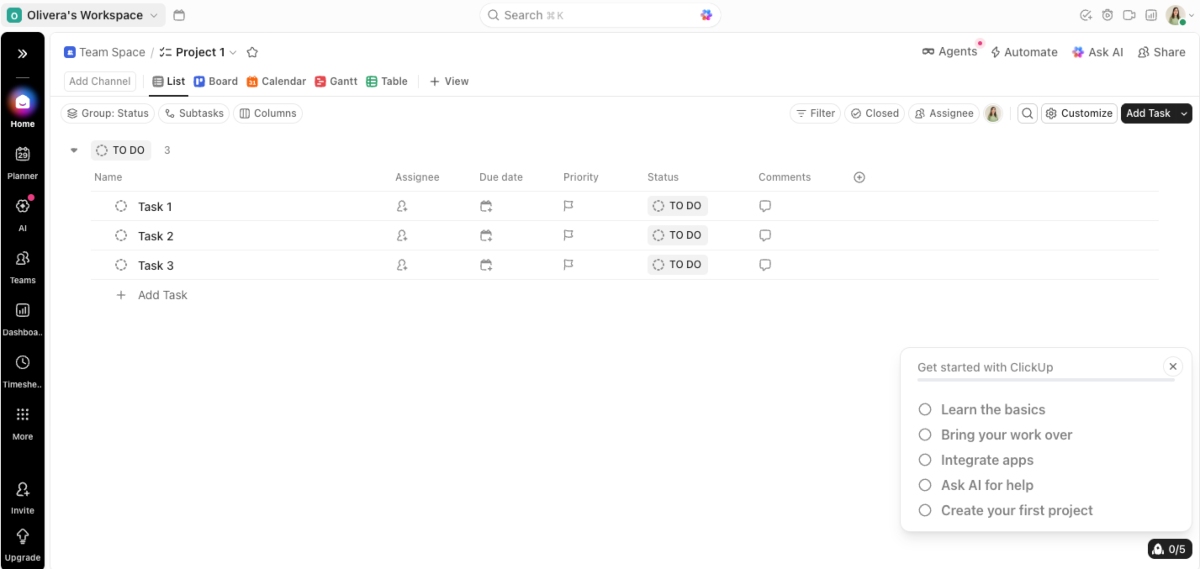
When you sign up for ClickUp, the app asks you what features you’d use most — these features are then displayed on the sidebar. The rest of the functionalities are accessible from the More menu.
I found this to be a very user-friendly approach, as you don’t have to activate any features from the settings.
What I wasn’t impressed with was the unnecessarily tiny text. For example, when you open the homepage, you’ll see your to-dos. The text above your to-dos, particularly the one for changing the view (List, Board, Calendar, Gantt, and Table), is quite small.
As someone who often switches to dark mode in apps, I was thrilled to see this option in ClickUp.
Overall, the design is user-friendly, although it looks a bit outdated to me. That’s mainly because many parts of the app are the same or similar color — mostly white and grayish.
ClickUp appears to be a secure app that can be trusted. It’s GDPR- and SOC 2-compliant and hosted on Amazon Web Services. Also, its AI features don’t use user data for training purposes.
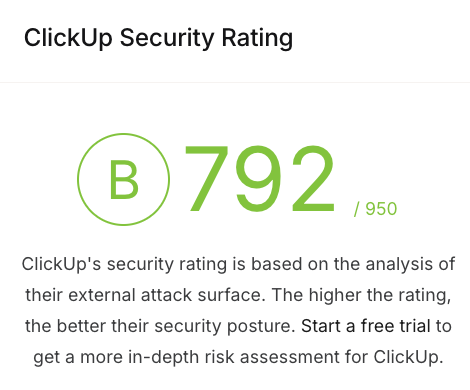
To investigate this further, I visited UpGuard, a widely trusted cybersecurity service provider. UpGuard gave ClickUp a security score of 792/950. While it’s not a perfect score, as the app was rewarded a solid B and not an A, ClickUp can still be considered a secure app.
ClickUp’s customer support is available 24/7 for all plans — but only via chatbot, as they don’t offer phone support. If you want human agents to talk to, you need to create an email ticket through the chatbot.
I tested out the AI chatbot, and honestly, it was much better than I expected. I don’t usually rely on AI as it’s often misleading. However, ClickUp’s AI assistant answered my questions accurately as far as I could tell, and gave me more details than I expected.
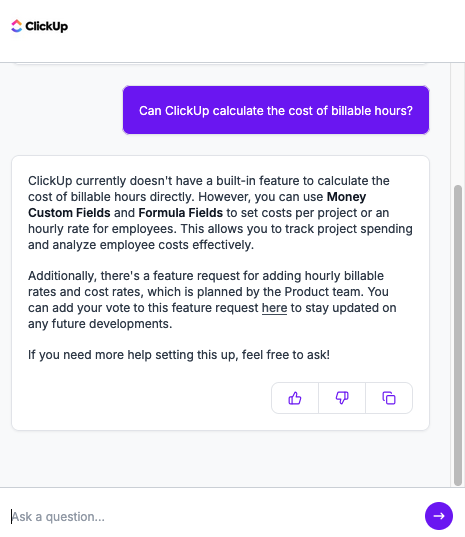
I then asked the chatbot to create the email ticket, and it sent me the form to fill out right away.
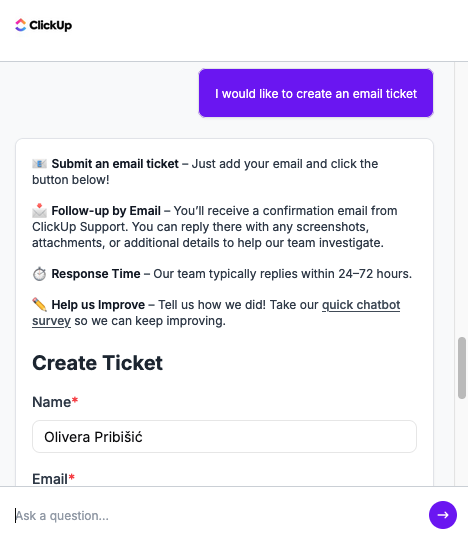
And if you’re on a paid plan, you can ask for a live chat with a customer support agent.
I think having phone support would’ve been more helpful to many users, including myself — even though the chatbot is one of the better ones I’ve seen. And since not all users have access to human live chat support, it can be frustrating when you have an urgent issue that a chatbot can’t solve.
Here’s how ClickUp’s competitors compare customer support-wise:
| ClickUp customer support | Clockify by CAKE.com customer support | Buddy Punch customer support | Hubstaff customer support |
| AI chatbot, email for all users Live chat for paying users only |
Human support via phone, email, and live chat for free Virtual assistant for all users |
Email, chat for all users | AI chatbot, email, live chat for all users Phone support for paying users only (highest tier plan) |
| Response time up to 48 hours | 24/7 human support | Human support available Monday – Friday, 9 a.m. – 6 p.m. | Response time unknown |
| Demo available | Demo available for all users Tailored onboarding and concierge services for qualified users |
Demo available | Demo available Concierge-level support for the highest-tier plan customers |
ClickUp has received varying scores from users. For example, it has 3.4 out of 5 stars on TrustPilot. On the other hand, ClickUp’s Capterra rating is impressively high: 4.6 out of 5 stars.
So, why are ClickUp users so divided?
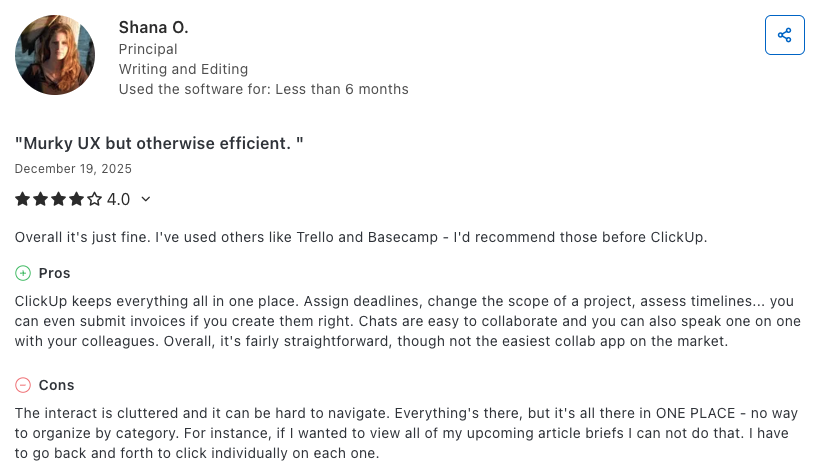
It seems that having diverse features in one place isn’t everyone’s cup of tea. Some love it while others find it “cluttered and overwhelming.”
For example, one Capterra user praised ClickUp for its project management capabilities and chat option. However, they found the app difficult to navigate because everything is in one place.
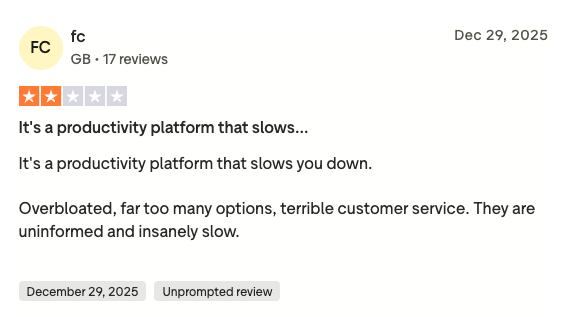
Some users were also a bit disappointed by the customer service. One TrustPilot user found the customer service unhelpful and slow.
Now, let’s go over the main ClickUp features and see what you can use ClickUp for. The feature ratings (1-5) are based on how each feature’s pros stack up against its cons.
ClickUp offers 2 time-tracking modes:
To track time in ClickUp, first add a task. Once you’ve added tasks, you can insert the number of hours you spent working on them in the timesheet. Alternatively, you can start the timer, which is available right next to your task (within the timesheet).
I like the simplicity of time tracking in ClickUp. Starting the timer directly from the timesheet is quite convenient.
Not having insight into billable hours makes it difficult to spot team inefficiency — which leads to scope creep. So, I was pleased that ClickUp lets you mark time entries as billable or non-billable.
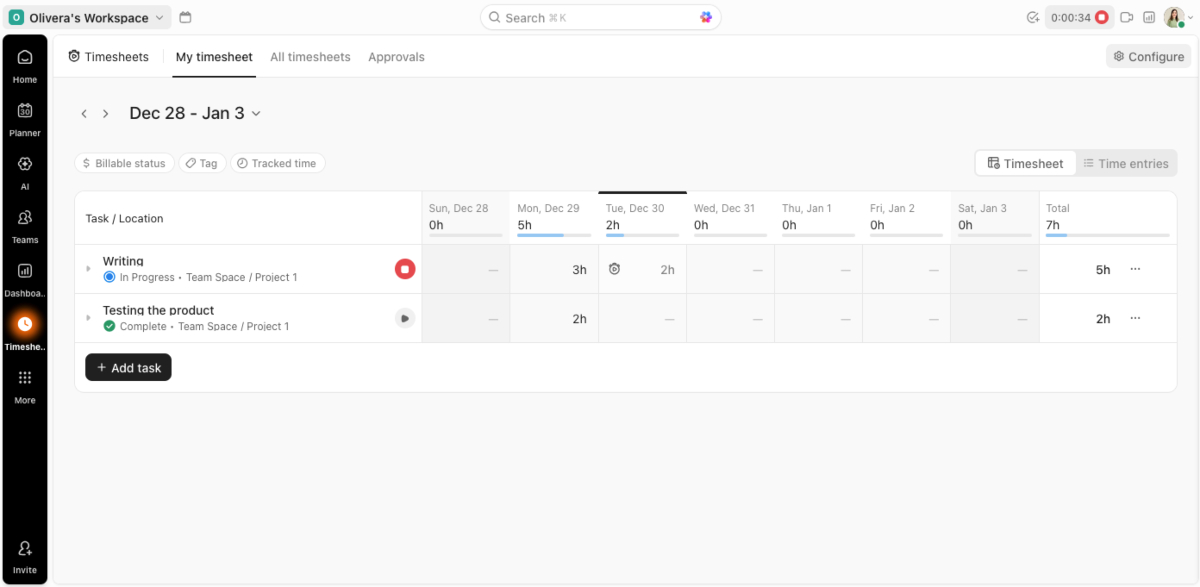
The timer is simple to use, albeit difficult to see. It’s located in the upper right corner of the screen. It took me 4 hours to realize I left the timer on because the font is quite small.
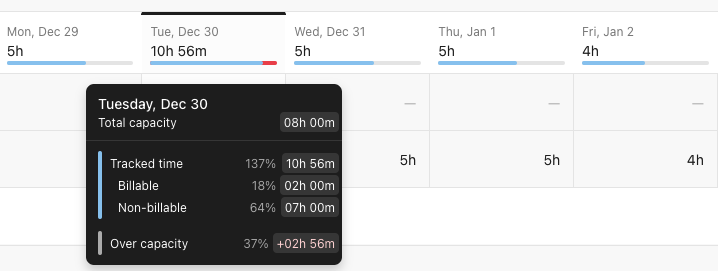
Also, I like that the timesheet shows when you’re over daily work capacity. This helps me easily spot and keep track of overtime hours.
One thing missing here is a symbol next to the hours in timesheets to indicate which hours are billable. But, to be fair, when you hover your cursor over one day, you can also see the total billable and non-billable time for that selected day.
ClickUp also allows its users to submit timesheets for approval — which is a plus, in my opinion.
If you don’t need advanced options, ClickUp’s time-tracking features can be enough. However, I would’ve liked to see options like time-off tracking and more productivity-focused features, such as the Pomodoro timer.
🎓 5 Best Timesheet Apps for 2025
ClickUp allows you to create simple to-do lists. Creating tasks in ClickUp is quite intuitive, and I like that you can add time estimates, apart from due dates. That way, I can tell whether a task took longer than expected.
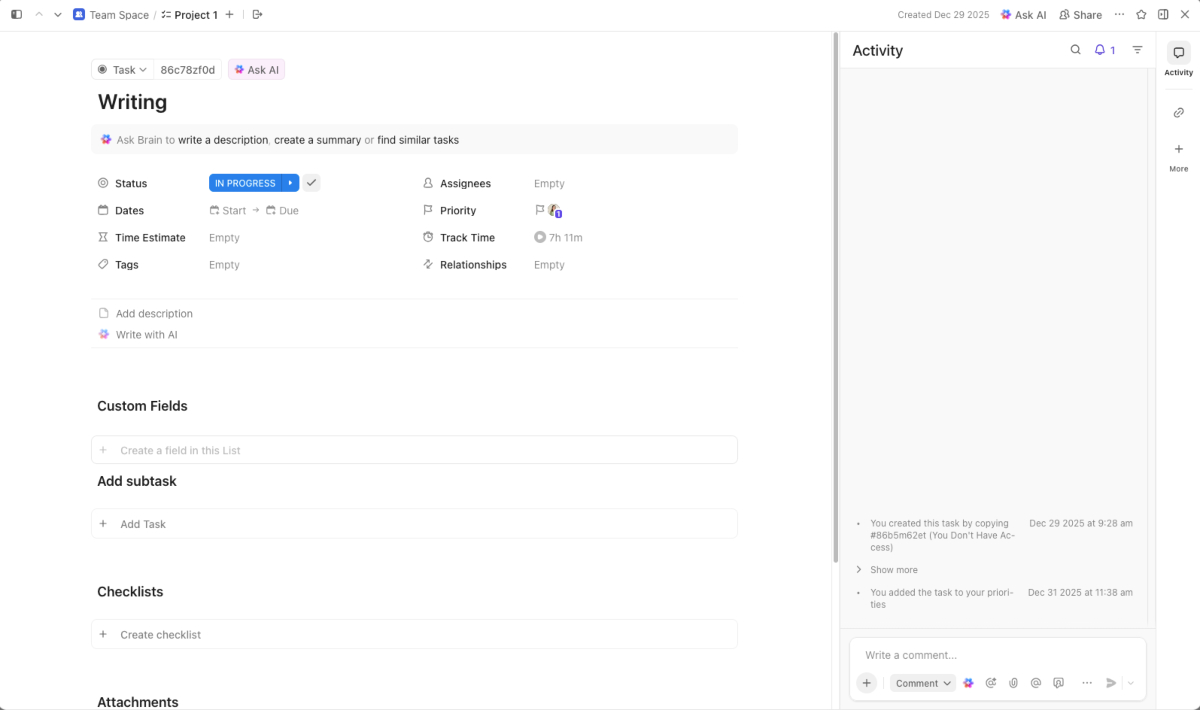
You can select the status of your task from the following options:
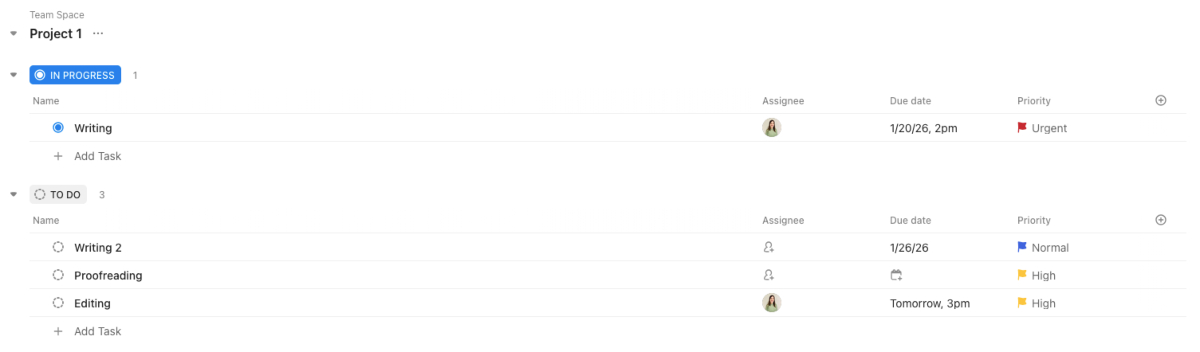
However, I wish that tasks didn’t disappear from the list when they’re marked as completed. I think it would be more useful if they were just crossed out — with the option to remove them from the list if you want to.
ClickUp has a Planner, which is essentially a scheduling feature. For this feature to work, you have to connect your ClickUp account to Google Calendar or Outlook. Then, all your Google Calendar or Outlook events will automatically appear in ClickUp.
🎓 Scheduling Conflicts: 5 Types and How to Avoid Them
Keep in mind that this only works in said direction — events you add in ClickUp won’t appear on your Google Calendar/Outlook account.
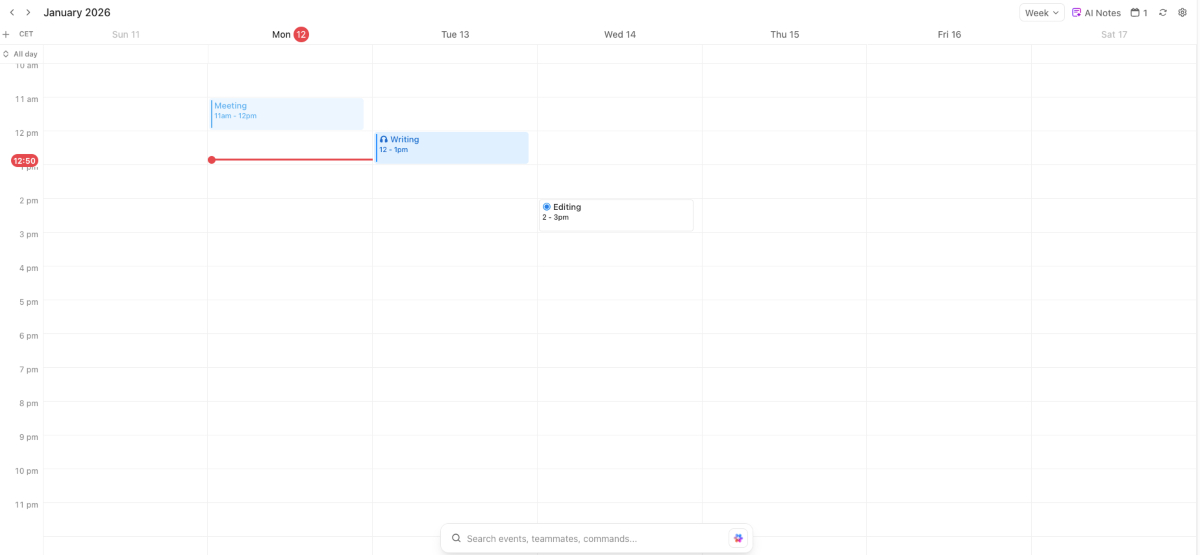
Apart from syncing the calendar, you can schedule tasks in ClickUp, including:
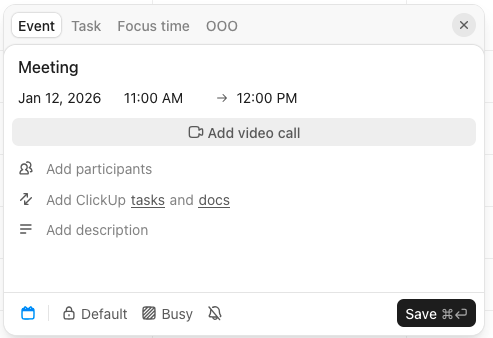
This feature works well, but I wish it had the option to change the color of events/tasks. I didn’t like that the default colors are too similar, making it difficult to distinguish between different events and tasks.
Unlike ClickUp, Clockify by CAKE.com offers extensive scheduling options by letting you set team capacity — this gives you insight into each employee’s availability when assigning tasks.

ClickUp has a simple messaging system. You can create private and public channels to communicate with team members.
Private channels are available only to the team members you invite, while all workspace members can join public channels. Users get to simply browse all public channels and join the ones they want to be part of.
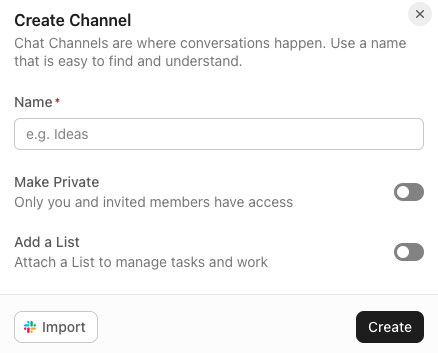
ClickUp also allows you to import messages from Slack. This is quite useful if Slack was your former communication tool, as you won’t lose any important team conversations.
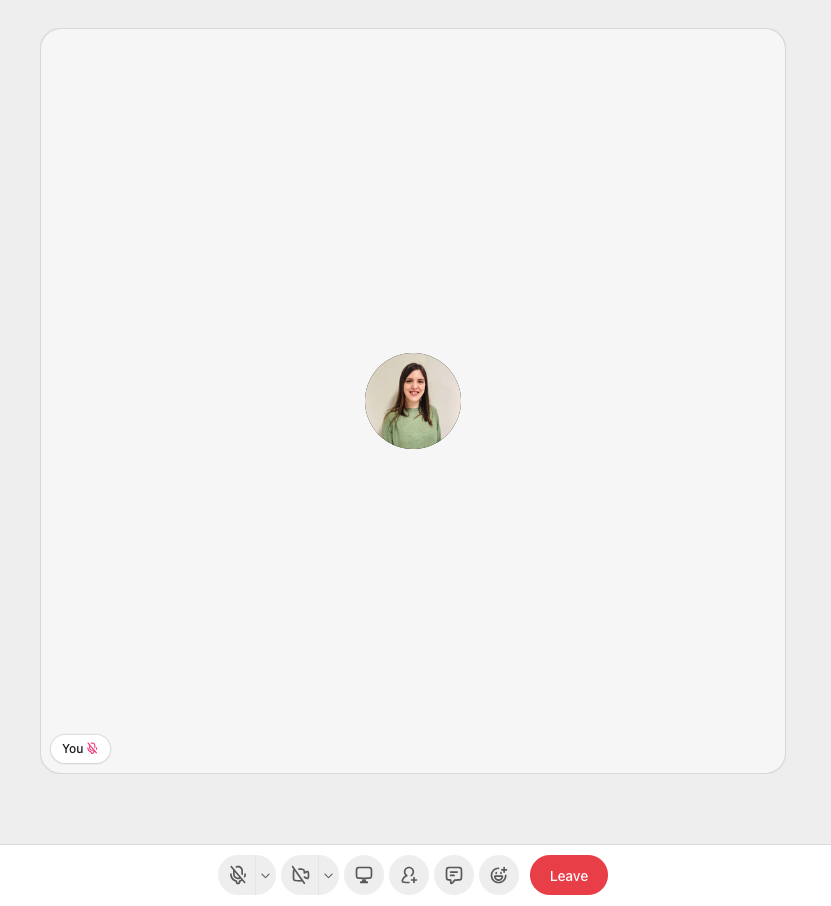
The app also supports voice and video calls. This feature is quite standard and easy to use — I didn’t encounter any performance issues.
Messaging is one of the better ClickUp features, in my opinion. However, I do think it’s one of the main features that makes the app so cluttered.
Once you add all your channels, they take up a lot of space on the sidebar. This wouldn’t be an issue if ClickUp were just a communication tool — but when all features add up, the app becomes difficult to navigate.
When I open the dashboard, I can see 2 kinds of reports. One is a basic time report that shows how much time was tracked each day. It doesn’t show any information about billable hours, how much time was tracked on particular projects, or similar details.
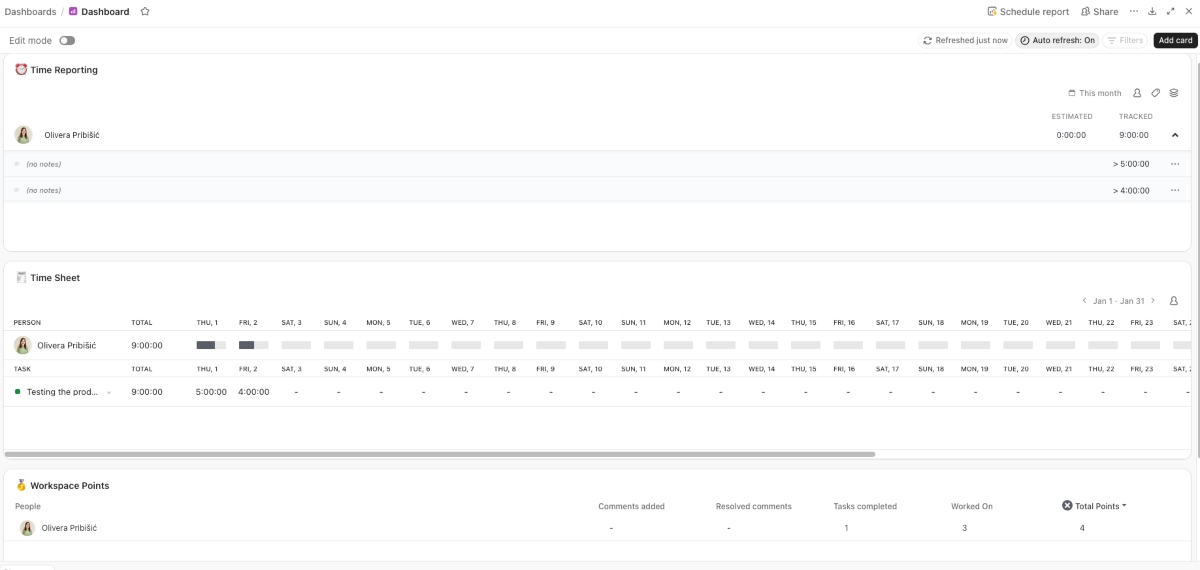
The other report is more detailed. On the left side, there’s the AI summary, while the right side shows which tasks were:
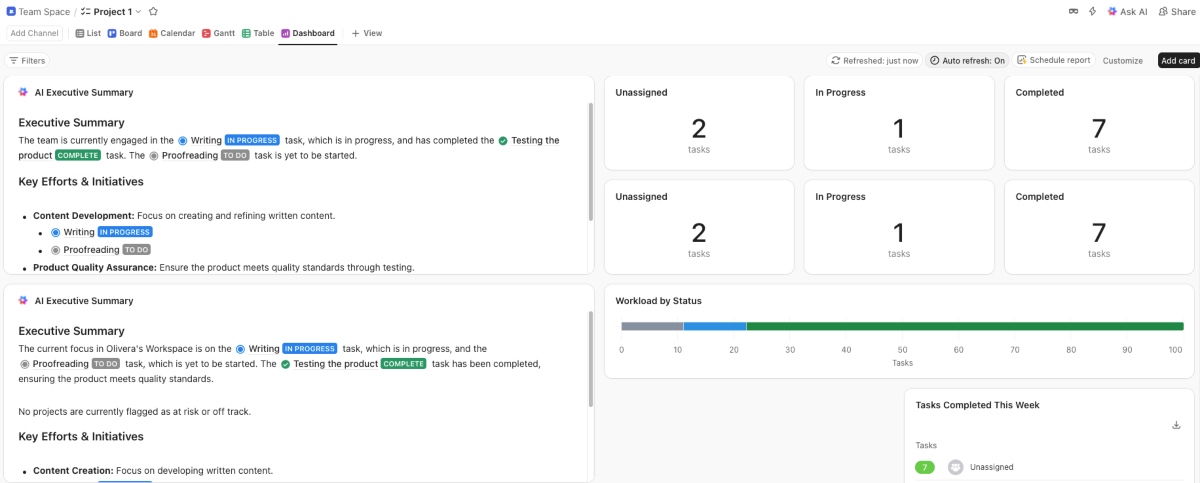
This report is a bit difficult to follow, as the information is arranged all over the place. Here’s a screenshot of the page below the AI summary, zoomed out:
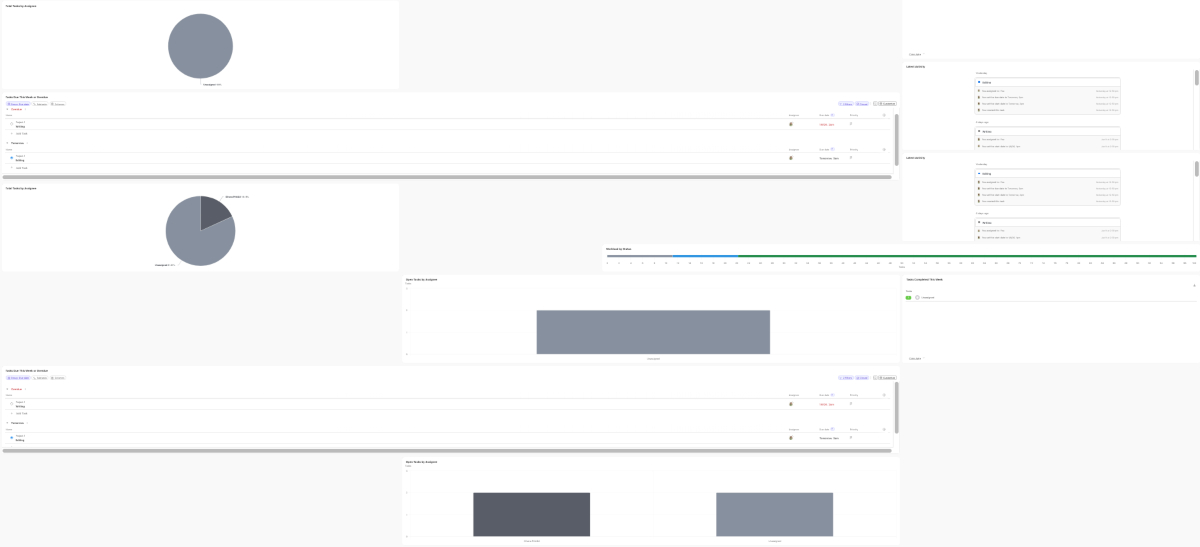
The charts simply show the percentage of assigned and unassigned tasks. There’s also a list of tasks due for the current week and overdue tasks.
To be blunt, I was underwhelmed by these reports — especially the more detailed one. It appears all-encompassing at first glance, but in reality, it provides scant information.
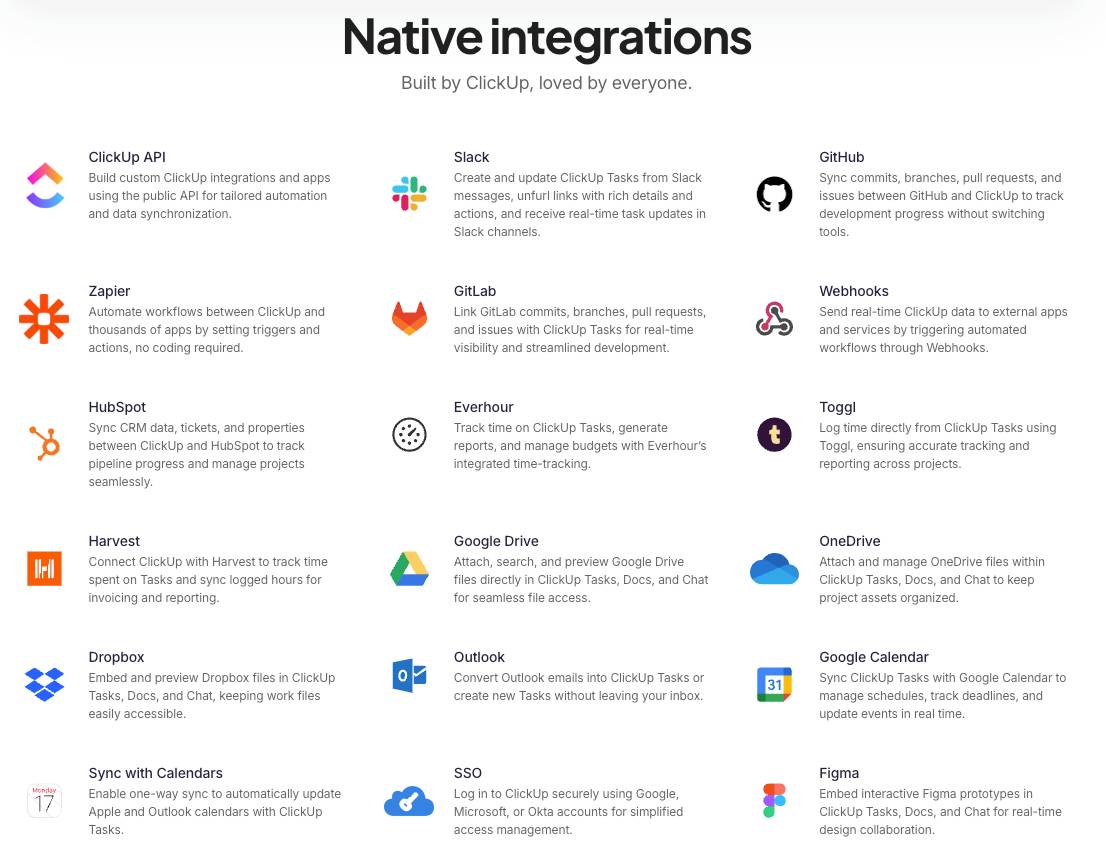
ClickUp boasts over 1,000 integrations. I found the selection of integrations to be pretty neat.
Apart from Google Calendar and Outlook, which allow you to use the Planner in ClickUp, you also get to connect the app to:
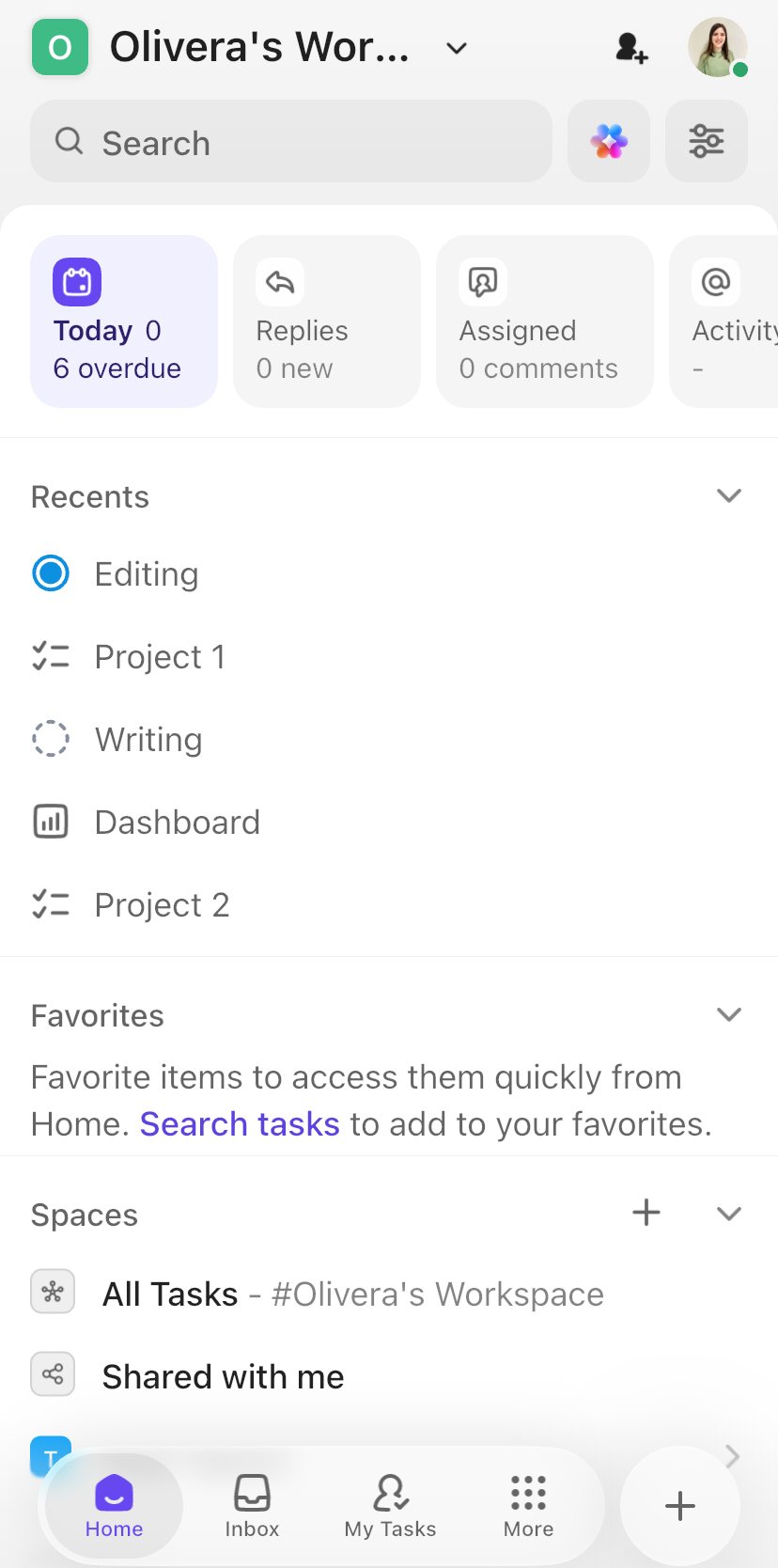
The ClickUp mobile app is solid, but I would say it’s just as cluttered as the web app. The options are all over the place, so I found it difficult to navigate.
I didn’t like that the main information you get on the homepage is what you last visited. So, it displayed recent projects, scheduled tasks, and the dashboard in a mixed order — which I found confusing.
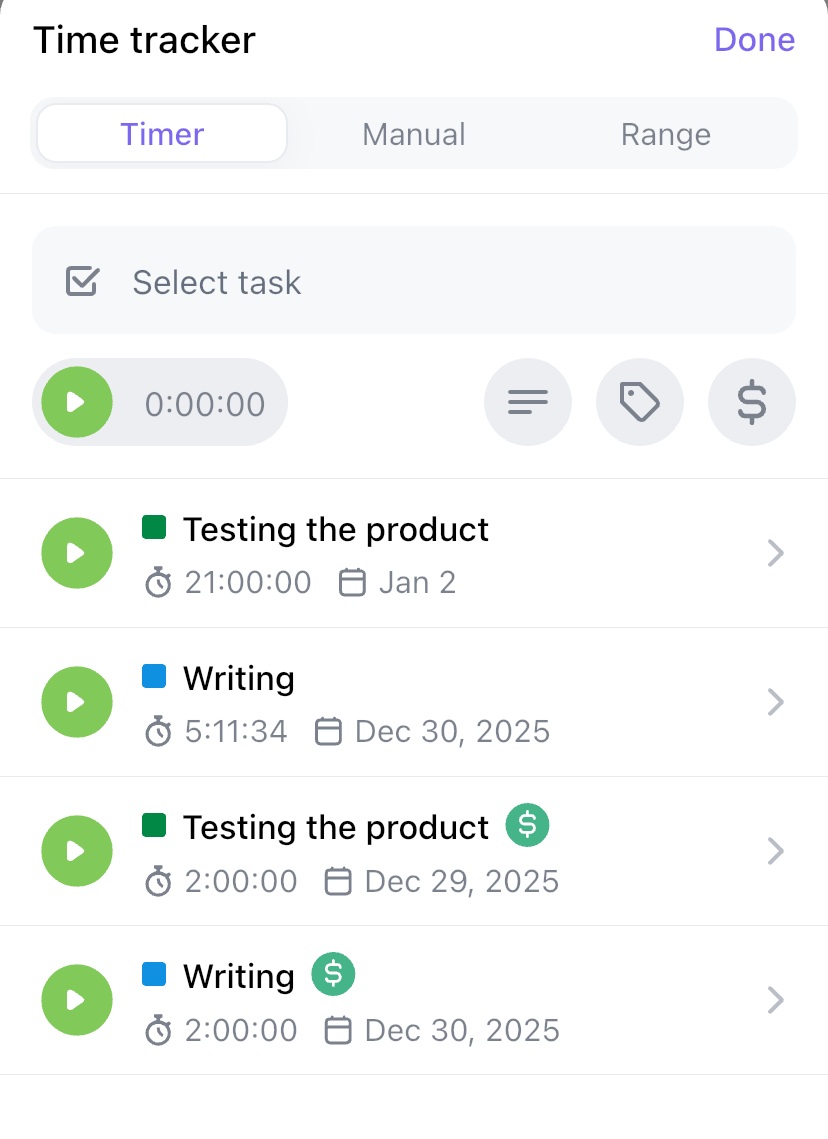
What I did like was time tracking. This was the simplest feature to use: You simply select whether you want to use the timer or add time manually.
The planner is okay-ish, but the colors are too muted. For some reason, every event/task is light gray. The events from the past are a bit lighter gray than the upcoming tasks — but the difference is minimal, which can create confusion.
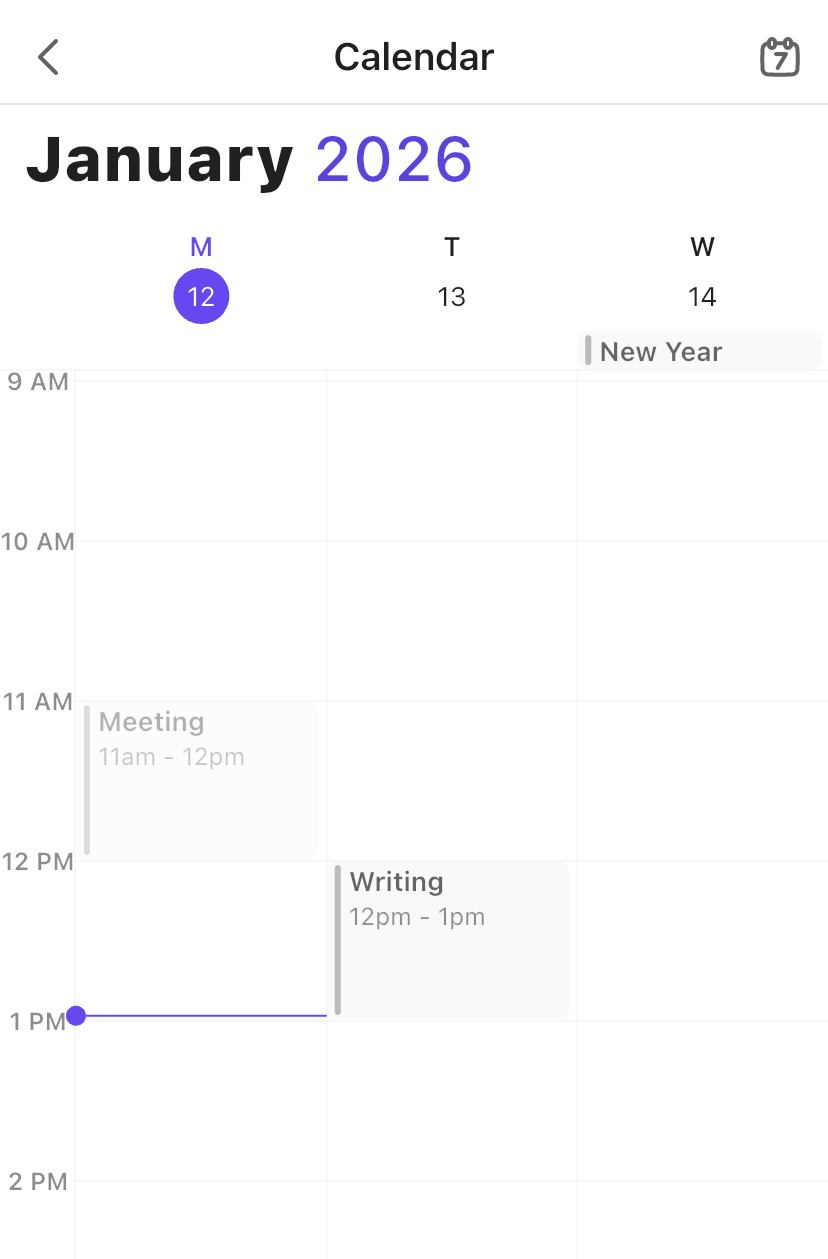
Also, it seems that you can’t add events/tasks directly to the planner in the mobile version. You can only see them if you added them through the web app.
Overall, the app worked smoothly — I didn’t notice any glitches. I would only say that it has the same problem as the web app: a wide range of underdeveloped features.
In December 2025, ClickUp rolled out its AI feature — ClickUp Super Agents. This AI agent is supposed to help you with everything from setting project goals to setting up automations for boards in ClickUp.
While it sounds great on paper, I wasn’t too impressed with this feature. The first problem I ran into was a long loading time. I wasn’t even typing any commands; I just selected from the given options, and it took about 5 minutes to load.
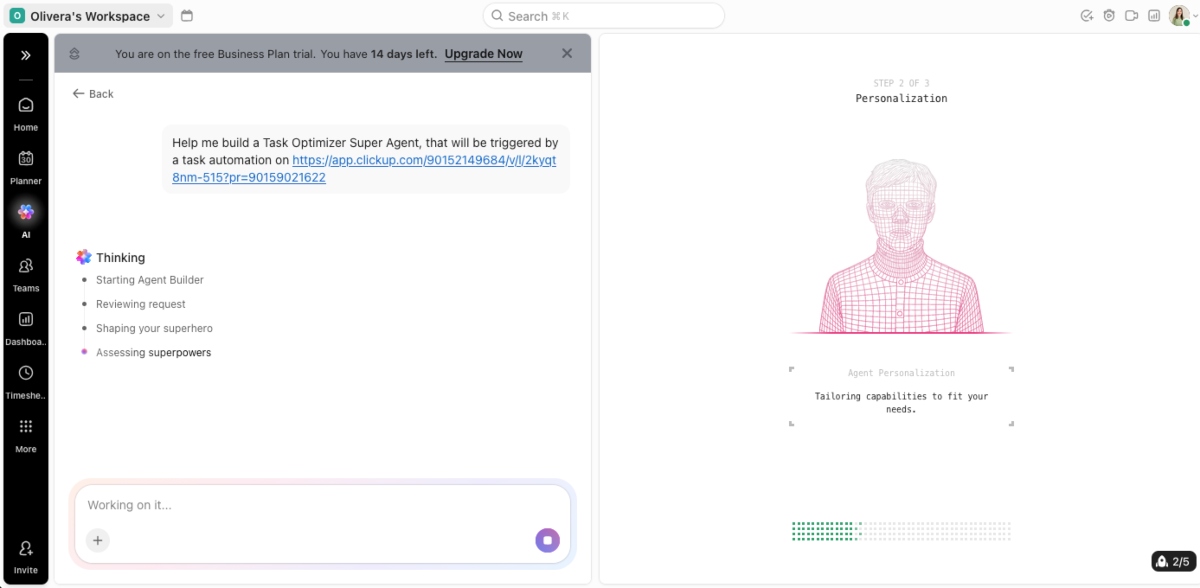
Then the AI prompted me to select the options I needed — i.e., how I wanted the automation set up.
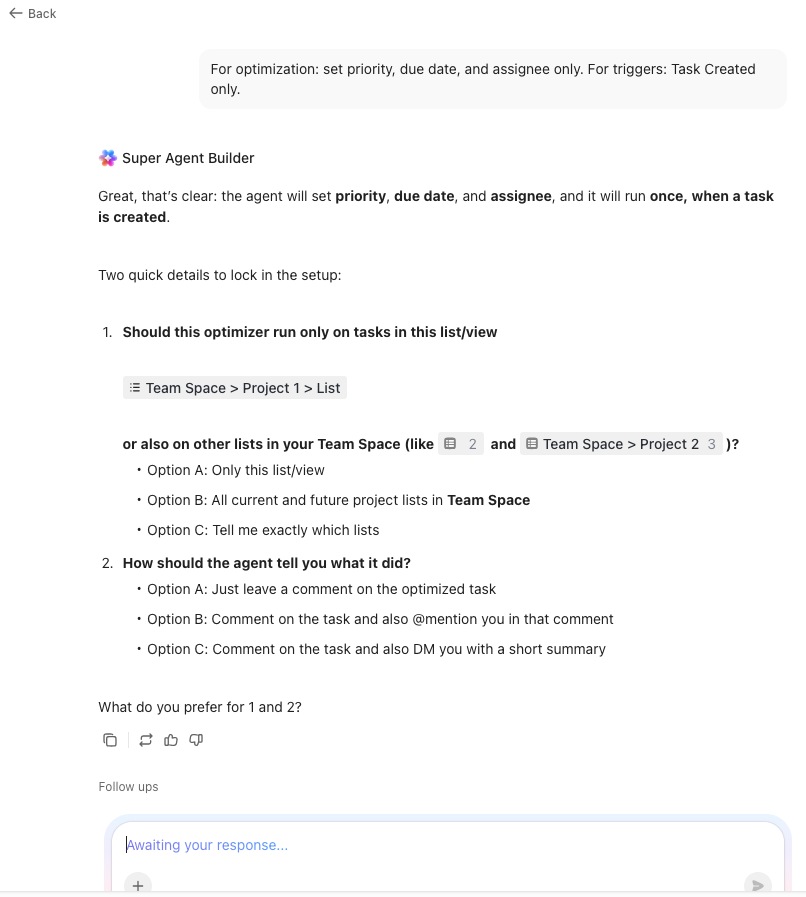
In the end, the AI asked me to set up the automation manually due to an error.
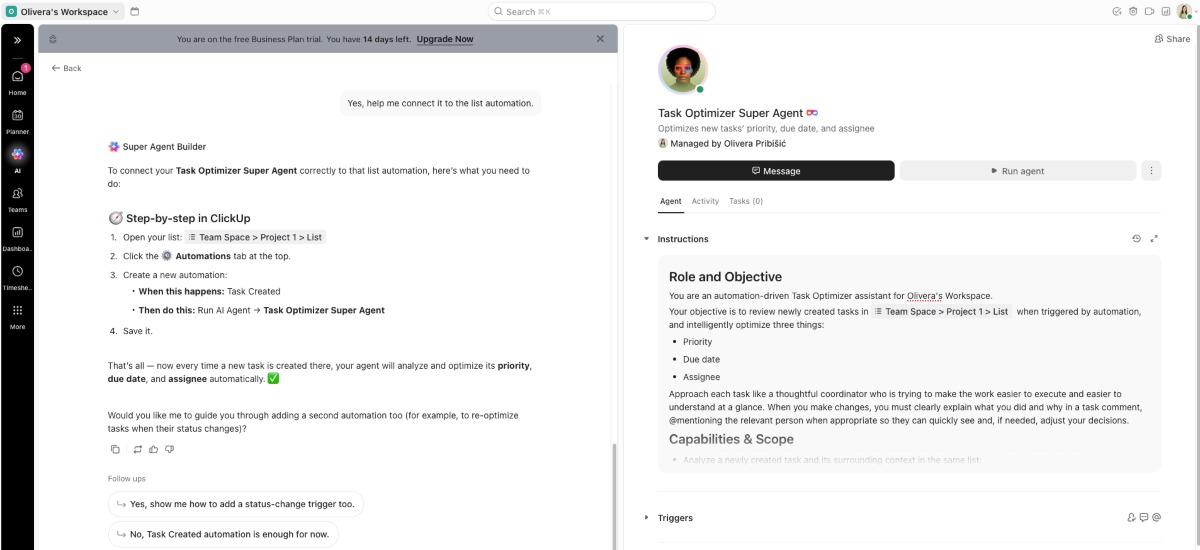
Some users may find the AI feature helpful. But in my opinion, it doesn’t boost user experience. I found it distracting, and it takes too much time to configure everything.
ClickUp seemingly does everything — from project management and team communication to time tracking and scheduling. But I think that’s its kryptonite.
By aiming to eliminate app switching, it doesn’t give you enough options in any area. At the same time, it’s filled with features — some of which you may not even need. So, you may get “click fatigue” while navigating the app, and yet not get the best out of any feature.
Yes, it’s still a solid app that single users and solopreneurs may find suitable for their business. I think ClickUp can be great for freelancers, especially the free version. Its to-do list is quite easy to use, and you can set priorities for your tasks.
In contrast, small-to-medium-sized businesses may have difficulties because — despite the large number of features — ClickUp lacks more advanced options.
So, once I added up all the scores, my final rating for ClickUp is a 3.5/5.
| ClickUp | Rating |
| Web app | 3.6/5 |
| Mobile app | 3/5 |
| Pricing | 3.5/5 |
| Usability and interface | 3.5/5 |
| Security and privacy | 4/5 |
| Customer support | 3/5 |
| Customer reviews | 4/5 |
| Final verdict | 3.5/5 |
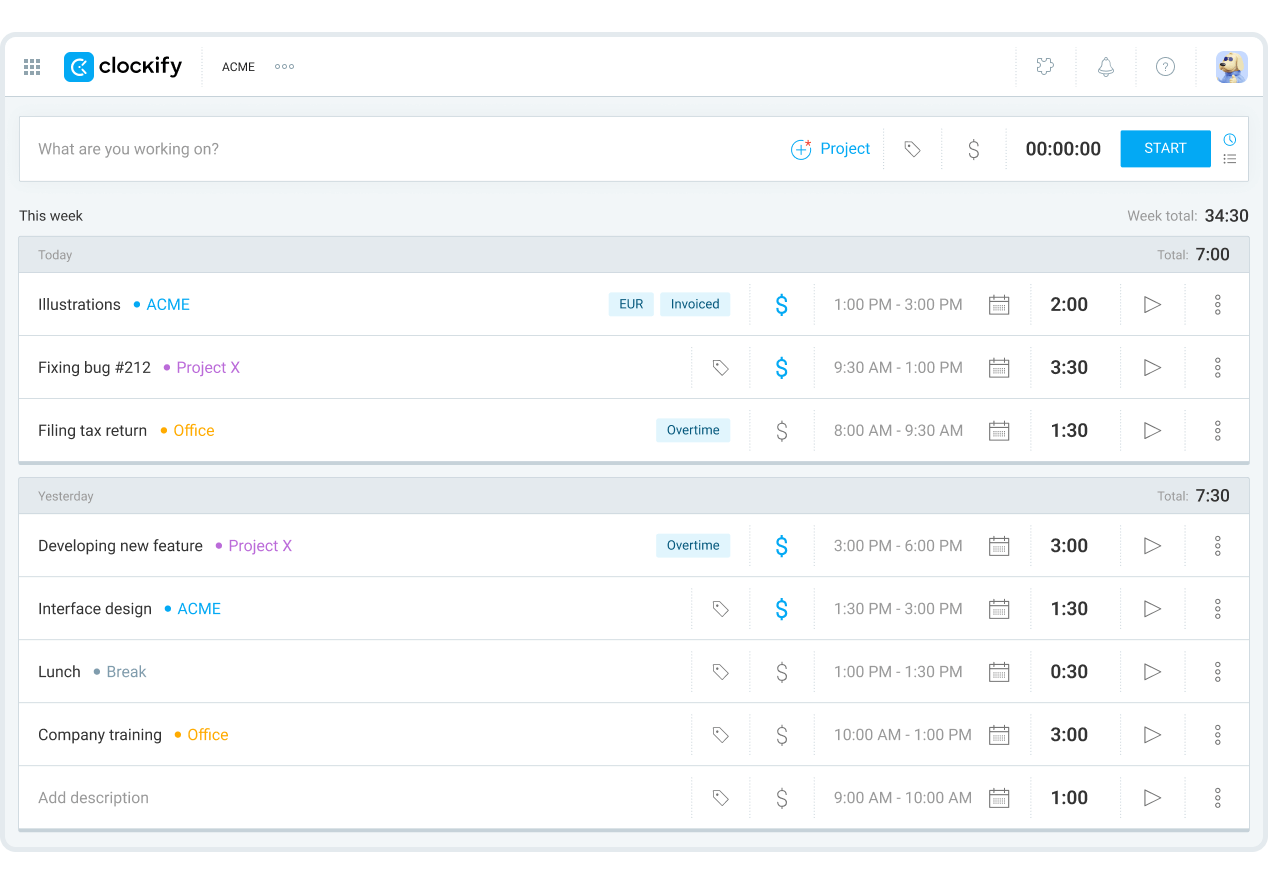
If you need more robust and intuitive options — try Clockify by CAKE.com. Our secure and reliable app has various time-tracking modes, including:
When you track time in Clockify, you can distinguish between billable and non-billable hours. But not only that — you can set billable and cost rates. This allows you to monitor project profitability in real time.
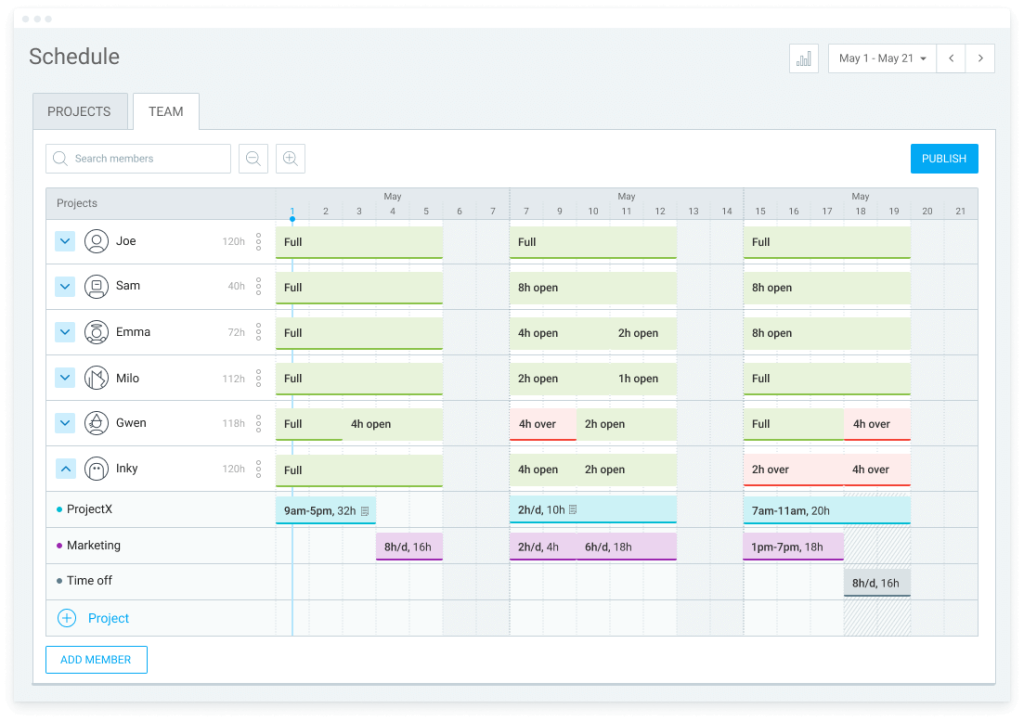
You can also set team capacity and assign tasks. Clockify will show you which team member has open time slots, whose schedule is full, and who is over capacity. That way, no one gets burnt out — and you deliver your projects on time and under budget.
Check out the ClickUp and Clockify app comparison table for a clearer picture of the differences between the two.
| Features | ClickUp | Clockify by CAKE.com |
|---|---|---|
| Primary use |
|
|
| Time tracking |
|
|
| Scheduling |
|
|
| Reporting |
|
|
| Suitable for |
|
|
| Pricing |
|
|
As you’ve seen in this ClickUp app review, ClickUp has a wide range of features, but it compromises on the quality of these features.
That’s why I prefer to use different apps for time tracking, project management, and communication. I get to use the app I need to its full potential without being overwhelmed. And if those apps are mutually integrated, I can use them without context-switching.
The CAKE.com Bundle gives you just that. For an affordable price, you get Clockify for time tracking, Pumble for team communication, and Plaky for project management — with 99.99% uptime.
If you have any questions regarding Clockify or the CAKE.com Bundle, you can reach out to our customer support team. Clockify offers full human support available 24/7 via phone, email, and chat.
Still wondering about ClickUp? Here are answers to some frequently asked questions.
There are many alternatives to ClickUp. If you find the number of features overwhelming, you may try using a combination of different apps. For example, you can use Clockify by CAKE.com for time tracking, Plaky for project management, and Pumble for team communication — all available as the CAKE.com Bundle at a heavily discounted price.
According to ClickUp, their app is used by Mayo Clinic, Shipt, Chick-fil-A, and other companies.
ClickUp was founded by Zeb Evans in 2017.
Yes, ClickUp has a free version. This version includes 60MB of storage and lets you create an unlimited number of tasks.