
Time blocking gives every task its own slot on your calendar, before your day gets hijacked by emails and meetings, and you miss the important work again.
This guide covers what a time blocking method is, how to set it up, real examples for different roles, useful apps, and insights from people who actually use time blocking.
- Time blocking means assigning a fixed start and end time to a task, meeting, or activity on your calendar.
- Time blocking has 3 common variations: task batching, time boxing, and day theming.
- Time blocking doesn’t fit every job: Highly reactive roles and unpredictable schedules make rigid blocks hard to sustain.
- Time blocking can work for ADHD, with adjustments like shorter blocks and included buffer time.
- The best time blocking apps combine a calendar, a task manager, and a time tracker.
What is time blocking?
Time blocking is a scheduling method where you assign a specific start and end time to a task, meeting, or activity on your calendar, instead of relying on an open-ended to-do list.
You decide in advance when you’ll work on something. Also, you don’t have to finish it within that slot. When the block ends, simply move to the next one.
For example, an agency project manager might block 9–11 a.m. for drafting a client proposal, 11–11:30 a.m. for email, and 1–2 p.m. for a review with the design team. Each task gets a fixed window, regardless of whether it’s fully done when the window closes.
While a to-do list tells you what to do, time blocking includes what you’re doing and when you’re doing it.
💡 CLOCKIFY PRO TIP
Find 23 free to-do list templates for all types of personal and work tasks that you can easily download and customize:
Why time blocking works
Time blocking works because it counters the planning fallacy, a tendency to underestimate how long tasks actually take — even when you’ve done the same task before.
Say a client proposal usually takes you 2 days to put together. Without a plan, you tell yourself you’ll lock in and finish it in just 1 day. But you end up missing your deadline, and that shifts every other task as well.
Time blocking forces you to assign real hours to real tasks before the day starts. That way, the plan reflects how long things actually take, not how long you wish they took. Once you track a few rounds of blocks against actual time spent, your estimates get more accurate.
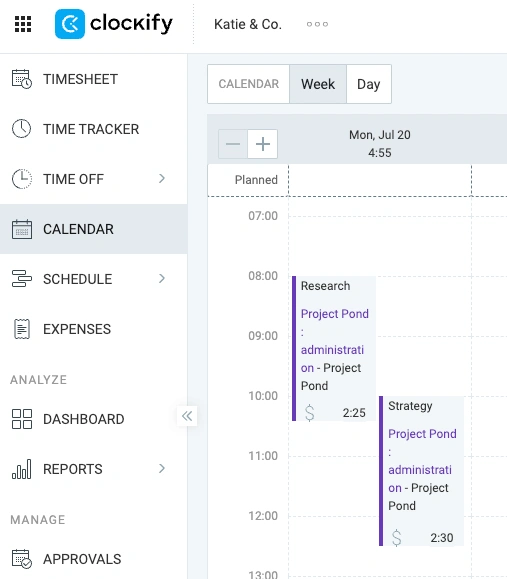
When you log your hours in Clockify, you can spot the planning fallacy: A task planned for 30 minutes shows up in the timesheet at 50 minutes, and the gap between the plan and the log is hard to argue with. That’s a planning fallacy made visible instead of guessed at, and Clockify by CAKE.com can help you see clearly where your own estimates are off.
Try time blocking in Clockify FREE
Time blocking benefits
Beyond fixing the planning fallacy, the main benefits of time blocking show that it:
- Forces you to prioritize. Building the schedule means deciding which tasks earn your best hours, usually your most focused time of day.
- Cuts procrastination. A task with a defined start and end time creates urgency that an open-ended to-do item doesn’t.
- Makes your workload visible. Blocking 6 hours of meetings shows you, in black and white, that you don’t have 6 more hours for deep work that day.
- Creates a record of where your time goes. Reviewing a week of blocks shows exactly how much time went to admin, meeting, or client work.
- Protects time for things outside work. A block for your kids, a hobby, or a workout holds that time the same way a client meeting would.

Time blocking variations
There are 3 common time blocking variations that adapt the core time blocking method to different types of work, namely:
- Task batching — reduces the cost of switching between unrelated tasks.
- Time boxing — adds a hard stop and a specific goal, which limits scope creep.
- Day theming — removes context-switching, though it requires a more flexible schedule.
| Method | What it is | Example | Best for |
|---|---|---|---|
| Time blocking | Assigning a fixed time slot to a specific task | Blocking 9–11 a.m. for writing a proposal | Anyone planning a mixed day of tasks and meetings |
| Task batching | Grouping similar tasks and completing them in one sitting | Handling all client emails in one 45-minute block instead of throughout the day | Repetitive, low-focus tasks like email, invoicing, or social posts |
| Time boxing | Setting a hard time limit for a task, with a defined goal to hit within it | Writing a 500-word draft between 8 and 9 a.m., then stopping | Tasks that tend to expand to fill whatever time is available |
| Day theming | Dedicating an entire day to one type of work | Tuesdays for product work, Wednesdays for marketing, as practiced by former X CEO Jack Dorsey | Roles with distinct, separable categories of work |
💡 CLOCKIFY PRO TIP
When there’s a busy day ahead, every minute counts. Find more details on how to make the most out of your schedule by timeboxing your day:
How to time block your schedule
Time blocking comes down to 4 steps:
- Plan your week
- Schedule your blocks
- Execute
- Track and adjust
#1: Plan your week
List every task you expect to handle for the week. Then cut the list down to your 3–5 priorities per day. Next, include recurring tasks, like client calls or daily emails, alongside one-off items (e.g., a report due Friday).
Break large tasks into smaller pieces. Instead of one block labeled “emails,” count your typical daily volume and assign a few minutes per message, so you’re not stuck prolonging a task that’s already done.
You don’t have to plan your entire work week at once if doing so feels overwhelming. Fractional Product Design Lead at Pleexy, Jorge Enrique, reviews his week on Monday mornings, and that’s when he blocks the needed slots in his calendar:

“I never block more than 2 hours at a time. If there’s a lot to do, I’ll block 2 hours in the morning and 2 in the afternoon.”
#2: Schedule your blocks on a calendar
Take your prioritized list and assign each task a start time, an end time, and a place on your time blocking calendar. Two questions decide the schedule:
- When should you block time? Match your hardest tasks to your most focused hours. If you’re sharpest before 11 a.m., that’s where your priority work goes. Save low-focus stretches for admin and email.
- How long should each block be? Most tasks fit a 25–90 minute range. Additionally, the science of Ultradian rhythms claims that our minds work in 90- to 120-minute cycles. But if you’re a fan of the popular Pomodoro principle, choose 25-minute cycles. You can also mix both — longer blocks for deep work and shorter ones for email or quick admin tasks.
Any calendar app can hold your blocks, from Google Calendar to a dedicated time blocking app like Clockify, which lets you see scheduled blocks and tracked time side by side.
#3: Execute
Start each task at its scheduled time. Stop at the scheduled end time, whether or not the task is finished. Move to the next block.
Executing a task is mechanically simple. The hard part is staying honest about the stop time instead of letting one task creep into the next.
#4: Track and adjust
Your first week of time blocks will be wrong in places, and that’s expected. A meeting you scheduled for 30 minutes might consistently run 45. Or a writing block you set for an hour might only need 40 minutes.
The fix is tracking actual time spent against each block, then adjusting future estimates to match reality.
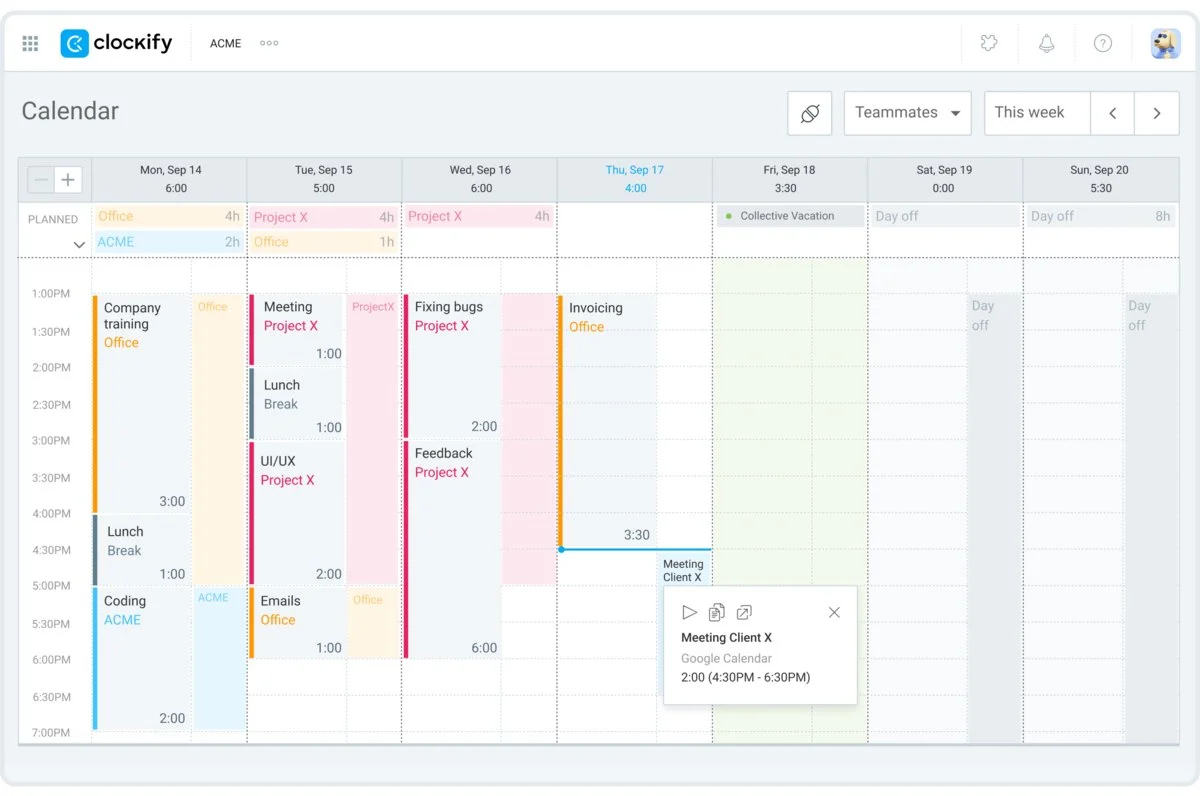
Instead of guessing whether your blocks are accurate, Clockify by CAKE lets you start a timer when a block begins and stop it when the task is done.
The Clockify Calendar view shows your scheduled blocks and your tracked time in the same place, so you can see exactly where your estimate was off. Over a few weeks, your time blocks stop being guesses and start being backed by data.
Schedule time blocks in Clockify
Time blocking examples
Here’s how time blocking looks in practice for 3 common professional-services roles.
| Agency project manager (3 client accounts) | |
|---|---|
| Time | Block |
| 8:30–9 a.m. | Review overnight client emails and chat messages |
| 9–10 a.m. | Client A status call and follow-ups |
| 10–11:30 a.m. | Deep work: update project timelines and budgets |
| 11:30 a.m.–12 p.m. | Client B check-in |
| 12–1 p.m. | Break |
| 1–2 p.m. | Client C deliverable review |
| 2–3 p.m. | Internal team sync |
| 3–4 p.m. | Buffer block for urgent requests |
| 4–4:30 p.m. | Plan for tomorrow, update task board |
The buffer block absorbs the inevitable emergency tasks without derailing the rest of the day.
| IT consultant (client calls and deep work) | |
|---|---|
| Time | Block |
| 8–10 a.m. | Deep work: configuration or scripting, no calls |
| 10–11 a.m. | Client call 1 |
| 11 a.m.–12 p.m. | Tickets and documentation |
| 12–1 p.m. | Break |
| 1–2 p.m. | Client call 2 |
| 2–4 p.m. | Deep work: implementation tasks |
| 4–4:30 p.m. | Time tracking and billing notes |
Morning deep work comes before the first call, protecting the hours when interruptions are least likely.
| Freelance designer (protecting creative mornings) | |
|---|---|
| Time | Block |
| 7:30–8 a.m. | Inbox triage and client replies |
| 8–11:30 a.m. | Creative work, no phone use or email checking |
| 11:30 a.m.–12 p.m. | Client replies and feedback review |
| 12–1 p.m. | Break |
| 1–2 p.m. | Admin: invoicing, proposals |
| 2–4 p.m. | Revisions and client calls |
| 4–4:30 p.m. | Update project tracker |
Client replies are batched into 2 windows a day instead of interrupting the morning creative block.
Try time blocking in Clockify FREE
You don’t have to stick to a 9–5 schedule if that doesn’t work for you. Our contributor and CEO at Marjan Content Productions, Mark Janicello, revealed himself to be a chronic insomniac. While he organizes his work into 3 categories — Creative, Administrative, and Personal — he ties them to his waking state:

“I batch all creative endeavors back-to-back immediately upon waking (or at least after my first coffee). Early mornings, I tap into a more creative mindset, before the minutia of the day takes hold. Only when I’ve fulfilled all creative endeavors that I need to do on any day, do I transition into administrative duties and personal routines.”
Is time blocking good for ADHD?
Yes, time blocking can work for ADHD, with some adjustments to how rigidly you apply it.
Standard time blocking assumes long stretches of sustained, predictable focus. For many people with ADHD, that assumption doesn’t hold, so a few modifications help:
- Shorter blocks — 20–30 minutes sustain focus better than a 90-minute block that invites drift.
- Built-in buffer blocks — adding a buffer between tasks absorbs the time lost to transitions, which often take longer than expected.
- Visual color-coding — color-coded calendar categories make the day’s structure easier to scan at a glance than a wall of identical gray blocks.
- Flexibility over rigidity — treat blocks as more of a guide than a strict contract.
Time blocking won’t work the same way for everyone with ADHD. For some people, fixed time slots may create pressure that backfires. If that’s the case, pairing loose time blocks with a flexible priority list, rather than a minute-by-minute schedule, is often a better starting point.
💡 CLOCKIFY PRO TIP
To understand how to improve your productivity at work while dealing with ADHD, check out this article:
Disadvantages of time blocking (and when it won’t work)
Time blocking isn’t a fit for every job or every task. It struggles in a few specific situations:
- Highly reactive roles. Support agents, account managers, and anyone whose job is largely responding to what comes in will find that rigid blocks break down fast. If your day depends on client demands you can’t predict, build in wide buffer blocks instead of tightly scheduled ones. Or, use time boxing only for the few tasks that are actually predictable.
- Creative work that resists scheduling. Some creative work doesn’t start on command at 9 a.m. and stop at 10:30 a.m. Forcing it into a rigid window can produce worse output than giving it a looser, longer window with no hard stop.
- Over-planning instead of executing. It’s possible to spend more time perfecting the schedule than doing the work on it. If you’re rebuilding your calendar every morning instead of working from it, the planning becomes procrastination.
- The adaptation curve. The first 1–2 weeks of time blocking usually involve inaccurate estimates and blocks that don’t match the actual workday. That’s a normal part of calibrating the system and doesn’t necessarily mean that time blocking won’t work for you.
For roles built around constant interruption, a lighter version of time blocking (e.g., blocking only your first 90 minutes for deep work and leaving the rest of the day open) often works better than a fully scheduled calendar.
Even if time blocking doesn’t work for you, some other time management technique will. As Amy Kulisheck, personal leadership coach at Stand Tall Coaching, explains, time blocking is transformative for some people and a waste of time for others:

“Someone who feels grounded and calmed by a schedule is more likely to appreciate the structure of time blocking than someone who craves variety and spontaneity. Time blocking should make you feel freer and more productive, not restricted and constrained.”
Common time blocking mistakes (and how to avoid them)
Certain time blocking mistakes could cost you more time and energy in the long run, or even cause you to entirely give up on this time management technique without giving it a chance to transform your workflow. Here’s what to look out for:
- Refusing to adjust the plan. Holding onto a schedule after it’s clearly not working leads to burnout and, eventually, abandoning time blocking altogether. Be ready to move tasks or drop them.
- Skipping breaks. Working block to block without a pause increases mistakes and burnout risks. Leave at least 5 minutes between blocks.
- Leaving no room for the unexpected. Block an hour or two, or even a full day, for catching up when something urgent throws off your plan.
- Keeping the new schedule to yourself. Let your team know your focus hours, so meetings don’t land in the middle of a deep work block. If you’re using a chat app like Pumble for team communication, you can also set statuses that will show up next to your name, so that the team members instantly know that you might respond later.
- Leaving out personal time. Block time for family, hobbies, or rest the same way you’d block a client meeting.
- Skipping the end-of-day review. A 5- to 15-minute daily review of what got done and what needs to shift to tomorrow makes each week’s blocks more accurate than the last.
Clockify and Pumble, together with the Plaky project management app, are all part of the CAKE.com Bundle, which provides these 3 productivity tools at a heavily discounted price of $12.99. This way, you’ll manage your projects, your time, and overall communication with ease.
💡 CLOCKIFY PRO TIP
You don’t need to build a time blocking calendar from scratch. Here are 9 free time blocking templates you can download as PDFs and Excel files, with pre-built slots for daily, weekly, and monthly planning:
Best time blocking apps and software (2026)
A time blocking system usually needs 3 tools working together:
- Time tracker to check your blocks against how long tasks actually took
- Task manager to hold your priority list before it becomes a schedule
- Calendar app to hold the blocks themselves and show your team when you’re available
Here are 12 best time blocking apps and software across each category for 2026.
#1: Clockify by CAKE.com — best for time tracking accuracy
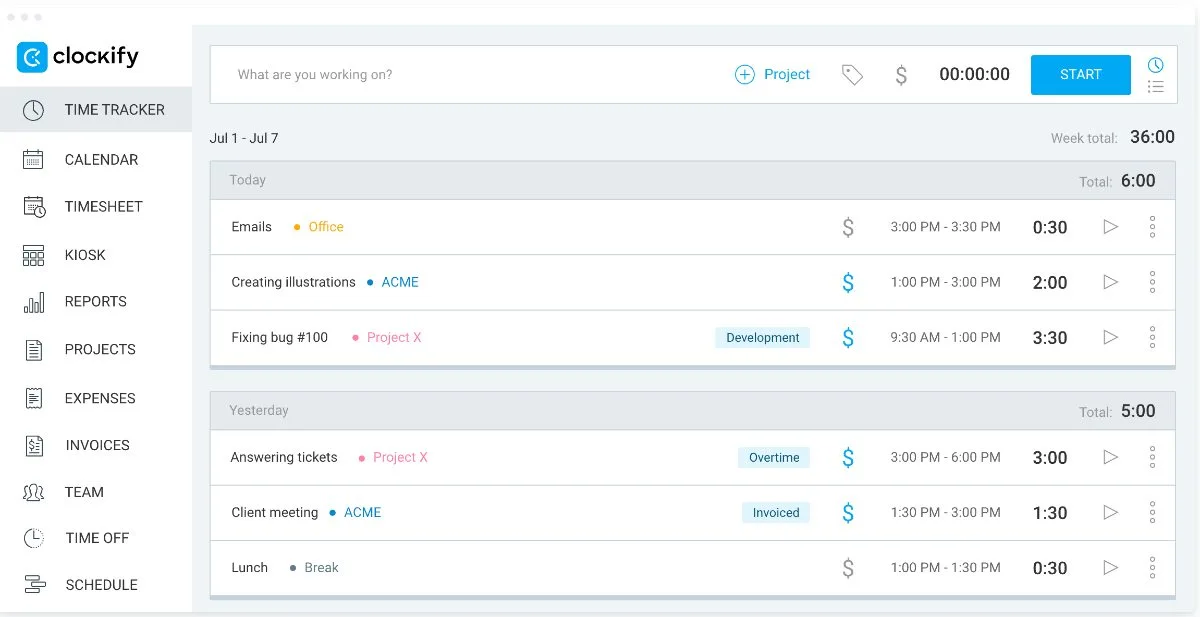
Clockify by CAKE.com is a simple time tracker with a built-in time blocking workflow. Clockify lets you track the time you spend on each scheduled block as you work, so you can see whether your estimates were accurate and adjust the next round of blocks accordingly.
With Clockify, you can:
- Track time in real time, down to the second.
- Add time manually on the Time tracker page or in a Timesheet view.
- Set an estimate for each block and compare it against tracked time.
- View scheduled blocks and tracked time together in Calendar view.
- Sync with Google Calendar to track time on events.
- Connect to 100+ apps for tracking time across your existing tools.
- Run Weekly, Detailed, and Summary reports to see time by project or task.
- Set hourly rates and have tracked block time calculated into earnings automatically.
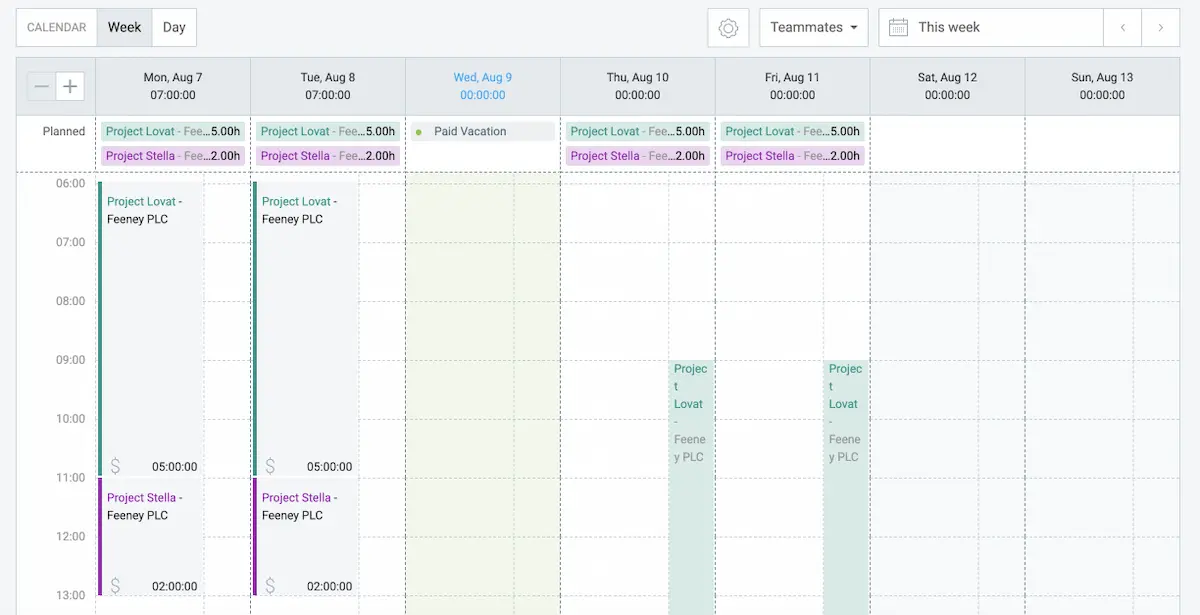
Clockify’s key feature for time blocking is precisely the shared Calendar view. Scheduled blocks and tracked time sit side by side, so the mismatch between your plans and reality is visible at a glance instead of requiring a separate report.
Available for: Web (Chrome, Firefox, Edge), Windows, Linux, Mac, iOS, Android
Try Clockify for time blocking FREE
#2: Google Calendar — best for basic scheduling
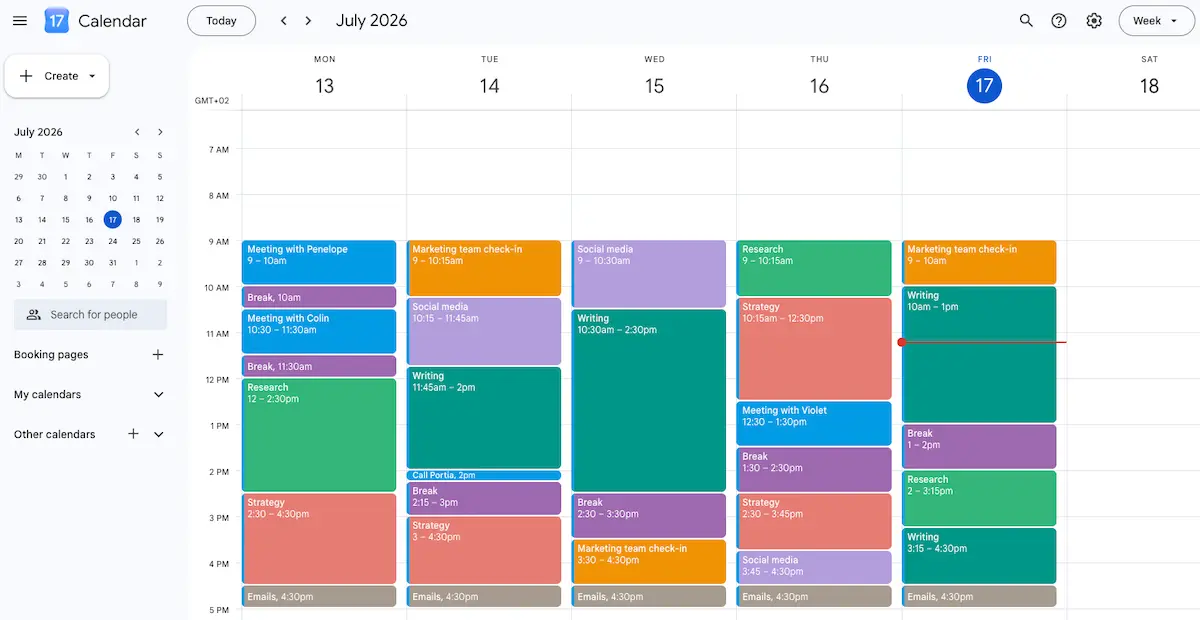
Google Calendar is a free calendar app that handles the fundamentals of visual time blocking, with every calendar entry acting as a block.
With Google Calendar, you can:
- Create separate, color-coded calendars for work, personal life, and other categories.
- Schedule recurring time blocks and set reminders for them.
- Let Google suggest meeting times based on attendee availability.
- Add events and schedule meetings across time zones.
- Define fixed working hours so your team knows when you’re available.
- Enable desktop and mobile notifications ahead of each block.
Google Calendar’s key feature is its daily agenda email, sent automatically each morning to summarize the events and reminders on your calendar for that day.
Available for: Web (Chrome, Firefox, Safari, Edge), iOS, Android
#3: Plaky by CAKE.com — best for task management
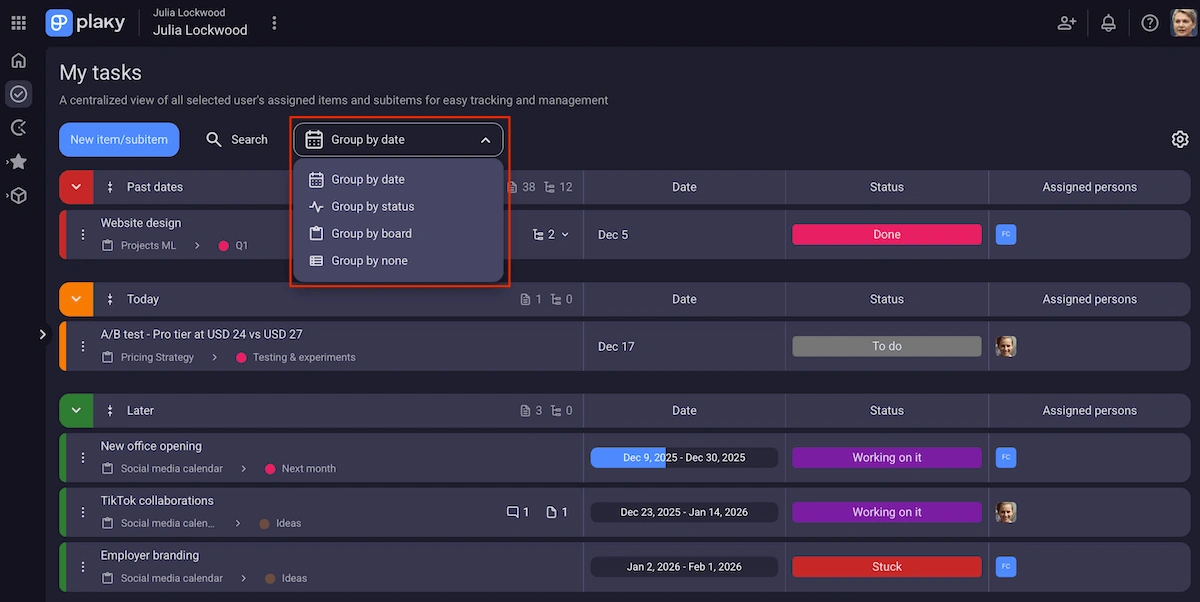
Plaky is a project and task management app that organizes work into boards, so your priority list is already structured before it becomes a time-blocked schedule.
With Plaky, you can:
- Organize tasks on customizable boards using Kanban, Table, or Gantt view.
- Break tasks into subtasks and set due dates for each.
- Assign tasks to team members and track their status in real time.
- Add custom fields to tasks, like priority level or client name.
- Use pre-built templates for common workflows, like resource planning or content calendar.
- Comment and attach files directly on individual tasks.
- Sync natively with Clockify and Pumble as part of the same productivity suite.
Plaky’s key feature is My tasks. As a single view, it pulls in everything assigned to you across multiple boards in an organization, so you can see your full priority list in one place before turning it into a schedule.
Available for: Web, iOS, Android
#4: Todoist — best for to-do lists
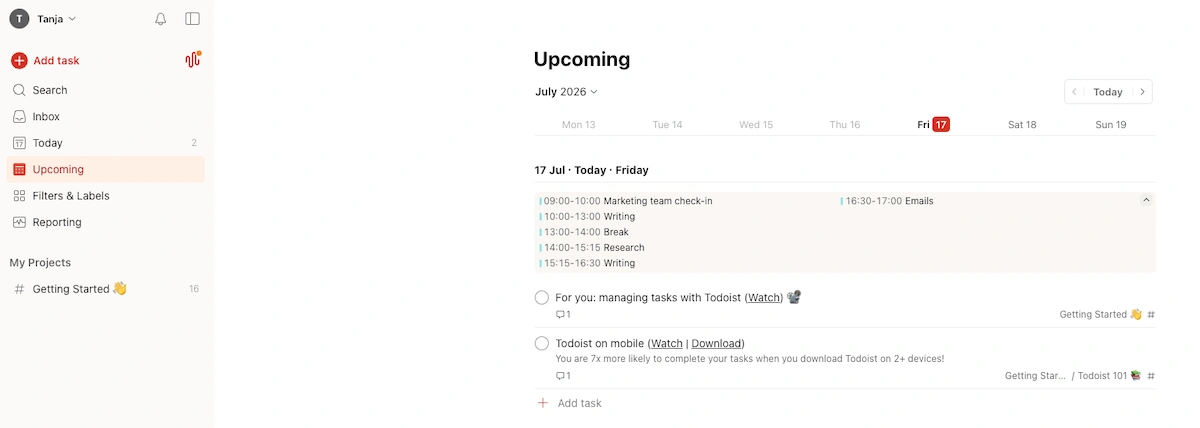
Todoist is a to-do list app built around projects, deadlines, and priority levels, with several ways to view the same task list as a schedule.
With Todoist, you can:
- Create tasks and group them into projects.
- Set deadlines and priority flags for each task.
- Build and manage recurring to-do lists.
- Collaborate with others on shared projects and tasks.
- Attach files and comments to individual to-do items.
- View your task list as a Calendar or as a Gantt-style timeline.
Todoist’s key feature is its dual view. The same project list can be viewed as a time-blocked calendar or as a Gantt chart showing deadlines and dependencies, as well as productivity trends by week and month.
Available for: Web (Chrome, Firefox, Edge, Safari), iOS, Android, Windows, Mac, Linux, Apple Watch, Android Wear
You can easily track time on Todoist to-dos with the Clockify-Todoist integration.
#5: Fantastical — best for Mac users
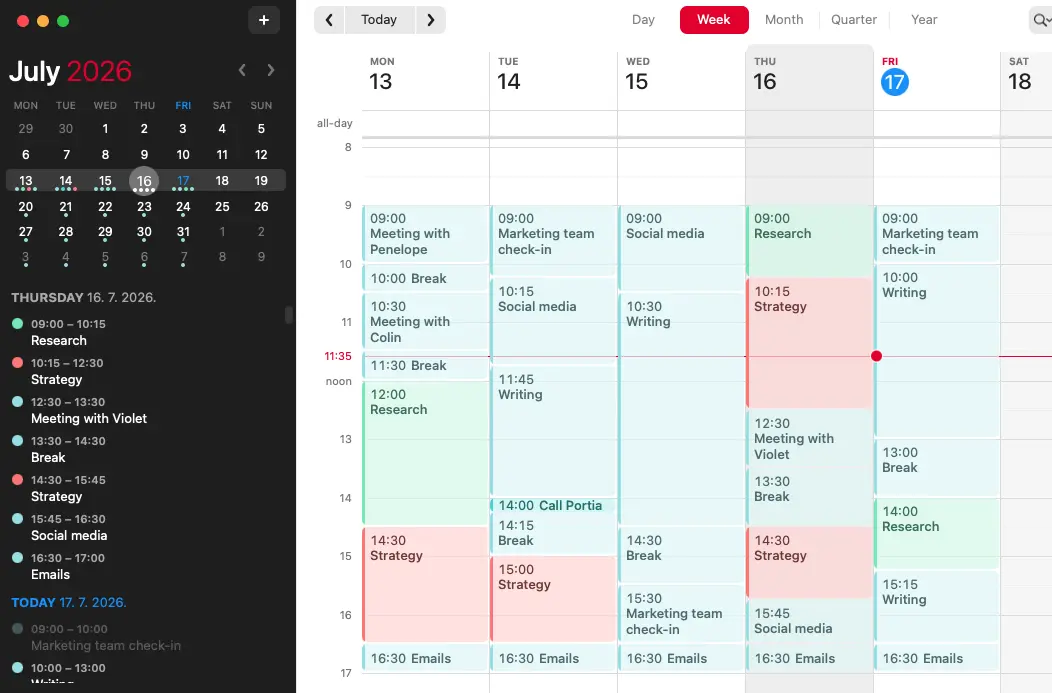
Fantastical is a Mac-first calendar app that adds scheduling on top of the standard time blocking calendar features.
With Fantastical, you can:
- Create reminders by typing or saying phrases like “remind me to” or “reminder”.
- View maps showing the locations of scheduled events.
- Duplicate events across multiple calendars.
- Switch between day, week, month, and year views for your blocks.
- Join conference calls directly from a calendar entry.
Fantastical’s key feature is its Mini Window, a menu bar panel that lets you create, view, and edit events, tasks, and reminders without opening the full app.
Available for: Mac, iOS, Apple Vision Pro, Apple Watch, Windows
If you’re a Mac user, you can use Clockify to track time in Pomodoro intervals, directly from the app.
#6: Reclaim.ai — best for AI scheduling
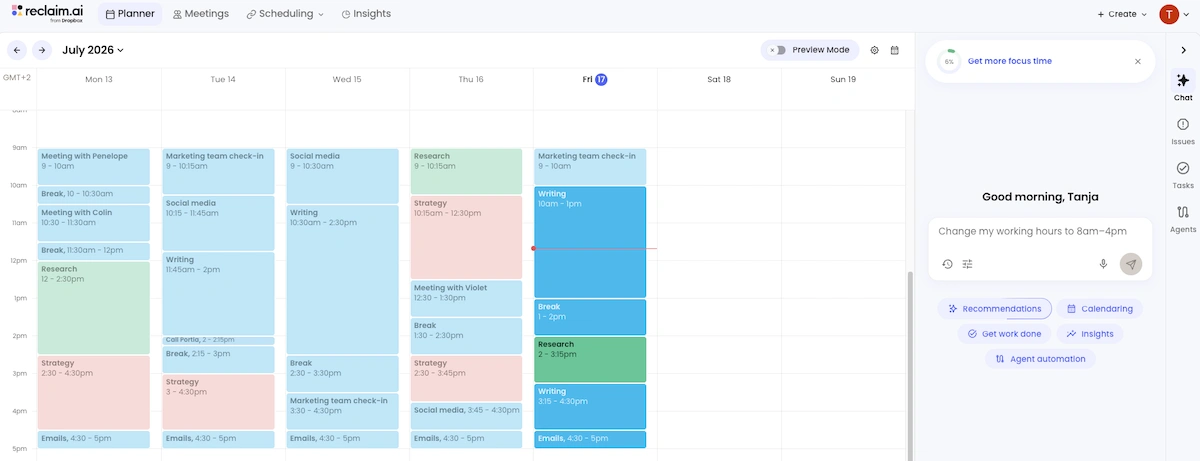
Reclaim.ai is an AI scheduling assistant that builds time blocks around your existing calendar and defends them against new meeting requests.
With Reclaim.ai, you can:
- Auto-schedule tasks from a connected task manager into open calendar slots.
- Set “Habits” — recurring blocks like exercise or lunch that Reclaim.ai protects and reschedules as needed.
- Sync calendars across multiple Google accounts to avoid double-booking.
- Let Reclaim.ai automatically shrink or move lower-priority blocks when a new meeting is scheduled.
- Track time spent in each block category through built-in analytics.
Reclaim.ai’s key feature is automatic re-blocking. When a meeting shifts, Reclaim.ai moves the affected tasks on its own, without requiring you to manually rebuild your schedule.
Available for: Web (Chrome, Safari, Edge, Firefox), Google Calendar & Outlook integration
#7: Motion — best for adaptive planning
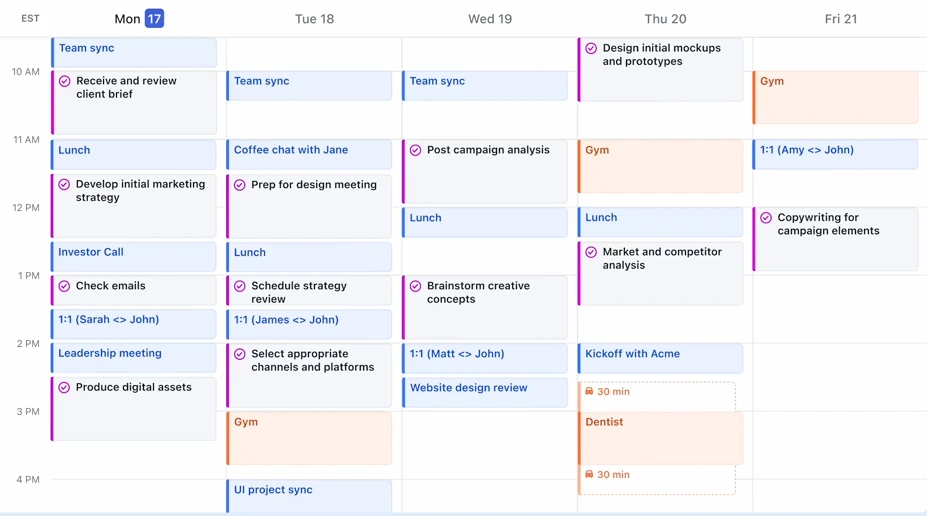
Motion is an AI scheduling app that builds a full daily schedule from your task list, deadlines, and calendar. It can also re-block the day automatically when priorities change.
With Motion, you can:
- Add tasks with deadlines and let Motion assign them a time slot automatically.
- Have meetings and tasks on the same calendar, prioritized against each other.
- Get the schedule rebuilt in real time when a task runs long, or a new meeting is added.
- Track project timelines alongside individual daily schedules.
- Set task priority levels that Motion uses to decide what gets bumped first.
Motion’s key feature is that it removes manual re-blocking almost entirely. Instead of you moving tasks around after a disruption, the app recalculates the day’s schedule on its own.
Available for: Mac, Windows, iOS, Android
#8: Microsoft To Do — best for simple to-do management
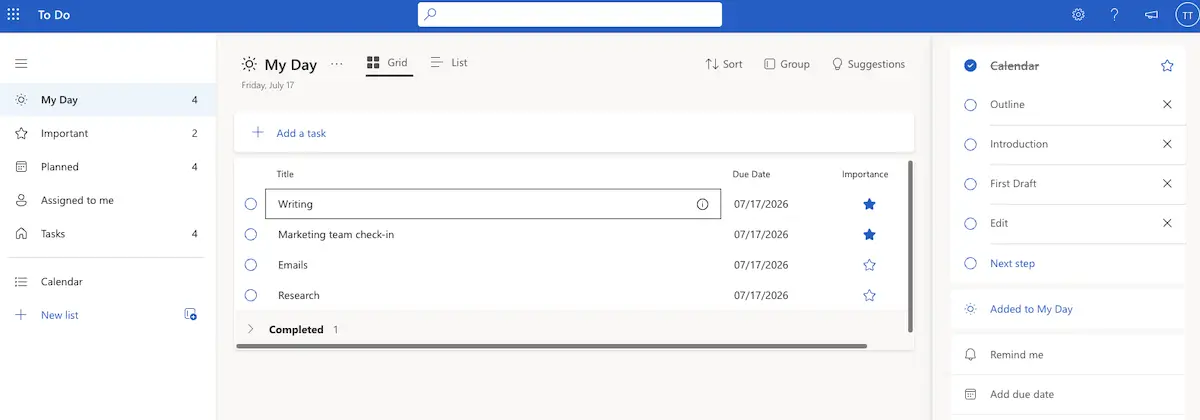
Microsoft To Do is a to-do list app aimed at prioritizing and sharing tasks rather than full calendar-based blocking.
With Microsoft To Do, you can:
- Add sub-tasks to larger projects.
- Personalize lists with custom backgrounds and images.
- Tag tasks for easier searching.
- Set due dates and reminders per task.
- Sync with Outlook and Microsoft Planner.
Microsoft To Do’s key feature is task assignment. You can assign tasks to other people while tasks assigned to you appear automatically in your own list.
Available for: Web (Safari, Chrome, Edge, Firefox), Windows, Mac, iOS, Android
#9: ClickUp — best for project management
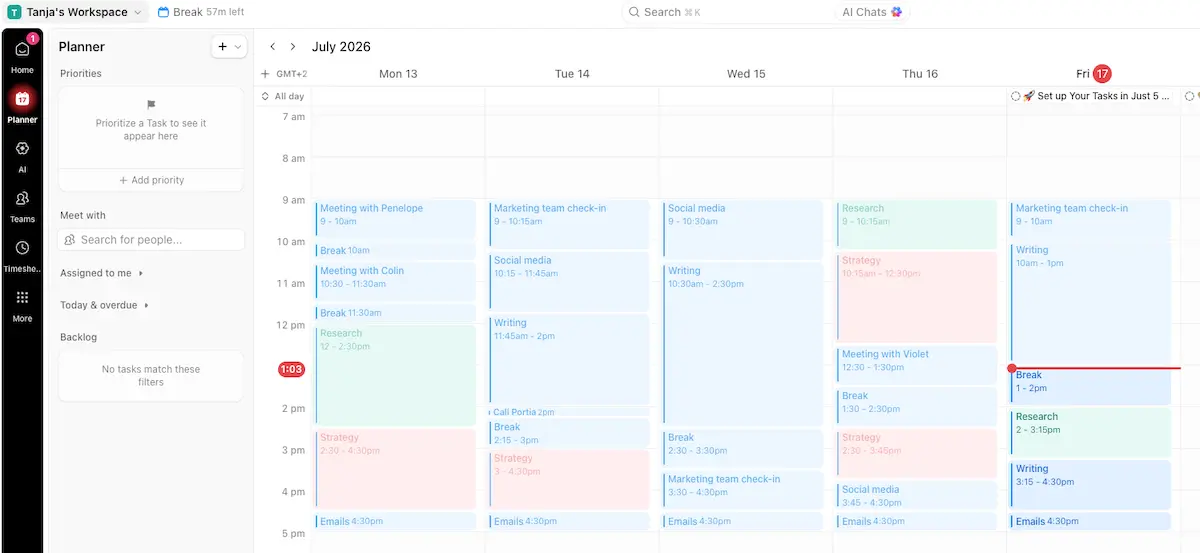
ClickUp is an all-in-one project management platform that combines task management, time tracking, and calendar views for teams blocking time across shared projects.
With ClickUp, you can:
- Set deadlines on a Calendar, Gantt, or Timeline view.
- Set time estimates per task and track actual time against them.
- Prioritize tasks with color-coded flags, statuses, and tags.
- Schedule recurring tasks and reminders.
- Build customizable dashboards showing which tasks or projects consume the most time.
- Connect to 1,000+ 3rd-party apps.
ClickUp’s key feature is its reporting dashboard. It shows which tasks or projects are taking the most time, directly informing you how to adjust future blocks.
Available for: Web (Chrome, Firefox, Edge, Safari), iOS, Android, Windows, Mac, Linux, Outlook, Apple Watch
Easily track time on ClickUp tasks with Clockify using the ClickUp time tracking integration.
#10: Things 3 — best for GTD workflow
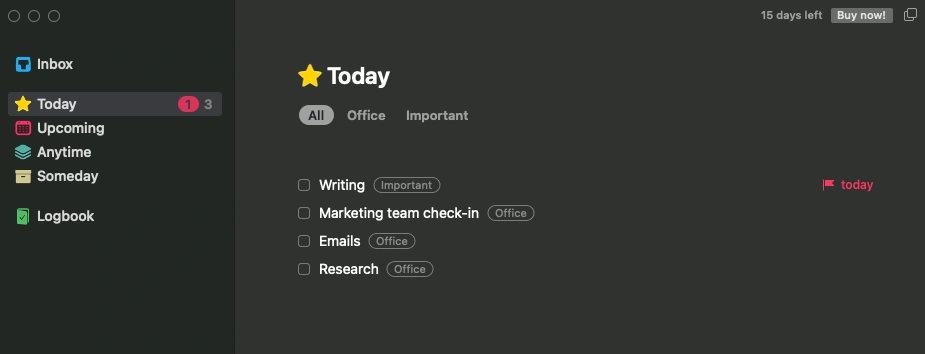
Things 3 is a task management app built around the Getting Things Done (GTD) method, with a simple calendar view for blocking time around your task list.
With Things 3, you can:
- Collect uncategorized to-dos in an Inbox before sorting them.
- Create projects, add tasks, and organize them under subheadings.
- Group related projects into broader Areas.
- View tasks in a Calendar and group them by type, like Work, Personal, or Family.
Things 3’s key feature is its time-of-day grouping. Tasks are automatically sorted into Today, This Evening, Upcoming, Anytime, and Someday, so the schedule reflects urgency without manual sorting.
Available for: Mac, iOS, Apple Watch, Vision Pro
#11: TimeBloc — best for mobile-only planning
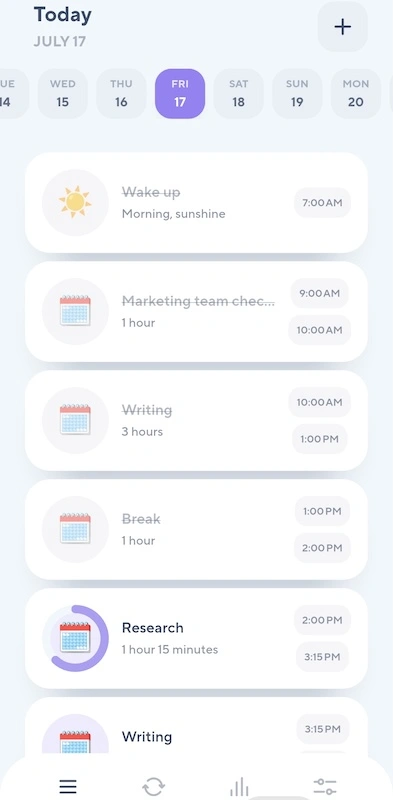
TimeBloc is a mobile-only daily planner built specifically around drag-and-drop time blocks.
With TimeBloc, you can:
- Divide your day into tagged, color-coded blocks.
- Design a recurring daily routine from repeated tasks.
- Drag and drop tasks to rearrange blocks quickly.
- Review time-spent statistics for completed blocks.
- Sync data with your preferred mobile calendar.
TimeBloc’s key feature is its detailed reporting. It shows exactly how a day or week was spent, making it easier to spot which activities are running longer than planned.
Available for: iOS, Android
#12: TickTick — best for task reminders
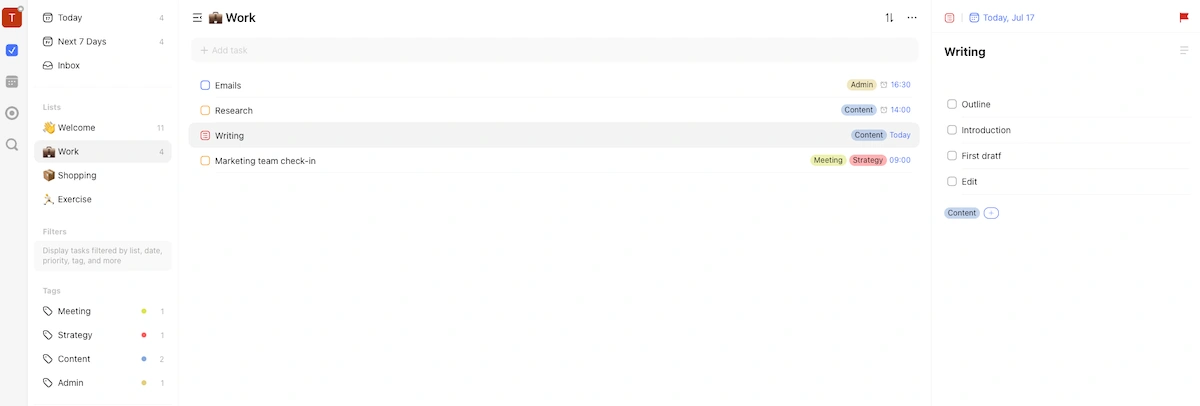
TickTick is a daily planner app with folders, lists, tags, and priorities, making it suited to both time blocking and task batching.
With TickTick, you can:
- Add tasks by voice command, Siri, or Quick Ball.
- Set an estimated duration for each task.
- Enable “Constant Reminder” so reminders aren’t missed.
- Convert emails into tasks automatically.
- Share lists with other people.
TickTick’s key feature is location-based reminders (available on iOS and Android mobile devices). The app can notify you of a task the moment you arrive at the address tied to it.
Available for: Web (Chrome, Edge, Firefox), Windows, Mac, Linux, iOS, Android, Apple Watch

FAQs about time blocking
Still interested in learning more about time blocking? Check out the following section.
What is the concept of time blocking?
Time blocking is a scheduling method that assigns fixed start and end times to each task on your calendar, instead of working from an open to-do list.
Why is time blocking so effective?
Time blocking is effective because it counters the planning fallacy (the tendency to underestimate how long tasks take) by forcing you to assign realistic time to each task before the day or week starts.
Is time blocking good for ADHD?
Yes, time blocking can be good for ADHD with adjustments. Shorter blocks, built-in buffer time, color-coding, and treating the schedule as flexible rather than fixed all make time blocking more workable for ADHD.
What are the disadvantages of time blocking?
Time blocking struggles in highly reactive roles, creative work that resists scheduling, and when planning itself becomes a form of procrastination. It also takes 1–2 weeks to calibrate accurately.
Does Elon Musk use time blocking?
Yes, Elon Musk has described scheduling his day in 5-minute increments while running Tesla and SpaceX.
What is the best time blocking method?
There’s no single best time blocking method. Time blocking works for mixed schedules; task batching suits repetitive, low-focus work; time boxing suits tasks prone to scope creep; and day theming fits roles with clearly separable categories of work.
What is the 5-minute rule for time blocking?
The 5-minute rule for time blocking refers to Elon Musk’s practice of scheduling his day in 5-minute blocks. This is an extreme version of standard time blocking that most people don’t need to replicate to see results.
Who invented time blocking?
There’s no single credited inventor of time blocking. Time blocking as a productivity method has been popularized by figures like Cal Newport and widely adopted by executives, but the underlying practice of scheduling tasks by time predates any one person.
Try Clockify for time blocking FREE
How we reviewed this post: Our writers & editors monitor the posts and update them when new information becomes available, to keep them fresh and relevant.