

Alex Beadon
Founder of Together We Launch
"We use Clockify to see where our time is going and how to solve any problems. It’s just so beneficial."
More stories

Find new apps that fit you team's needs
If you’re tired of fixing errors caused by paper timesheets, you need a better timekeeping solution.
Time-tracking apps can increase accuracy and provide transparent billing — you just need to find the one that works best for your business.
Could TimeCamp be the tool for you, or is there a more compelling alternative?
Read on to find out what TimeCamp offers in terms of features and pricing, as well as how well it performs.

TimeCamp is a comprehensive timekeeping, billing, and invoicing solution.
In this honest TimeCamp review, I ranked each feature and segment on a scale of 1 to 5. But before we get into the full review, here are the main TimeCamp pros and cons.
| TimeCamp pros | TimeCamp cons |
|---|---|
| ✅ 14-day free trial for all paid plans (except Enterprise) | ❌ Mobile app lacks team management capabilities |
| ✅ Has a free plan | ❌ Occasional bugs |
| ✅ Supports invoice creation | ❌ Unreliable customer support |
| ✅ Offers 20+ different report types | ❌ Requesting time off can be complicated |
| ✅ Integrates with 80+ web apps via a browser plugin | ❌ Outdated UI |
| ✅ Effective computer activity tracking | ❌ Certain essential features are only available in higher-priced plans |
TimeCamp offers a free plan with basic timekeeping functionalities. If you need more features, you can upgrade to one of the paid plans:
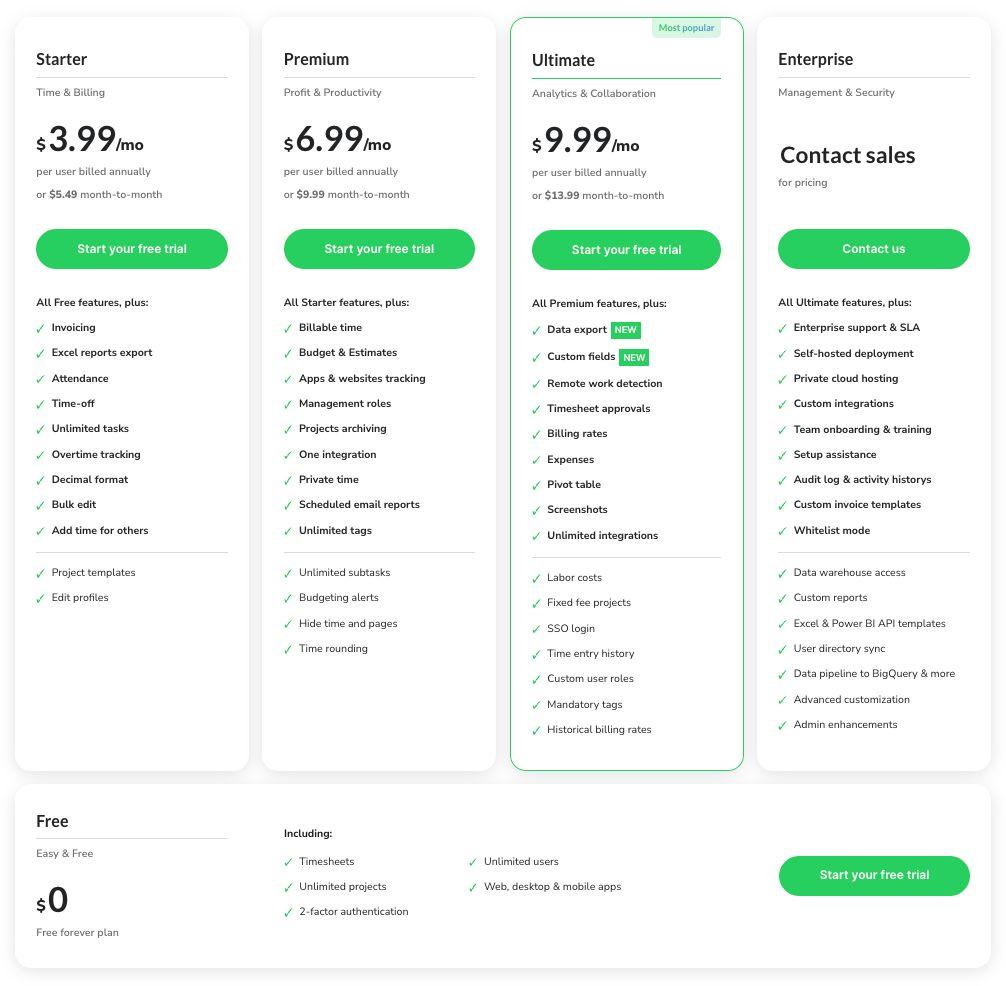
Compared to some competitors, TimeCamp’s free plan could be more generous, in my opinion (for example, by including unlimited tasks and integrations like Clockify by CAKE.com). Still, TimeCamp covers unlimited users and projects, which is a plus.
In addition to the free features, the Starter plan offers unlimited tasks, advanced reporting, and attendance tracking at a reasonable price. However, to track billable time, you’ll need to upgrade to the Premium plan.
Still yet, billing rates and timesheet approvals are only available with the Ultimate plan. This means you’ll have to pay at least $9.99 per user to access some essential functionalities.
When I first opened TimeCamp’s web app, the layout seemed well-organized, which I appreciated. The interface is divided into 2 areas: the main space and the left sidebar, where all the features are listed.
The features are grouped into 5 categories for faster navigation:
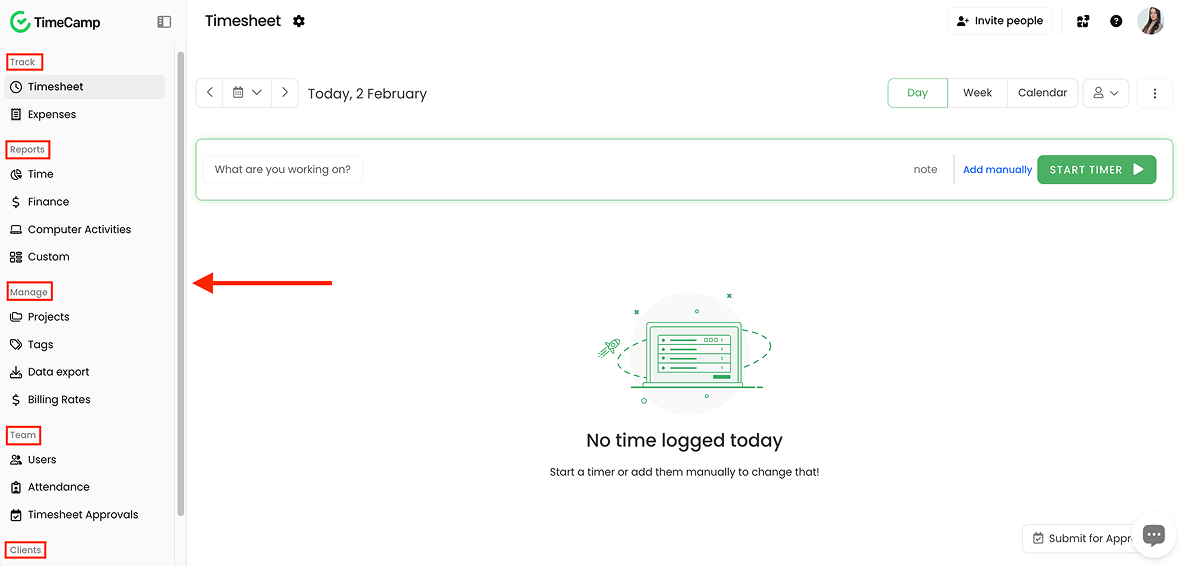
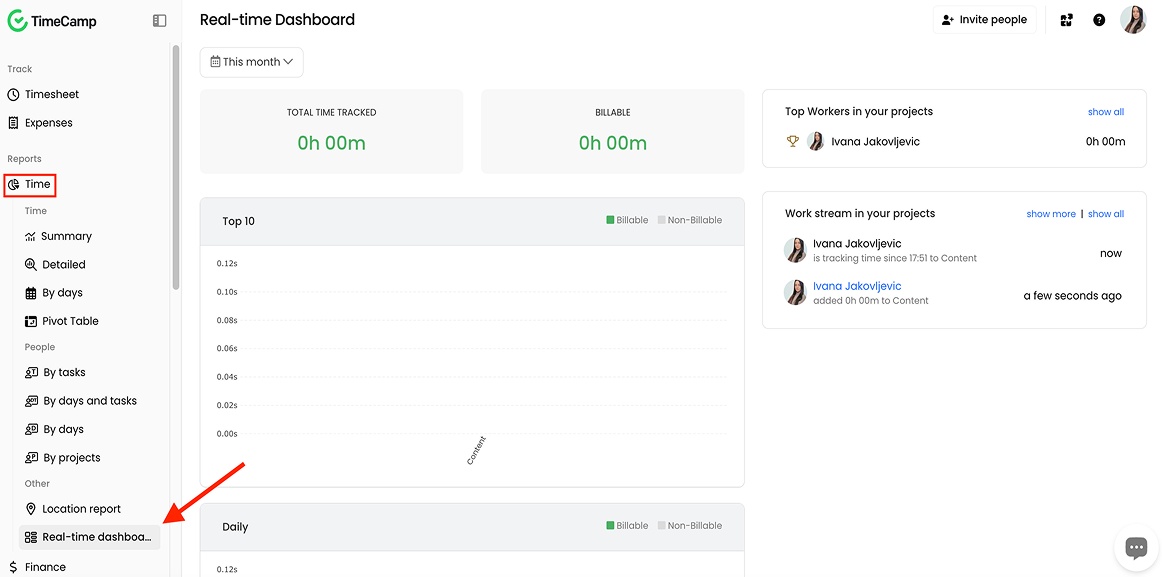
Most functionalities were easily accessible. Still, it took me some time to locate the real-time dashboard as it was hidden in the Reports section.
I had to open the Time dropdown menu and then click on the Real-time dashboard to access this feature, which was a bit of a hassle.
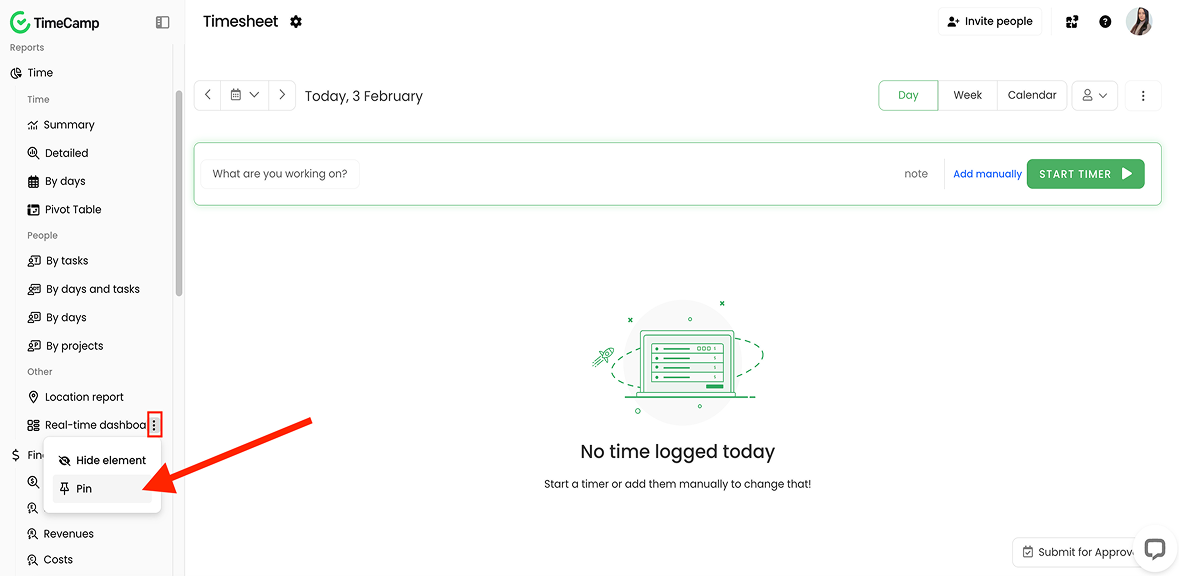
On the other hand, I liked that TimeCamp allows me to pin frequently used features to the top of the list. This enables quick access.
In sum, TimeCamp is easy to use once you get the hang of it. The only flaw I noticed is that the interface’s design feels bland.
As an agency owner or operations manager, you need to make sure that the time tracker your company uses is secure.
TimeCamp is ISO27001 certified and GDPR-compliant. It also ensures data protection by employing measures such as encrypted data storage and 2-factor authentication (2FA).
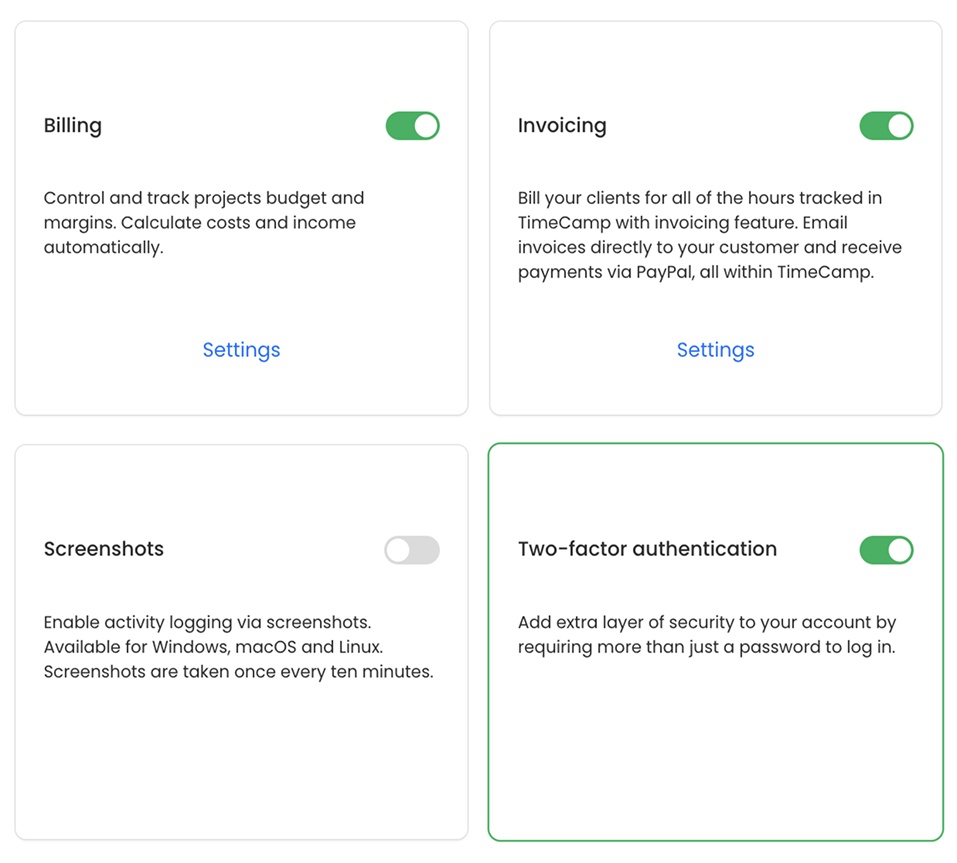
Additionally, TimeCamp operates entirely in the cloud, using AWS (a highly secure cloud platform) as its hosting provider.
On top of all that, TimeCamp performs regular, automated backups of user data. This allows for a quick recovery in case of disaster. Overall, I’m satisfied with what I saw regarding TimeCamp’s security.
TimeCamp provides free email customer support. They also offer step-by-step guides and tutorials on their website.
What’s more, users can contact TimeCamp’s support via live chat (available 24/7). I tested the chat and was pleasantly surprised by the detailed answers I received.
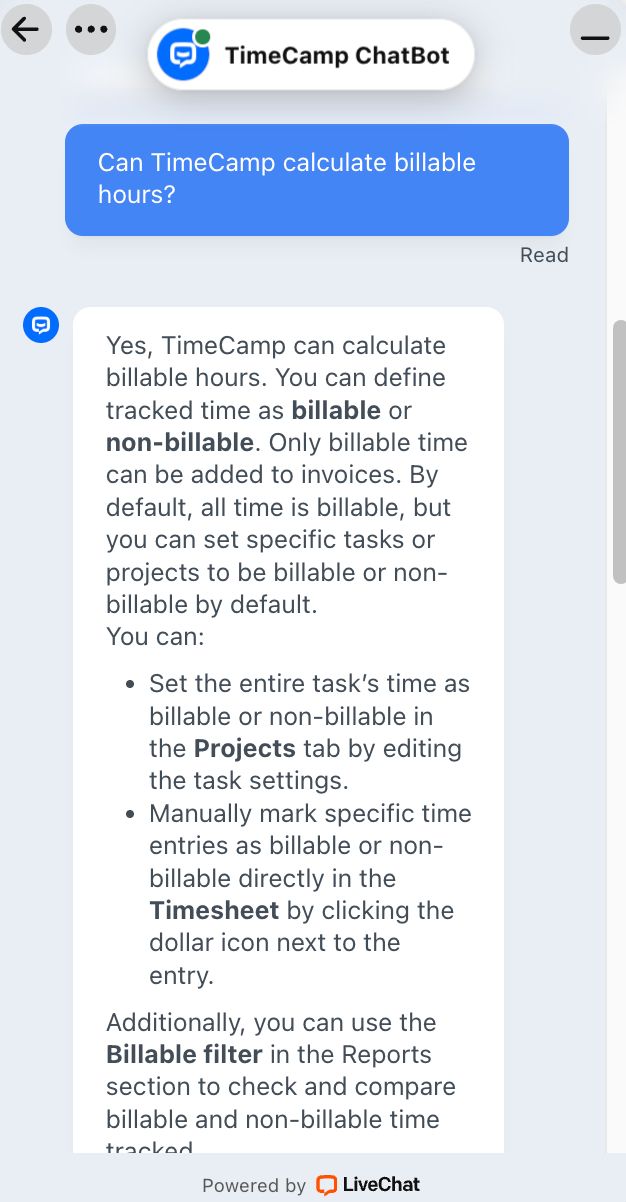
What’s a bummer is that the chat is only available on Starter, Premium, Ultimate, and Enterprise plans.
Also, I wasn’t happy to learn that TimeCamp doesn’t offer phone support. This may be a turn-off for users who prefer more direct, human communication.
To be fair, TimeCamp does provide a dedicated Customer Success Manager and onboarding support. However, these are only available for users on the Enterprise plan.
TimeCamp has earned varying ratings from users. For example, it has 3.7 out of 5 stars on Trustpilot. Conversely, TimeCamp has a high score of 4.7 out of 5 stars on both G2 and Capterra.
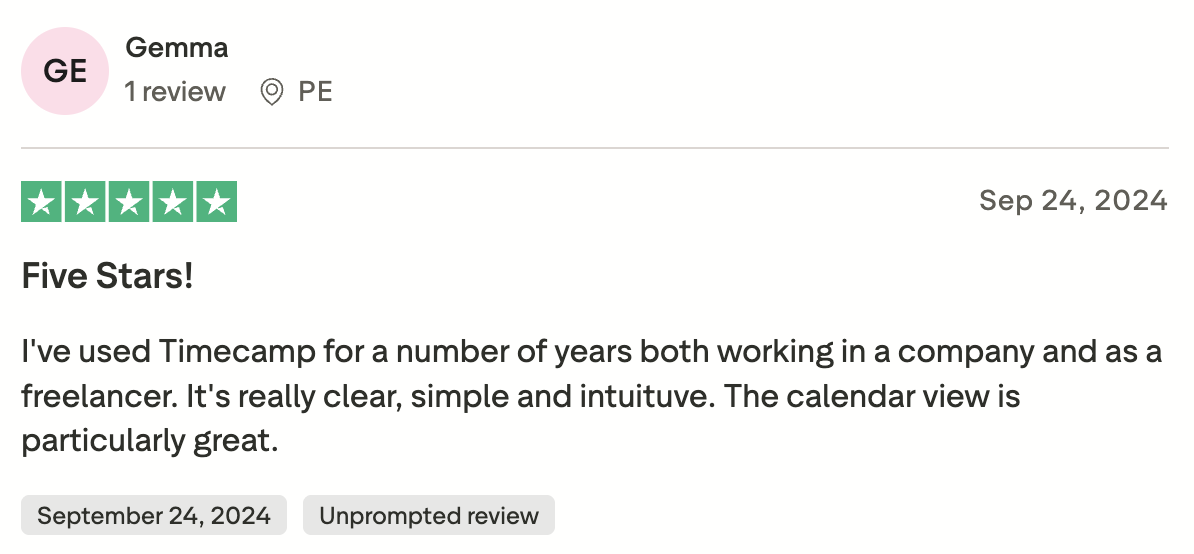
Generally, people praised TimeCamp’s time-tracking capabilities and ease of use. For instance, one Trustpilot user singled out the calendar view as useful.
On the other hand, some people complained about the poor quality of TimeCamp’s customer support. Here’s how one Capterra user described their bad experience:
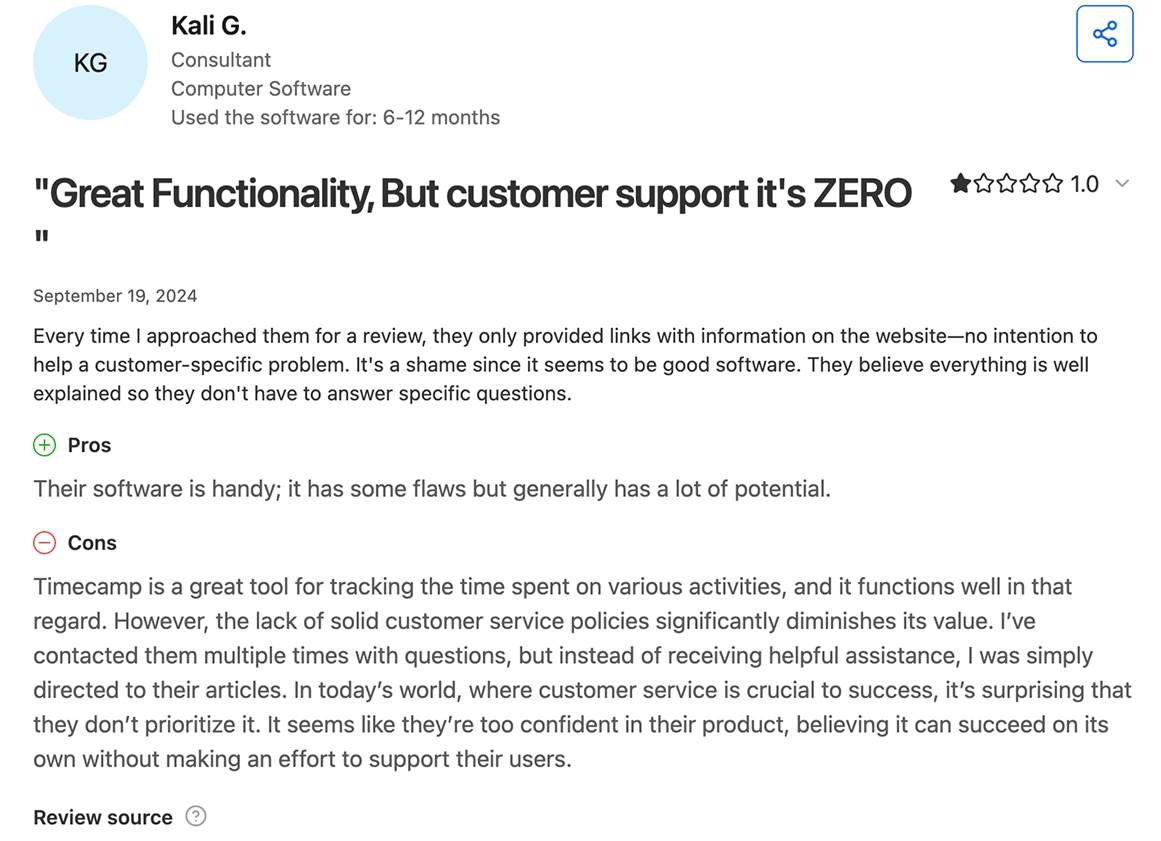
If I take into account customer ratings across 3 popular review websites, TimeCamp's average rating is 4.4/5.
Now, let’s go over the main TimeCamp features and see how well they perform in practice.
Within its Timesheet module, TimeCamp offers:
The default daily view offered me options to track time with a timer or manually add time.
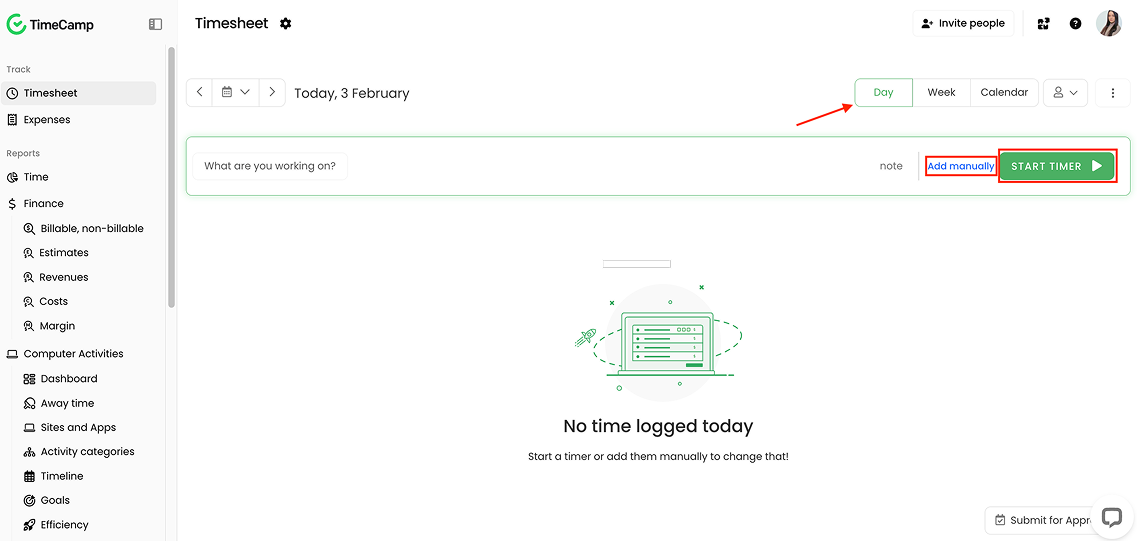
Tracking time with a timer was simple — all I needed to do was click the Start/Stop timer button to start or stop recording.
The only thing I didn’t like was that selecting the project or task I worked on wasn’t mandatory. Although I had the option to choose a project, the timer started running as soon as I clicked the Start timer button.

Being able to track time only after selecting a project or task would ensure the recorded time is linked to the right work. This allows for accurate reporting and billing.
TimeCamp lets me add a task to my entry while the timer is running or after I stop it. But this is impractical — especially when switching between tasks, as the tracked time can easily be misassigned.
During my testing, I also tracked time using the timer in the calendar view. As soon as I clicked the Start timer button, the timer started running.
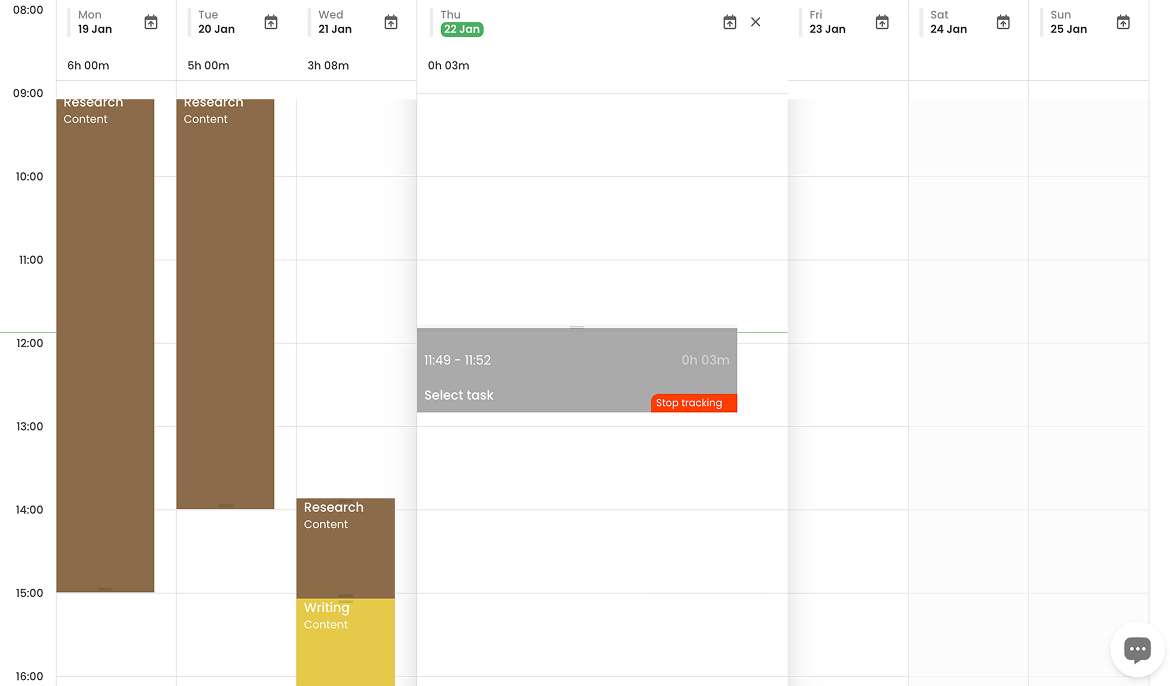
After stopping the timer (by clicking the Stop tracking button), I opened the weekly view and tried to remove this entry by deleting the timesheet row.
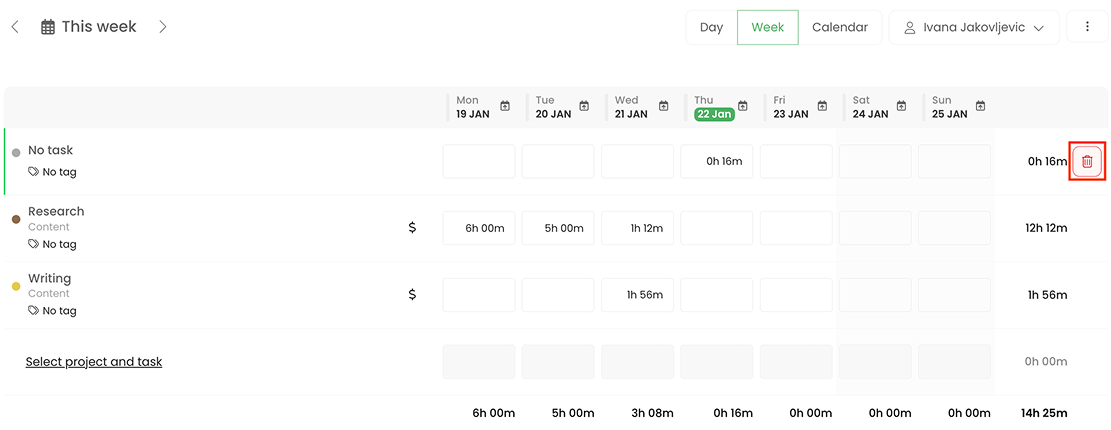
When I clicked the trash can icon, the row was deleted, but the time entry moved to the row below. This made it seem like I tracked time for a different task, which wasn’t true.
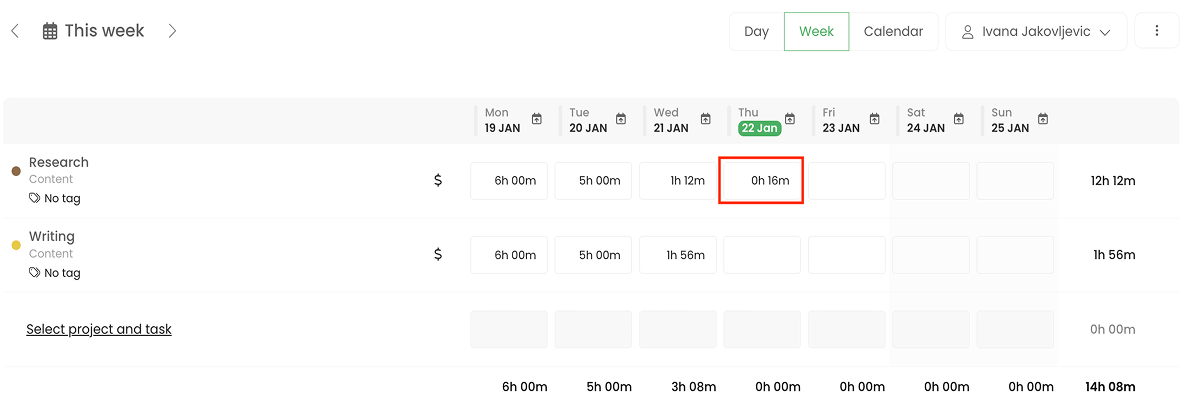
After I reloaded the page, the entry was gone, so this was probably just a temporary bug.
In essence, TimeCamp provides flexible time-tracking options, including the ability to add time for others (for users with admin roles). However, if you need a native Pomodoro timer, you’ll need to look elsewhere.
TimeCamp allows managers to track how much time their employees spend on productive work by monitoring their computer activity. In addition to tracking the apps and websites employees actively use, TimeCamp tracks their idle time (i.e., keyboard or mouse inactivity).
In the Sites and apps section, I could see how much time I’ve spent on different apps and websites, as well as each activity’s category (productivity, social networks, etc.), as shown below:
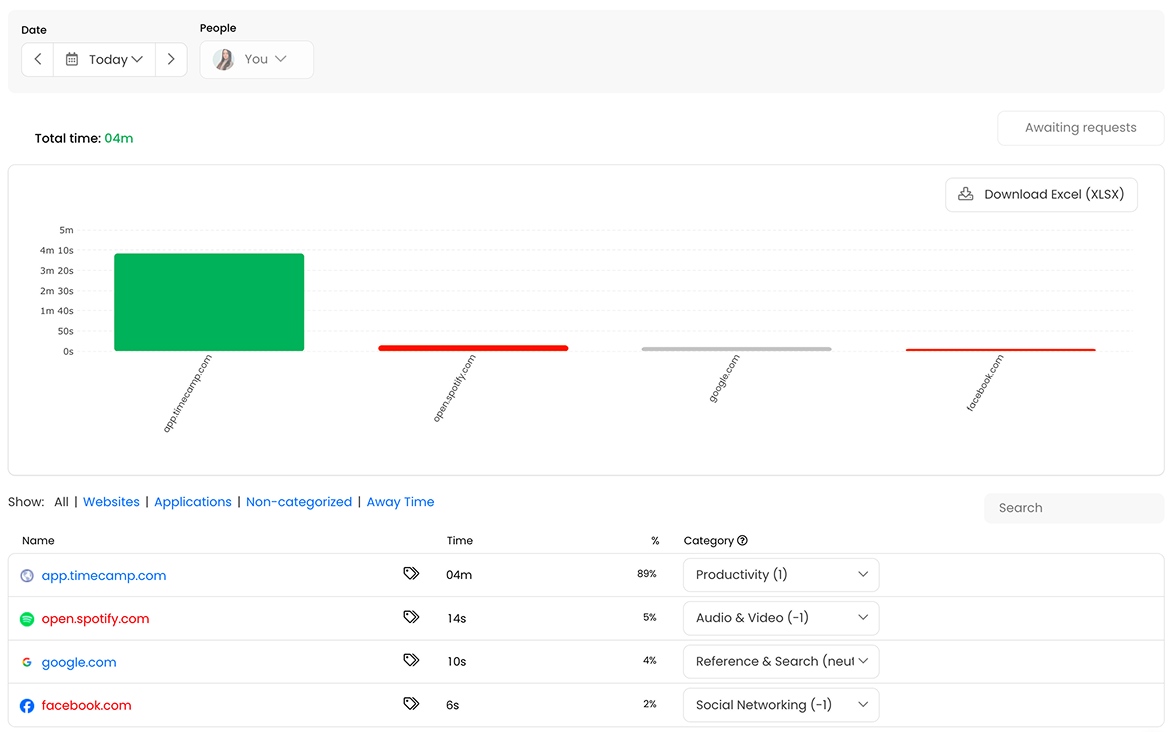
Within the Activity categories section, I could assign the productivity level to each category. TimeCamp offers 3 category statuses:
Creating new statuses isn’t possible.
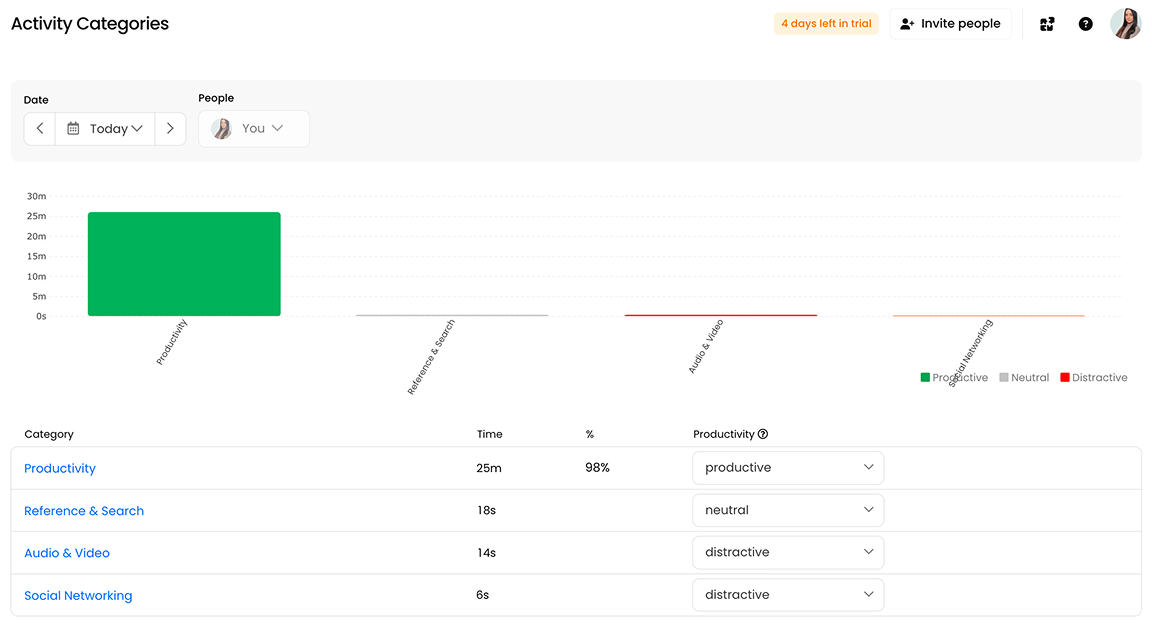
TimeCamp’s activity tracking feature provides clear data you can analyze for improved team productivity, which I found handy.
What I think is best about this feature is that it allows employees to temporarily pause activity monitoring during their workday (e.g., for 30 minutes). This way, businesses can maintain transparency while respecting employees’ privacy.
TimeCamp’s AI Time Tracker observes your work activity (including apps, websites, documents, and calendar events) and uses this information to understand what project you were likely working on. It then creates time entry suggestions that you can review and add to your timesheet, reducing the need for manual entry.
During testing, the AI Time Tracker not only suggested tasks based on my activities but also generated descriptions for my time entries — which I found useful. In my experience, the descriptions were accurate for most entries.
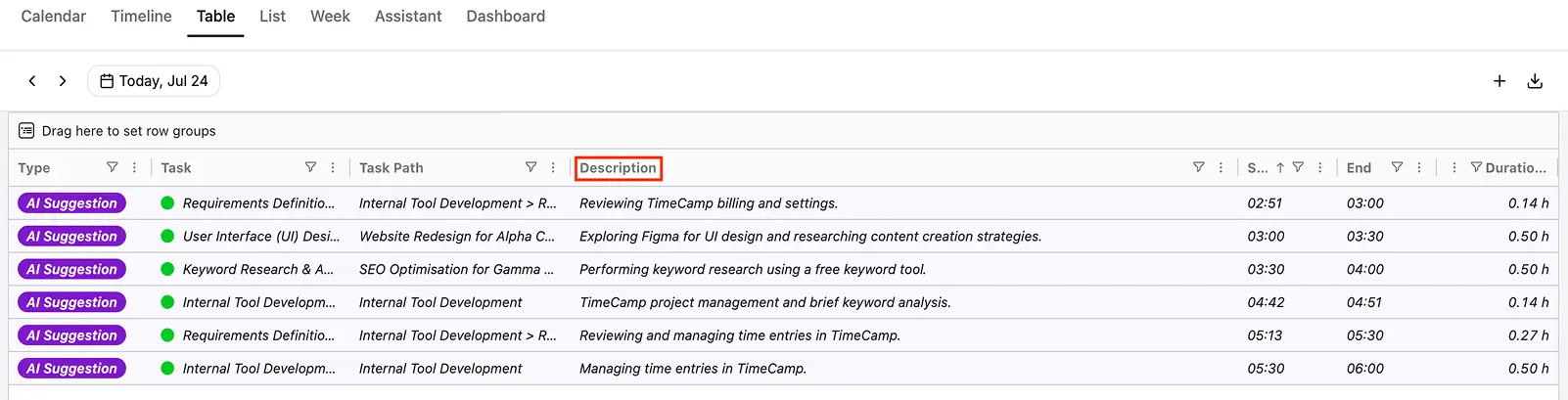
From the Calendar tab, I can accept, edit, or reject time entry suggestions (hover over a specific entry). Each suggestion displays details such as the specific project or task the AI has mapped to my activity, the task description, and the timeframe of the recorded block.
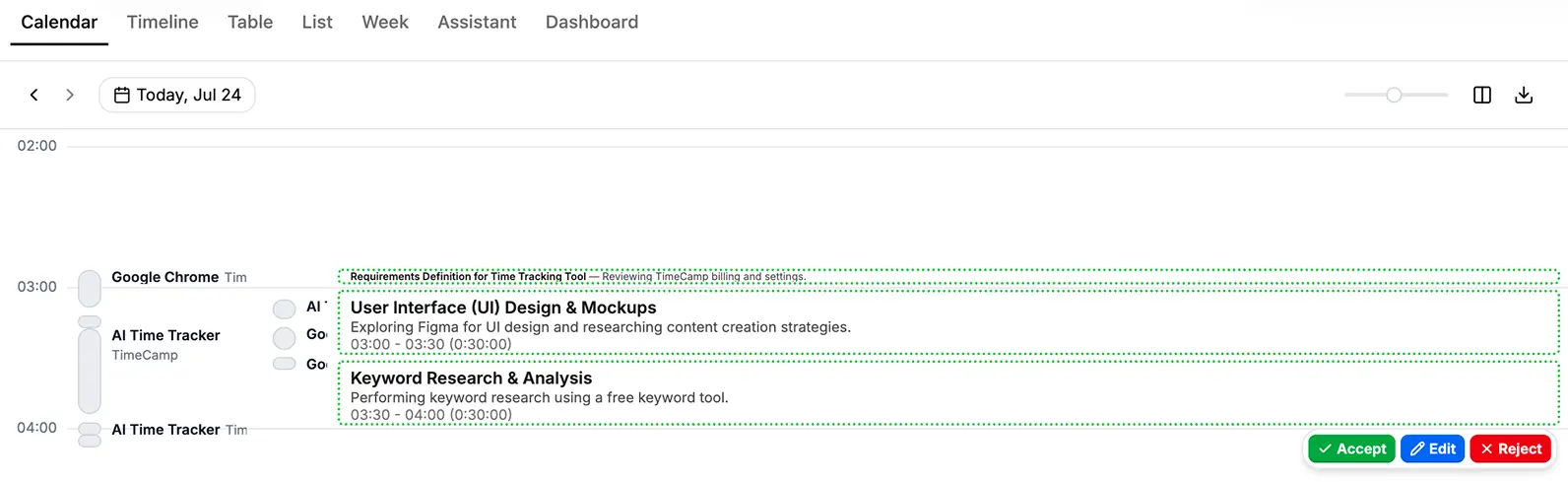
After I clicked Accept, the time entry appeared in my timesheet. The only thing I found concerning while trying out this feature was the missing time periods between certain suggestions.
As I learned, this may happen if AI doesn’t recognize keywords or patterns in my activity. Therefore, employees may need to fill any gaps manually in timesheets — a bit impractical. However, according to the TimeCamp team, the AI Time Tracker learns on the go, so it should become more reliable over time.
TimeCamp’s AI Time Tracker supports employee privacy, which is a good thing. All data in AI Time Tracker is visible only to employees using this feature (the entries become visible to managers only when added to timesheets).
In my opinion, after testing the feature out for a while, TimeCamp’s AI Time Tracker is useful for teams looking to improve productivity and reduce the effort spent on filling out timesheets.
Another key TimeCamp feature is remote work detection. It detects whether employees are working remotely or in the office using preconfigured office IP addresses.
For this feature to work, employees must have TimeCamp’s desktop app installed on their work computers.
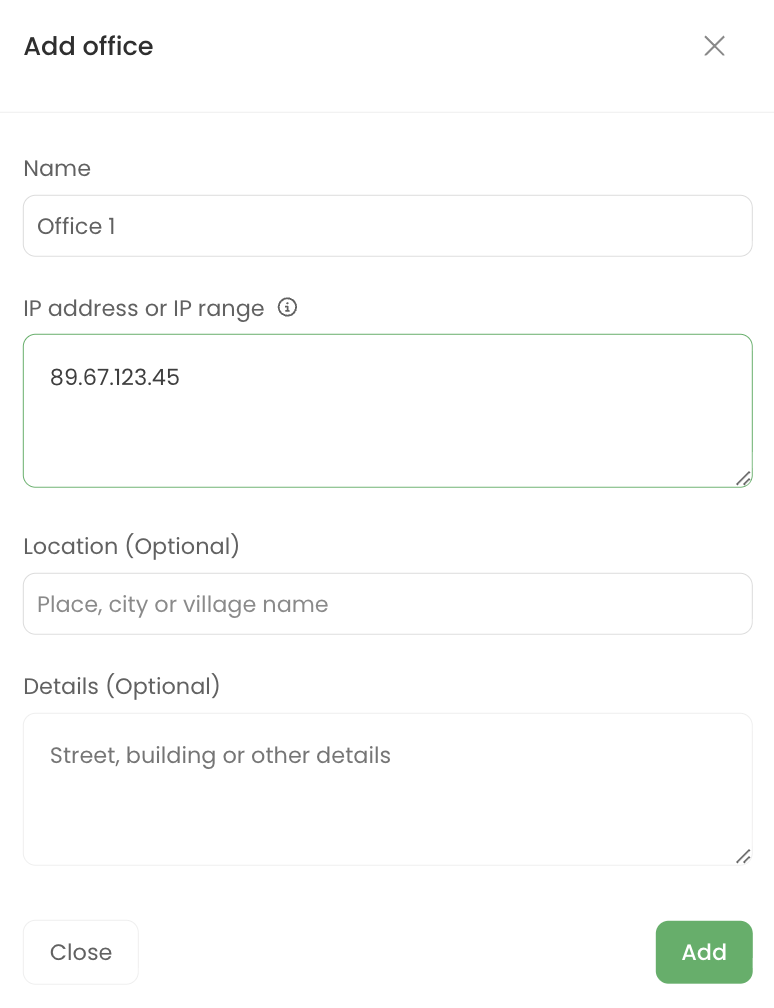
To set up the office IP address, I had to access the remote work detection settings and click the Add office button. Then I entered the office name and the IP address, and clicked Add.
Once the office is established, I can use the remote work detection report to check where employees are working from. The report shows 4 types of locations:
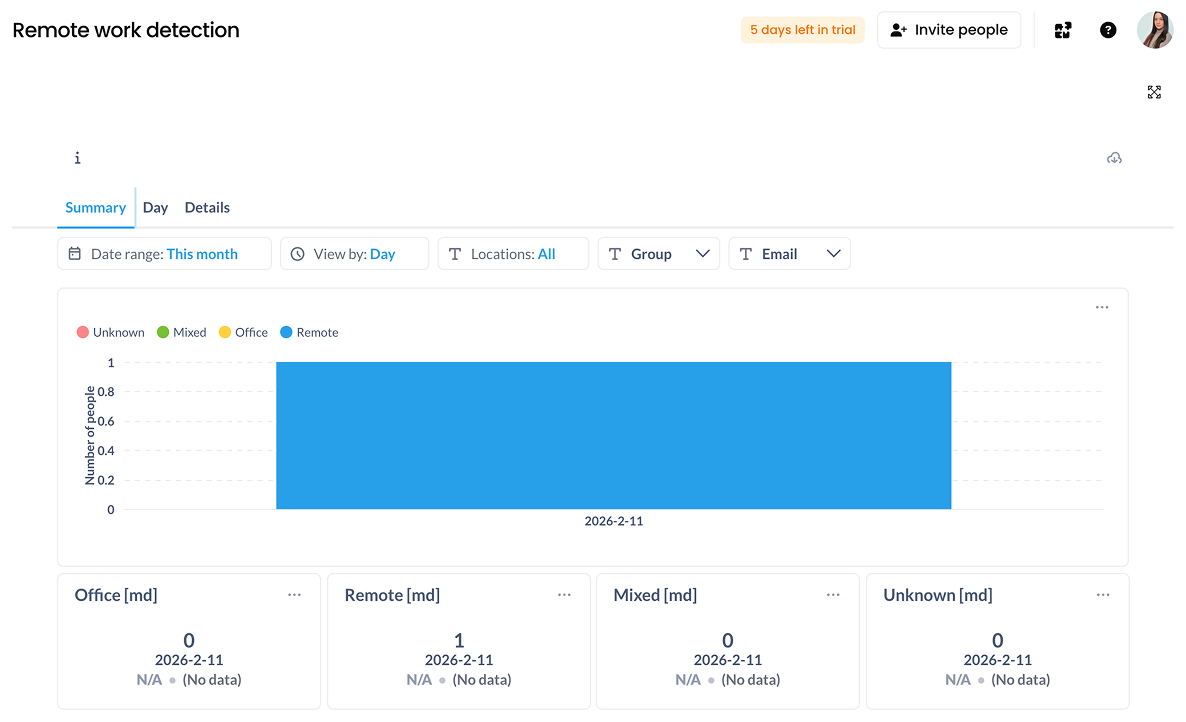
In my opinion, this feature is useful for managers as it allows them to quickly verify whether employees comply with set in-office attendance requirements.
As for TimeCamp’s time reports, I had options to create a summary, detailed, daily, and pivot table report. To open a detailed report, I clicked on the Time option and selected Detailed from the dropdown menu.
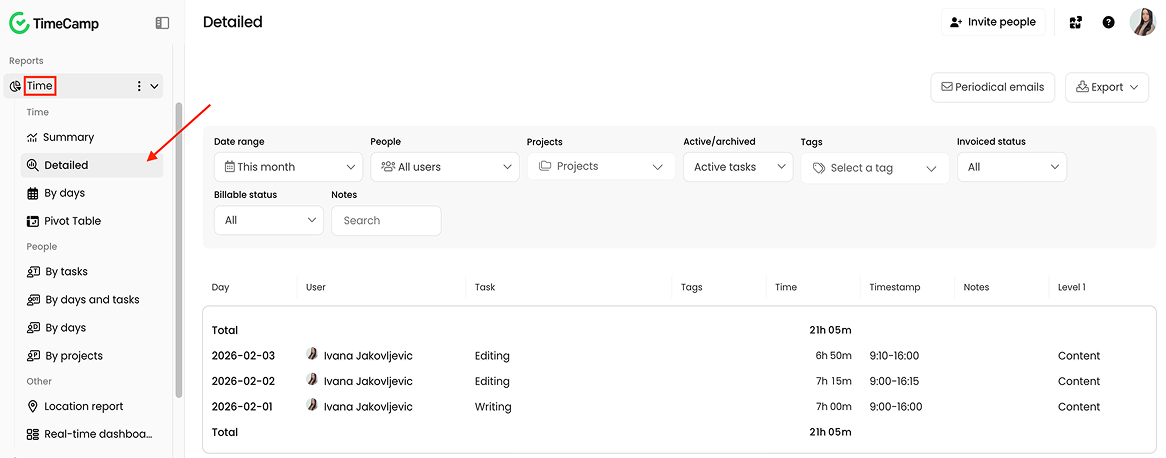
I could use filters such as date range, people, projects, and tags to get more precise information, which I liked.
TimeCamp’s detailed report is useful if you want to check who worked on what, when, and for how long. This way, you can eliminate inefficiencies, improve team utilization, and increase employee productivity.
After time reports, I tried generating finance reports — specifically, the billable and non-billable hours report. Finance reports can be generated for any period and show:
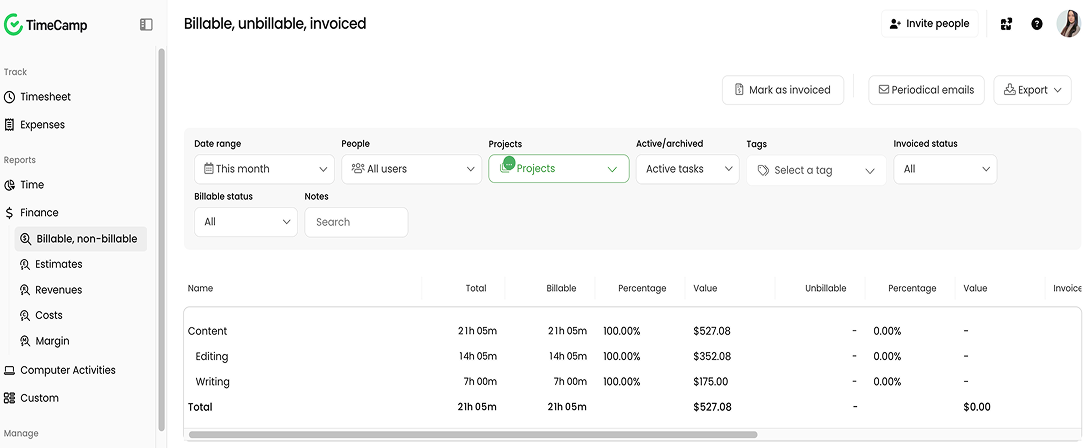
With TimeCamp’s billable and non-billable hours report, project managers know if too much time is spent on non-revenue-generating activities. They can then ensure resources are focused on high-value work.
Another finance report I found useful is the margin report. It helps managers better understand project profitability by comparing revenue against project costs.
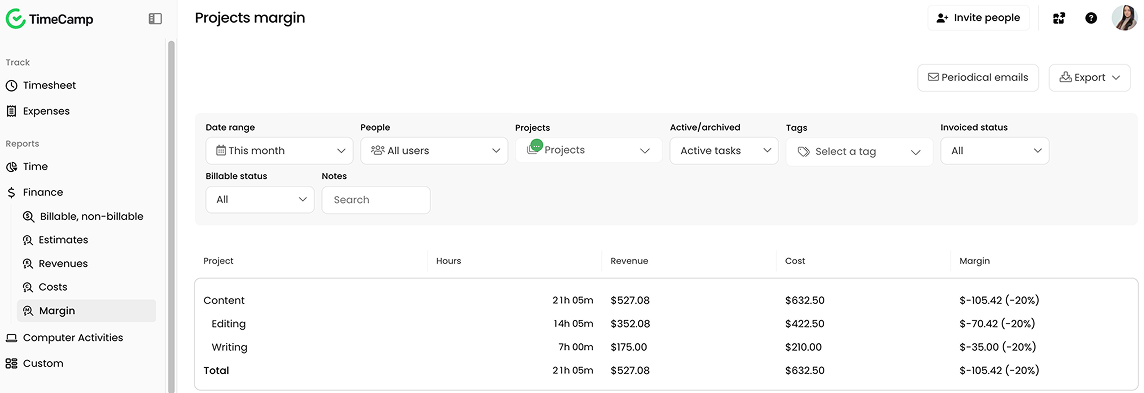
Essentially, TimeCamp’s reports provide clear insights for improved decision-making. The only thing I didn’t like was the lack of certain visual elements.
While TimeCamp claims to help users visualize their data with pie charts and graphs, I couldn’t find the chart option. Personally, I’d like my reports to be modern and aesthetically pleasing (like Clockify’s reports), as they’re more enjoyable to work with.
TimeCamp lets managers set custom rates for employees and projects. This allows them to:
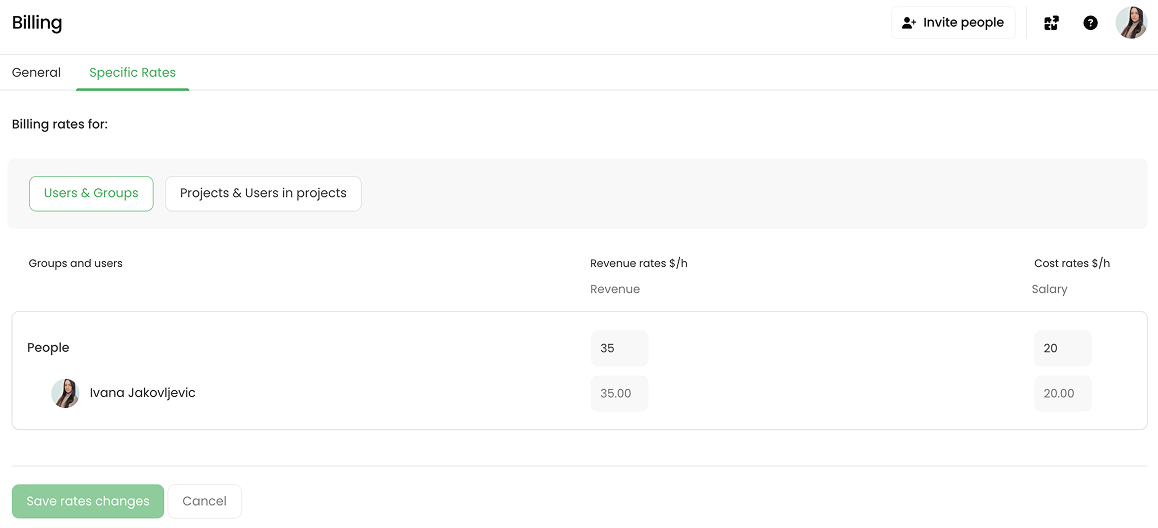
Once the rates are set and time is tracked, TimeCamp calculates the billable amount in real time. Additionally, you can generate invoices based on tracked time and expenses in the app.
To create a time-based invoice, I selected Invoices from the sidebar, clicked the + New invoice button, and chose the Based on project hours option. The new window appeared where I provided relevant information, including:
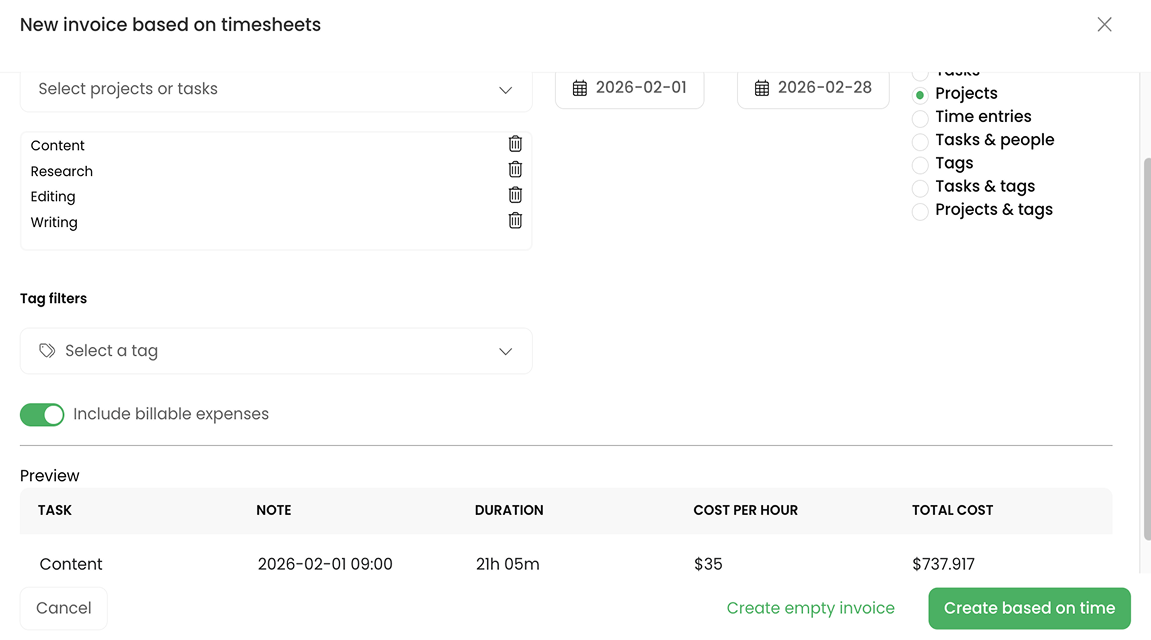
After clicking the Create based on time button, I was able to add more details. While entering certain information was optional, I had to provide client details, invoice number, and tax to save the invoice.
TimeCamp also lets me make client invoices more professional by adding my company logo, name, and address — which I appreciate.
If you seek basic but capable invoicing, TimeCamp may meet your needs. However, if you want advanced invoice management options like setting up recurring invoices, this app isn’t the best choice.
🎓 3 Steps to Professional Client Invoices that Encourage Payment
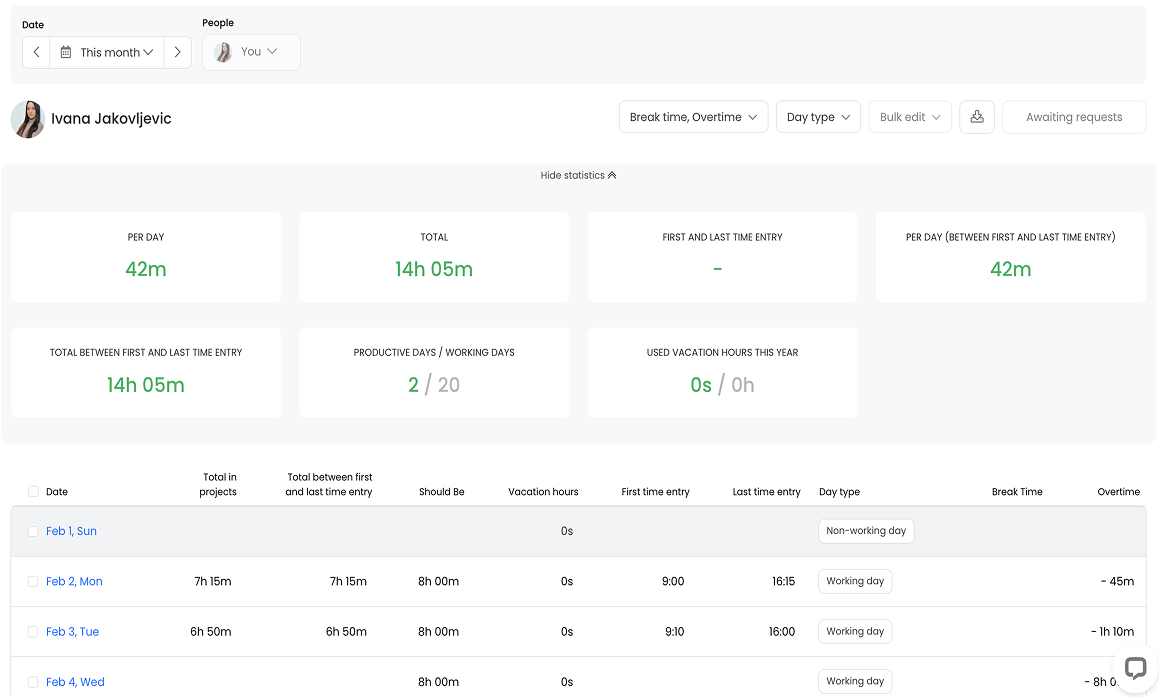
With TimeCamp’s attendance report, you can check your team members’ daily attendance, including their:
This helps you track who’s present and who’s absent, enabling streamlined workforce management.
TimeCamp provides basic leave management options like tracking, requesting, and approving time off. To request time off for a specific day, I had to:
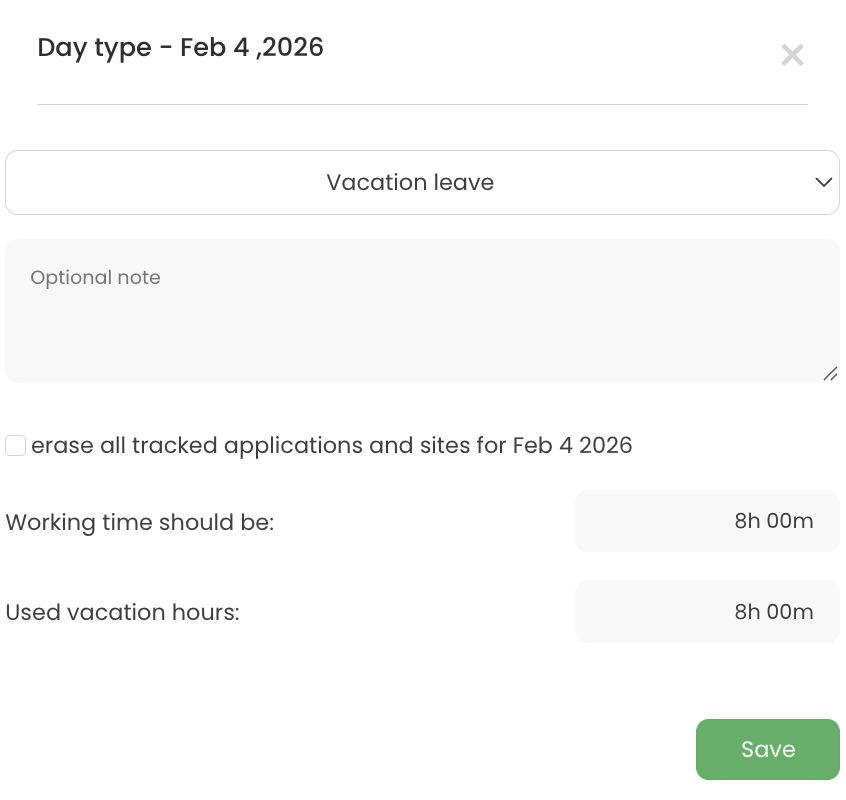
If I want to take several days off, I need to repeat this process for each day, which I find time-consuming.
TimeCamp allows managers to specify how many vacation hours employees may take, manage time off requests, and check balances, which is useful. Yet it lacks the option to create a custom leave type and advanced policy rules, such as setting policy expiration (which Clockify by CAKE.com offers).
Overall, TimeCamp is suitable for small teams that need basic attendance tracking and management. But it feels limited for large workforces that require advanced customization.
TimeCamp integrates directly with many project management, calendar, and CRM tools, including Trello, Asana, Salesforce, and others. It also offers time-tracking integrations with 80+ web apps via a browser plugin.
For example, the Google Calendar integration lets you convert calendar events into TimeCamp time entries to simplify timekeeping.
Keep in mind that calendar integrations are only available in TimeCamp’s Premium, Ultimate, and Enterprise plans (while Clockify offers these integrations on the Free plan).
Also, TimeCamp doesn’t have direct integrations with Gusto and ADP payroll and HR software platforms. However, it does integrate with BambooHR and Sage HRIS.
Disappointingly, TimeCamp’s integrations are all paid. In fact, the Premium plan includes only 1 integration. For unlimited integrations, you’ll have to upgrade to the Ultimate plan.
—
Now, let’s calculate the final ratings for the TimeCamp web app.
| TimeCamp web app | Rating |
|---|---|
| Time tracking | 3.5/5 |
| Computer activity tracking | 4/5 |
| AI Time Tracker | 4/5 |
| Remote work detection | 4/5 |
| Reporting | 4/5 |
| Billing and invoicing | 3.5/5 |
| Attendance tracking and time off | 3.5/5 |
| Integrations | 3.5/5 |
| Final rating | 3.8/5 |
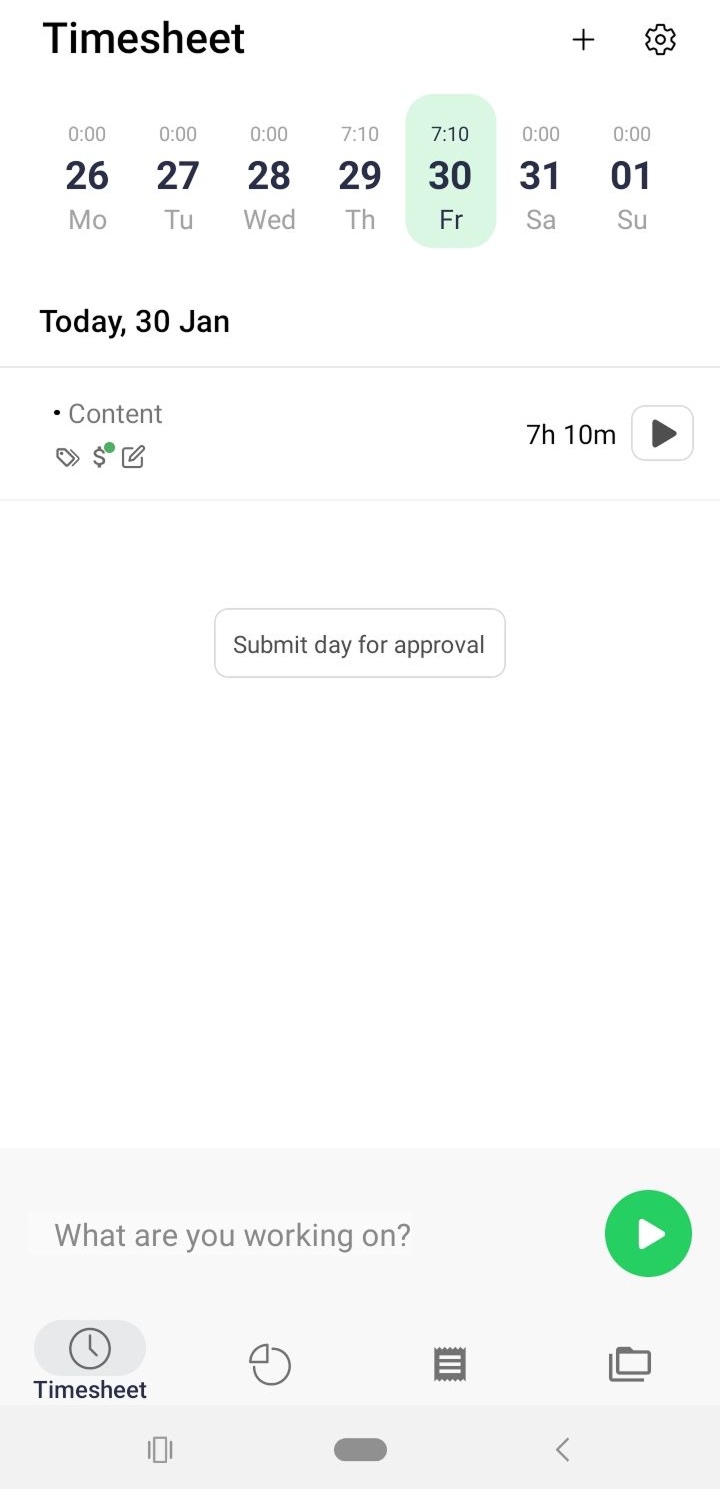
After testing TimeCamp’s web version, I switched to the mobile app. The Android app offers significantly fewer features than the web app, making it less overwhelming for new users.
All functionalities (timesheet, reports, expenses, and projects) are easily accessible from the screen’s bottom.
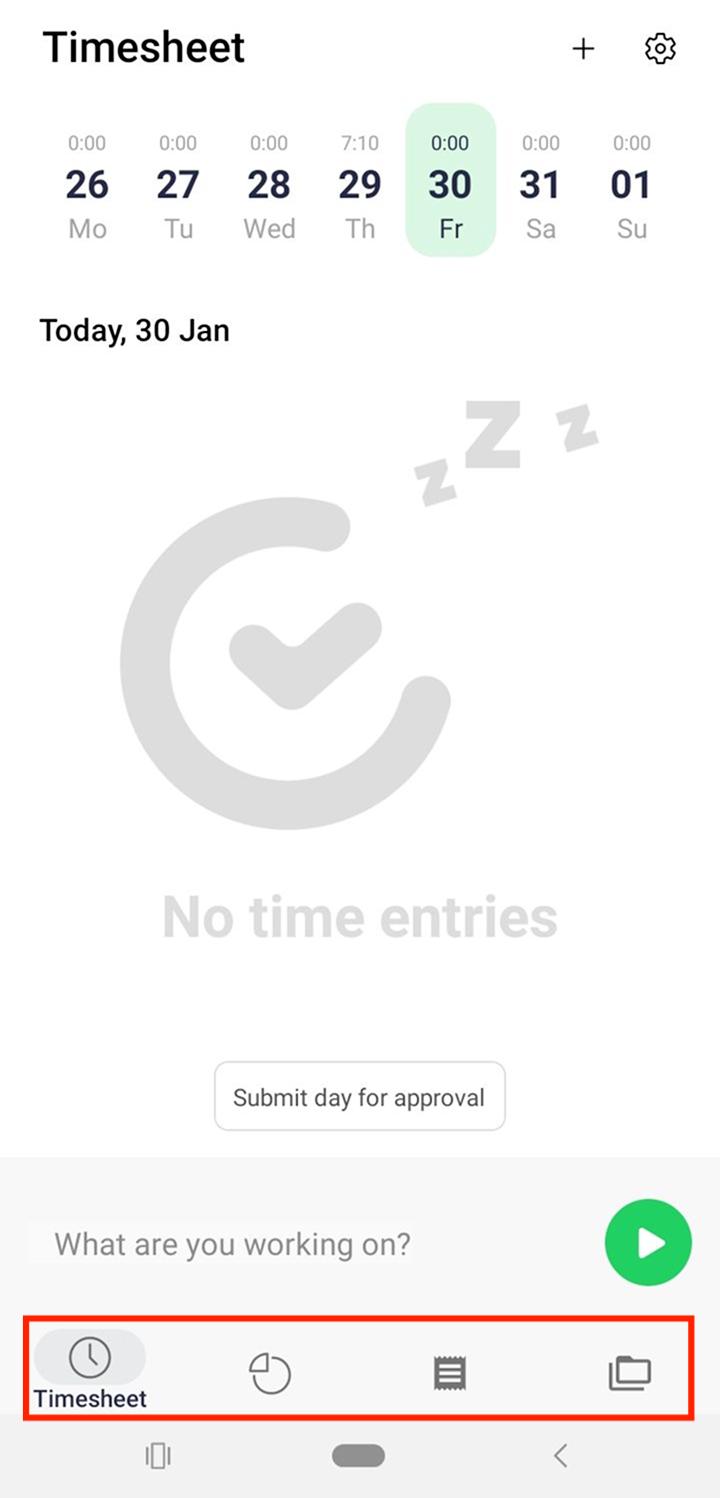
The only feature that took me a minute to find was the manual time-entry option. I expected it to be somewhere near the timer. Instead, it was in the top-right corner, represented by a small plus sign.
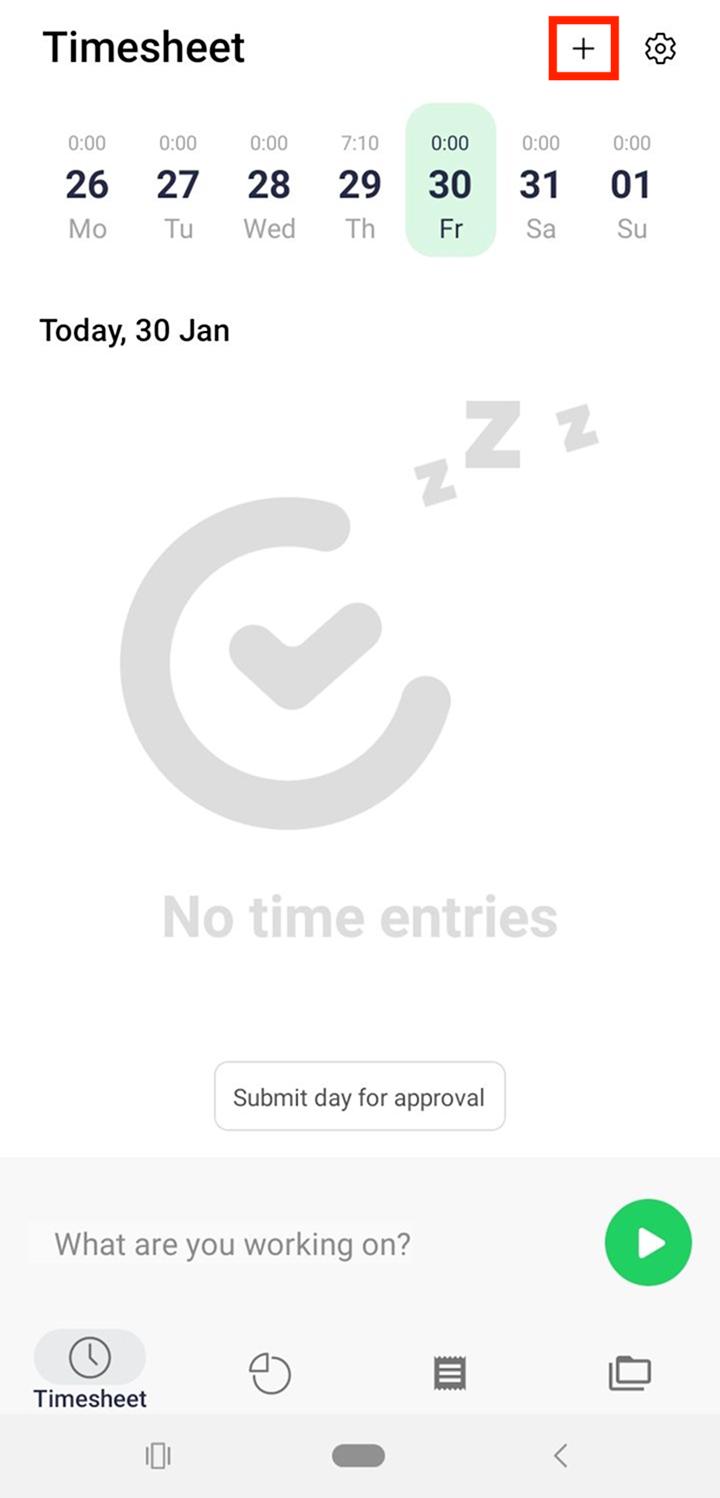
In my opinion, the plus sign icon should’ve been made more visible by increasing its size or adding some color.
Aside from this minor issue, adding time manually was simple. I clicked the plus sign, selected a task, and added my start and end times. Then, I set the billability status and clicked the Add time entry button. After a few seconds, the entry was created and saved in the app.
I also tried out the reporting feature. Compared to the variety of reports available on the web version, TimeCamp’s mobile app only offers a summary time report.
However, the summary time report only shows your own tracked time. This makes the report useless for project managers who want to analyze their team’s time data on the go. Specifically, you can see your:
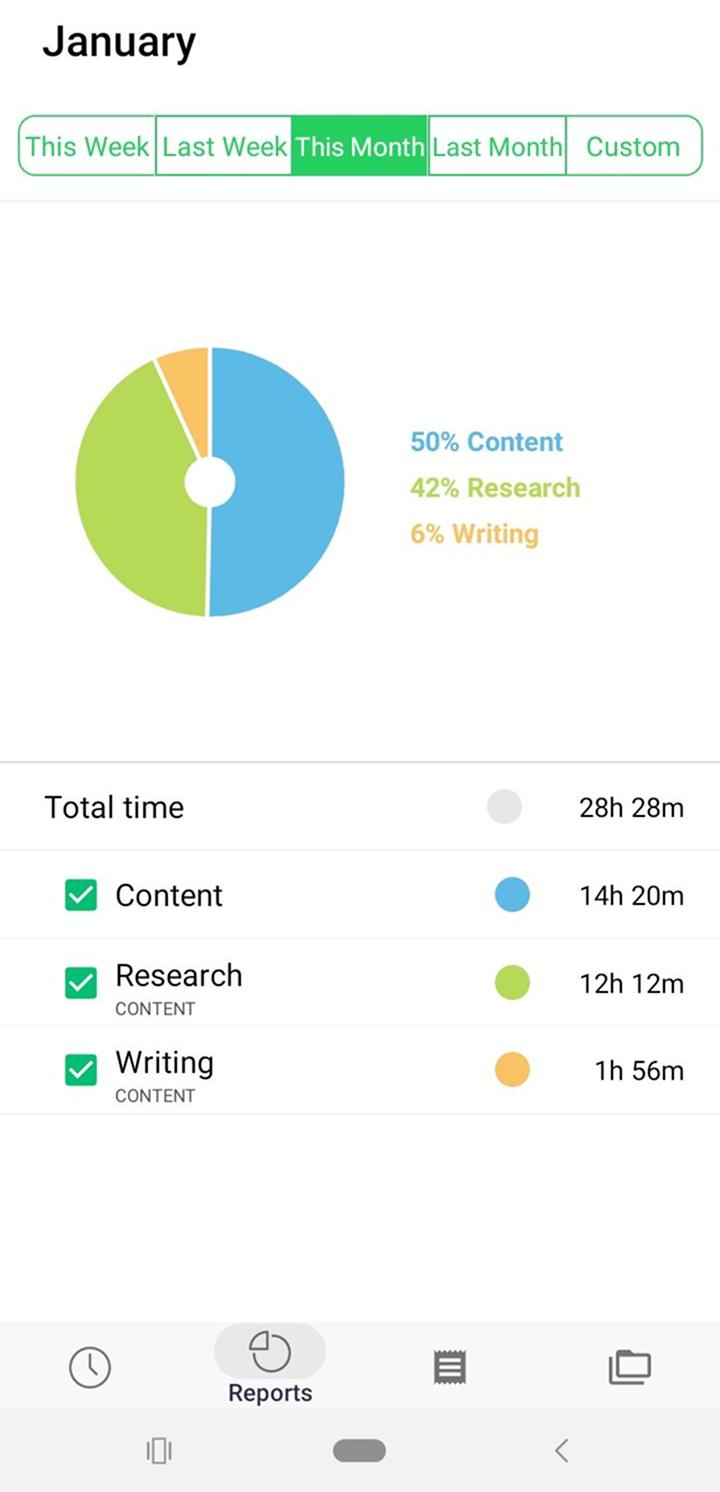
Overall, TimeCamp’s mobile app is straightforward and makes time tracking easy for employees. Still, it lacks the administrative options needed for effective management-level use.
In January 2026, TimeCamp introduced several updates, including the Czech language integration, 8 technical improvements, and 4 bug fixes.
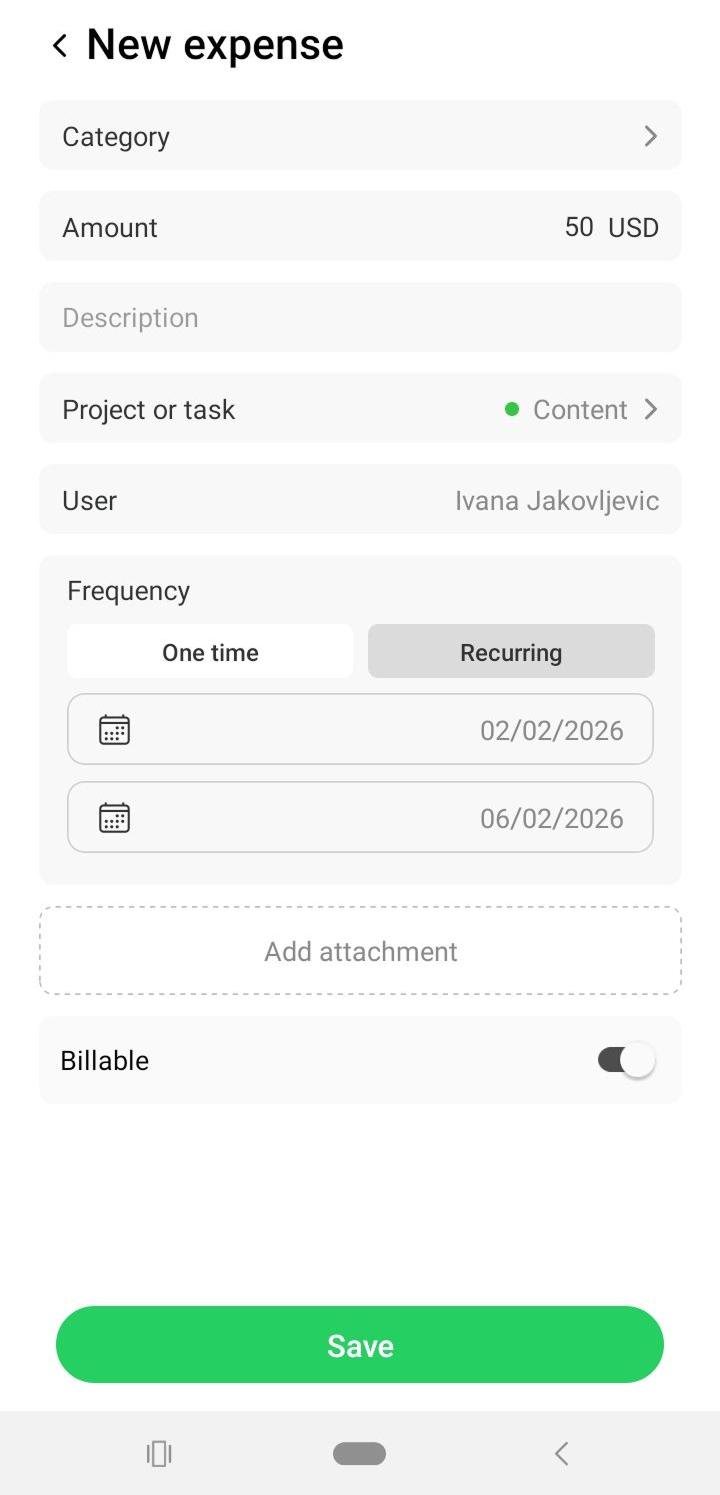
As of May 2025, TimeCamp users can add expenses from the mobile app, allowing expense tracking anywhere, anytime. Besides that, they can now schedule expenses in advance for multiple days.
To try it out, I scheduled a recurring expense for the period from February 2 to February 6, 2026. The process seemed smooth — I added the amount and project, set the billable status, and chose start and end days, as shown below:
However, when I tried to select a category, there were no categories available, nor could I add a new one — see below.
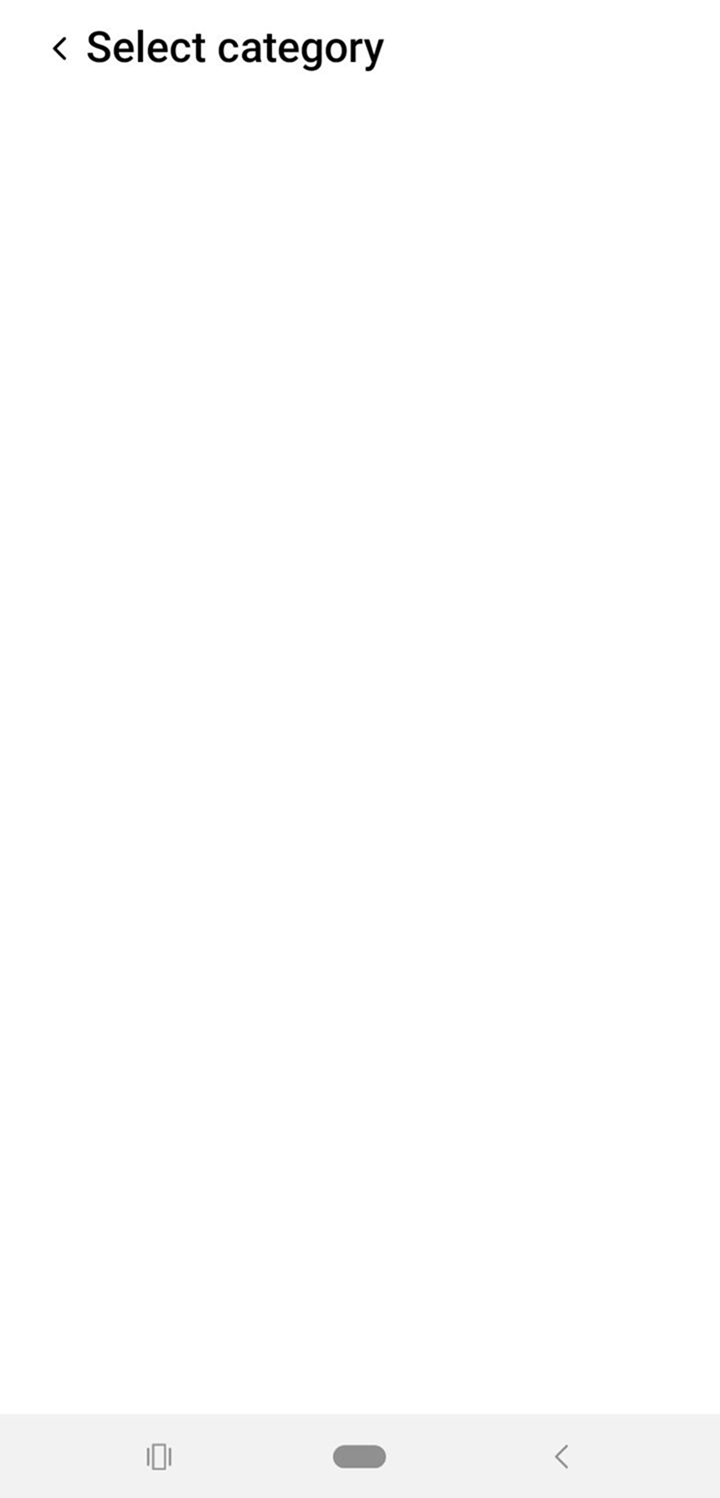
The irony is that adding a category is mandatory if you want to save an expense, so I wasn’t able to do that either.
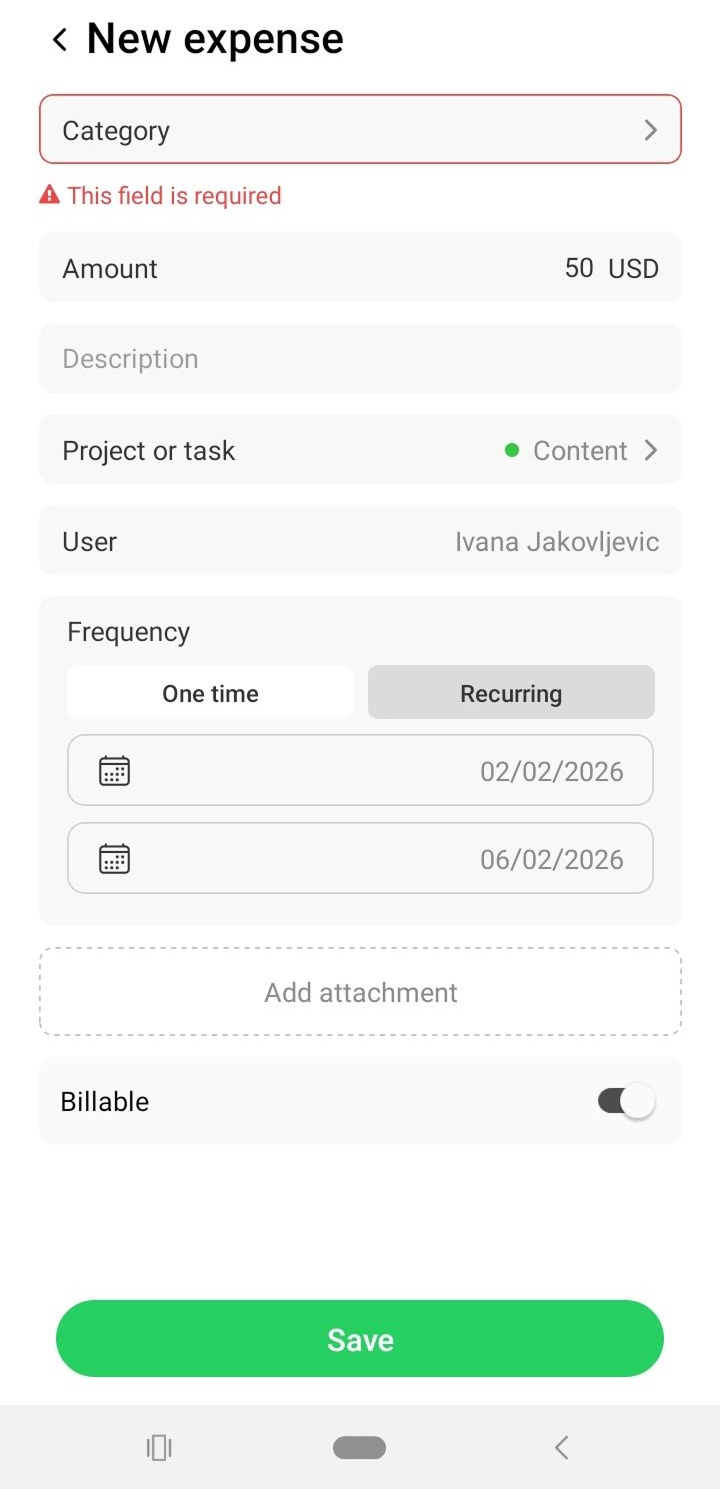
While the idea behind this update was promising, it doesn’t work properly, which makes it practically useless.
TimeCamp met but did not exceed my expectations. In other words, the app offers practical time-tracking options and a comprehensive reporting system. However, there’s nothing special about this software.
In my opinion, TimeCamp is best suited for freelancers and small teams who need a solid timekeeping and invoicing solution.
After considering all the factors that affect user experience, here’s my final verdict on TimeCamp:
| TimeCamp | Rating |
|---|---|
| Web app | 3.8/5 |
| Mobile app | 3.5/5 |
| Pricing | 3.5/5 |
| Usability and interface | 4/5 |
| Security and privacy | 4/5 |
| Customer support | 3.5/5 |
| Customer reviews | 4.4/5 |
| Final verdict | 3.8/5 |
To maximize project margins as a manager or business owner, use Clockify by CAKE.com. Our app is a powerful TimeCamp alternative suited for all industries:
Similar to TimeCamp, Clockify’s timekeeping software offers features such as the manual time-entry option, timer, timesheets, and kiosk.
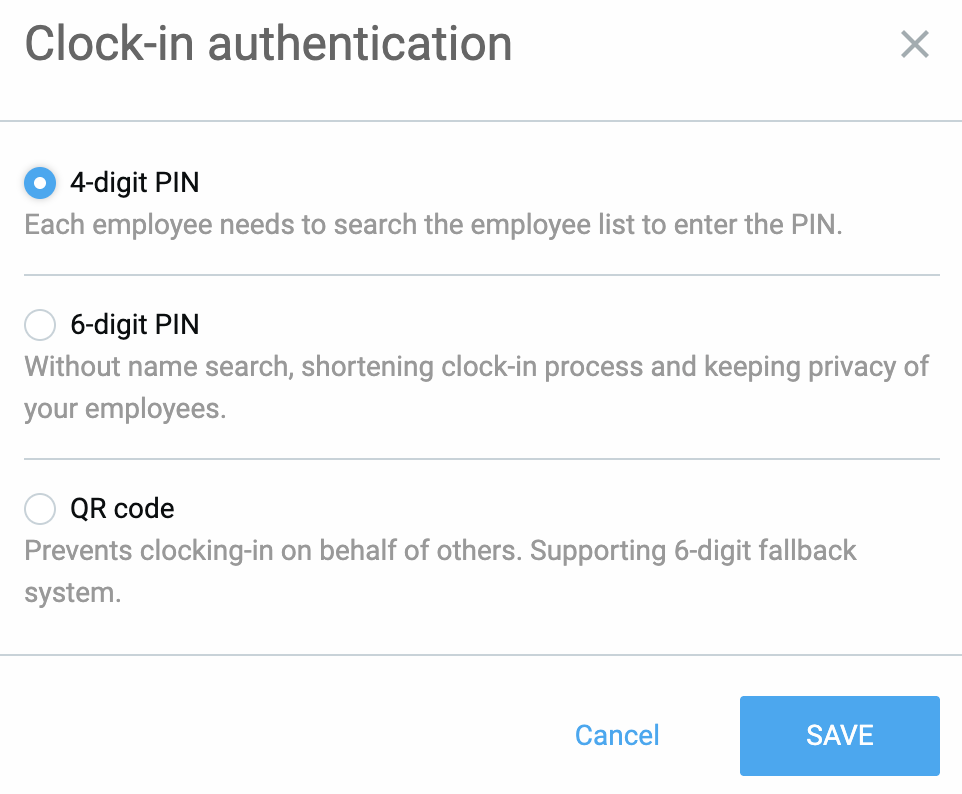
But TimeCamp only lets managers set a 4-digit PIN as an authentication method for the kiosk; Clockify also provides 6-digit PIN and QR code options. This allows for greater flexibility and security.
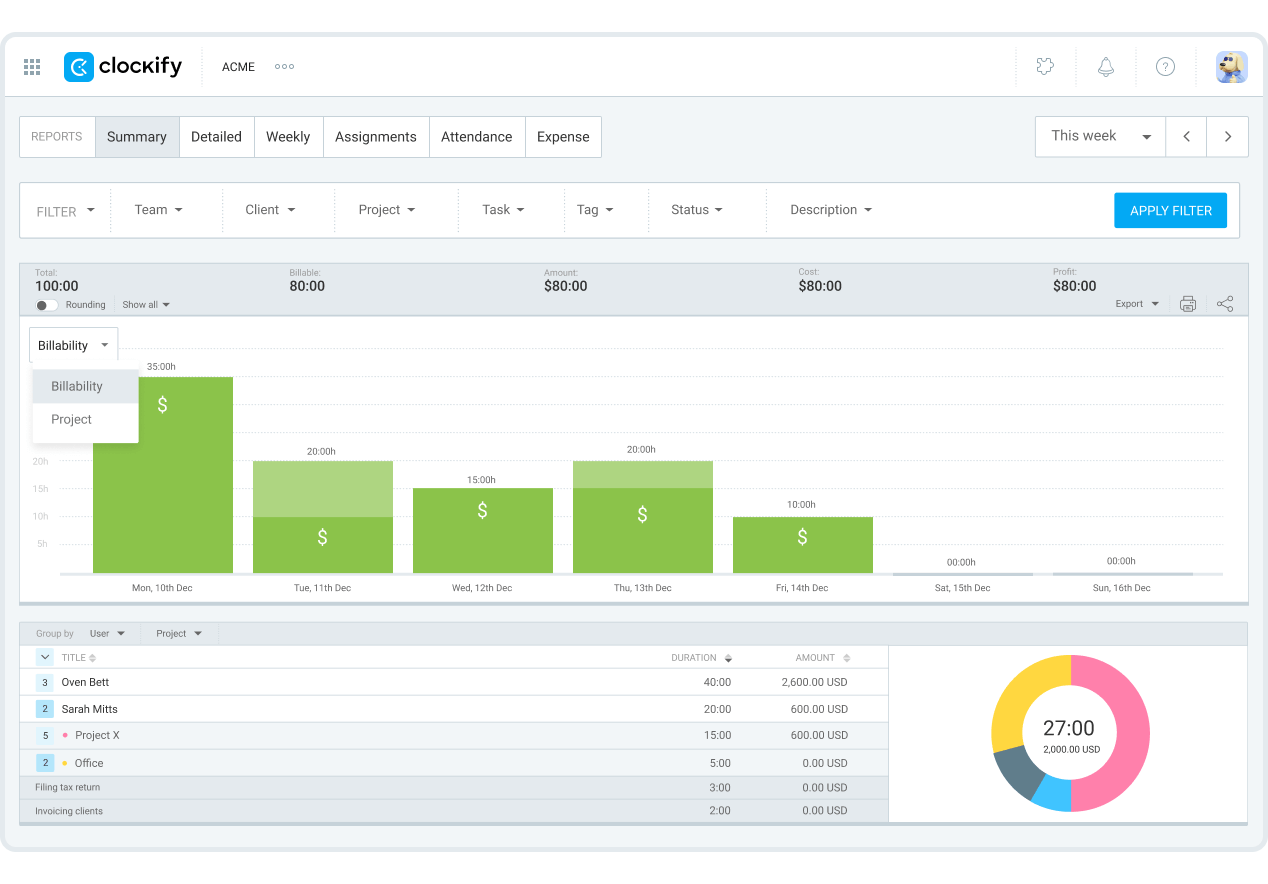
When it comes to reporting, both Clockify and TimeCamp offer robust capabilities for analyzing team productivity and project profitability. However, Clockify’s reports are more visually appealing.
For instance, Clockify’s summary report is highly customizable and includes charts that make project performance easy to grasp.
As part of the CAKE.com Bundle, Clockify integrates smoothly with the Pumble team communication tool and the Plaky project management software. To maximize your team’s productivity and save money, you can get 3 tools for a special price.

Unlike TimeCamp, Clockify offers free full human customer support for all users via phone, chat, and email. It also provides concierge services for qualified clients on all paid plans (whereas TimeCamp offers similar services only on its most expensive plan).
For an easier comparison, here’s a side-by-side overview of TimeCamp vs. Clockify:
| Features | TimeCamp | Clockify by CAKE.com |
|---|---|---|
| Primary use | Time tracking Productivity monitoring |
Time tracking Project budget tracking Team management |
| Time tracking | Manual mode Timer Timesheets Kiosk |
Manual mode Timer Timesheets Kiosk |
| Reporting | Time Finance Productivity Attendance Custom |
Productivity Project budgets Attendance Assignment Expense Audit Custom |
| Billing and invoicing | Billable rates Automatic billable hours calculation Relatively fast invoice creation Exporting invoices in PDF format |
Billable rates Automatic billable hours calculation Fast and easy invoice creation Exporting invoices in PDF, CSV, and Excel formats |
| Free plan | Free plan with unlimited users and projects, and 2-factor authentication | Free plan with unlimited projects and clients, multiple time tracking modes, and time tracking integrations |
| Suitable for | Individuals, freelancers, small teams | Small to medium-sized businesses and remote teams |
| Pricing | Starting at $3.99 per user/month if billed annually | Starting at $3.99 per seat/month if billed annually |
Here are answers to some frequently asked questions (potential) TimeCamp users have about the tool.
Yes, TimeCamp offers GPS tracking and geofencing through its mobile app (iOS and Android). These options allow operations managers to track when and for how long an employee worked at a specific job site.
GPS tracking is particularly useful for industries with field teams, such as construction and maintenance.
TimeCamp offers a screenshot feature for employee monitoring, available to users on the Ultimate and Enterprise plans.
Taking screenshots is only possible when using the desktop app. If the feature is activated, the desktop time tracker takes screenshots every 10 minutes.
Employees can’t see when a screenshot is being taken unless they’re on macOS. In that case, they may see a purple dot indicator beside the Control Center icon in the menu bar.
With TimeCamp, employees can track time by using:
Additionally, TimeCamp offers automatic time tracking through the desktop app.
The app starts recording an employee’s time spent on various websites, apps, and tasks as soon as they log into their account. This allows for increased efficiency.
TimeCamp offers a free plan with time-tracking essentials for individuals and small teams.