Scheduling software is a tool that allows you to plan your team’s work: Who works on what, when, how long, and also allows you to see who’s available when and who’s busy.
After testing each app out, here’s my review of the 6 best scheduling software solutions available in 2026.
WHY TRUST US?
The apps we talk about are selected, tested, and written about by human reviewers who follow strict review and editorial guidelines. We pick solutions that are practical, purposeful, and can offer real value for the specific use case or business context we’re covering — while also being justified in their pricing. Our methodology is transparent, clear, and available to everyone:
| App | Best for | Pricing | Time tracking | Schedule sync with external calendar | Reports | Customer support |
|---|---|---|---|---|---|---|
| Clockify | SMBs, enterprises, consultants, remote workers, digital agencies, NGOs, and universities. | Free: up to 5 users, unlimited projects Basic: $3.99/month/user if billed annually Standard: $5.49/month/user if billed annually Pro: $7.99/month/user if billed annually Enterprise: $11.99/month/user if billed annually | ✅ | Google Calendar, Microsoft Outlook | ✅ | 24/7, Phone, Live chat, Email, Help center, FAQs |
| Homebase | Shift-based teams, including restaurants, retail, healthcare, beauty centers, and home and repair. | Basic: free (1 location, unlimited users) Essentials: $24/location/ month if billed annually Plus: $56/location/ month if billed annually All in one: $96/location/ month if billed annually | ✅ | Calendar in the mobile app | ✅ | Not 24/7; Phone, Email, Chat, Help center |
| When I Work | Shift workers in different industries, including call centers and restaurants. | No free plan Single location or schedule: $2.50/user/month Multiple locations or schedules: $5/user/month | ✅ | With all Calendars that support the Calendar (by Apple) method | ✅ | Not 24/7, In-app tickets, Live chat, FAQs |
| Deputy | Hospitality, retail, event, healthcare, construction, and teaching. | No free plan Lite: $3.5/user if billed annually Core: $6.50/user if billed annually Pro: $9/user if billed annually | ✅ | Google Calendar, Calendar (by Apple), Microsoft Outlook | ✅ | 24/7, Phone, Live chat, Email, Help center, FAQs |
| Sling | Large teams working different shifts in various roles. | Free: for up to 30 users Premium: $1.70/user if billed annually Business: $3.40/user if billed annually | ✅ | With all Calendars that support the Calendar (by Apple) method | ✅ | Not 24/7, In-app chat, Help center, FAQs |
| ClockShark | Construction, field service, and franchise companies. | No free plan Standard: $40 base fee + $9/user Pro: $60 base fee + $11/user | ✅ | Google Calendar, Microsoft Outlook | ❌ | Not 24/7, Phone, In-app chat, Email, FAQs |
How we evaluated scheduling tools
I evaluated each scheduling tool from the list based on specific criteria. In short, the best scheduling software should:
- Provide some value for everyone. An employee scheduling app with a large list of features covers a large variety of needs. Its value increases as more features make it applicable to a wider range of professional settings.
- Be affordable. Competitive scheduling software offers various pricing plans for different user segments. Ideally, it can also offer a free version with real value for its users, or a free trial option to test it out.
- Be available on multiple platforms. Introducing new software to a company is simple when you don’t have to make a huge shift in resources. Ideally, new software should be available for the devices and operating systems that you currently use.
- Have a large pool of satisfied users. Nothing speaks to software quality better than a large pool of happy users and positive reviews. A satisfied user who takes the time to leave feedback provides valuable insights into the software’s usefulness, the experience of using it, and the changes it made to their work life after implementation.
- Have reliable customer support. Customer service can make or break user experience. The app’s customer support should respond quickly and be knowledgeable so users can get their issues solved fast.
Based on the outlined criteria, I picked out the 6 best job scheduling software solutions that currently stand out on the market.
#1: Clockify by CAKE.com — best for scheduling based on team capacity
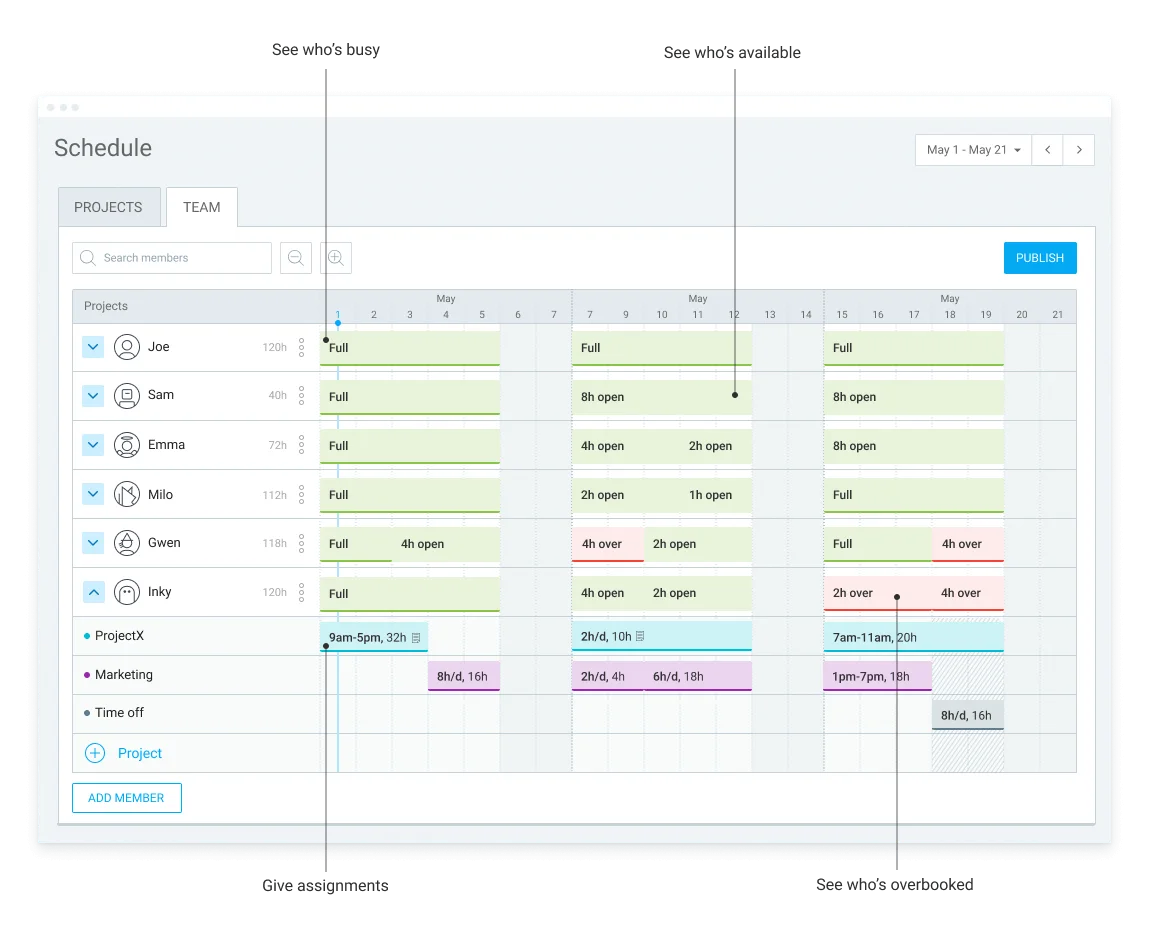
Clockify by CAKE.com is a work hours tracker with scheduling features. The app lets you define daily or weekly employee capacity, assign tasks, and track progress.
How does Clockify by CAKE.com work?
You can use Clockify to track employee attendance and productivity, as well as schedule assignments.
When managing a team, Clockify lets you divide all employees into teams so you can schedule individual or group tasks. I like that I can make changes with a simple drag-and-drop and view the schedule in Team view or Project view.
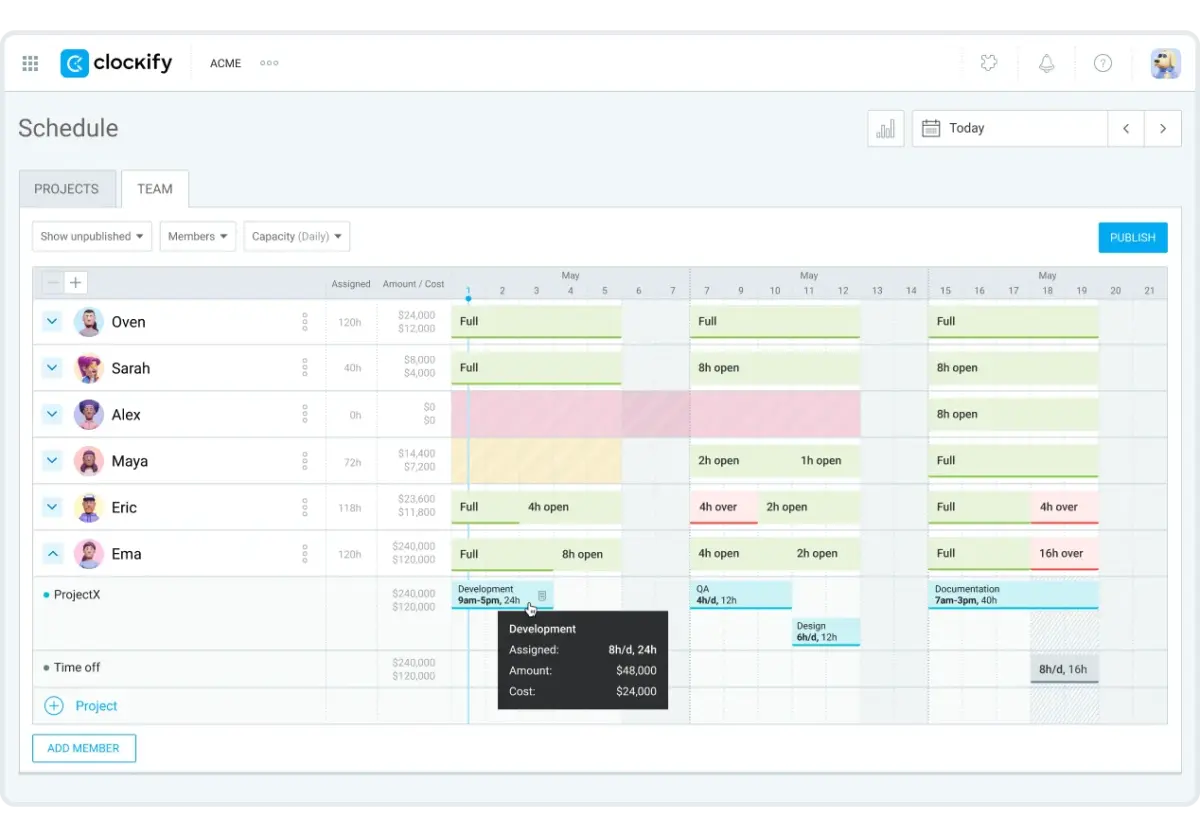
While using the app, I set each employee’s daily or weekly capacity.
Let’s say I schedule a 3-hour assignment for one employee on Monday and set their daily capacity to 8 hours. Clockify will show that they have 5 hours open for Monday. If I schedule all 8 hours, the app will display that day as Full; if I go over 8 hours, it will show how many hours are scheduled beyond their capacity.
Here are some additional features you can find in Clockify:
- Recurring assignments — create recurring assignments for a certain number of weeks.
- Milestones — create a milestone by clicking on any date, and it will appear on the schedule timeline.
- Time off — track who is away and for how long.
- Alerts — receive alerts if someone is working overtime or less than planned.
- Hourly rates — set and track hourly rates for each team member, task, or project you schedule.
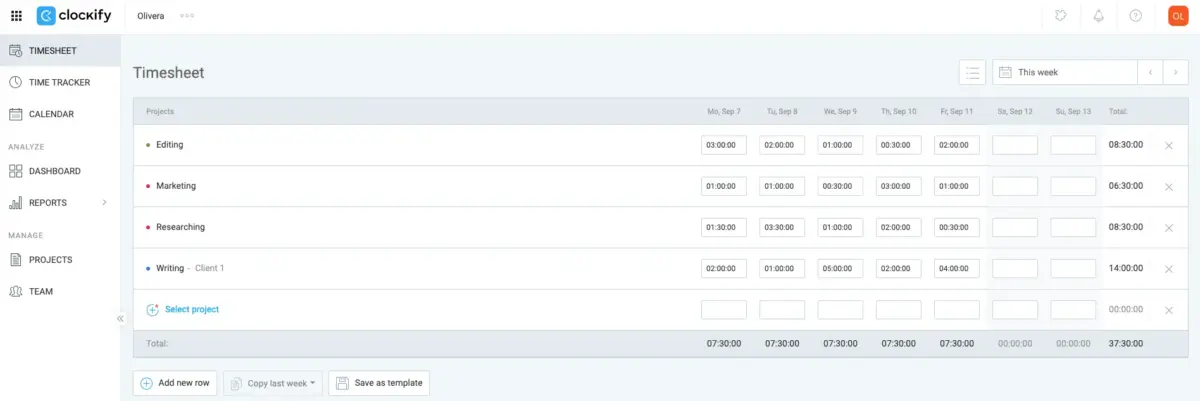
Apart from scheduling features, Clockify comes with extensive time tracking options: Timer, Timesheet, Kiosk, Manual mode, and more.
How much does Clockify cost?
Clockify’s paid plans start at $3.99 per user/month (if billed annually). The most affordable plan (Basic) includes Kiosk for clocking in and out from a shared device. It also provides additional admin features (report exports, customization options, project templates, bulk editing).
The Standard plan costs $5.49 per user/month (if billed annually) and includes additional time and billing features, such as Time off, Invoicing, Timesheet approval, Targets and reminders, Task rates, etc.
The Pro plan costs $7.99 per user/month (if billed annually) and provides Team scheduling, Expenses, Budget and estimation tracking, GPS tracking, Activity monitoring, and more.
The Enterprise plan, costing $11.99 per user/month (if billed annually), includes all the previously mentioned features and adds an extra layer of control and security to your workflow. Such features include Single Sign-On (SSO) and Audit log.
How did the users rate Clockify?
Overall rating: 4.8 (9,262 reviews)
Users like that Clockify lets them track time on an unlimited number of projects for free, and paid users can create and customize schedules and manage time off easily.
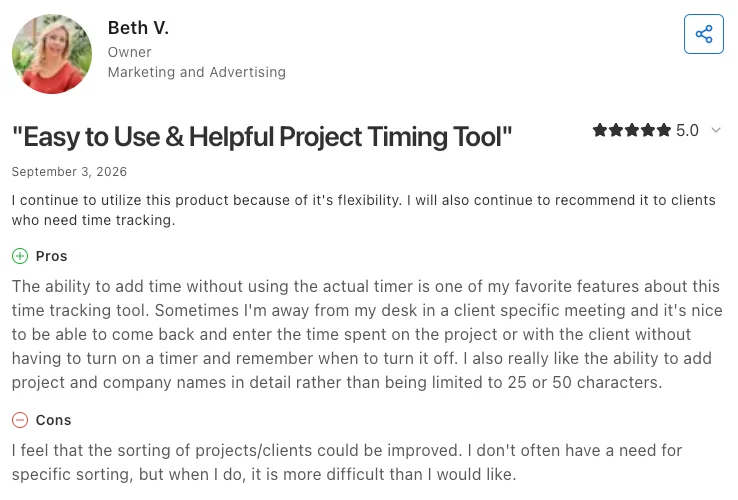
One user praised Clockify for the variety of time tracking features, as she can choose to enter time manually, instead of always relying on the Timer:
“The ability to add time without the actual timer is one of my favorite features about this time tracking tool. Sometimes I’m away from my desk in a client-specific meeting, and it’s nice to be able to come back and enter the time spent on the project or with the client without having to turn on a timer and remember when to turn it off.”
Users also report a positive experience with Clockify’s 24/7 customer service. According to reviews, customer support agents respond promptly and resolve problems quickly.
Clockify pros and cons
Clockify stands out from the rest of the scheduling software due to:
- Pricing. Clockify has 4 affordable pricing plans starting at $3.99/user/month, and a free version that lets you track time on an unlimited number of projects.
- Scalability. On the paid plans, Clockify has no limit on the number of users or the number of projects/tasks you can track and schedule.
- Team capacity in scheduling. Clockify lets you see team capacity when scheduling assignments.
Some users may find the following to be disadvantages of using Clockify:
- Short free trial — the free trial lasts for 7 days.
- No in-app schedule templates — but you can still download free schedule templates on the Clockify website.
What’s new in Clockify?
As of August 2026, you can use automated country-specific holiday imports in Clockify. This means you can now apply holidays of a specific country to the entire workspace or selected team members. The holidays then appear on the users’ Clockify Calendar.
| Free plan | Yes |
| Free trial | Yes, 7-day free trial (extension possible after reaching out to support) |
| Cheapest paid plan | $3.99/seat/month if billed annually |
| Platforms | Web, Windows, Mac, Android, iOS, Chrome, Edge, and Firefox browser extensions |

#2: Homebase — best for scheduling shifts by role
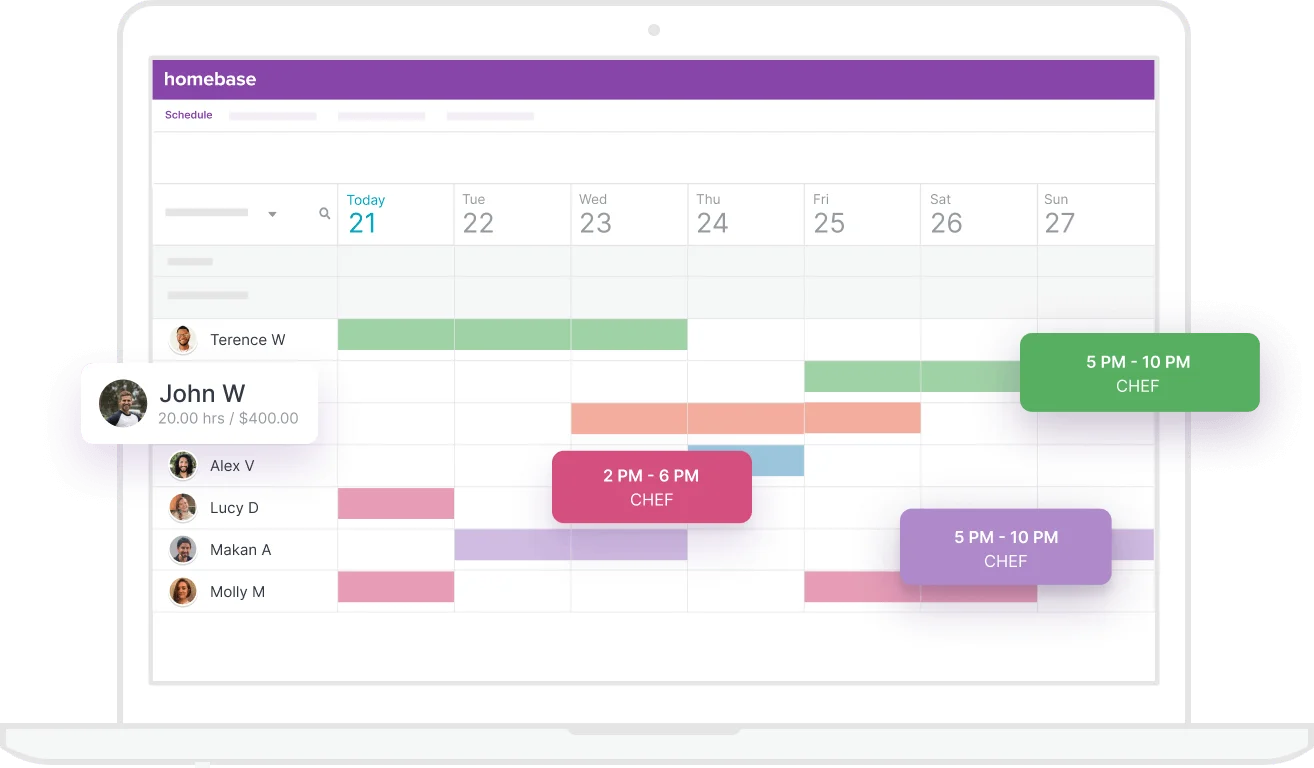
Homebase is a shift scheduling software solution that lets managers schedule shifts for specific roles, and employees set their availability.
How does Homebase work?
You can schedule shifts within Homebase’s Calendar. Homebase supports color-coding, so I assigned a different color to each role to differentiate them easily. Once I added users and shifts, the Calendar looked like this:
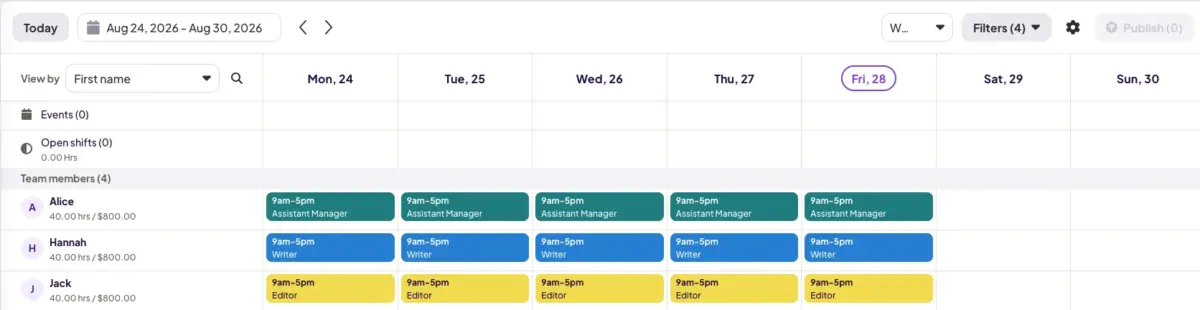
Homebase also has an Open shift option where employees can take over unassigned shifts if their capacity allows.
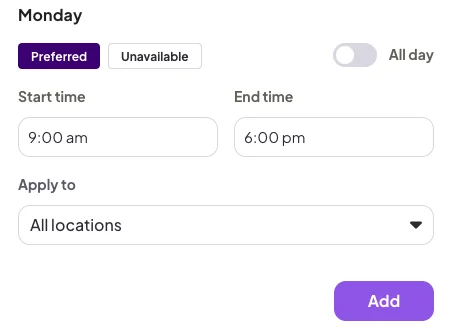
Employees can specify their preferred work time or the times they’re unavailable. It seems more convenient to use both options at the same time. Of course, I would have to be careful that the preferred and unavailable hours don’t overlap, but the app could alert me if they did. However, it’s still a useful feature.
In Homebase, you’ll also find the following features:
- Multiple views — Homebase lets you choose the schedule view (Employee, Department, or Role).
- Events — create events for a specific day to announce meetings, team-building, etc.
- Notifications — employees are notified about new schedules via text, email, or the app, and will receive alerts about any changes.
- HR features — Homebase offers many HR management features, including hiring, onboarding, and monitoring employee happiness at work.
- Cash Out — Homebase provides a service that lets users transfer money to their bank accounts before payday, without interest charges, credit checks, or late fees.
How much does Homebase cost?
Homebase has 3 paid plans.
The Essentials plan costs $24 per location/month if billed annually. It includes advanced time tracking and scheduling features, so you can set overtime and break preferences, manage availability, and approve or reject time-off requests.
The Plus plan is $56 per location/month if billed annually. This plan comes with AI-powered scheduling features. The highest-tier plan is the All-in-One plan, and it costs $96 per location/month with annual pricing. This plan includes HR and compliance features, such as having HR professionals review your policies and being notified about federal and state labor law changes.
Due to its location-based pricing model, Homebase can be affordable for companies with few locations. However, because it’s priced per location, it can get expensive if your business operates in multiple locations. Add the cost of add-ons like Payroll, which many companies need, and expenses can pile up quickly.
How did the users rate Homebase?
Overall rating: 4.6 (1,153 reviews)
Most users appreciate Homebase’s HR and scheduling features. A common issue is that users don’t get notified about schedule changes or don’t have the option to customize which notifications they receive.
Homebase users view the software as fairly easy to use. Users mostly mention a simple scheduling process and payroll features as the product’s biggest pluses.
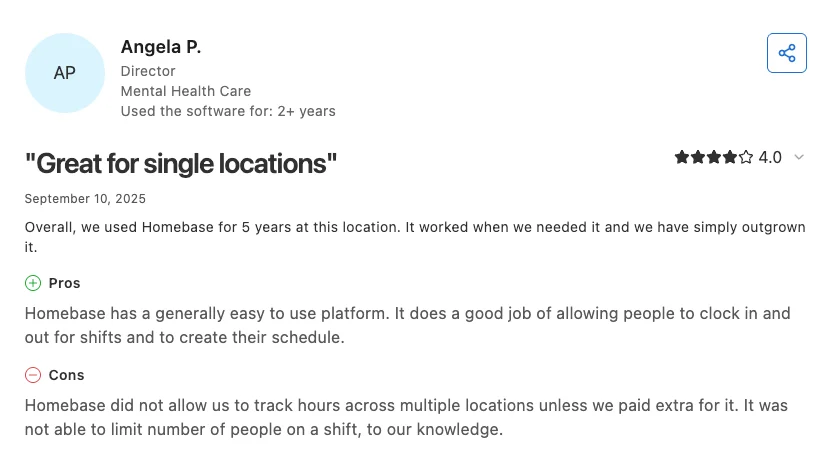
One user explained that Homebase is a great tool for businesses that only have one location, saying: “Homebase has a generally easy-to-use platform. It does a good job of allowing people to clock in and out for shifts and to create their schedule. Homebase did not allow us to track hours across multiple locations unless we paid extra for it.”
Users rate Homebase customer service as helpful in improving the onboarding flow and resolving the bugs and issues they report. However, some users complained that the Homebase customer support agents can be slow to respond at times and unable to find solutions.
Homebase pros and cons
Homebase stands out for the following features:
- Auto-scheduling — set up automatic shift scheduling.
- Schedule templates — save schedules as templates.
- Availability — set preferred/unavailable time slots.
Homebase has the following cons:
- No desktop app — Homebase isn’t available as a Windows, Mac, or Linux app.
- No option to add both preferred and unavailable time slots — users have to choose whether they want to mark a preferred or unavailable time; setting both isn’t an option.
What’s new in Homebase?
As of December 2025, you can use an AI scheduling assistant in Homebase. This AI feature can help with shift creation, automatically solve scheduling conflicts, and recommend schedule improvements.
💡 CLOCKIFY PRO TIP
To learn how to schedule teams effectively without encountering scheduling conflicts, check out this article:
| Free plan | Yes |
| Free trial | Yes, 14-day free trial |
| Cheapest paid plan | $24/location/month if billed annually |
| Platforms | Web, Android, iOS |
#3: When I Work — best for creating open shifts
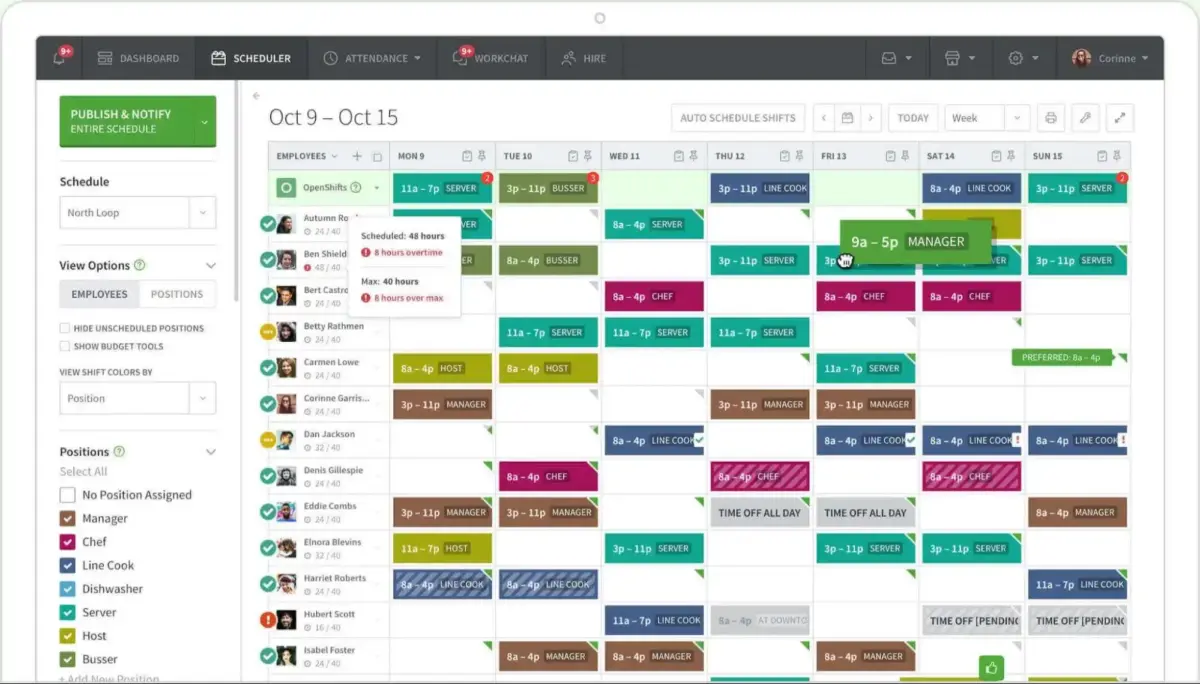
When I Work is an employee scheduling software solution for shift-based workplaces. Besides scheduling, it offers time and attendance features, team messaging for shift swaps, and payroll configurations.
How does When I Work work?
When I Work is primarily a scheduling and attendance tracking app. You can add shifts and track who clocked in and out, and when.
Shift scheduling in When I Work is done within a Calendar. I simply click on the specific date under a specific user, and I’m prompted to add the shift start and end times.
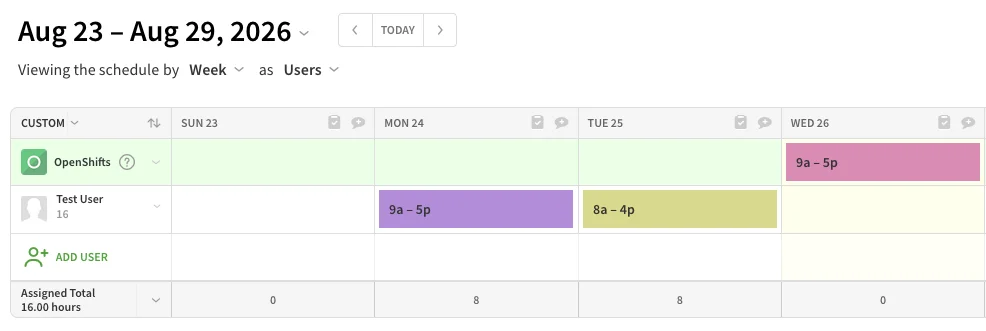
The app also lets me add job positions and assign them to specific employees. So, when I’m scheduling a shift for a team member, I can add their role.
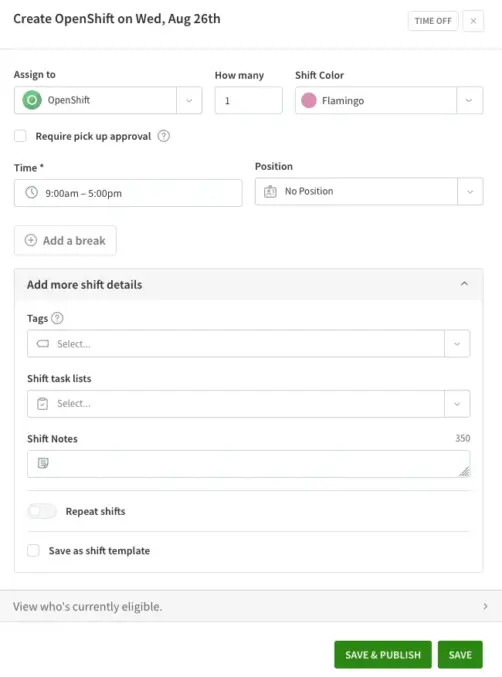
I found adding positions to be more useful when adding Open shifts. This means I can add a shift that needs to be filled and specify the role. An employee who can work that specific position and has enough capacity can then take over the shift.
When I Work boasts the following scheduling options:
- Employee availability — see who’s available to work and when.
- Multiple schedule view — view by shift, position, employee, coverage, or month.
- Shift swaps — offer multiple shifts to employees.
- Task list — keep a task list for a shift to follow progress.
- Team chat — communicate with other team members in chats.
- Calendar sync — sync with your Mac, iOS, Google, or Outlook calendars.
- Schedule templates — save schedules as templates.
- Auto-scheduling — automatically assign shifts to employees.
How much does When I Work cost?
When I Work doesn’t offer a free plan. The plan for a single user and location costs $2.50 per user and includes standard scheduling for unlimited users. The plan for multiple users and locations costs $6 per user, and it includes advanced scheduling for unlimited users.
How did the users rate When I Work?
Overall rating: 4.5 (1,300 reviews)
Users appreciate the ability to see who has time off, automatic notifications to employees after a shift is scheduled, and the ability to swap shifts without contacting management.
Users rate the When I Work interface as good enough, commenting that it could be more appealing and modern, even though it doesn’t affect the software functionality.
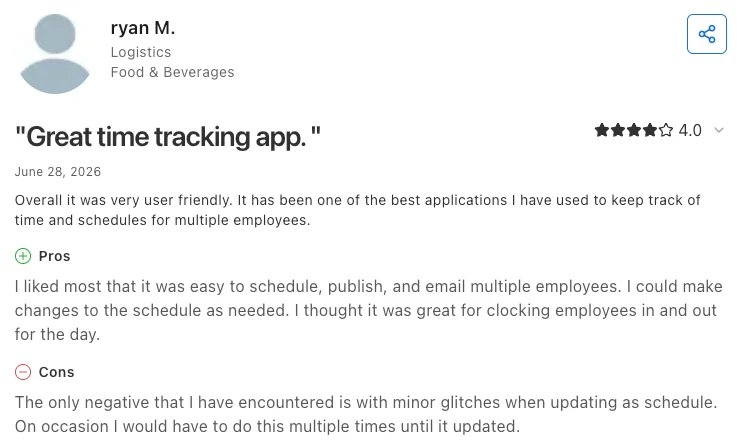
One user was satisfied with how easy-to-use the app is, noting: “I liked most that it was easy to schedule, publish, and email multiple employees. I could make changes to the schedule as needed.”
Users are mostly satisfied with When I Work’s customer service, but report the lack of a phone call option, which is often more efficient for explaining and resolving issues.
When I Work pros and cons
Here are some stand-out features of When I Work:
- Optional add-ons — you can choose to include or exclude Time & Attendance features from your pricing plan.
- On-demand pay by Clair — activating this optional add-on will provide your employees with an option to access a portion of their wages after each shift.
- Shift bidding — employees can request a shift, which managers can then approve or reject.
When it comes to When I Work cons, some users may dislike the following:
- Complex time-adding system — to schedule a time slot, you have to type in the start time, signify whether it’s a.m. or p.m., include a dash, and then the end time (e.g., 7 a.m. – 3 p.m.), which isn’t convenient.
- Outdated interface — the interface could be more modern, as it looks clunky.
Use a simple, modern alternative
What’s new in When I Work?
The latest When I Work release notes date back to March 2025. So, as of Q1 of 2025, you can schedule breaks for your team.
| Free plan | No |
| Free trial | Yes, 14-day free trial |
| Cheapest paid plan | $2.50/user/month |
| Platforms | Web, Android, iOS |
#4: Deputy — best for assigning jobs and tracking tasks separately
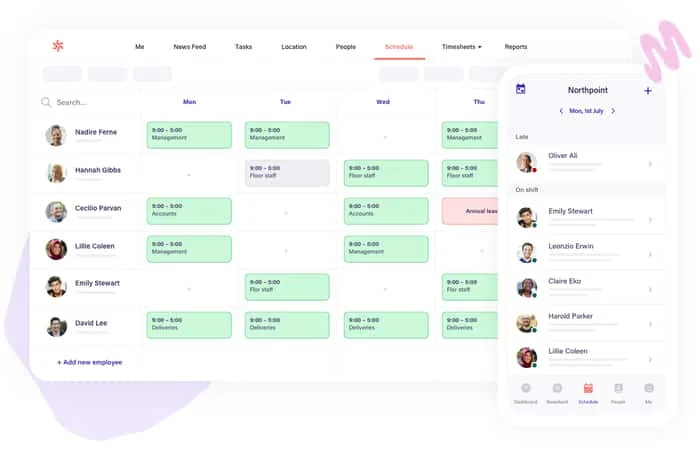
Deputy is a scheduling, time tracking, and attendance software for individuals or larger teams. The app lets you assign shifts to team members in its built-in calendar or leave shifts unassigned.
How does Deputy work?
After testing the app, I noticed Deputy lets me assign work hours by role. Then, I can add employees to these shifts. If I don’t add a team member to a scheduled role, the shift is displayed as Empty by default. I use this option when I plan to assign the role to an employee later.
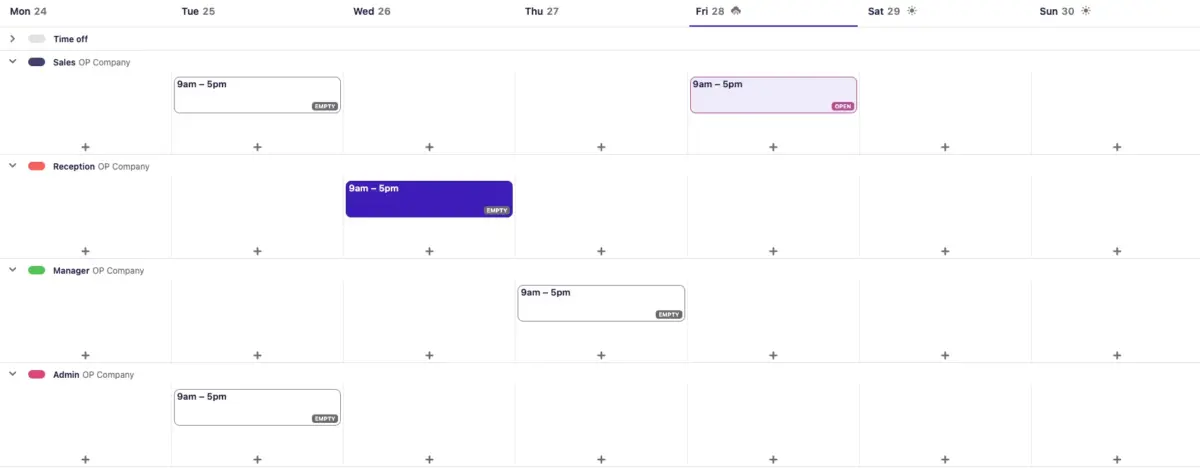
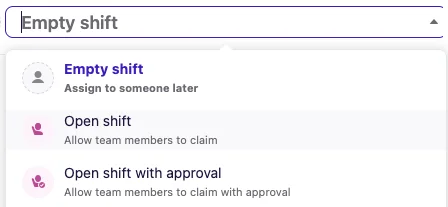
I find it convenient that the app lets me change an Empty shift to an Open shift so a team member can claim it. There are 2 options for open shifts: The shift can be claimed by any team member, or I can require approval before the shift is claimed.
I also discovered that I can assign tasks, but they aren’t connected to the schedule.
In Deputy, you can find these scheduling features:
- Multiple views — view by area (by day, week, 2-week), or by employee (day, week, 2-week, 4-week, month).
- Time off — see who’s away and for how long.
- Auto-scheduling — automatically assign people to shifts.
- Schedule templates — save schedules as templates.
- Shift offers — send available shift offers to employees.
- Notifications — require employees to confirm they have seen schedule changes.
- Undo actions — undo bulk changes that have been made.
- Calendar sync — sync schedules with Google, Outlook, Mac, or iOS calendar.
- Team permissions — configure whether employees can see each other’s schedules, and which ones.
- Shift cost — assign projected costs to an open shift.
How much does Deputy cost?
Deputy doesn’t offer a free plan. Depending on your needs, you can choose 1 of the 3 pricing plans: Lite, Core, and Pro.
The Lite plan is $5 per user/month if billed annually. This plan includes basic scheduling features and basic timesheets. The Core plan costs $6.50 per user/month (annual billing) and includes advanced scheduling features, Timesheet auto-approval, Auto-scheduling, Demand forecasting, and more.
For $9 a month if billed annually, the Pro package includes all features contained in the previous 2 packages, plus Advanced timesheets, Single Sign-On (SSO), 24/7 live chat, and more.
How did the users rate Deputy?
Overall rating: 4.6 (773 reviews)
Generally, users are satisfied with Deputy. Apart from occasional complaints about product glitches or integration issues, many users praise its simplicity and affordability.
As for Deputy’s shortcomings, some users reported waiting longer than expected for customer support or appropriate assistance, especially with ADP integration.
One user found Deputy to be quite practical and user-friendly once they learned how to use it: “My overall experience with Deputy was good. The app offers strong functionality for scheduling, timekeeping, and staff management. While there was a learning curve at first, it performed well once set up and in regular use.”
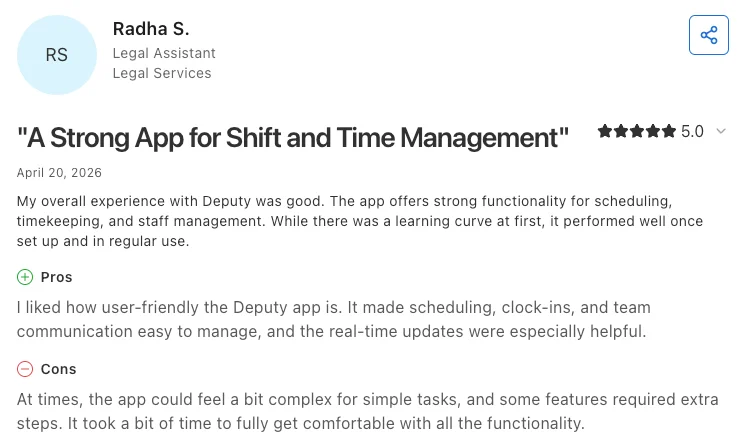
Customer service was rated good overall, though some users reported negative feedback, describing it as unhelpful and unable to provide answers.
Deputy pros and cons
Deputy boasts a few features some users will find quite useful:
- Customized plan — if your company has more than 250 employees, Deputy offers an Enterprise plan with customized feature configurations.
- SMS notifications — notify employees about shift changes via SMS.
- Auto scheduling — make automatic 1-click schedules.
Some not-so-impressive aspects of Deputy include:
- Tasks can’t be added to the schedule — they’re only available in a separate tab.
- Limited support — 24/7 live chat is only available in the highest-tier plan.
What’s new in Deputy?
In August 2026, Deputy added a new Mini-profile in the Schedule. This means managers can now hover over an employee’s name in the schedule to get more details. The information includes total hours, cost of hours worked, and weekly regular hours.
| Free plan | No |
| Free trial | Yes, 31-day free trial |
| Cheapest paid plan | $5/user/month if billed annually |
| Platforms | Web, Android, iOS |
#5: Sling — best for tracking labor costs for scheduled shifts
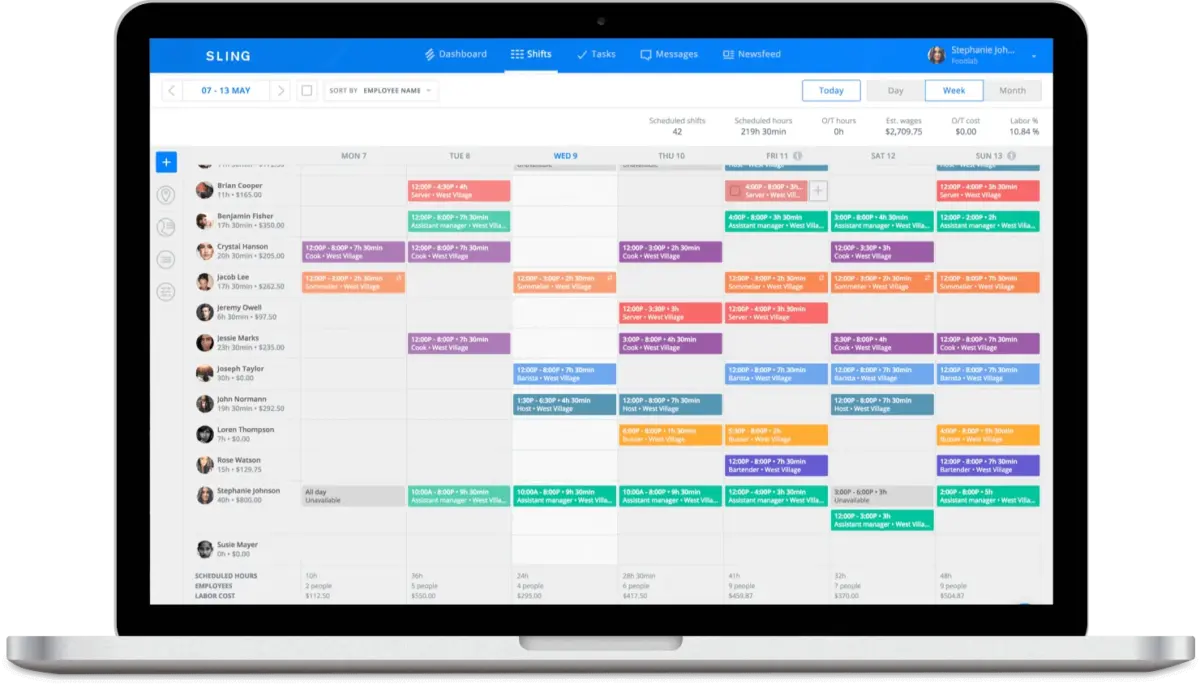
Sling is used for shift management, time clock, labor management, budgeting, and more. It’s recommended mostly for small businesses.
How does Sling work?
Sling lets me schedule shifts through a calendar, similar to its competitors. I simply click on a slot for a specific date and user, then add a shift.
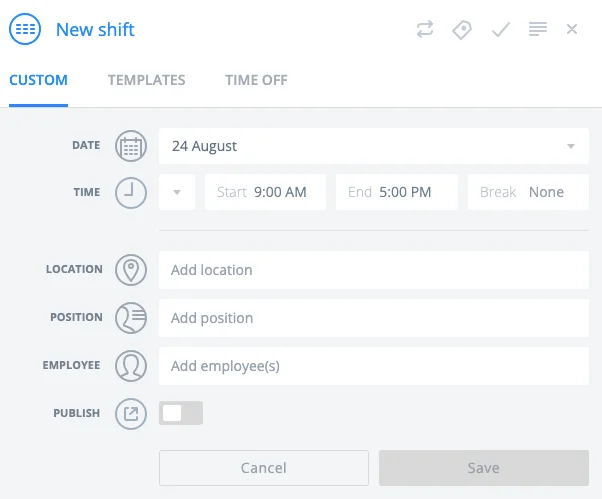
Another neat feature of Sling is the Recurring shifts option. This lets me add the same shift for the entire year or another time period, if an employee works the same hours every day.
I can also use Sling to create open shifts to be claimed by employees who have enough capacity.
As I add shifts, Sling shows me the estimated labor cost. I can see how much each employee costs in wages each day.
Other useful features you can find in Sling include:
- Copy shifts — duplicate identical shifts to other dates or employees.
- Time off — manage employee time off.
- Weekly estimates — see estimated labor costs for the whole week.
- Budget alerts — receive weekly budget alerts when you’re getting closer to the limit.
- Schedule templates — save schedules as templates.
How much does Sling cost?
One of Sling’s main advantages is its free plan, which includes basic scheduling and time-off requests, so if you don’t need more from scheduling software, Sling is probably a good option.
The Premium plan costs $1.70 per user/month (if billed annually). It offers features like Overtime tracking, Labor cost management, Calendar sync, and Team chat.
For $3.40 per user/month (if billed annually), the Business plan adds more advanced features, including Kiosk, Reports, No-shows, and PTO management.
How did the users rate Sling?
Overall rating: 4.6 (212 reviews)
Generally, users are happy that the basic scheduling and time off features are in the free plan. They also mention that some features could be developed further — like recurring schedules not expiring after a year.
Users reported no issues creating shifts and schedules. Particularly, the mobile app experience was rated as really simple and convenient.
One user was particularly pleased with Sling’s Toast integration: “It’s very easy to use. Syncs back and forth with Toast, with sales and time punches used in Toast. The data sync helps with scheduling to projected budgets. Employees like the app platform. Looks clean and is streamlined.”
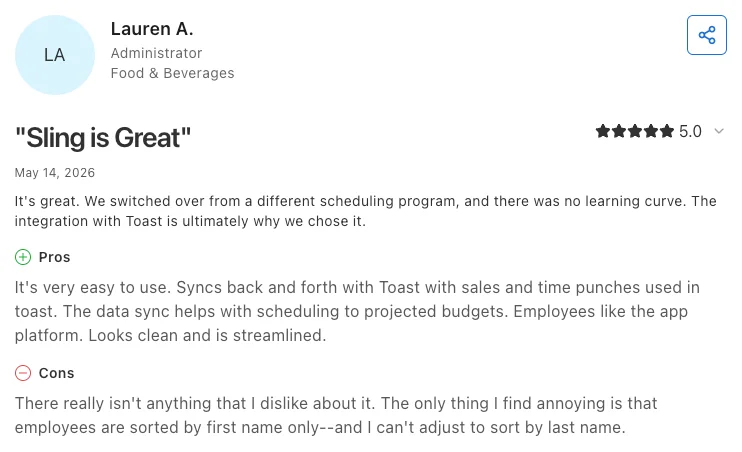
Users mention that Sling customer service takes a bit longer to reply via chat, as there’s no phone support.
Sling pros and cons
Here are some advantages of using Sling for team scheduling:
- Free plan — free shift scheduling and additional scheduling features.
- News sharing — sharing updates with other employees through targeted newsfeed pages.
- No-shows — tracking and managing employees’ missed shifts.
Some of the disadvantages of Sling are:
- Limited customer support — Sling doesn’t offer 24/7 customer support; you can reach their agents from 8 a.m. to 8 p.m. on weekdays, and 10 a.m. to 6:30 p.m. on weekends.
- Limited integrations — Sling offers few integrations with other apps compared to its competitors.
What’s new in Sling?
Sling hasn’t had any major feature announcements in years. The latest big update was adding the Activity log to the Sling Schedule page. The Activity log shows all changes made to scheduled shifts in the past 60 days.
| Free plan | No |
| Free trial | Yes, 15-day free trial |
| Cheapest paid plan | $1.70/user/month if billed annually |
| Platforms | Web, Android, iOS |
#6: ClockShark — best for monitoring progress
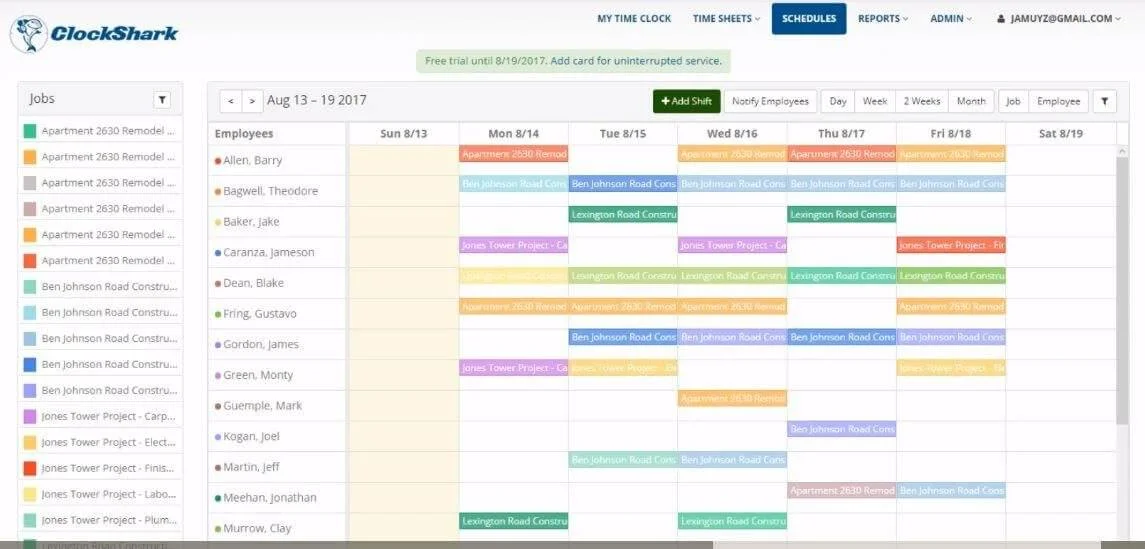
ClockShark is a scheduling app mostly used by on-field teams, such as field services or construction businesses.
How does ClockShark work?
ClockShark is another standard scheduling app where you schedule on a team calendar. You add jobs that your team usually performs, and then assign them to team members.
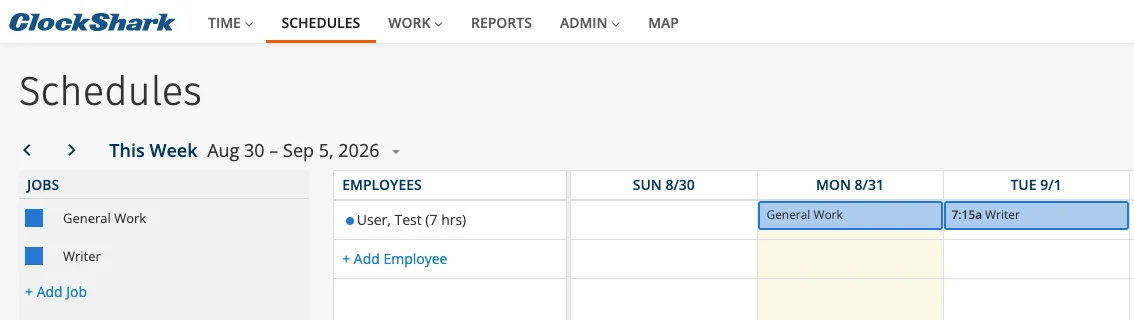
I found that if I don’t want to specify work time for a job, I can select All day, and the time period won’t be displayed. It’s also useful that I can filter information by job stage (e.g., On hold, In progress, etc.), location, or department.
ClockShark lets me set permissions. That way, I can control who can clock into which jobs or tasks, and which tasks are available when clocking into a specific job.
In ClockShark, you can also use the following features:
- Customized view — view by job or employee, and by day, week, 2-week, or a month.
- Notes — add notes to scheduled shifts.
- Recurring jobs — create recurring jobs and set their ending date.
- Totals — see total hours you’ve scheduled.
- Attachments — add attachments (e.g., images) to a scheduled job.
- Notifications — notify employees about any changes, and receive alerts when you track hours differently than what you’ve scheduled.
- Time off — see who’s away and when.
How much does ClockShark cost?
ClockShark has 2 paid plans and no free plan. The Standard plan is $40/month, plus $9 per user/month. The Pro plan is $60/month, and the user fee is $11 per user/month.
The Standard plan includes time tracking, scheduling (with drag-and-drop and draft schedule options), GPS tracking, and more. The Pro plan has all of those options, with the addition of features like PTO tracking.
How did the users rate ClockShark?
Overall rating: 4.7 (1,911 reviews)
Users are generally satisfied with ClockShark, especially with its advanced GPS features. Users reported no major issues, except for the lack of API integration.
Users evaluate ClockShark as highly intuitive and easy to operate for both management and employees.
One user praised ClockShark for its GPS tracking feature: “ClockShark is easy to use for both office staff and field employees. The GPS tracking feature provides good visibility into field operations, and customer support has been responsive when assistance was needed.”
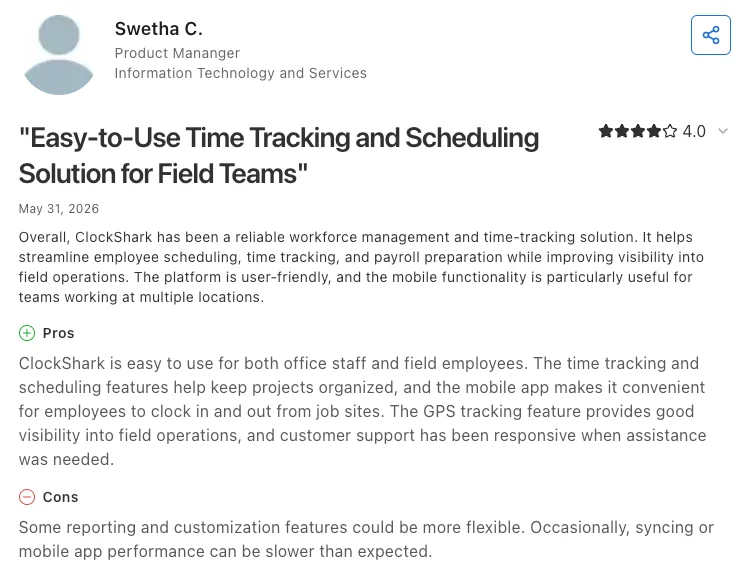
ClockShark customer service has been praised for being quick, helpful, pleasant, and considerate while interacting with users.
ClockShark pros and cons
Useful parts of ClockShark are:
- Clock-out questions — a customizable list of questions for employees to answer when clocking out.
- Multiple time zones — admins can view, add, or edit timesheets in their local time zones, which is useful for large businesses operating in multiple distant locations.
- Progress statuses — users can set job progress statuses, including On hold, In progress, and Complete.
ClockShark’s cons that may bother some users include:
- Expensive plans — ClockShark charges a base fee, plus an expensive per-user fee.
- Limited messaging feature — In-app conversations are tied to specific jobs, so you can’t create a group message that involves all members of the workspace at once.
What’s new in ClockShark?
In July 2026, there were some improvements in the ClockShark mobile app. The mobile app now supports geofence clock-in alerts. This means employees can get reminders when they enter a job location they’ve been assigned to but forgot to clock in.
| Free plan | No |
| Free trial | Yes, 14-day free trial |
| Cheapest paid plan | $40/month base fee +$9/month/user |
| Platforms | Web, Android, iOS |
Try a budget-friendly alternative
Schedule team assignments with ease using Clockify by CAKE.com
Clockify lets you schedule assignments based on team capacity, ensuring no team member is overworked while others wait for assignments.
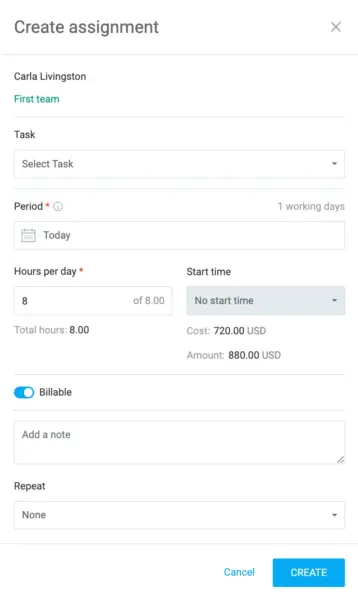
In addition, your team can track their own work time using:
- Timer
- Timesheets
- Calendar mode
- Manual mode
The app also includes a Pomodoro timer, helping your team manage their time by strategically scheduling focus time and breaks.
Clockify makes it easy for team managers to assign tasks and for employees to manage their time effectively.

FAQ about scheduling software
If you want to learn more about scheduling software, check out the answers to some of the most commonly asked questions.
Is free scheduling software worth it?
Whether free scheduling software is worth it for your company depends on the features you need. For example, you can use Clockify to create team schedules by adding time slots for other team members in Calendar mode. However, for more advanced scheduling, it’s best to use the Scheduling feature, which is part of the Pro plan.
Which scheduling app is free?
Some scheduling apps like Clockify and Homebase include a free version. For example, Clockify lets you track time on unlimited projects for free. However, advanced scheduling features are available only in paid plans.
Is there a free online schedule planner?
Clockify offers online schedule planner templates. The templates include daily, weekly, monthly, and yearly planners. These templates are free to download and use.
How do I create my own schedule?
To create your own schedule, you can use the traditional pen-and-paper method or a sophisticated scheduling tool. For example, if you select Clockify as your scheduling tool, you can use the scheduling or time tracking features.
The scheduling option is more suitable for creating assignments for the entire team. For a personal schedule, you can add time entries to the Clockify Calendar and edit them later if you don’t follow your schedule exactly.
How we reviewed this post: Our writers & editors monitor the posts and update them when new information becomes available, to keep them fresh and relevant.