
Alex Beadon
Founder of Together We Launch
"We use Clockify to see where our time is going and how to solve any problems. It’s just so beneficial."
More stories

Find new apps that fit you team's needs
You’re tired of chasing down timesheets, dealing with “forgotten” clock-ins, and worrying whether your overtime calculations will pass a labor audit.
So, you’re looking at Buddy Punch — an employee time clock software that promises to prevent buddy punching, automate payroll exports, and keep you compliant.
But does it actually deliver? I tested the app to find out.
This Buddy Punch review covers what works, what doesn’t, and whether it’s worth your time as a manager dealing with workforce management and accountability.

Buddy Punch is a time and attendance system designed to track employee hours, prevent time theft through features like geofencing and facial recognition, and simplify payroll processing.
Buddy Punch is built for businesses that need more than a basic timesheet — think construction crews, manufacturing firms, or any team where accountability matters and overtime costs can spiral fast. In short, the platform handles:
Through optional add-ons, Buddy Punch also offers features like scheduling, payroll, custom reporting, and more.
Here’s a summary of Buddy Punch pros and cons.
| Buddy Punch pros | Buddy Punch cons |
| ✅ Multiple punch-in options | ❌ Occasional errors with punch-ins/outs |
| ✅ Easy-to-use and intuitive design | ❌ Scheduling and payroll features are add-ons that cost extra |
| ✅ Smooth time card approval process | ❌ Lack of visual data representation in reports |
| ✅ Strong geofencing and facial recognition options | ❌ Mobile app can be glitchy and limiting |
| ✅ Flexible overtime and break policy | ❌ No free plan |
| ✅ 14-day free trial, no card required | ❌ No offline mode |
Buddy Punch pricing uses a per-employee payment system that allows you to save up to 18% when you opt for an annual subscription.
This employee time clock software has 3 pricing plans, with 5 optional add-ons that can be purchased with any plan:
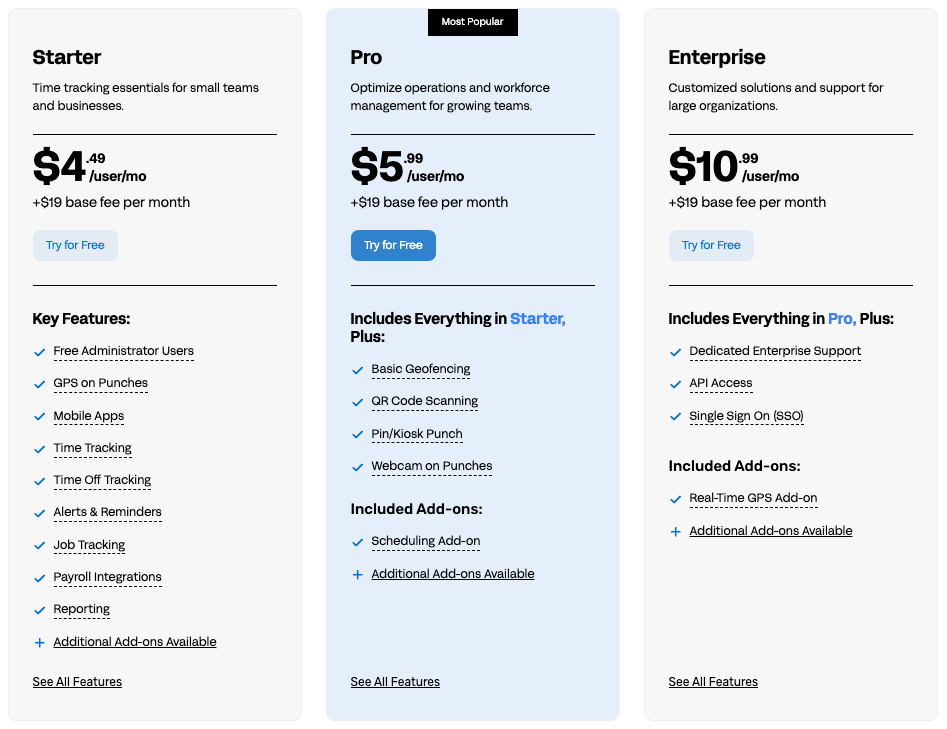
Sadly, there’s no free plan. Also, all plans have a monthly base fee of $19, plus a per-employee fee I wasn’t a fan of (especially a big issue for smaller teams).
But there are no hidden costs for GPS punch coordinates and payroll integrations, even on a Starter plan.
Now, let’s take a look at optional add-ons that Buddy Punch also offers, which will set you back more money. Even if you opt for the Enterprise plan that comes with scheduling and real-time GPS add-ons, you’ll still have to pay extra if you’re interested in payroll, data retention, or custom reporting.
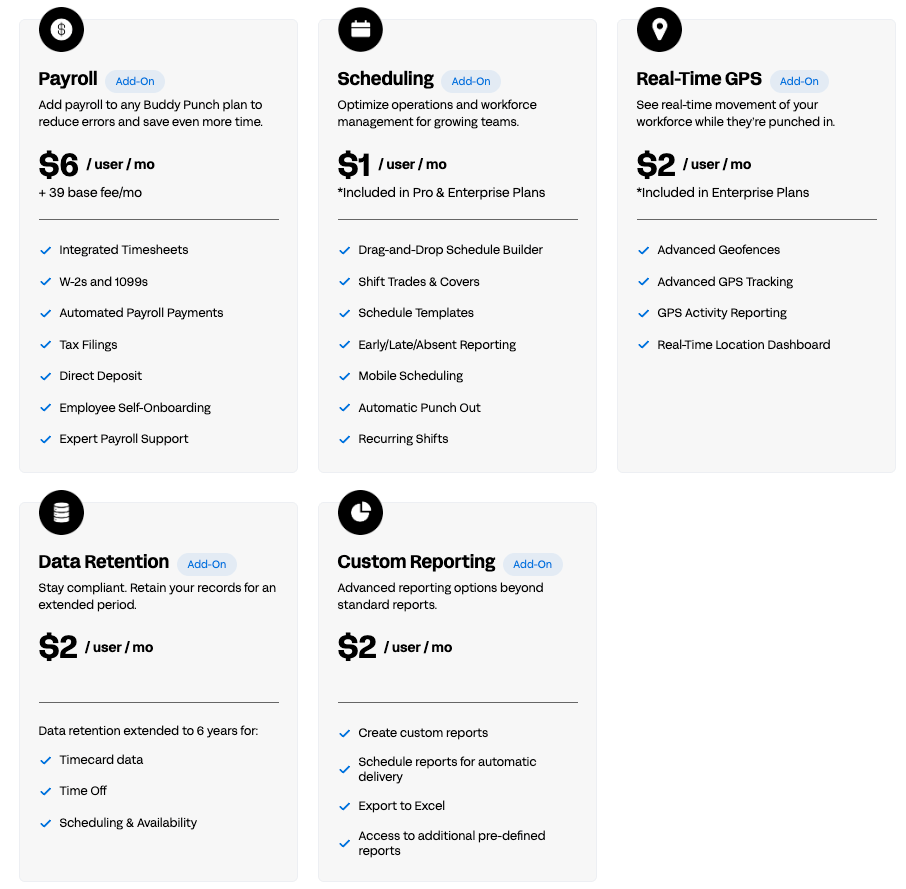
For example, payroll as a separate add-on will cost companies $6 per user per month, plus a $39 base fee, regardless of the plan. In my opinion, this seems a bit steep. It feels like paying for a whole new payroll software rather than having it as a distinguishing feature within the app.
Also, add-ons included with pricing plans (scheduling and real-time GPS) can be easily tested during the 14-day free trial. On the other hand, I wasn’t able to access other add-ons without being prompted to book a demo or get in touch with support — annoying.
Still, Buddy Punch’s cost is very transparent, making it easy for companies to calculate how much they’d have to pay for their particular needs. And you can mix and match the plans with add-ons to pay for only those features that interest you. I found this helpful, although Clockify by CAKE.com offers free forever plans.
Buddy Punch’s interface is very functional and easy to navigate. It may not be impressive, but I find that functional beats impressive for what the app promises to do.
The Buddy Punch web version is straightforward: The dashboard shows you who’s punched in and out, upcoming punch/time off/time card requests, and the day’s schedule. And navigation menu keeps things organized — this is where you’ll find detailed options for:
That said, setting up employees, creating schedules, and running reports doesn’t require a steep learning curve. If you’ve used any workforce management tool before, you’ll figure this out in an afternoon.
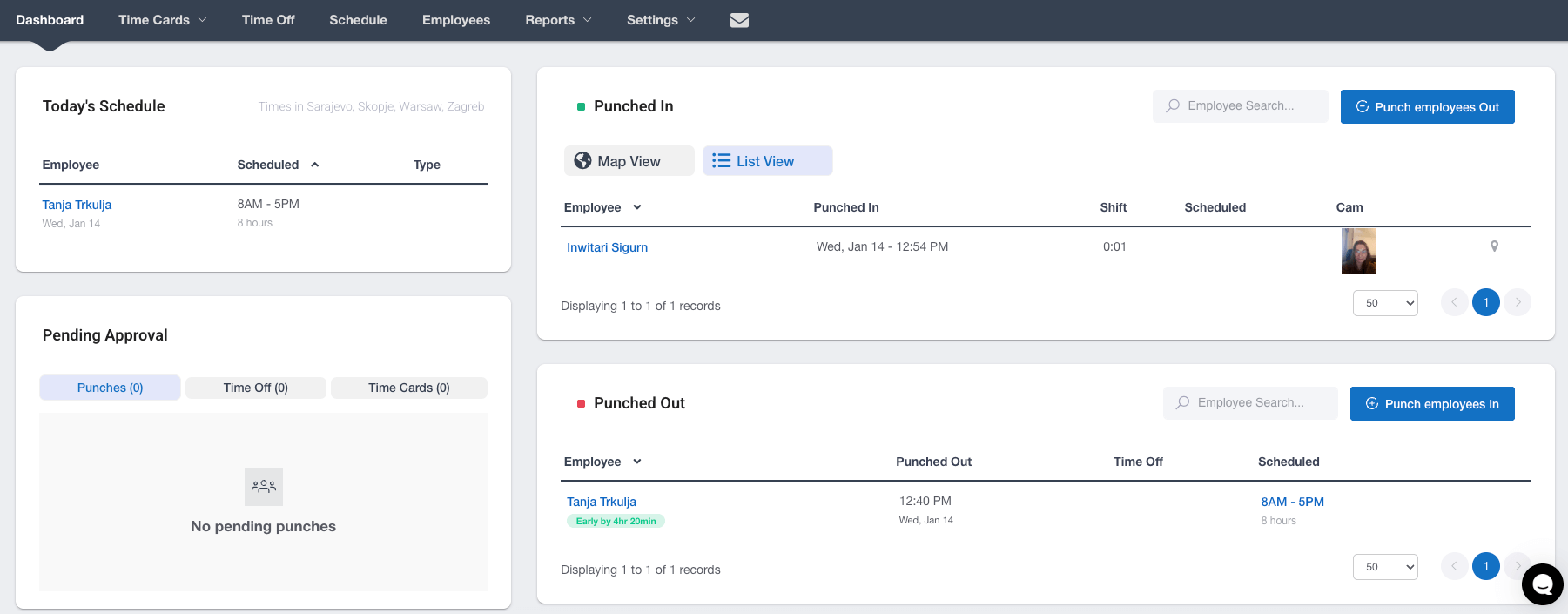
Also, I have to mention that there’s no dark mode. It’s a minor gripe, but as someone who prefers dark mode to minimize eye strain, I don’t think that the bright white interface is ideal at all times of day.
🎓 Workforce Management – Maximizing Efficiency and Performance
Buddy Punch takes security seriously, which matters when you’re handling employee data, location tracking, and payroll information.
Also, the platform lets you manage who sees what through Role-Based Access Control (RBAC). Apart from that, authentication options include:
Enterprise users get Single Sign-On (SSO) for streamlined and secure access.
Data protection is solid, too: Buddy Punch app encrypts data in transit via HTTPS. Digital data is safely stored on Azure Cloud. GDPR isn’t directly addressed, but Buddy Punch’s privacy policy states that the European Commission considers US data protection adequate.
Buddy Punch offers support via email, live chat, and a website contact form during business hours, Monday through Friday, from 9 a.m. to 6 p.m. (US Central Time). Users can also refer to Help articles, categorized by features, for self-service guides and FAQs. Still, dedicated support is provided only to Enterprise users.
Equally painful, live chat with a human agent isn’t available 24/7. Outside their work hours, chatting with an AI assistant is unrestricted. As you can see from the image below, Emily (a real person) took over the chat from the AI assistant when their workday had begun.
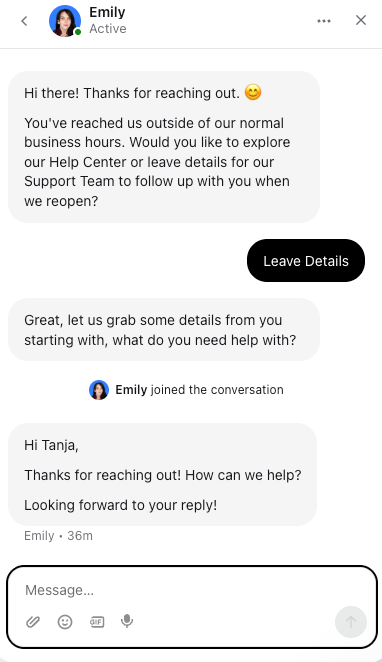
Having to wait for resolution, especially over the weekend, can be problematic. Some Buddy Punch competitors, like Clockify, factored this in and hence offer 24/7 human customer support.
On the other hand, most users find Buddy Punch customer service very helpful overall, as evident from the review below.
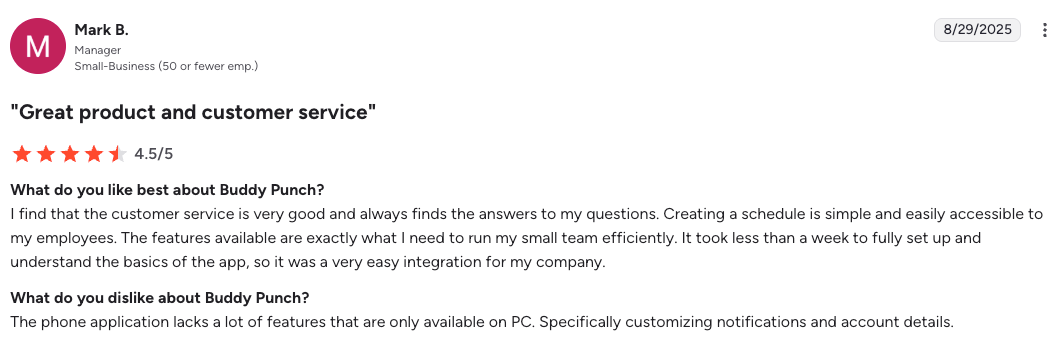
Speaking of Buddy Punch reviews, users generally speak highly of the app. In general, they praise these features the most:
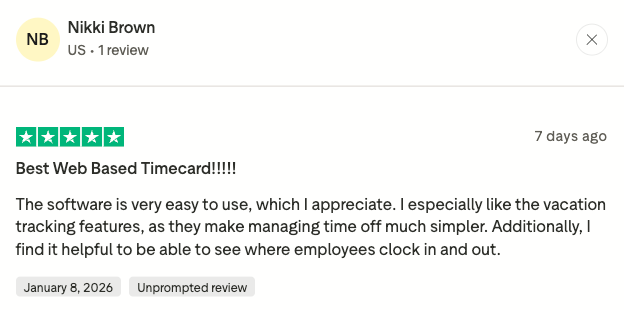
There aren’t that many cons that users mention in their Buddy Punch reviews. They mostly bring up the following:
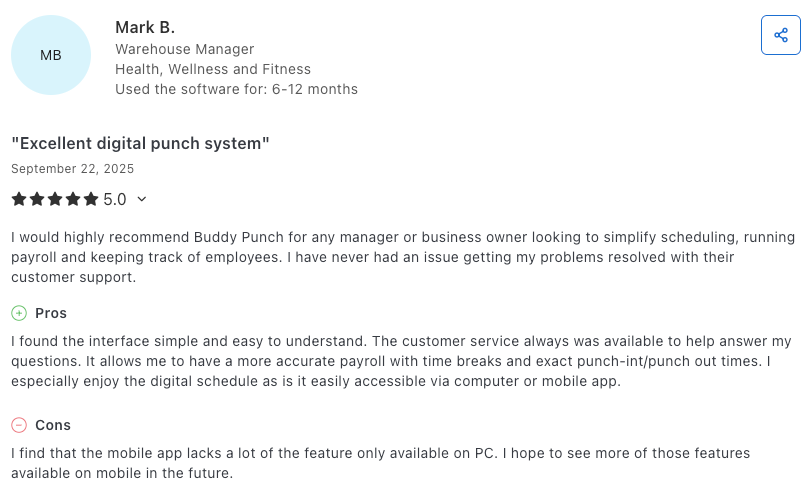
Here are Buddy Punch customer ratings on some of the popular review websites:
While not without its friction points, Buddy Punch gets the job done for most users, as evidenced by its high average rating across 3 review websites — 4.77.
Now, let’s get to the fun part of this Buddy Punch review — the app’s key features.
Buddy Punch is primarily marketed as an employee time clock software, and as such, it offers multiple ways for employees to clock in:
Also, workers can use 4 different punch-in methods:
In my opinion, the kiosk mode is particularly useful for field workers. As a manager, you can set up an internet-connected device at a job site or warehouse entrance, and employees can clock in quickly with a QR code or PIN.
Also, you can set whether you want their picture taken when they punch in. But in the case of picture-taking, managers will have to verify their employees manually.
Enterprise users can enable single sign-on to Buddy Punch with services like Google, Okta, and OneLogin. And field workers without internet access can also punch in and out via text message. Ultimately, you get to group-punch your whole team at once if they start and end their shift at the same time.
Buddy Punch also offers a duration entry feature that lets salaried employees record their daily hours without clocking in or out.
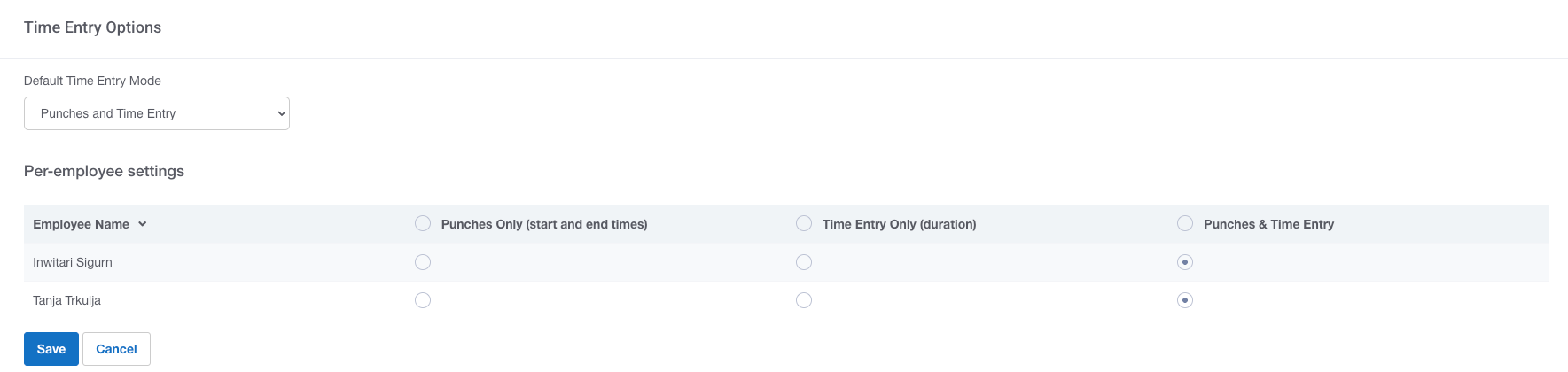
I find the biometric time clock (Face ID) the most interesting punch method. To prevent buddy punching, simply set up Face ID for your employees on iPad or iPhone, and the app will scan their faces for facial recognition before they can punch in.
Sadly, this is only an Apple feature that works with Buddy Punch, and I hope to see Buddy Punch’s own facial recognition software that will work for other systems as well.
GPS tracking, available even on the Starter plan, provides precise punch locations. And it works rather well — or as long as the device’s GPS/internet signal is strong enough.
Anyhow, you get to know where your employees are with every punch. As a manager, you can access the map both in the web version and the mobile app.
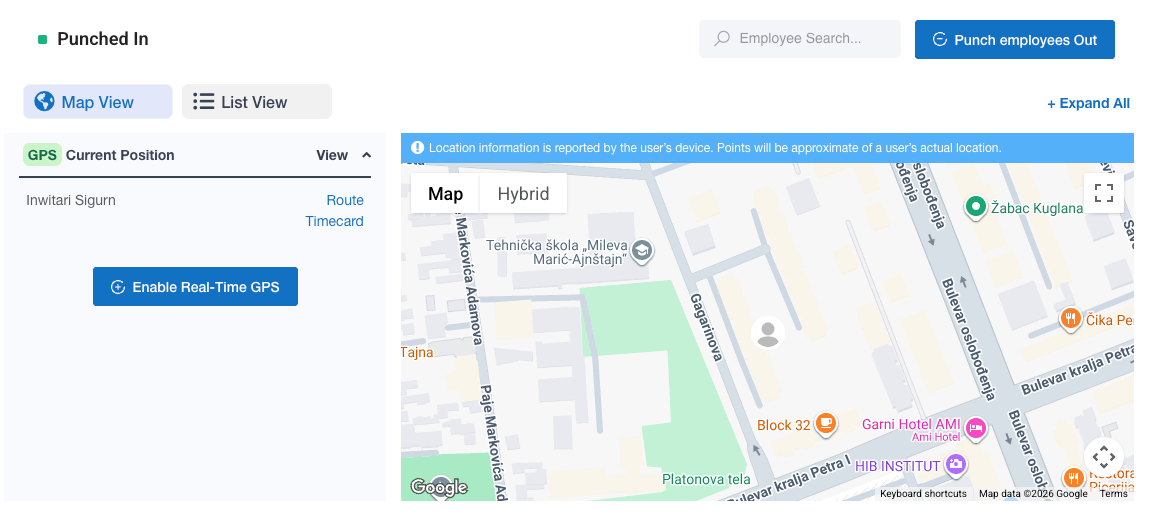
Buddy Punch’s GPS location-tracking feature helps business owners monitor their teams’ field activities. The app uses the phone’s GPS to track employees’ locations and record GPS coordinates for every punch, keeping you in the loop on where employees clock in or out.
If you get an Enterprise plan or a real-time GPS add-on, you can also track and monitor employees’ routes during the workday.
Geofencing is available on Pro and Enterprise plans, and I find it’s a great feature for field workers. It allows you to set a boundary around the central location so you can control where punches occur.
The geofencing radius can be set between 50 and 1,500 meters. That’s approximately between 164 feet and 0.9 miles. However, the app only has meters available as a unit.
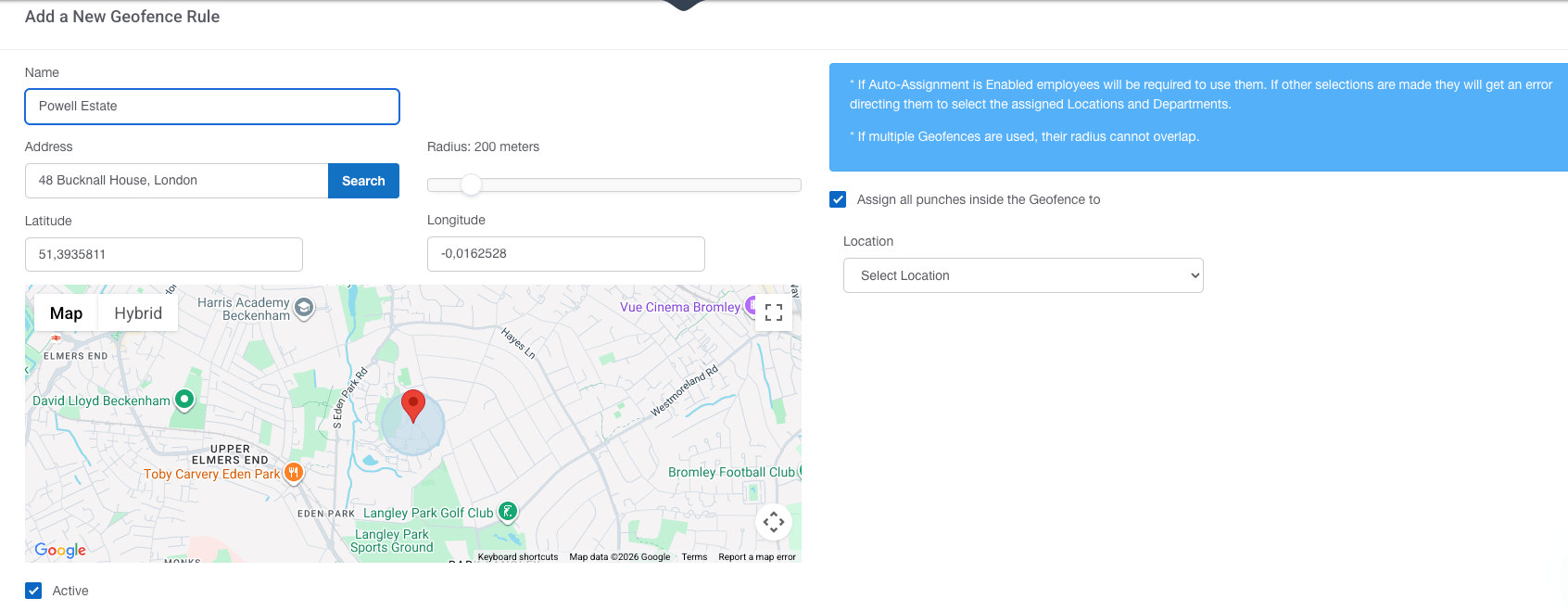
You can have as many geofences as you want, but their radius shouldn’t overlap. Truly a great feature as long as the cellular range is strong.
Job and location tracking are available on all Buddy Punch plans. Essentially, you can track employees’ hours by job, department, or site.
Department codes are Buddy Punch’s solution for separating work into tasks, projects, or clients. That said, employees can access specific tasks/projects/clients when punching in or switching from one thing to another. I’m not a big fan of this system — it’s not very smooth and feels like an afterthought. In fact, competitors like Clockify make project and client tracking a lot cleaner.
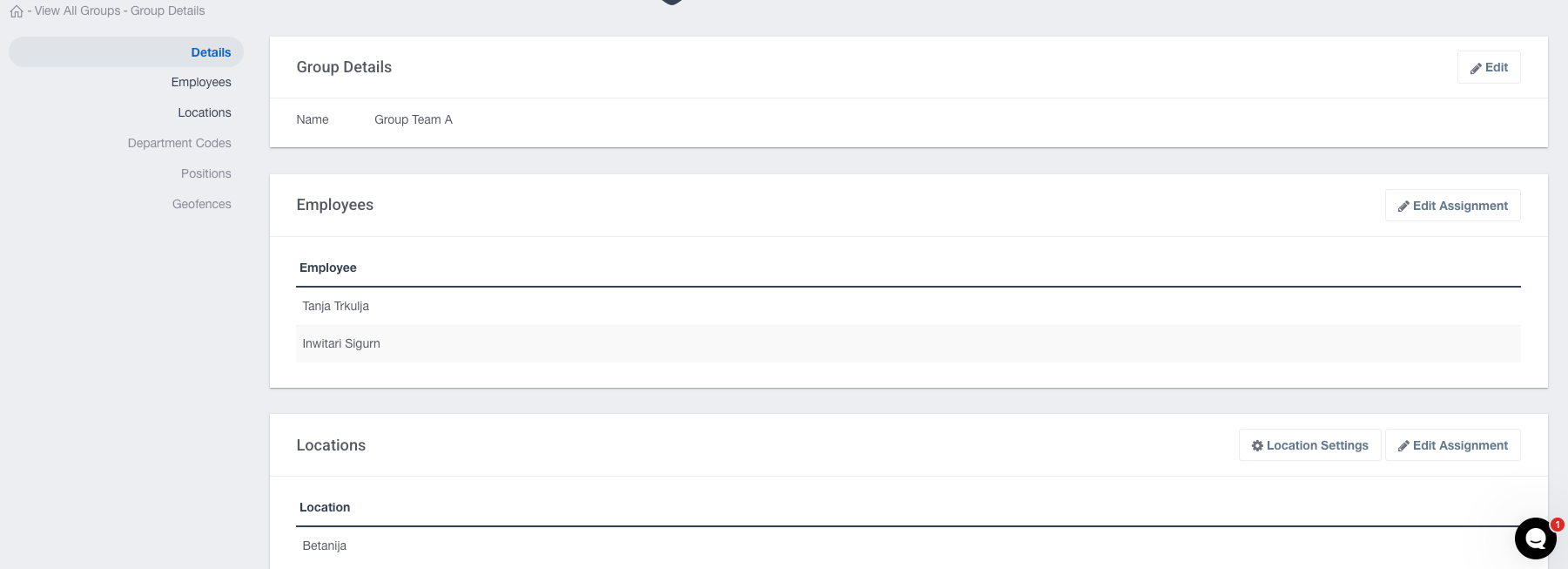
Additionally, locations present job sites that can be assigned to individual employees or groups (see below).
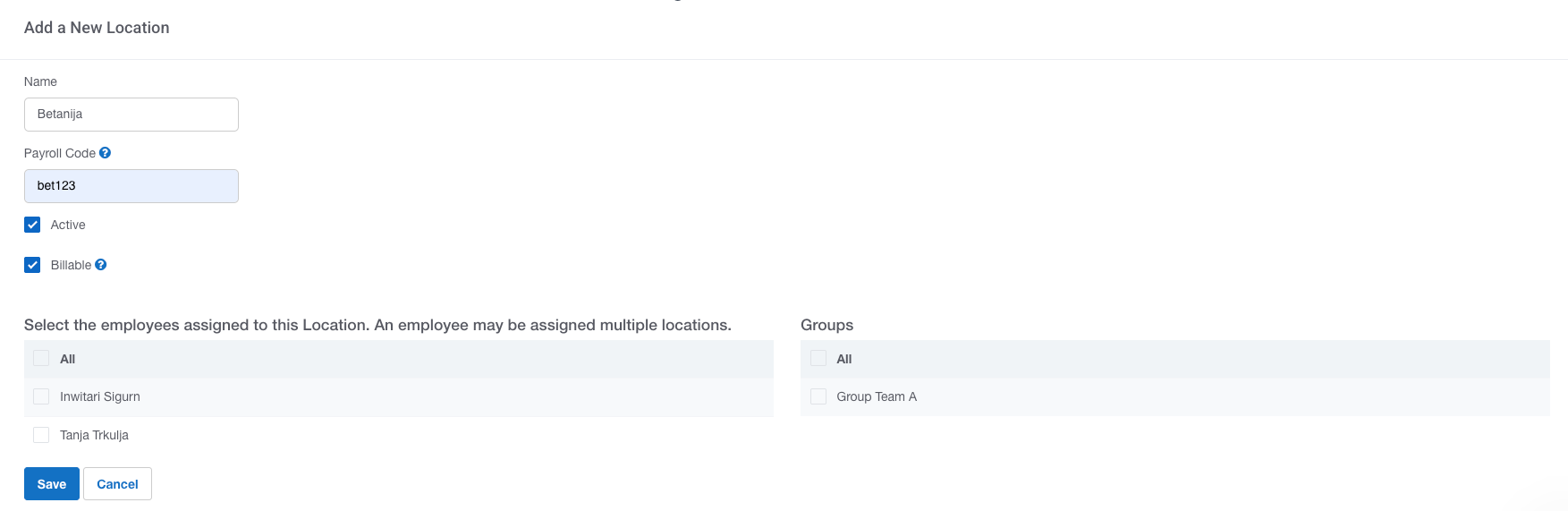
Both department codes and locations also have the option to add payroll codes. This is supposed to further improve the payroll process. If tracked time for a specific location or department code matches the payroll code, this information gets included in the payroll export in third-party apps.
Positions simply define an employee’s role within the company (or the job site).
I really like that the software gives you the option to create groups, which can be used for separating teams assigned to a particular location, for example. Also, this allows you, as a manager, to group punch in/out entire teams at once.
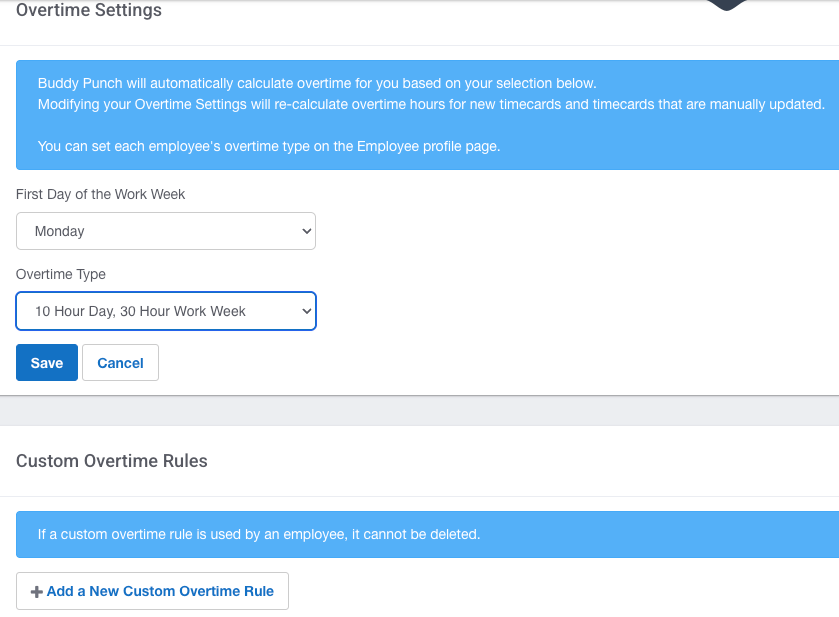
I was thoroughly impressed by Buddy Punch’s handling of overtime. The feature is very flexible as it allows me to set my own custom overtime rules.
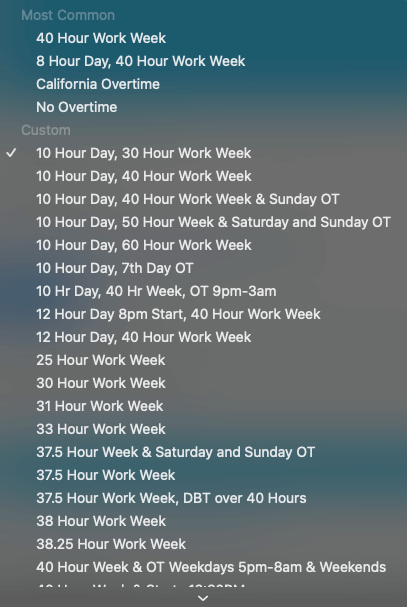
But it already offers a bunch of preset options, too.
To test it, I chose the California Overtime option, where overtime at a 1.5 rate applies to work after 8 hours, and double time applies to work after 12 hours (in case of a day’s work).

The image above shows that after working 20 hours straight, at a regular hourly rate of $10, the employee has:
This equates to:
8x10 + 4x10x1.5 + 8x10x2 = 300
The automatic calculations in the Buddy Punch app, set according to the California overtime rule, were exactly what I expected!
🎓 Overtime Laws by State — Comprehensive Guide for 2025
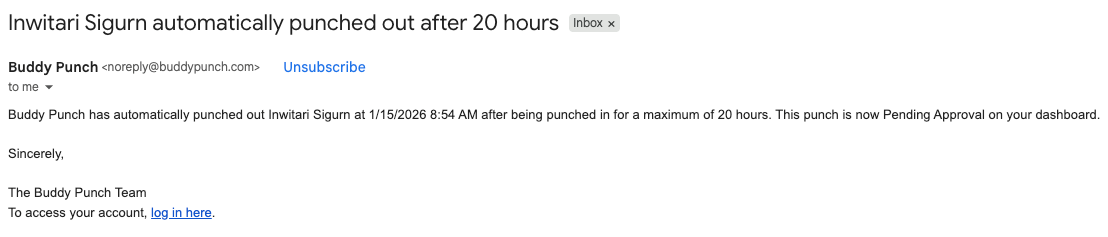
Also, you can pick an overtime type for each employee and set alerts to notify you if they’re approaching overtime. Additionally, the app will automatically punch out the employee after the number of hours you set if they forget to do so. You can edit the entries if the extra hours are a mistake due to forgetfulness or a glitch (and not overtime) before approving the time card.
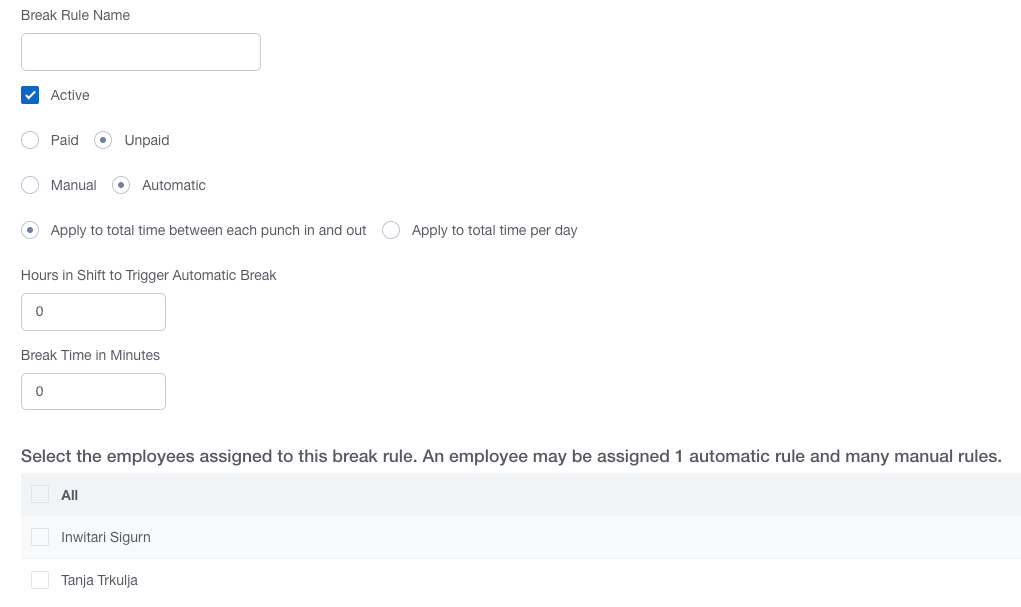
You have the same flexibility with break rules by:
Buddy Punch integrates directly with QuickBooks, ADP, Gusto, Paychex, Heartland, and several other payroll providers. This feature is available on the Starter plan. And if your payroll system isn’t on the list, you can export time data as a CSV file and import it manually.
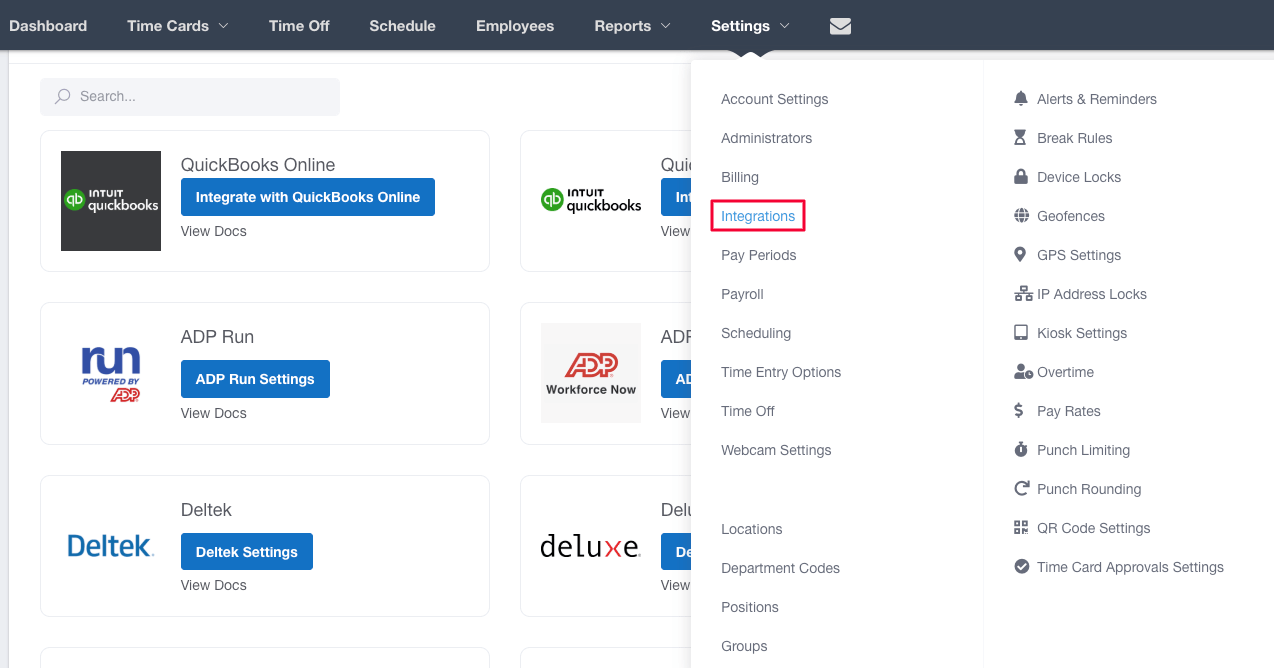
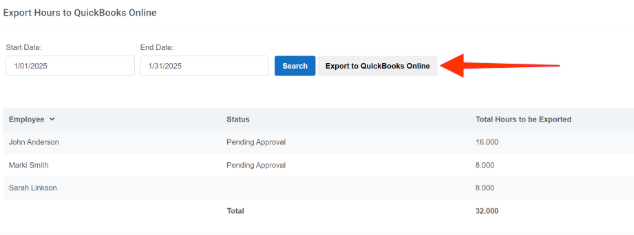
Connecting and setting up your accounts is a quick process, and all you have to do then is export payroll data to your chosen payroll app.
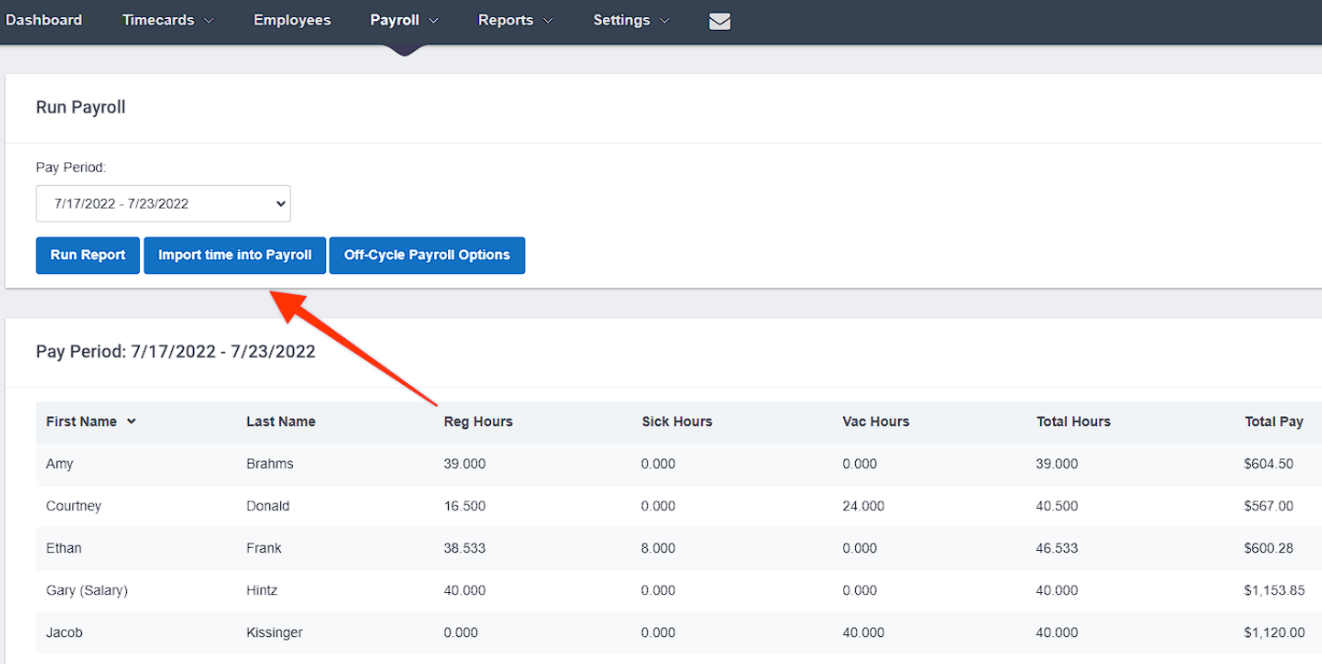
As mentioned, Buddy Punch also has its own payroll feature that’s available as an add-on. If you want to do everything within one app, from tracking time to sending out payroll, this may be a good option — even though the add-on is a bit pricey.
I think it would be best to compare it to how much you pay for the other payroll solution you use for your business. And keep in mind the added convenience of having everything in one place.
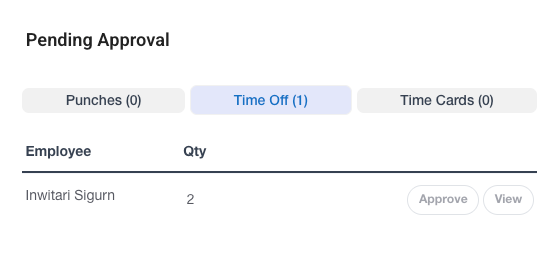
Buddy Punch includes PTO tracking on its Starter plan. Employees can request time off through the app or web version. And managers approve or deny requests from the dashboard.
In my experience, it’s very easy to set holiday dates that your team and business follow — but you’ll have to do so manually. The same goes for blackout dates — when you want to make sure no one plans for time off, as you need all hands on deck.
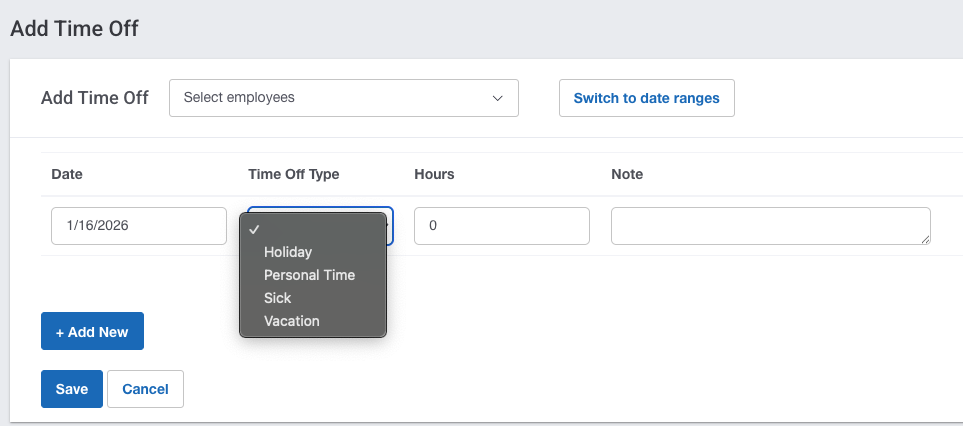
Also, you can create your own time-off accrual rules that employees can use to accrue their hours off.
However, I must comment that while requesting and tracking time off is relatively simple, setting up everything for your employees is a bit challenging. The system seems unnecessarily complex. Also, time off is expressed only in hours, and there’s no option for days off.
It seems that I’m not the only one with a similar experience, according to the following review.
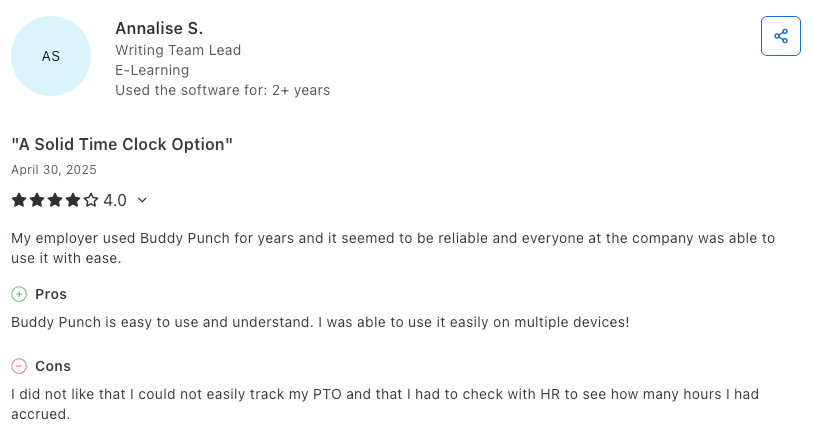
As Buddy Punch explains in a Help article, applying the default number of maximum time off hours to all current employees doesn’t add a time off balance to an employee’s bank of time. It’ll be necessary to set up a time-off accrual for workers or manually add a time-off balance — not very practical, in my opinion.
Not to mention how frustrated I got trying to wrap my head around the ins and outs of this system. While the accrual rules offer great flexibility, I prefer both flexibility and simplicity in a time-off policy (something competitors like Clockify deliver better).
Buddy Punch may not be marketed as a scheduling software per se, but even as an add-on, scheduling is simple and straightforward. The add-on is included with the Pro and Enterprise plans, but it can also be purchased for $1 per user/month on the Starter plan.
The scheduling feature may seem basic at first glance, but it provides enough flexibility and options to be very helpful and practical.
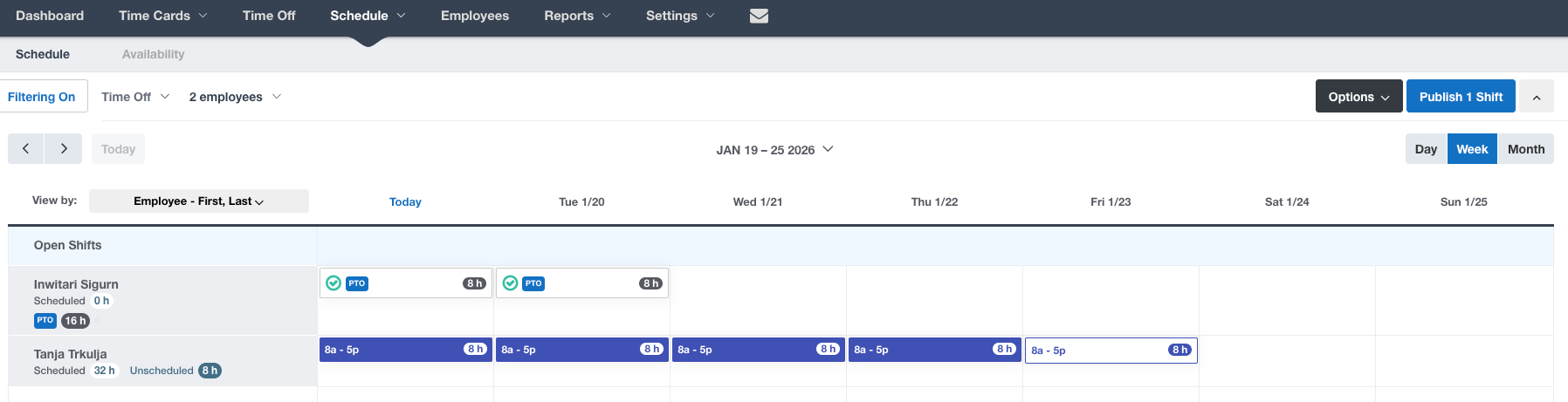
As a manager, you can assign shifts to your employees and choose whether they should repeat, as shown in the image below.
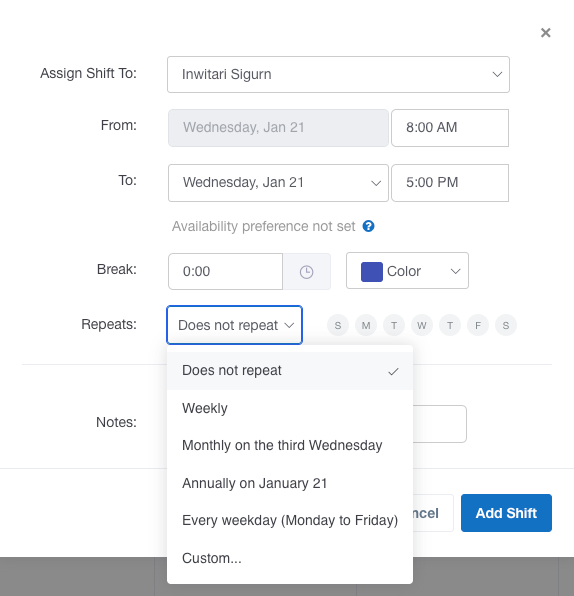
While testing it out, I also had the convenience of a drag-and-drop scheduler, which lets me move shifts around with ease.
From the Settings tab, managers can further customize their scheduling. For example, you can choose to:
I find scheduling customization options quite interesting. Employees can view their shifts, set preferred availability (and unavailability), and even request trades and covers in the Buddy Punch app.
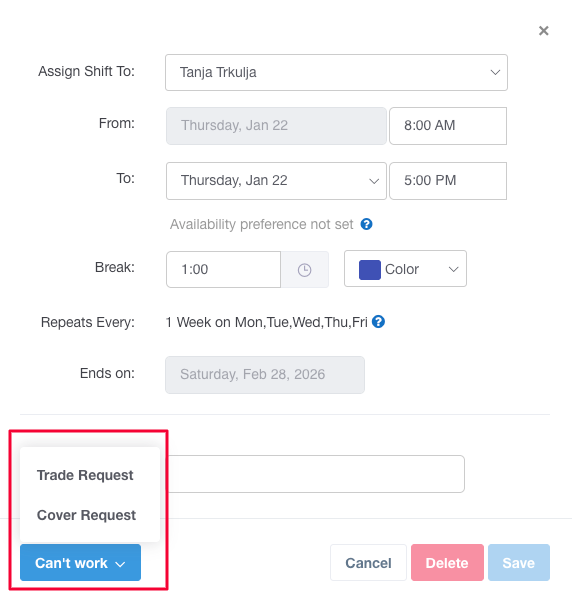
Now, the reporting feature in Buddy Punch isn’t bad, but it’s not great either. The good thing is that the feature is available in all 3 plans.
You have many standard options to choose from and then save that information as CSV, Excel, or PDF files (for most options). Namely, Employee detail is available as a PDF, while the Time card report and Payroll export are available as CSV files. Likewise, GPS activity is only viewable on the map in Buddy Punch.
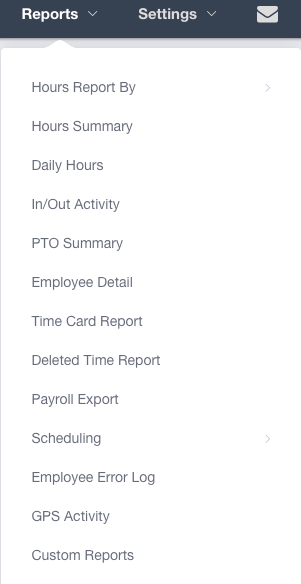
Custom reports are only available as an add-on for $2 per user/month. This add-on lets you create customized reports, schedule automatic delivery, and more. In my experience, these are all fairly good reporting options.
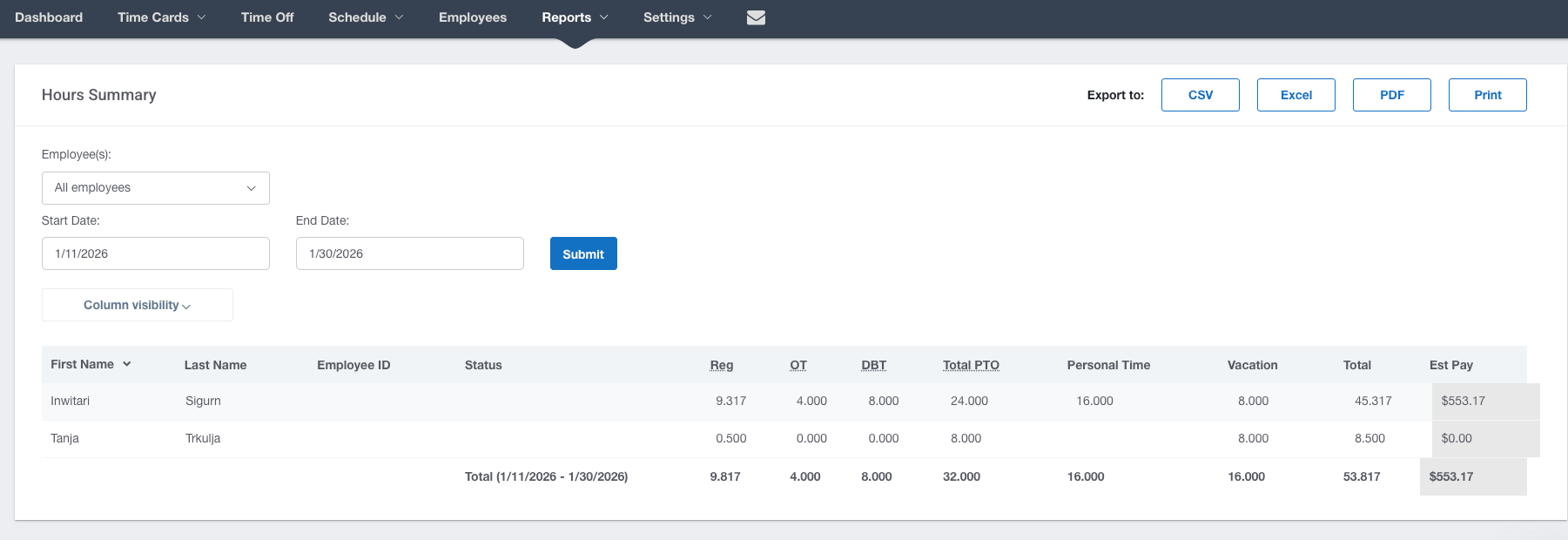
However, data presentation seems a tad dry to me. Aside from tables with information, there are no visual data sets, such as charts or graphs, to make the reports easier to read (like you get in Clockify reports, for instance).
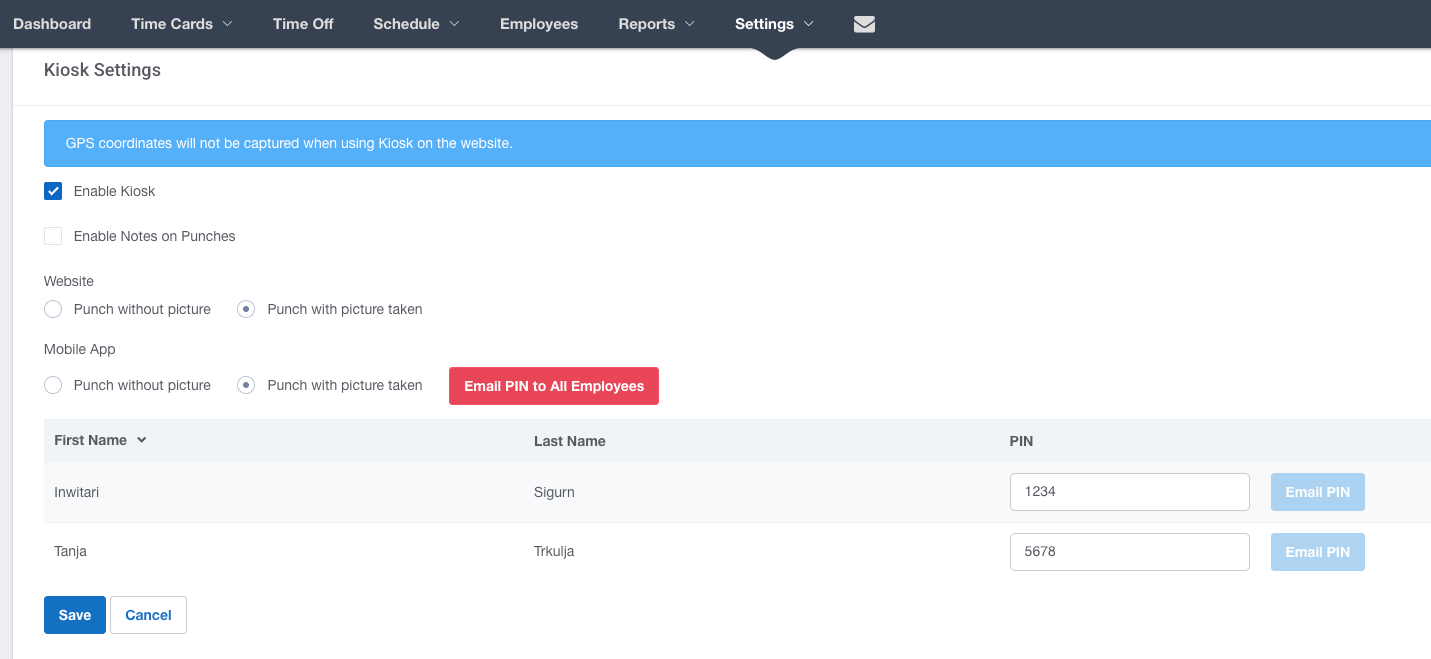
If you want to set up a kiosk for your field workers so they can quickly punch in and out, you can do so in the web version under Settings.
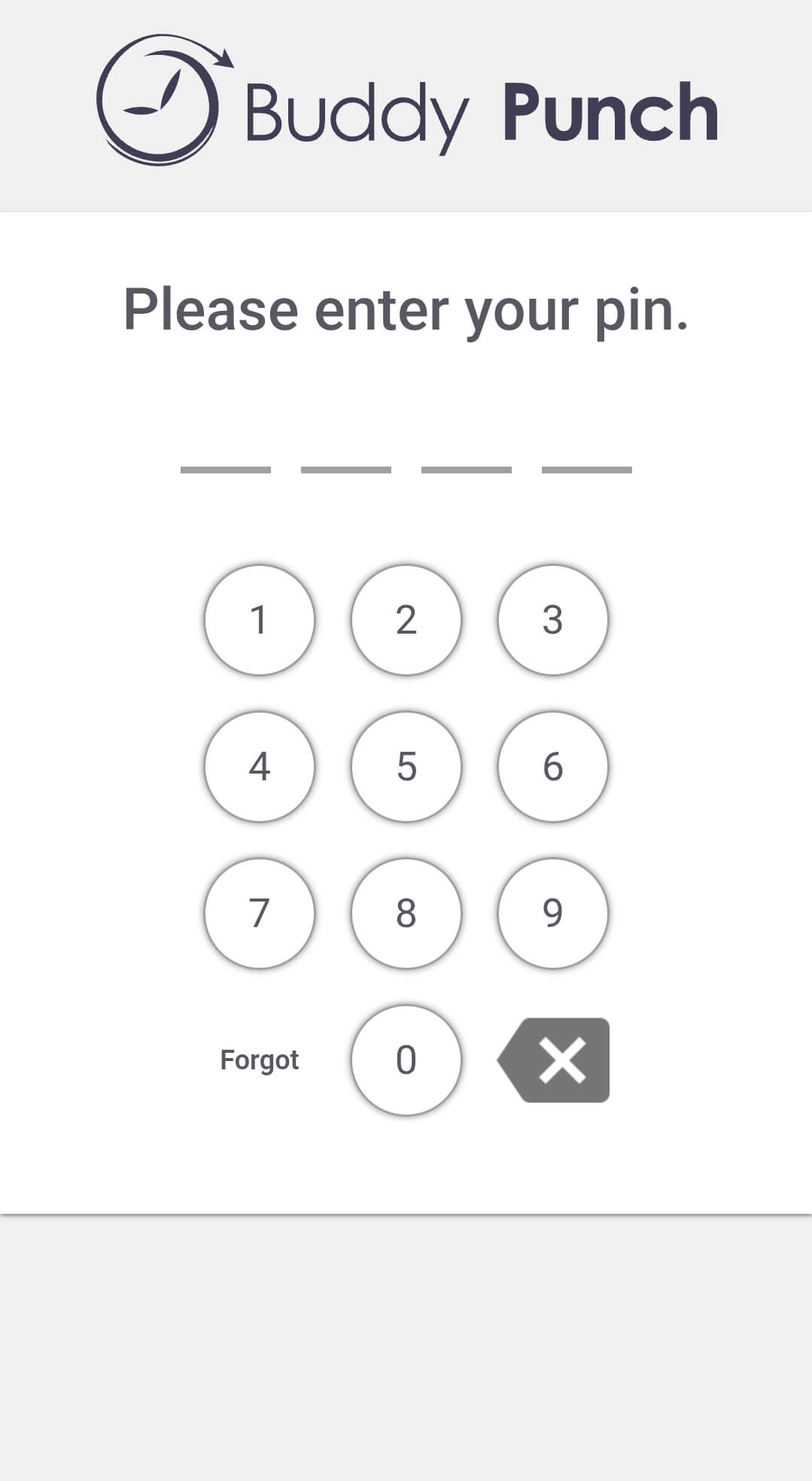
When they proceed to punch in, employees will simply enter their PIN code.
And if you choose to have their picture taken, the camera will take one as they punch in.
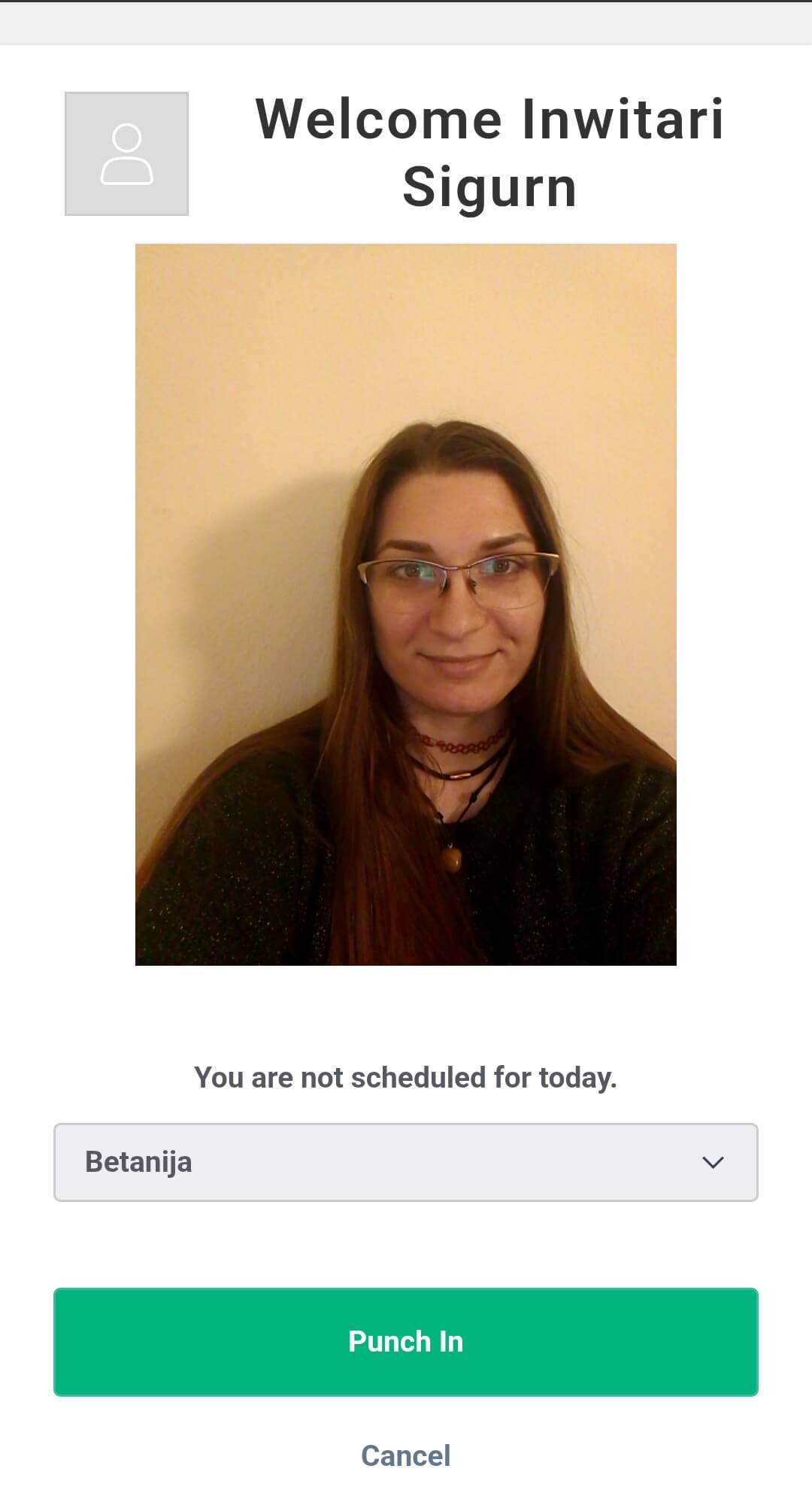
As you can see from my face in the screenshot above, the kiosk runs smoothly. It may be simple, but it works, and that’s what I consider a success. After all, I don’t think that anything more complex is suitable for workers who need to punch in at a shared device as they hurriedly arrive at work.
Your employees can also use the Buddy Punch mobile app to clock in and out, which we’ll talk a bit more about in the next section. For now, here’s an overview of our rating for Buddy Punch web software.
| Buddy Punch web app | Rating |
| Time clock and punch methods | 4.5/5 |
| GPS tracking and geofencing | 4.5/5 |
| Locations, positions, and department codes | 4.5/5 |
| Overtime tracking and compliance | 5/5 |
| Payroll integrations | 4/5 |
| PTO tracking and leave management | 3/5 |
| Scheduling | 4.5/5 |
| Reporting and analytics | 4/5 |
| Kiosk mode | 5/5 |
| Final rating | 4.3 |
The Buddy Punch mobile app is available for iOS and Android. It’s the primary way for field or remote workers to clock in and out.
The mobile version is also very user-friendly, with the dashboard simply showing who’s punched in and out, and the day’s schedule. You can also quickly access the schedule, time off, and time cards tabs in the bottom menu, or check for more details in the drop-down menu.
Yet the mobile version has fewer options than the web version — and I experienced some sync lag between the two.
There are 2 ways to look at the Buddy Punch app interface. For workers who are simply looking to punch in/out, view their shifts, and potentially request time off or set their availability, the interface’s simplicity looks great.
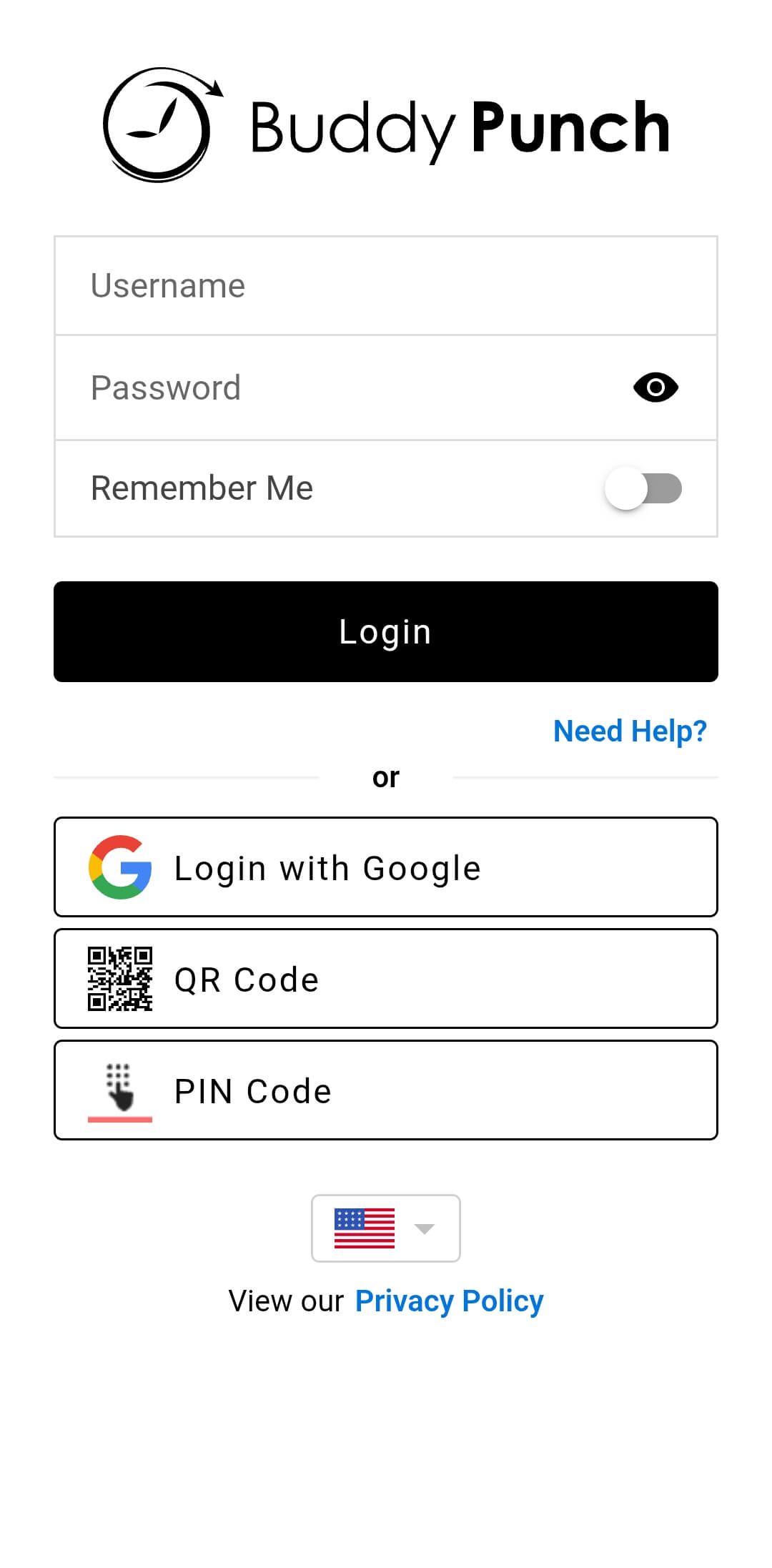
If you require photo capture, the app will sync with the device’s camera to capture an employee photo and prevent buddy punching.
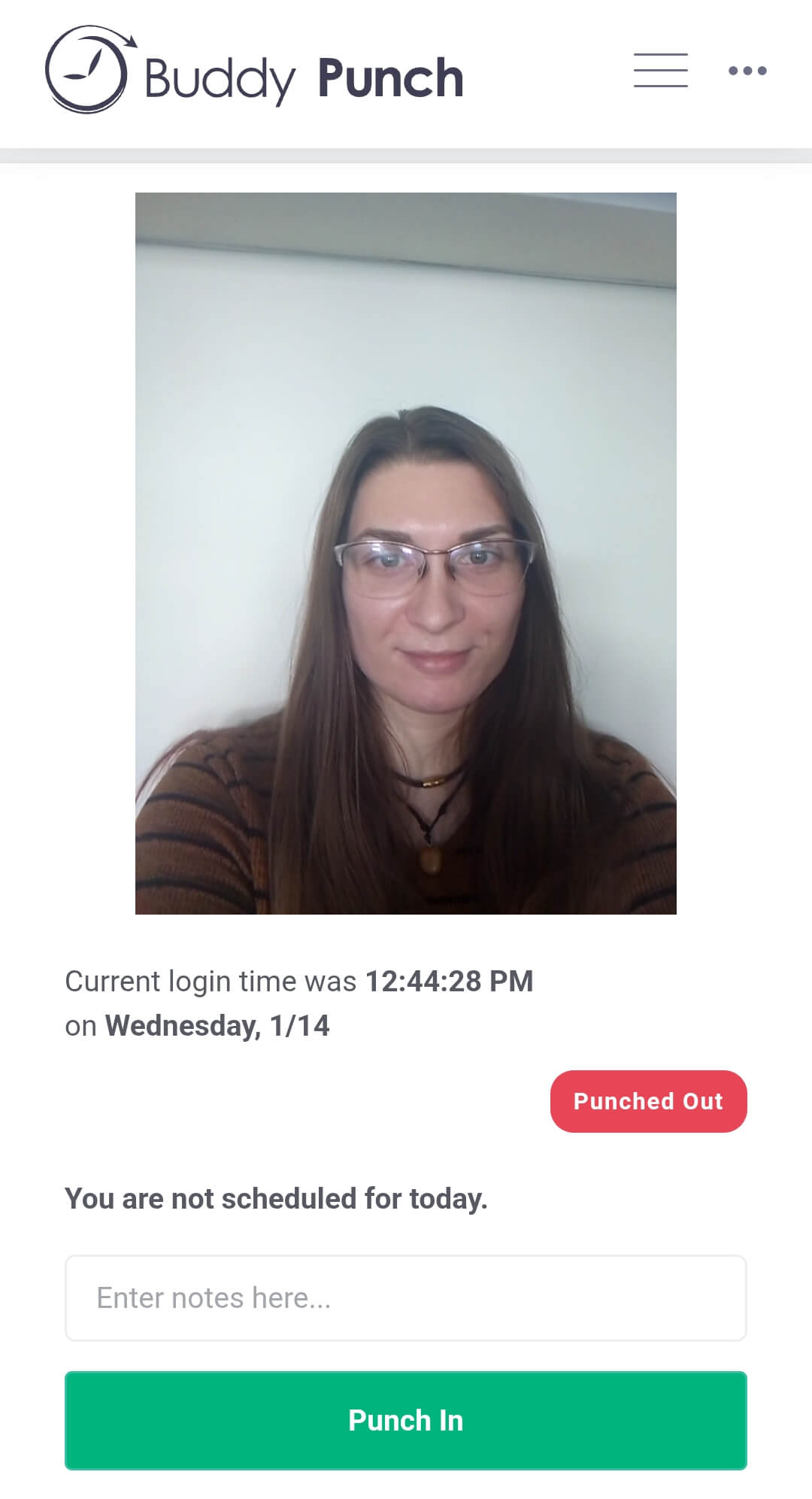
Employees can see 5 tabs in the bottom menu:
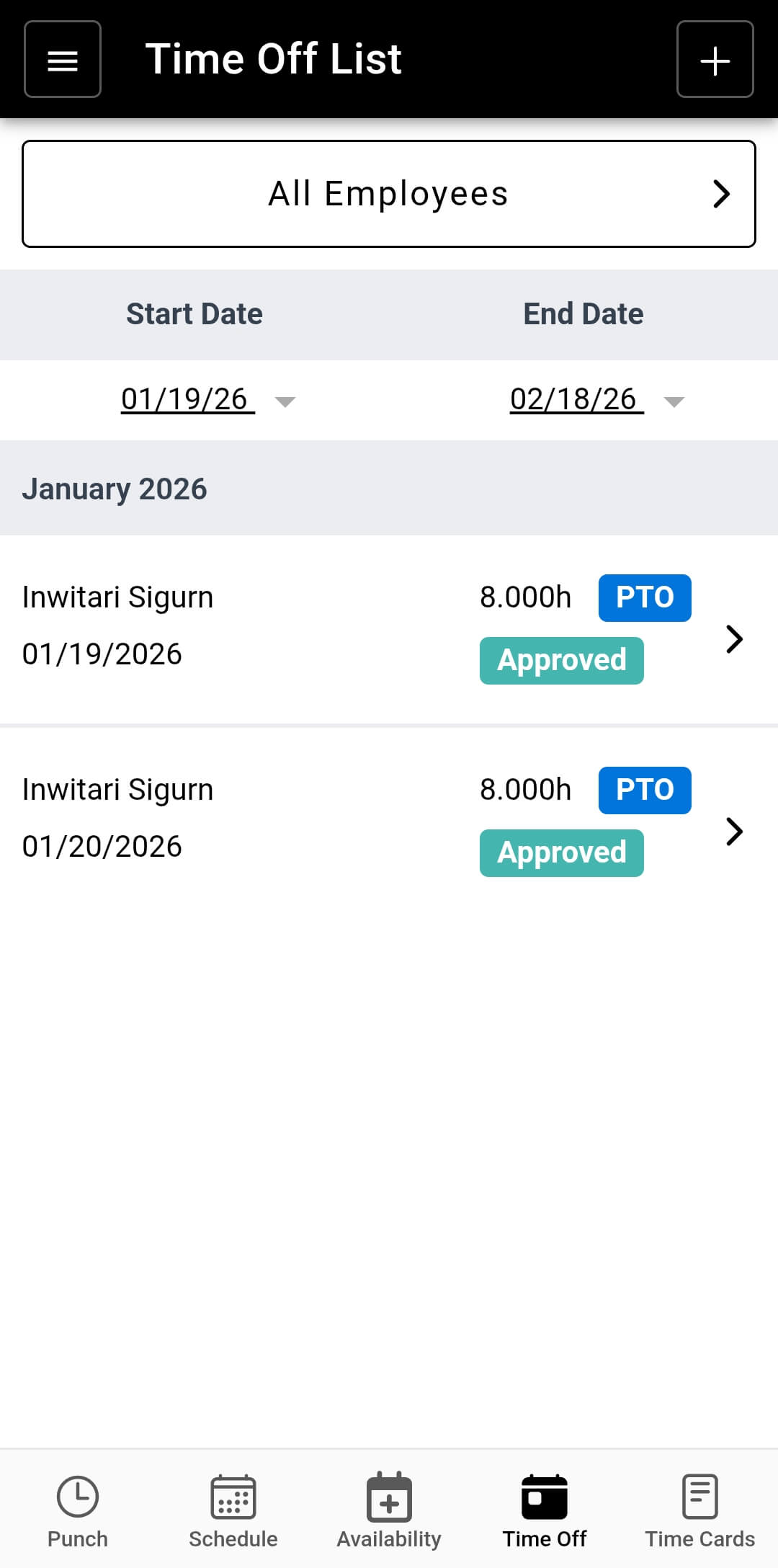
I noticed that the app will log you out (even though you stay punched in), so you’ll have to log in every time you want to open it after punching in for the first time in the workday.
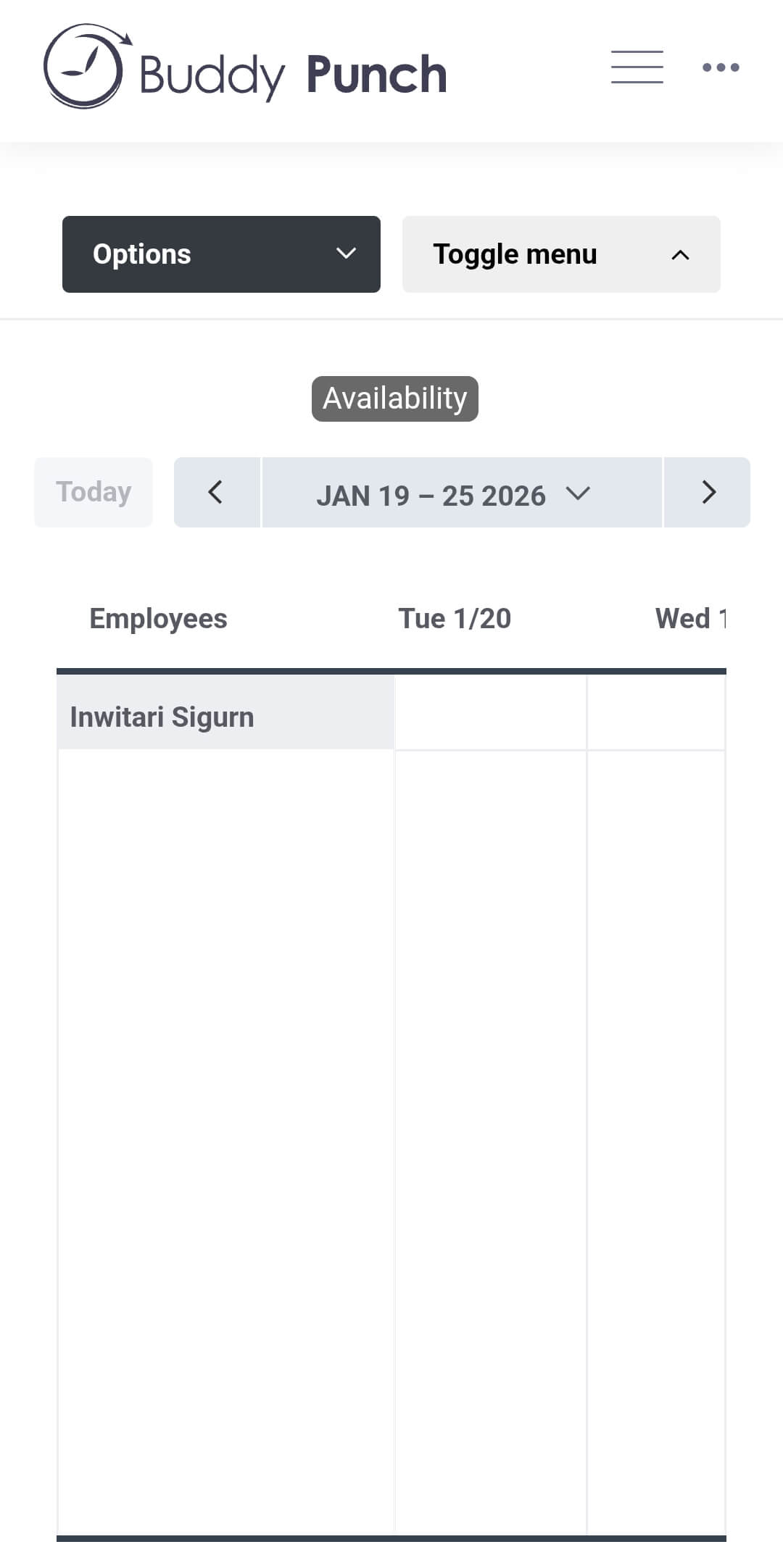
What’s more, the mobile app’s view isn't perfectly suited to smaller screens, especially when setting availability — it looks clunky and unintuitive.
When it comes to using the Buddy Punch mobile app as a manager, I find the app rather lacking.
The layout is similar to what the employees see — only with more options, such as approvals and map view. However, while I find it works perfectly for employees, it seems overly simple for managers.
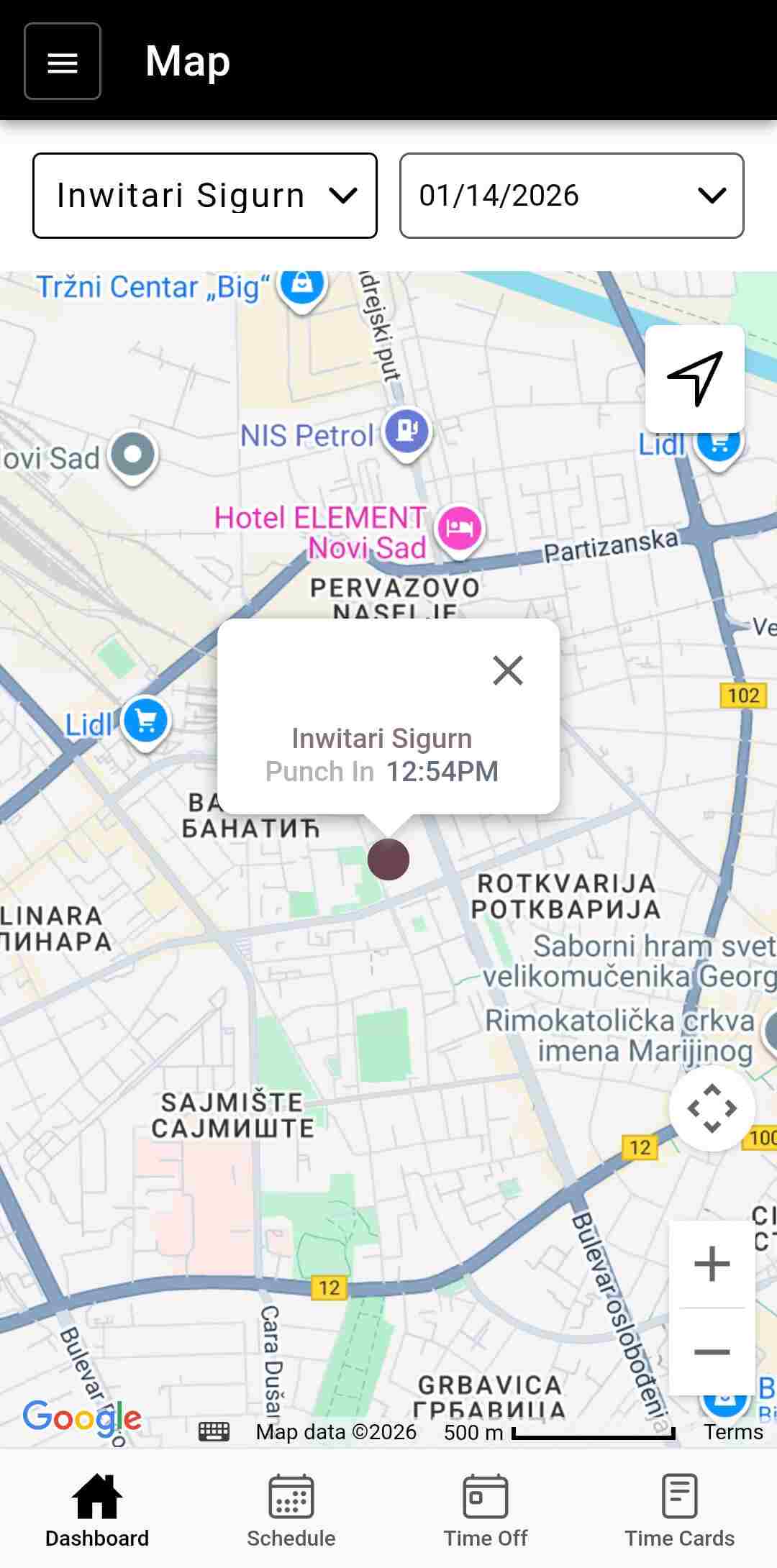
Instead of a Punch tab in the bottom menu, managers will see Dashboard, where they’ll find information about who’s punched in and out.
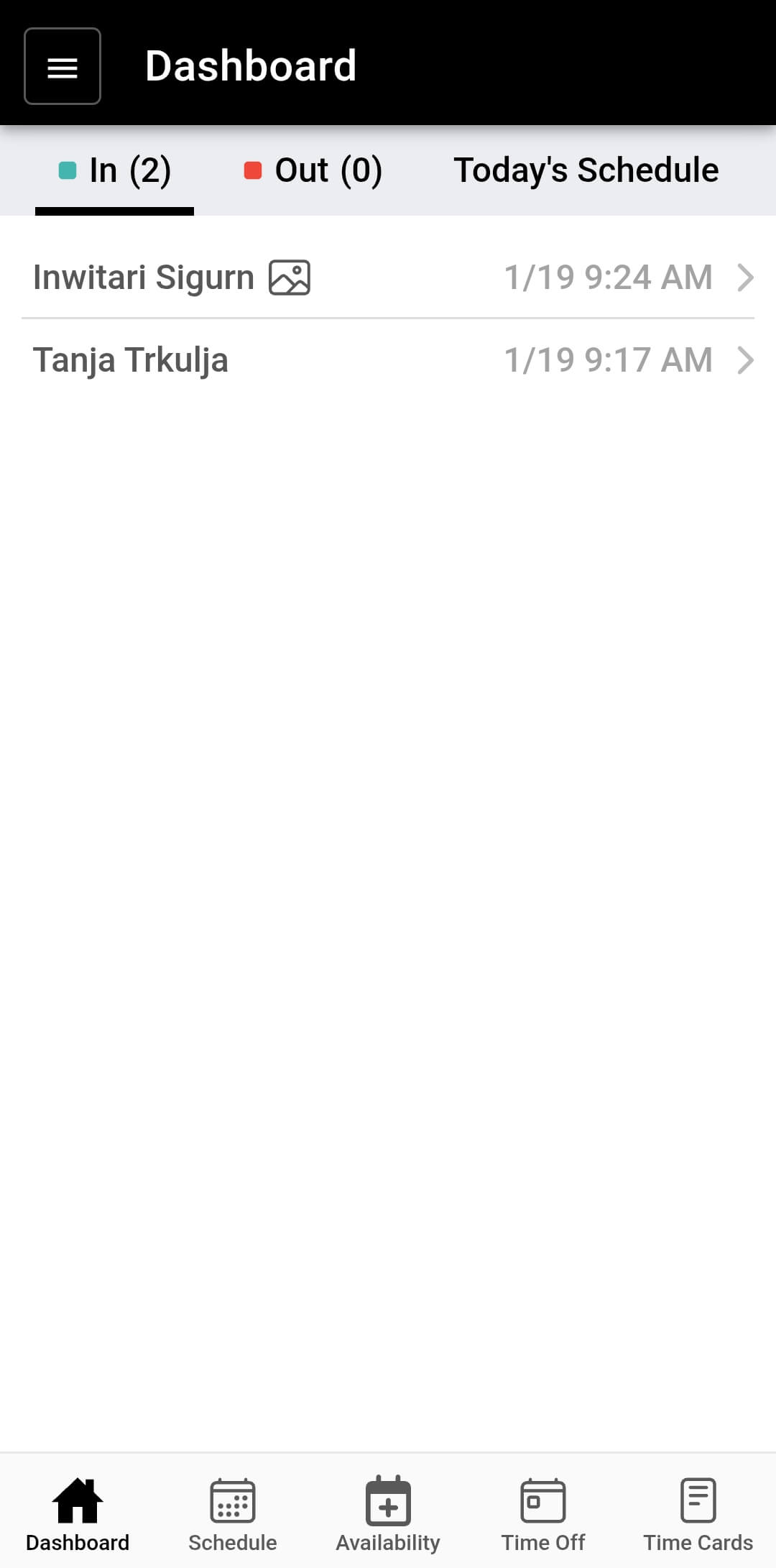
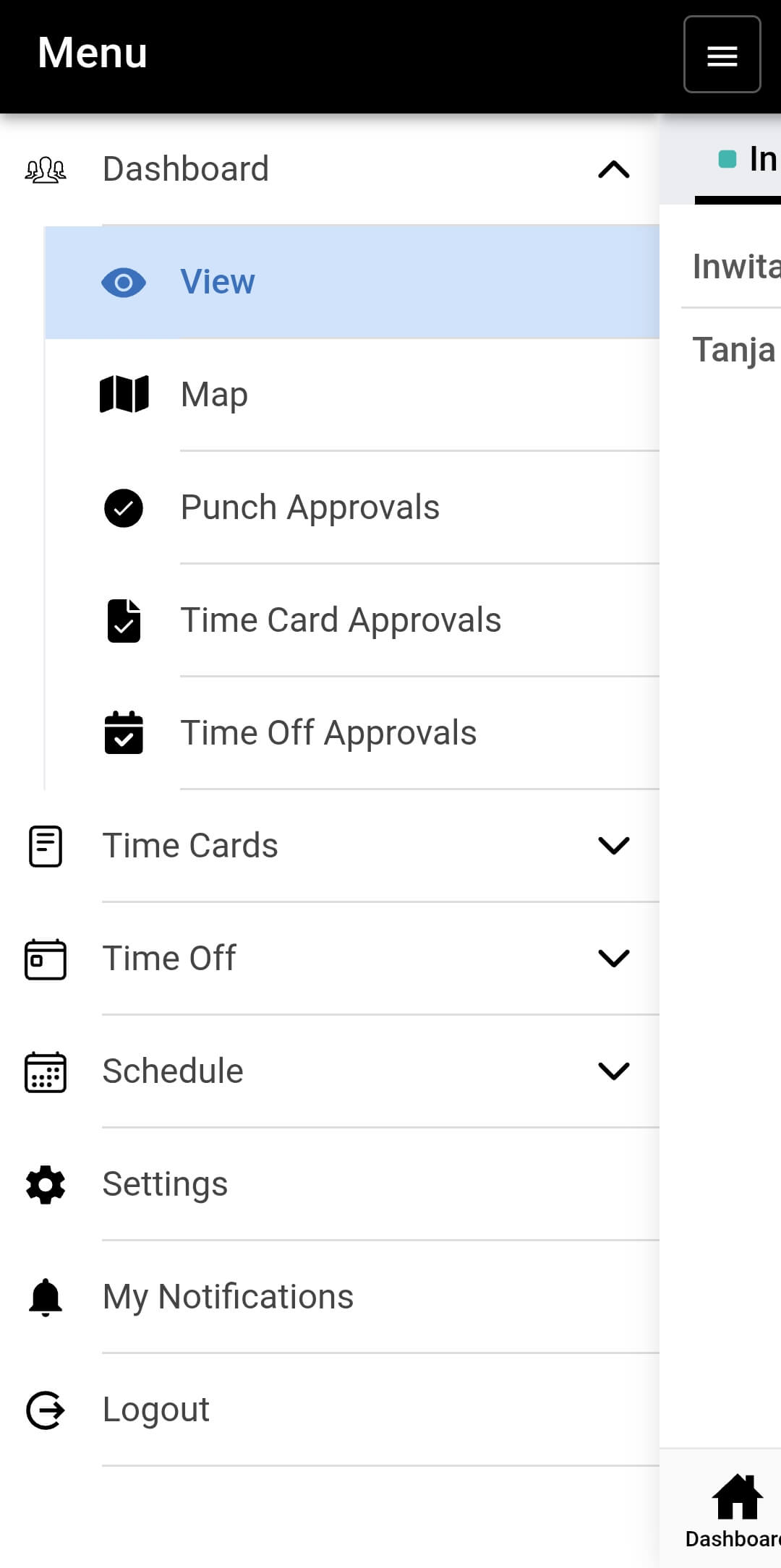
In the top-left corner, managers get access to a drop-down menu to view workers’ punches and approvals for punches, time cards, and time off. There, managers can also create schedules for their employees.
In the Settings tab, you can choose to set locations, department codes, positions, and geofences. And that’s about it.
Don’t get me wrong, these app features are all functional — it’s just that the sheer volume of options available for managers in the web version makes the app feel limited. For instance, you can’t manage kiosk settings or set overtime rules in the mobile app — features I feel should be available on the go.
When scheduling, you can view everyone’s shifts and create new ones. Once the shift is created, you can publish the shift and choose to notify the assigned employee via email, push notifications, or both. Or you can publish the shift without notifying anyone.
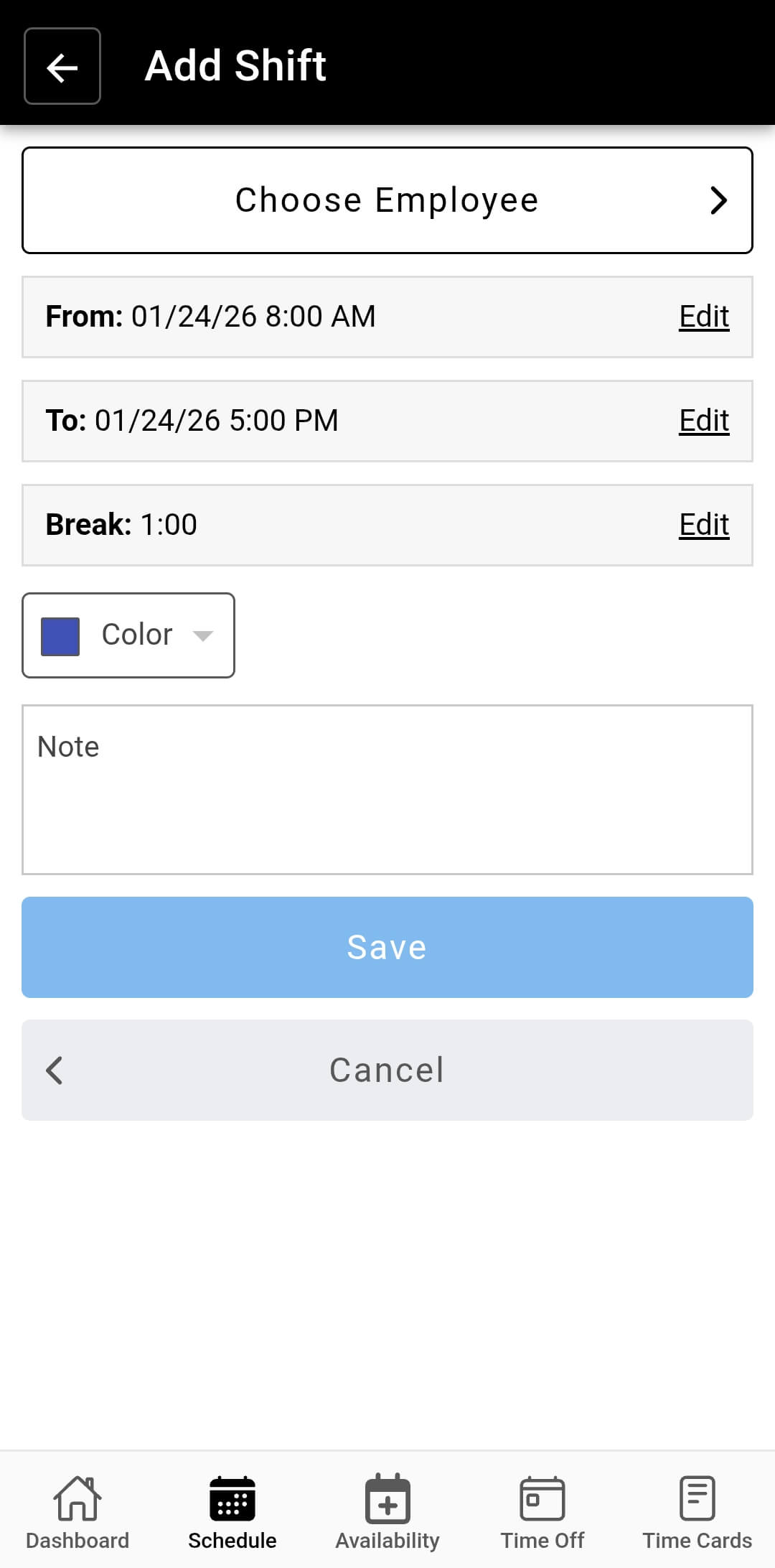
The scheduling feature on the mobile app is basic and functional, but it lacks some of the options available in the web version. For instance, you can’t set the repeats for the shift you create, and there’s no drag-and-drop functionality.
Approvals in the Buddy Punch app are pretty straightforward, as you can approve punches, time off, and time cards. The pending approval will show up in your dashboard as well.
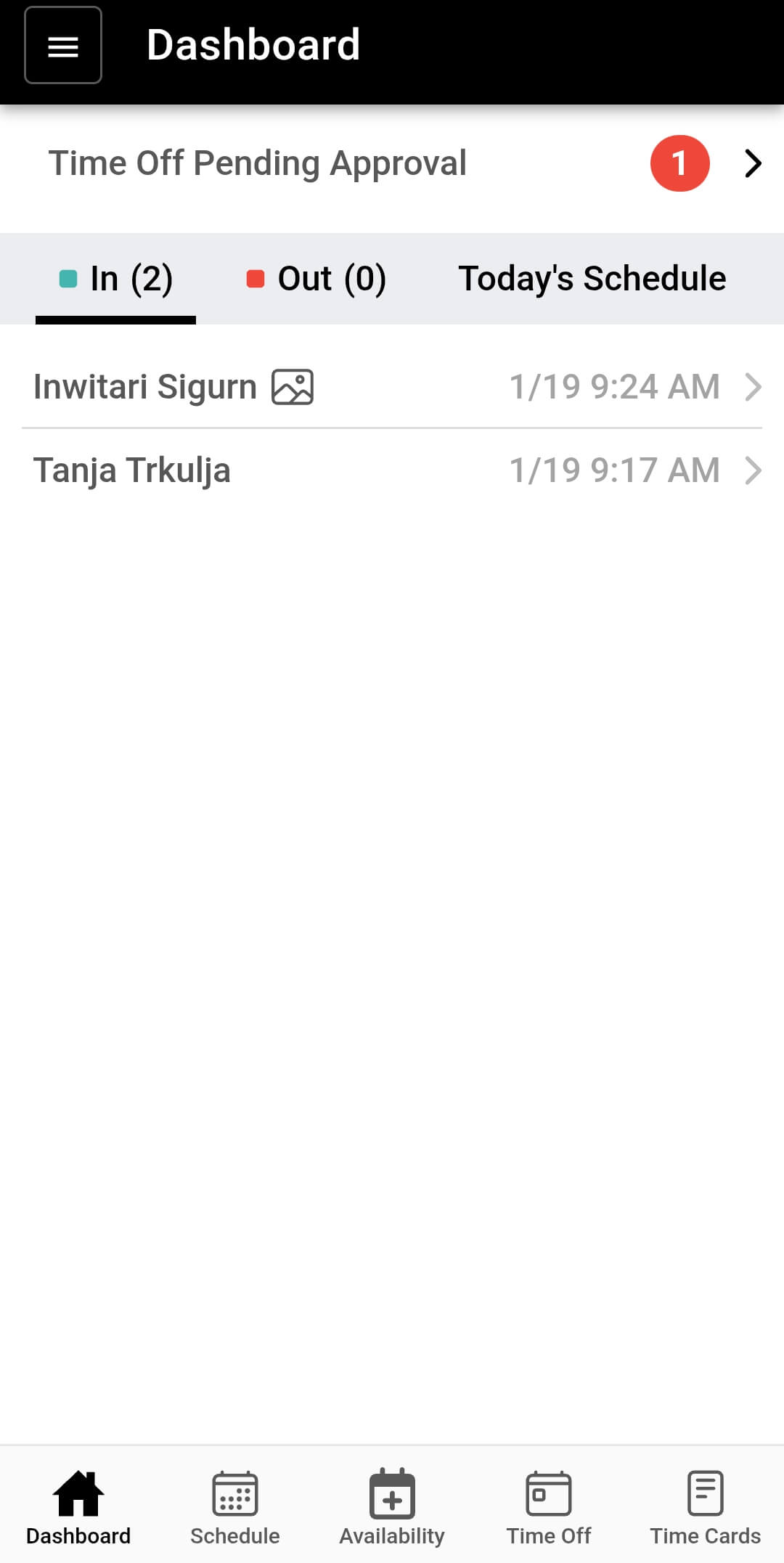
Then you can decide whether to approve or deny it — like below.
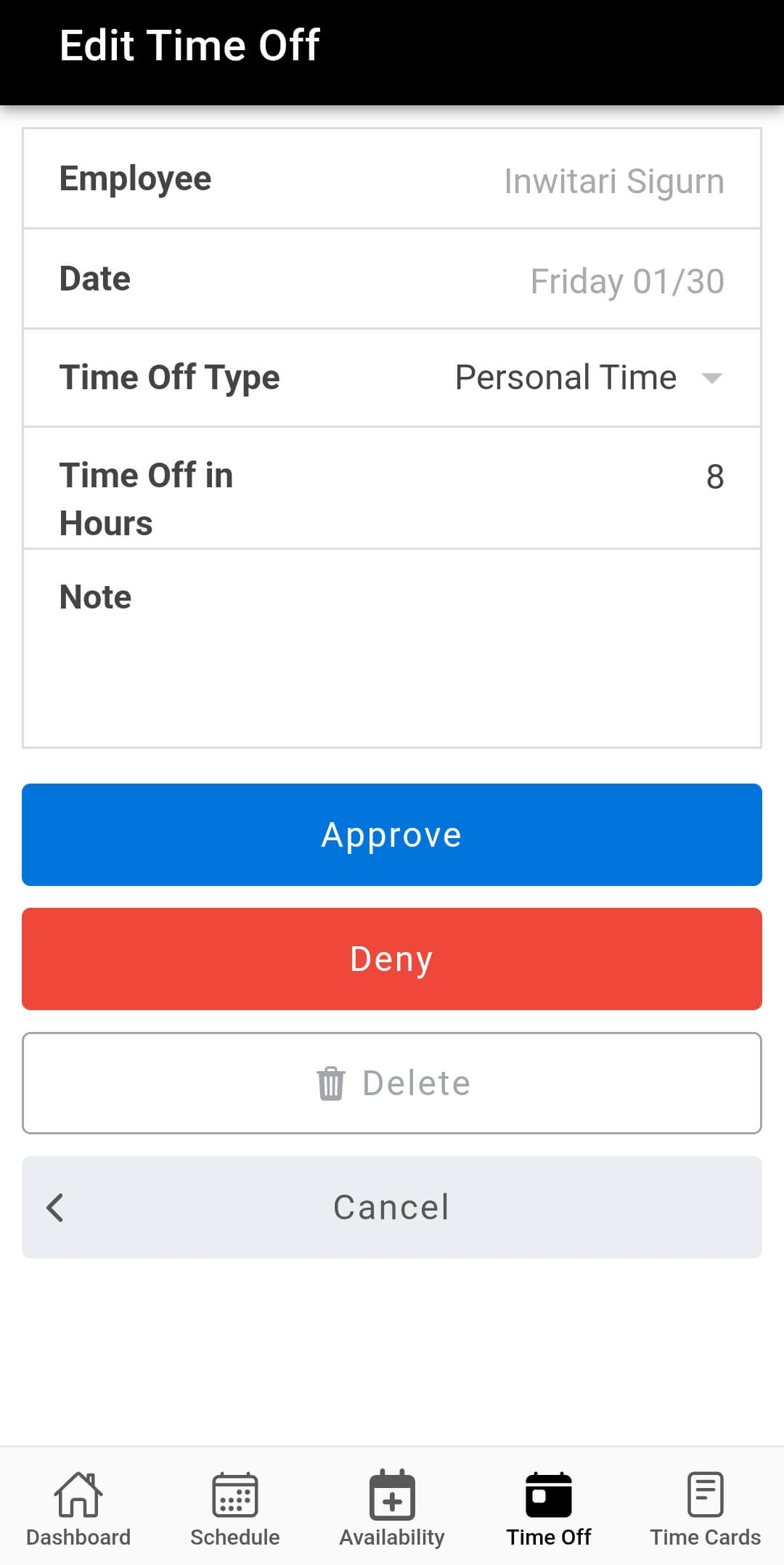
Of course, if you’ve set punches to occur without the need for approval, there won’t be anything for you to approve in that regard.
I’d say that approvals work perfectly in the mobile app just like they do in the web version of Buddy Punch.
| Buddy Punch mobile app | Rating |
| Interface for workers | 4.5/5 |
| Interface for managers | 3/5 |
| Scheduling | 4/5 |
| Approvals | 5/5 |
| Final rating | 4.1/5 |
Buddy Punch doesn’t appear to publish detailed public release notes. What I discovered through some good old-fashioned googling comes from a GlobeNewswire article in April 2025.
Reportedly, this update brought many enhancements, most notably the Custom Reports add-on, which allows businesses to generate tailored reports, schedule automated reports, and gain detailed insight into employee attendance and overtime.
I find Buddy Punch to be a nifty little app that mostly delivers on its promise. The focus isn’t on elaborate time tracking or on projects, but on straightforward punch-in/out job tracking. This is useful for on-site and shift-based businesses.
That said, I think that Buddy Punch would best match the needs of companies in the following industries:
In general, I don’t see Buddy Punch as a perfect fit for project-based industries, such as creative agencies, IT, legal services, consulting, and similar. While one could use department codes to manage this type of workload, I find this solution overly clunky. And even if salaried employees can use duration entries, then a bunch of other Buddy Punch’s functionalities feel redundant.
After considering all the user experience factors mentioned above, here’s my final verdict on Buddy Punch.
| Buddy Punch | Rating |
| Web app | 4.3/5 |
| Mobile app | 4.1/5 |
| Usability and interface | 4/5 |
| Pricing | 3.5/5 |
| Security and privacy | 4.5/5 |
| Customer support | 4/5 |
| Customer reviews | 4.77/5 |
| Final verdict | 4.2/5 |
To control overtime costs, track non-working hours, and maintain compliance, try out Clockify by CAKE.com. As a free Buddy Punch alternative, Clockify is a secure app with 99.99% uptime.
If you’re a manager or small business owner in manufacturing, construction, or IT services, here are 8 tangible benefits you get from Clockify:
#1: Free plan with unlimited projects — Clockify offers a completely free plan with core time tracking features. For small teams or businesses testing time tracking for the first time, that’s a huge advantage. (And that’s in stark contrast to Buddy Punch not offering a free plan.)
#2: Billing and invoicing — Clockify includes a powerful client billing and invoicing feature even on its affordable Standard plan, so you can generate client invoices directly from tracked time. (On the other hand, Buddy Punch doesn’t offer native billing capabilities.)
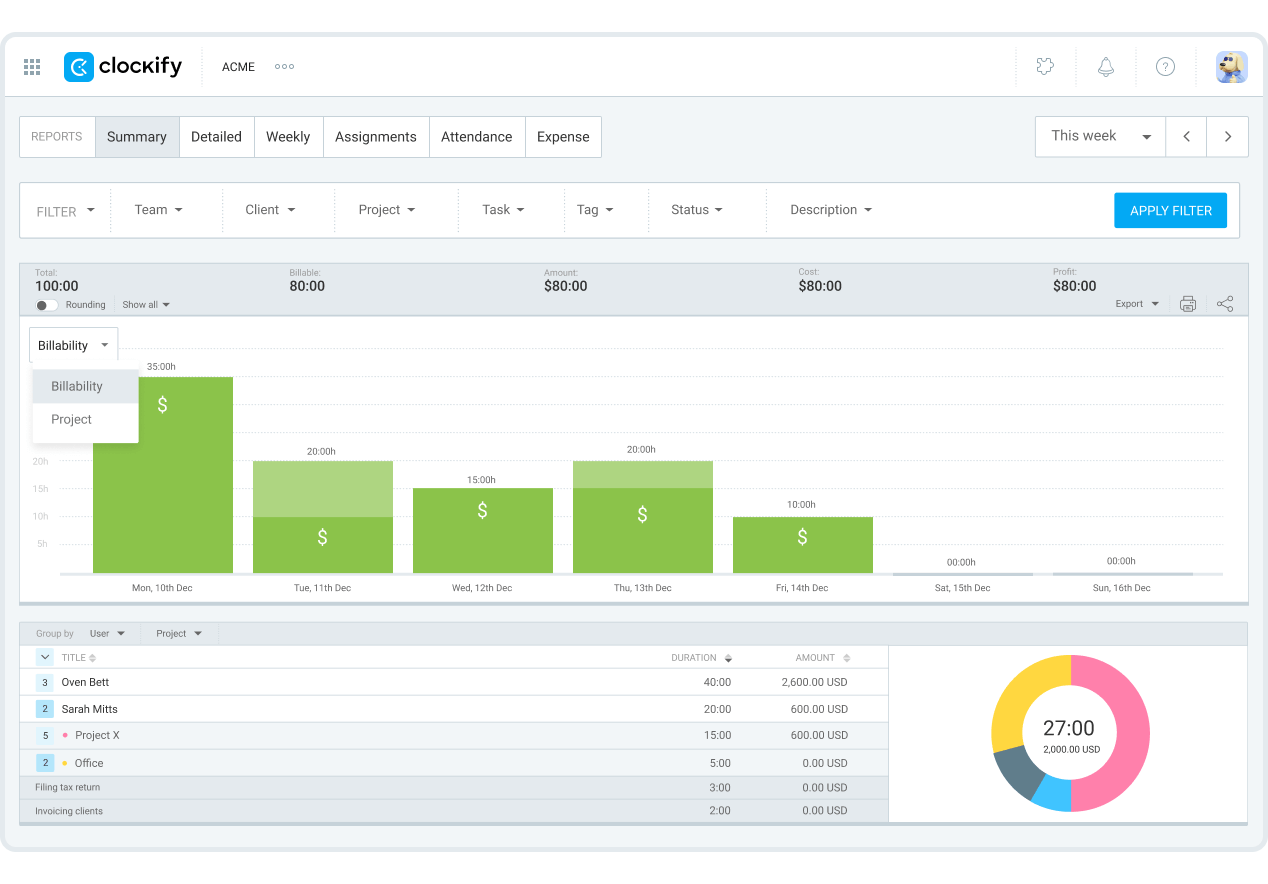
#3: Powerful reporting and analytics — Clockify’s reporting feature is modern, visual, and customizable. Simply select the data you wish to include and generate weekly, detailed, and/or summary reports.
#4: 24/7 human support — Clockify offers round-the-clock support for all users, including those on the free plan. A dedicated success representative (if qualified) is even available on the Basic plan. (In contrast, Buddy Punch limits human support to business hours, which is a problem if you run night shifts or weekend operations.)
#5: Part of the CAKE.com Bundle — Clockify integrates seamlessly with the Pumble team communication tool and the Plaky project management app. If you’re building a full workflow stack, you get 3 tools that work together instead of dealing with multiple subscriptions.

#6: Efficient use across diverse industries — While Buddy Punch primarily targets shift-based teams, Clockify adapts to any industry, from agencies and consulting firms to IT teams, legal firms, and healthcare. Whether you bill by the hour, track internal projects, or manage remote teams across time zones, Clockify fits the workflow.
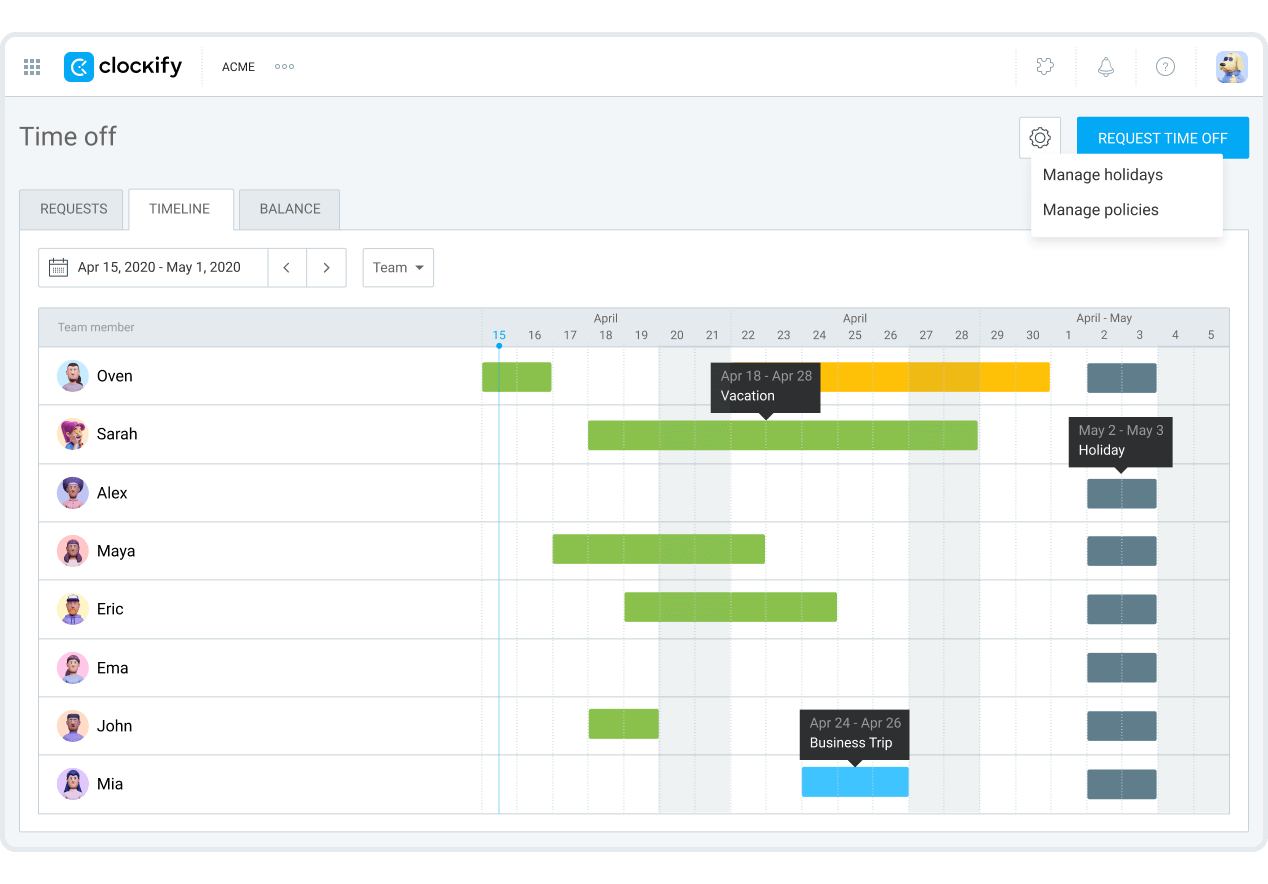
#7: Easier time off management — Clockify’s time off feature is more intuitive and flexible. Employees can quickly request PTO, managers approve with one click, and you can see team availability at a glance. Most importantly, everyone can see their balance.
#8: Offline mode for uninterrupted tracking — Clockify’s mobile and desktop apps work offline, so employees can track time even without an internet connection. Time entries sync automatically once they’re back online. This is critical for field workers in areas with spotty WiFi coverage.
| Features | Buddy Punch | Clockify |
| Primary use |
|
|
| Time tracking |
|
|
| Project tracking |
|
|
| Scheduling |
|
|
| Time off |
|
|
| Payroll |
|
|
| Reporting |
|
|
| GPS Tracking |
|
|
| Free plan |
|
|
| Suitable for |
|
|
| Pricing |
|
|
Need more information about Buddy Punch? Then, by all means, keep on reading.
Yes, Buddy Punch is a legitimate time-tracking and workforce management tool used by thousands of businesses. It’s been around since 2013 and has solid reviews on popular review websites.
The company is transparent about pricing, maintains SOC 2 compliance, and integrates with major payroll providers like QuickBooks and ADP.
That said, “reliable” also depends on your specific needs — the reporting tool could be better, and human customer support isn’t 24/7.
🎓 Compliance with Timekeeping Laws Using Clockify
As a time and attendance system, Buddy Punch tracks employees’ locations when geofencing or GPS tracking is enabled. The app captures GPS coordinates when an employee clocks in or out. It’s also possible to see real-time movement of your workforce if you get a real-time GPS add-on or an Enterprise plan.
Buddy Punch has a $19 monthly base fee across all 3 plans, plus $4.49 per user per month for the Starter, $5.99 per user per month for the Pro, and $10.99 per user per month for the Enterprise plan when billed annually. Optional add-ons cost extra.
For example, for a 50-employee team on a Starter plan with no add-ons, expect to pay $2,922 a year ($ 243.5 a month).
Both Buddy Punch and Connecteam are workforce management tools, but they target slightly different needs.
Buddy Punch focuses heavily on time tracking, overtime compliance, and payroll integration — it’s built for those who need accurate timesheets and fraud prevention.
Connecteam offers time tracking, too, but it’s more of an all-in-one employee app with features like training modules, task management, and internal communication tools.
Connecteam is better for teams that need broader employee engagement tools, while Buddy Punch is better if your main pain points are time theft and payroll accuracy.
If your company uses Buddy Punch, location tracking and facial recognition are visible to employees. The app will ask for permission to access GPS, and employees will see on-screen when a photo is being taken for facial recognition.
Buddy Punch is a secure employee time clock software that uses industry-leading encryption for data in transit and at rest, as well as certified data centers. The platform is SOC 2 compliant, meaning it meets industry standards for data security and privacy. Location data and facial recognition photos are stored securely and aren’t shared with third parties.
Employees can clock in using: