

Alex Beadon
Founder of Together We Launch
"We use Clockify to see where our time is going and how to solve any problems. It’s just so beneficial."
More stories

Find new apps that fit you team's needs

Ivana Fisic
Published: Feb 20th, 2026
Updated: Jul 21st, 2026
Are you searching for an easy-to-use app for your office and field employees? Well, Jibble is a time tracker that promises “effortless time management.”
To find out how effortless it really is, I tested this software and its key features. This Jibble time clock review provides all the details you need to make your choice in 2026.

Jibble is a timesheet app that also offers attendance and productivity features.
Since Jibble has a time clock kiosk, it’s suitable for industries whose work is centered in physical locations, like:
In this Jibble app review, I analyze and rate key features on a scale of 1 to 5.
| Jibble pros | Jibble cons |
|---|---|
| ✅ The most affordable plan is budget-friendly compared to most competitors | ❌ Bugs and glitches when opening an account and tracking time |
| ✅ The mobile app is well-organized and intuitive | ❌ Customer support AI chat is only available in paid plans for owners and admins |
| ✅ The time off feature on mobile is straightforward | ❌ There’s no native payroll feature available |
| ✅ Live locations and geofencing work well | ❌ Limited integrations |
| ✅ It offers a 14-day free trial, during which you can test all paid plans (except for the Enterprise plan features) | ❌ The break button on the mobile app can be unresponsive |
At the time of writing this review, Jibble doesn’t have a public pricing page. The app offers a free trial or a meeting with their sales team for the custom Enterprise plan.
But once you start your 14-day trial, you’ll receive an upgrade prompt and pricing options. Here, you have 3 choices:
Jibble’s initial trial includes only the features available on the Free plan, but you can also try any other paid plan during the upgrade window. This resets your 14-day trial counter.
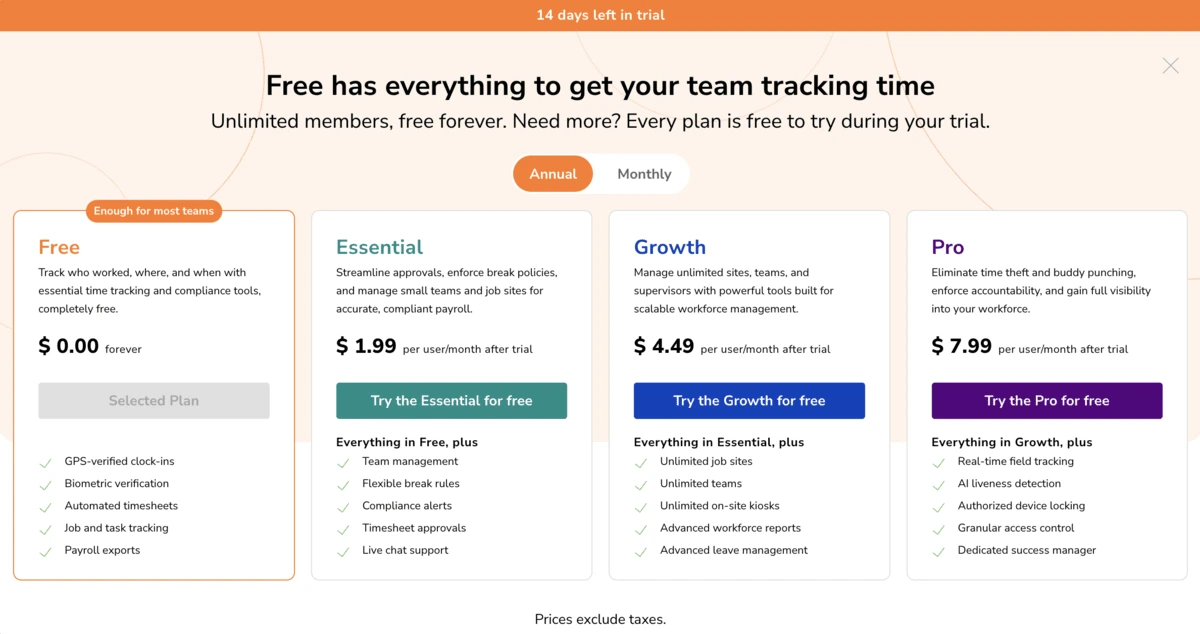
Here’s an overview of Jibble plans’ features:
If you only need timesheets and 1 kiosk with up to 2 locations, the free plan will do the job. And since Jibble markets itself as a time tracking software, I appreciate that most time tracking functionalities are included in this plan.
However, if you need unlimited location tracking and all PTO options, you have to opt for the Pro plan. On this plan, for a 10-member team, you’ll have to spend $79.9 per month (billed annually), which is pretty affordable in my opinion.
While opening an account, I noticed some glitches. The app was buggy and responded slowly when I tried to add my team data. It took a little while, and I had to refresh the page to continue.
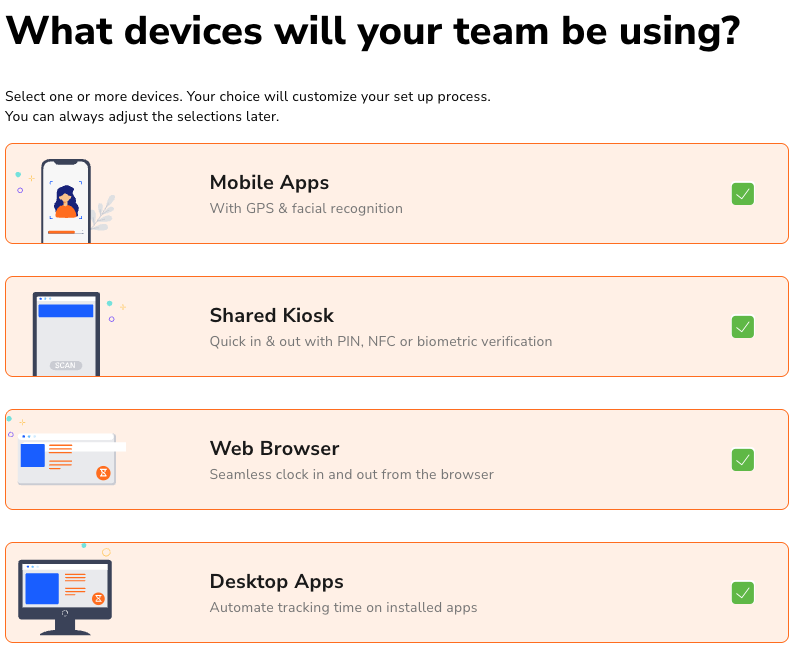
After this rocky start, the rest of the onboarding process went smoothly. Jibble lets you set time-tracking and overtime rules, as well as work schedules. You can also choose which devices you want to use Jibble on. (The good thing is that you can modify your choices later on.)
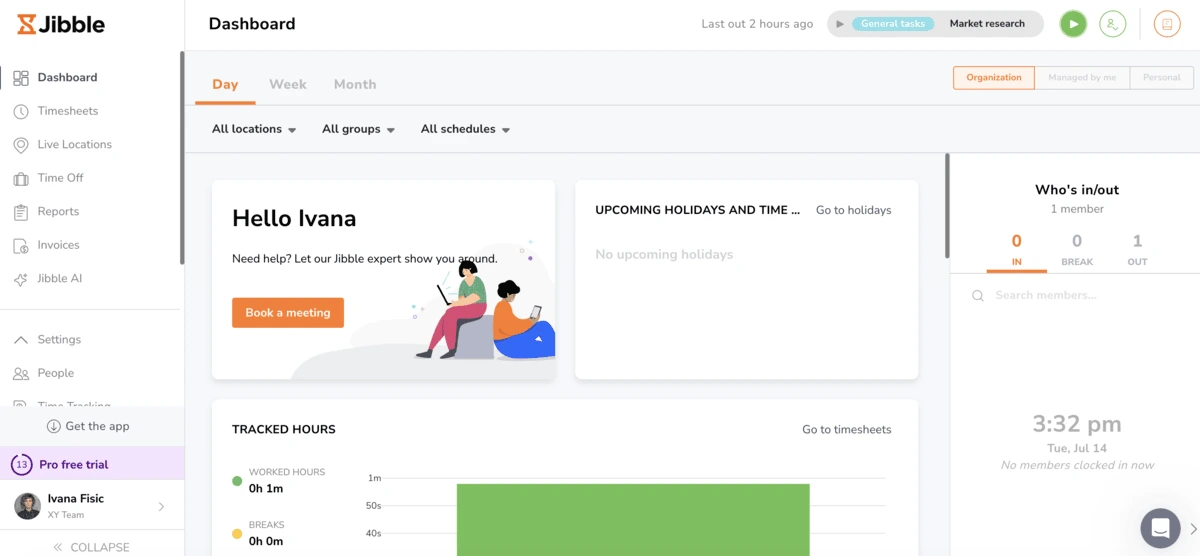
The homepage design is very colorful and easy to navigate. On the left-hand side of the screen, you can see all the features. In the center, you get to view all your tracked hours for the day, week, or month, which is a nice touch.
To stay on top of employee attendance, workspace owners can see on the right-hand side which team members are currently working, who’s out, and who’s on a break. The dashboard is well-organized and allows you to quickly review logged hours and attendance.
Most features don’t have a learning curve. Even if you’ve never used a time tracker before, you’ll quickly find your way around Jibble, since the tracker button is easy to spot.
If you need to modify any feature to fit your workflow, you’ll find settings on the left-hand side of the workspace owner screen. I believe this is a convenient way to find everything you need to know about a feature.
On its official website, Jibble states that it stores all data on Amazon Web Services in Ireland and Northern Virginia.
Jibble also lets users set Two-Factor Authentication (2FA). This step ensures extra security by preventing unauthorized access.
In general, I was struggling to find more information about Jibble’s security and privacy. So I asked their AI chat, and it suggested I continue the conversation with their customer support agent.
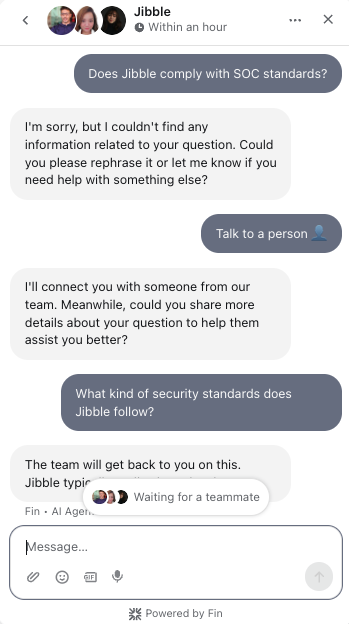
Then their customer support agent confirmed that Jibble is GDPR-compliant, but that was all they mentioned.
As for other security standards, such as SOC 2 or ISO/IEC, I haven’t found any evidence of Jibble’s compliance with them. This didn’t sit well with me, especially since Clockify by CAKE.com has obtained such certifications to improve overall security.
If you need help finding your way around Jibble, you can choose between:

It’s worth noting that AI chat is only available in paid plans for owners and admins. This is a shame because the chat option turned out to be a pretty convenient way for me to quickly get basic information about features.
So, limiting AI chat to paid users leaves free users (and paid users who aren’t admins or owners) with only 1 human customer support option — email. The other option is help articles, but this means searching for a solution on your own.
Another downside is that they don’t offer 24/7 live support with customer support reps. Of course, you can always send an email and wait for a response, but some issues are easier to explain over the phone. Some users on Trustpilot share the same frustration: A couple of reviews mention the lack of human support as Jibble’s con.
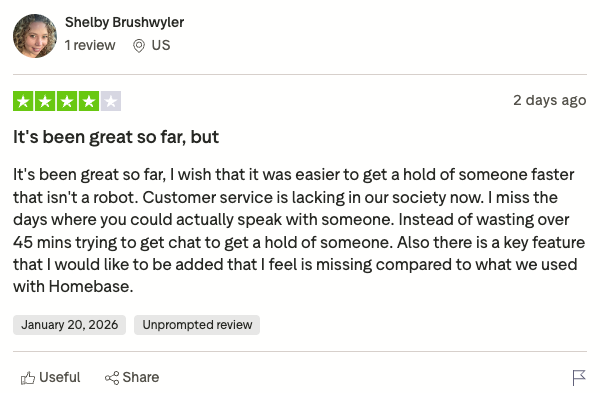
If customer support quality is one of the key factors for your small business, you should also think about the type of support you’ll need the most.
By comparison, Jibble, Connecteam, Homebase, and Clockify offer email and chat support. However, only Clockify allows users to reach out via phone for free (24/7 human support) and use contact forms.
| Customer support options | Jibble | Clockify by CAKE.com | Connecteam | Homebase |
|---|---|---|---|---|
| Yes | Yes (all plans) | Yes | Yes | |
| Chat | AI chat (paid users only) | Yes (all plans) | Yes (chat on mobile and on the admin dashboard) | AI chatbot Human chat support (paid plan only) |
| Phone | No | Yes (all plans, 24/7 human support) | No | No (only if you request a call with a human customer support agent) * Live support (Chat & Phone) is available for users on the Essentials plan or higher (or for customers who use paid add-ons) |
| Contact form | No | Yes (all plans) | No | No |
🎓 Homebase Review 2025: An Honest Dive Into the Pros and Cons
When it comes to Jibble app reviews, most of them are positive. Users mainly praise Jibble’s timesheets and clocking in/out functionalities.
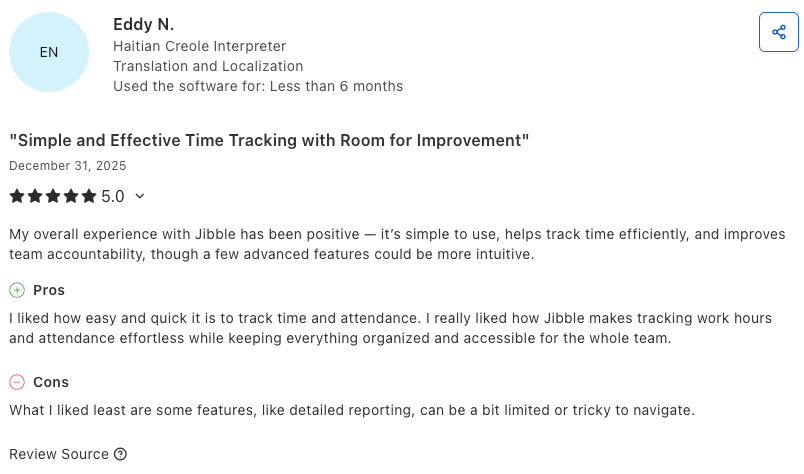
Generally, Jibble has high ratings on Capterra, G2, and GetApp. Negative reviews on these websites are mostly about issues with syncing data across devices.
However, the Trustpilot website has a much lower rating of Jibble. The most common complaints here are bugs that happen after users modify their time entries and problems with the desktop app. One user even reported an issue with the break button.
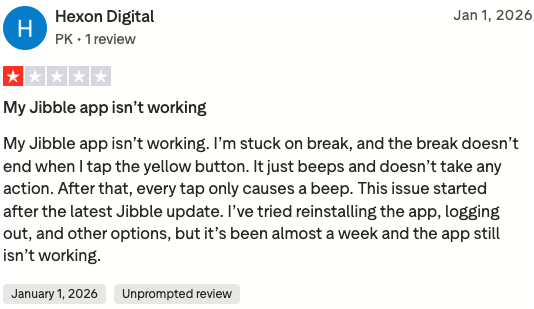
The Jibble team has responded to some of these negative comments, though not all.
Overall, here are customer ratings on some of the popular review websites as of February 2026:
The average rating across these 4 sites is 4.5.
The next part of our Jibble time-tracking review covers its key features, including timesheets, reports, integrations, and more. Let’s get to it.
In the Jibble web app, you can track your time via:
You can’t miss the Jibble timer option because it’s located in the upper right-hand corner of your screen.
While testing the app and writing this Jibble tracker review, I noticed that the timer doesn’t always work properly. I had several issues with starting the timer on the Jibble web app.
Another time, I couldn’t clock out. The pop-up message that appeared on the screen was “Time tracking not allowed on web,” even though I’ve managed to clock in before that.
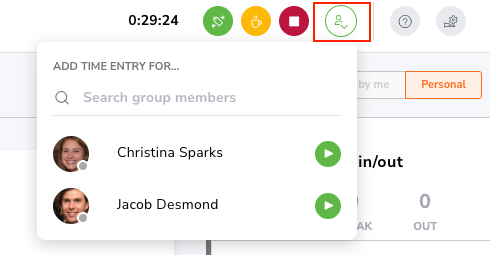
Apart from recording your hours, you can track time for other team members if you’re an admin. However, this option isn’t allowed if you’re registered as a team member on Jibble. So, it seems the app prevents buddy punching and time theft.
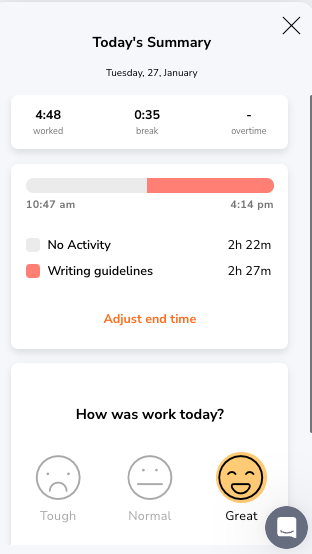
The time tracker has an option to log out for the day — when you tick that box, you’ll see the End work for the day summary. Here, you have a breakdown of your daily activities, and you can express your daily sentiment with an emoji, which is a nice touch.
All hours you track with a timer will appear in your timesheets. That way, you can review logged hours per:
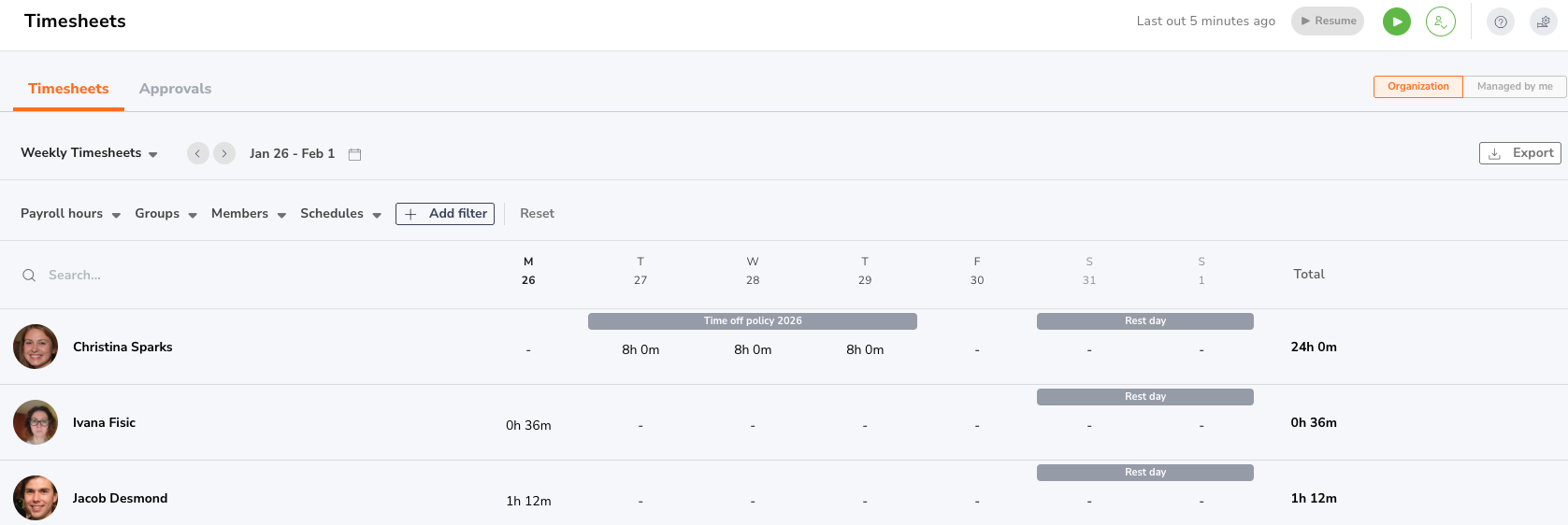
Timesheets are particularly useful if you’re looking for a simple way to track both regular and overtime employee hours. This way, you ensure you’re compliant with federal and state laws.
You can also review hours by employee. Jibble does a great job of showing payroll hours, broken down into:
This is especially important for small business owners located in California, since California overtime laws mandate a double-time rule in certain situations.
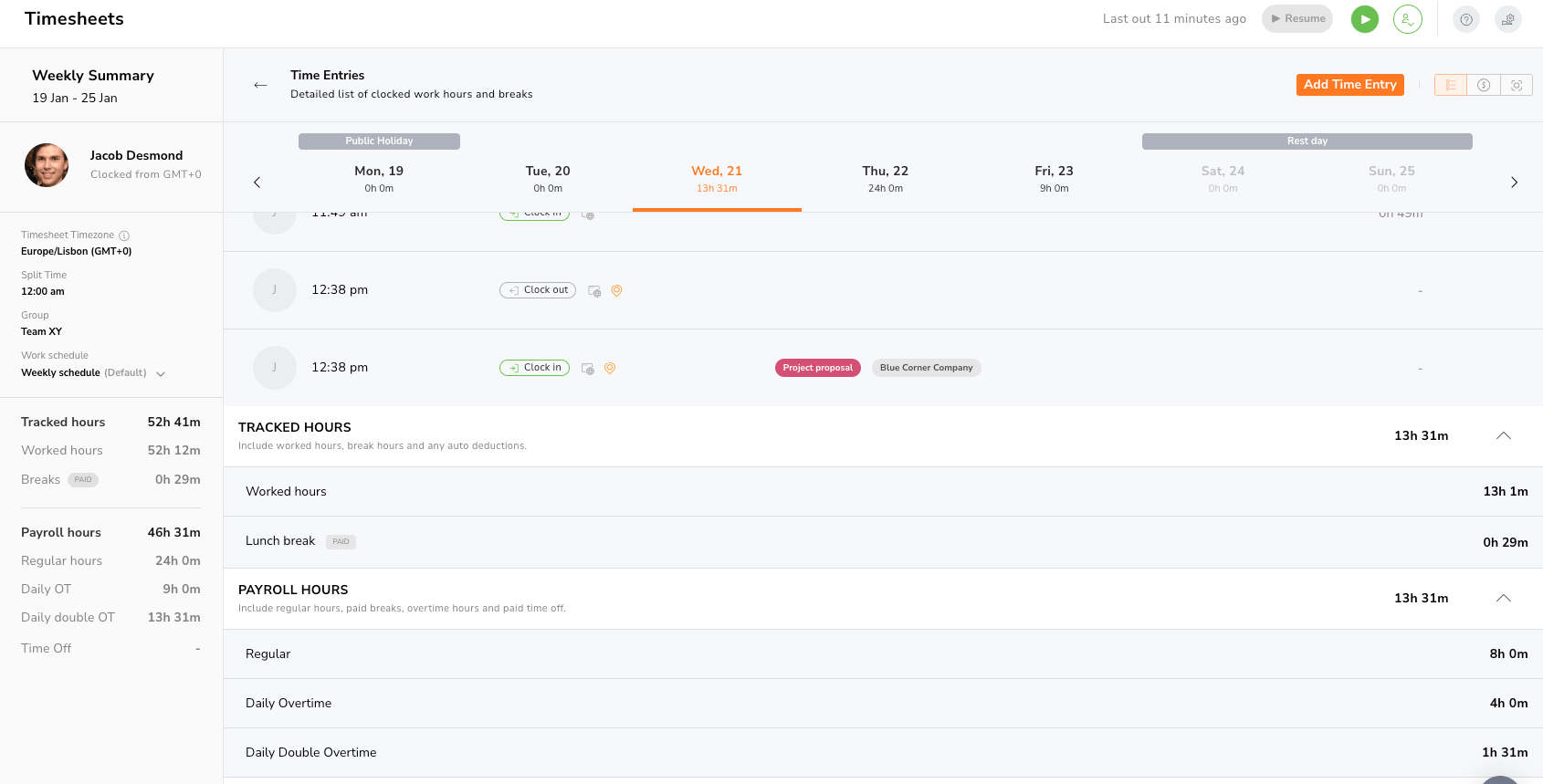
I also tried deleting some time entries in the timesheets. However, I couldn’t do that because these time entries were only clocked in, but not clocked out. To overcome forgotten clock-outs, you need to enable automatic clock-out in your Time tracking settings.
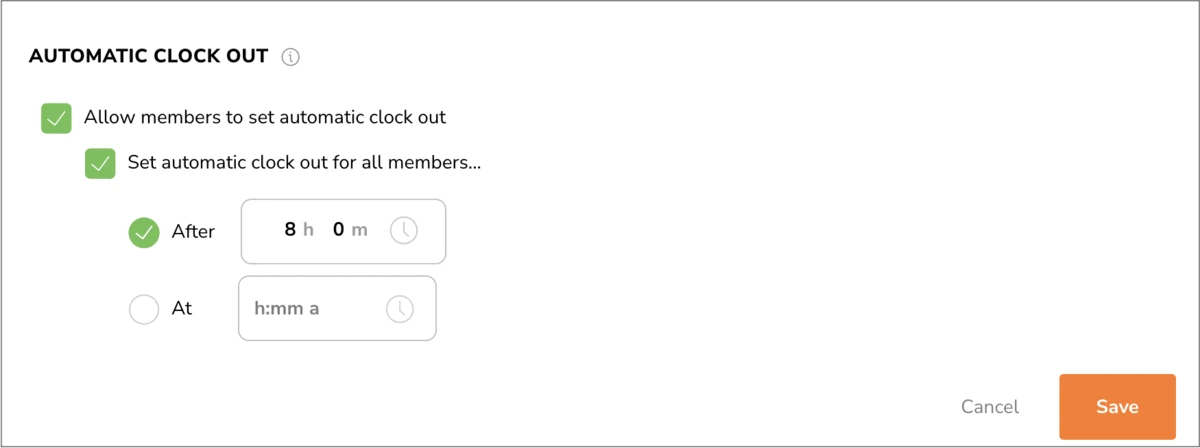
Also, you can set clock-in and clock-out reminders in the Jibble account settings — like below:
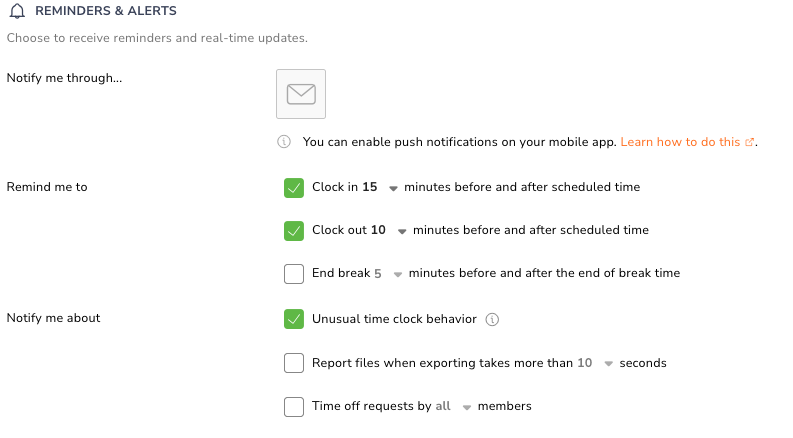
The timesheets feature proved more reliable than the timer. Overall, the timer is simple to use, but I wasn’t too impressed with this feature because it can be glitchy.
Work schedules are a very straightforward feature that allows you to create new schedules, but also set up rules about:
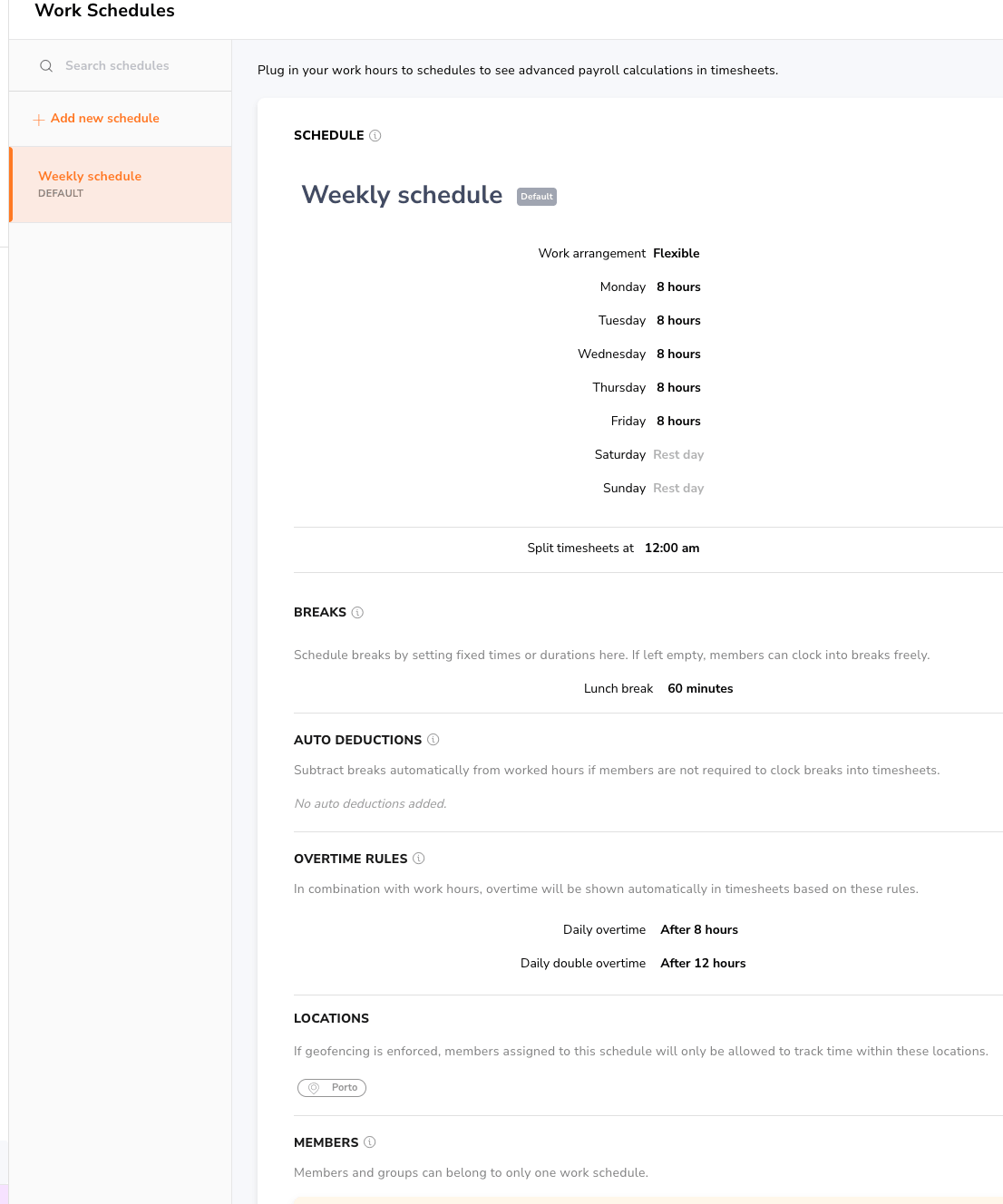
You can choose among fixed, flexible, and weekly work arrangements — very practical, in my opinion, because it covers different schedules.
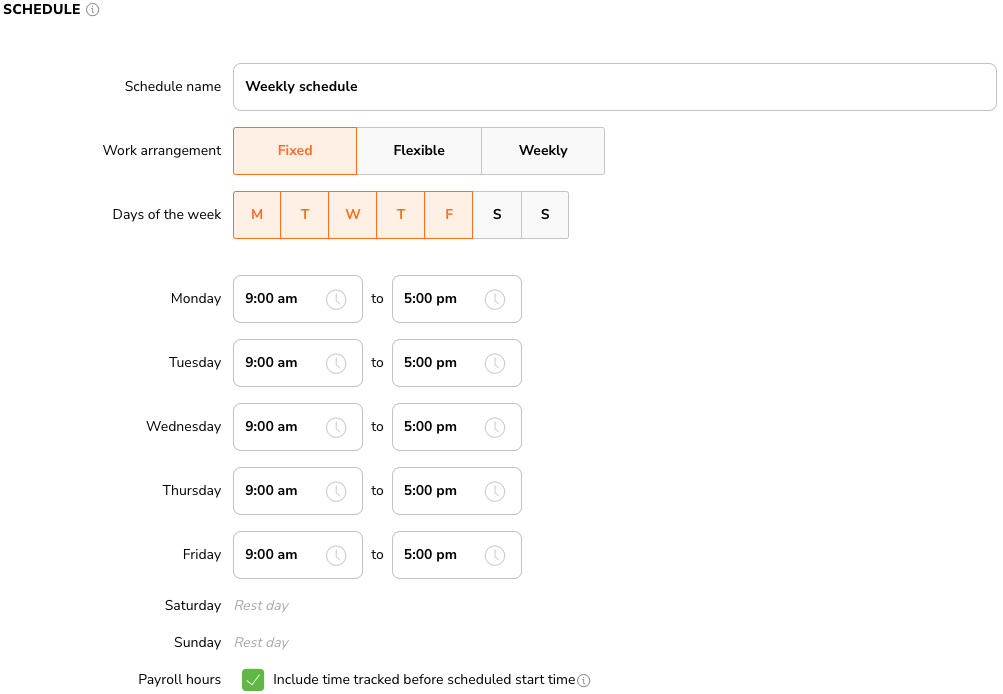
As for the breaks, you decide whether you want them to be paid or unpaid. You can also select their duration per day.

If you need a simple work scheduling feature to manage your schedules, overtime hours, and breaks, Jibble is probably the right choice for you. However, if you’re looking for a shift scheduling option, Jibble doesn’t cover that part.
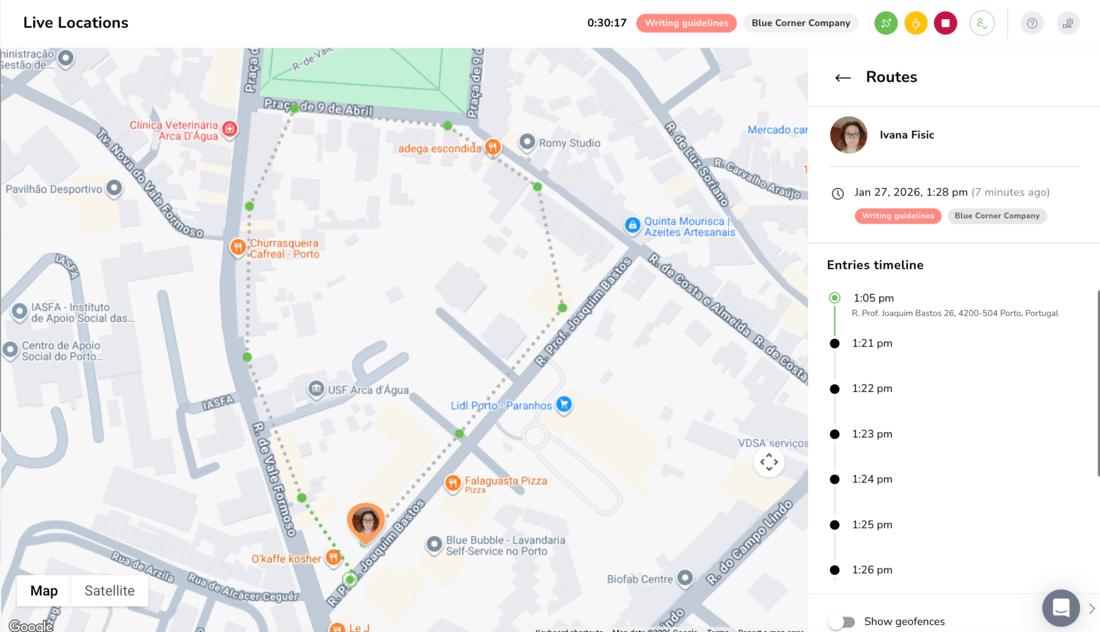
Apart from tracking time, Jibble offers employee monitoring features, like live location and geofencing. To view live locations in your web app, you first need to clock in on your mobile device. (In your web app, you can switch between Map and Satellite view.)
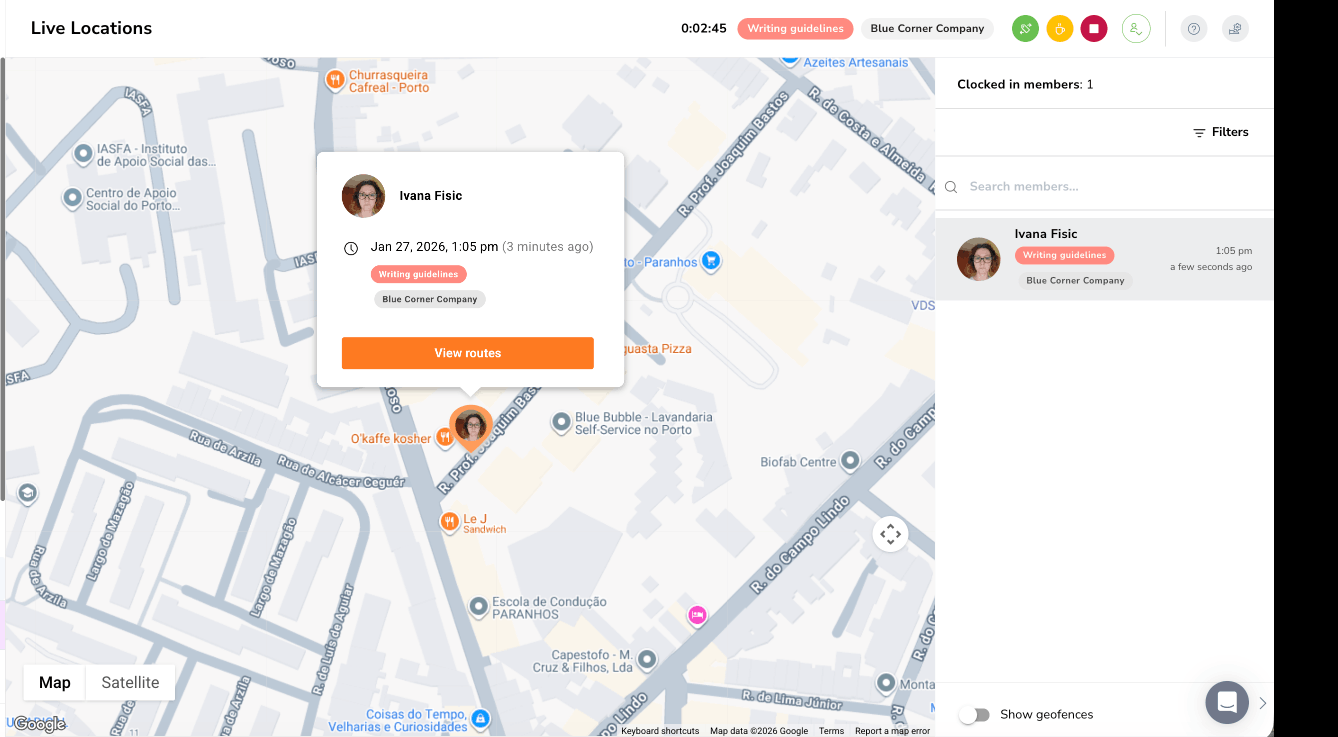
Live locations and geofencing worked properly for me. To test the feature to the fullest, I clocked in and then walked around my work area. Once I returned, the app captured the exact route. (On the right-hand side of the screen, you can see the entries’ timeline.)
If you want, you can also allow geofencing. This way, your employees can track their time only within the locations you’ve selected in the Work schedules section.
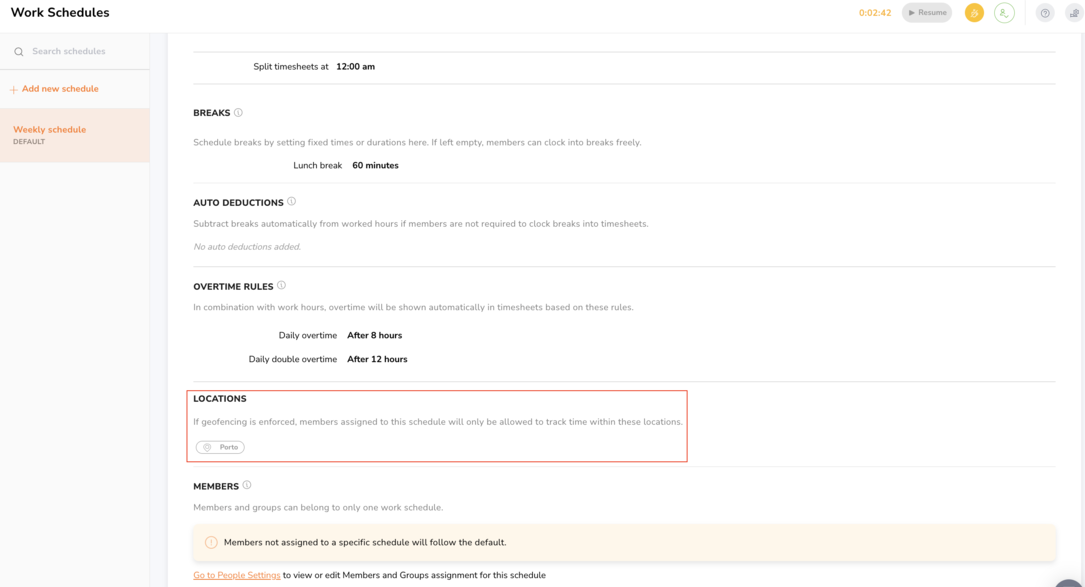
Since geofencing and live locations work pretty well on Jibble, this app will ensure accurate on-site clock-in and clock-out. Such options are especially important for field workers.
Keep in mind that on the free plan, you can add up to 2 geofence locations, which may not be suitable for your small business, depending on how many locations your company operates from.
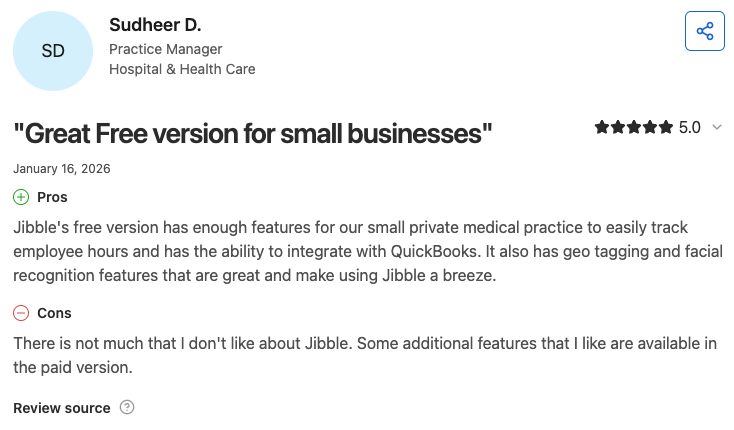
It seems many users enjoy geofencing options, like this one from Capterra.
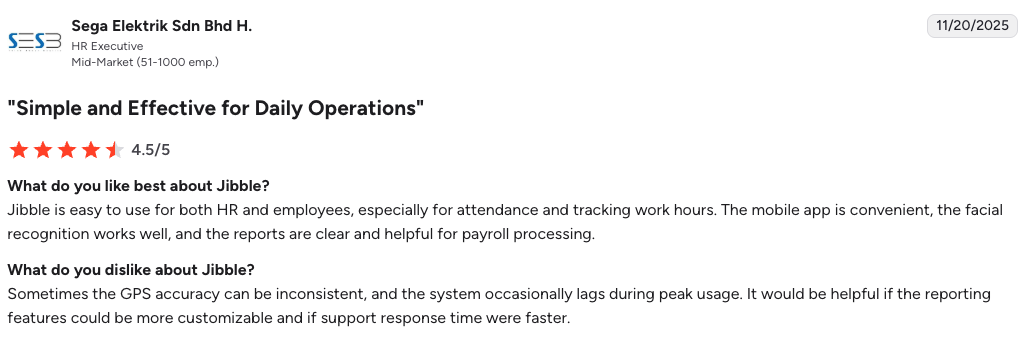
However, some users say that they’ve experienced issues with GPS tracking, like the one below.
Jibble time tracking app offers 4 reporting options in its Pro plan:
In my experience, finding all reporting options is not easy. It took me some time to realize that the Time off balance report is located in the Time off feature, not in the Reports section. In the same manner, you can find the Timesheet report only in the Timesheet feature. Not quite intuitive, if you ask me.
The Tracked time report shows you a breakdown of your daily, weekly, or monthly activities. You can also add custom dates if you want.
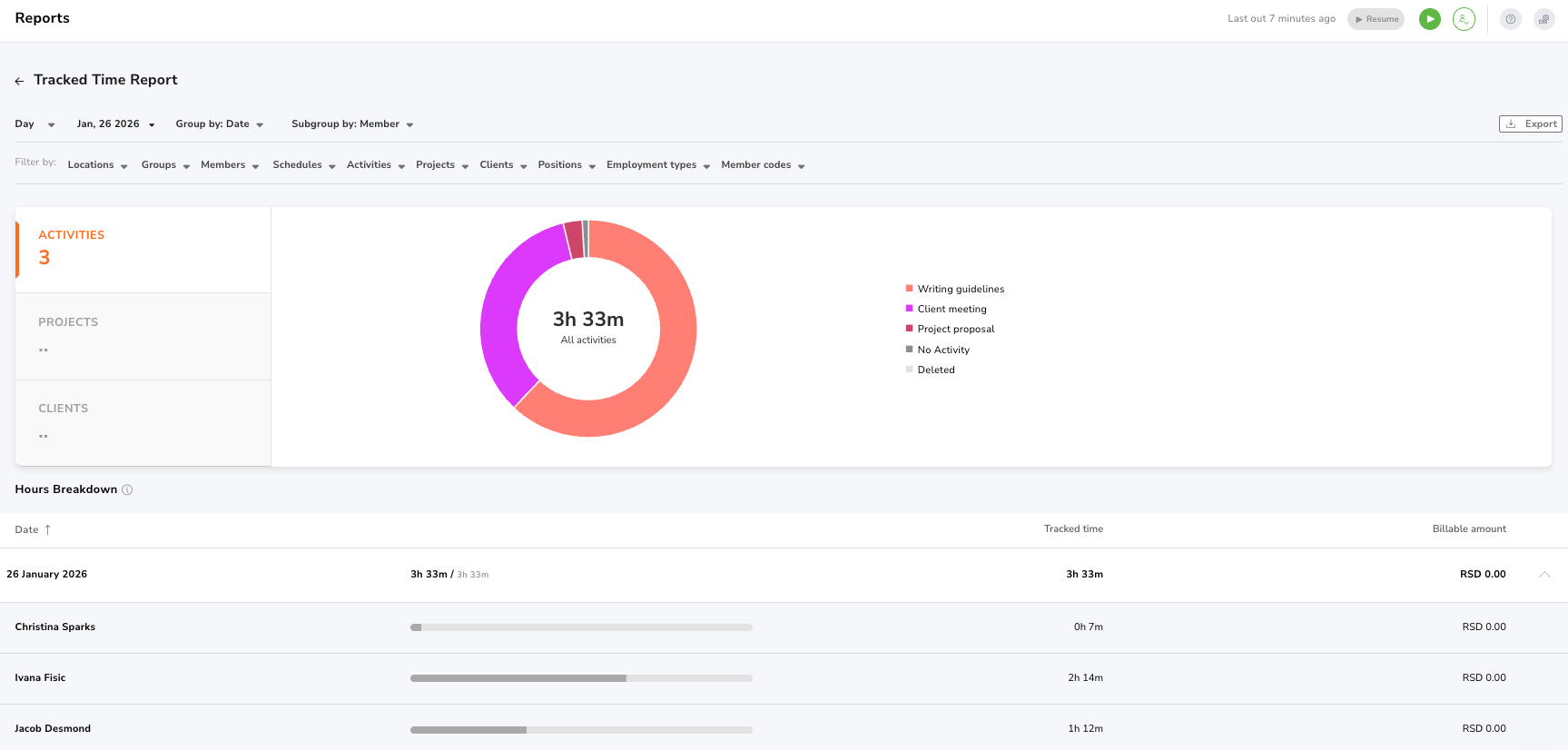
The pie chart shows how much time you’ve dedicated to specific activities, which is useful for team leads. In addition, you get to review tracked hours by team member.
Reports can be exported in XLS or CSV formats. You can also customize them by adding filters like locations, members, or positions, which I find practical.
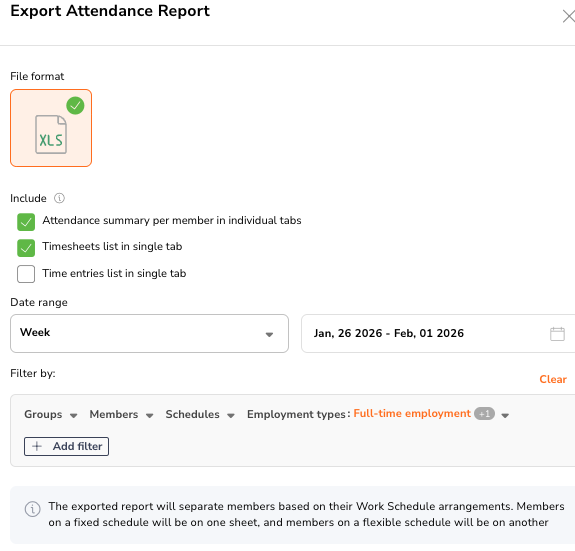
I’ve also tried the Attendance insights report in Jibble. This report only comes in XLS format, and you can choose a date range and add filters. For instance, I added employment types to my report.
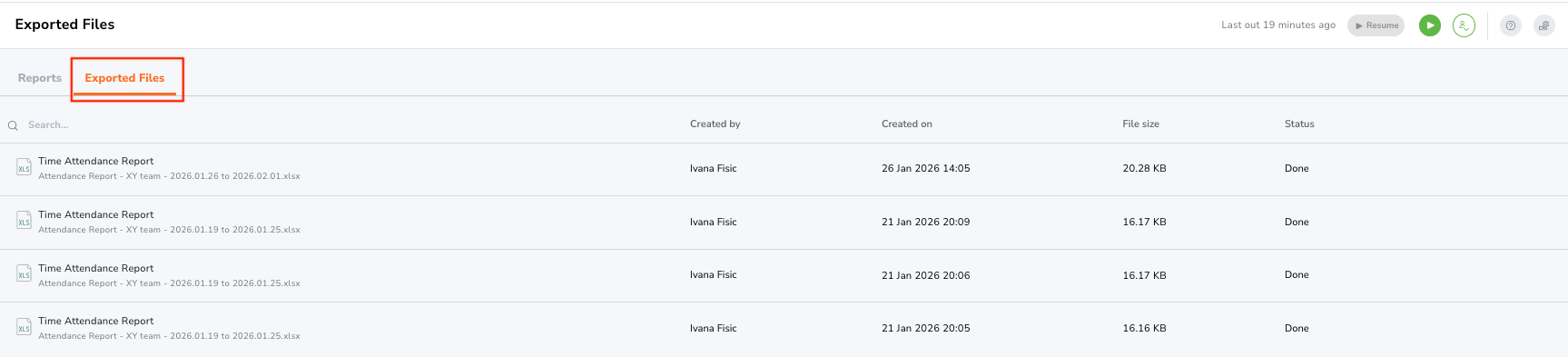
Once you create a report, it will be stored in the Exported Files section.
In general, reports work without any app hiccups. Still, I wish Jibble offered previews so users can see how their reports will look before sending them.
Another convenient thing would be the option to share reports with colleagues or clients, which Jibble doesn’t have. In stark contrast, competitors like Clockify and Connecteam also offer PDF exports.
| App | Jibble | Clockify by CAKE.com | Connecteam | Homebase |
|---|---|---|---|---|
| Download formats for reports | XLS, CSV | CSV, Excel, and PDF | PDF, Excel | CSV |
Jibble’s time-off feature is well organized with 2 tabs:
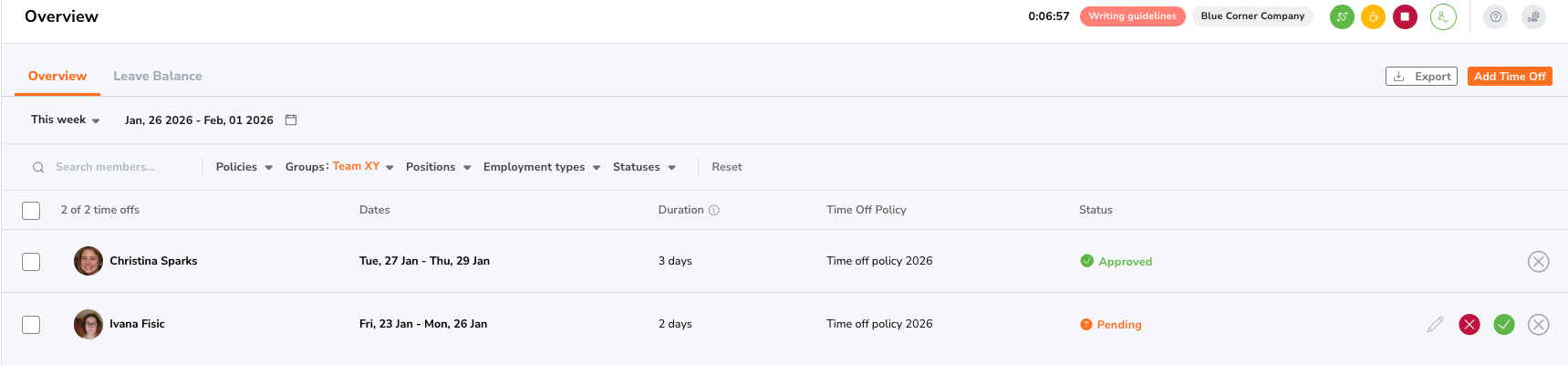
But you’ll first need to create a new time-off policy, so team members can request PTO. Just go to Settings, then select Time off & Holidays. For example, I created a separate policy for sick leave and time off.
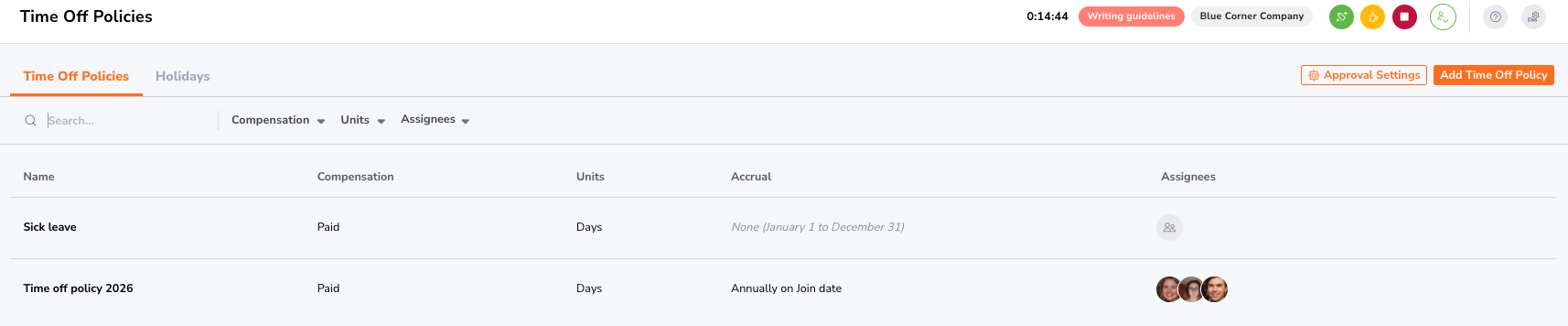
I appreciate that Jibble time off allows you to choose between:
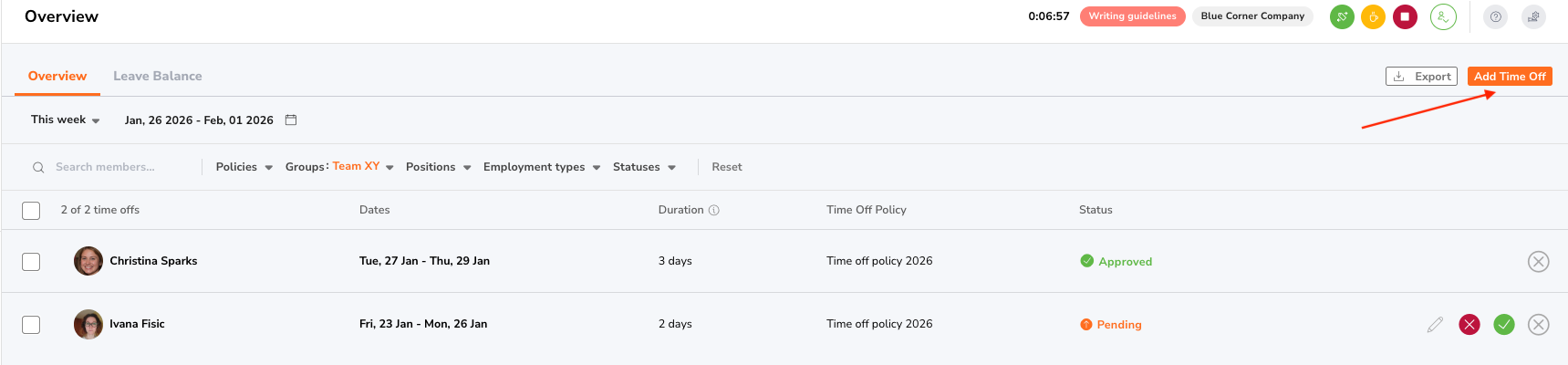
Now, requesting time off is pretty simple. There’s a button in the upper corner of the overview section — Add time off. In my opinion, the more precise wording would be “Request time off,” because your time-off request isn’t guaranteed to be approved. But still, the button serves its purpose.
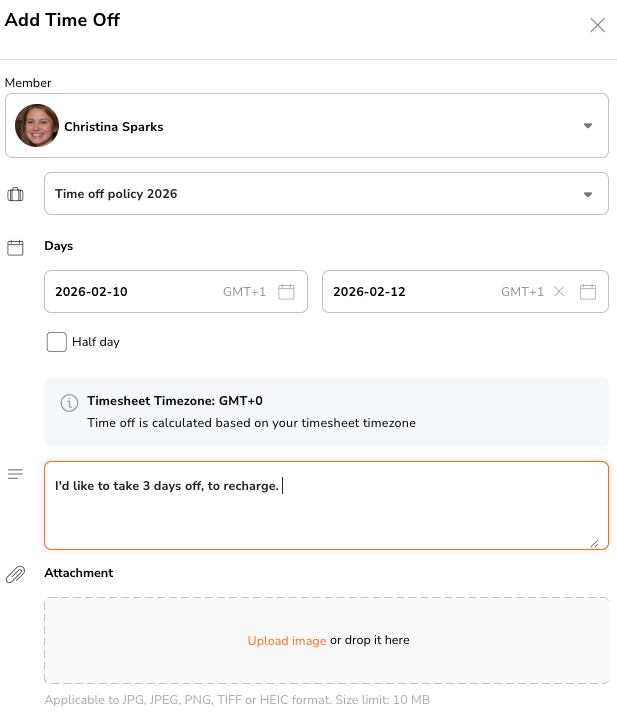
The pop-up window that appears looks nice, and it’s easy to follow. Employees can even add an attachment.
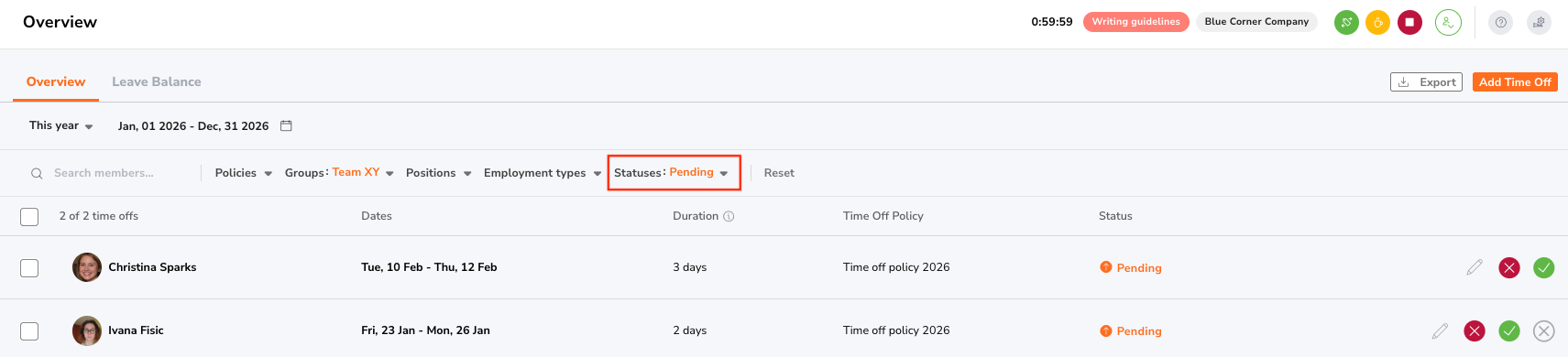
Then, as a manager, you can go to Overview and filter all requests with a Pending status.
In the Leave balance tab, you’ll see an overview of your policies, the days off taken, and other details.
Managers can even export time off in Excel format, group by member, subgroup by policy, and add filters if needed. Like with other Jibble reports, you can just download the report — not send it. Still, this is a nice touch.
To sum up, if you need a simple time-off feature to track employee absences, I think you’ll be happy with what Jibble offers.
The next section of our Jibble app review is integrations. In short, Jibble lets you integrate with:
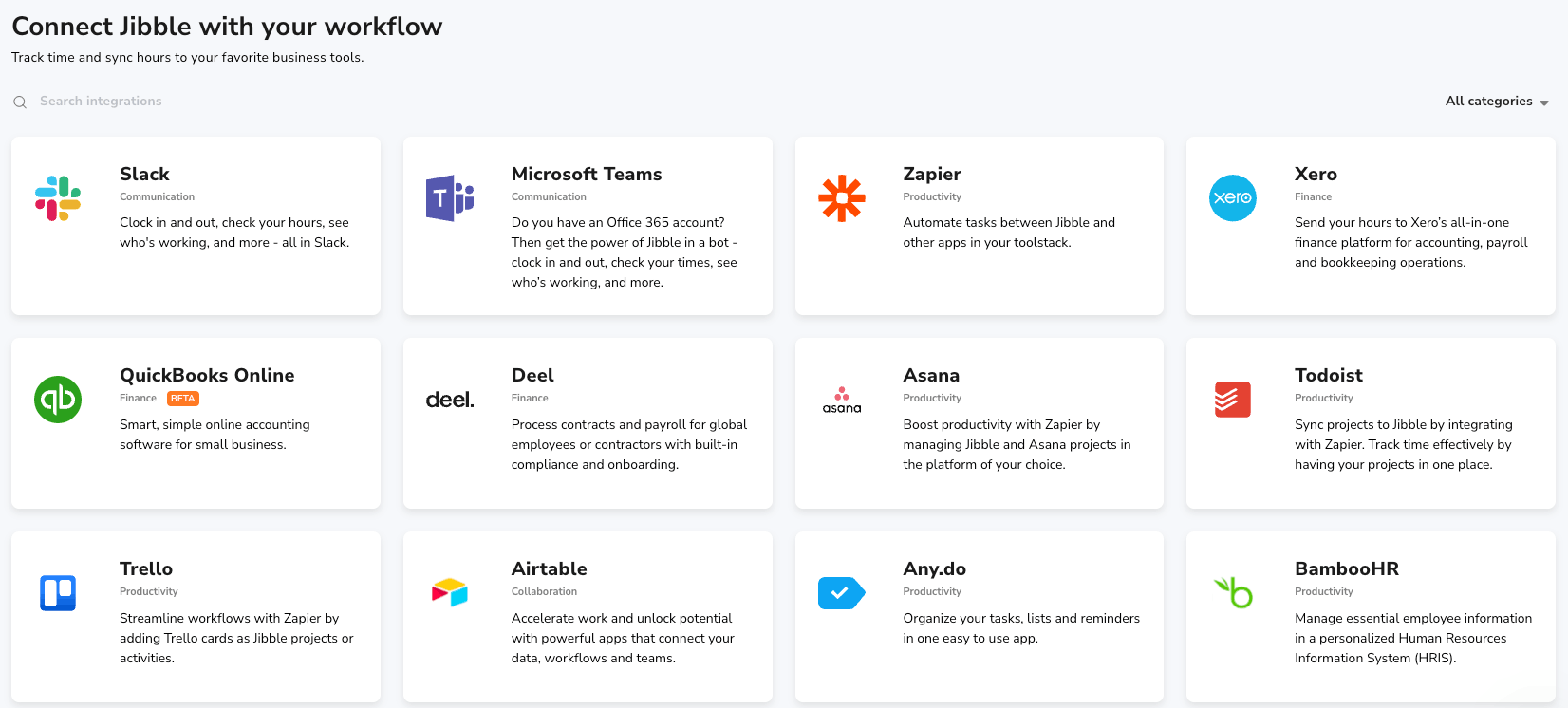
But Jibble doesn’t have a native payroll system. So, you can use integrations to connect your Jibble account to apps like QuickBooks, Xero, and Deel.
However, not all users can connect their Jibble account with payroll apps, which I found strange. For example, if you want to integrate with Xero, you’ll need to have admin or owner access in Jibble.
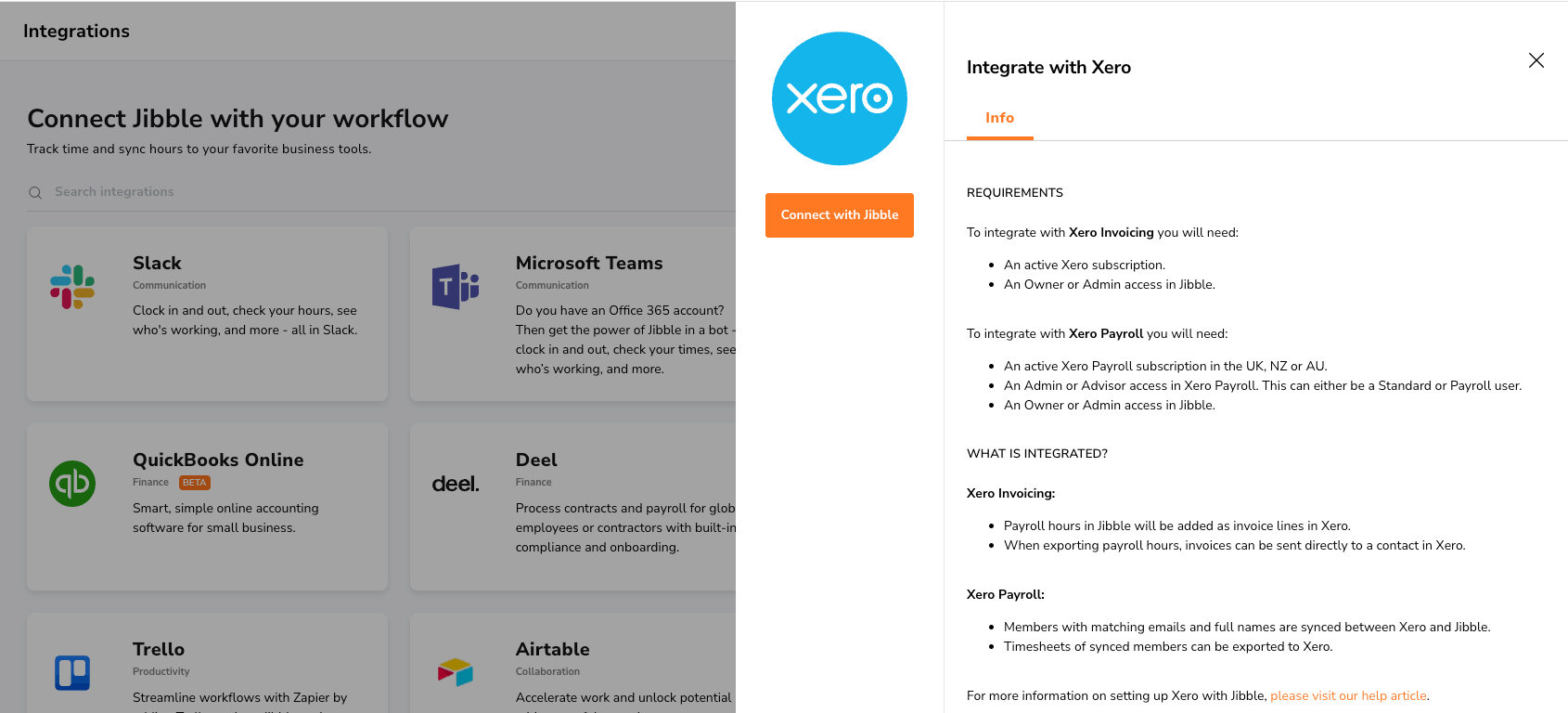
Some Jibble integrations can only work if you have a Zapier account and the account in the app you’d like to connect to. For instance, to connect with Asana, you’ll need accounts in Asana and Zapier.
🎓 Automate Time Tracking with Zapier for Bigger ROI
Compared to Clockify, Jibble offers fewer integrations. So, if integrations are integral to your business, I suggest reviewing the full list of Jibble integrations while testing the app.
| App | Jibble | Clockify by CAKE.com | Connecteam | Homebase |
|---|---|---|---|---|
| Number of integrations | 37 | 100+ | 14 | 27 |
Finally, let’s summarize all web app ratings for this Jibble time-tracking review.
| Jibble web app | Rating |
|---|---|
| Timesheets and time tracker | 3/5 |
| Work schedules | 4.5/5 |
| Live locations and geofencing | 4/5 |
| Reports | 4/5 |
| Time off | 4.5/5 |
| Integrations | 3.5/5 |
| Final rating | 3.9/5 |
Another valuable part of our Jibble time clock review is the mobile app. I tested how the Jibble Android app compares to its web version. Let’s get into it.
The Jibble mobile app is neatly organized. On the homepage, you can see an overview of:
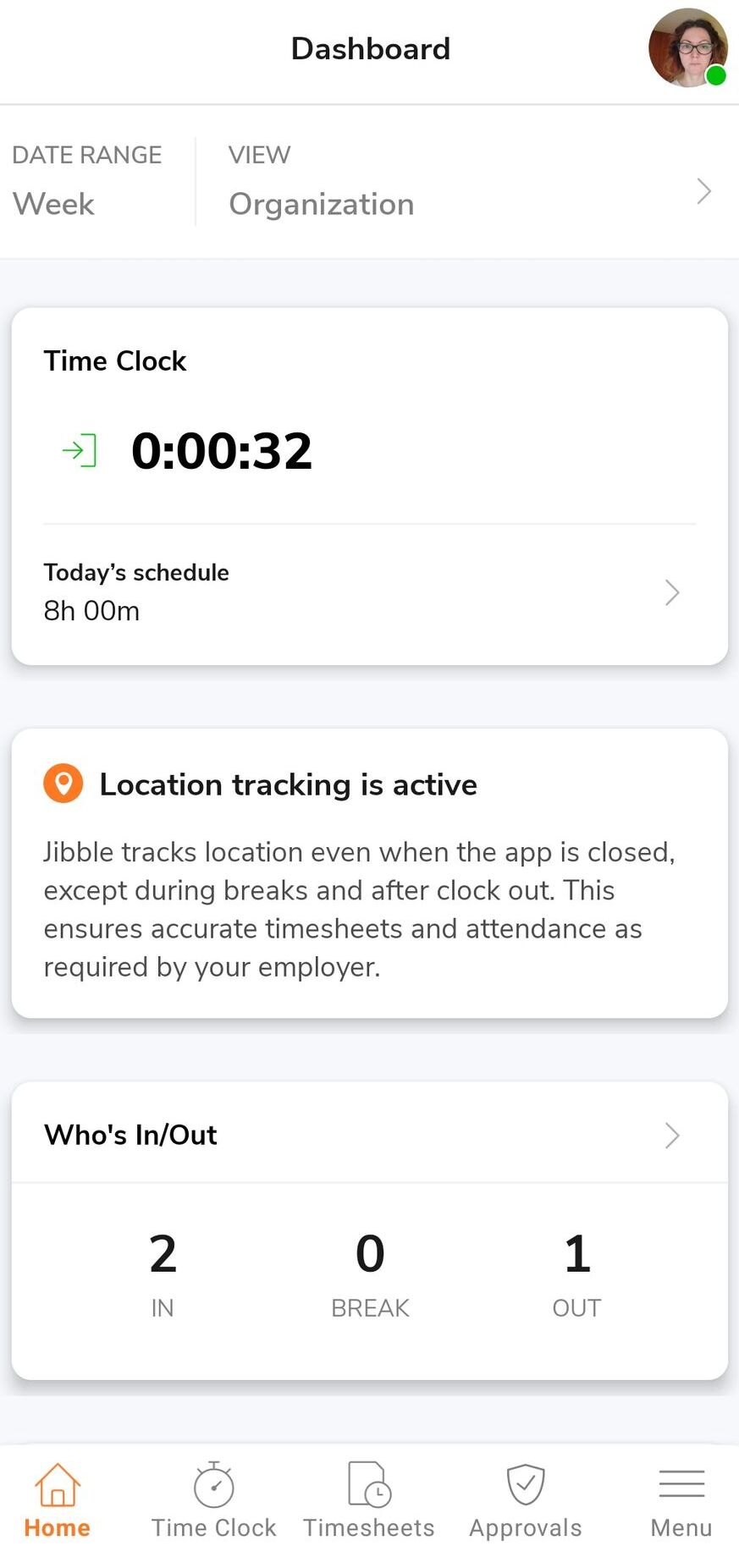
The design is similar to the web app, but from my experience, the mobile app is easier to follow. For example, I like how you can review holidays on the homescreen. This way, you’ll know when your team members are on time off, so you can better organize the workload.
As for recording time, the mobile app allows you to use:
And, if you need more features, just go to the menu in the right-hand corner. There, you’ll see time off and reports. Besides, that’s where you can switch from the time clock to kiosk mode.
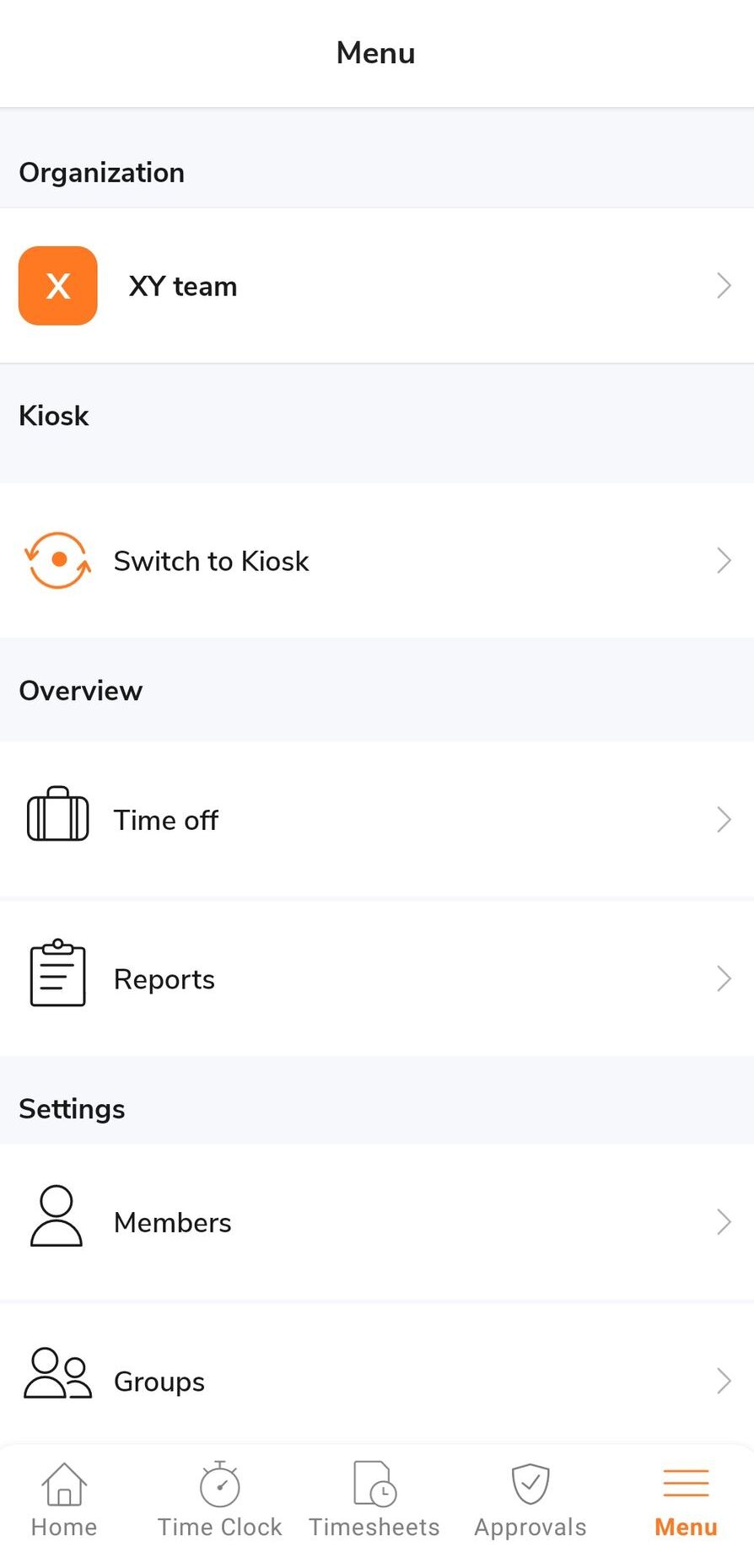
Overall, Jibble’s mobile app interface looks clean and doesn’t require a steep learning curve.
In the Jibble mobile app, you can choose between 2 time-tracking modes: kiosk mode and time clock. Disappointingly, you can’t use both options simultaneously.
The kiosk is easy to set up, even if you’re trying it for the first time, like me. In short, there are 4 types of kiosk settings:
I chose the Basic mode, and the app only requested a selfie the first time I clocked in. The app doesn’t ask you to add a location when clocking in and out via the kiosk.
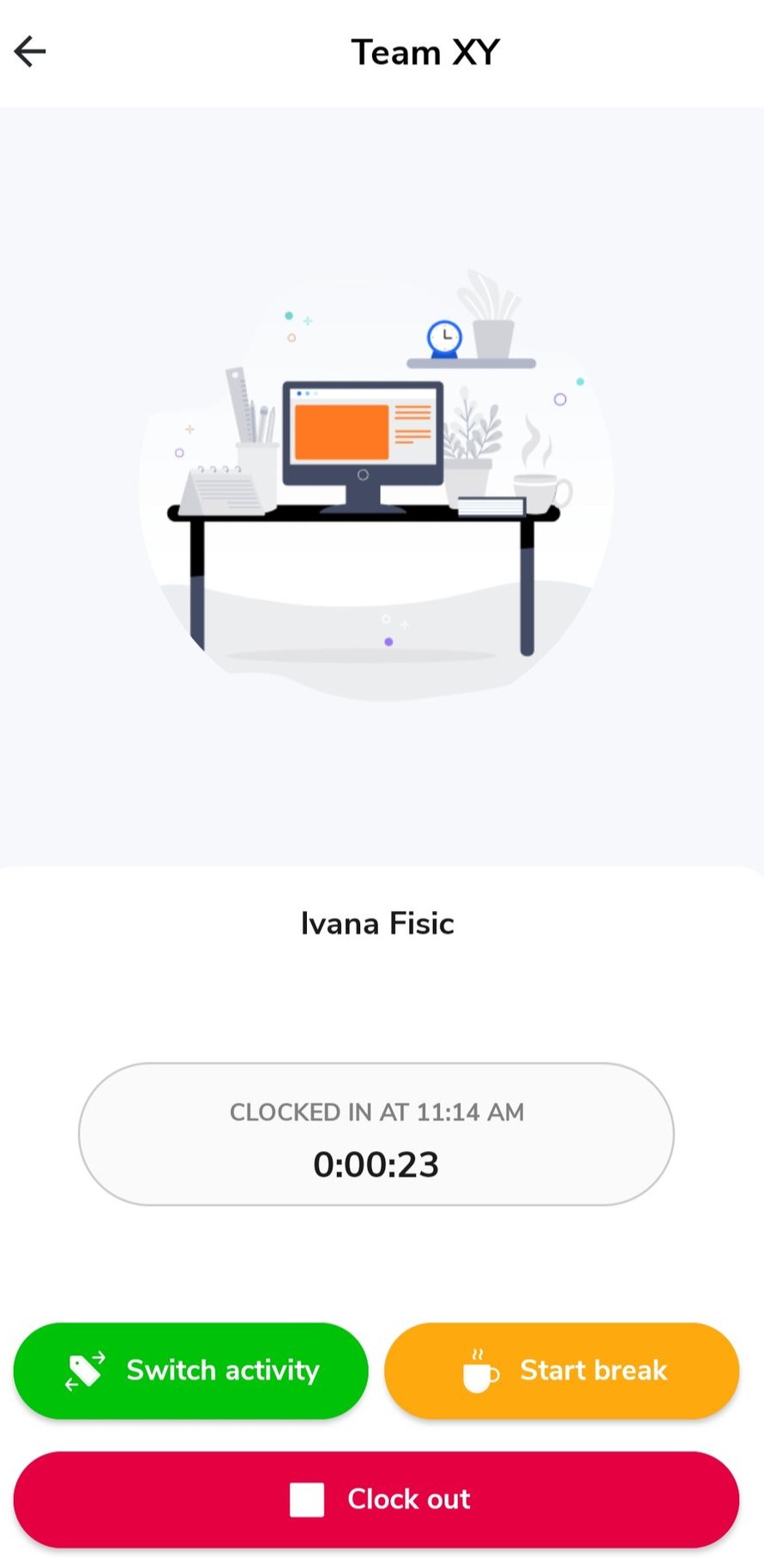
When it comes to syncing between devices, I haven’t had any issues. As soon as I clocked in on mobile, the web app showed the data, too.If you go on a break and enter it on a mobile device, the break will sync across devices.
Speaking of breaks, I had an issue with this button on the mobile app. When I wanted to click and select a break period, the mobile app didn’t respond. This was unusual, since the break button works well on the web app.
I also tried switching the kiosk mode from Basic to Face recognition, but the app then asked for face data from all team members. This part isn’t very intuitive, and I had to ask their AI chat for help. To add face data, you need to switch to the time clock section of the app and go to settings (not so logical).
Aside from this minor struggle, I was satisfied with Face recognition. It works fast, and you can clock in and out smoothly.
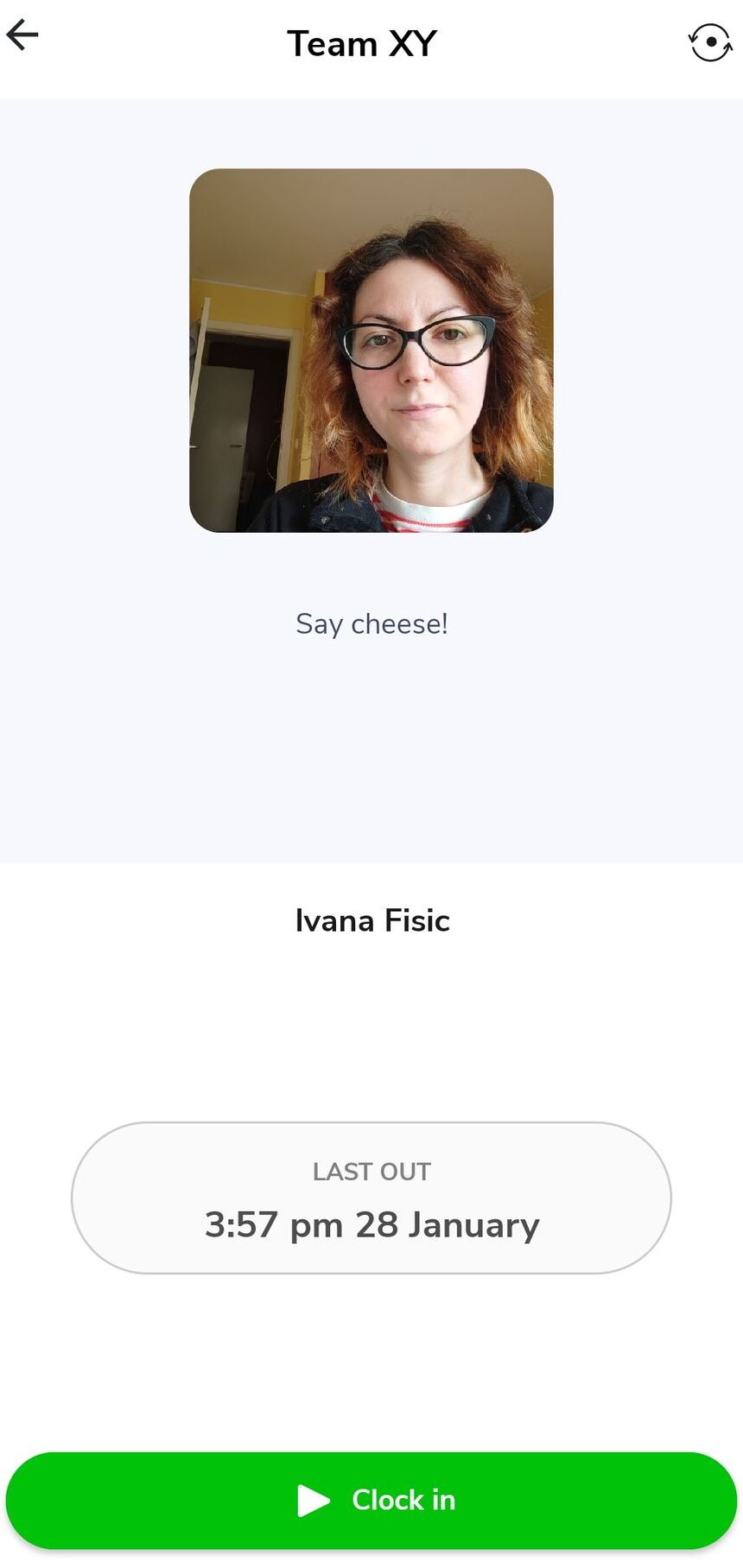
The time clock feature looks clean and minimalistic, which is great because you’ll clock in and out in no time.
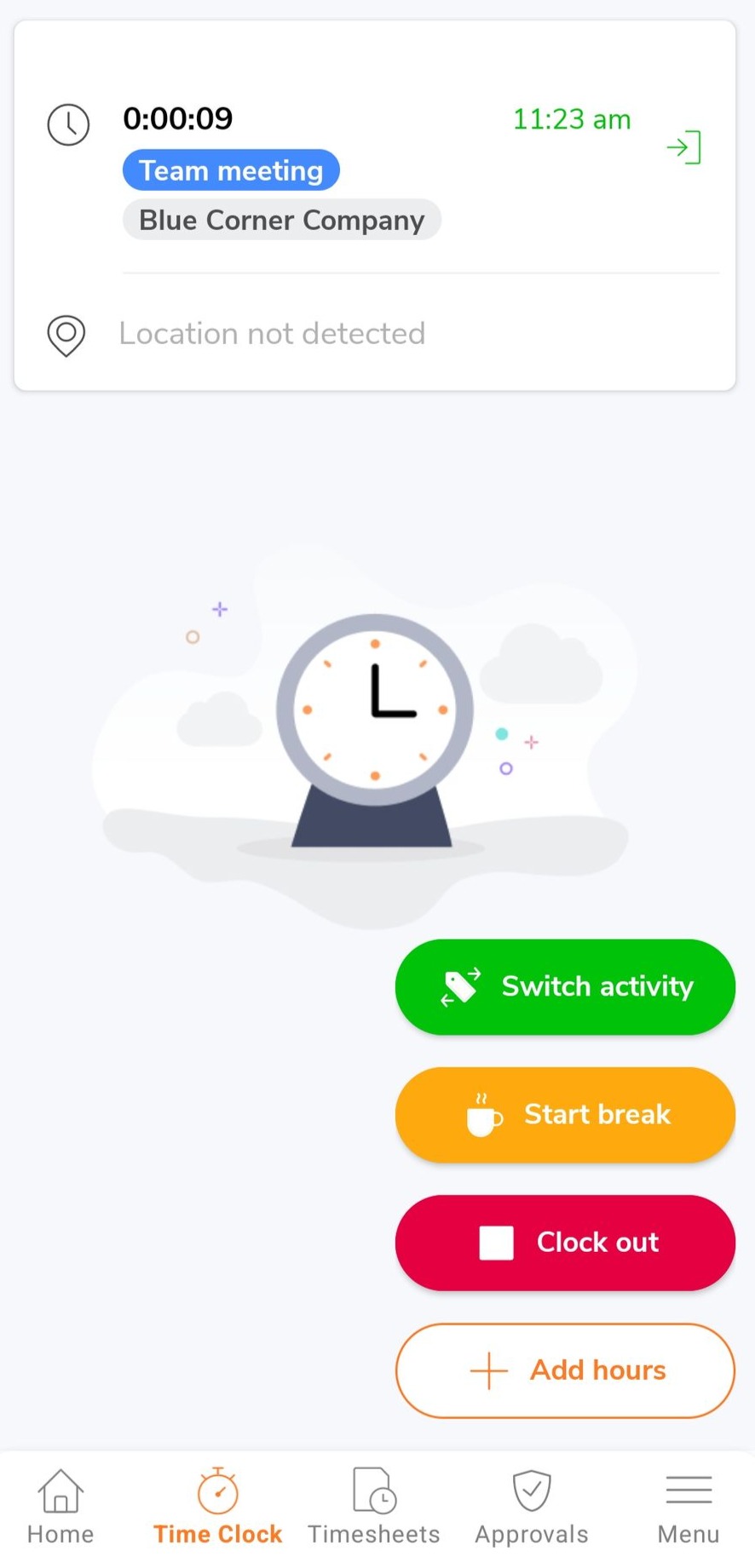
Apart from recording time with a timer, you can also click Add hours to input your time manually. It’s even possible to do it retroactively, and you’ll see those hours in timesheets as “Added hours.”
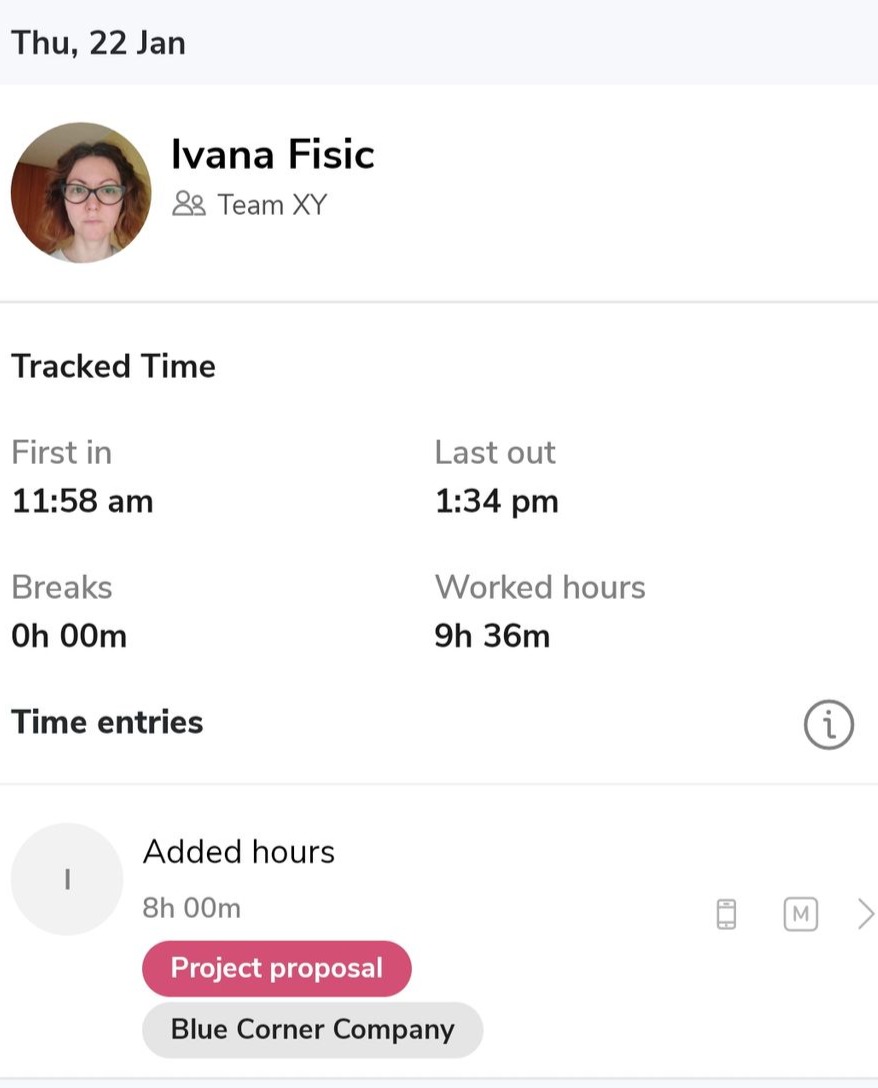
To sum up, Jibble’s kiosk and time clock options will help you and your team clock in and out in a few clicks. However, you might experience some issues with certain buttons that aren’t responsive.
🎓 How to Set Up a Clock-In Clock-Out System at Work
To use the time off feature in the mobile app, you first need to add a time off policy in the web app. For that purpose, the time off feature shows pending requests from team members and leave balances.
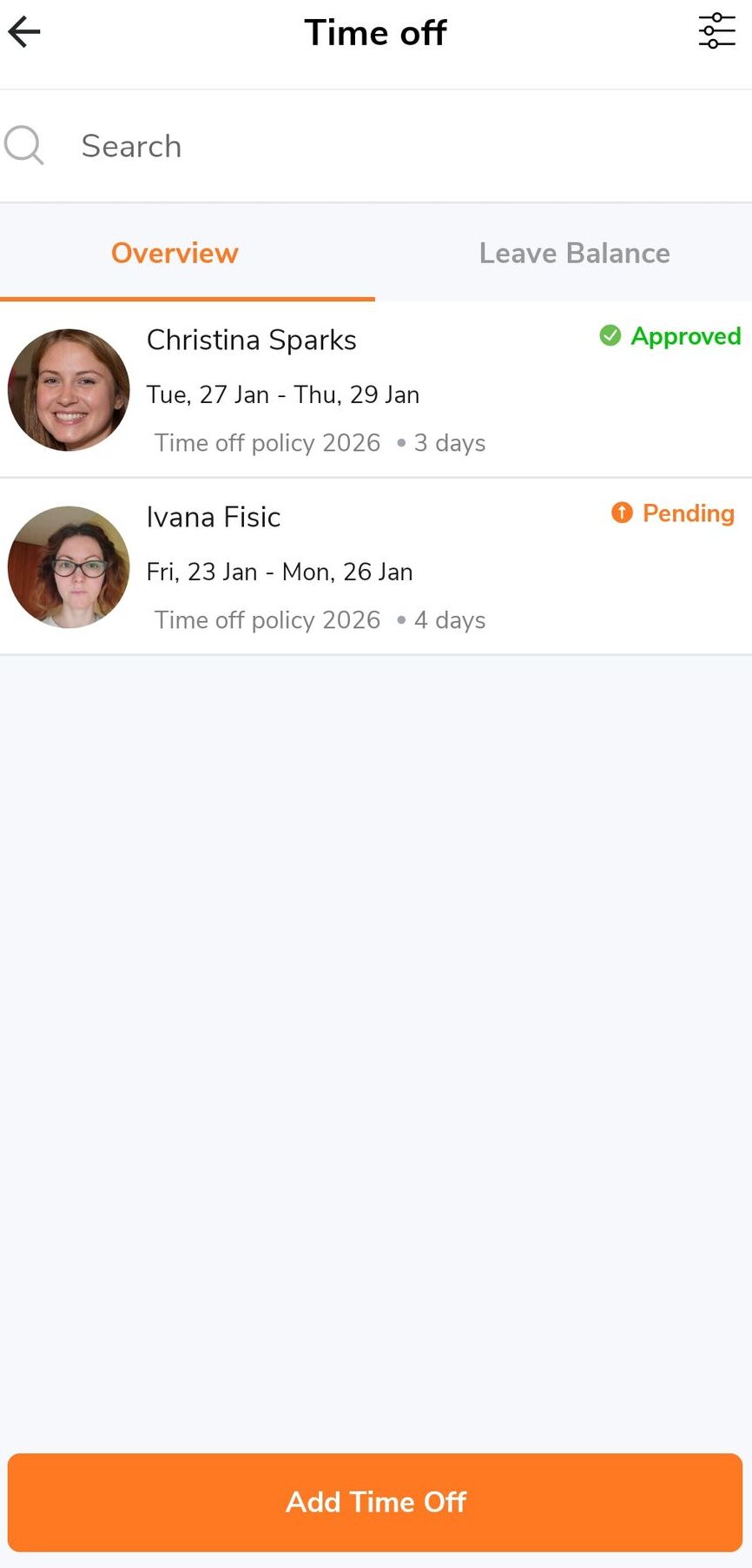
When you see a pending request, you can approve or reject it in just a few clicks.
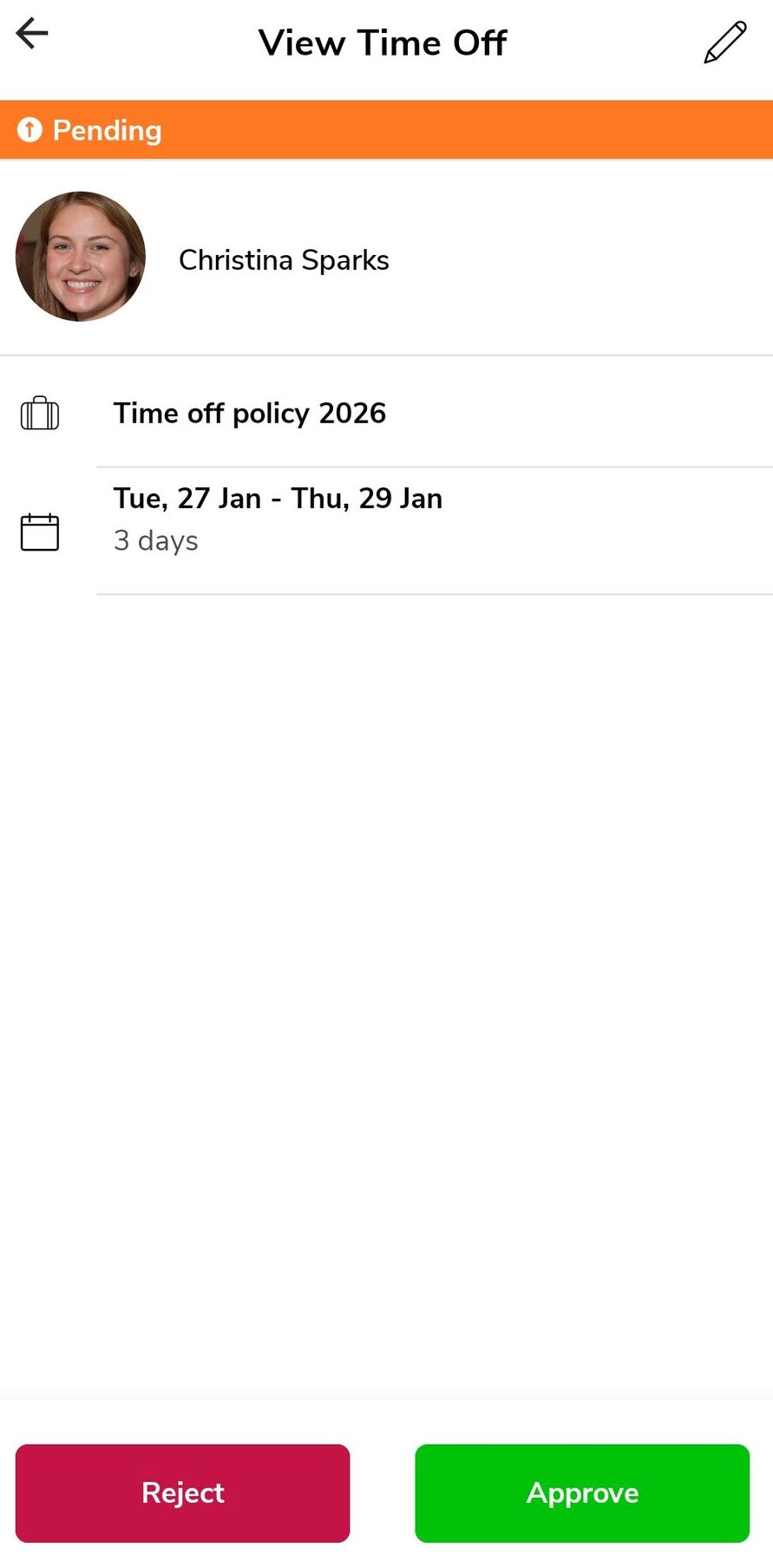
As an owner, you can request time off on behalf of your team members. Even if you’ve already approved a request, you and your team members can cancel it later.
In general, this feature is straightforward, and I didn’t have any problems while testing it.
—
And now, let’s calculate the score for Jibble’s mobile app.
| Jibble mobile app | Rating |
|---|---|
| Interface | 5/5 |
| Kiosk and time clock | 3/5 |
| Time off | 5/5 |
| Final rating | 4.3/5 |
Here are some Jibble updates from December 2025:
In addition, in November 2025, Jibble introduced dynamic onboarding, including steps to help you navigate the app.
They also announced new features like invoicing, project budgeting, scheduled reports, and others.
At the end of this Jibble tracker review, I can conclude that this app is a decent time tracker. Plus, it has useful employee attendance features, like live locations and geofencing.
If you opt for Jibble’s free plan, you’ll have access to all integrations that Jibble provides and get unlimited:
Not bad, right? Well, if time recording and task tracking are non-negotiable for you, then yes. However, employee attendance features are limited in the free plan: You can only add up to 2 locations and 1 on-site kiosk. Also, you won’t have a live location option available.
But what bothers me more is that free users don’t have access to customer support chat. So, if anything goes wrong or you need help wrapping your head around some features, you can only reach out to support via email.
Since I’ve been testing the app’s Pro plan during my trial period, I’ve been using the AI chat constantly. And I was very happy with the solutions it provided, not to mention the speed and accuracy. That’s why I believe the absence of this chat could be problematic for free users.
Another significant issue is bugs and glitches that can happen when opening your account and tracking time.
All in all, Jibble’s free plan is suitable for freelancers and individuals. On the other hand, small and medium-sized teams may benefit more from a paid plan to meet their specific needs. (As I mentioned, Jibble doesn't offer payroll as a native feature, so managers have to rely on integrations.)
In summary, based on all ratings, my final score for Jibble is 3.5.
| Jibble | Rating |
|---|---|
| Web app | 3.9/5 |
| Mobile app | 4.3/5 |
| Pricing | 4/5 |
| Usability and interface | 4/5 |
| Security and privacy | 2/5 |
| Customer support | 2/5 |
| Customer reviews | 4.5/5 |
| Final verdict | 3.5/5 |
If payroll features, report exports, and integrations are important to your business, Jibble won’t be a great fit for you.
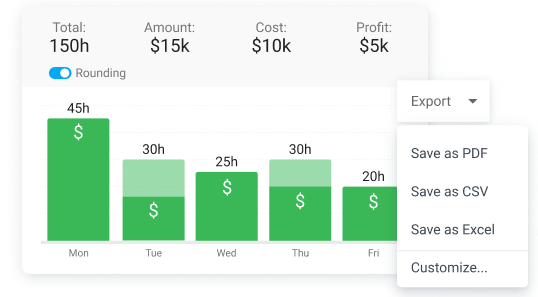
Clockify by CAKE.com is a powerful Jibble alternative and a visually appealing app that helps you with invoicing. This is how Clockify ensures accurate payroll management for your business:
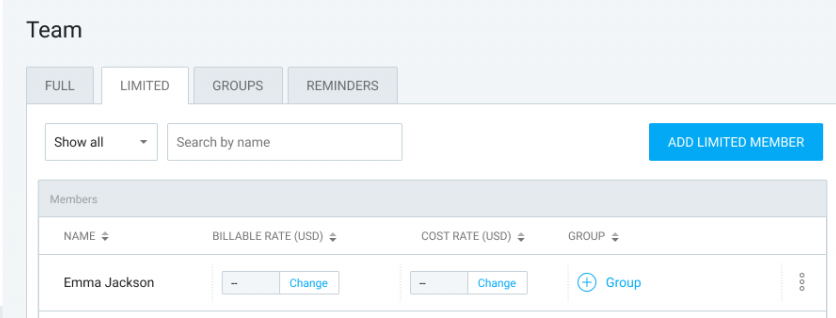
Another benefit of using Clockify is that its kiosk offers customization. You can add both full and limited members. Limited members can only clock in via the kiosk, while full members can log in to Clockify and use all available app formats (web, desktop, and mobile).
Kiosk customization is practical if you have seasonal employees or part-time workers. And the best part is that you can always convert limited to full users when needed.
Finally, if you want to skyrocket your productivity across your company, don’t limit yourself to only time tracking tools. Opt for a powerful 3-in-1 productivity approach — the CAKE.com Bundle.
Besides Clockify, our Productivity Suite gives you access to Pumble for business communication and Plaky for task management.
For any further questions about the Bundle, reach out to our 24/7 customer support team — available for free on all plans.

| Features | Jibble | Clockify by CAKE.com |
|---|---|---|
| Primary use | Time tracking Employee monitoring |
Time tracking Reporting Invoicing and payroll |
| Time tracking | Timer Timesheets Kiosk |
Timer Timesheets Calendar Kiosk Auto tracker |
| Project tracking | Activities and project tracking | Projects/tasks Budgets Profitability Forecasting |
| Time off | Leave policy creation Leave management and reports Holiday import calendars |
Highly customizable leave policy Time off approval Public holiday import via Google Calendar |
| Reporting | Tracked hours Attendance Timesheet Leave balance |
Productivity Project budgets Team performance Attendance Assignment Audit Custom |
| Free plan | Unlimited time tracking, activity, project tracking, and integrations, but limited locations, on-site kiosks, and work schedules | Free for unlimited projects and up to 5 users |
| Suitable for | Freelancers Construction Hospitality Education Manufacturing Logistics |
All industries and work locations — off and on-site, including hospitality, retail, manufacturing, construction, agencies, logistics, accounting, attorneys, transportation, security, healthcare, and more |
| Pricing | Starting at $3.49 per user/month when billed annually | Starting at $3.99 per seat/month if billed annually |
At the end of this Jibble app review, here are some common questions about this piece of software.
Yes, Jibble has a free plan that offers unlimited time tracking, activity, project tracking, and integrations. Paid plans start from $3.49 per user per month, when billed annually.
Yes, Jibble offers a 14-day free trial during which you can test the Premium and Ultimate plans, but not the Enterprise plan.
No, Jibble doesn’t take screenshots during breaks. When you start a break, screenshot capturing stops. Similarly, the app doesn’t take screenshots when users clock out.
Yes, you can use Jibble when you’re offline. Just keep in mind that mobile and desktop apps allow offline mode, but the web app doesn’t.
If you need to track your time when offline, Jibble lets you record only time. You won’t be able to track activities or projects.
If you pay for the app annually, you’ll need:
However, if you choose to pay monthly, the prices will rise. For example, the Premium plan is $4.99 per user per month.
Yes, Jibble is a suitable time tracker for remote and field teams, because this tool has features like geofencing, live locations, and a time kiosk.
Yes, Jibble can track your screen, but only if you use a desktop app. Also, as a member, you must allow this option and grant the app specific permissions. The app captures screenshots only when you’re clocked in, and all screenshots are blurred.

