
Need a trusted app to invoice tracked time without overpaying?
Picking the right time and billing software feels like flying blind when you’re faced with a ton of apps.
After weeks of testing, I handpicked the best 15 time and billing apps built for professional services in 2026. Find my observations below.
WHY TRUST US?
The apps we talk about are selected, tested, and written about by human reviewers who follow strict review and editorial guidelines. We pick solutions that are practical, purposeful, and can offer real value for the specific use case or business context we’re covering — while also being justified in their pricing. Our methodology is transparent, clear, and available to everyone:
| Tool | Best for | Starting price (billed annually) | Time tracking | Billing reports | Invoicing |
|---|---|---|---|---|---|
| Clockify | Versatile time tracking and custom invoice creation for SMBs | $3.99 per seat/month | ✅ | ✅ | ✅ |
| Toggl Track | Personal time and billability tracking for freelancers and small agencies | $9 per user/month | ✅ | ✅ | ✅ |
| Paymo | Task tracking and simple invoicing for individuals and small teams | $5.9 per user/month | ✅ | ✅ | ✅ |
| Bill4Time | Time and billing designed for law professionals | $39 per user/month | ✅ | ✅ | ✅ |
| Nutcache | Phase-based project management with time tracking and invoicing essentials | $15.95 per user/month | ✅ | ✅ | ✅ |
| Zoho Invoice | Free, advanced invoicing for up to 2 people | No paid plans | ✅ | ✅ | ✅ |
| FreshBooks | Advanced invoicing for complex billing needs and personal use | $136.62 per month; additional $11 per user/month | ✅ | ✅ | ✅ |
| Invoicely | Minimalist billing solution for independent pros | $7.99 per month | ✅ | ❌ | ✅ |
| Scoro | Extensive business management with time tracking essentials | $19.90 per user/month | ✅ | ✅ | ✅ |
| ActiveCollab | Workload and project management | $3.5 per user/month | ✅ | ✅ | ✅ |
| Everhour | Tracking time alongside other project management apps | $8.50 per user/month | ✅ | ✅ | ✅ |
| TimeCamp | Automated time and performance tracking for teams of all sizes | $3.99 per user/month | ✅ | ✅ | ✅ |
| My Hours | Project management software with easy yet limited timekeeping and invoicing | $3.99 per user/month | ✅ | ✅ | ✅ |
| Productive | All-in-one work management with a steep learning curve | $10 per user/month | ✅ | ✅ | ✅ |
| Harvest | Freelancers and small agencies with general needs | $9 per user/month | ✅ | ✅ | ✅ |
What to look for in time and billing software
When assessing time and billing programs, you should compare their features, availability, and pricing with your business needs. The ideal time tracking and billing software should provide:
- Adaptable time tracking
- Modifiable invoices
- Practical billing reports
- Mobile app
- Cost-effective plans
Different markets have different time tracking preferences, so versatility is key. IT pros work in sprints with strict deadlines, so they’ll value a 1-click timer. When picking time tracking and billing software for consultants, you’ll find clean, simple timesheets great for logging routine work — like drafting strategic plans.
As for invoicing, IT companies often charge by the hour and need custom invoices based on tracked time. Similarly, lawyers bill in 6-minute increments (1/10 of an hour), so time rounding is a must-have.
No matter the industry, billing reports should deliver quick and complete insights into time and profitability. Hence, time and billing software for accountants should easily break down tracked hours and costs for spot-on payroll and invoicing.
Tech teams often work from different places, so they need full, cross-device access. Since lawyers regularly attend court, they rely on the mobile app to track time.
When it comes to pricing, a solid time and billing tool should deliver budget-friendly tiers. Small businesses, like law firms and consultancies, look for paid plans that fit tight budgets and offer scalability.
💡 CLOCKIFY PRO TIP
Transform attorney hours into profit using this time tracking and invoicing app:
#1: Clockify by CAKE.com — best for tracking team hours and creating instant invoices in SMBs
Clockify by CAKE.com is a feature-packed time and billing software for consultants, lawyers, techies, and other experts. Its sharp, flexible features help you track billable time across projects and whip up professional invoices in seconds.
How does Clockify by CAKE.com work?
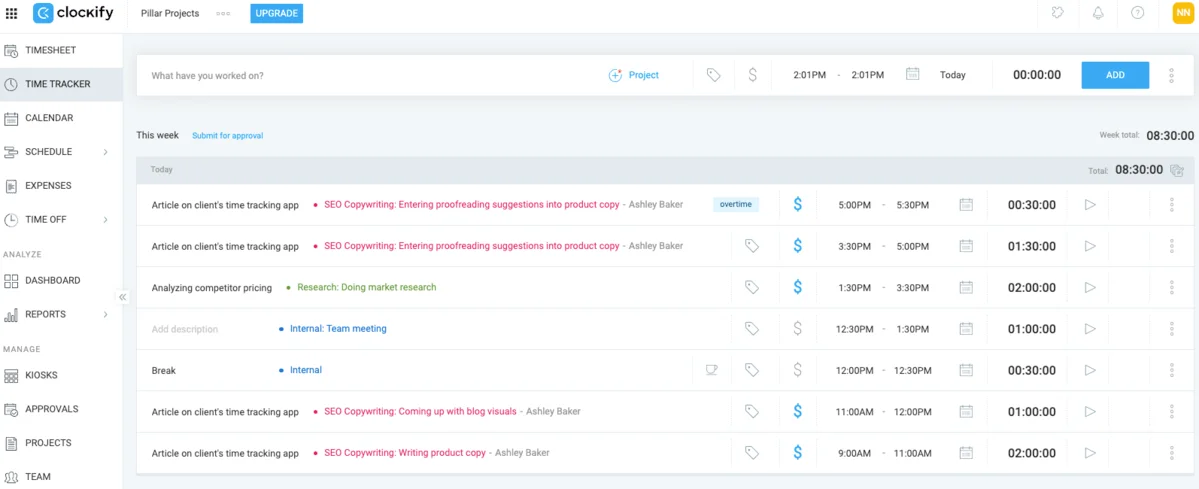
On Clockify’s Time tracker page, you can create projects, clients, tasks, and tags from scratch. I liked that Clockify skips the setup hassle and lets you track billable work right away. Other tracking methods include the Timesheet, Calendar, and Kiosk (great for shift work).
The Time tracker offers 3 modes: Timer, Manual, and Break mode. It won me over with 1-click tracking and the ability to add timestamps.
Customizing time entries felt smooth and flexible — be it splitting, duplicating, or deleting entries. Selecting the date allowed me to plan upcoming workdays. In my opinion, teams with different tracking needs would thrive in this environment.
Switching between the Timesheet and Calendar to track work kept things interesting. To log hours faster, I would save timesheets as templates or use drag-and-drop options to create calendar entries. (If only I could bulk-edit entries in the Timesheet like in the Time tracker.)
Creating projects and tasks couldn’t get easier with Clockify. You can mark projects as templates or favorites, so that they appear at the top of drop-down lists. These options automate routine work like document tracking, making Clockify a solid legal time and billing software.
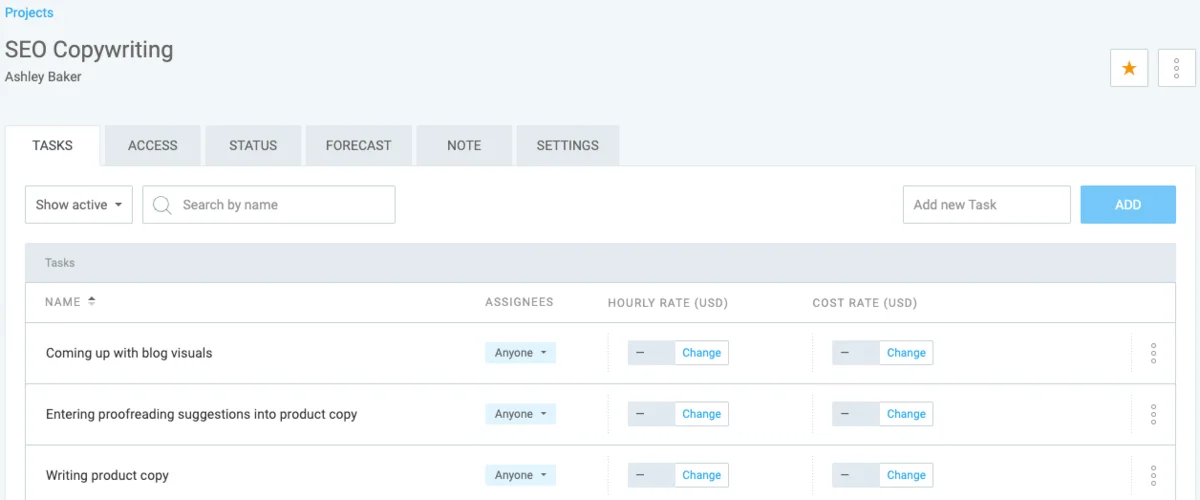
I disliked having to archive items first before I can delete them. However, teams that regularly pull up archived items will find this option helpful.
With custom-fit invoicing, Clockify is a strong time and billing software — offering optional fields, custom field labels, business info, and report attachments. Additionally, recurring invoices saved lots of time and simplified billing for ongoing projects.
Clockify offers reports for quick and comprehensive insights. The Summary report shows a vivid chart with tracked time on projects and a table with time entry essentials. I filtered the table by tags to see overtime.
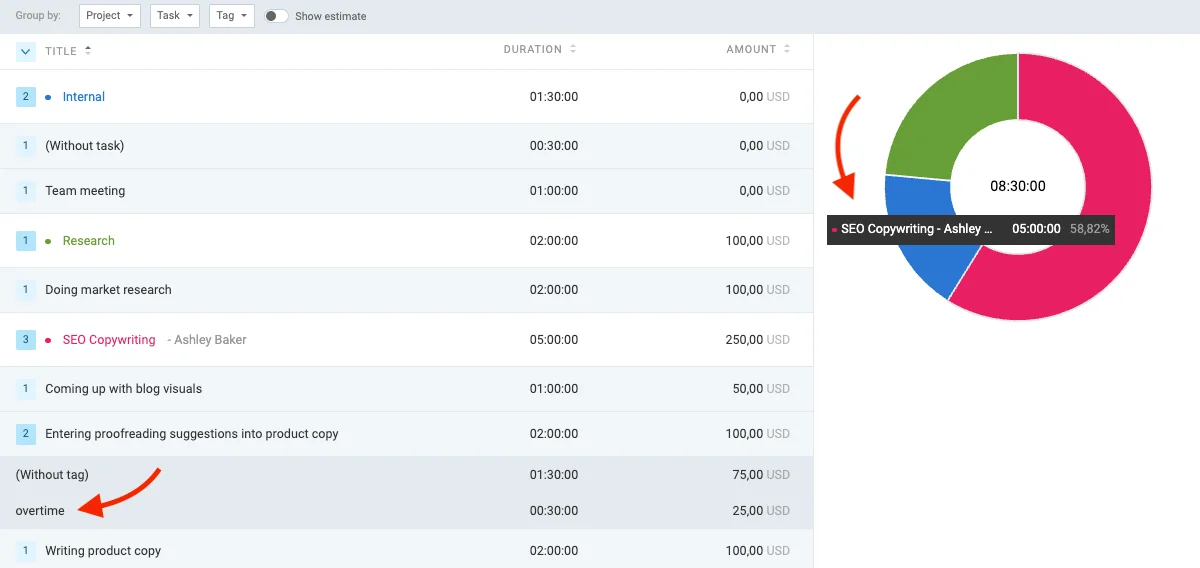
The Detailed report breaks down tracked time into details, like timestamps, users, etc. Reports are available for PDF, CSV, or Excel export.
Bill clients smoothly with Clockify
Clockify by CAKE.com pros
Here are the main advantages of Clockify:
- Varied tracking methods: Time tracker, Timesheet, Calendar, and Kiosk
- Fully adaptable invoices, with branding and recurring options
- Tailored billing reports for quick summaries and deep analytics
Clockify by CAKE.com cons
The disadvantages of using Clockify include:
- Archiving items before you can delete them
- No bulk-editing entries in the timesheet
- Slightly busy sidebar with options to hide features
What’s new in Clockify by CAKE.com?
As of April 2026, the app has introduced the option to create invoices from reports. This allows users to instantly turn data into bills and maximize invoice accuracy. Based on Clockify’s Upcoming Features page, Clockify also plans to launch a feature for building reports from scratch.
| Free plan | Yes 1 admin + 4 users |
| Free trial | 7 days Possible trial extension |
| Starting price | $3.99 per user/month (if billed annually) Unlimited seats, except for wire transfers (seat minimum is 5) |
| Availability | Mac, Windows, Linux, Web, Android, iOS |

#2: Toggl Track — best for personal productivity and simple invoicing
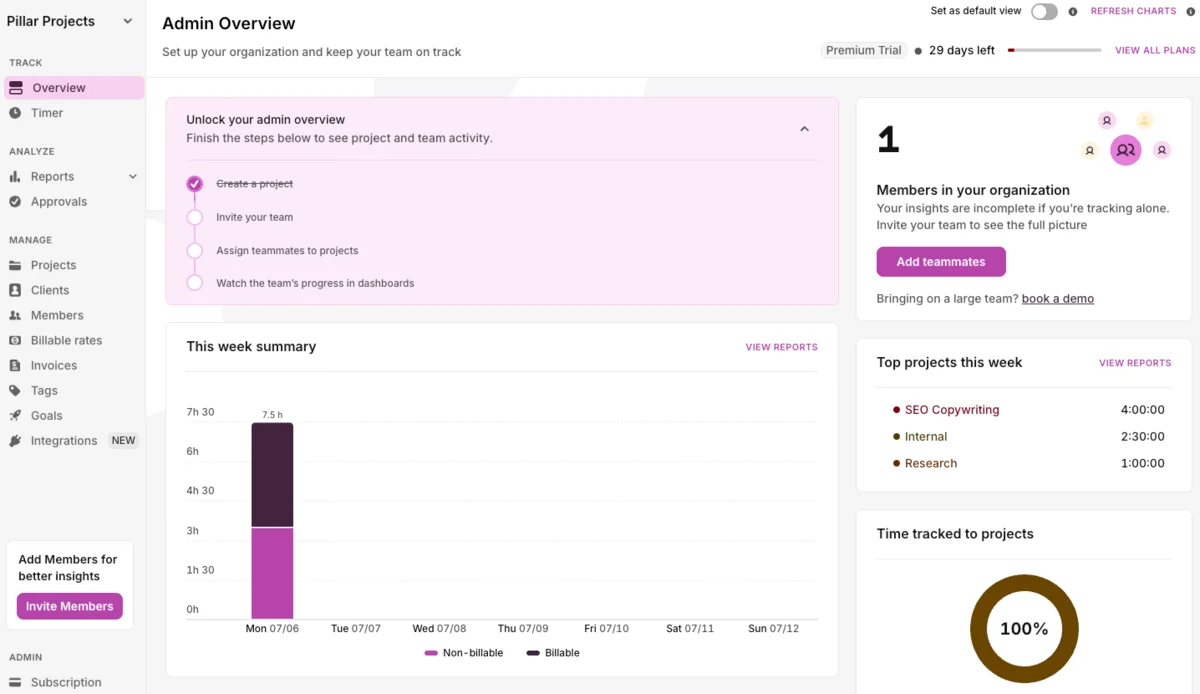
Toggl Track is a popular software designed for freelancers and small teams who need straightforward time tracking and invoicing. Its intuitive design provides an easy onboarding experience, though it comes at a cost.
💡 CLOCKIFY PRO TIP
Find out how Toggl Track fares against Clockify in this unbiased comparison guide:
How does Toggl Track work?
Toggl Track lets you track time with a 1-click timer and organize it by description, task, project, and client. Its onboarding checklist helped me learn the ropes quickly.
At first, the start-and-stop timer was refreshingly easy to use. While in manual mode, I was mildly irritated that adding the start and end time first automatically creates a time entry. So, accidental and duplicate logs became a common nuisance for me.
Toggl Track also offers 3 modes for viewing tracked time (Calendar, List, and Timesheet), which I found ideal for tracking personal performance. When I needed team insights, I had to click on the Week Total metrics, which then opened the Reports. From there, I could finally filter members — too many clicks for my taste.
Once I set up the billable rates for my team, I headed to the Invoices section. Instead of exporting my time entries here, I was prompted to create invoices from Reports. I was puzzled, wondering what the Invoices section was for.
On the bright side, Toggl Track integrates with QuickBooks. Once paired, you can start sending invoices to QuickBooks from the Invoices page.
Once inside the invoice, you can only list billable time and amounts by project, not specific tasks. Sadly, after generating my first invoice, I realized you can’t reopen it for an overview or further editing. Another thumbs down for flexibility.
To my dismay (and that of many accountants), Toggl Track doesn’t create expenses. You can only link receipts to time entries.
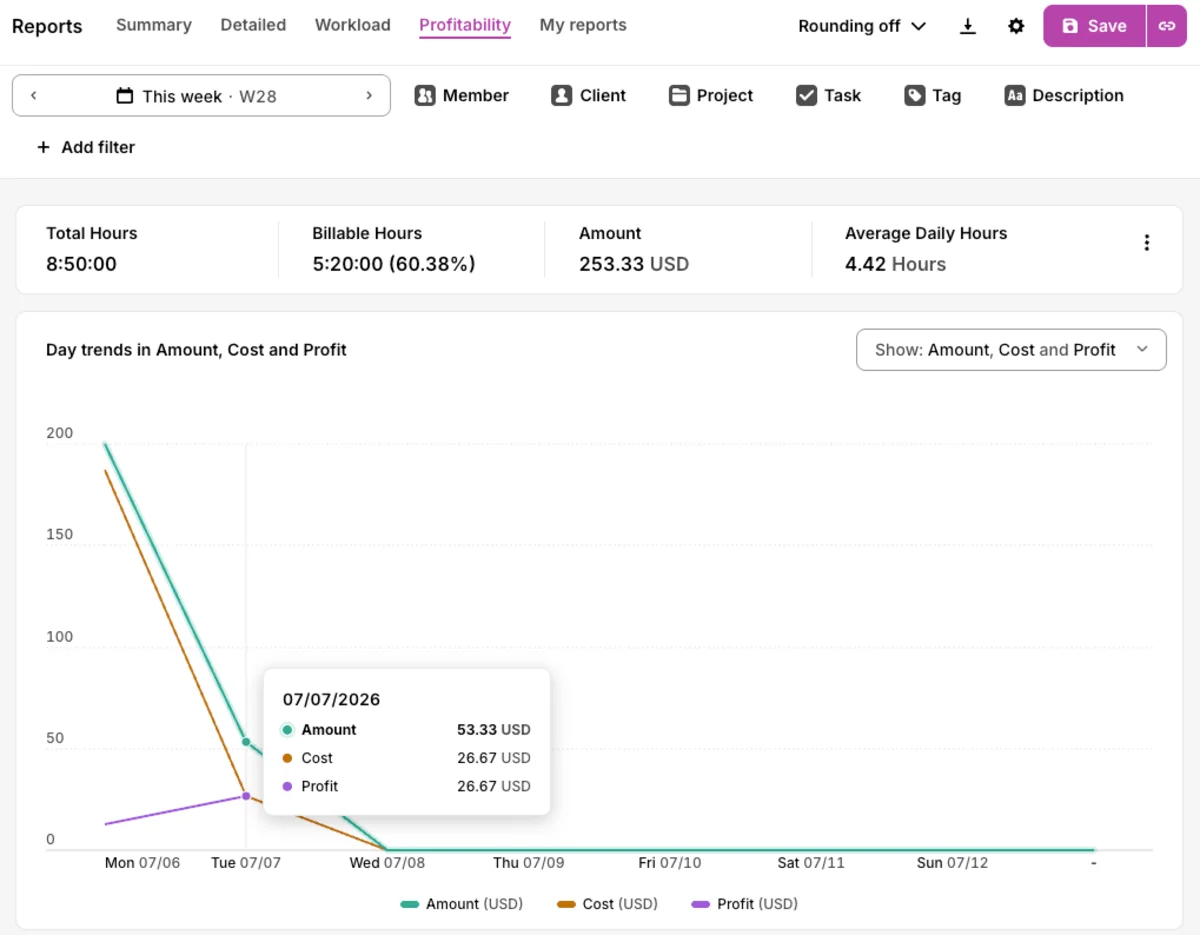
Toggl Track’s Profitability report shows a neat overview of total tracked time, billable hours, and billable amounts. However, I was bummed to learn it doesn’t separate invoiced and uninvoiced time. This leads to duplicate invoices or underbilling, something consultants or lawyers can’t afford.
Toggl Track pros
Here are the main advantages of Toggl Track:
- Simple interface with an onboarding walkthrough
- Versatile options to view personal tracked time
- Clean invoices with general billing info
Toggl Track cons
The disadvantages of using Toggl Track include:
- Clunky manual time entry
- Confusing invoice creation with revision limitations
- Reports lacking separate columns for invoiced and uninvoiced time
What’s new in Toggl Track?
As of June 2026, the platform has redesigned Toggl Focus and relaunched it under a new name — Toggl 2.0. Its role is to support Toggl Track’s users with more advanced time reporting, planning, and time off features.
| Free plan | Yes Up to 5 users |
| Free trial | 30 days |
| Starting price | $9 per user/month (if billed annually) No disclosed seat minimum |
| Availability | Mac, Windows, Linux, Web, Android, iOS |
💡 CLOCKIFY PRO TIP
For a deep and unbiased review of Toggl Track, check out this article:
#3: Paymo — best for task tracking
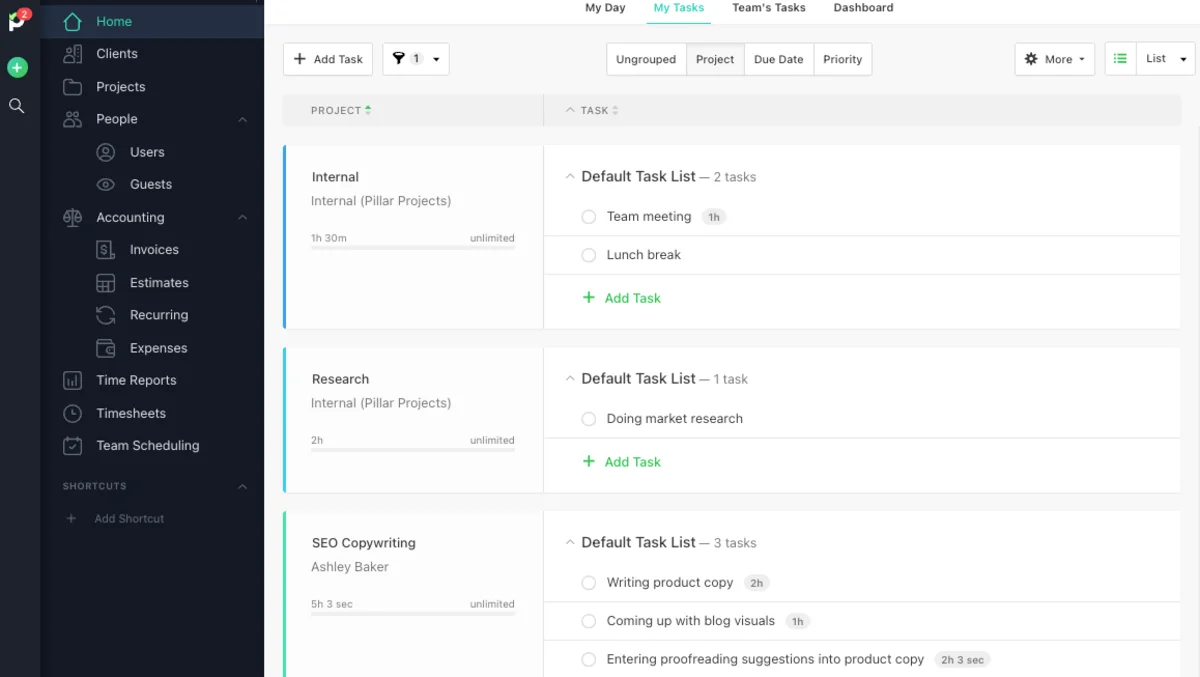
Paymo is a goal-oriented app designed for easy task management across small teams. Paymo tracks time, creates task lists, and issues simple invoices — but be prepared for big price gaps between paid plans.
How does Paymo work?
Paymo’s timer, located in the bottom left corner, allows you to track time by project and task. It’s pretty handy, but you can’t cancel the timer once you’ve started it, which irked me.
I found the Recent Tasks button neat, as it lets you continue the timer on recent tasks. I’m sure that professional service teams with ongoing projects would use it a lot.
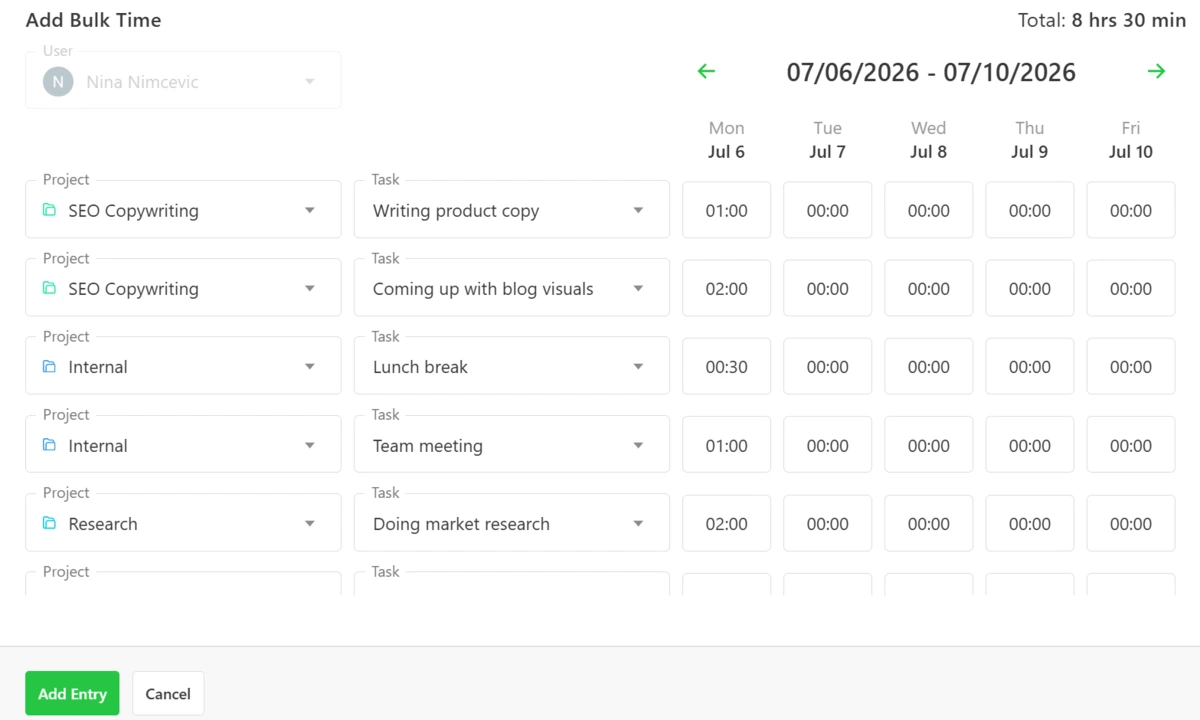
Paymo offers customizable time entries and displays them in a color-coded, calendar-like timesheet. In the Timesheets section, you can bulk-create entries for different projects and tasks for the whole week. However, this time and billing software doesn’t show time intervals or tags, which makes it unfit for tracking granular data.
After creating a task, it appears on the dashboard with a check box beside it. Note that checking a task off removes it from the task list. But that doesn’t affect your task-related entries — I panicked and double-checked. If you’re a system admin with repetitive work, you’ll have to recreate your tasks each day.
I also noticed that Paymo only creates client-bound projects. That’s bad news for tracking internal operations.
The app offers straightforward yet limited billing options. Sorting individual tasks and their billable hours was great, but I wish I could hide certain fields like pay rates. Other than your logo and the invoice items, there’s not much else to edit.
Once created, your invoice will be marked as Draft. With Paymo’s multiple invoice statuses (draft, void, paid, and sent), I could track invoices from creation to payment.
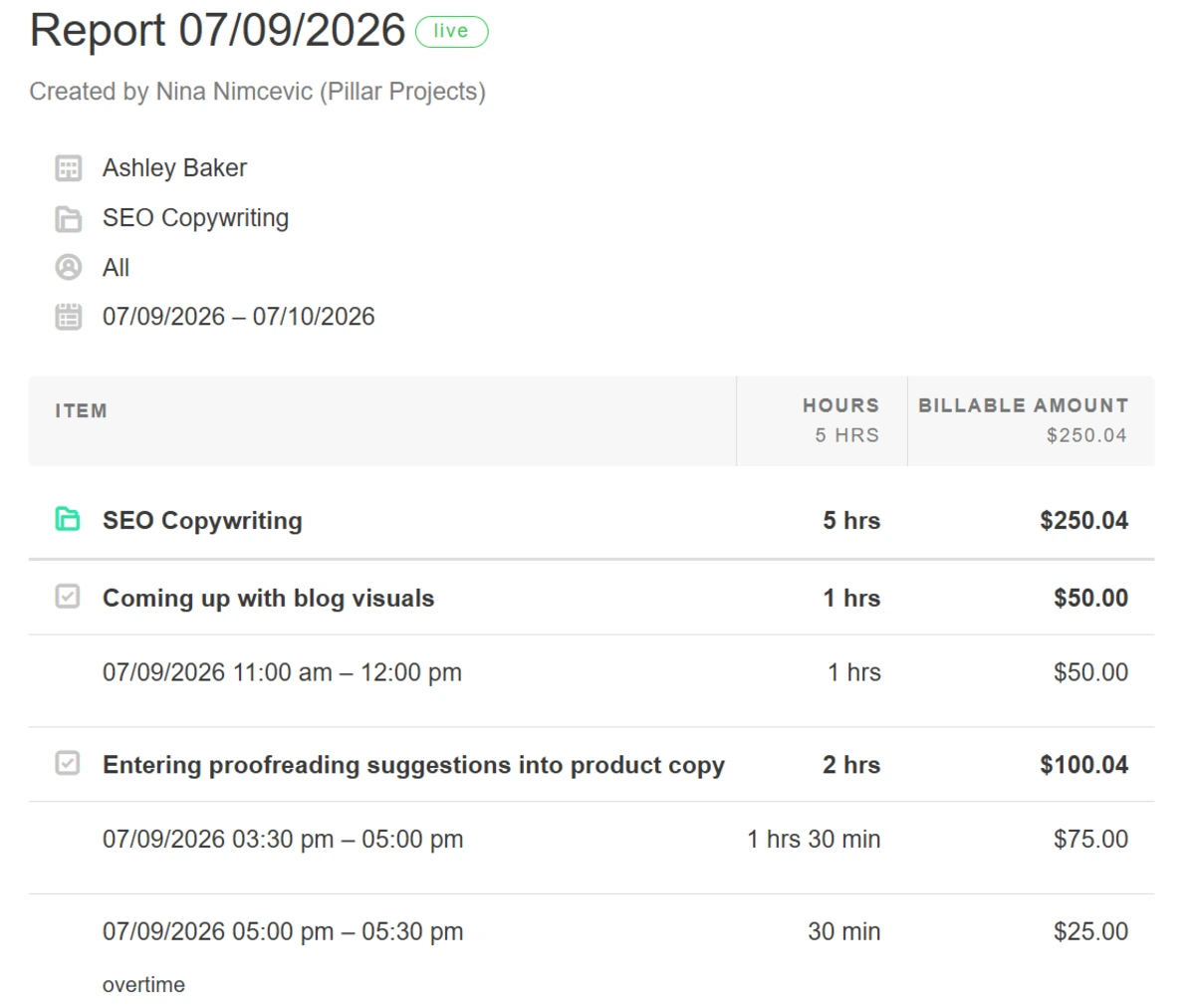
I generated custom reports with time entries and their billable details with versatile yet slightly tucked–away filters. I was also able to view any overtime hours marked in time entry notes. You can export reports as Excel, CSV, and PDF files.
Paymo pros
Here are the main advantages of Paymo:
- Clean, beginner-friendly design
- Bulk-creating entries for different projects
- Multiple report filters
Paymo cons
The disadvantages of using Paymo include:
- No way to cancel the timer once turned on
- Lacking advanced invoice customization options
- Concealed report filters that require extra clicks
What’s new in Paymo?
In March 2026, Paymo added new features like attaching timesheets to invoices and creating invoices from the Clients section to speed up billing.
| Free plan | Yes 1 user, 1 client, and 2 projects |
| Free trial | 14 days |
| Starting price | $5.90 per month (if billed annually) First paid plan is limited to 1 user |
| Availability | Mac, Windows, Linux, Web, Android, iOS |
💡 CLOCKIFY PRO TIP
Here’s a deep dive into Paymo’s feature set, pricing, and more:
#4: Bill4Time — best for law-focused time tracking and billing
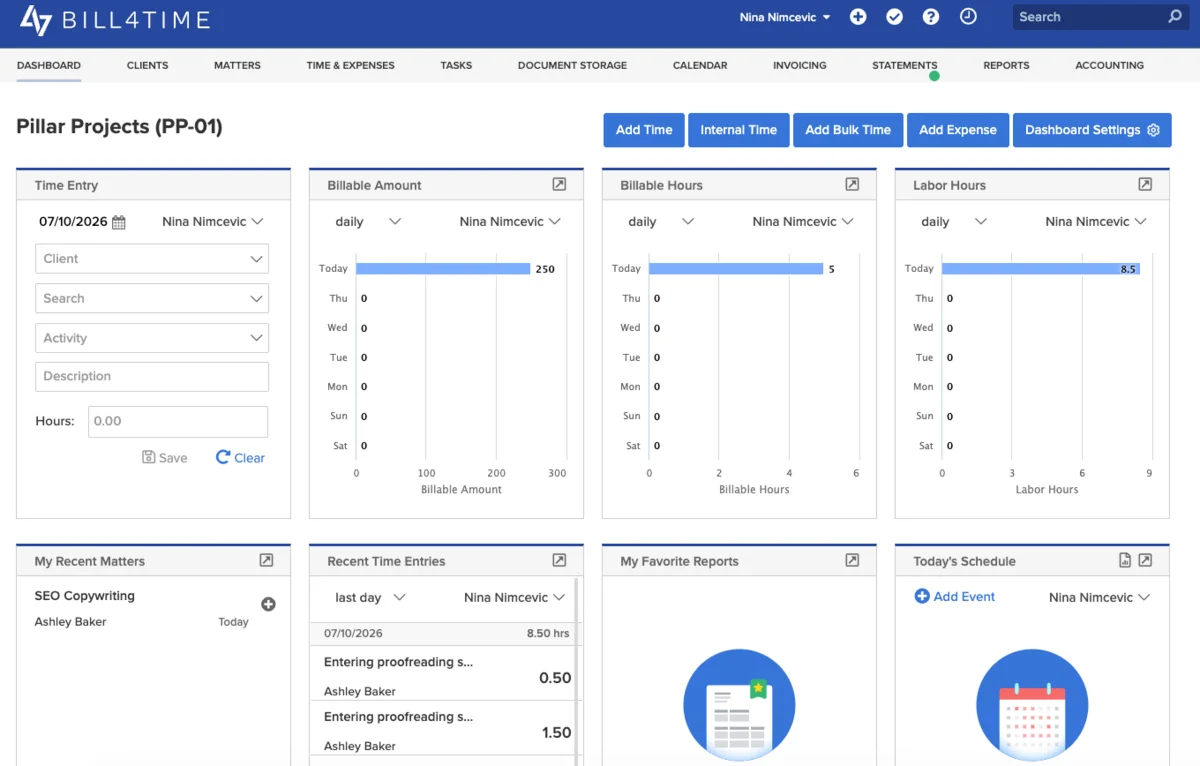
Bill4Time markets itself as a time and billing software for lawyers who need more detailed invoice and expense tracking. While the platform automatically and manually tracks time for different matters and activities, it comes with steep pricing.
How does Bill4Time work?
Bill4Time offers a quick customization walkthrough unlike many time and billing software. However, most clicks and edits resulted in loading delays, which tested my patience. Bill4Time also required my phone number from the outset — an intrusive request.
In the Time & Expenses section, the app opens a separate window to track time. I found bulk-creating entries nifty, but doing so in a separate tab wasn’t to my liking.
Both the timer and manual time entry are packed with editable fields, which makes them impractical. Additionally, I disliked having to add descriptions for every entry.
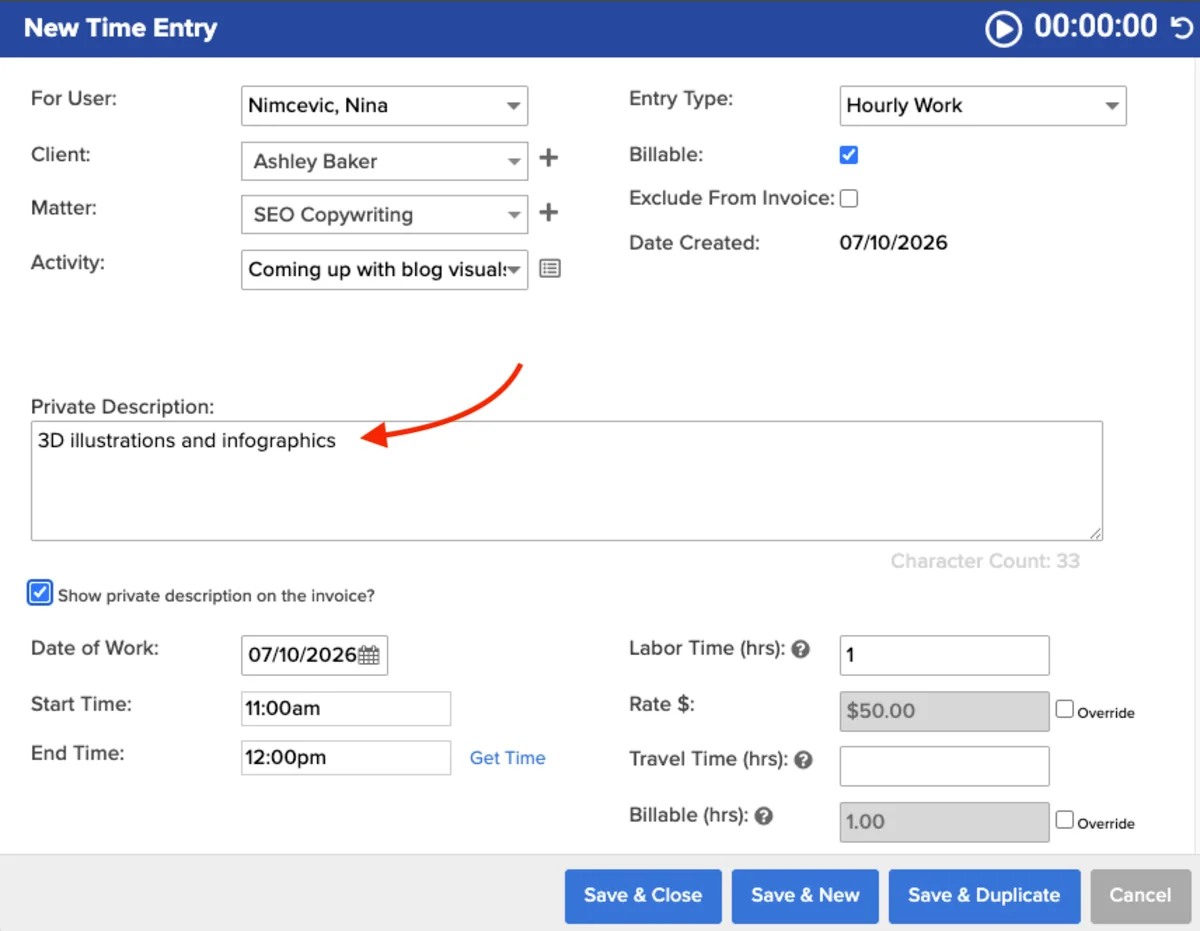
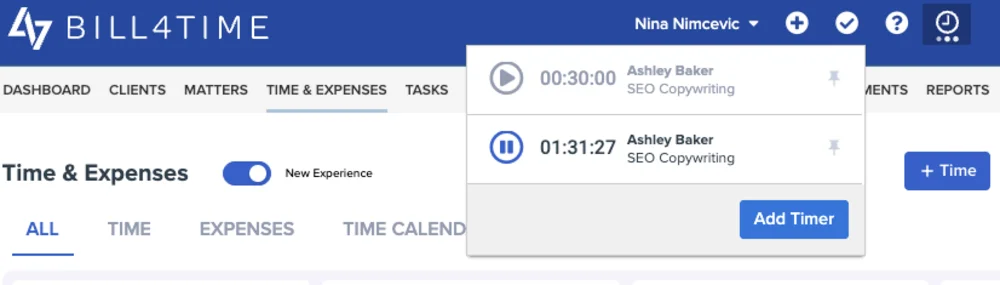
I was thrilled to learn that the timer can track several tasks at once. It’s perfect for multitaskers who dominate the professional services market.
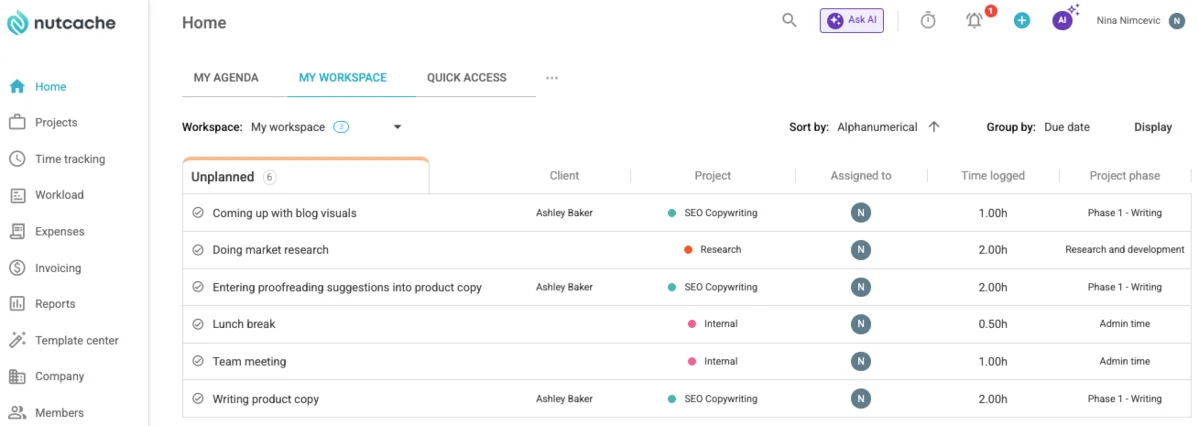
In Bill4Time, Matters and Activities serve as projects and tasks. The terminology makes it clear that this is a legal time and billing software designed only for attorneys.
Oddly enough, the app only creates billable projects (Matters). But you can track internal time once enabled in your Profile settings. There, I could also edit billable and internal activities, though I wish both options were more accessible.
Frustratingly, the app doesn’t cap daily hours for users. Lawyers working late to meet court deadlines surely won’t appreciate this from a law-focused app. As a workaround, I used descriptions to mark entries as overtime.
Bill4Time lets you pick clients, projects, and entries to create an invoice. Clicking on an invoice item opens a new window for edits, which annoyed me. When I needed to delete an existing invoice, I had to open it first.
The Summary report on the platform offered a detailed yet cluttered overview of time and billable data. I felt that the filters covered everything I needed. Reports can be exported as XLS or PDF files.
Bill4Time pros
Here are the main advantages of Bill4Time:
- Versatile report filtering options
- Tracking multiple tasks via timer
- Easy-to-use, simple invoice creation
Bill4Time cons
The disadvantages of using Bill4Time include:
- Impractical and clunky time tracking with obligatory fields
- Editing and deleting invoice items is click-heavy
- Busy billing reports with poor export options
What’s new in Bill4Time?
In January 2026, Bill4Time introduced highly customizable reports with advanced filtering. The goal was to bring productivity, profitability, and workflow data together.
| Free plan | No |
| Free trial | 14 days |
| Starting price | $39 per user/month (if billed annually) Unlimited users on all plans |
| Availability | Web, Android, iOS |
#5: Nutcache — best for phased project planning
Nutcache markets itself as a project management software built for knowledge and construction workers. It handles project and task management, time tracking, and invoicing for a pretty penny.
How does Nutcache work?
Nutcache offers a user-friendly design, but my experience was spoiled by frequent loading delays. The platform comes with a built-in chat, but it doesn’t offer 24/7 support.
I had 2 timekeeping options to choose from — manual logging or the timer. Nutcache lets you track time on projects, project phases, and tasks.
The Kanban view helps you manage projects with ongoing phases or sprints (time-sensitive phases).
Tasks are tied to phases, so you can either track both or none, which was really frustrating. Overall, the platform lacks flexibility, as it only suits phased projects.
Overtime warnings pop up in the Time tracking section after you exceed your daily limit — great for personal time management. But I couldn’t filter this section to see other people’s hours. To view everyone’s overtime in reports, I used the Service field to flag entries as overtime.
While testing, I was left to solve tech issues alone. The chat wasn’t active at the time, and the error message didn’t specify what went wrong.
Oddly enough, Nutcache generates invoices in new tabs. Importing time entries from a project creates a detailed, editable invoice. My only issue was that columns like Rate can’t be removed — something other teams may prefer, too.
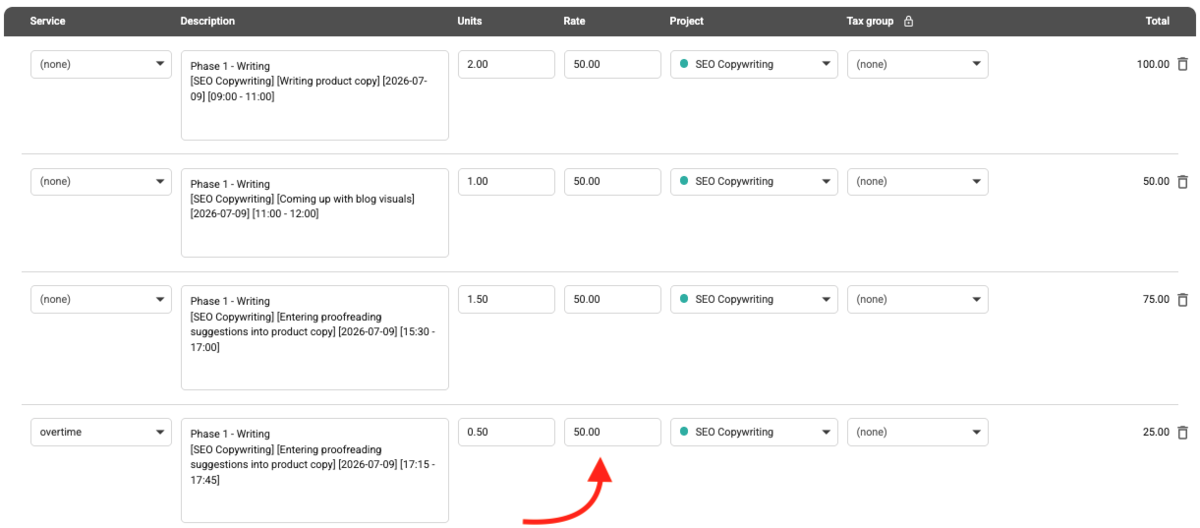
Nutcache’s reports open new tabs, as well. But even more frustrating was that every filter change triggered a loading time. I couldn’t find a single report showing detailed time and financial info, so I had to switch between several reports to see all the data.
I was impressed by the number of export options — PDF, CSV, Excel, Word, and Rich text.
Nutcache pros
Here are the main advantages of Nutcache:
- Meticulous time tracking via projects, phases, and tasks
- Clear view of project-specific phases and tasks
- Multiple report export options
Nutcache cons
The disadvantages of using Nutcache include:
- Limited flexibility due to phase-based tasks
- Invoices and reports are generated in new tabs
- Separate time and profit reports with high loading times
What’s new in Nutcache?
Overall, Nutcache’s Product roadmap page shows upcoming time entry improvements and mobile app updates. The app also recently introduced the Kanban view for managing all project phases and related tasks in one place.
| Free plan | Yes 2 users, 10 clients, 10 projects, 200 invoices, and 500 time entries |
| Free trial | No |
| Starting price | $15.95 per user/month (if billed annually) Teams with over 9 users must buy additional seats in blocks of 5 |
| Availability | Web, Android, iOS |

#6: Zoho Invoice — best for comprehensive, personal invoicing
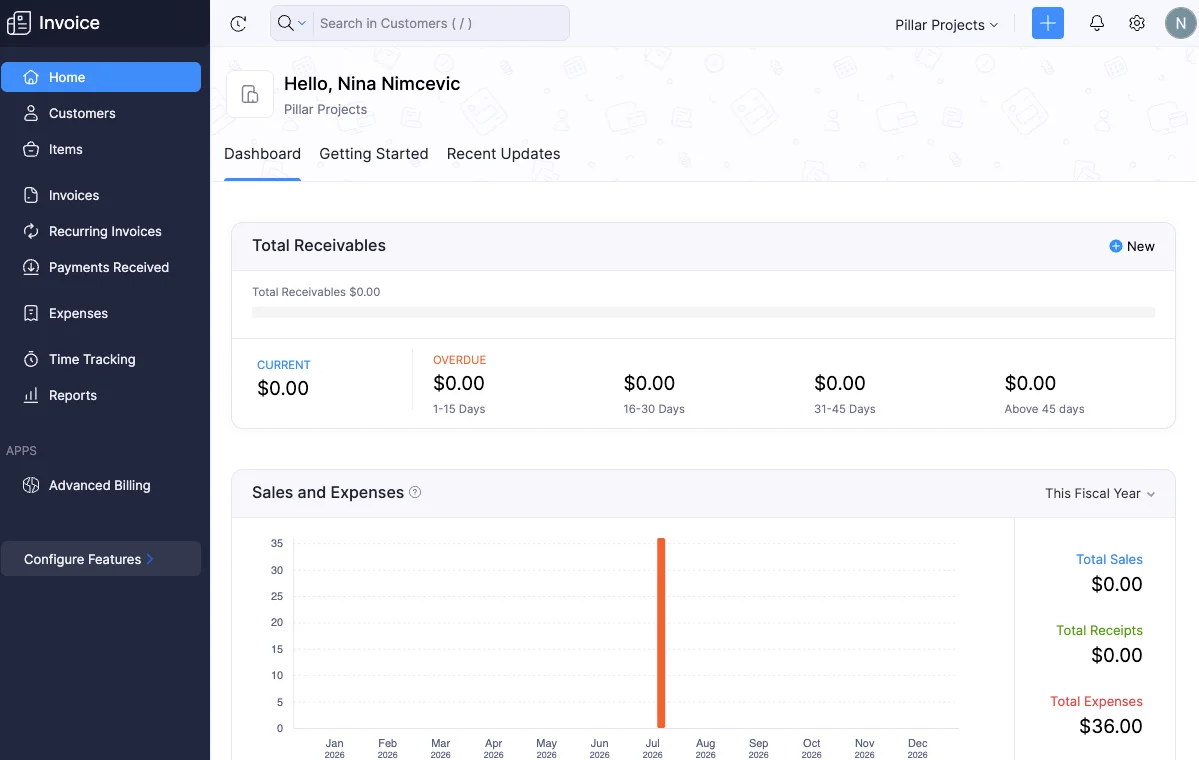
Zoho Invoice is a billing-first tool with basic timekeeping options for personal use. This fully free solution is best suited for freelancers, contractors, or 2-person teams.
How does Zoho Invoice work?
Zoho Invoice is available for free, which is great. But the mandatory phone number during the setup irked me. I also disliked filling in exhaustive forms to create projects, customers, and expenses.
In the Time Tracking tab, you can start the timer or log time in the (rather bare) timesheet. Zoho Invoice makes you select a task for every entry — you can’t just write a note and ignore it. And changing the required fields isn’t an option.
Oddly enough, you can’t edit directly in the timesheet. Instead, I had to click on an entry, which opens a separate window for edits. Doing this for multiple entries gets tiring.
What really bugged me was that each project requires a customer. So, I had to create one under my company’s name when I needed an internal project.
Timestamps lack AM/PM indicators and chronological ordering, which can disorient round-the-clock teams and cause client distrust. If a lawyer bills for their time in court hearings, the client may request the specific timings.
I logged time after 12 PM using the 24-hour format. Otherwise, Zoho Invoice thinks my task length crosses the daily limit. So, here’s a military time converter for your trouble.
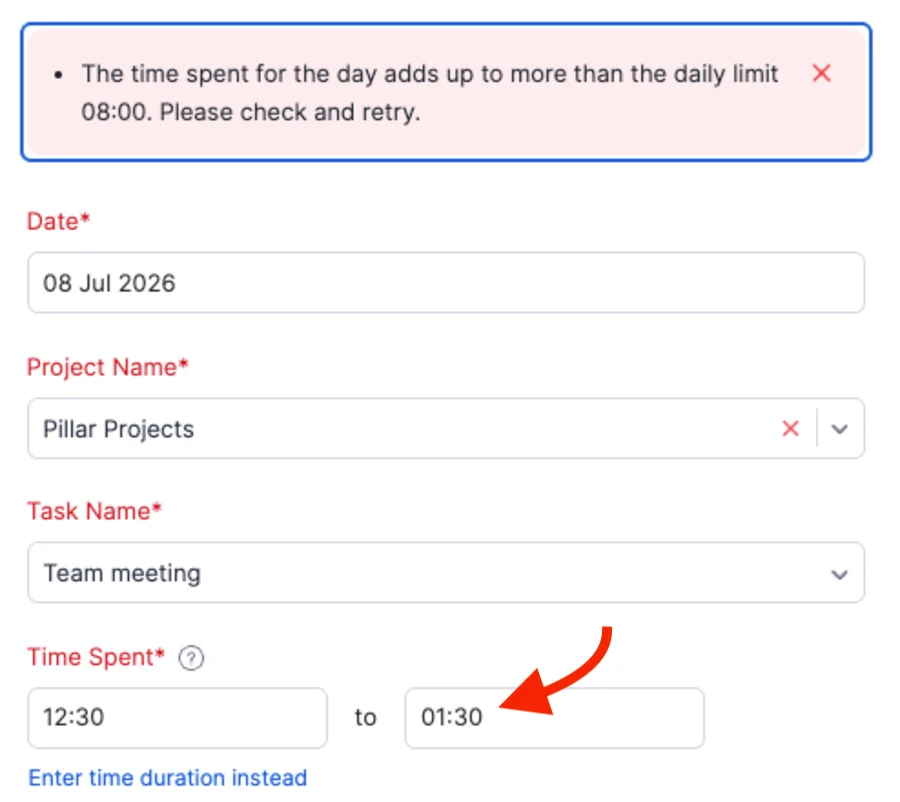
The daily capacity blocks you from logging overtime, which feels like a design flaw. Law-abiding companies have to record their long hours, especially those in demanding markets like law, consulting, and IT.
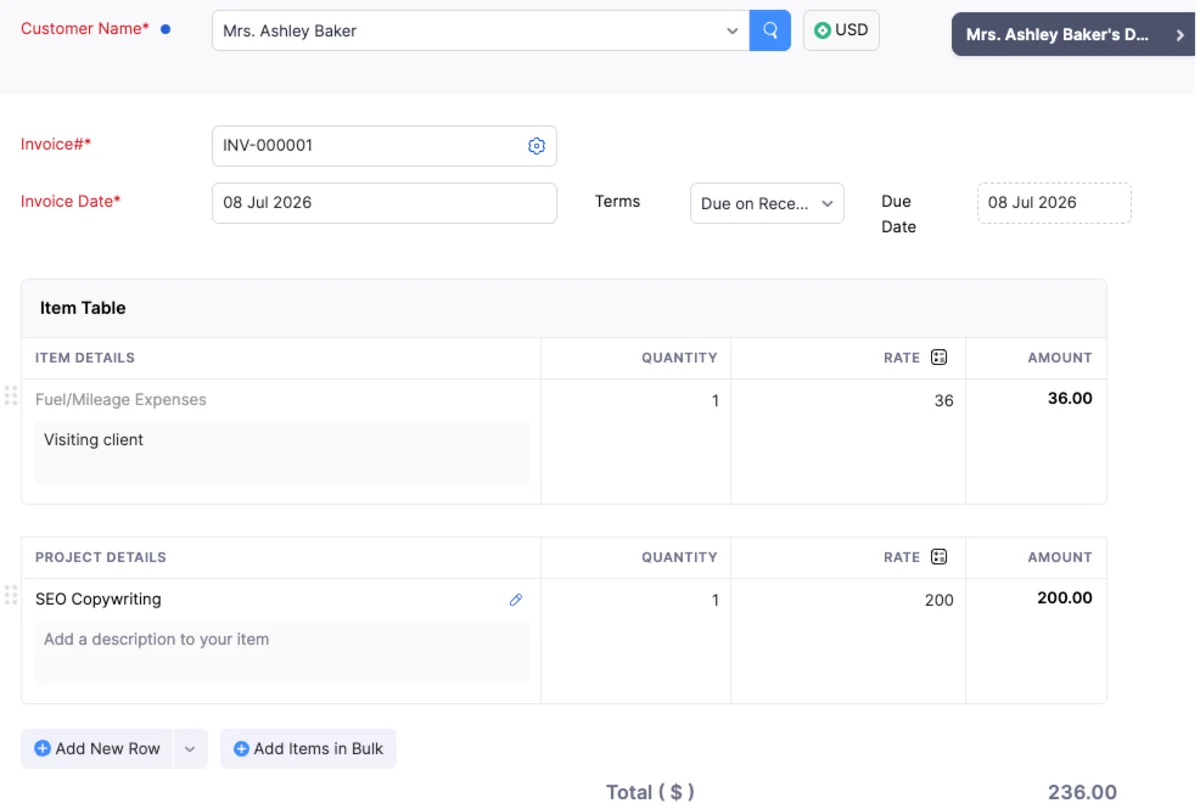
Unfortunately, the Invoices section only lets you fill in invoices manually. To import time, you have to bulk-select entries in your timesheet and click New invoice. Invoices show only the project name and total sum without listing time entries and their totals. If I’m skeptical about the invoice accuracy, the client may react similarly.
Finally, the app offers diverse reports. For me, the Project Details report proved most useful with insights into tasks, billable hours, and profits per project and client. I only wish it offered more advanced filtering, like custom dates.
Zoho Invoice pros
Here are the main advantages of Zoho Invoice:
- Free time and invoice tracking
- Wide range of multi-purpose reports
- Bulk-selecting entries to create invoices
Zoho Invoice cons
- Time tracking limitations, like no AM/PM indicators or overtime
- No detailed list of time entries in invoices
- General billing reports with poor filtering options
What’s new in Zoho Invoice?
In April 2026, Zoho Invoice introduced Model Context Protocol (MCP), which connects your tracking data to AI models like Claude and ChatGPT. After syncing the app with the Zoho MCP server, the AI can help you create invoices, pull reports, and more.
| Free plan | Yes Up to 2 users, 3 projects, and 500 invoices (per year) |
| Free trial | No / Access to a demo account |
| Starting price | No paid plans |
| Availability | Mac, Windows, Web, Android, iOS |
#7: FreshBooks — best for personal, master-level accounting
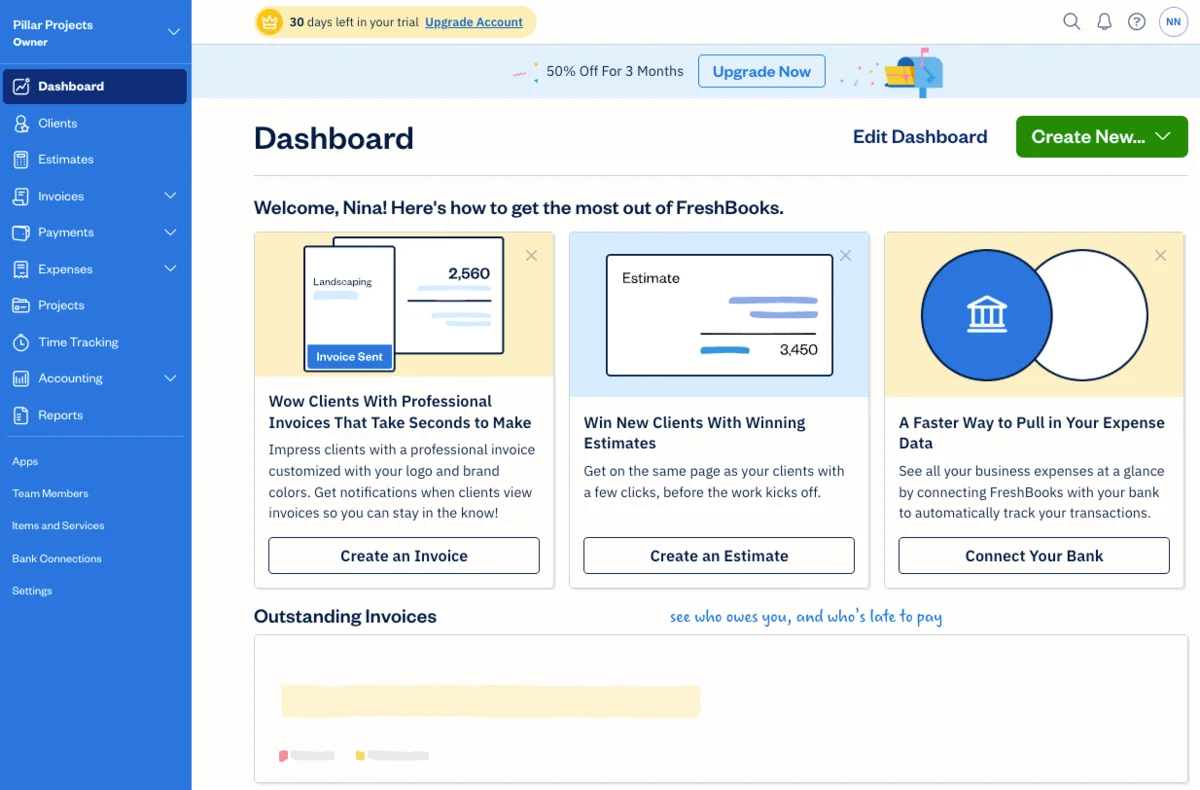
FreshBooks is a time and billing software tailored to self-employed individuals and accounting pros. It’s a comprehensive tool with expert-level invoicing (e.g., payment reminders and tax summaries) at whopping 3-digit prices.
How does FreshBooks work?
FreshBooks greets you with a cluttered, intimidating interface. With no guided tour, I had to learn the ropes myself. What’s more, the setup required a phone number, which irked me.
Before all else, you must create a project that includes an Item (to charge fixed fees) or Service (to bill hourly). I found the Services option more useful for marking non-billable entries and categorizing them, e.g., as overtime.
After starting my trial, I noted that FreshBooks automatically created an internal project. This helps professional services track non-billable activities, like team meetings or writing proposals.
The app also has a 1-click timer. To my delight, the Timer stays active in a minimizable window while you navigate the app.
I found the time tracking options frustratingly restrictive — you can’t bulk-select, split, or duplicate entries. And the only available filters are member, day, week, or month.
While generating invoices, I had some billing issues. If you want invoices to display billable amounts for time entries, you should first set rates for each project in the Projects tab. Also, keep in mind that the client’s currency overrides the workspace currency.
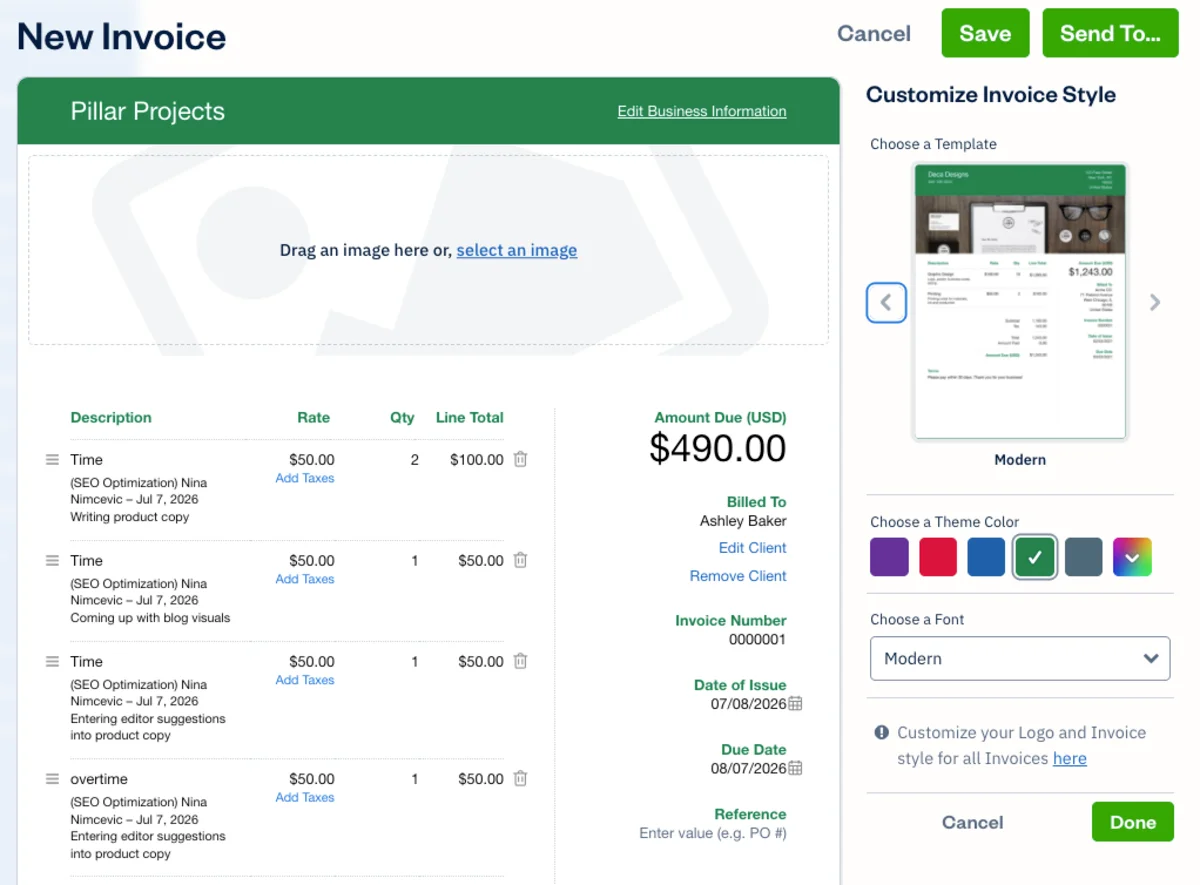
The actual invoice creation was a breeze. Inside the Time Tracking tab, simply select Generate Invoice to populate it with tracked billable time. I especially admired the personalization settings — including invoice designs, theme colors, and font style.
In the Reports tab, I stared at a confusing amount of options. The Time Entry Details report is the closest to a billing report, with entries sorted by project. Sadly, you can filter entries by date, but the report doesn’t display their related dates or timestamps.
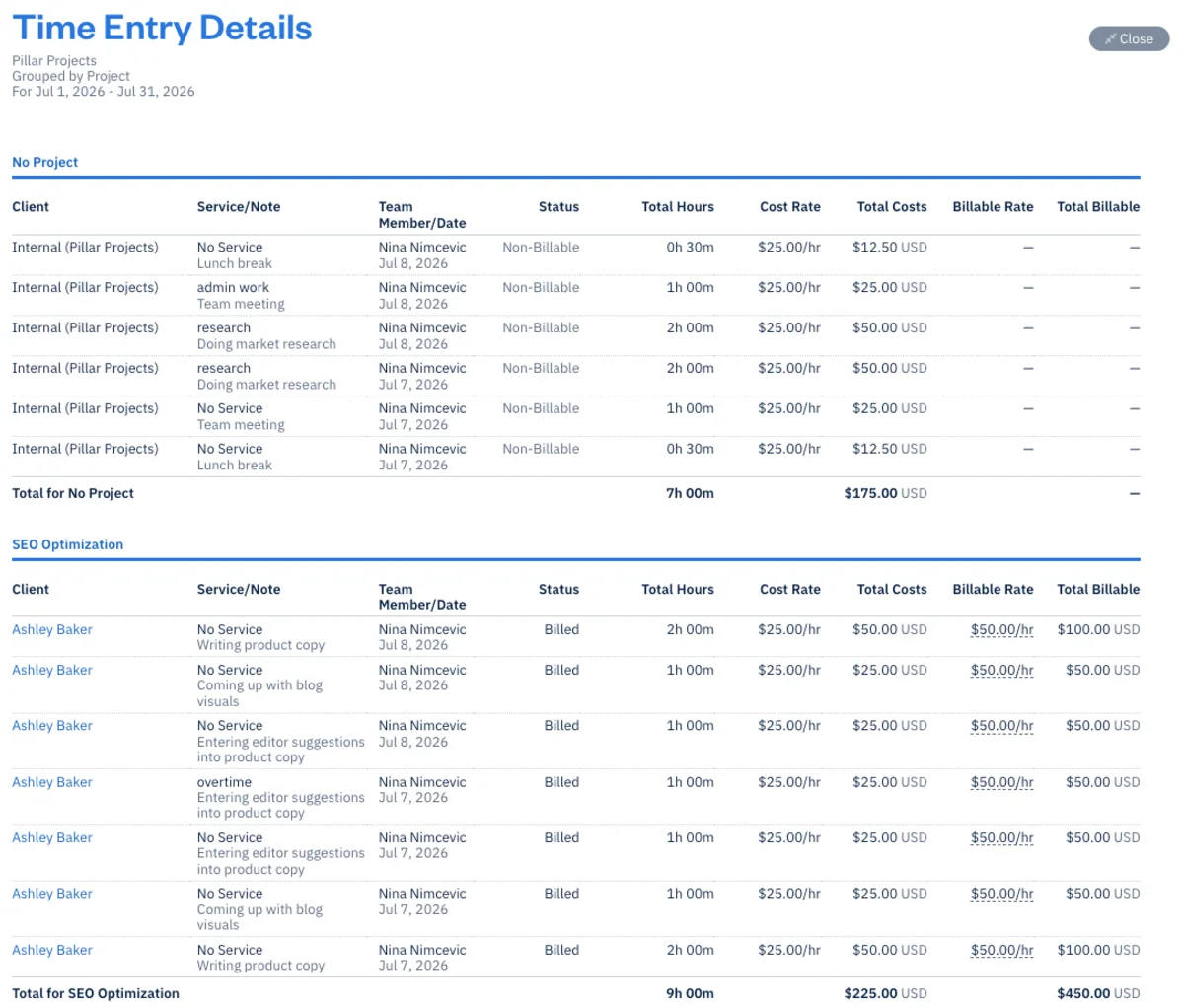
Finally, you can only download reports in Excel or PDF format.
FreshBooks pros
Here are the main advantages of FreshBooks:
- Practical, minimizable timer
- Ready-made internal project
- Versatile reports for invoicing, timekeeping, and profitability
FreshBooks cons
The disadvantages of using FreshBooks include:
- No time entry controls, like bulk-selection or duplication
- Difficult invoice setup, especially regarding currencies and rates
- No granular data in reports, like timestamps and dates
What’s new in FreshBooks?
In June 2026, FreshBooks updated recurring templates in the Invoices tab. If a recurring template is set to send $0 invoices, they’ll be automatically marked as paid. This is meant to speed up invoice management.
| Free plan | No |
| Free trial | 30 days |
| Starting price | $248.40 per month (if billed annually) Comes with 2 free team member accounts Additional $11 per user/month |
| Availability | Mac, Windows, Web, Android, iOS |
💡 CLOCKIFY PRO TIP
Track time in Clockify and export team hours into FreshBooks for spot-on payroll:
#8: Invoicely — best for independent financial management
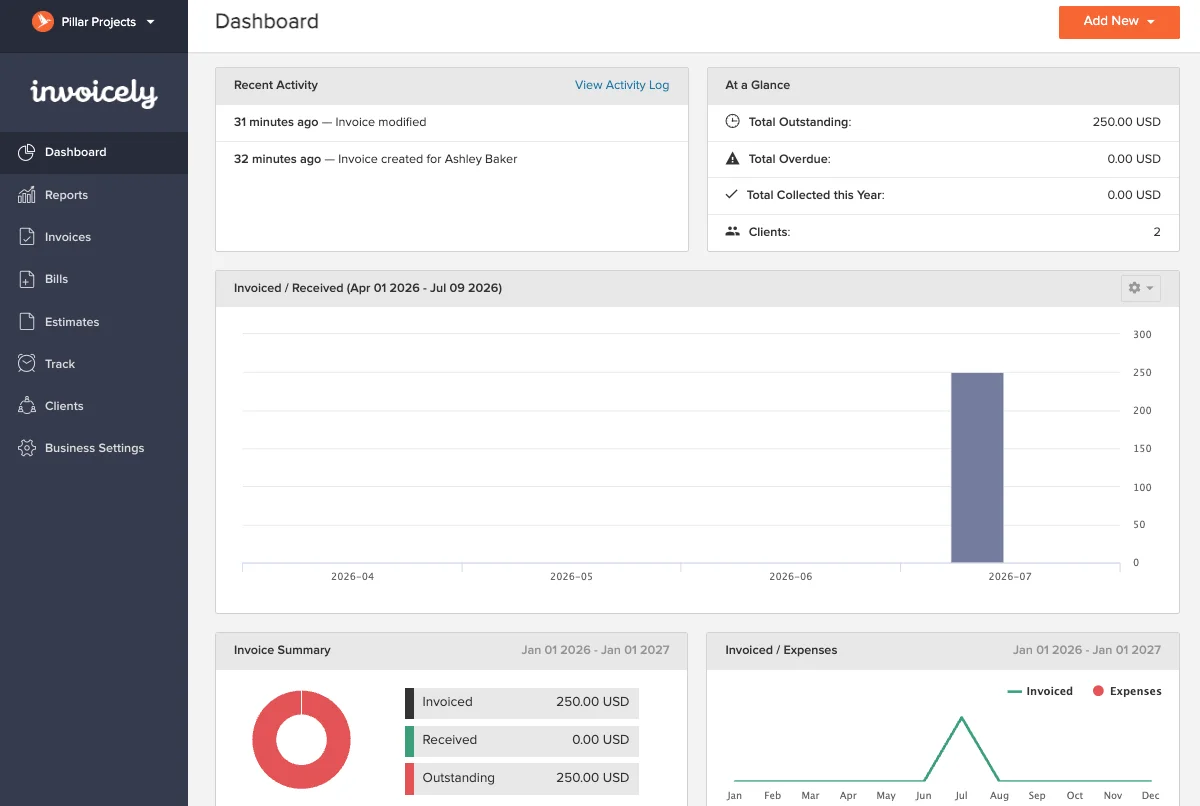
Invoicely is a time and billing software with a minimalist design and straightforward features. It helps freelancers and contractors generate formal invoices, track time, and accept payments at a handsome price.
How does Invoicely work?
Setup requires your full address, which feels a bit invasive. The interface is simple, which makes it easy to master the app. I only wish Invoicely had more color and feature depth.
Time and expenses are tracked in the same place, the Track section. I would have preferred separate sections to keep things organized. Time entries are tracked by task, not project. As a workaround, I used description fields to add project names and tags to give details like overtime.
While tracking time, I discovered that Invoicely prompts you to enter a random rate for every time entry. You can’t predefine user or task rates beforehand and then assign them — missed opportunity for automation.
In Invoicely, the only way to create a non-billable entry is to add a rate at $0. The app also only logs duration for each entry. Without start and end times, I had no exact insights into my team’s work hours.
The Timer option pops up once you manually log time. I liked that it runs uninterrupted while I switch tabs. Still, creating an entry only to access the timer seemed inconvenient.

The invoicing section is where Invoicely shone for me. You can create an invoice from selected time entries and customize it — add tags, files, links, or dates to each entry.
What I found most useful is applying taxes and discounts to individual entries or to the entire invoice. That way, an IT company can tax specific invoice items, like supplying hardware. And consultants can offer a discount to a certain project phase, like planning.
Once created, invoices are marked as Due so you can easily track unsent invoices. I also enjoyed being able to export them as Excel, CSV, or TSV files.
Frustratingly, Invoicely has no time reports with financial details.
Invoicely pros
Here are the main advantages of Invoicely:
- Simple layout for personal use
- Highly customizable invoice items
- Timer that runs uninterrupted as you navigate the app
Invoicely cons
The disadvantages of using Invoicely include:
- Limited timekeeping with a hidden timer and no project tracking
- Time entries relying on custom rates instead of predefined ones
- No billing reports with time and profit data
What’s new in Invoicely?
There have been no improvements in recent years.
| Free plan | Yes 1 admin/user, 5 invoices, and 3 clients |
| Free trial | No |
| Starting price | $7.99 per month (if billed annually) The first paid plan is limited to 2 users, the second to 10, and the third to 25 The first paid plan limits invoices to 100 and the second to 250 |
| Availability | Web, Android, iOS |
Try a free Invoicely alternative
#9: Scoro — best for work management
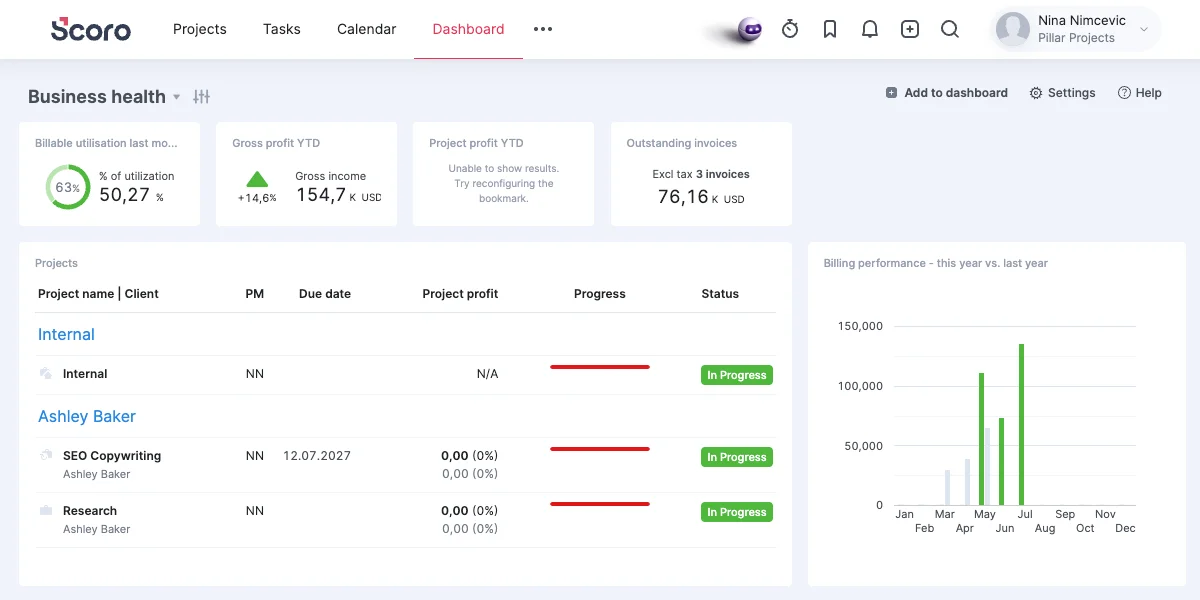
Scoro is a pricey work management tool that offers resource management, billing, and basic time tracking. Its robust design and AI-focused advancements make Scoro a great fit for IT companies and tech-fluent teams.
How does Scoro work?
Scoro relies on AI-powered setup. Instead of filling in a form, I had to chat with AI for about 5 minutes. Later on, I filled out field-heavy windows to create clients and projects. With so many hidden options, mastering Scoro wasted a lot of my time.
Scoro offers 3 types of projects: One-off (time-bound), Retainer (ongoing), and Internal (non-billable and non-client-facing). I used the one-off type for short-term projects and the retainer one for long-term projects.
Adding projects and tasks is pretty simple if you ignore the cluttered layout. IT companies would surely leverage Scoro’s abundant options, like adding phases and task bundles. However, less tech-savvy workers may find them overwhelming and unnecessary.
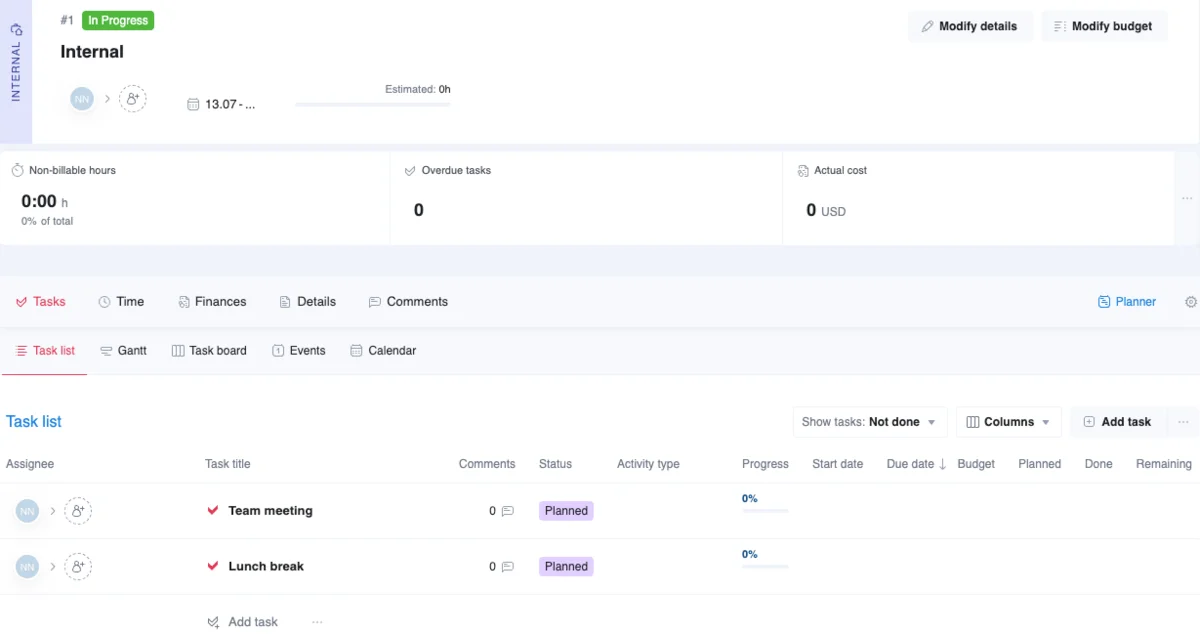
Scoro offers a misleading time tracker button in the top right corner. Once I selected a task, it just opened the task page. I like it as a shortcut to accessing specific tasks, but I wouldn’t call it a time tracker.
You can start the timer on a task or add duration to it in the Projects or Tasks section. It ran in the background while I browsed the app, which made multitasking easier.
The Timesheet came in handy for adding or viewing tracked time per user. Here, I could see if anyone went overtime.
What really irked me was that you can only add time intervals in the Calendar. Unfortunately, this feature is designed for events like meetings.
Invoicing tracked time is a bit tricky. Once inside the Projects section, open the Time tab, select time entries, and then click Create invoice. Unfortunately, Scoro only imports the total billable hours and amounts into the invoice — you’ll need to fill in the rest.
I enjoyed Scoro’s reporting flexibility. The Detailed report shows a color-coded graph and a table overview of your billable time info. Abundant filters helped me sort data and create invoices from reports.
Reports are available for PDF, CSV, or XLS export.
Scoro pros
Here are the main advantages of Scoro:
- Supports billable and internal projects
- Timesheet flags overtime hours
- Generates invoices from reports
Scoro cons
The disadvantages of using Scoro include:
- Interface is cluttered with hidden functionalities
- Time tracker records durations, not timestamps
- Invoices show only billable totals without project details
What’s new in Scoro?
In Scoro’s July 2026 update, Scoro expanded the capabilities of its AI assistant, ELI, to reduce manual admin work. It also introduced timekeeping improvements, like visual timer indicators next to tasks, which offer better visibility into active tasks.
| Free plan | No |
| Free trial | 14 days |
| Starting price | $19.90 per user/month (if billed annually) Seat minimum is 5 |
| Availability | Web, Android, iOS |
#10: ActiveCollab — best for project and capacity management
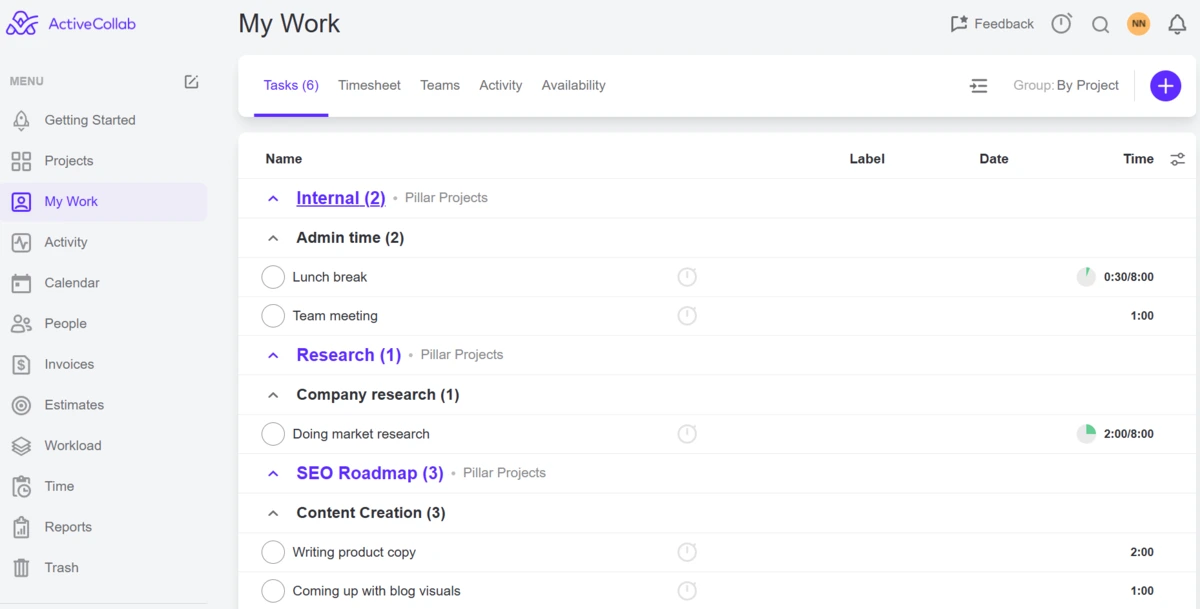
ActiveCollab is a project time and billing software that lets you manage workloads, time logs, and invoices. It offers a user-friendly layout and balanced feature set, albeit with steep price jumps between paid plans.
How does ActiveCollab work?
ActiveCollab launches a quick onboarding checklist, which streamlines setup. Besides tracking projects and tasks, the app also uses job types to classify roles or skillsets. Personally, I didn’t find this feature helpful, but I welcomed the innovation.
The timer is easily accessible and allows you to switch from one task to another. Clicking on My Time within the timer takes you to your timesheet, which I found very convenient. From there, you can manually add or adjust time entries.
To my great disappointment, you can’t add specific start and end times to your time entries — you can only enter total duration. On the bright side, the timesheet is designed to track overtime, so you don’t have to rely on workarounds.
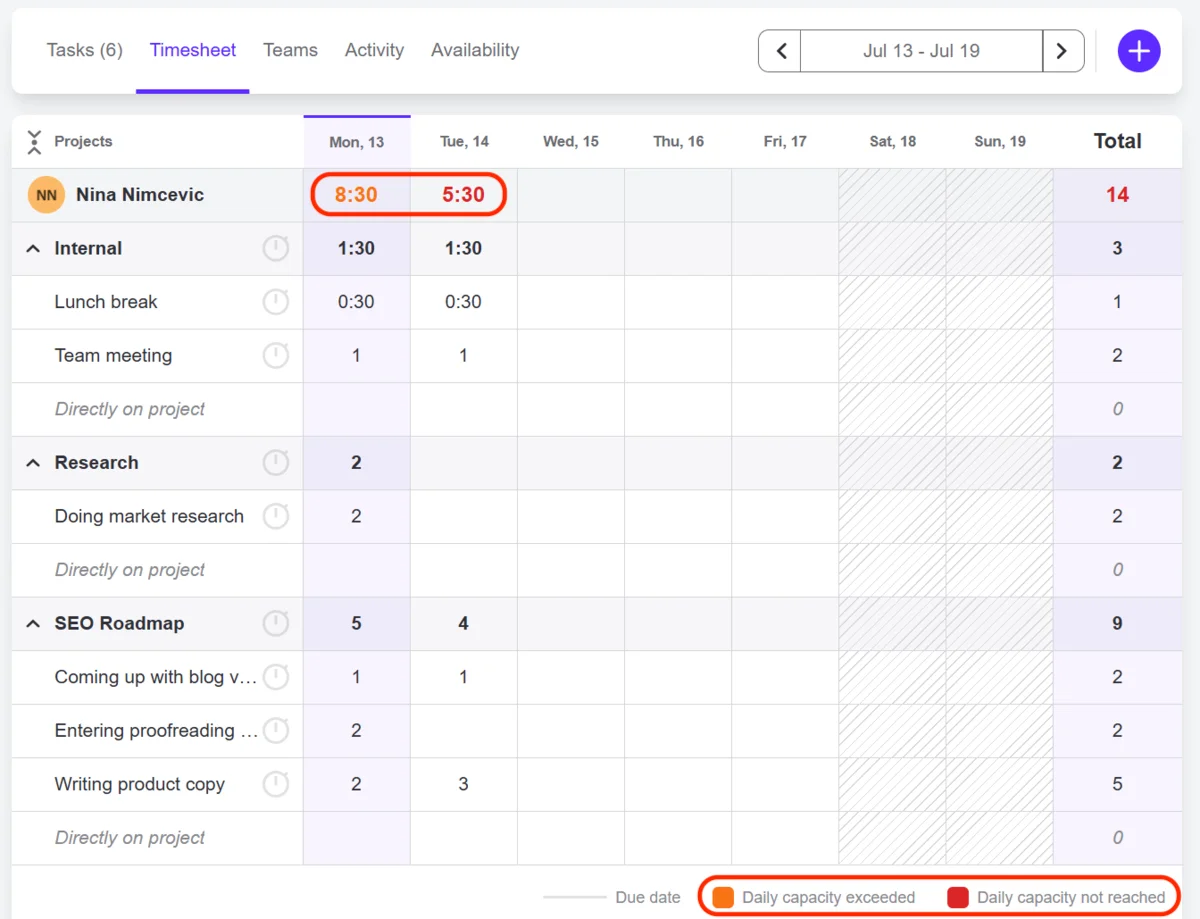
In ActiveCollab, the Calendar isn’t designed for tracking time but only for events like meetups. Given the app’s overall flexibility, this surprised me.
What I found uniquely impressive is the Trash feature, where you can view and restore deleted items. Those older than 30 days are automatically removed forever.
The search bar wasn’t as helpful as I hoped it would be. You can’t do much else besides searching items by their IDs or users by their names. I tried typing “rates” when I couldn’t locate the option and got no results.
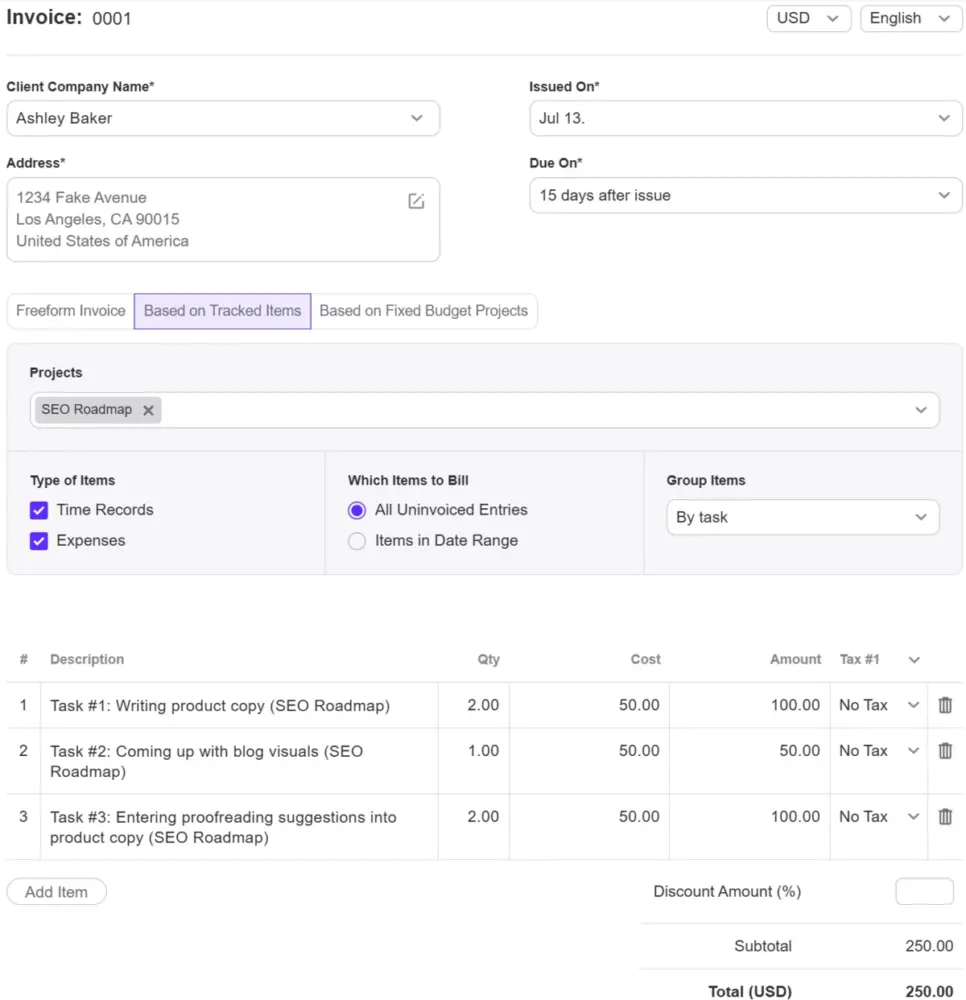
In contrast, I mastered invoicing in ActiveCollab on my first try. The platform allows you to create invoices from scratch, based on tracked time, or fixed project budgets. What bugged me here was not being able to edit taxes or add my company logo and info.
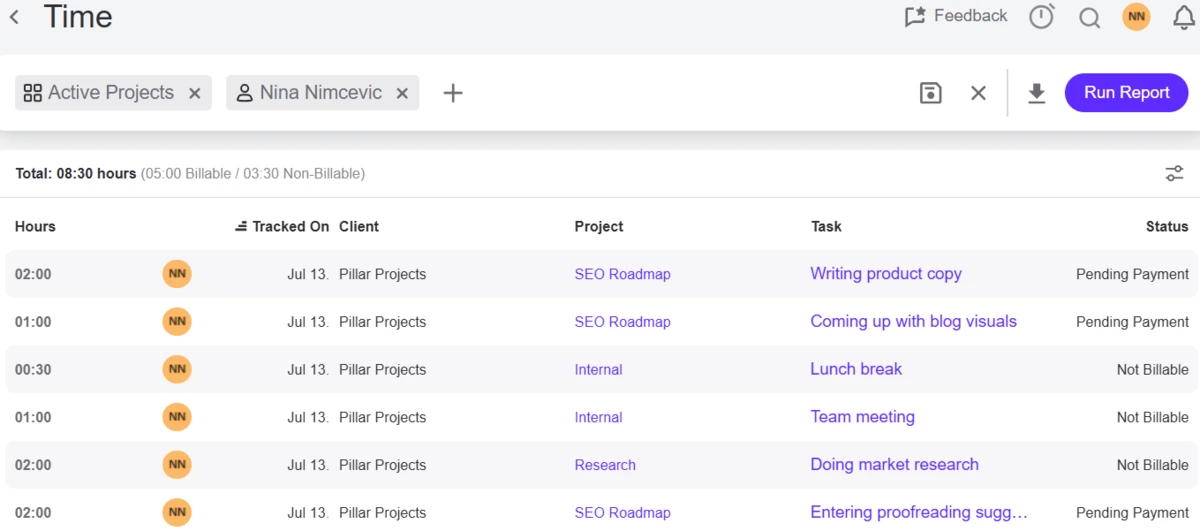
I was puzzled by how versatile yet rigid reports are in the app. I had to juggle the Time report (to see tracked time per task) and Project report (to see revenue per project).
ActiveCollab pros
Here are the main advantages of ActiveCollab:
- Switching between tasks using the timer
- Simple time-based invoices
- Ability to restore deleted items
ActiveCollab cons
The disadvantages of using ActiveCollab include:
- No option to specify start and end times for tasks
- Lack of an all-in-one report with time and billing details
- No tax editing or company info in invoices
What’s new in ActiveCollab?
In March 2026, ActiveCollab announced new products and updates — such as an MCP server for linking any AI to ActiveCollab and new filters for the Cost Summary report. This lets AI complete tasks using your data, while extra filters allow you to view details by time, job type, or user.
| Free plan | No |
| Free trial | 14 days |
| Starting price | $3.5 per user/month (if billed annually) Small teams plan supports up to 3 seats for a fixed monthly fee |
| Availability | Mac, Windows, Web, Android, iOS |
#11: Everhour — best for tracking time alongside other apps
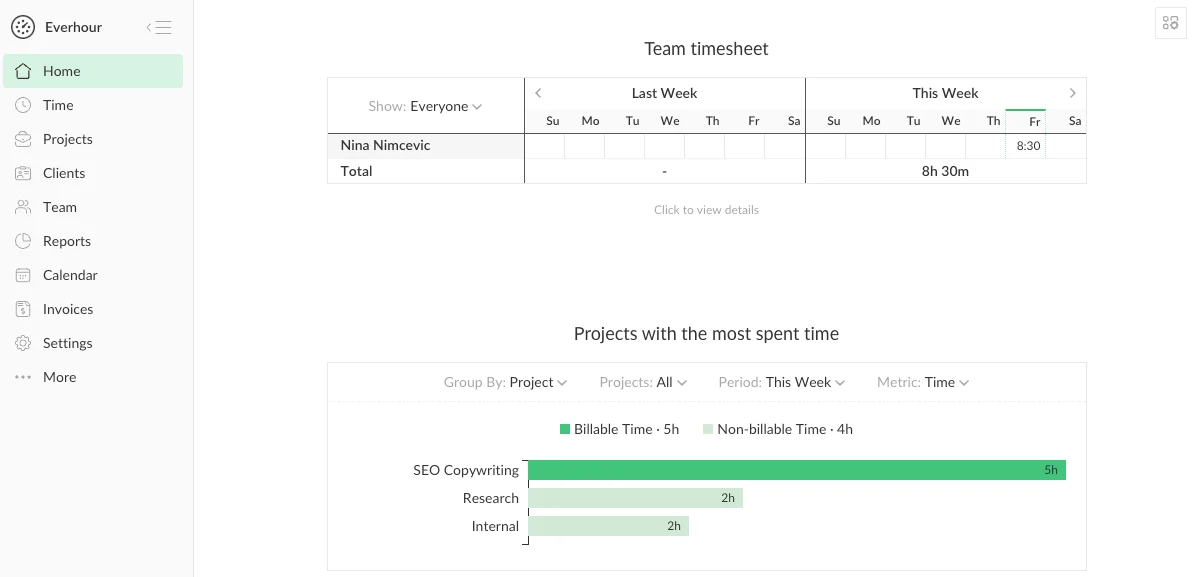
Everhour is a time and billing software that acts as a vital add-on for project management tools. Its minimalist look helps with navigation but restricts timekeeping, project tracking, and invoicing. The tool hides pricing details, showing the price for just 1 paid plan.
How does Everhour work?
Everhour delivers a simple interface but lacks more flexible features. It relies on third-party integrations, which makes it feel incomplete. While the app is intuitive, I was surprised there wasn’t any kind of onboarding process.
Project and task setup in Everhour is straightforward, but time tracking feels awkward. Tags and descriptions filled in time entries are automatically applied to tasks. So, you can’t log separate time and task details because they share the same fields.
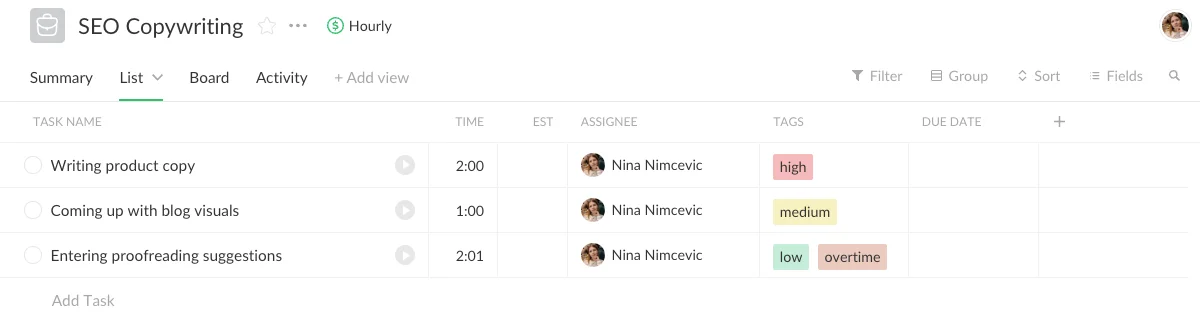
The app offers various time tracking displays: List, Timesheet, and Timecard (a time clock). Sadly, the timer and manual entry only let you record total hours. Timestamps are only used in the Timecard to log shift start and end times — bad news for IT teams who need to pinpoint and fix tech issues.
Exploring Everhour, I noticed some usability problems. I couldn’t add a description directly in the timer like I could in my timesheet. While the background timer is useful, the grayed-out indicator next to the Timer tab is very easy to miss.
Next, I admired how fast invoicing is in Everhour. Grouping items reminded me of coding, but it was manageable. My biggest complaint was not being able to add my company info in the invoices. This makes it hard for legal and consulting firms to look professional.
I was disappointed with Everhour’s bare-bones reports with poor filtering. Thankfully, I could create my own report and had numerous invoice fields to choose from. You can download it in CSV, XLS, or PDF format.
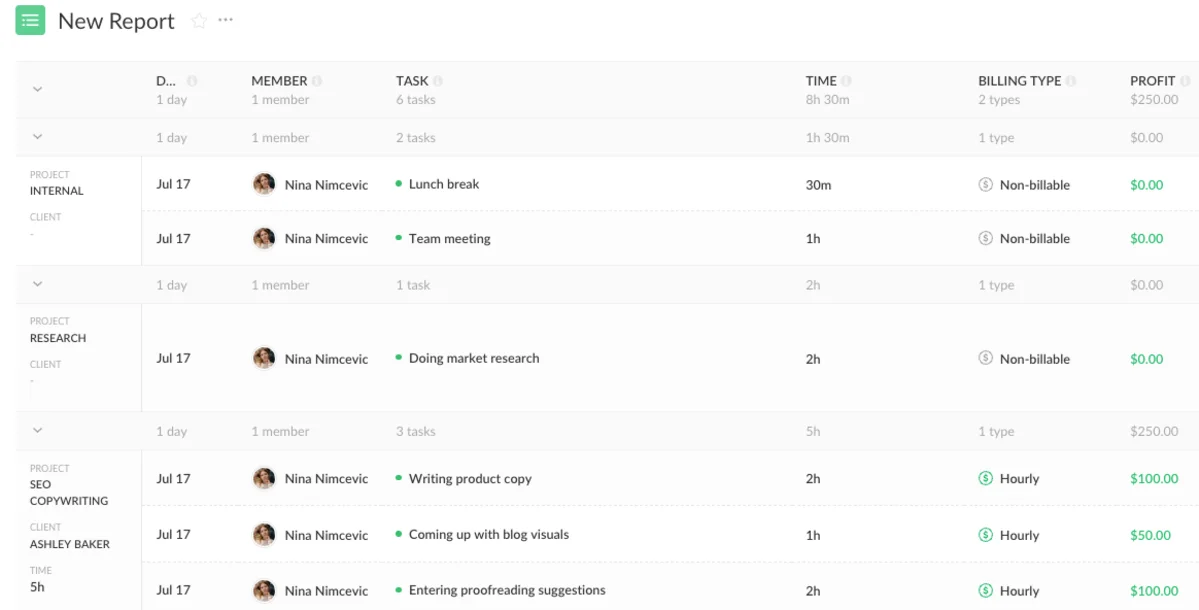
Note: The Team Hours report is built to show overtime, which works great — once you’ve adjusted the (hidden) overtime settings. I found them myself while waiting for the 24-hour chat reply.
Everhour pros
Here are the main advantages of Everhour:
- Simple, beginner-friendly workspace
- Easy project and task management
- Diverse time tracking via the timer, timesheet, and time clock
Everhour cons
The disadvantages of using Everhour include:
- Shared time and task fields (changes to entries apply to tasks)
- No option to include your company info in invoices
- Built-in reports with sparse columns and filters
What’s new in Everhour?
As of April 2026, Everhour supports e-invoicing with the UBL export option. In February of the same year, the platform rolled out its mobile version for on-the-go users.
| Free plan | Yes Up to 5 users |
| Free trial | 14 days |
| Starting price | $8.50 per user/month (if billed annually) Seat minimum is 5 |
| Availability | Mac, Web, Android, iOS |
Try a free Everhour alternative
#12: TimeCamp — best for time and productivity tracking
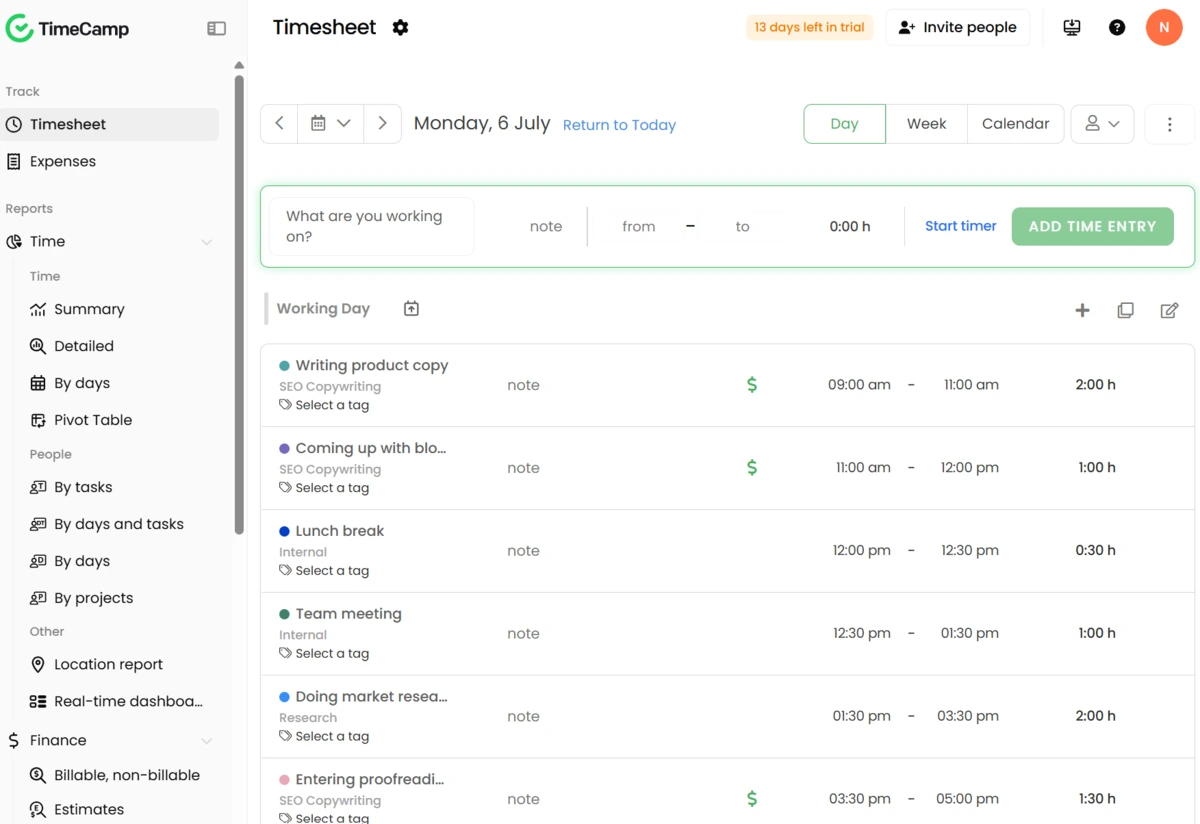
TimeCamp is time and billing software with a focus on automated time tracking, project budgeting, and invoicing. Its elegant interface is packed with features, but be ready for big price jumps between paid plans.
How does TimeCamp work?
TimeCamp allows you to track time using a timer, manual entry, or time clock. The first 2 options are available in the Timesheet section. The timesheet is easy to pick up and includes viewing options, like daily, weekly, and calendar displays.
However, I ran into some timekeeping headaches. I realized that you can’t cancel the timer after clicking on it by accident. Manual logging was a bit frustrating because I couldn’t select a date for time entries. So, if you’re a planner like me, you’ll have to break that habit.
To my disappointment, I couldn’t create or assign tags on the fly. To start using tags, you have to first create them in the Tags section and assign them to projects. I went through all that trouble even though I only needed one — to flag overtime.
Note: TimeCamp doesn’t notify you when you or someone else crosses the daily threshold.
I could easily manage projects and tasks using an expandable list view. Clicking on projects or tasks pulled up their details on the left, which I found practical. Here, I could set them as billable or non-billable.
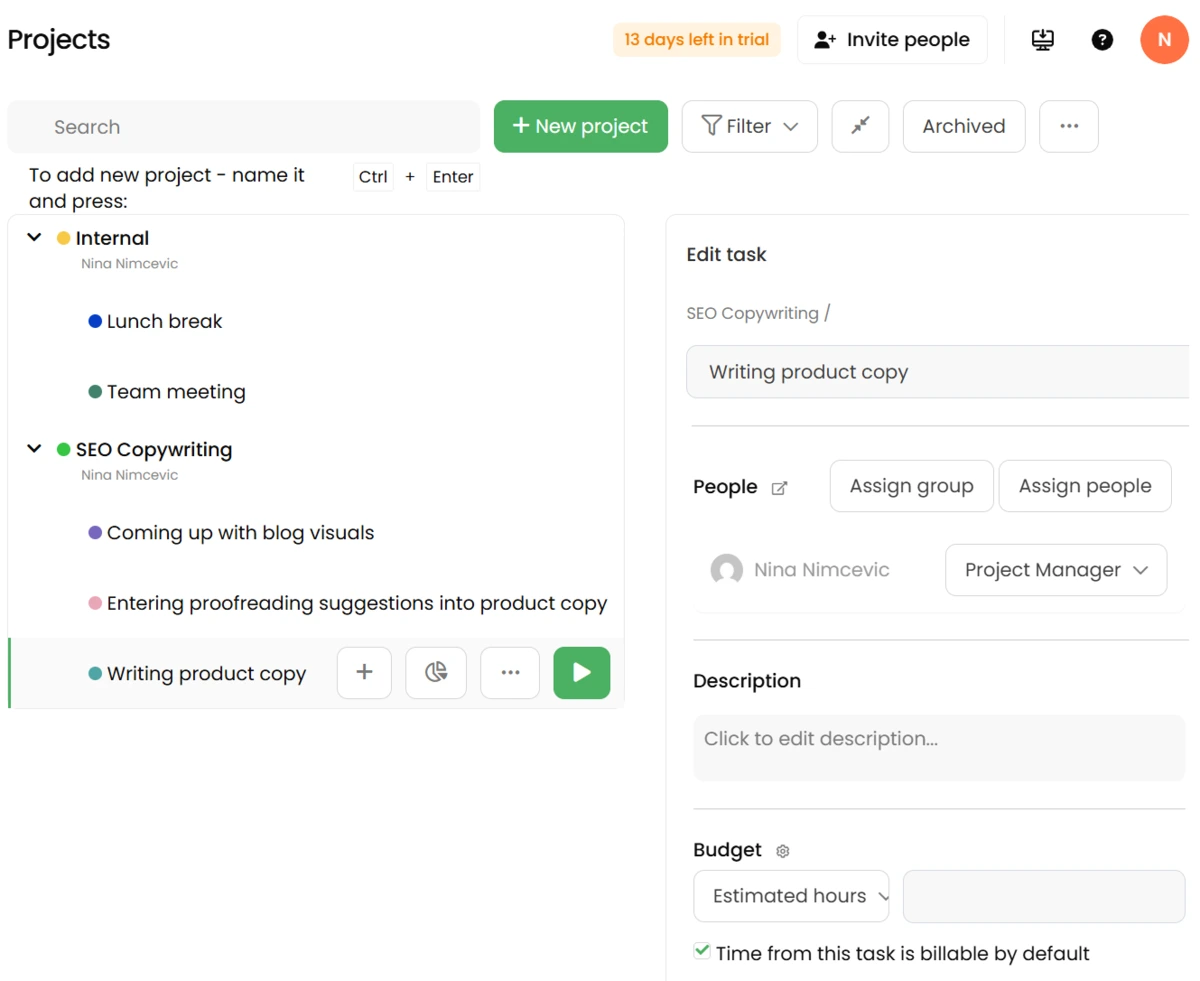
In TimeCamp, you can define your daily limit by clicking Account settings → Attendance. But setting max daily hours for your team is painful. I had to create a group and assign users to it, then open my Account settings and add the daily limit for the group.
Invoicing was a pleasant experience in TimeCamp. Using advanced filters, I was able to organize invoices to my liking. I only wish I didn’t have to tailor my company address, logo, and taxes separately — in the Account settings.
TimeCamp splits time and finance reports into 2 sections. Depending on the data you need, you may have to juggle both. For instance, I mostly browsed the Billable, non-billable report, which sorts projects and tasks by duration, billability status, and billable amount. To see timestamps, I relied on the Detailed time report.
TimeCamp pros
Here are the main advantages of TimeCamp:
- Versatile timekeeping options
- Convenient project and task setup
- Simple, adaptable invoicing
TimeCamp cons
The disadvantages of using TimeCamp include:
- Scattered customization options for features
- Complicated setup, like tags and daily capacity
- No overtime alerts or indicators
What’s new in TimeCamp?
According to TimeCamp’s What’s New document, the platform has introduced many improvements and bug fixes for its AI Assistant and timesheet. This is supposed to deliver a more reliable and efficient user experience.
| Free plan | Yes |
| Free trial | 14 days |
| Starting price | $3.99 per user/month (if billed annually) Unlimited users on all plans |
| Availability | Mac, Windows, Linux, Web, Android, iOS |
💡 CLOCKIFY PRO TIP
Explore TimeCamp in more detail in our objective review:
#13: My Hours — best for project time tracking
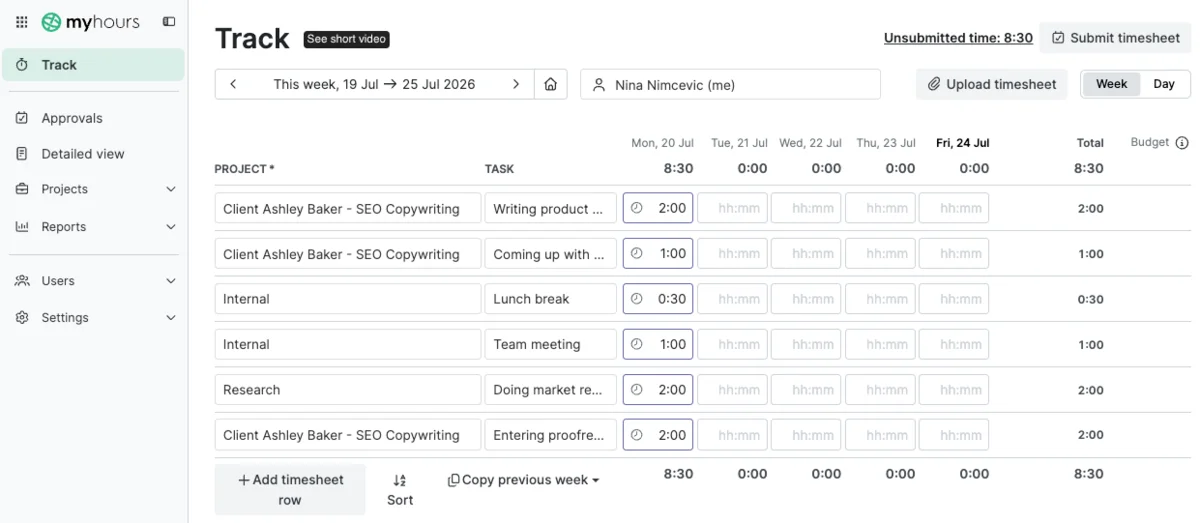
My Hours is a project management tool built for small agencies, freelancers, and project-based teams. It offers an inviting interface with time tracking and billing essentials, but keeps its enterprise plan price hidden.
How does My Hours work?
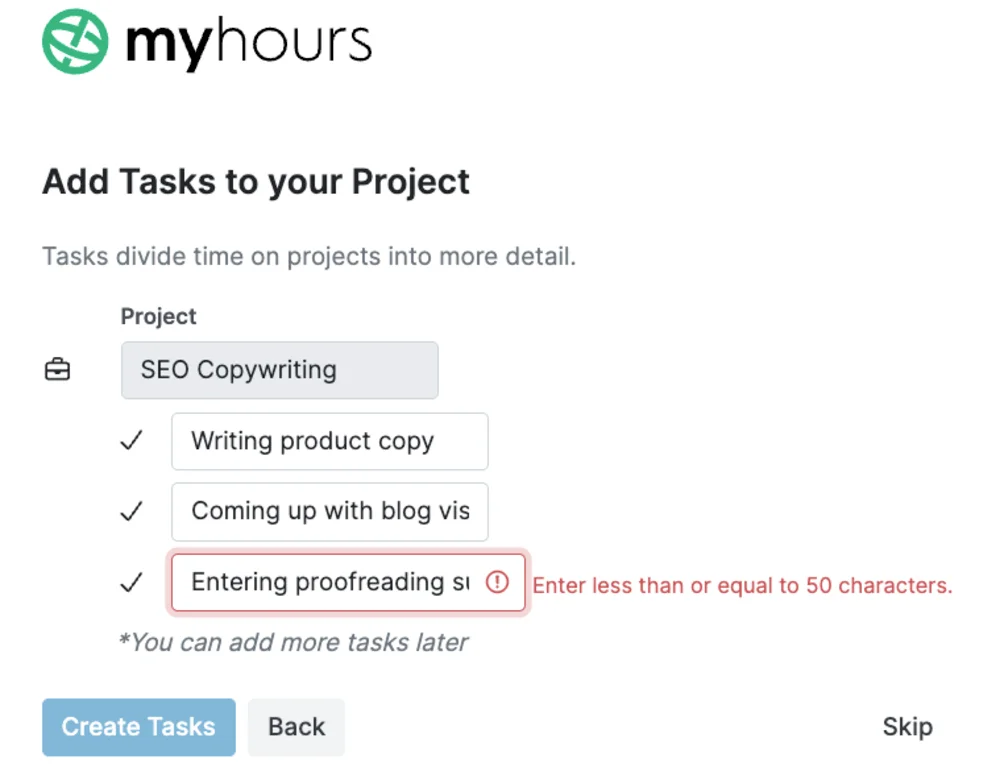
Before stepping into your workspace, My Hours walks you through a step-by-step setup for clients, projects, and tasks. I only wish tasks weren’t capped at 50 characters.
Impressively, you can create projects and tasks directly in the timesheet. And they don’t have to be linked to a client! While My Hours creates billable projects by default, you can mark tasks as non-billable. Too bad you can’t bulk-edit them.
Besides manual logging, I also had the timer option to automate my workflow. After adding time entries, time buttons would appear beside them so I could continue timing them if needed.
Overall, the timesheet design felt appropriately simple and interactive. I only wish the app had more modifiable time entries, like being able to split a specific entry.
Not being able to see entries sorted by time intervals confused me. In my opinion, the timesheet view is best suited for managers that don’t rely on precise timestamps.
Although I capped daily hours for myself and my teammates, My Hours never notified me about any overtime.
You can use tags to flag entries as overtime, but you can’t filter reports by tags. Instead, the Detailed view section proved most flexible for drilling down into different data.
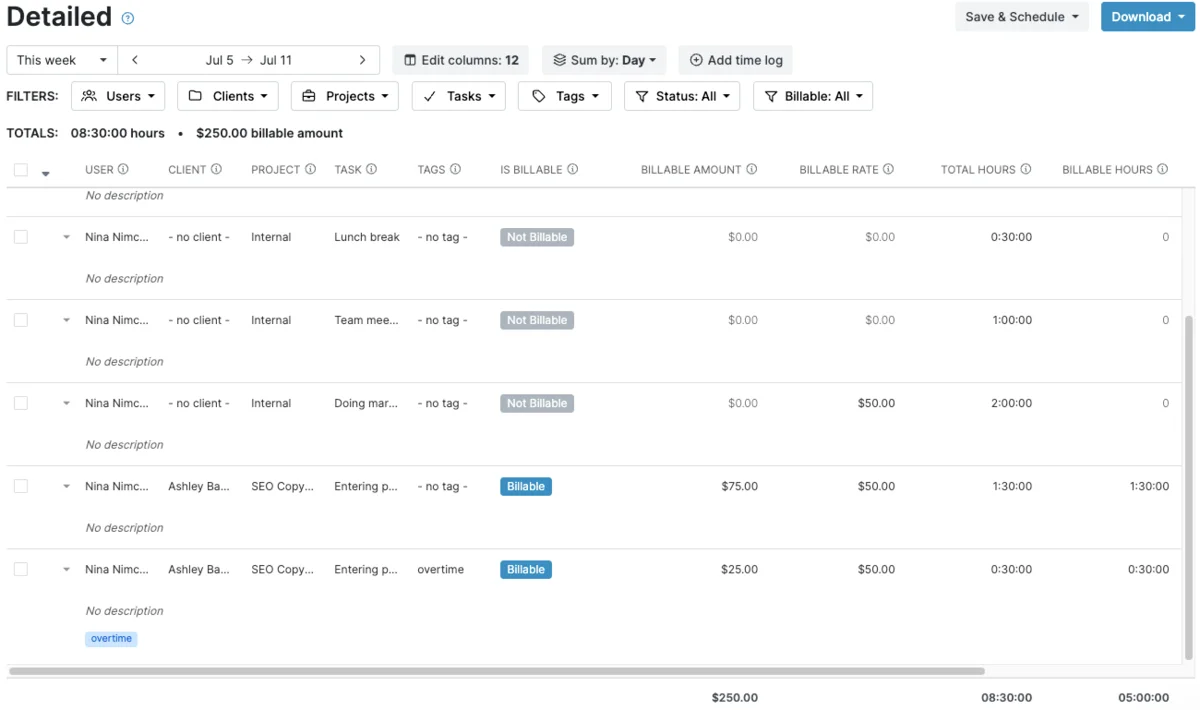
You can save the Detailed view as a report in PDF or XLS.
Note: Unless you turn off timesheet approval, you can’t view unsubmitted time entries in the reports. How inconvenient.
Oddly enough, invoicing is located in the Reports section. My Hours offers scarce invoice customization options, in my opinion. However, the Breakdown by task filter populates invoices with task details, which keeps things transparent for clients.
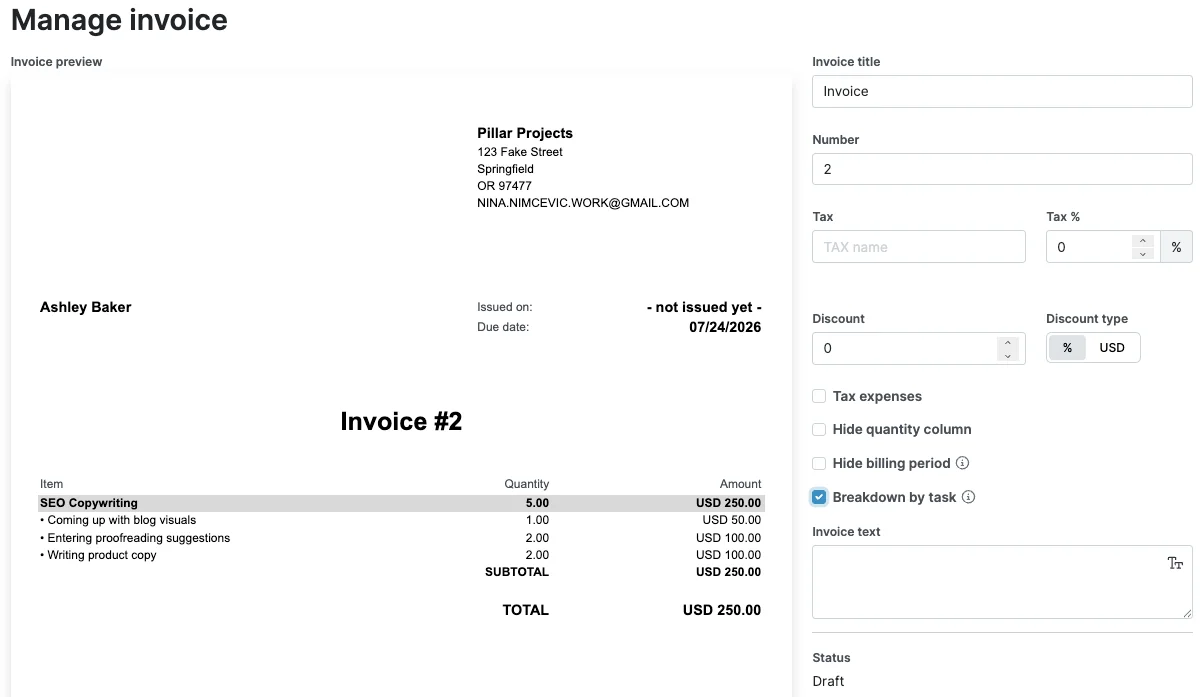
Invoices are categorized by status, creation date, due date, issue date, and pay date. This helped me track the lifecycle of each invoice from start to finish.
My Hours pros
Here are the main advantages of My Hours:
- Easy manual time entry via Interactive timesheets
- Loose rules around creating projects and tasks
- Quick feature walkthroughs
My Hours cons
The disadvantages of using My Hours include:
- No overtime markers or visibility in reports
- Lack of time tracking methods and entry customization
- No option to format or adjust the invoice layout
What’s new in My Hours?
Based on the My Hours changelog, the team behind the tool has conducted bug fixes for timesheet logs, reports, etc. As of June 2026, My Hours allows admins to enable timer-only tracking for regular users. These improvements could ensure more reliability and better control over user permissions.
| Free plan | Yes (up to 5 users) |
| Free trial | 14 days |
| Starting price | $4 per user/month (if billed annually) |
| Availability | Mac, Windows, Web, Android, iOS |
#14: Productive — best for resource and budget management
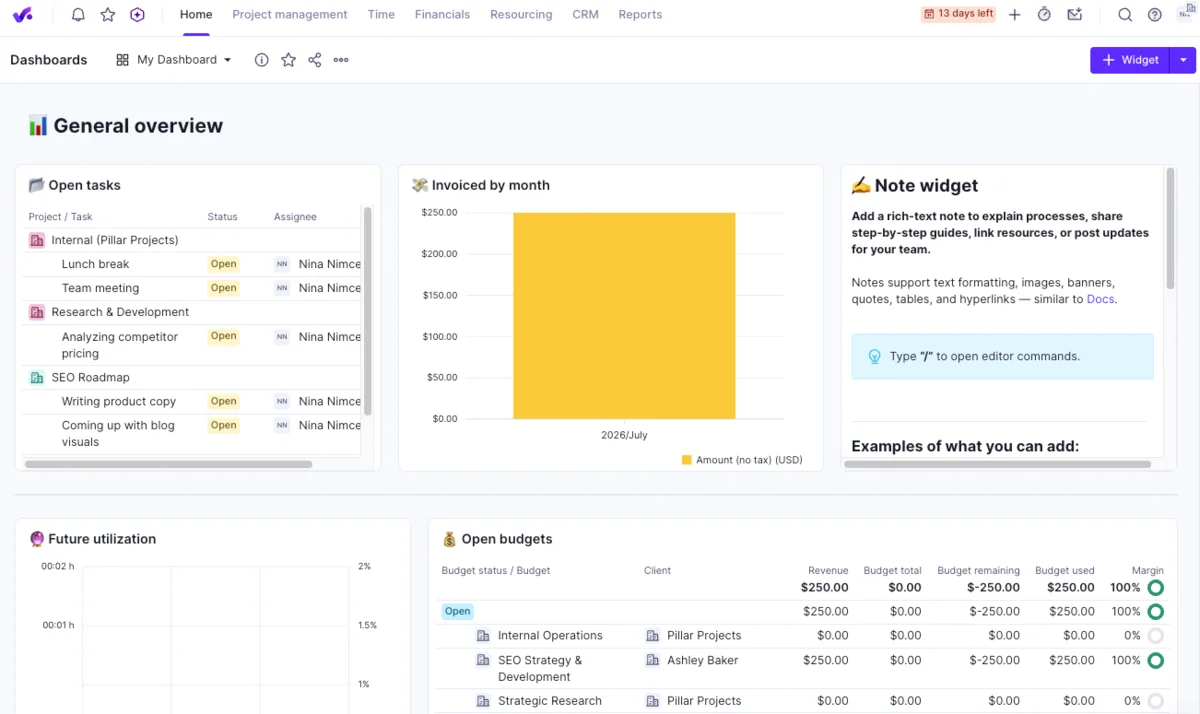
Productive is an intricate work management system designed to streamline all business operations. It combines time tracking, project planning, and resource management, but has a notable learning curve.
How does Productive work?
Productive tracks time by service, client, project, and task list (which marks a team or project phase). Additionally, you can split tasks into subtasks. Such multi-level tracking would delight IT teams, but may overwhelm non-technical workers.
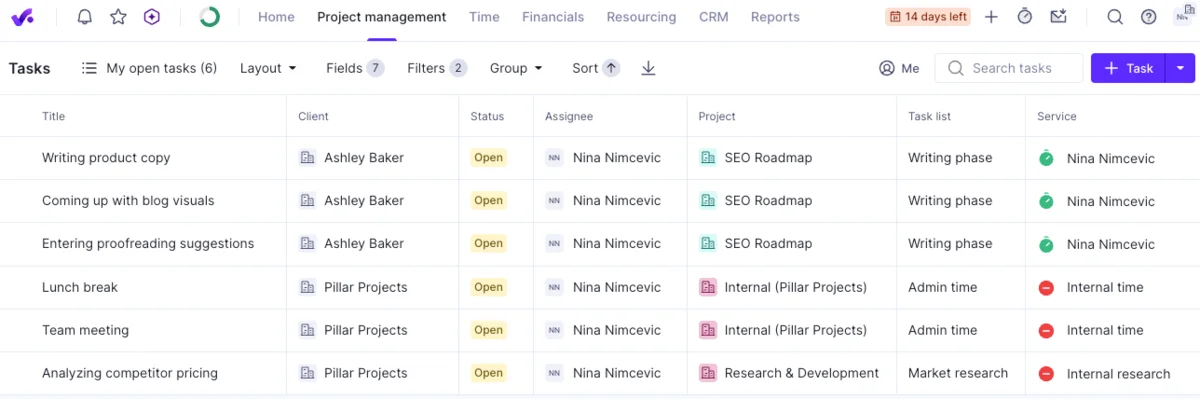
Without the interactive step-by-step tutorial, I would’ve been lost. Productive’s interface is clean yet mouse-heavy compared to other time and billing software.
While Productive logs deep info, its time tracking system felt restrictive for me. You have to categorize tracked time by service, which is tied to a preset budget — that’s how the app tracks profitability. I also disliked not being able to link the same service to multiple tasks at once.
The My Time tab conveniently offers 3 ways to add and view tracked time: Day, Timesheet, and Calendar. Tracking time was pretty intuitive, but I had trouble finding the task field. With no available tags, I used notes to flag extra hours.
Invoices are tucked in the Financials tab. For me, the invoicing feature was reliable yet demanding. Productive generates invoices in several steps, making it less streamlined. However, grouping line items helped me adapt the invoice to my needs.
All invoice fields are editable — except for individual tax rates. That’s done in your Company info settings. Also, while some teams prefer to hide individual rates from invoices, that’s not possible here.
Productive provides pre-made report templates and the option to create your own report. Though templates are a good starting point, I wasted lots of time tweaking them. To build a report, you have to select the data type (I chose time entries), pick a date range, and add or hide fields.
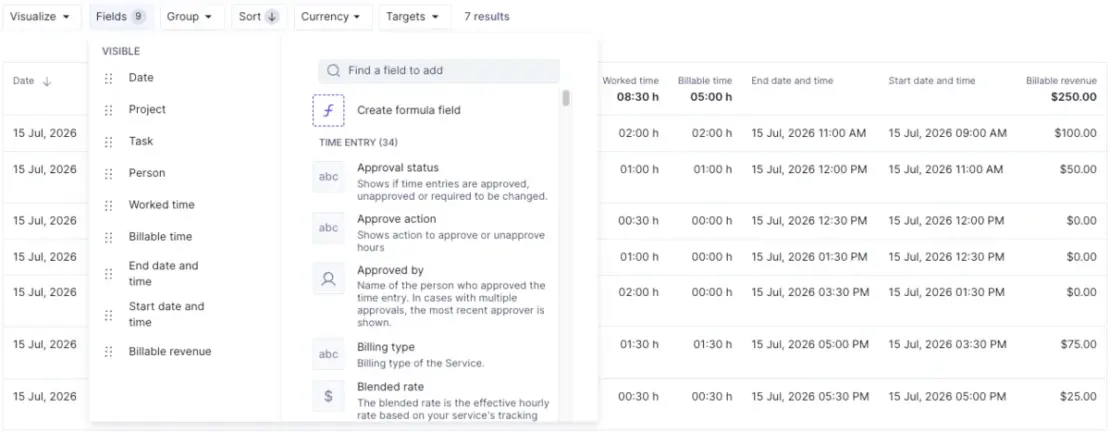
The cluttered list of filters made setting up reports difficult. But rearranging fields using the drag-and-drop option was an unexpected treat. You can export reports as PDF, CSV, and XLS files.
Productive pros
Here are the main advantages of Productive:
- Guided feature tutorial with videos
- Comprehensive data tracking
- Various report templates
Productive cons
The disadvantages of using Productive include:
- Hidden time tracking options, like the task field
- Lack of invoicing flexibility with too many clicks
- Overwhelming number of report filters
What’s new in Productive?
In July 2026, Productive’s product updates include rolling out several AI-focused features. For instance, the app now lets you edit submitted time entries and create reports using its AI assistant. These improvements help you maintain data accuracy and save time on reporting.
| Free plan | No |
| Free trial | 14 days (rejects Gmail addresses) |
| Starting price | $10 per user/month (if billed annually) Seat minimum is 3 |
| Availability | Mac, Windows, Web, Android, iOS |
#15: Harvest — best for freelance and agency workflows
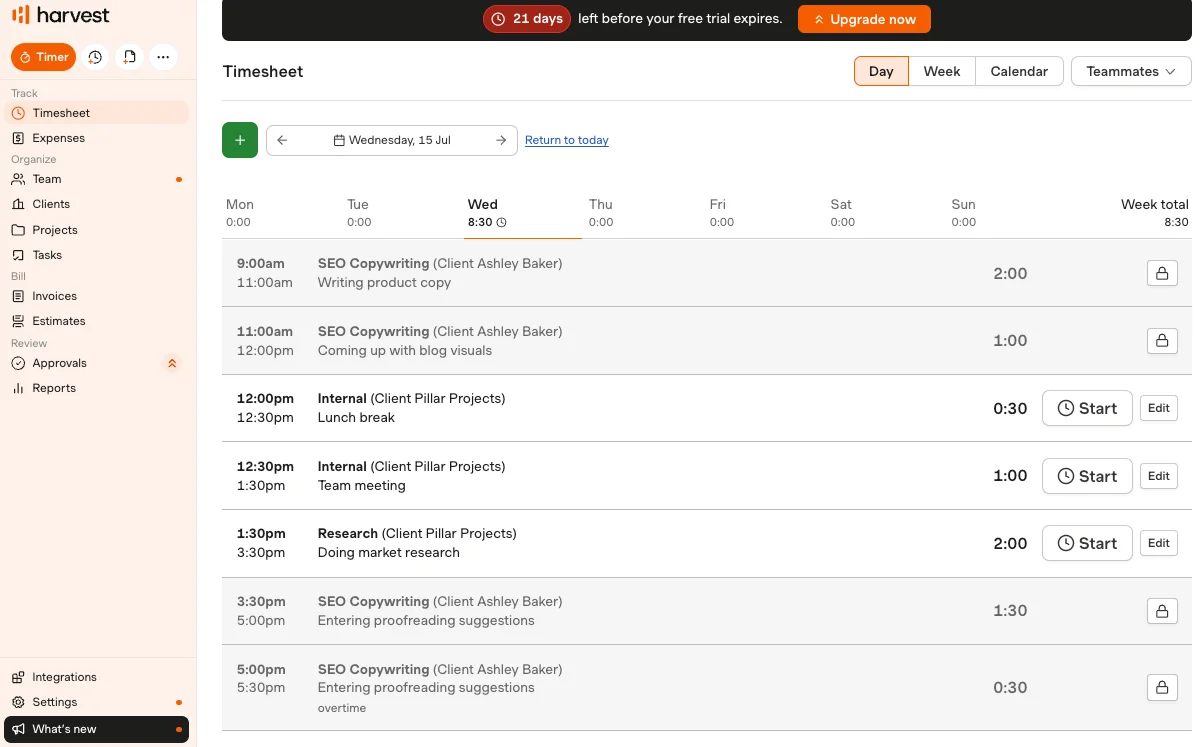
Harvest is a time and billing software built for freelancers and small teams. While its light design makes timekeeping, project management, and billing easy, it lacks advanced features for knowledge work.
💡 CLOCKIFY PRO TIP
Explore Harvest’s features, usability, and pricing through a competitor’s lens:
How does Harvest work?
Harvest lets you start the timer, add time manually, or create invoices from anywhere. Its clean, uncluttered interface keeps these 3 options in the upper left corner. While Harvest is easy to navigate, I wish it included basic onboarding instructions.
The app makes it easy to set up projects and tasks via the Projects tab. My only critique is that Harvest supports only client-bound projects. So, I had to create a client under my company’s name to track internal processes.
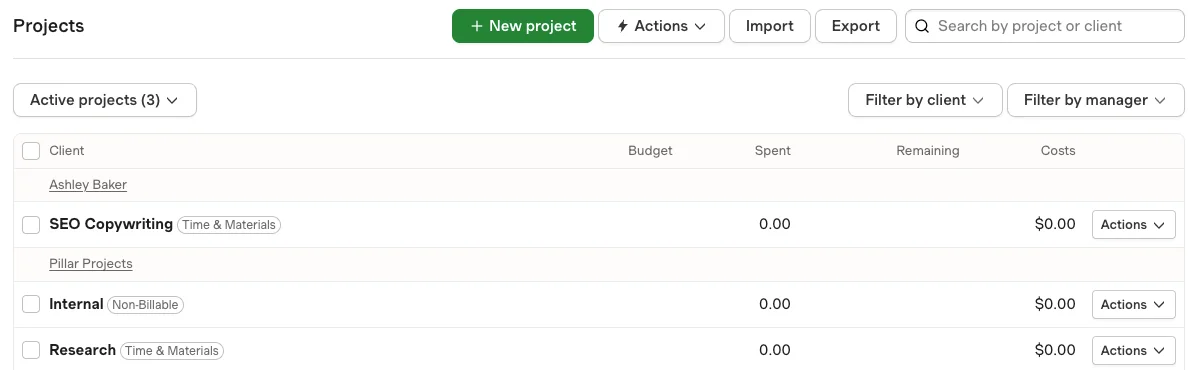
I used the timer to track work in real time while manual entries allowed me to record tasks in advance. If you’re logging time in the Timesheet, you’ll get a neat option to pull in a calendar event.
Personally, Harvest’s timer felt flexible yet clunky. Hovering over it lets you make corrections, but clicking on the timer stops it. I often clicked it on impulse to make changes, which saved incorrect entries.
While you can track time by duration or by start and end time, Harvest doesn’t display both options. You have to pick one in the Settings → Preferences. It bothered me that I couldn’t just switch between options in the timer.
The app offers useful yet hidden bulk actions (located in the Settings). I also found them inconsistent — you can delete multiple invoices at once but not time entries.
Harvest’s invoicing is too simple, lacking basic customization features like personal business info or optional fields. Limited invoicing creates extra work, which makes Harvest a subpar time tracking and billing software for accountants.
The app’s detailed reports are surprisingly bare, with no advanced filtering. So, I tried building a report from scratch, but this proved to be click-heavy. Adding the Notes column helped me see overtime entries — the only way to track surplus hours.
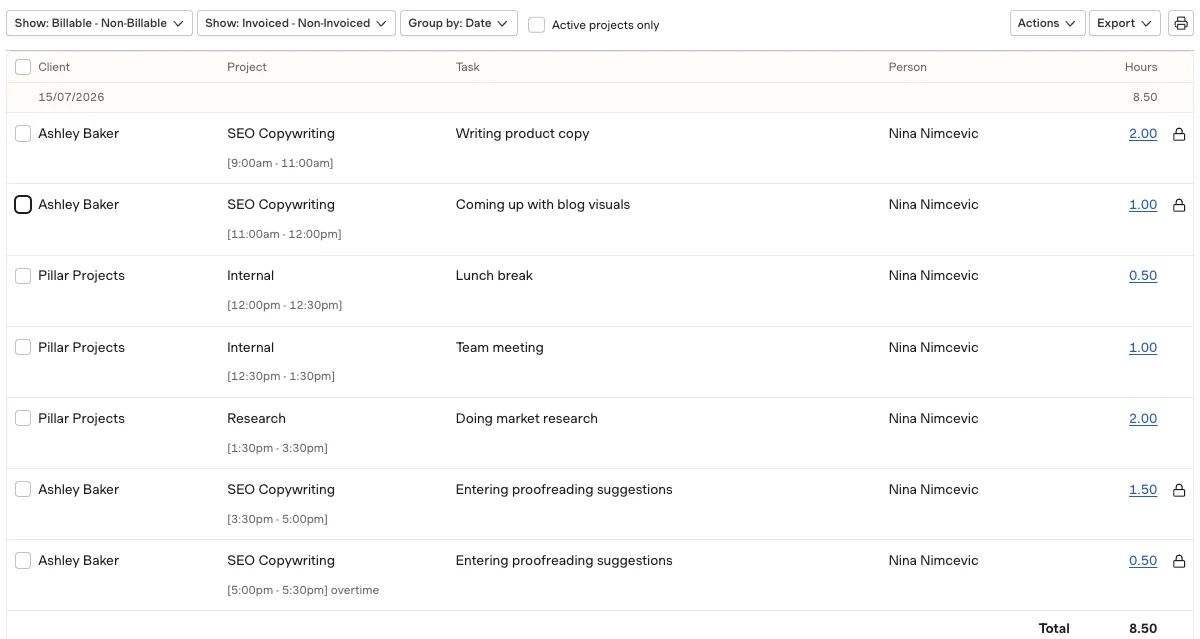
You can download reports as Excel, CSV, or PDF files.
Harvest pros
Here are the main advantages of Harvest:
- Organized, user-friendly interface
- Fast project and task setup
- Ability to log time on calendar events in Timesheet
Harvest cons
The disadvantages of using Harvest include:
- No switching between duration and timestamps to track time
- No granular data and robust filters in Detailed report
- No invoice formatting options, like company info or optional fields
What’s new in Harvest?
In May 2026, Harvest released a redesigned interface with a calendar for more practical time tracking and branding options for tailored invoices. Now, you can add colors and logos to invoices (those options weren’t in my free trial) and log time in the calendar.
| Free plan | Yes 1 user + 2 projects |
| Free trial | 30 days |
| Starting price | $9 per user/month (if billed annually) Additional usage-based fees apply |
| Availability | Mac, Windows, Web, Android, iOS |
💡 CLOCKIFY PRO TIP
Want a 3-way comparison? See how Clockify, Toggl, and Harvest fare against each other:
Simplify time and billing with Clockify by CAKE.com
After testing 15 top time and billing software, I chose Clockify by CAKE.com for its well-rounded, versatile features. This trusted app delivers more than time tracking and invoicing necessities — it stands out with perks like:
- Tracking clock-ins and clock-outs with built-in kiosks
- Hiding or renaming invoice fields to match your needs
- Flexible hourly rates for users, projects, or tasks
- Free plan for small teams and robust yet affordable paid plans
- Business-grade security with 99.99% uptime and SOC 2
Clockify answers all your questions with its content-rich Help Center. As a bonus, both free-tier and paid-tier users get human support — available 24/7 via chat, phone, and email.
Forget mismanaged hours and rigid invoice layouts.
How we reviewed this post: Our writers & editors monitor the posts and update them when new information becomes available, to keep them fresh and relevant.