

Alex Beadon
Founder of Together We Launch
"We use Clockify to see where our time is going and how to solve any problems. It’s just so beneficial."
More stories

Find new apps that fit you team's needs
If you’re running a small to medium-sized team, Paymo likely came up as one of your candidates for time tracking and project management.
In this review, we take a deep dive into all the ins and outs of the app to bring you an honest opinion on Paymo's best features, as well as its quirks and limitations for 2026.

Paymo is a platform that covers time tracking, project management, and client payments. It’s primarily built for solo freelancers, agencies, and small businesses.
Users praise Paymo for its ease of use, integrated workflow, and simple client invoicing. The app’s website cites around 50,000 users worldwide, which puts it in the niche category.
| Paymo pros | Paymo cons |
|---|---|
| ✅ Kanban and Gantt chart timeline | ❌ User permissions are limited |
| ✅ Easy to track time | ❌ Not easily scalable for medium and large teams |
| ✅ Simple and user-friendly | ❌ Limited mobile app |
| ✅ Invoice clients through PM Payments (only for US users) — or integrate PayPal, Stripe, or Authorize.net | ❌ Basic client reporting feature |
| ✅ Quick and reliable human customer support | ❌ Less flexible and customizable than other time trackers |
Paymo’s pricing is segmented into the Free, Solo, Plus and Pro plans. The app features a 14-day trial and a substantial discount for an annual commitment.
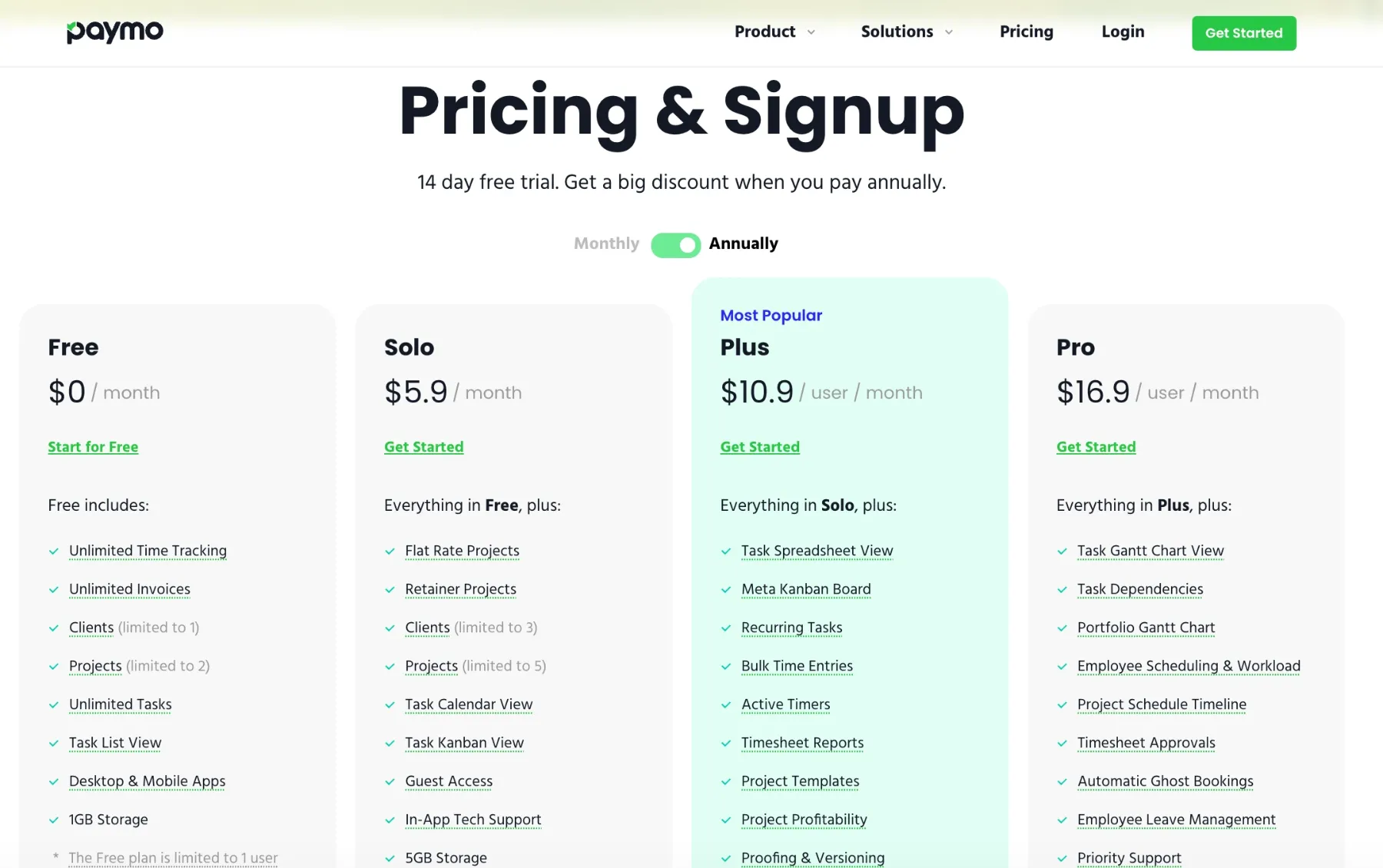
Free plan: The Free plan includes unlimited time tracking and invoices, but is limited to one client and project. It allows only one user, and the storage is limited to 1GB.
Solo plan: The Solo plan costs $5.9 per user per month with the annual commitment. For the monthly model, the price will be the same for the first 3 months. After this, the amount jumps to $9.9. The Solo plan is also designed for a single user, with slightly more features and storage than the Free plan.
Plus plan: This is the first Paymo plan that lets you invite other users and track time for your team. It costs $10.9 per user per month (paid annually) or $15.9 per month (the first 3 months are $10.9 per month). You get access to unlimited users and integrations, along with most of the features Paymo offers. However, you can’t manage employee leave, set up admin approvals for tracked time, or receive priority support.
Pro plan: The Pro plan comes with everything Paymo has to offer. It costs $16.9 per user per month (paid annually) or $23.9 per user per month (paid monthly), with the annual discount applied for the first 3 months. In addition to other paid plans, the Pro plan unlocks the Gantt chart view, Schedules, Project timeline, and Online Paymo Training.
Compared to other apps with similar features, Paymo is priced steeply. Paymo’s competitors, like Harvest and Clockify by CAKE.com, offer far more features for much less money.
| App | Paymo | Harvest | Clockify |
|---|---|---|---|
| Features | - Project management - Time tracking - Basic role management - Invoicing clients |
- Project management - Time tracking - Advanced role management - Invoicing clients |
- Project management - More versatile time tracking - Custom roles and permissions - Invoicing clients |
| Annual price per user, per month | $16.9 | $9 | $5.49 |
My start with Paymo was a bit rough, as the app required quite a few login attempts through Google’s sign-in. The whole ordeal took around 30 minutes, and I had to settle for a manual login in the end.
After Paymo finally accepted my email, I was greeted with the mandatory onboarding window. It requires you to specify how you’ll primarily use Paymo — for project management, time tracking, or billing. You’ll also have to select the type of project to serve as your baseline, as Paymo will create mock projects the first time you log in (this is unskippable).
The Paymo setup window is followed by a very brief tutorial on using Paymo. However, the app is really simple to get around even if you skip it.
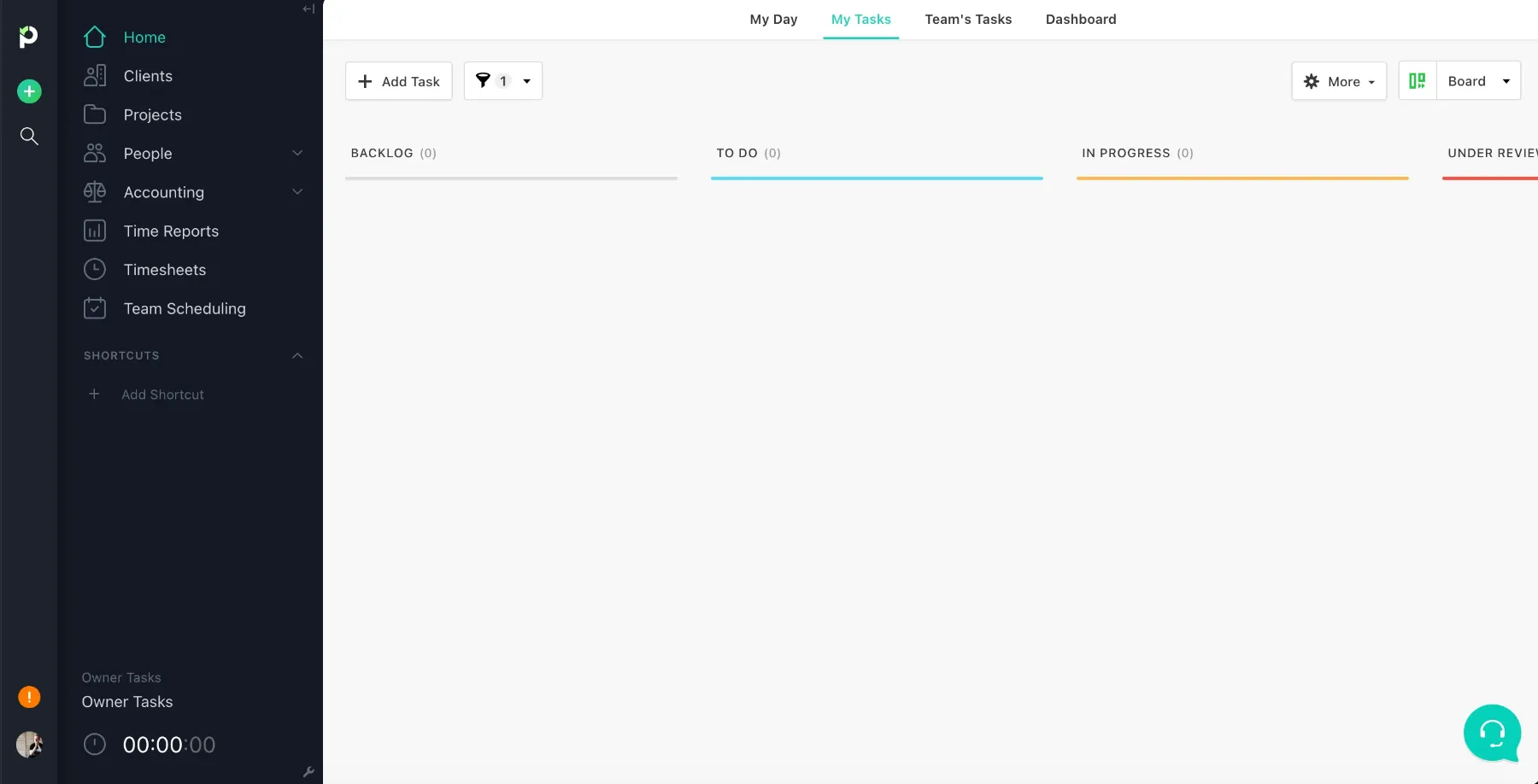
My initial impression of Paymo’s UI was that the praises were justified. The app is fairly intuitive, simple, and easy to navigate. The features are neatly displayed in the left section, with your task timer on the bottom.
The left section contains basically all Paymo’s features:
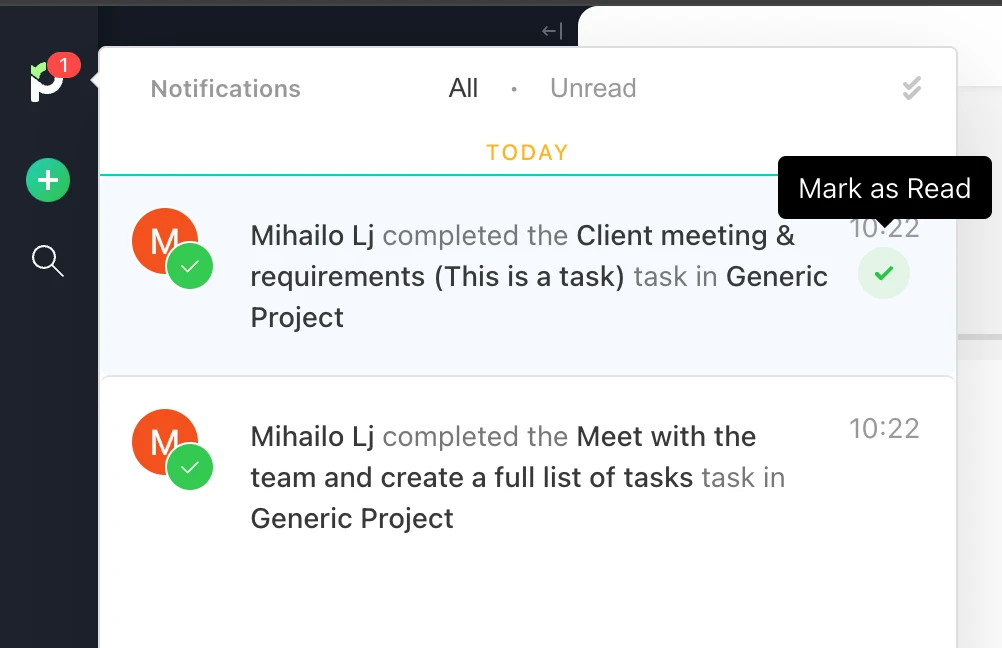
One particularly useful feature is the ability to mark notifications as read and revert them to unread. I can imagine more than a few scenarios where this would be handy, like visually sorting notifications by importance when they pile up.
Apart from the initial Google sign-up hiccup, Paymo offers smooth sailing throughout.
All Paymo user data is hosted on AWS and protected by SSL/TLS encryption. In fact, the app supports 2FA and SSO through Google and Microsoft.
Paymo officially states that they employ a dedicated Data Protection Officer (DPO) to ensure they only collect the absolute minimum data required to run the software; this ensures GDPR compliance.
As for storing your data, Paymo doesn’t keep credit card details internally. All billing information is collected and processed by third-party payment gateways like PayPal. Users also have the “Right to be Forgotten” and can request deletion of all data related to their account at any time.
The only security downside is the lack of SOC 2 compliance — something that Paymo’s competitors like Clockify and Time Doctor offer in 2026.
While exploring the app, I had a few minor qualms. Since I couldn’t find the info online, I decided to reach out to Paymo directly and was pleasantly surprised by their responsiveness.
To find the support you need, just click the icon in the bottom-right corner. This opens up the help section, where you can access the articles and direct customer support chat.
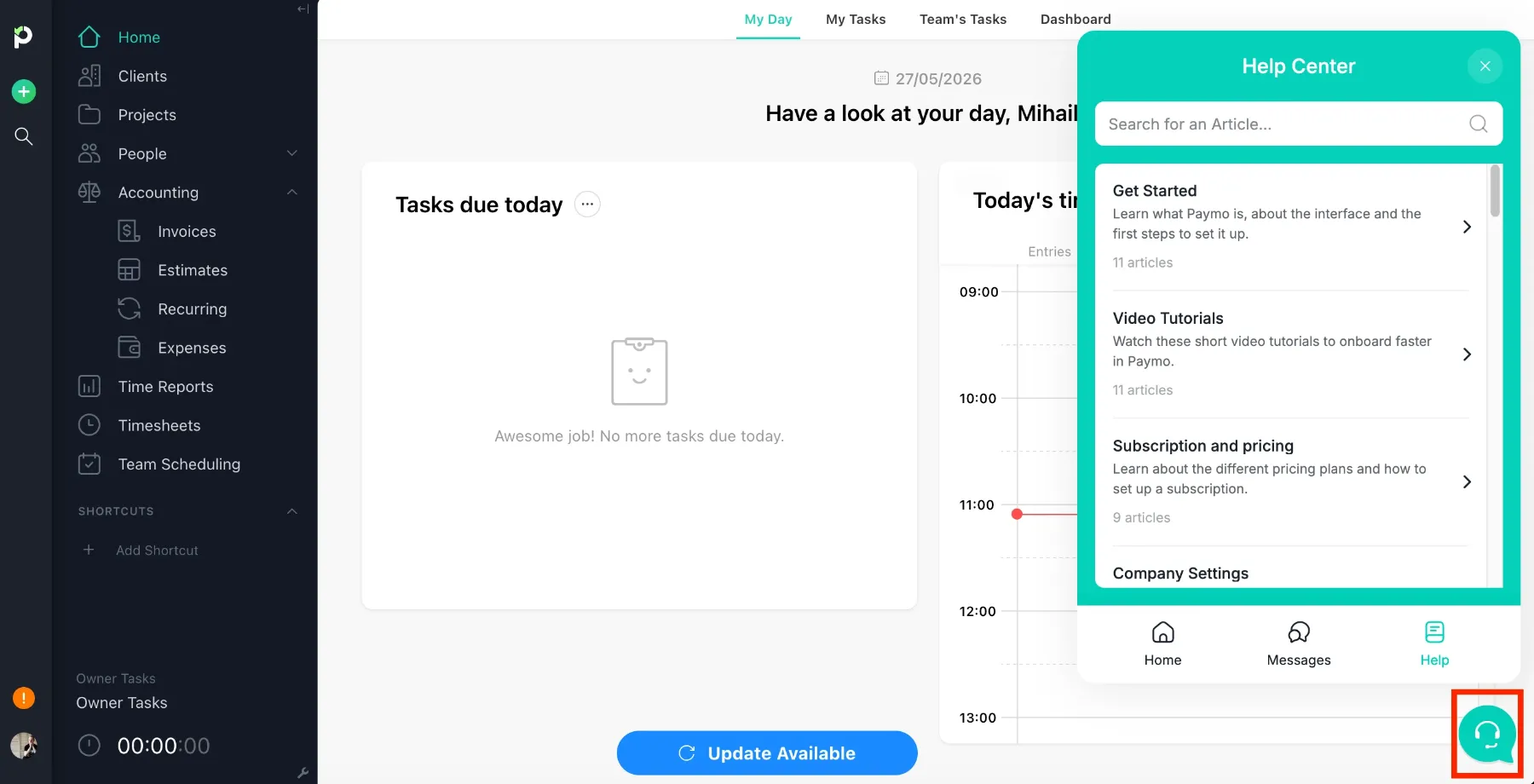
I needed clarification on the Employee leave request feature, which I read was in progress but still unavailable. The support message seemed like the best way to check for a workaround, since the help articles didn’t have this info.
Andrei from Paymo was fast to respond and provide good advice on how to handle this.
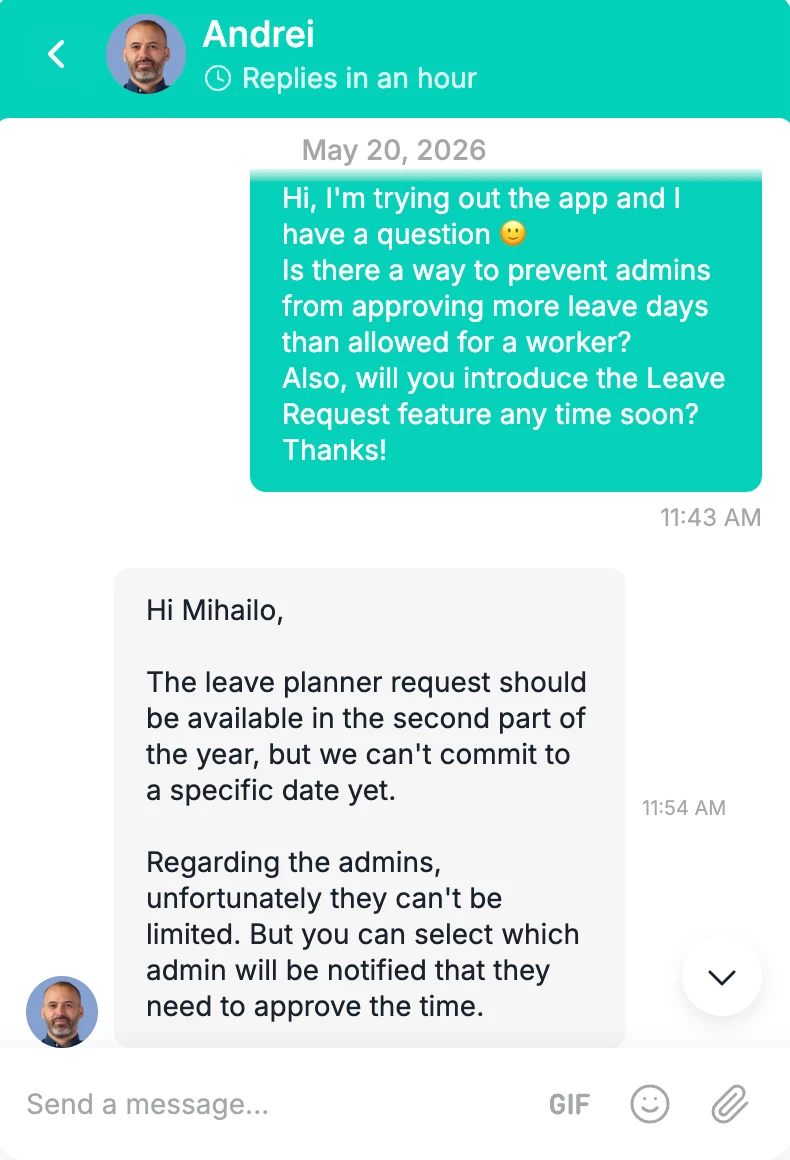
Paymo’s support was quick, without any AI walls or complicated processing. The reliable knowledge database doesn’t have all the info, but you’ll likely get an answer from a Paymo representative if you ask directly. No complaints here!
Paymo has mostly positive customer reviews across multiple software review websites. Here’s how Paymo’s customers rated the app so far:
In terms of in-depth first-hand insights, the most recent reviews praise Paymo for being accessible and having the right balance between simplicity and usefulness.
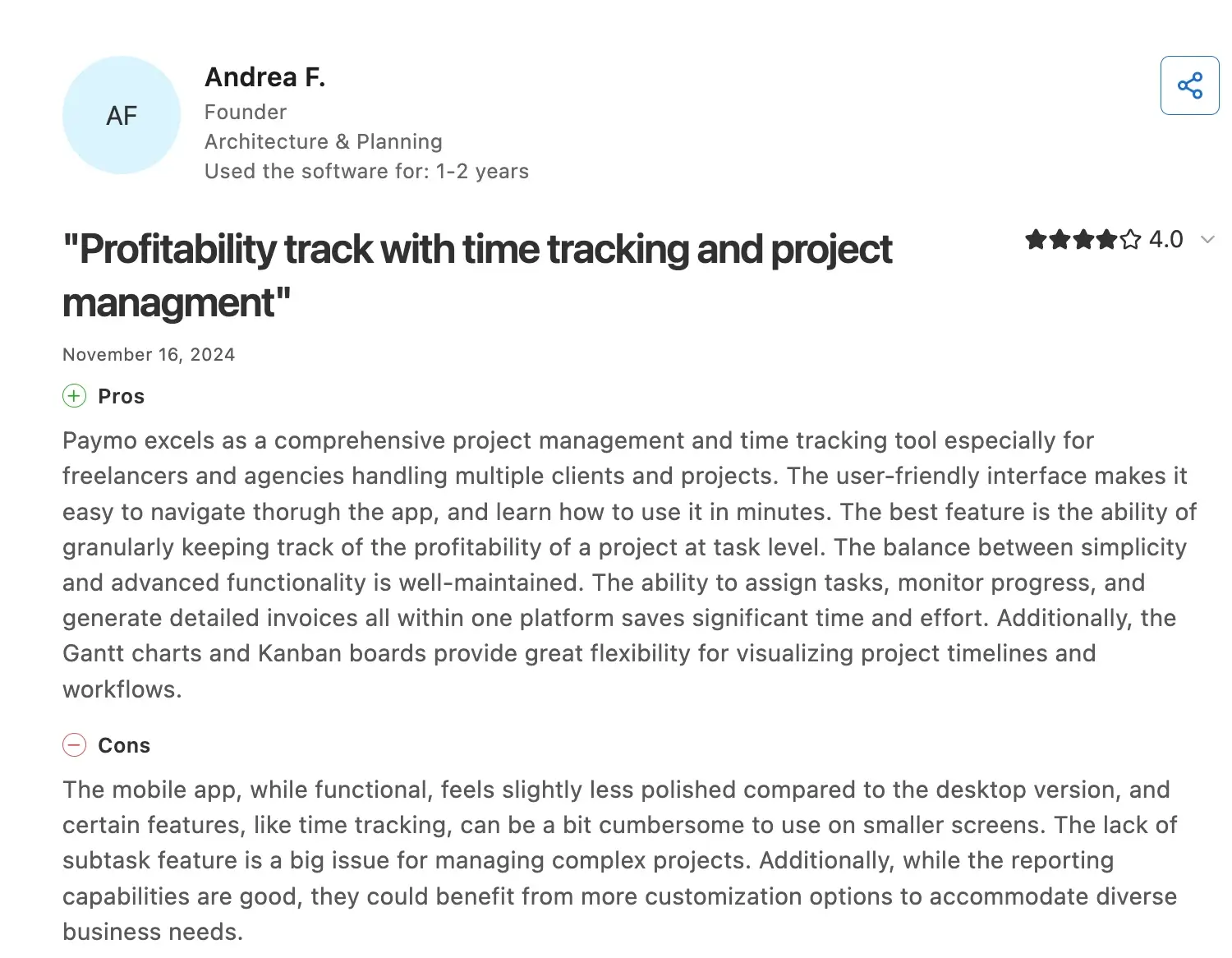
Andrea F., who rated Paymo 4/5 on Capterra, elaborated her rating like this:
Pros
“Paymo excels as a comprehensive project management and time tracking tool especially for freelancers and agencies handling multiple clients and projects. The balance between simplicity and advanced functionality is well-maintained. The ability to assign tasks, monitor progress, and generate detailed invoices all within one platform saves significant time and effort.”
Cons
“The mobile app, while functional, feels slightly less polished compared to the desktop version, and certain features, like time tracking, can be a bit cumbersome to use on smaller screens. The lack of the subtask feature is a big issue for managing complex projects. Additionally, while the reporting capabilities are good, they could benefit from more customization options to accommodate diverse business needs.”
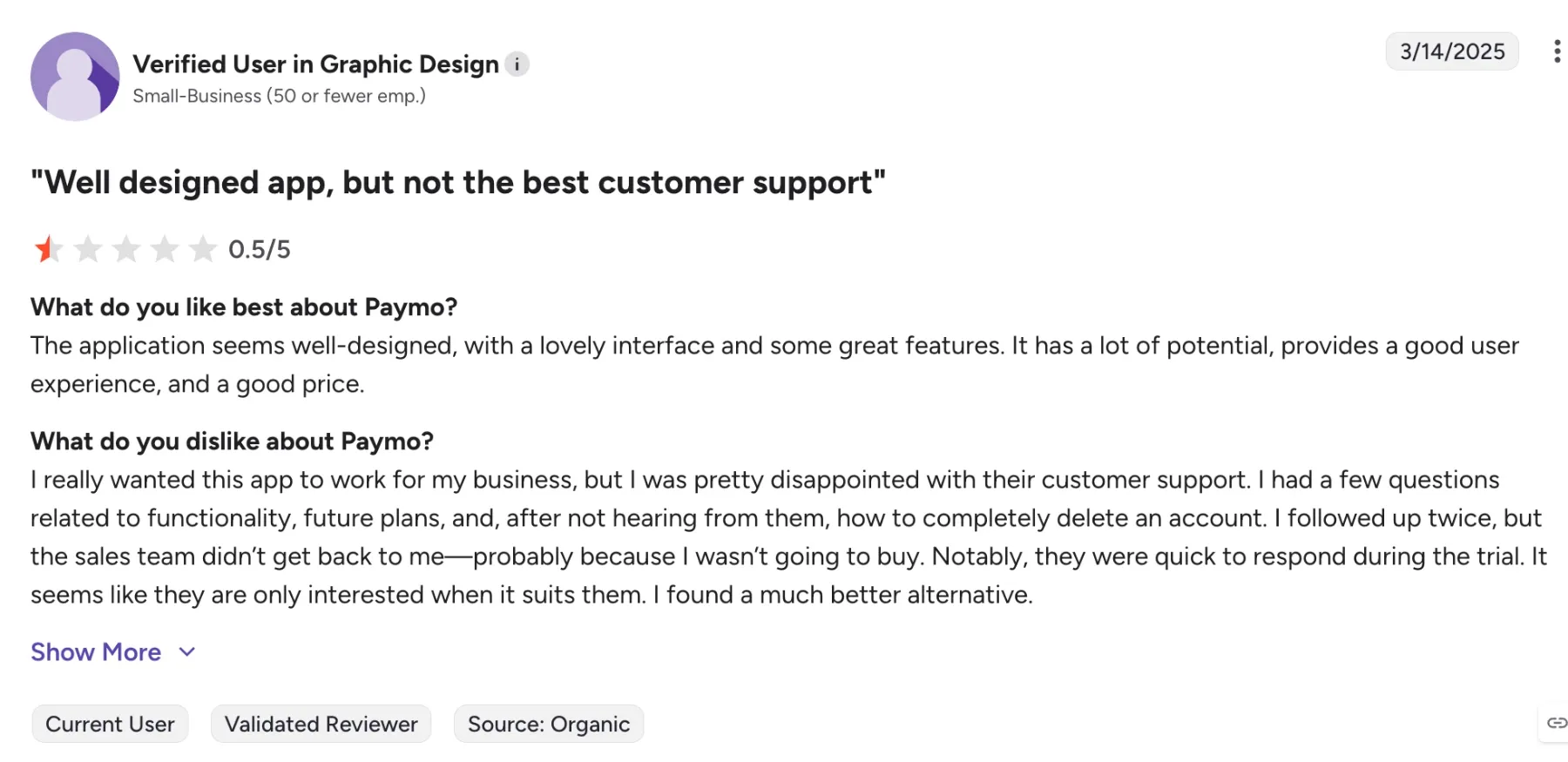
Another important perspective is the customer support issue mentioned by a few users. One G2 user’s disappointment is reflected in their 0.5/5 review. The “Verified User in Graphic Design” states:
What do you like best about Paymo?
“The application seems well-designed, with a lovely interface and some great features. It has a lot of potential, provides a good user experience, and a good price.”
What do you dislike about Paymo?
“I really wanted this app to work for my business, but I was pretty disappointed with their customer support. I had a few questions related to functionality, future plans, and, after not hearing from them, how to completely delete an account. I followed up twice, but the sales team didn’t get back to me—probably because I wasn’t going to buy.”
To test out the main features firsthand, I used the web version of the app. Let’s take a look at the web app’s core features and how well they hold up in the modern landscape.
After exploring the app on my own for a while, I invited some users to track their time and see the app in action. I started by creating a few projects and assigning people to them.
To create a project in Paymo, navigate to the Project window and click on Add project. To make the project usable for tracking hours, assign users to it so that they can track time on that project.
Apart from the name and color, project options in Paymo include setting billing methods, billing priority, and a budget estimate.
Another thing to note is that Paymo won’t let you create a project without a client, even if you’re working on internal tasks. A common workaround is to create your own company as a client and set the billing method as Not billable (not ideal, in my opinion).
Once you’ve created your project, you need to add people and create tasks. This is the only way for the app’s core features to work — you can’t track time or schedule hours without a specific task.
Project views
In the Projects tab, you can view work through the List, Board, Calendar, or Gantt view. All views work well, with the list and board being the easiest to navigate and to make changes to.
Workflows
Workflows is Paymo’s name for project statuses, such as “To Do,” “In Progress,” or “Done.” You can create custom workflows in your Company settings section. Only one workflow is applicable per project.
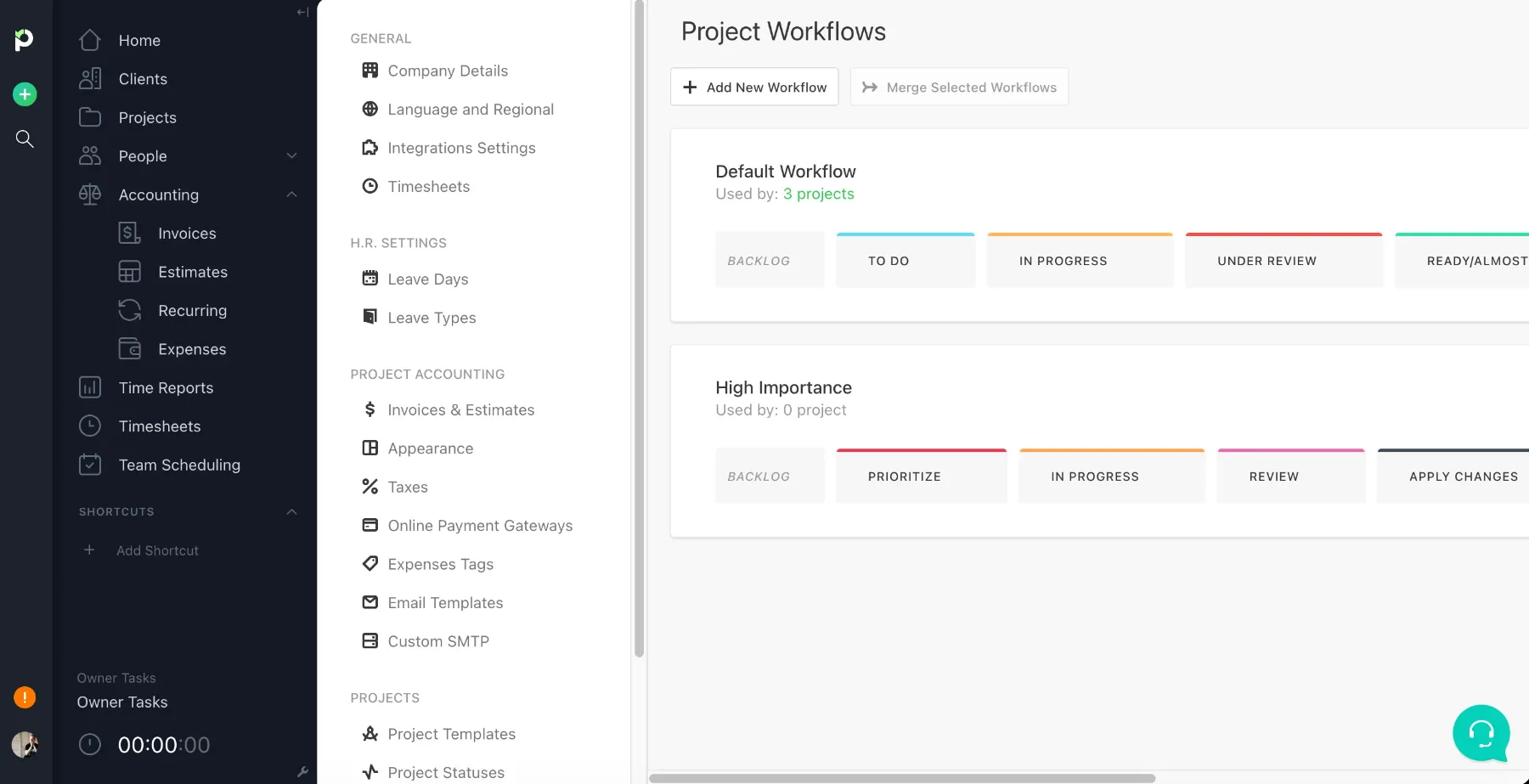
All in all, Paymo’s project management capabilities work well for the small teams they’re designed to handle. However, a system with spaces, boards, user groups, and more versatile project views would be much easier to navigate for medium and large teams.
Time tracking in Paymo offers some light flexibility in its bare-bones approach. The good thing about Paymo is that almost any project, task, or calendar window lets you manually enter and save your time.
Timer
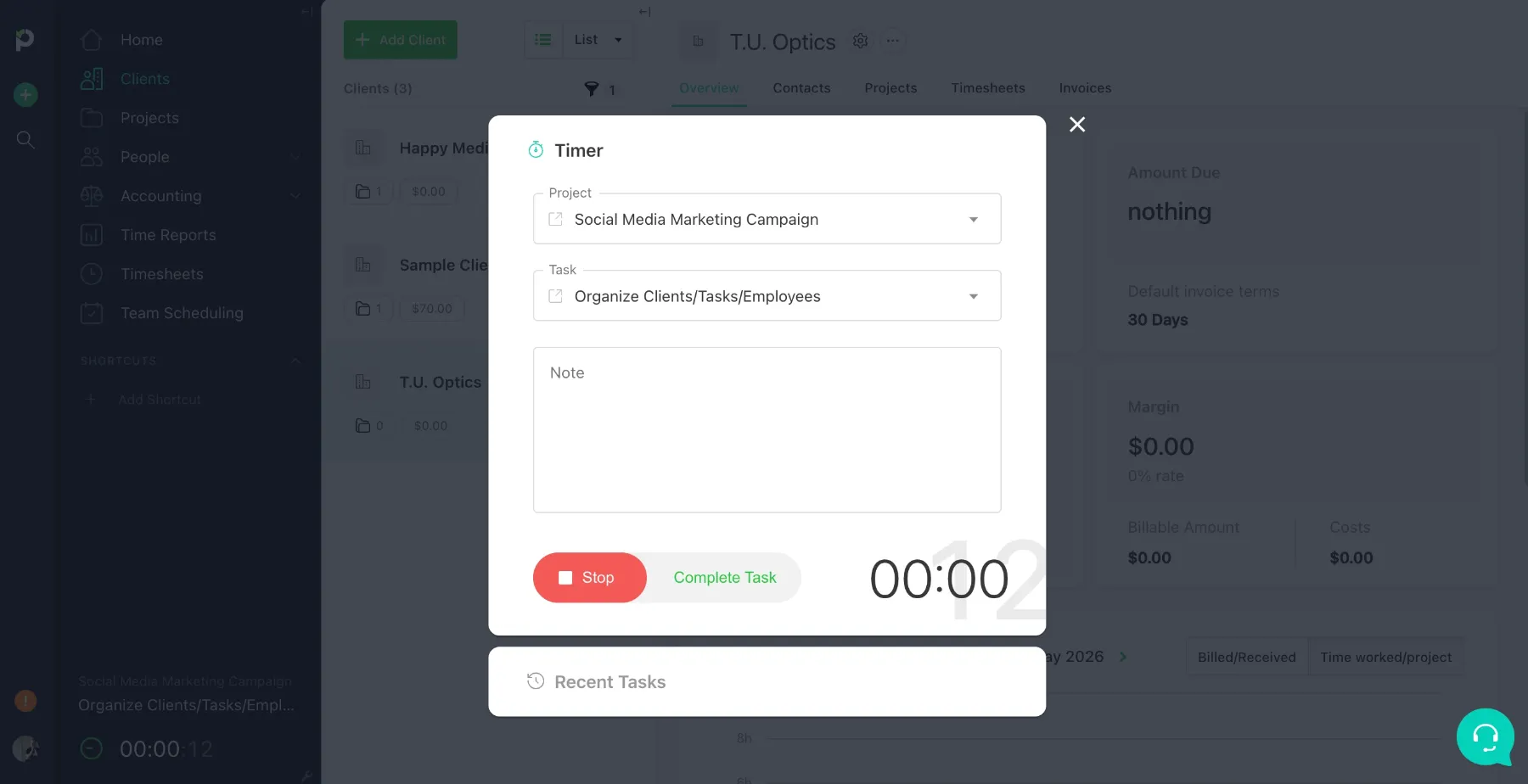
Paymo’s timer is displayed neatly in the left corner next to your profile picture. It allows you to pick a project and task, click, and track. Sadly, Paymo’s timer doesn’t support time rounding (this feature is only accessible in reports when invoicing your clients).
Manual time entries
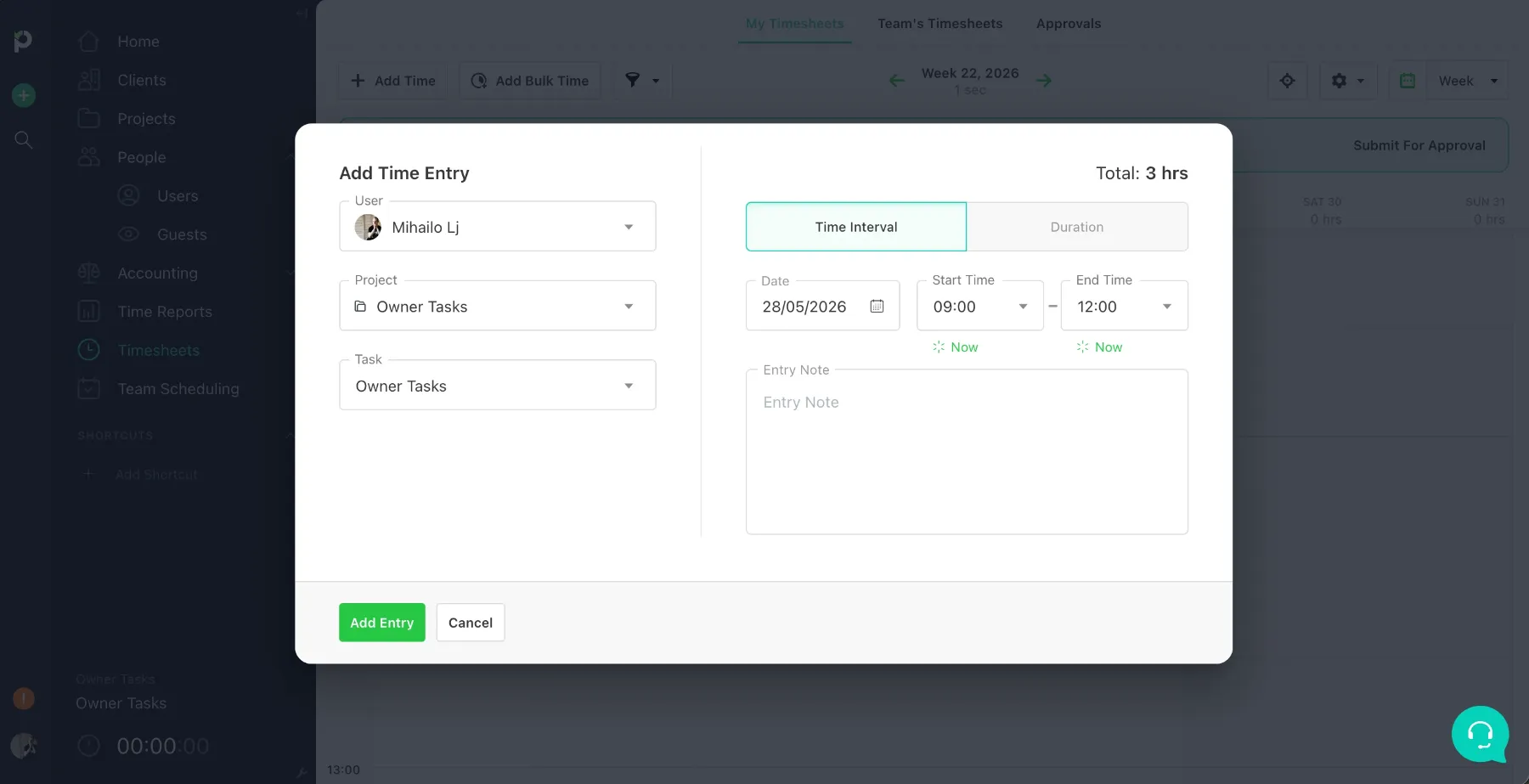
To enter time manually, navigate to Timesheets > My timesheets > Add time. You can also click on the day you want to add time for and adjust the hours in the timesheet calendar, or bulk-add time for your whole week.
Adding time for others
Paymo makes it easy to add time for others. Select the project and navigate to its Timesheets tab. Click or drag and release on the day you want to add time to, then adjust the entry details.
Approving time for others
For more control over your users’ time tracking, you can also enable approvals. To do so, navigate to Timesheets > Approvals, then manually approve each submitted entry.
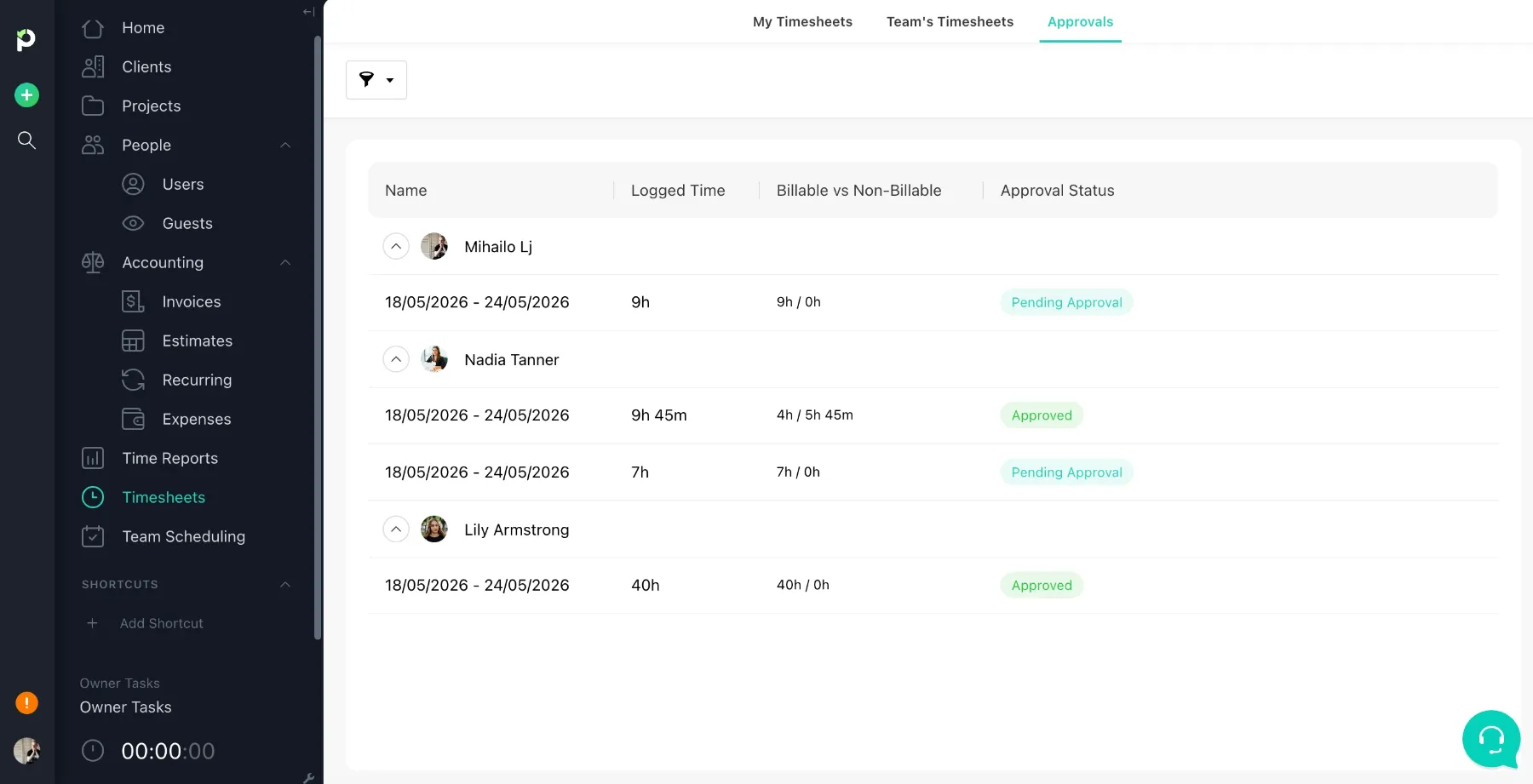
You can also turn on email notifications to remind you someone submitted their time for approval. In my experience testing the app, email notifications work well and arrive within a minute.
Submitting your time
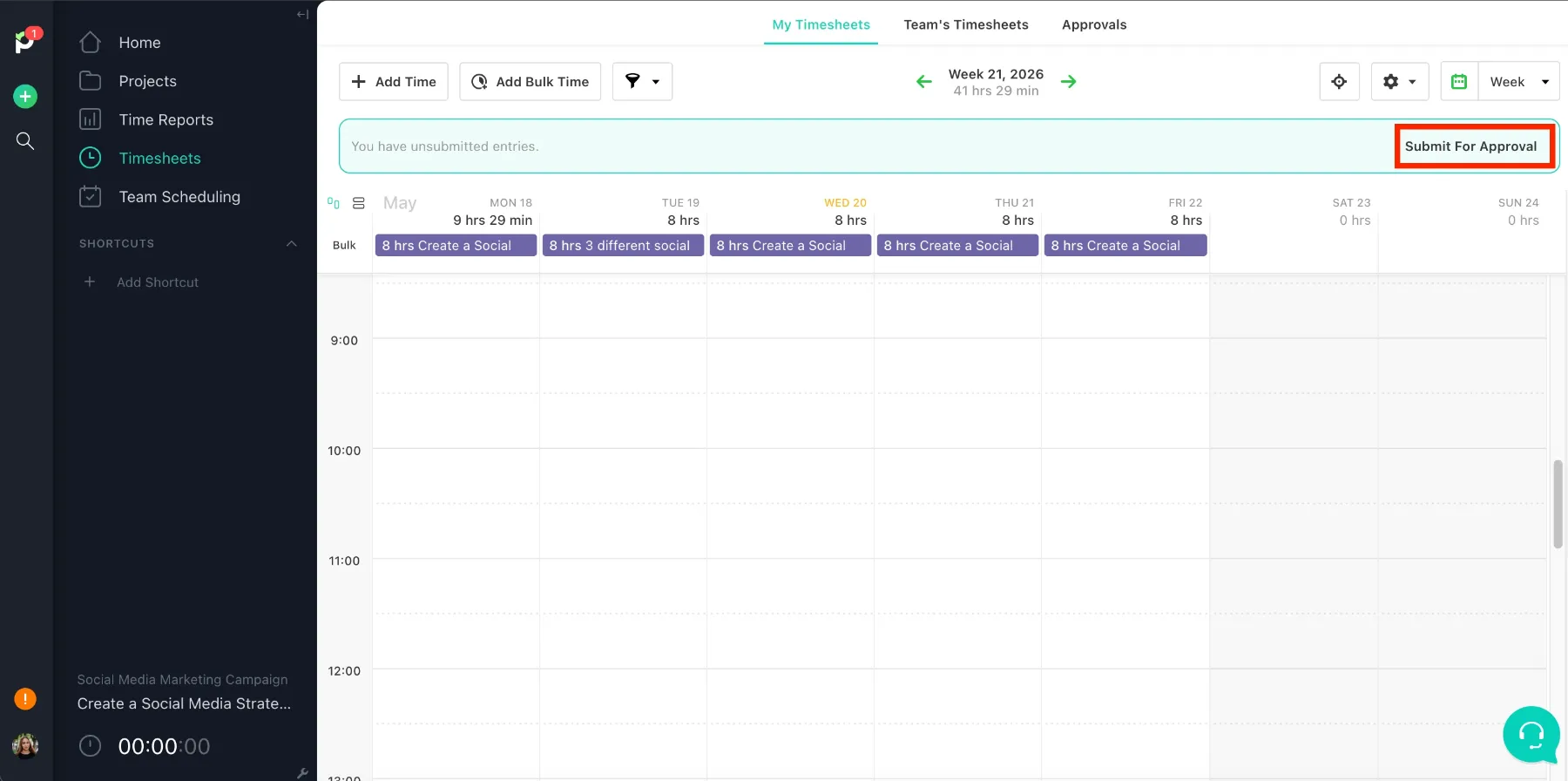
On the flip side, it can be difficult to get used to submitting timesheets if you’re an employee. The Submit for approval button is shyly placed in the top-right corner. Oddly enough, this design makes approvals seem optional, rather than a process necessary for business compliance.
🎓 Compliance With Timekeeping Laws Using Clockify
Limitations
Paymo would greatly benefit from introducing more flexibility in how it handles time entries to allow users to adapt the tool to their needs.
Paymo’s entire time tracking workflow is designed to easily convert hours into a client invoice. As with all other features in the app, time tracking will be intuitive for only a small group of users but will become painfully tedious once the user count reaches a certain threshold.
Paymo offers basic but functional and intuitive user management. You’ll first encounter user management when adding users and assigning their permissions.
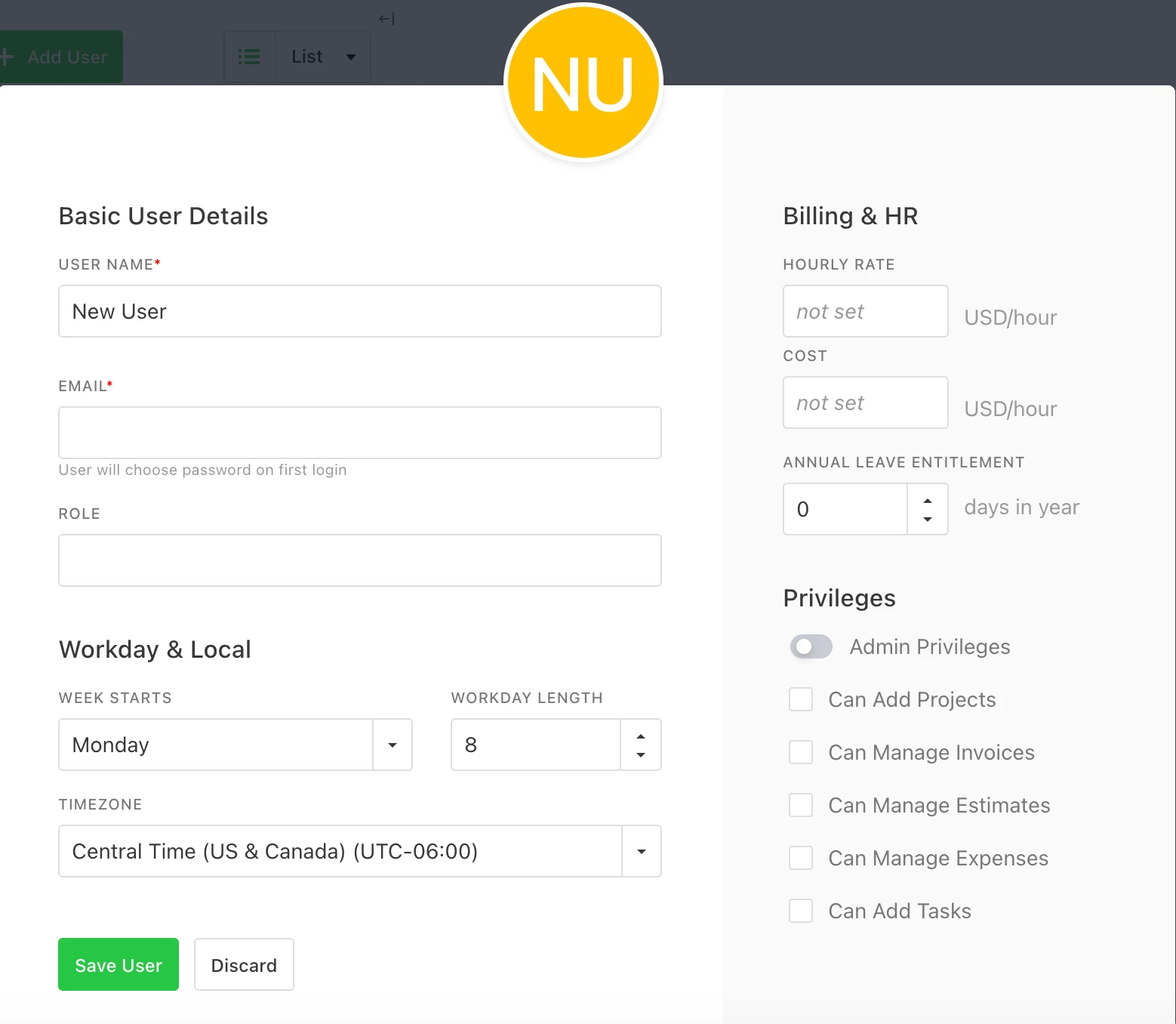
The settings allow you to set employee hourly rates (what you charge) and their cost rates (what you pay your workers). The biggest limitation in this window is that you can only choose Monday or Sunday as the start day for individual users — regardless of your global working days settings in Paymo.
Permissions and access
Paymo offers 4 tiers of access: Owner, Admin, Regular user, and Guest.
Owners have limitless access, while admins get the same level of permissions, but without clearance to change Paymo subscriptions or delete your workspace. Regular users can only see the projects and tasks they are assigned to, as with guests. Guests can view, comment, or create tasks in the project they are invited to (if enabled).
Paymo’s role division is simple but problematic for time-entry approvals, as only admins can approve employee time entries. Unfortunately, admin-level access also grants access to sensitive, company-wide billing and project settings you might want to keep private.
To ensure time entry accuracy, you can either assign admin roles to a few people and make them approve everyone’s time or let middle managers see sensitive company info. Here’s how much the regular user’s perspective differs from the admin’s:
Managing users in projects
Assigning people to their tasks and projects is as simple as clicking the plus sign on a project or task. However, you have to add each person individually. The only workaround is to create a project template with tasks already assigned to users. Yet, you’ll still have to manually add users again for any new tasks.
As far as project permissions go, regular users can see the info for the projects they’re assigned to work on. You can also allow individuals to add or manage tasks, projects, expenses, estimates, or invoices.
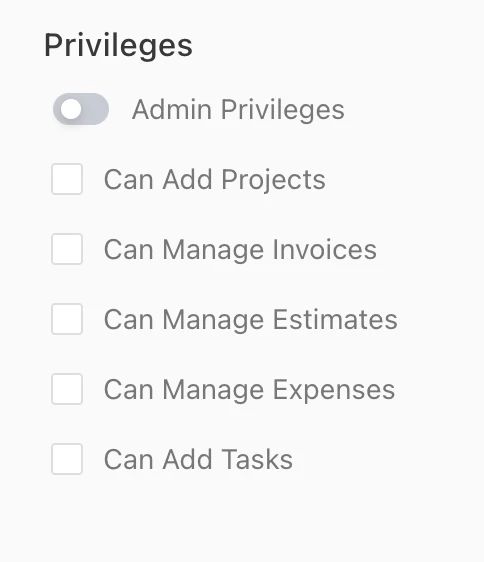
To sum up: Paymo offers basic user management, but would greatly benefit from introducing the middle manager role and user groups. You can set custom project and task permissions in Paymo, but these don’t include time-entry approvals, which are crucial for 15+ person teams.
The 2 main ways to generate invoices in Paymo:
Invoicing is integrated with Paymo’s time tracking well and displays accurate financial and time information. The invoices can be set to recur weekly or monthly.
Another useful feature is Paymo’s numerous invoice design templates, accessible in your Company settings.
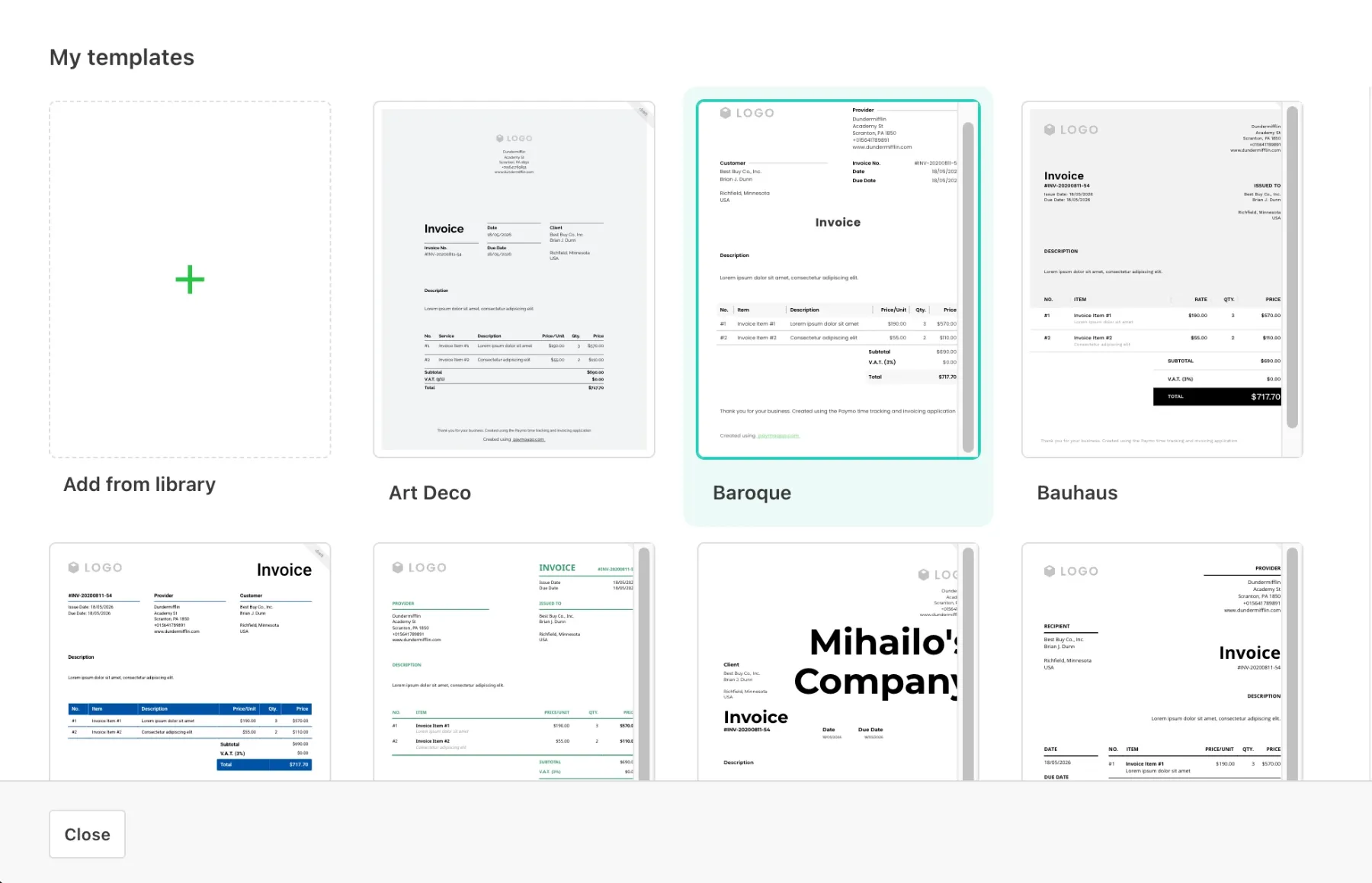
Paymo allows you to integrate Stripe, PayPal, or Authorize.net links into your invoices to bill your clients. Paymo can’t handle employee payments, business taxes, or manage complex accounting tasks itself. Still, the app does offer a native payment service called PM Payments (only available to US users).
After testing it out in detail, I can conclude that Paymo’s invoices are a good, reliable feature.
Paymo’s Employee leave or time-off feature is simple and works well for manual leave overview management — but HR compliance problems are obvious from the very start.
How employee leave works
Paymo comes with a few employee leave types available by default, which you can customize or remove in your company settings. After this, these leave types will be assignable for each employee in the Leave planner.
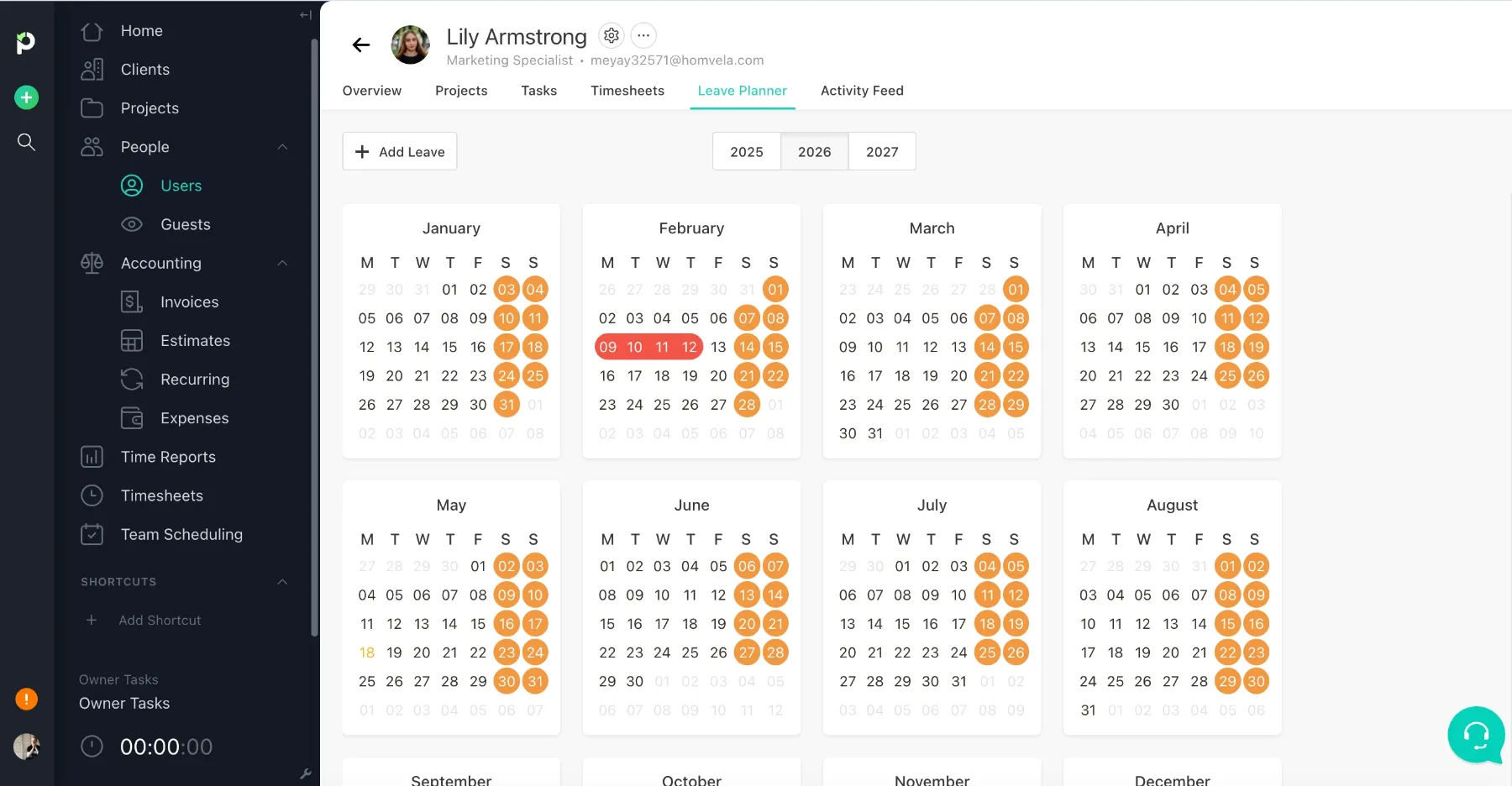
To approve time off, you need to navigate to Users > User’s Name > Leave planner, select the date range you want to mark as “leave time”, and approve. The date range you select and approve in the pop-up window will be marked red in the user’s calendar view.
Limitations
However simple, the system isn’t foolproof by any means. I found it strange that you can easily approve more than the allocated annual days off — and there’s no warning about it. The only way to check if you approved more annual time off than you planned is to manually navigate to Overview > Legal Leaves for the specific user.
Furthermore, there is no way for employees to request leave in the app, which can pose a legal compliance issue by breaking the official data trail required by labor laws. So, in the legal framework, relying on Paymo for leave approvals will not be enough, and you’ll require additional tools for the job.
In the end, Paymo’s employee leave system is still usable, but a request-and-approve time-off approach offered by time trackers such as Clockify seems much more useful for HR compliance and payroll processing.
Scheduling projects and tasks in Paymo is fairly intuitive and greatly simplifies project organization for small teams. You can schedule projects by navigating to Team scheduling and picking one of the various project or user views.
Paymo automatically creates transparent markers called “ghost-bookings“ based on project and task deadlines. This can come in handy for planning ahead and seeing if people’s tasks overlap with your schedule ideas. If this becomes disorienting, you can easily turn it off in the Team Schedule tab > View > Uncheck Ghost bookings.
The resource scheduling feature is generally reliable and useful, but it could be more responsive and accessible in terms of UX and flow. Right now, it seems good, but halfway there from being great — hence the one deducted point.
I was disappointed to see that the reports feature in Paymo is a basic text generator that uses time tracking data generated through the timer or manual entries. The reports include various filters and custom date ranges, so you can choose which data to display in the document.
The main con of reports is that they have literally no visual feedback — the feature is entirely text-based. Not being able to visualize data with charts and graphs is a gaping issue, especially for financially complex projects with many:
In terms of team size, Paymo's sweet spot is the 1–15 user range. It’s clear that Paymo’s entire marketing and product philosophy is built around small teams and solopreneurs.
If you’re handling a small team, jumping to Paymo’s Home tab is fast, easy, and simple. It allows you to view all your projects at once. But if you’re handling a 50+ person team across various departments, this view will quickly become a complete mess to navigate — even with filters. The only way to overcome this in a medium-sized team is to implement strict naming conventions to keep track of everything.
One obvious example of poor scalability is assigning people to projects — you can only add users one at a time. While this works for smaller teams, it becomes a hassle at a larger scale.
Competitor apps handle this by offering user groups. This means that you can select multiple members with one click and add everyone relevant to the project (e.g., Design team, Writers, Devs).
These Paymo limitations might be bearable for small teams, but any team of 50+ would likely struggle to keep projects organized — hence the lower score in this category.
Since Paymo’s main focus is on small teams and individual entrepreneurs, I hoped some customization options would make up for the lack of scalability. However, I was disappointed in this category too.
Paymo is inherently a low-customizability tool.It’s easy to see that it’s designed with freelancers and micro-agencies in mind.
To keep it fair, let’s focus on the aspects of the app you’d need as a micro-agency or solo freelancer — work day customizability and time tracking logic.
Low work day customizability
Paymo can set workdays for the whole workspace, but this only affects scheduling people — the unavailable days will be greyed out. However, you can’t customize workdays for individuals, which further limits your scheduling flexibility.
Rigid time tracking logic
While you can customize workflows for each project, you can’t customize internal naming logic to suit your industry and needs with custom fields.
All your work has to be tied to a Client, Project, and Task. You can’t customize what Clients, Projects, or Tasks represent — which can be extremely cumbersome depending on your line of work. One example of this is that you have to create your own company as a client to account for your internal tasks and mark these projects as Not billable. Being able to rename the client field to suit your business would make it much more user-friendly.
After reviewing the core features, let’s add up the score for Paymo’s web app.
| Paymo web app feature | Rating |
|---|---|
| Project management | 3.5/5 |
| Time tracking | 3/5 |
| User management | 3/5 |
| Invoicing | 4/5 |
| Time off | 3/5 |
| Scheduling | 4/5 |
| Reports | 2.5/5 |
| Scalability | 2/5 |
| Customization | 2/5 |
| Web app rating | 3/5 |
After exploring the web version, let’s take a quick look at Paymo’s mobile app and its capabilities to see how the app versions compare.
Paymo’s mobile interface feels like an even more simplified version of the web app. It’s useful for a quick overview of projects, adding tasks, changing priorities, or glancing at notifications — but not much else.
Paymo mobile lacks the ability to create reports, change company settings, edit user privileges, access the schedule timeline, approve employee leave, use the Gantt view, or access tables.
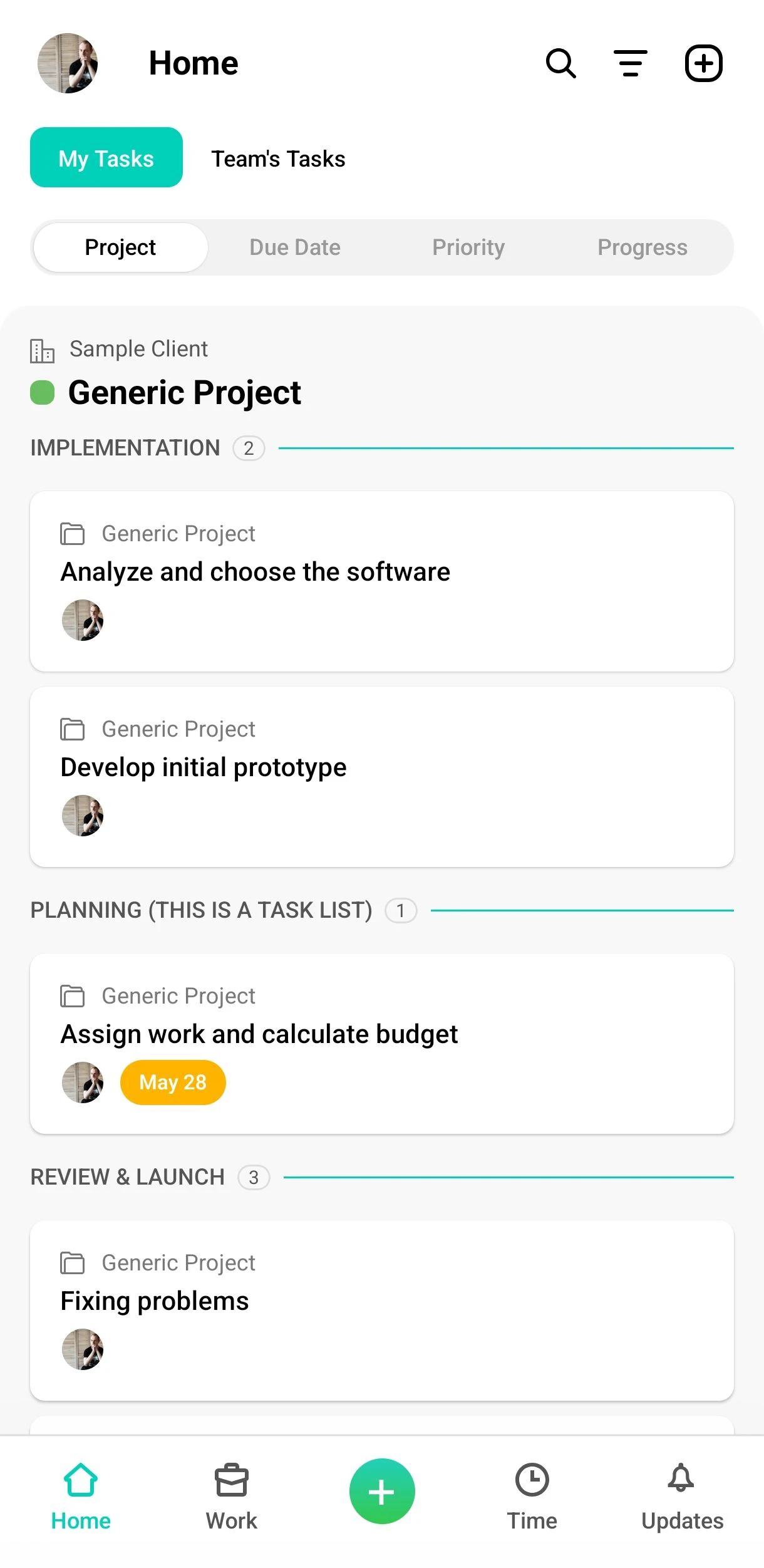
Paymo’s mobile app works well, but I deducted one point here for tiny but annoying lags (like the keyboard obscuring the text boxes while typing).
Project management in Paymo mobile is extremely limited, lacking the well-known project views and schedules. Adding new projects and assigning people to them is all you can hope for. However, this will likely be enough to create a project draft and then refine the details once you’re at your computer.
As long as you have your projects and tasks set up, the mobile app works well. You can start your timer or add manual time entries, which are quickly synced to the cloud and displayed in the web version as well.
One point is deducted because the mobile version lacks the ability to add time for others, which would be useful for fixing minor employee slip-ups on the go.
At the time of writing this review, Paymo doesn’t maintain a public product roadmap. To find updates and recently released features, you can visit Paymo’s Product Updates page.
The most recent Paymo updates from March 2026 include the Stripe payment gateway, adding timesheet info to invoices, and exporting project expenses as PDFs.
If your needs end with organizing a small team, tracking time, and invoicing a few clients in a 15–20-person team, Paymo is a decent choice. However, the app simply isn’t built for robust enterprise compliance, high tracking flexibility, or customizability.
| Paymo | Rating |
|---|---|
| Pricing | 3/5 |
| Usability and interface | 4.5/5 |
| Security | 4/5 |
| Customer support | 5/5 |
| Customer reviews | 4.6/5 |
| Web app | 3/5 |
| Mobile app | 3.3/5 |
| Final verdict | (3.9/5) |
Overall, Paymo qualifies as a solid client-first app. It can be a great tool for micro-teams looking to organize projects, divide responsibilities, and track progress. Yet, it’s not suitable for medium or large-sized teams looking to organize their work tightly.
Running a developing business requires tools that can scale with you as your company grows. If you need a versatile app that can adapt to your time tracking and compliance needs, get Clockify by CAKE.com.
| Features | Paymo | Clockify by CAKE.com |
|---|---|---|
| Primary use | - Small to mid-sized team time tracking - Project management - Invoicing clients |
- Enterprise team time tracking - Project management - Invoicing clients - Customize time tracking for different industries |
| Time tracking | - Timer - Timesheet - Approving time for others - Basic time off management |
- Timer - Timesheet - Approving time for others - Advanced time off management - Kiosk - Work GPS location tracking |
| Project management | - Project scheduling - Estimates - Expenses - Kanban and Gantt chart view |
- Project scheduling - Estimates - Expenses - Custom goal alerts/reminders |
| Invoicing | - Generate invoices from time data - Customize invoices |
- Generate invoices from time data - Customize invoices |
Here’s where Clockify excels for both small teams and enterprise-level organizations:
#1: Powerful user permissions
Add people to groups and assign them to tasks with one click. Need all your designers added to a project? Create your project, click on Access, and pick Designers. They’re all added to the project and can track time immediately (unlike in Paymo).
#2: Automated compliance
Set automatic reminders for daily or weekly target hours. Clockify also automatically counts overtime hours — which is a massive headache to calculate manually for medium-sized teams using Paymo’s standard project timesheets.
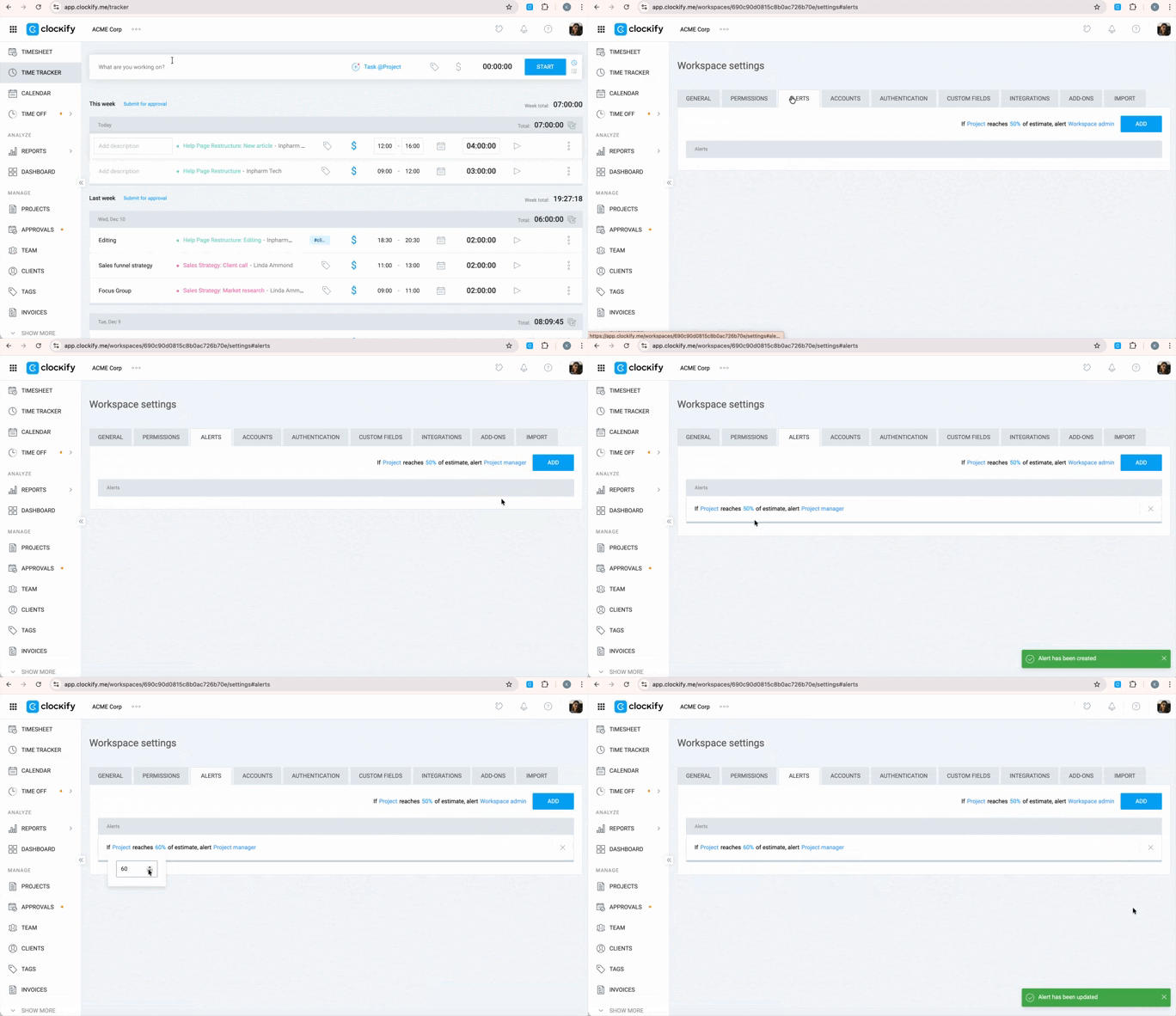
#3: User groups and team management
Group people by departments and teams. Set team and project managers. Managers can approve employee time entries and their time off — not just create and assign tasks.
#4: Reports
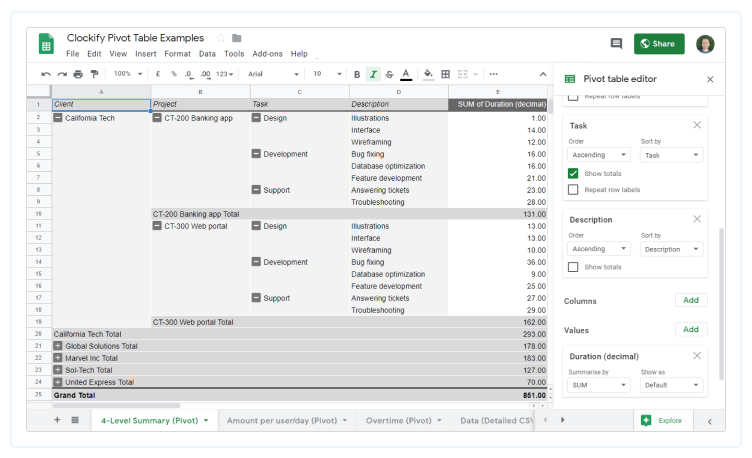
Clockify’s CSV/Excel/PDF reports require minimal to no formatting for your payroll software, while Paymo requires quite a bit of elbow grease to make them work as intended.
Just export from Clockify and import into your payroll provider app. No need to manually format columns and rows.
To get more project management features, integrate Clockify with Plaky. To chat with your team and clients, integrate Clockify with Pumble. Both integrations ensure automatic sync of all project and time data.
As part of the CAKE.com Bundle, you get Clockify, Pumble, and Plaky for just $12.99 per user per month.

Finally, let’s take a look at the most commonly asked questions about Paymo.
Paymo’s main pros include:
Paymo’s main cons are limited customization, limited customizability, and scalability issues for medium- to large-sized teams.
Paymo is a highly secure app hosted on AWS with in-transit and at-rest encryption. Paymo adheres to strict GDPR Compliance and an internal privacy policy, which require them to notify all customers via email and directly in the app within 72 hours of a security breach. For enterprise users, Paymo lacks standard enterprise security compliance certifications such as SOC 2.
Paymo was founded by Jan Lukacs and Andrei Gadoiu in 2007 in Romania, who own and control it to this day. The company’s current CEO is Jan Lukacs.
Paymo is a project management and time tracking app designed to help freelancers and small businesses manage a project’s lifecycle. It ties together task management, time tracking, scheduling, and invoicing into a single workspace and works best for micro teams and one-person businesses.

