

Alex Beadon
Founder of Together We Launch
"We use Clockify to see where our time is going and how to solve any problems. It’s just so beneficial."
More stories

Find new apps that fit you team's needs
Wondering whether Harvest’s simplicity in time tracking and invoicing can still make it usable for complex project workflows?
In our Harvest app review, we bring you an honest take on the app’s features, pros, cons, and true value.

Harvest is a time tracking and invoicing app designed for freelancers and small teams. It’s centered on billable hour tracking, expense logging, and converting timesheets into client invoices. The app cites around 70,000 users at the time of writing this review, which makes it much smaller than its prime competitors.
Harvest was recently acquired by Bending Spoons, which has caused quite a stir among its core audience. Bending Spoons has already faced scrutiny for implementing hidden charges to the companies it previously bought. This shady approach has impacted Harvest, too.
| Harvest pros | Harvest cons |
|---|---|
| ✅ Quick client invoicing | ❌ Unclear pricing with massive hidden costs |
| ✅ Intuitive UI | ❌ Declining reputation following recent acquisition |
| ✅ Granular user permissions | ❌ No kiosk, time off, or break tracking |
| ✅ Customizable look | ❌ Not as flexible as other time trackers |
| ✅ Reliable customer support | ❌ Scheduling is only available in a separately billed app (Forecast) |
Harvest offers the Free plan, Teams plan ($9 per user per month, billed annually), and the Enterprise plan ($14 per user per month, billed annually). The app also has a 30-day free trial with all features unlocked.
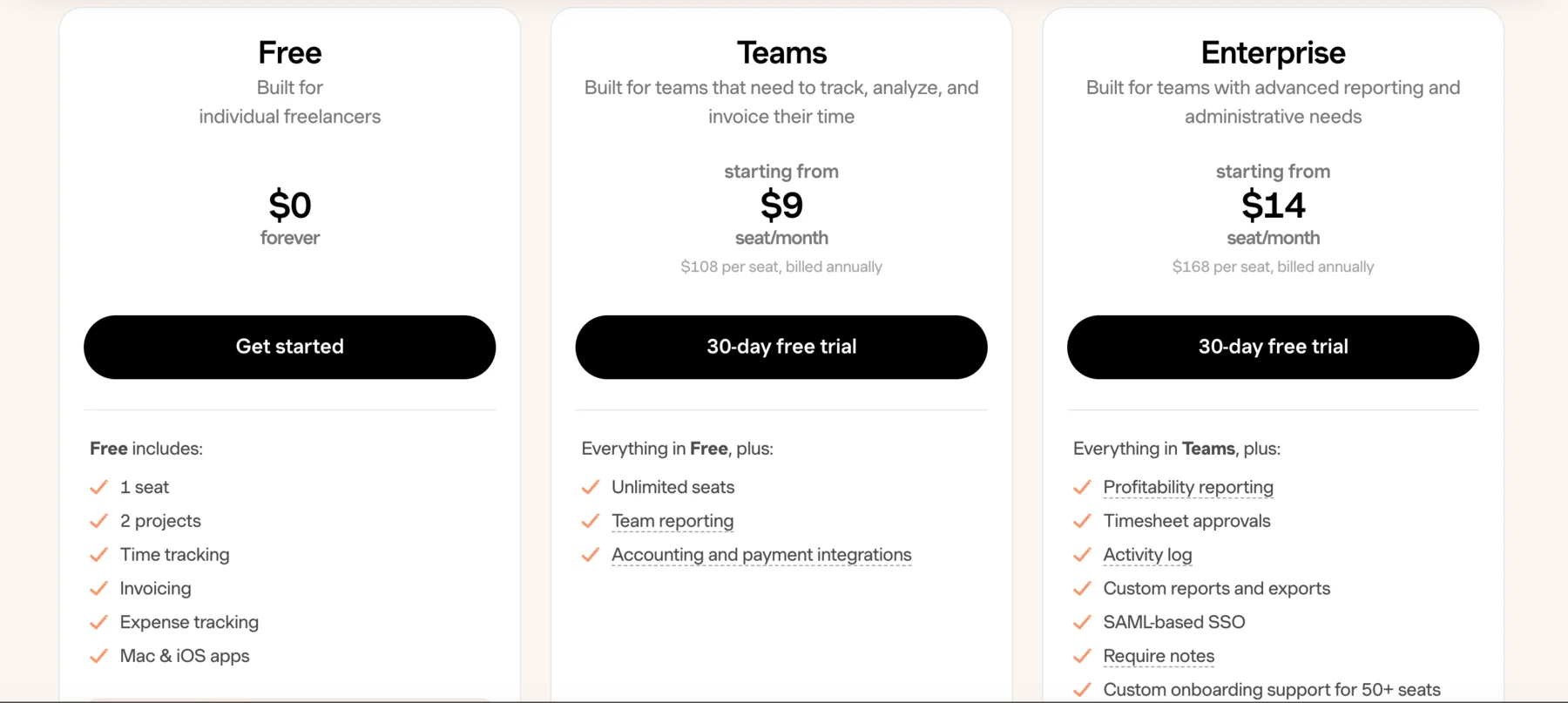
From the very start, Harvest’s pricing turned out to be a massive red flag. Despite multiple pages stating “No credit card required,” Harvest requires your credit card details for the free trial.
Paired with Harvest’s recent billing red flags, I was more than skeptical to enter any payment information. Since these problems are very recent, there’s very little official information, but it seems that the app is charging hidden usage-based fees.
The official Harvest pricing calculator only covers the base fee. However, this page also states: “Your base rate includes core features. As your team grows, additional invoices, projects, clients, and tasks are billed based on what you use, so you're never overpaying.”
After a bit of research, I found many furious users looking to escape Harvest, citing thousands of dollars of unexpected bills with no prior notice.
Still, that’s not the end of it. Harvest’s scheduling features are only found in a deeply integrated sister app called Forecast. It costs an additional $6.25 per user per month (or $5 per user per month, billed annually).
To compare this to the market, here’s how much Harvest costs versus its main competitors: Toggl Track and Clockify by CAKE.com. The table below compares plans with similar features — Harvest’s Teams plan (+ Forecast), Toggl Track’s Starter plan, and Clockify’s Pro plan. The prices for all apps include the annual discount.
| User count | Harvest (+ Forecast) | Toggl Track | Clockify |
|---|---|---|---|
| 10 users | $140 | $90 | $79.9 |
| 50 users | $700 | $450 | $399.5 |
| 100 users | $1,400 | $900 | $799 |
Because of the blatant lack of transparency, the growing bad reputation, and firsthand experience with pricing discrepancies, I had to deduct 3 whole points from Harvest in this category.
Overall, Harvest is a well-designed and beginner-friendly app. It’s clean, minimalist, and distraction-free. On the other hand, Harvest’s app logic and approach are very rigid and hard to customize for different industries.
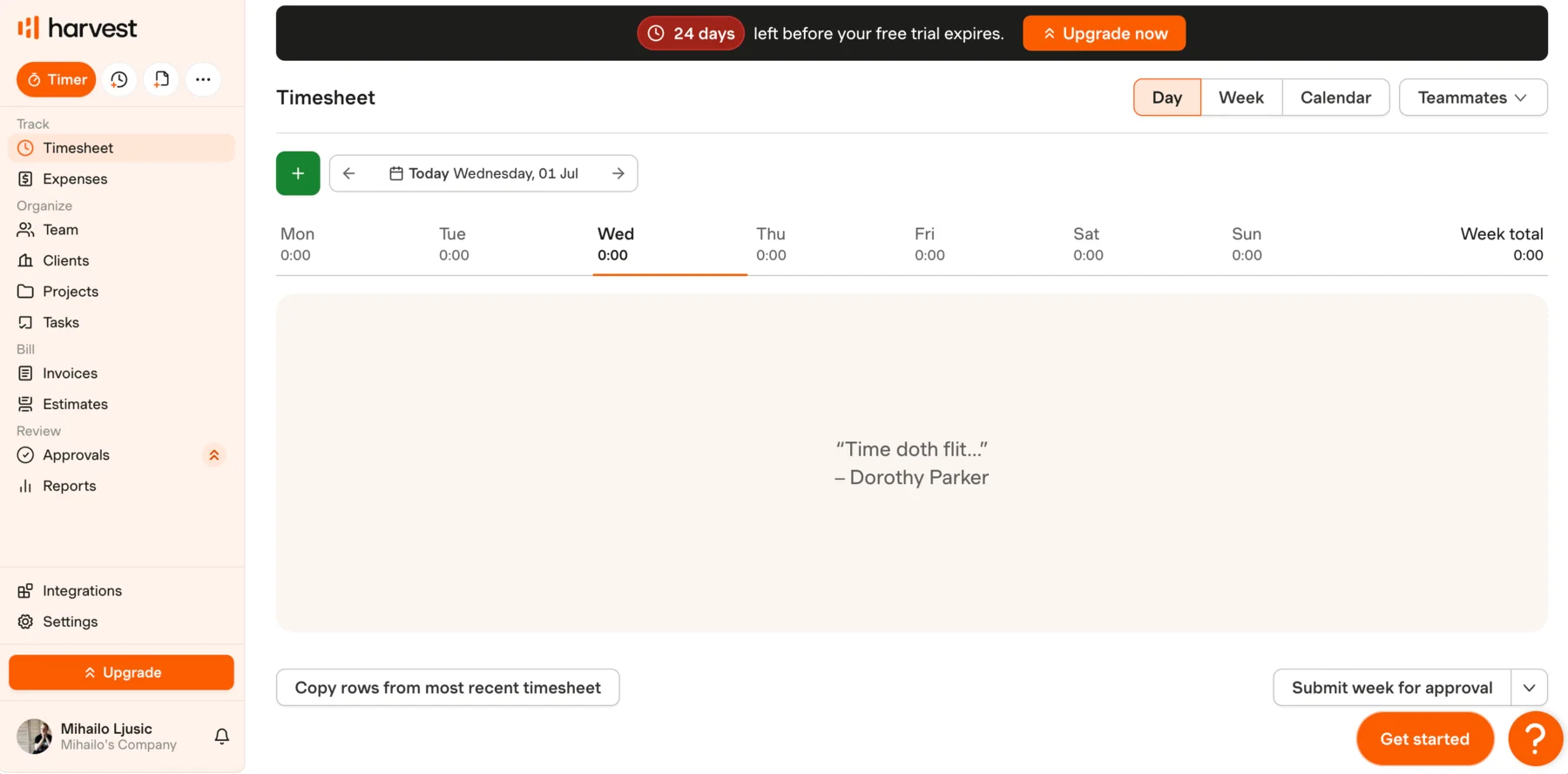
Harvest is primarily designed to track time so you can bill clients. The app has only the essential features:
All of these features work decently well, despite certain limitations compared to the competition. Harvest is fast and responsive, and it probably won’t cause any major problems for small teams.The app does its main job very well: It remembers time tracked on projects and displays it accurately both on client-ready invoices and reports.
One annoying issue with Harvest is that the required structure for each time entry is:
So, each project needs to have a specific client and task to track time. And this can’t be changed anywhere in the app, so it can quickly become unintuitive for internal tasks. The most common workaround is to create your own company as a non-billable client, which can cause quite some confusion.
Also, if you’re looking for a way to track complex project profitability or detailed resource forecasting, Harvest's reporting will likely feel a bit shallow. I also found that Harvest is not well-suited for:
All in all, Harvest is simple and easy to use. Its design inspired me to get in, enter time, and quickly move on to the actual work. However, I couldn’t do a deep dive into the time data and analyze it in detail, which was a bit disappointing.
When it comes to security, Harvest adheres to strict, enterprise-grade security standards:
There are currently no major data breaches associated with Harvest. However, Harvest’s new parent company, Bending Spoons, is known for leveraging data from its products to inform advertising algorithms, without technically breaking any laws.
Two-factor authentication is supported but not enabled by default. However, you can easily enable it in your Sign in security settings.
Overall, Harvest's security is high. But one point is deducted for the lack of industry-standard SOC 2 compliance and recent privacy concerns involving Harvest’s parent company.
If you ever get stuck in Harvest, you’ll likely find an answer on one of its help pages.
Harvest’s support hours are Monday to Friday, 9 a.m. to 6 p.m. ET — worth considering if you're in a different time zone. On the other hand, I didn’t have to wait long to get an answer from their team, even though I wasn't aligned with these hours.
To be specific, I had a question regarding the billable rate logic when testing out a fixed-fee project. Harvest responded within an hour and emailed me a concise answer.
However, the info I got was very similar to what I could already dig up using an LLM. When I reached the end of the email, Harvest’s disclaimer said: “Harvest Customer Support uses an AI assistant to give you faster and more accurate answers. You can reply to this message to receive further assistance.”
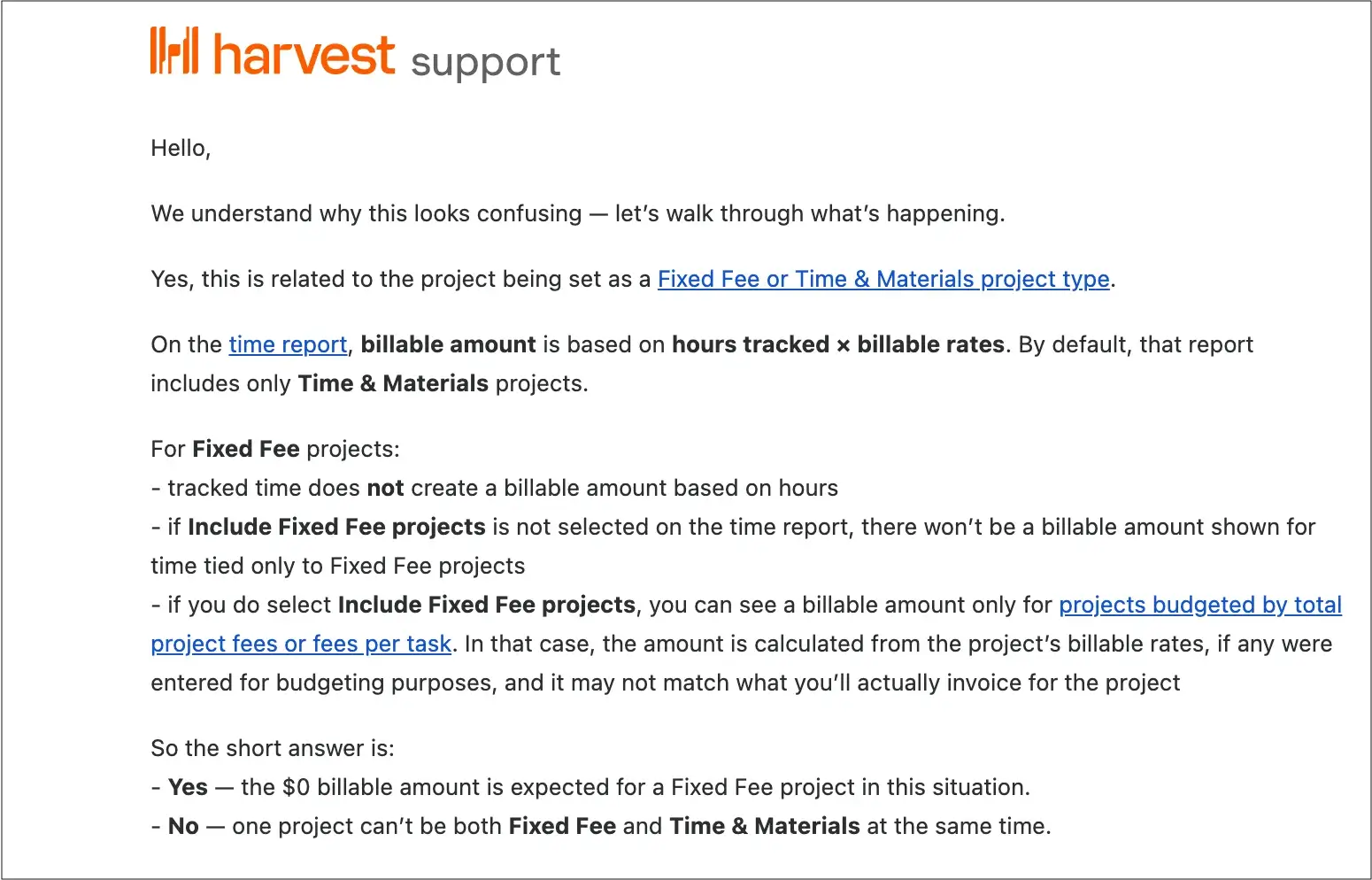
So, if you email Harvest support outside of their hours, get ready for an AI response. I just wish Harvest was more upfront about this — as the Submit a request window led me to believe I’d be contacting a human.
My experience with Harvest’s customer support was mostly frictionless. Although their email explained the gist of the problem, I’m certain a real person would be more proactive in suggesting a workaround. Because of this, I deducted one point in this category for using AI replies for a specific question from a new user.
Unlike Harvest, Clockify by CAKE.com offers 24/7 full human customer support on all plans.
Harvest has high overall marks on various software review platforms, but also some recent negative reviews.
Here’s how different Harvest software review pages rate the app:
Recent first-hand Harvest reviews praise it for its ease of use, zero learning curve, and quick onboarding.
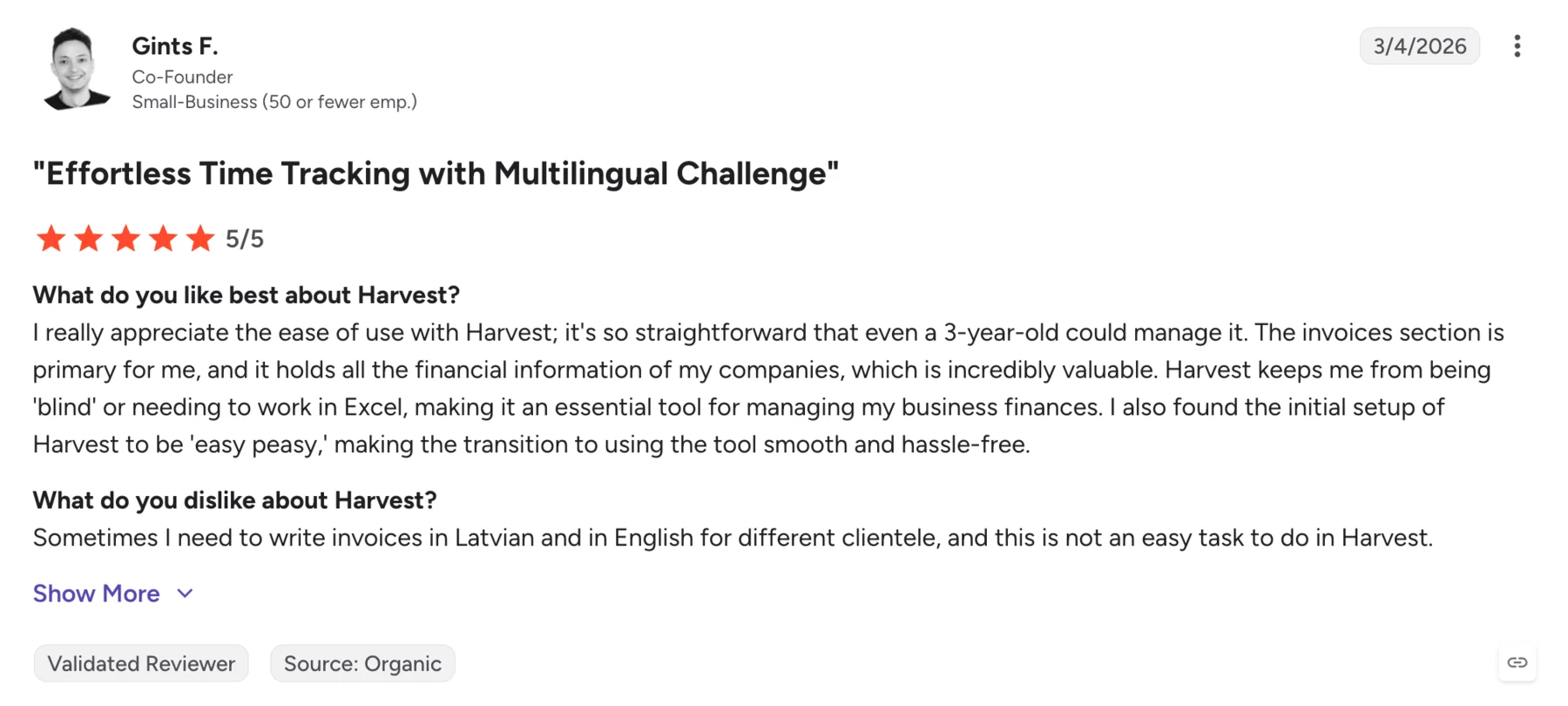
Here’s how Gints F., a small business owner, elaborates in a 5-star review on G2:
What do you like best about Harvest?
“I really appreciate the ease of use with Harvest; it's so straightforward that even a 3-year-old could manage it. The invoices section is primary for me, and it holds all the financial information of my companies, which is incredibly valuable. Harvest keeps me from being 'blind' or needing to work in Excel, making it an essential tool for managing my business finances.”
What do you dislike about Harvest?
“Sometimes I need to write invoices in Latvian and in English for different clientele, and this is not an easy task to do in Harvest.”
On the other hand, the highly negative Harvest user reviews mostly focus on undisclosed fees charged on their invoices.
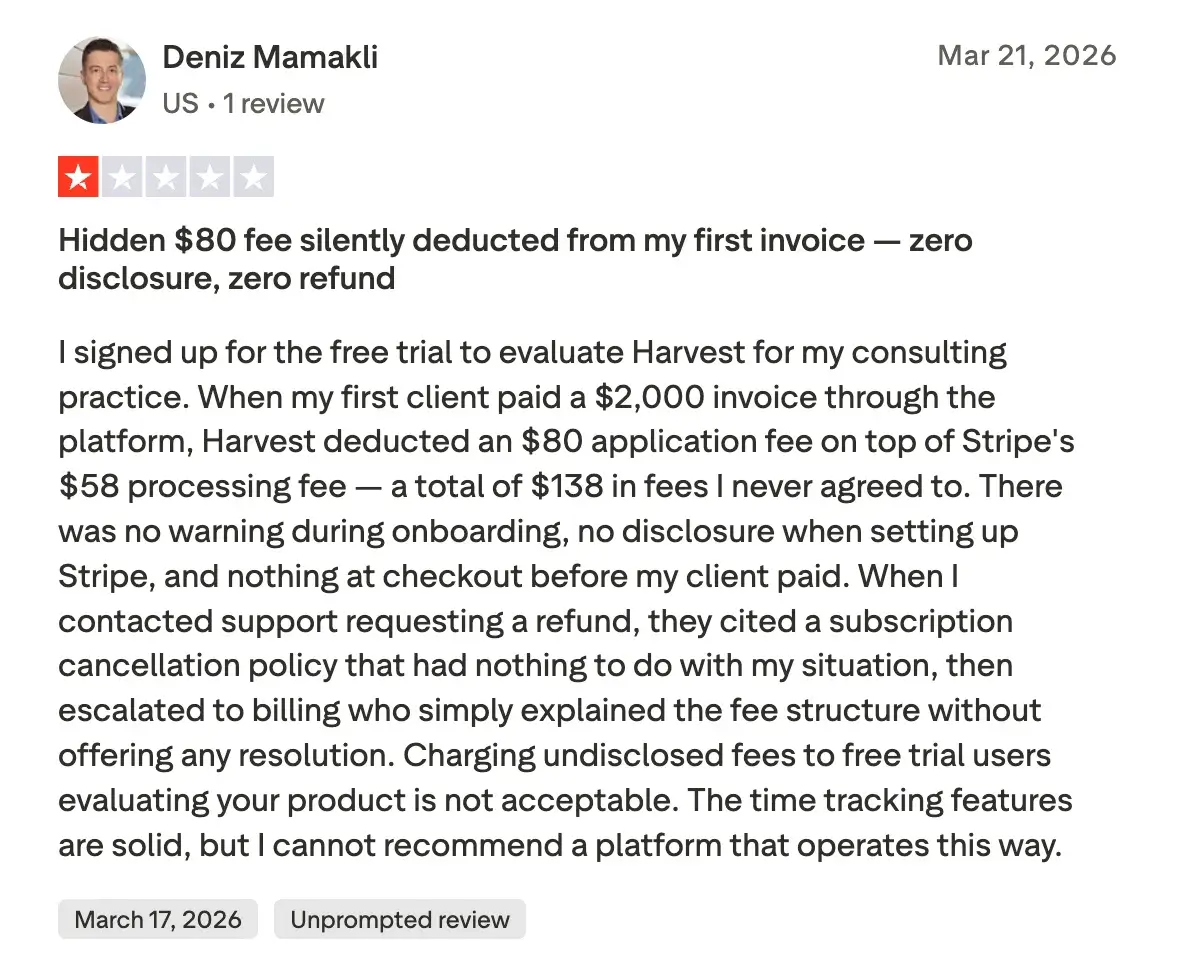
Here’s how user Deniz M. elaborates his 1-star review on Trustpilot:
“I signed up for the free trial to evaluate Harvest for my consulting practice. When my first client paid a $2,000 invoice through the platform, Harvest deducted an $80 application fee on top of Stripe's $58 processing fee — a total of $138 in fees I never agreed to.“
Said user also claims there was no warning about this during onboarding. Like many others, Deniz says Harvest customer support didn’t even try to issue a refund.
The primary focus of our Harvest app review will be the web app. Let’s take a look at the main features where Harvest shines brightest and where it falls short.
The essential time tracking features work well in Harvest. UX-wise, time entries are accessible from any window, always located in the top-left corner, displayed with the clock icon. Just note that only the Timer is enabled by default — you’ll need to look up and enable manual time tracking in your settings.
Projects
Similarly to its competitors, Harvest requires you to set up Projects to track time. Projects can be set as:
Only members with the Project manager permissions can create new projects. Once you create a project, you can create tasks within it. Then you get to assign members who can track time on the project. However, you can’t assign people to tasks — every project member will have access to all tasks.
Project windows also allow you to create specific project rates that override that person’s default hourly rate set in the Team tab.
Approvals
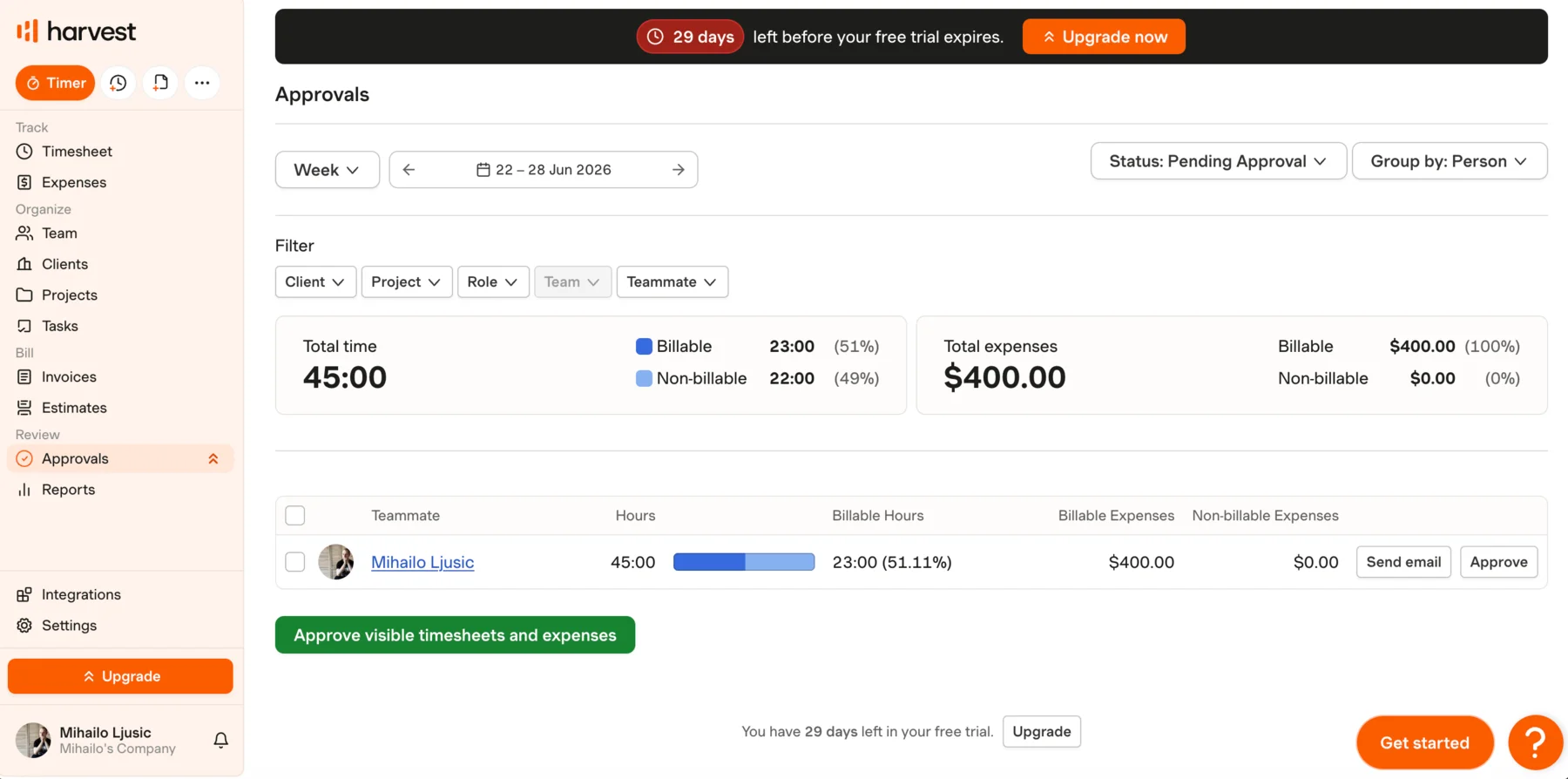
Time entry approvals are one of the simplest features in Harvest. Here’s how they work:
Reminders
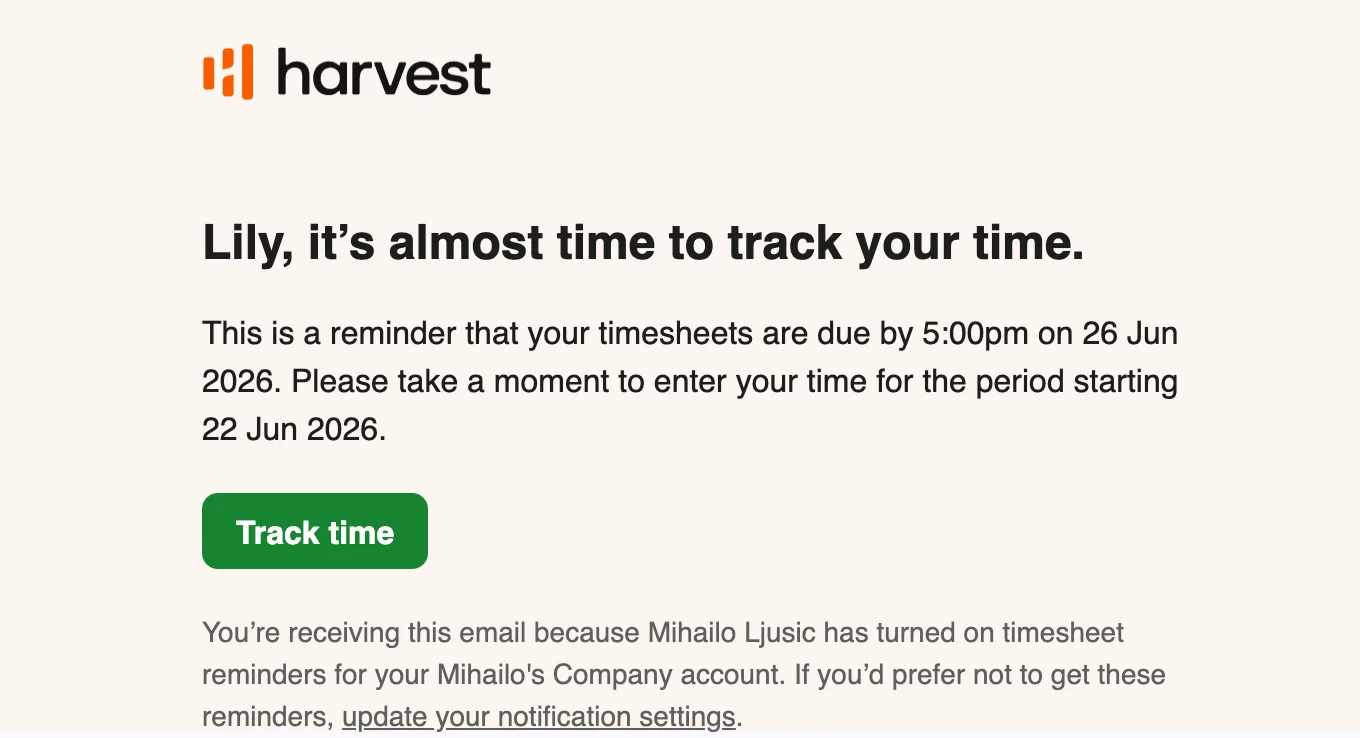
The app is designed around client billing. This means Harvest won’t automatically alert you if an employee tracks overtime. On the flipside, Harvest offers time tracking reminders for team members. Reminders can be sent via email, push notifications, or both — they work decently well and without any delays.
In terms of missing time tracking features, Harvest’s main limitations are:
Overall, Harvest’s time tracking features work as intended. Still, they’re only intuitive and frictionless if you use Harvest for billing hours and projects to clients. For other use cases, you’ll have to look up various workarounds — hence the 2 deducted points.
In Harvest, scheduling is primarily handled with the separately billed Forecast app. It’s well integrated with Harvest, although it has some questionable design choices which make it unintuitive at times.
For the workspace owner, Forecast’s workflow is as follows:
Once you import Harvest data into Forecast, you can schedule hours, assign tasks to people, give viewing and editing permissions, and even create new projects. Forecast is useful for visualizing the time needed to complete a project or redistributing work in real time in terms of hours. But it still can’t justify its high additional cost, as Harvest’s competitors offer integrated scheduling.
Additionally, once you schedule the assignments, they’re locked in Forecast. You won’t see the schedule or even a notification anywhere in Harvest. Your only option is to remind people to manually log in to Forecast each day, which raises the question: Why the need for a separate piece of software in the first place?
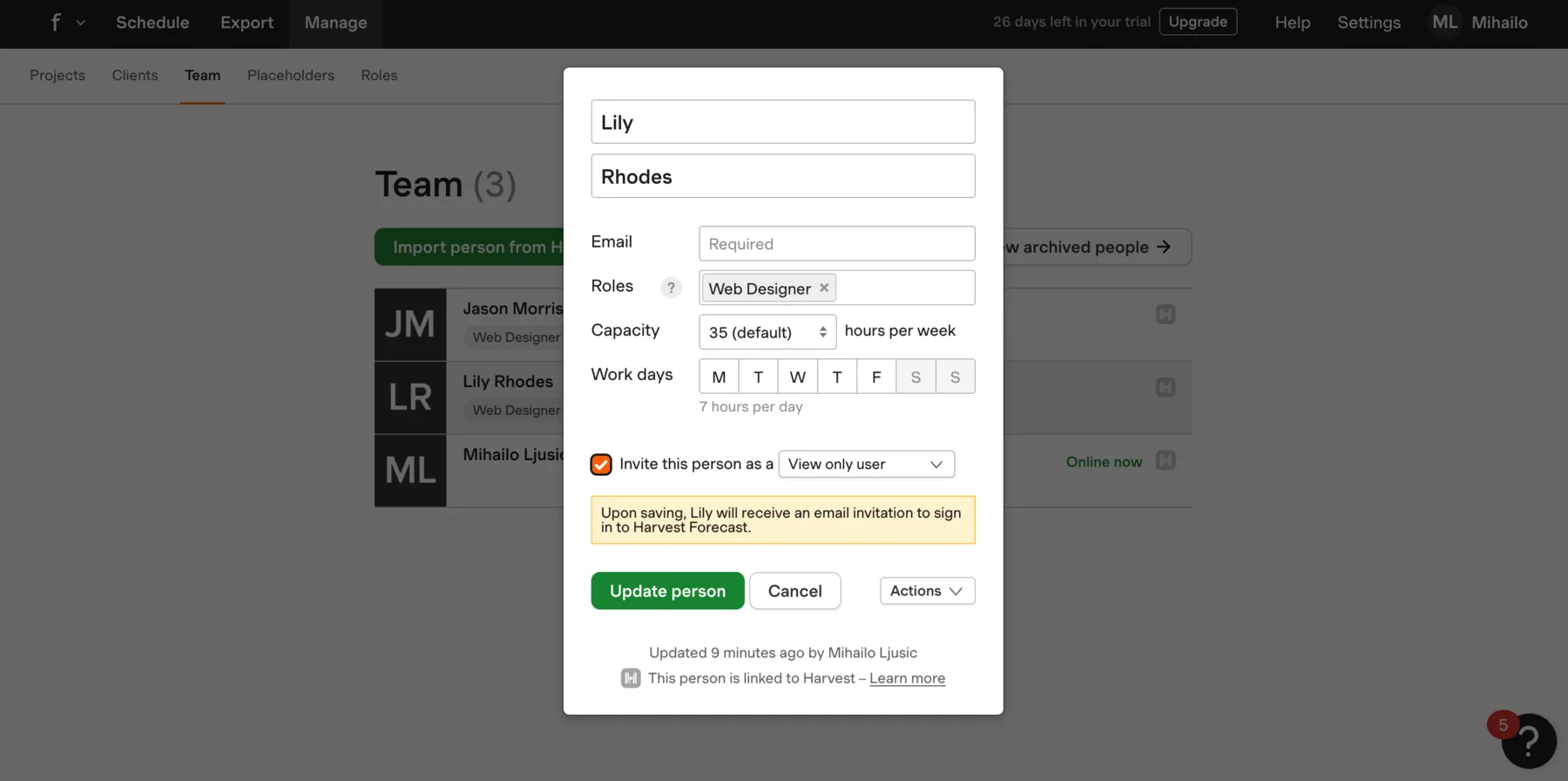
At the end of the day, Forecast feels like paying for and navigating 2 different products just to see team capacity. A preview of work and a deeper integration with Harvest would drastically improve Forecast’s usability.
Some tedious workarounds do exist — such as playing around with Harvest’s Calendar integrations. However, they end up too clunky, especially when they overlap with other calendar events like meetings.
User management is highly intuitive and customizable in Harvest. In the Team tab, you can add users and set what they can do in Harvest.
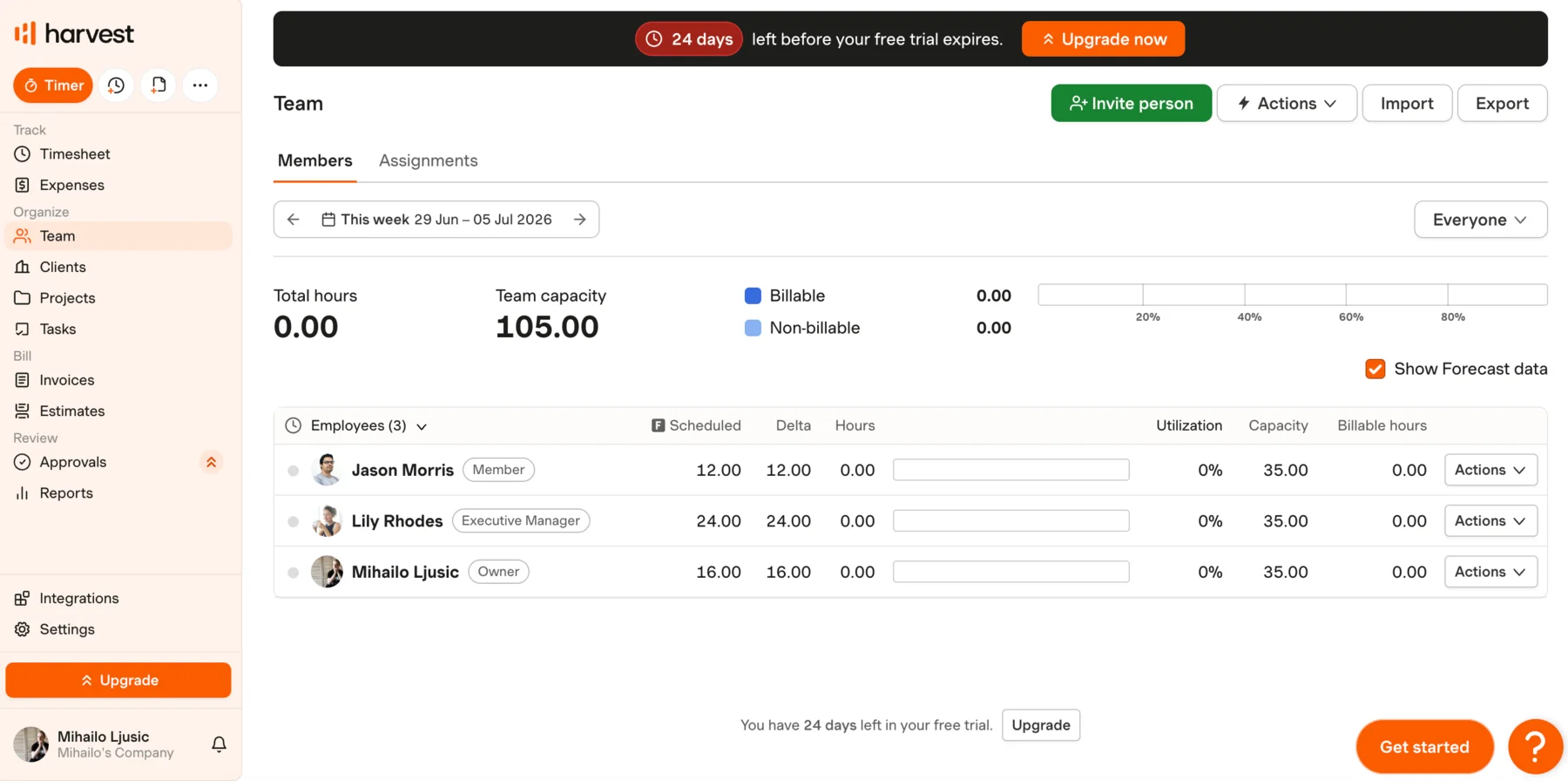
In terms of user permissions, you can assign people as:
For more granular control, Harvest also allows you to edit these preset permissions and save custom permission profiles in the Team tab.
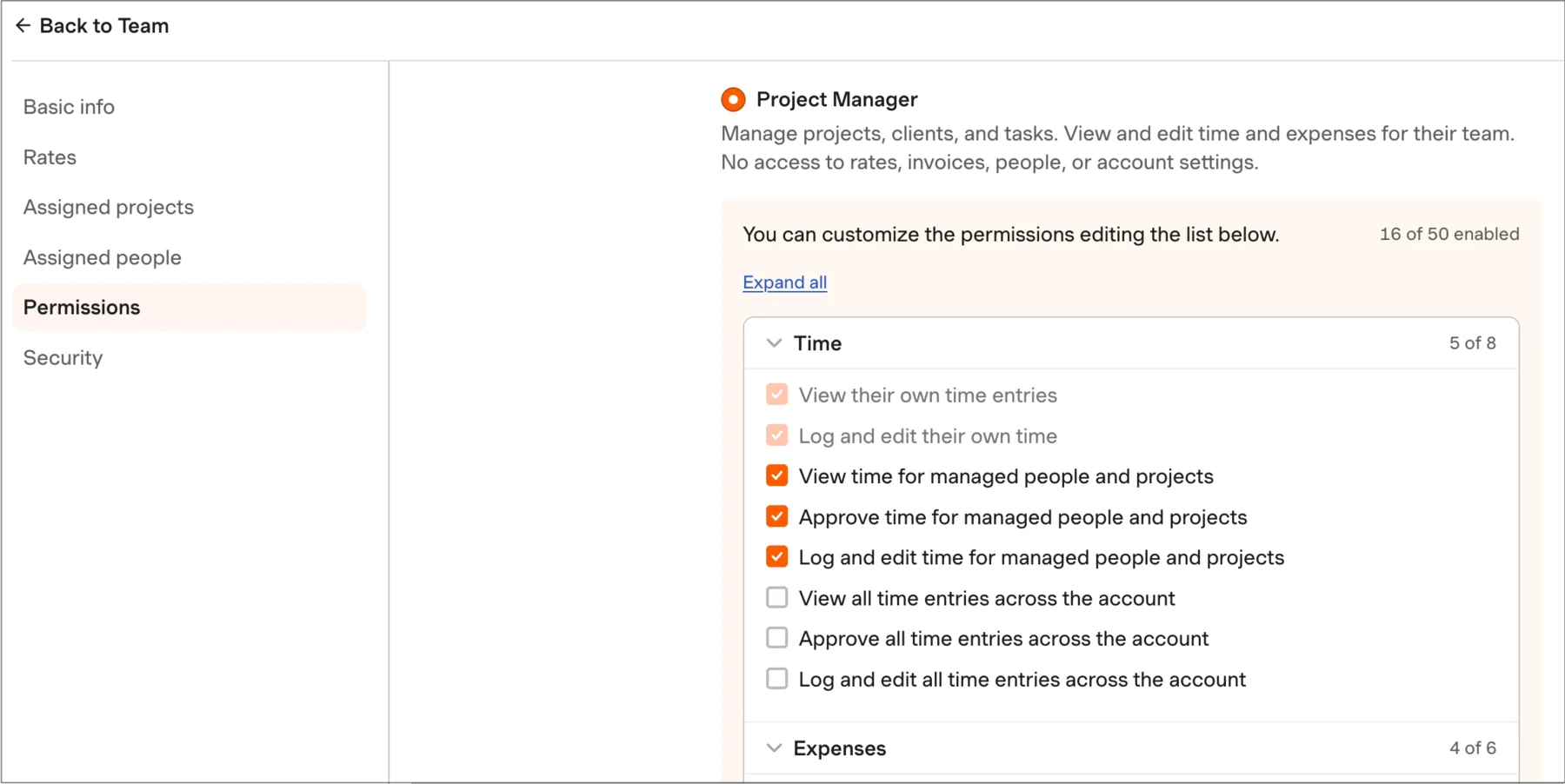
The only major missing feature in this category is PTO management. Despite the easy team onboarding and permissions, you still have no way to track time off easily. You can only do so in Forecast, as a manual schedule block.
In stark contrast, time trackers like Clockify offer assignable custom PTO policies which sync across the app. The PTO feature simplifies both scheduling and project management. This is impossible to achieve in Harvest without a clunky workaround and major compromises.
Harvest's reporting is built as an appendix to invoices. You can easily select your date range and pick the pre-made reports such as Time, Profitability, Expense, or Activity log. Alternatively, you can manually pick the info you want to include in the Create a report window.
Another upside of Harvest’s reports is how well they display raw profitability. You can see exactly how much you’re earning or losing for a given period in 2 or 3 clicks. However, custom reports quickly become tedious, as there’s little visual feedback when you add details by hand.
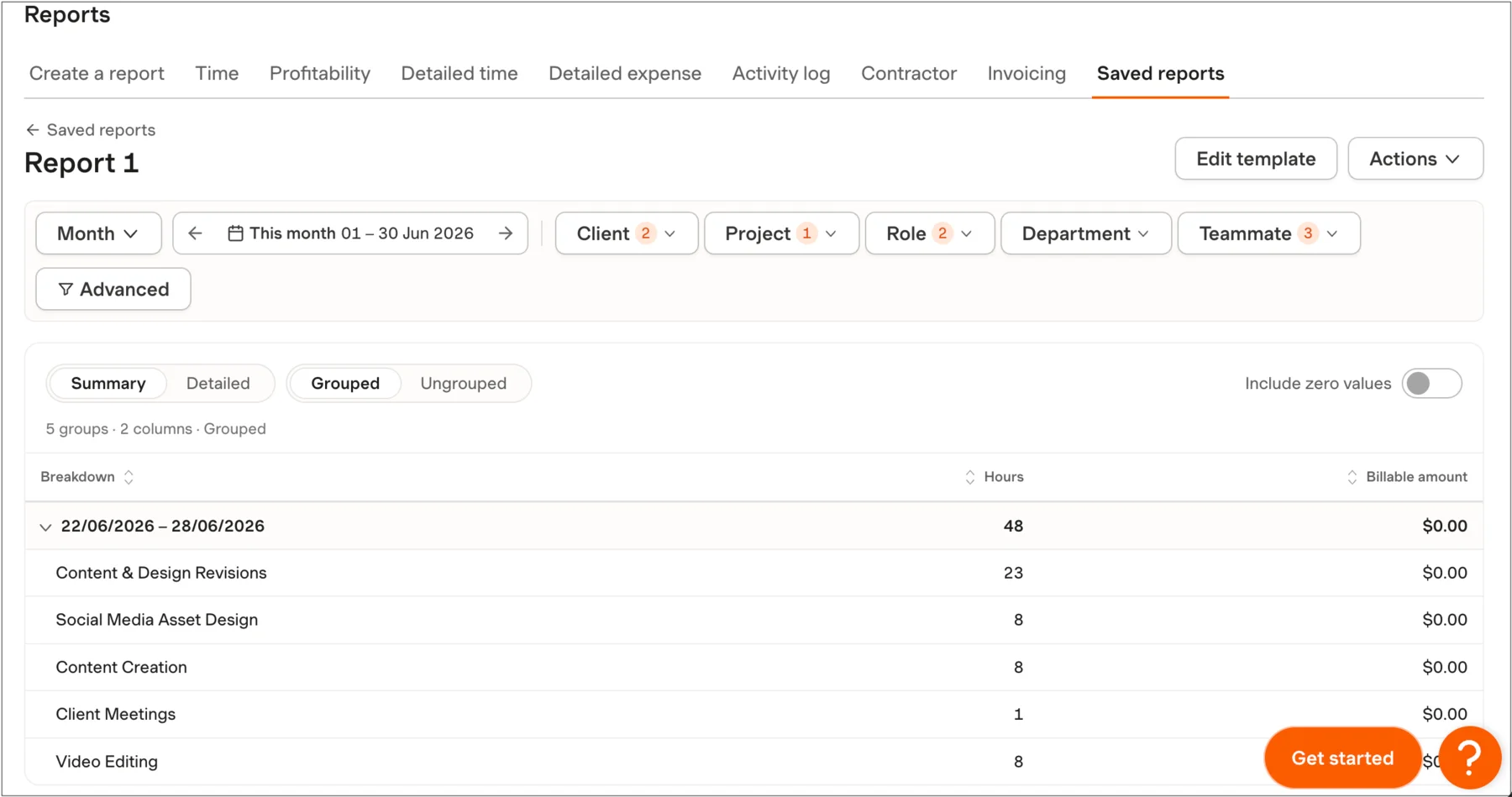
So if you need in-depth data reporting from Harvest, you’ll likely struggle.
You also can’t generate report links to share with external users and that update automatically — which Harvest’s competitors offer. With Harvest, you’ll need to export and send multiple reports manually to keep people outside your company updated.
Another frustrating thing about reports is that clicking on Save doesn’t download them — it emails reports to your signup address. Afterward, you need to log into your email and manually download them from the attached link.
Invoices are one of Harvest’s most well-rounded features. The Invoicing feature allows you to customize fields, default values, and even appearance (to some extent). Invoices can also be set as recurring, and the Retainer option allows you to track retainer funds in the neighboring tab.
If you set up projects and rates correctly, the hours will accurately translate into your invoices before you send them out to clients.
Harvest’s invoices support Stripe and PayPal. The app also handles accounting synchronization with QuickBooks Online and Xero. For other payment types, you can manually mark your invoices as paid, as in competitor apps.
The main downsides of Harvest’s invoices include:
Estimates
Estimates are a simple subfeature of Invoices — they provide an overview of costs based on the manual data you enter.
With Harvest’s Estimates, there’s no automatic pull of historical data. You have to manually type in the hours, rates, or flat fees based on your own calculations.
Harvest offers a variety of integrations for a wide range of purposes. Integrations cover everything from communication and CRM to project management tools.
Apart from the Stripe and PayPal integrations we mentioned, Harvest can also connect to QuickBooks Online or Xero and automatically send Harvest invoices to these apps.
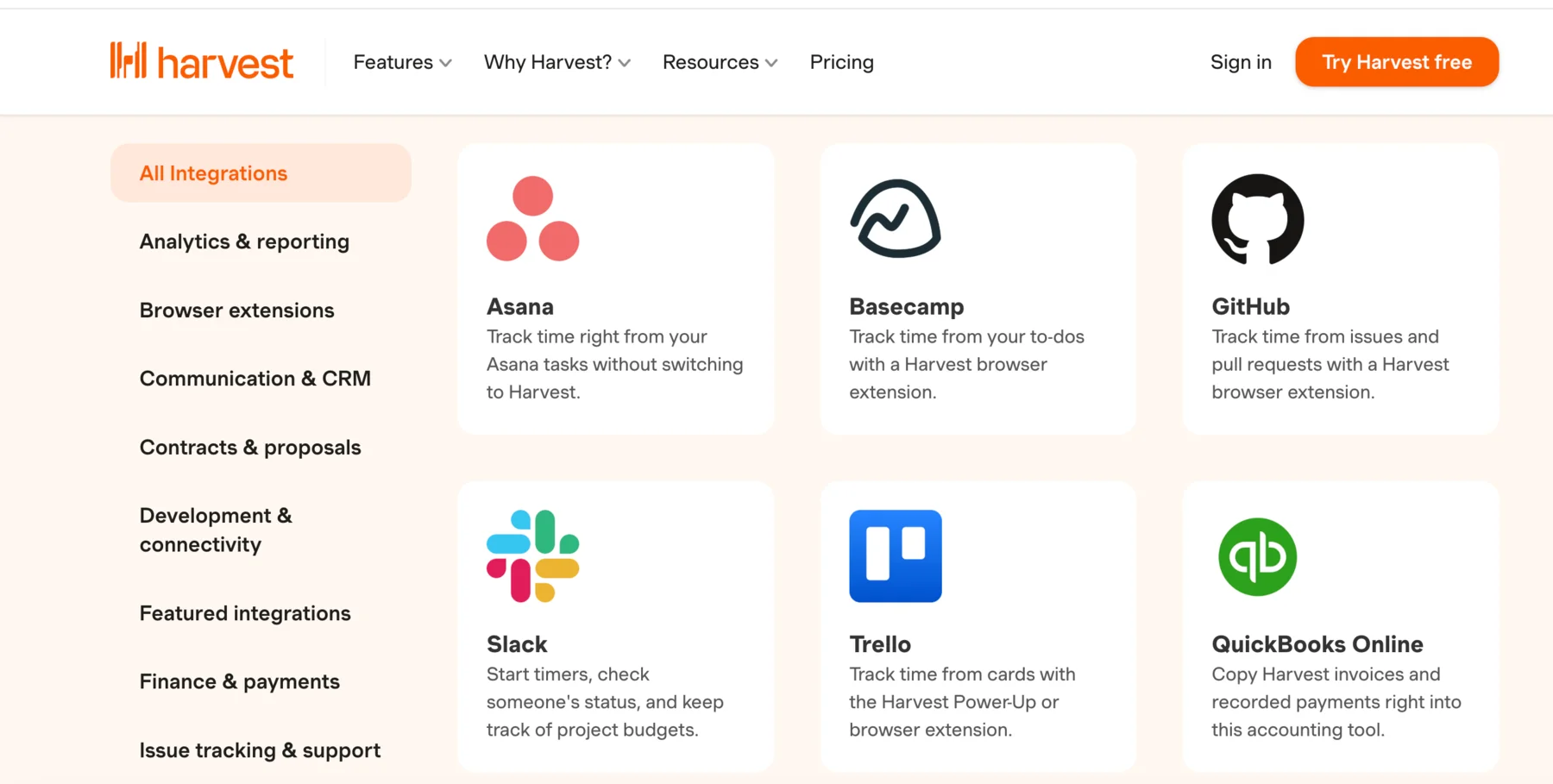
The app allows users to build custom integrations through Harvest’s API. However, Harvest doesn’t run a hub for sharing 3rd party integrations, as Clockify’s parent company does with the CAKE.com Marketplace. Let’s compare Harvest’s integrations with those of its prime competitors, Clockify and Toggl Track.
| App | Harvest | Toggl Track | Clockify |
|---|---|---|---|
| Number of integrations | 70+ | 100+ | 100+ |
Before moving on to the mobile app, let’s take a look at Harvest’s score so far.
| Harvest web app feature | Rating |
|---|---|
| Time tracking | 3/5 |
| Scheduling | 3/5 |
| User management | 4/5 |
| Reports | 3/5 |
| Invoices | 3.5/5 |
| Integrations | 4/5 |
| Web app rating | 3.4/5 |
When it comes to time tracking, Harvest’s mobile app is much more limited than the web version. The mobile version only covers:
Apart from your basic daily totals, Harvest’s reports and client invoices are extremely limited compared to the desktop version. You also can’t create new invoice drafts, control user permissions, add users, or access the web app settings.
In short, you can only use the mobile app for basic time tracking on the go. Because this is much less than Harvest’s competitors offer, the rating for the mobile app is 2.5.
The most recent updates in Harvest include a cleaner interface announced in April 2026 and improvements to the Invoice feature. Another big improvement is the addition of the calendar view for time entries, which further simplifies entering time.
Harvest doesn’t maintain a public product roadmap, but the company announces its updates on Harvest’s Product News page.
In conclusion, Harvest is a solid overall choice if:
On the other hand, the obviously limited features will make scaling your business much harder than it needs to be.
As far as pricing goes, Harvest is much more expensive than its prime competitors, especially if you also purchase Forecast for project scheduling. Also, the recent scandals involving hidden charges are among the main reasons for the low pricing rating.
So, if you’re looking for an easy tool to track hours and invoice clients, Harvest is an alright option. But if you’re looking for an app that will create zero friction as your team grows, you’ll likely be better off with another solution.
| Harvest | Rating |
|---|---|
| Pricing | 2/5 |
| Usability and interface | 3/5 |
| Security and privacy | 4/5 |
| Customer support | 4/5 |
| Customer reviews | 3.6/5 |
| Web app | 3.4/5 |
| Mobile app | 2.5/5 |
| Final verdict | (3.2/5) |
Tracking time is just the first step in running a growing business. As your company grows, HR compliance, rate adjustments, data regions, and better project management become increasingly important.
| Features | Harvest | Clockify by CAKE.com |
|---|---|---|
| Primary use |
|
|
| Time tracking |
|
|
| Projects and Scheduling |
|
|
| Invoicing |
|
|
| HR Compliance |
|
|
| Data handling |
|
|
With Clockify by CAKE.com, you can customize time tracking fields to suit your industry and company size — with 0 hidden fees.
Here’s how you can adapt time tracking with Clockify:
#1: Create user groups for simple people management
Adding people to groups is a huge help for automating tedious project management actions. Assigning people to user groups allows you to:
Clockify users aren’t limited to one user group — you can add team members to as many groups as you like. For example, a person can belong to both the “Contractors” and “Designers” user groups at the same time.
#2: Ensure HR compliance
Clockify ensures HR-compliant reporting with powerful features like:
#3: Customize your invoices
Clockify gives you deep control over invoices, much more suitable for large teams. The app’s native invoice customization includes:
You can also get add-ons that let you change where information appears on the page. Explore the CAKE.com Marketplace to find add-ons like Contractor Invoice Generator or Better Invoices.

🎓 Clockify vs. Harvest: Key Differences & How To Switch
Clockify also integrates with 2 other CAKE.com tools:
Ensure your team stays up to date on all fronts with CAKE.com’s Bundle plan at the record-low price of just $12.99 per user per month.
Finally, let’s explore some of the most frequently asked questions about the Harvest app.
Harvest is considered safe and reliable in terms of security. Harvest secures all connections by default with SSL/TLS encryption. Furthermore, the app backs up sensitive data at rest with AES-256 and bcrypt hashing. Other security features include 2FA and GDPR compliance.
On the other hand, users are raising concerns because of massive undisclosed overcharges. The issues began after Harvest was acquired by Bending Spoons in 2025.
You can use Harvest for free as an individual with no other users. Apart from this, Harvest allows you to run 2 active projects at a time. Тhe free plan also excludes invoice customization inside the app.
Harvest offers the following plans:
As of 2026, exceeding usage limits can incur additional usage fees — which are not publicly disclosed.
Harvest doesn't offer screenshots or keyboard/mouse movement recording. The app operates purely as a time tracking and invoicing tool. The main data an employer sees is the time, project, and task information users submit.
However, the desktop app can detect if you haven't moved your mouse or keyboard for a while and mark it as idle. In this case, Harvest will ask if you'd like to keep or delete the idle time.
Harvest is a solid choice for small businesses looking for a time tracker with simple client invoicing. If you require employee management features like PTO requests or advanced project management, Harvest will likely fall short.


