

Alex Beadon
Founder of Together We Launch
"We use Clockify to see where our time is going and how to solve any problems. It’s just so beneficial."
More stories

Find new apps that fit you team's needs
Are you looking for a simple plug-and-play time-tracking solution for your team? If you’re wondering whether QuickBooks is up for this challenge in 2026, you’re in the right place.
I’ll take a deep dive into QuickBooks Time’s pros and cons, unpack its capabilities, and challenge its time-tracking features (and recent redesign).
As a writer for Clockify by CAKE.com, I’ll analyze QuickBooks Time’s pricing and features on a scale of 1 to 5 to reach the final verdict.
Let’s get to it!

QuickBooks Time (formerly known as TSheets) is a time-tracking solution that integrates with QuickBooks Online — a separate, dedicated payroll software.
The recent 2025 QuickBooks interface redesign is slowly integrating different QB apps into a single, multipurpose platform — intended for time tracking, payroll, tax preparation, and more.
So, what is QuickBooks Time in 2026?
At the time of writing this review, QuickBooks Time is gradually being rebranded as QuickBooks Online. In fact, QuickBooks Time is now a paid add-on that requires a QB Online subscription.
To make things even more complicated, the mobile version of the app for employees is currently called QuickBooks Workforce. This is why the available info can feel extremely inconsistent and overwhelming for new users.
My QuickBooks Time review focuses on the time-tracking aspect of this new hybrid app.
Before we get into it, here’s a quick overview of what you can expect from QuickBooks Time in 2026.
| QuickBooks Time Pros | QuickBooks Time Cons |
| ✅ Integrated with other QB products | ❌ Features scattered across multiple interfaces |
| ✅ Customizable windows | ❌ Slow responsiveness for 2026 |
| ✅ ”Sandbox mode” to try out features before you put in your real financial data | ❌ Confusing design and disorienting UI |
| ✅ Free 60-minute setup call (available for 30 days) | ❌ Visual glitches |
| ✅ Map of active users | ❌ Impossible to fully remove members |
| ✅ Customizable break preferences | ❌ No free trial |
| ✅ GPS Geofencing | ❌ Unintuitive in-app logic |
The pricing for QuickBooks’ time-tracking features is complicated to navigate, to say the least. Apart from being the most expensive time-tracking tool on the market, the app’s pricing varies by region.
To track time, you’ll first need a QuickBooks Online account starting at $38 per month (for 1 US admin and 1 accountant seat), with a 30-day free trial. QB also offers a discounted rate for the first 3 months at $19 per month (excluding the free-trial month).
Also, I was disappointed to learn there’s no annual commitment discount.
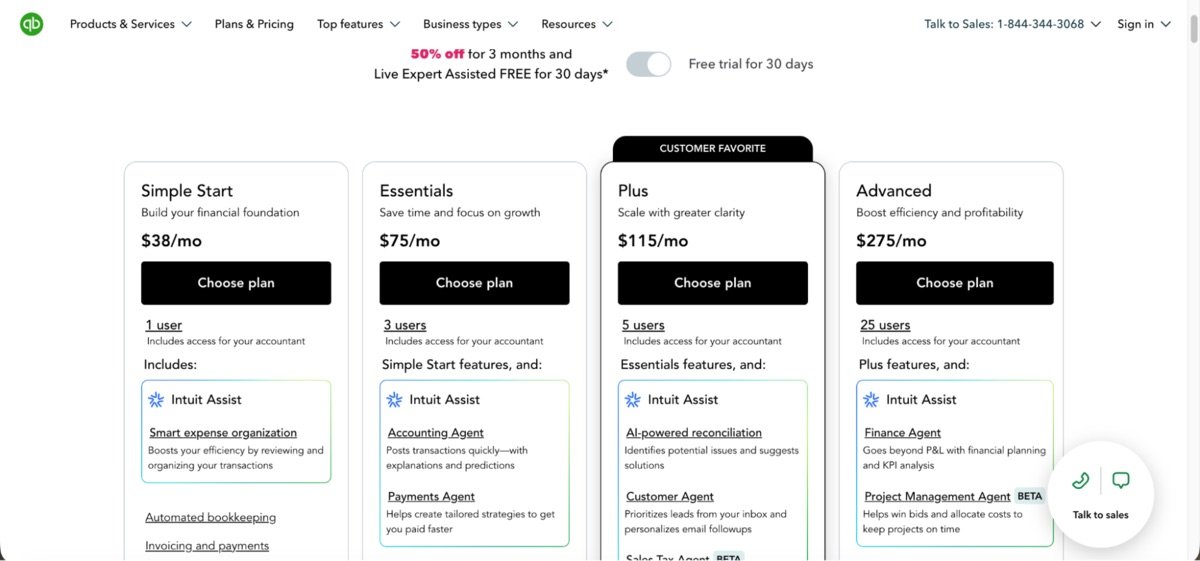
Surprisingly, you have to pay extra for the actual time-tracking features.
So, after buying QB Online, you can choose between:
Oddly enough, that’s not all. To invite your users to track their time in your virtual QuickBooks workspace, you’ll have to pay an additional $8 per user each month.
Keep in mind that this still doesn’t give you the payroll features that QuickBooks is known for. Payroll features are billed separately, as an add-on.
Below, I’ve compared the actual amount you need to pay for QuickBooks Time, and two of its competitors in the time-tracking category: Toggl Track and Clockify by CAKE.com.
For full transparency: I’ve made the calculation for the cheapest required QuickBooks plans, but without the 3-month discount, to keep it realistic for long-term time tracking. To keep it fair, I’ve calculated the amounts for the cheapest paid plans for Toggl Track (Starter plan) and Clockify (Basic plan), without the annual discount that each app offers.
| Number of users per month | QuickBooks Time pricing per month | Toggl Track pricing per month | Clockify pricing per month |
| 10 users | $138 | $100 | $49.9 |
| 50 users | $458 | $500 | $249.5 |
| 100 users | $858 | $1,000 | $499 |
The only upside of QuickBooks’ pricing model is that the app does get progressively cheaper as you add more users, compared to Toggl Track, for example.
Trying to log in with my email and number brought up more than a few error windows, something that QuickBooks is notorious for.
After finally logging in, I was surprised to see the app wasn’t what I expected at all. The design felt modern and fresh, even welcoming me with a personal greeting.
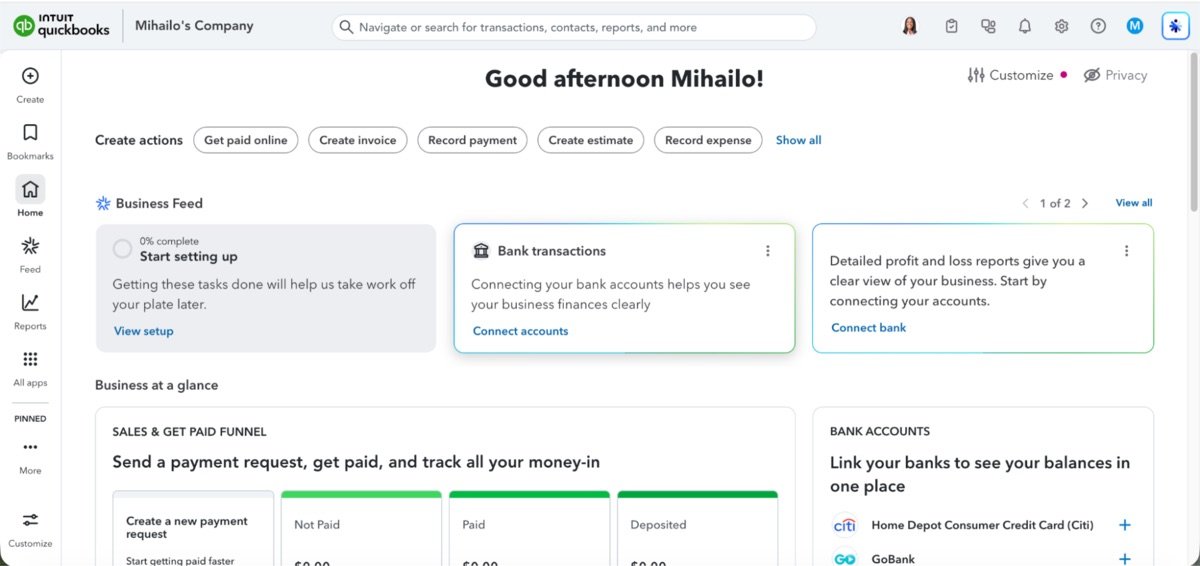
I liked how intuitive the interface looked at first glance. Each set of features was represented with a unique icon design. However, the light and fun impression was quickly replaced by a cloud of confusion. The integration of the vast array of features under one roof — from time tracking and payroll to invoices and marketing — seemed like a big challenge to navigate.
It’s integrated, yes — but the learning curve for anyone new to business would probably be too steep, especially if there are 10+ people in your team.
In the redesigned interface, different sets of features are now called “apps” — even though they are actually the same app: QuickBooks Online. These “apps” are sorted by use case. Still, it was easy enough to locate the time-tracking features under My apps > Time.
I must say I was a bit disappointed with the loading speed. It took unexpectedly long to load when jumping between various time-tracking options.
Depending on how many boxes each feature needed to load, the app left me with a blank screen for up to 8 seconds at a time. After double-checking that it wasn’t a cache, browser, or connection issue, I honestly have to say the app feels way too slow for 2026.
It’s also important to address the elephant in the room — QuickBooks Online’s visual glitches. Most prominently, when expanding various side windows, some elements tend to obscure one another, resulting in a strange and unprofessional appearance.
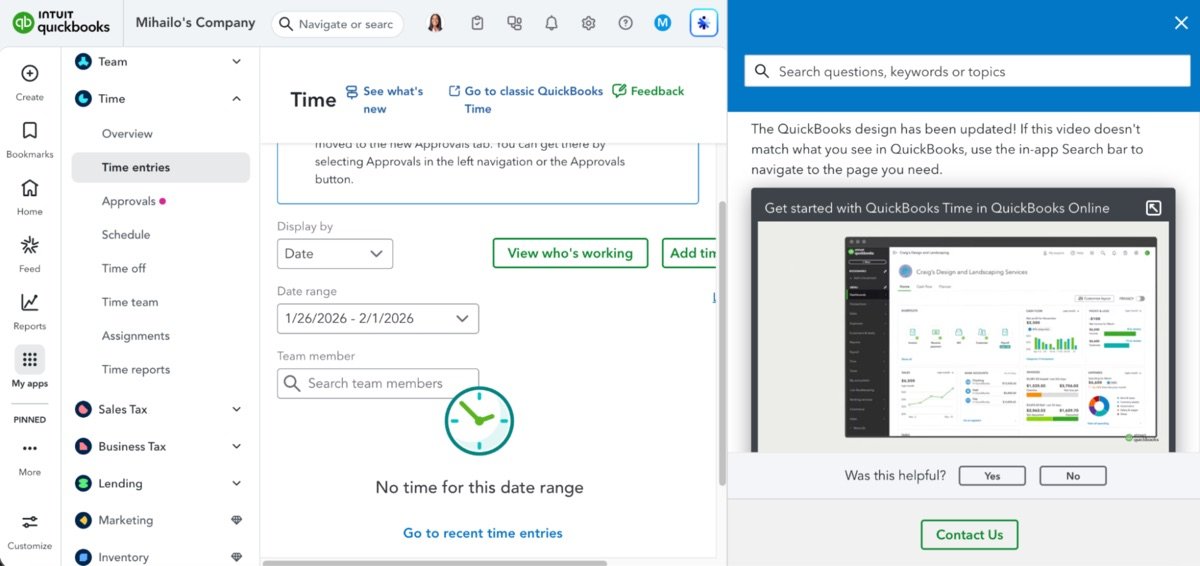
On the flipside, the onboarding process was fairly smooth, with many helpful windows that show how to use different features in the “app” you select. You can always revisit them by clicking the What’s new button above the main window of each feature.
QuickBooks is made by Intuit, a company high on security with PCI, SOC, ISO 27001, and VPAT compliance. All data is encrypted at rest and in transit (TLS). Intuit’s apps ensure secure logins through multi-factor authentication (MFA).
As for GPS tracking, the app only collects data while employees are clocked in. The platform can also be configured to meet DCAA (Defense Contract Audit Agency) time-tracking requirements.
🎓 DCAA-Compliant Timekeeping — Definition, Requirements, and Tips
As for physical security, Intuit’s global security statement assures that its servers are protected 24/7 with full-time security staff, video surveillance, and alarms to prevent high-tech breaches.
But QuickBooks is often targeted by attempted account takeovers and third-party phishing campaigns. A recent major cyber attack even resulted in a 2024 class action against Intuit. The company refused to openly state how many people were impacted or when the intrusion was discovered. This class action lawsuit is still ongoing in 2026.
On a similar note, the 2025 QuickBooks lookalike website scam impersonated the QB website. Some of these attacks even managed to withdraw funds from bank accounts linked to QuickBooks by logging in to unsuspecting users’ QB profiles.
Overall, the app leaves the impression of being highly secure and resilient. However, successful impersonator attacks will likely repel users high on security.
If you feel stuck in your QuickBooks Time journey, there are several ways to seek help and support inside the app:
Yet, none of them seems remotely reassuring. As of 2026, you’ll most likely be encouraged to consult the new AI assistant called Intuit Intelligence (still in beta).
When you click on the “?” icon next to your profile image or first name initial in QB Online, the AI assistant pops up in a side window. Next to it, there’s an option to search through relevant help articles. If you choose to search for something there, your answer will still be AI-generated.
I managed to find the QuickBooks Help center by manually searching the web, finally bypassing the AI-support wall.
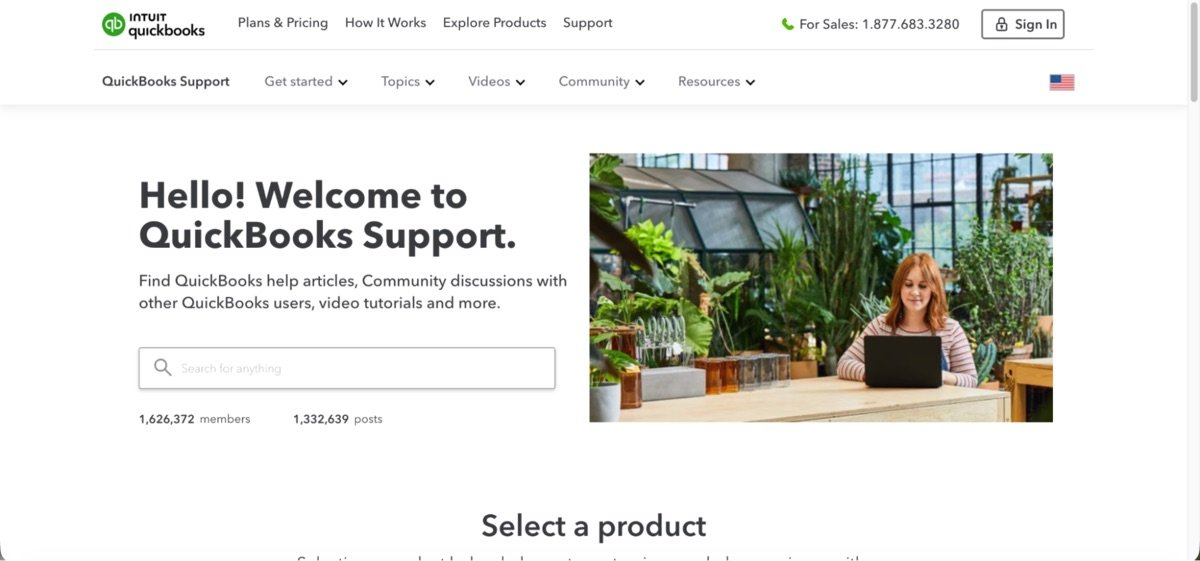
As far as human support goes, you can seek QuickBooks payroll assistance, but it’s reserved for video calls only, no email or chat. If you opt for a plan that includes the 3-month discount, you also get “live expert help for 30 days” for free.
However, you’re subtly discouraged from reaching out for any user-experience-related issues, as confirmed by Intuit Intelligence.
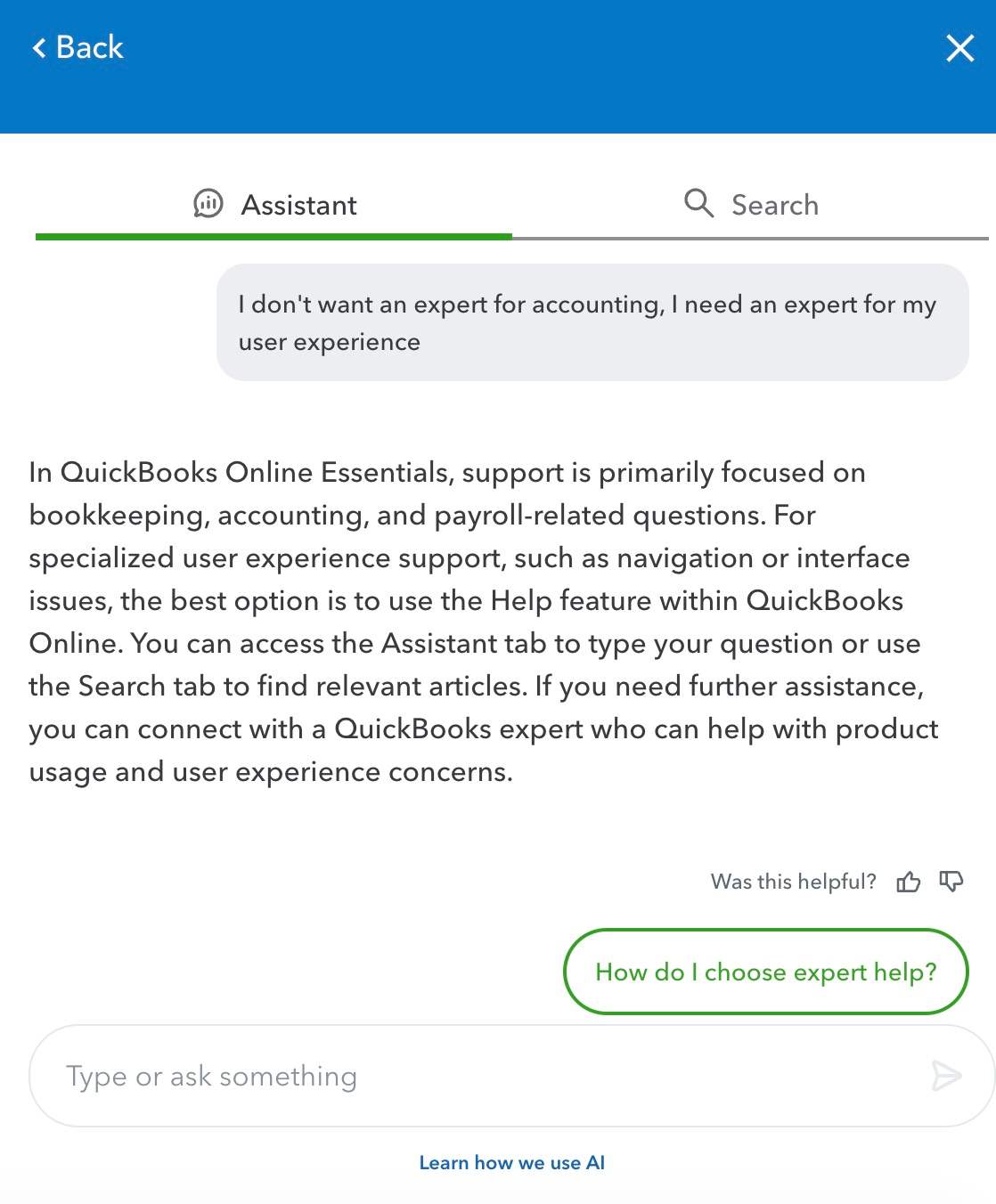
I finally found a chat option in classic QuickBooks Time, but couldn’t send a message because of my time zone. They’re only available from 6 a.m. to 6 p.m. Pacific Time, Monday to Friday. (In contrast, Clockify offers 24/7 full human support over phone, chat, and email on all plans.)
Human support exists, but it’s mainly intended for payroll assistance (it’s also very difficult to reach).
After this, I simply tried my best to ignore the visual-glitch-related issues and move on with my exploration of the app.
With overwhelmingly positive reviews on various software evaluation websites, it’s hard to understand how QuickBooks Time could be so unintuitive to navigate and use.
After sifting through many reviews, I finally realized that all of the positive reviews are mostly praising the integration part of the app — specifically for payroll and receiving payments.
As one QuickBooks user states: “I like QuickBooks Time because it gives me easy access to the money I earn from my job, and it’s also helpful for managing my W-2s.”
Another favorable review notes that QB Time is suitable for smaller on-site teams but becomes complicated when you scale to a 7+ person team.
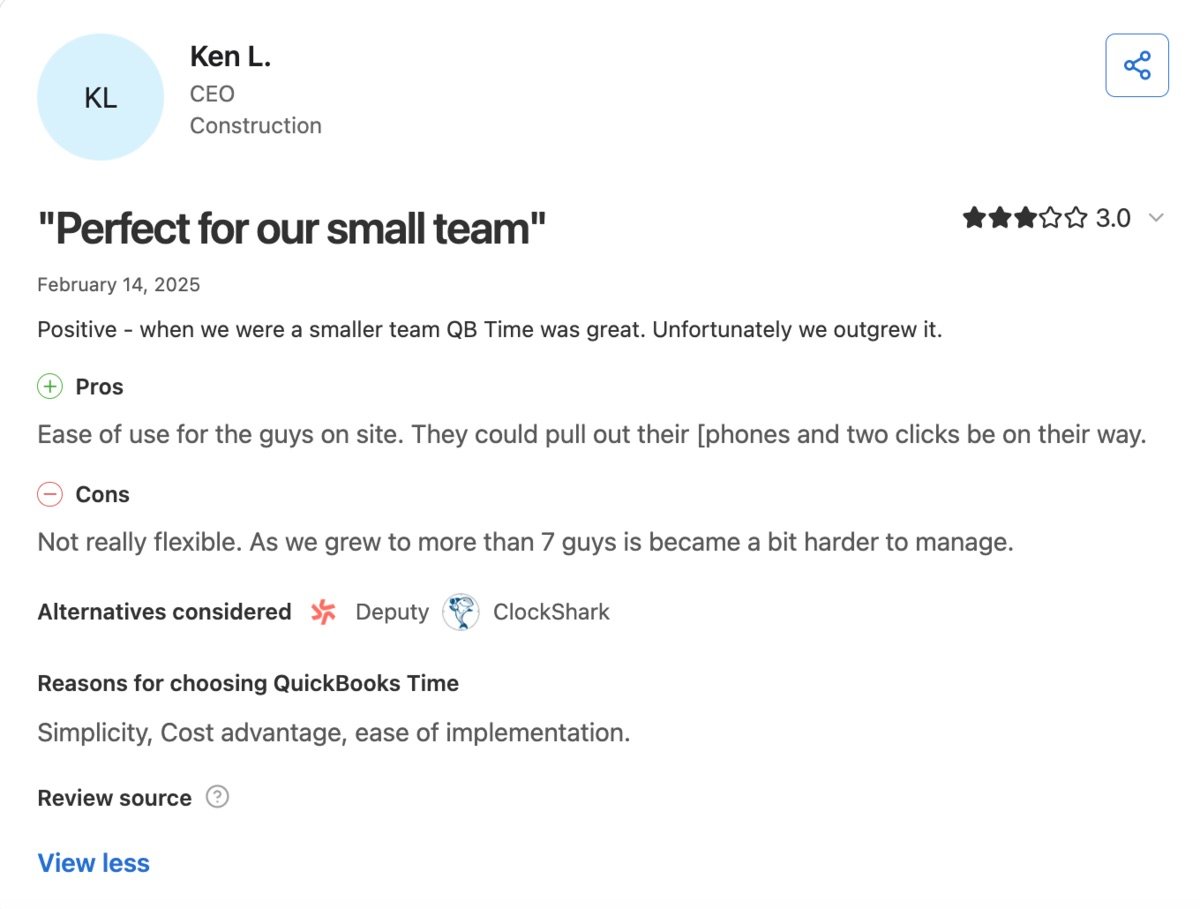
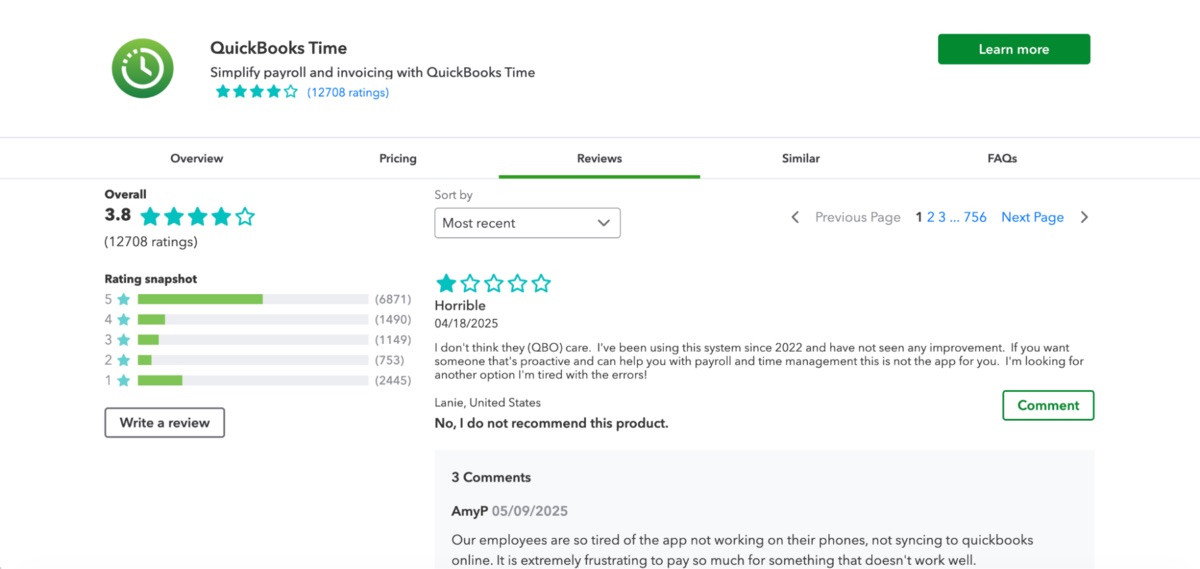
Oddly enough, the harshest user reviews come from the QuickBooks Time Reviews section on their official website. Quite a few users commented that the app hasn’t improved much since 2022.
At the time of writing this article, there are 6,871 five-star reviews and 2,445 one-star reviews. The lowest ratings are increasingly frequent as we approach 2026.
Also, the Intuit page on Trustpilot has a whopping 93% of 1-star reviews that predominantly mention customer support.
You can check out different user perspectives and opinions on the app on pages like:
My final verdict for this section is 4.6 out of 5, but only because of the high overall scores from multiple sources. However, the many positive reviews are contrasted with some extremely negative comments that have genuine merit across multiple review websites.
The redesigned QuickBooks Online interface is useful for initial setup and for understanding which features you have available.
However, to navigate to the actual features and set specific preferences, you’ll only be able to do it properly in the classic QuickBooks Time interface. Luckily, you can quickly jump to it from each of the Time app’s features — the link to visit the old interface is always neatly displayed near the top.
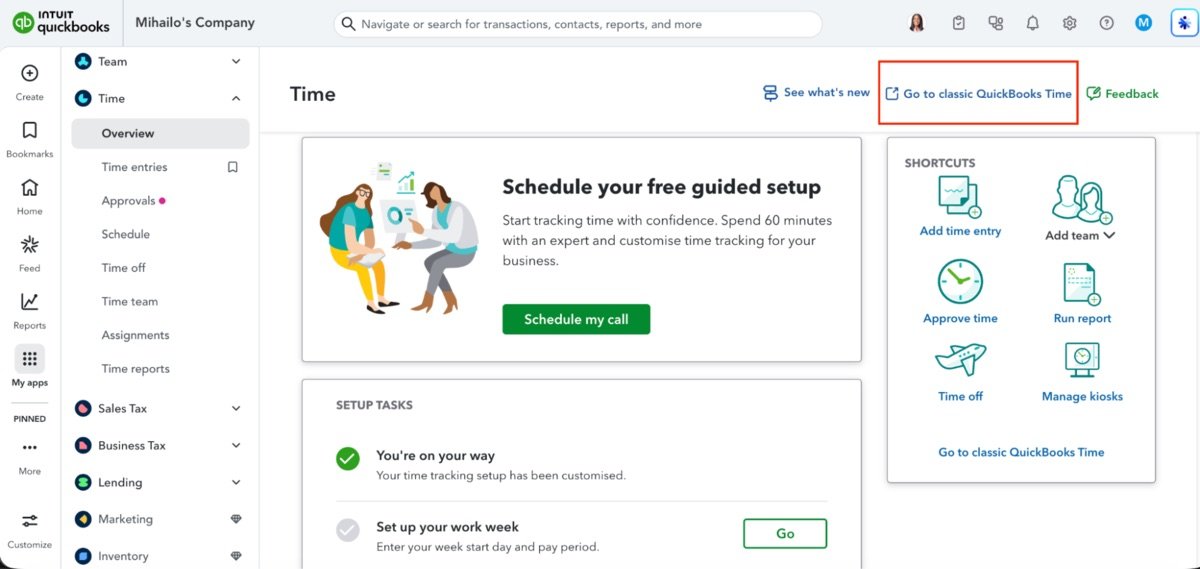
Let’s dive into each feature and see how helpful they are for time tracking.
To track time in the app, navigate to the Time entries tab. They’re mostly straightforward and work as intended. There are 2 ways to track time from this view:
The second option will start your timer until you clock out or select a previously set-up Time break entry.
As a manager, the Time entries tab allows you to see:
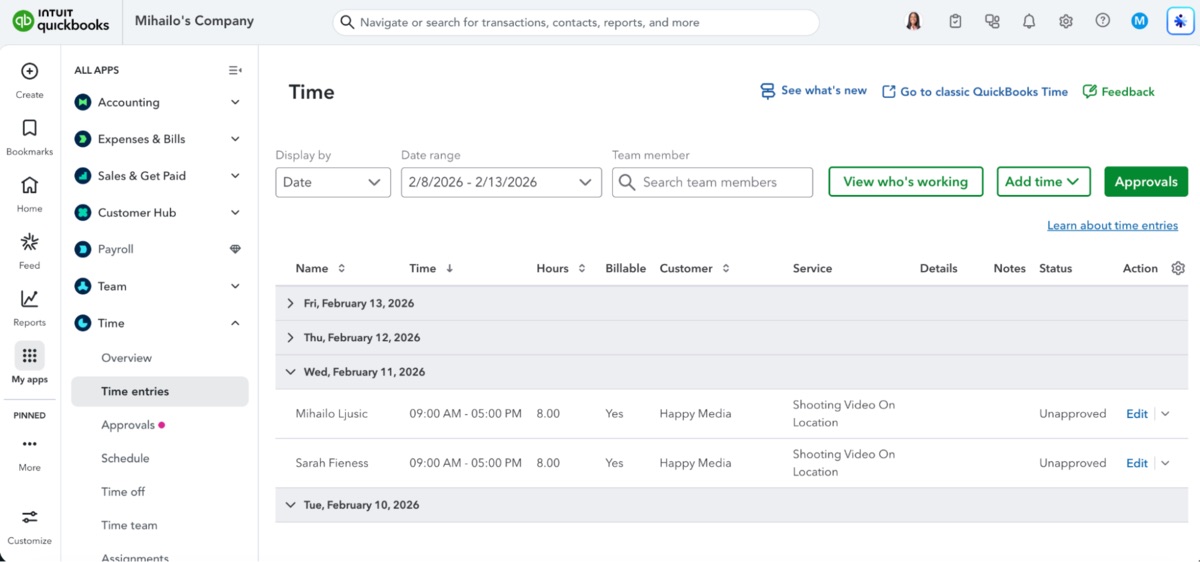
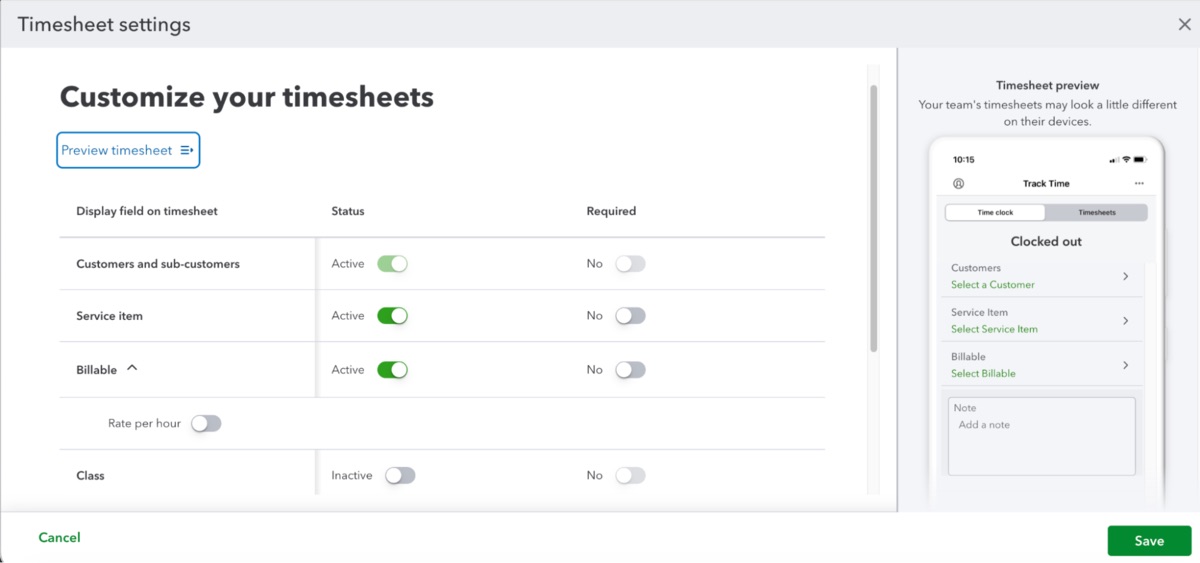
In your workspace settings, you can also customize which fields your employees must complete to submit their time entries.
QuickBooks Online even shows you what it looks like if you’re tracking time as an employee in the mobile app. This preview updates based on which fields you enable or disable.
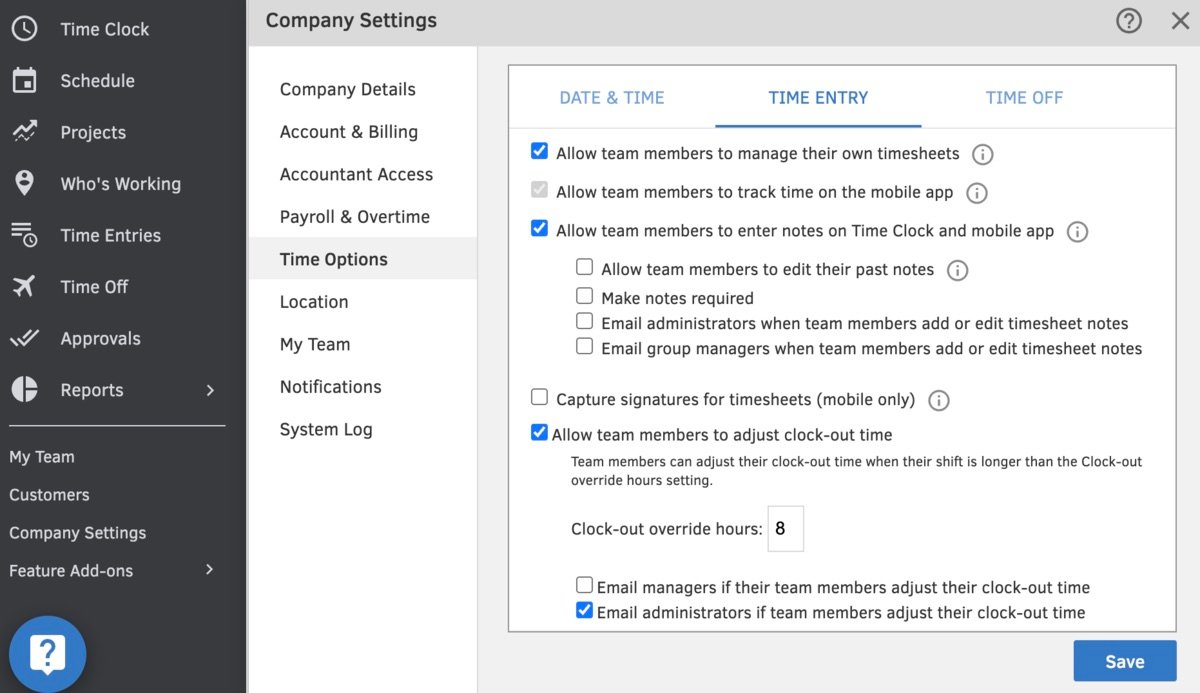
In settings, you can also set email reminders for clocking in and clocking out. The email reminders worked well for me, as well as the browser notifications that reminded me to fill out my timesheets for the day.
However, as it took me quite some time to figure out, you still need to navigate to the classic QuickBooks Time interface to access the more detailed settings. From there, you have to go to your Company settings to set up options like “clock-out override hours” and similar compliance-related settings.
The tracking is primarily tied to the Customers field, which limits flexibility depending on your industry.
To simplify tracking your time and billability, you’ll likely need to use other features that QuickBooks Online offers in another one of its “apps.” This makes for a steep learning curve and will likely take quite some time to get used to.
After your users have tracked their time, you’ll be able to approve their time entries. In my experience, this feature mostly works as intended.
For some reason, in the Approve window of the QuickBooks Online app, only the bottom third of the screen is reserved for the actual time entries when you open up this menu. Sadly, this can’t be changed, which makes scrolling through time entries for approval tedious and messy.
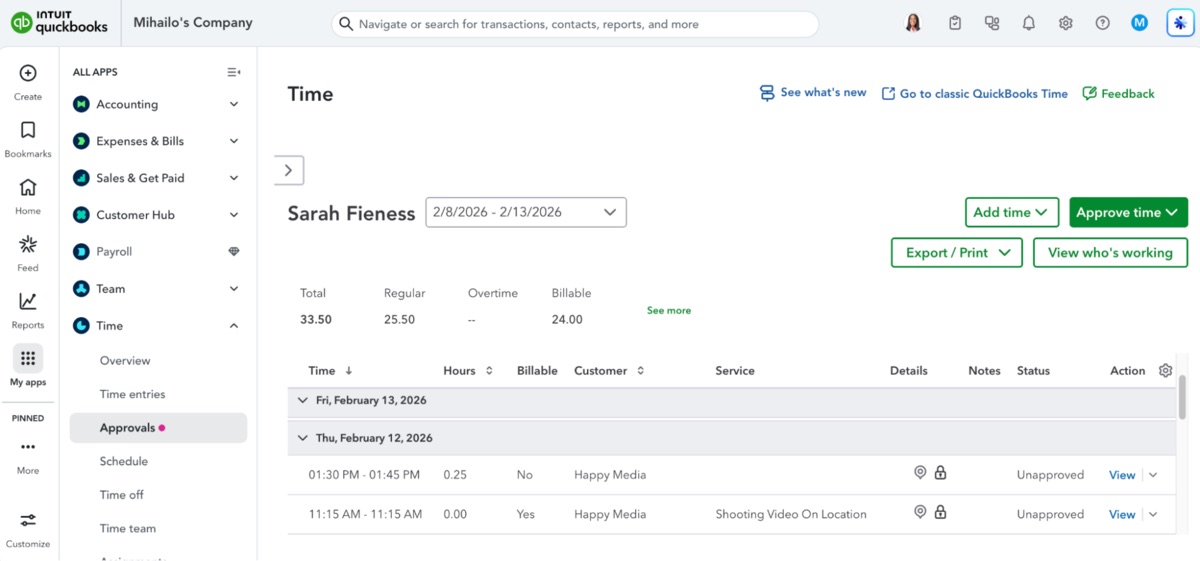
The situation isn’t much better with the classic QuickBooks Time interface. The app requires you to configure payroll rules and doesn’t allow you to approve any time without it. This is probably due to the software’s core philosophy — payroll first, time tracking second.
Sadly, this means less flexibility in time tracking and an accountant-first approach that’s less versatile than other time-tracking solutions on the market. On the other hand, if you’re using QuickBooks primarily for payroll, these limitations make perfect sense.
When you open up the schedule feature in the Time app, you’re greeted with a calendar, where you can select the time range you want to view. By selecting My, you get to view your entire team or only your own week.
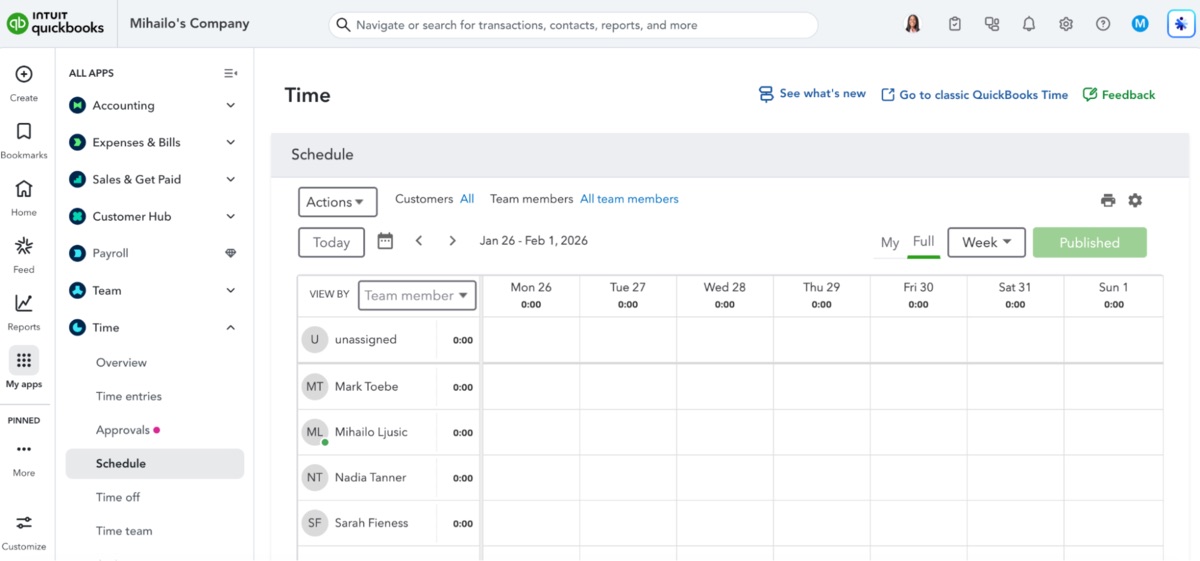
Selecting a blank time slot in the calendar opens a window where you can schedule daily tasks for a specific user. After you enter the time and the task name, you can also set your customer’s field and their location (a fixed address, city, or general area).
However, the view is incredibly messy. This is one of those times where I just couldn’t ignore the visual glitch, because it was just too distracting for work. When I clicked on a blank time slot, the boxes and buttons suddenly obscured each other so much that they were barely readable.
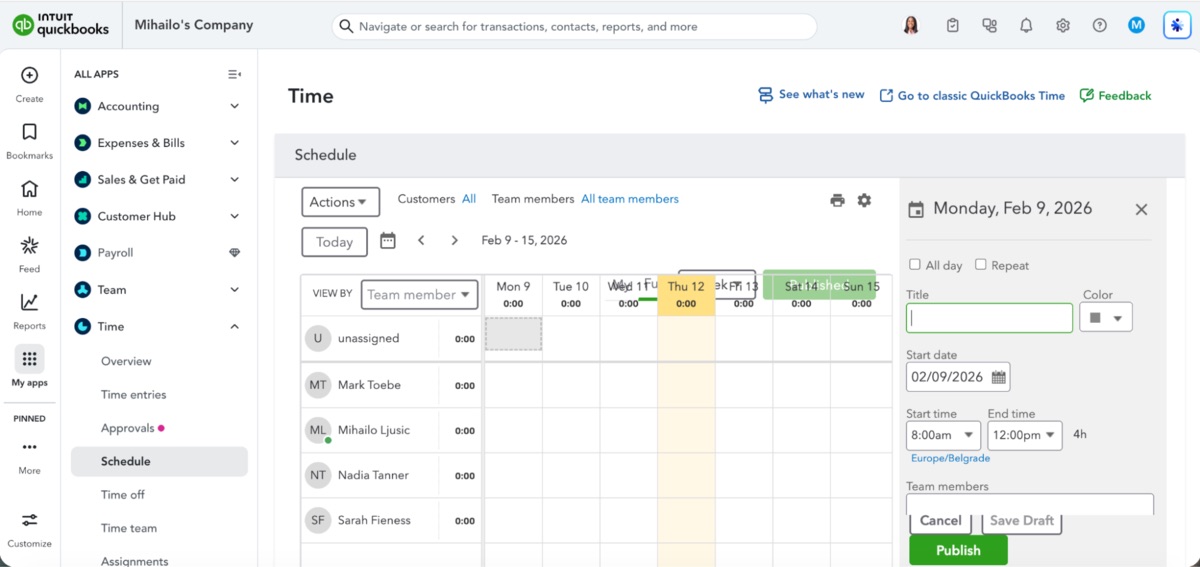
Because of this, I decided to go to classic QuickBooks Time once again and try the feature there. This was a much better experience.
Despite the classic interface feeling much less inspiring, with gray tones dominating, at least the buttons were visible and placed right. From there, I could schedule a 30-minute meeting for Monday, assigning it to another team member and me.
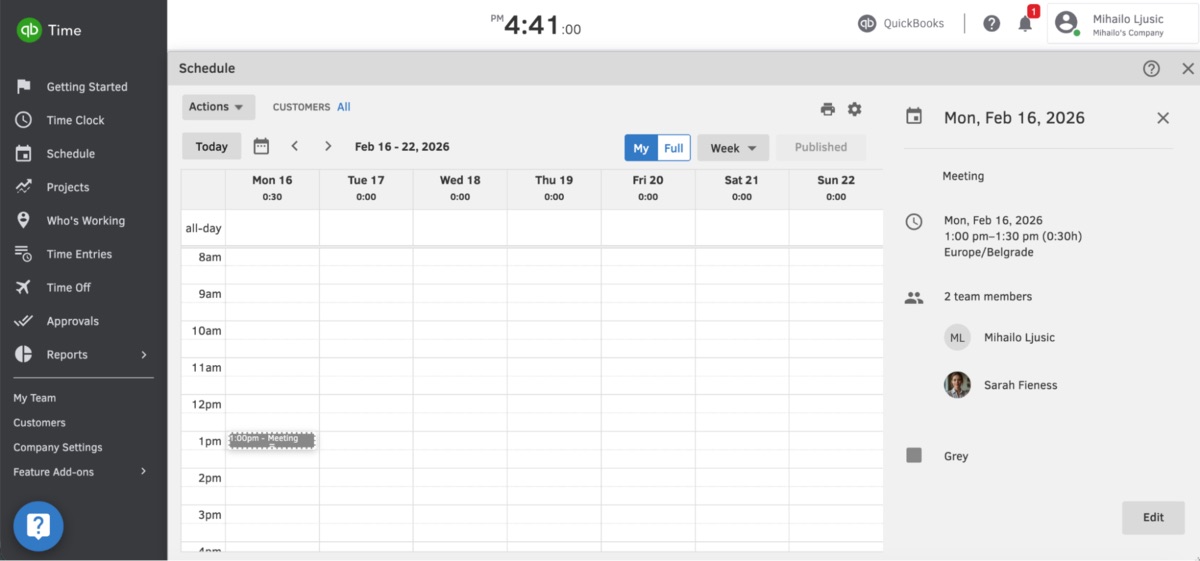
In addition, you can save a shift template by clicking Actions > Save week as template.
In my opinion, this feature’s big downside is that you can’t simply set the maximum number of hours for each worker. Yet, that would ensure you don’t exceed your team member’s daily or weekly work limit when scheduling.
At first glance, the time off window in the new QuickBooks Online interface looks simple. When I clicked on the Time off feature and selected Add Time Off, I was quickly greeted with this screen:
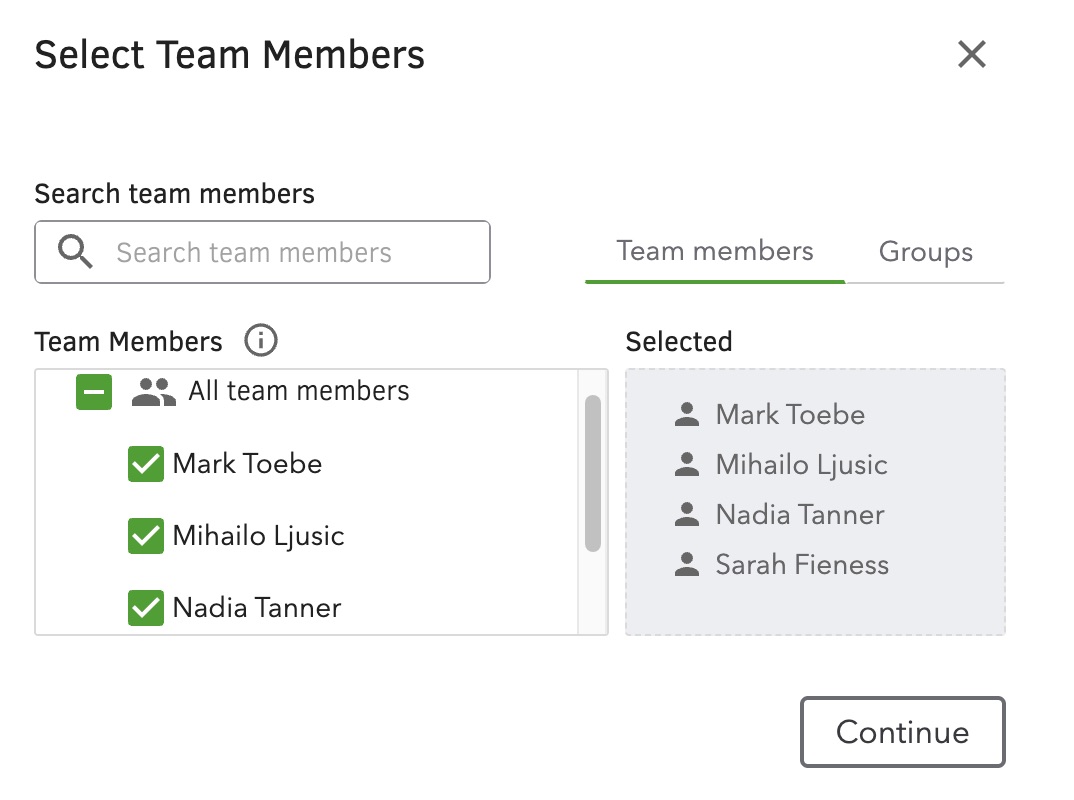
From here, I could add time off for my team. Even though the window is fairly intuitive, it still feels limiting. It only allows you to add time off based on the preexisting time off categories:
But how do you set a custom PTO policy for your employees?
I tried the Intuit Intelligence AI Assistant again, but to no avail. QB Online’s empty window kept encouraging me to navigate to the classic QuickBooks Time interface. Fortunately, that actually helped, once again.
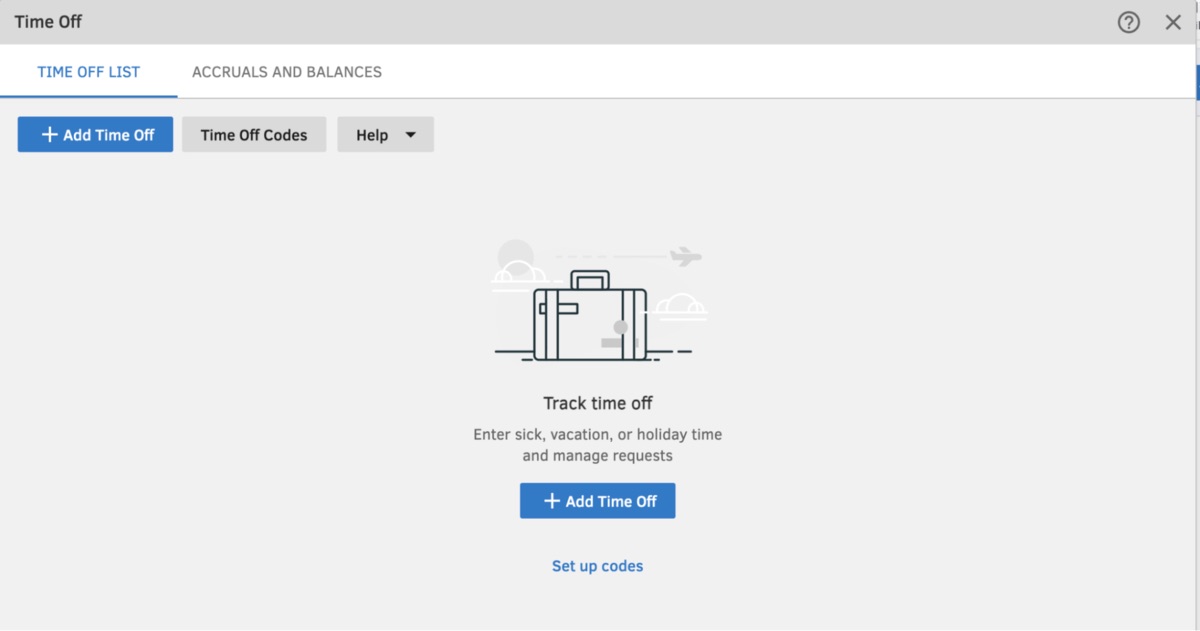
So, in the classic interface, you’ll see the Time Off Codes option — which is how you add time off policies in QuickBooks Time.
From here, I was able to set up specific time-off codes for 2 users. However, after navigating to Accruals and Balances to add the off days, I was greeted with this message:
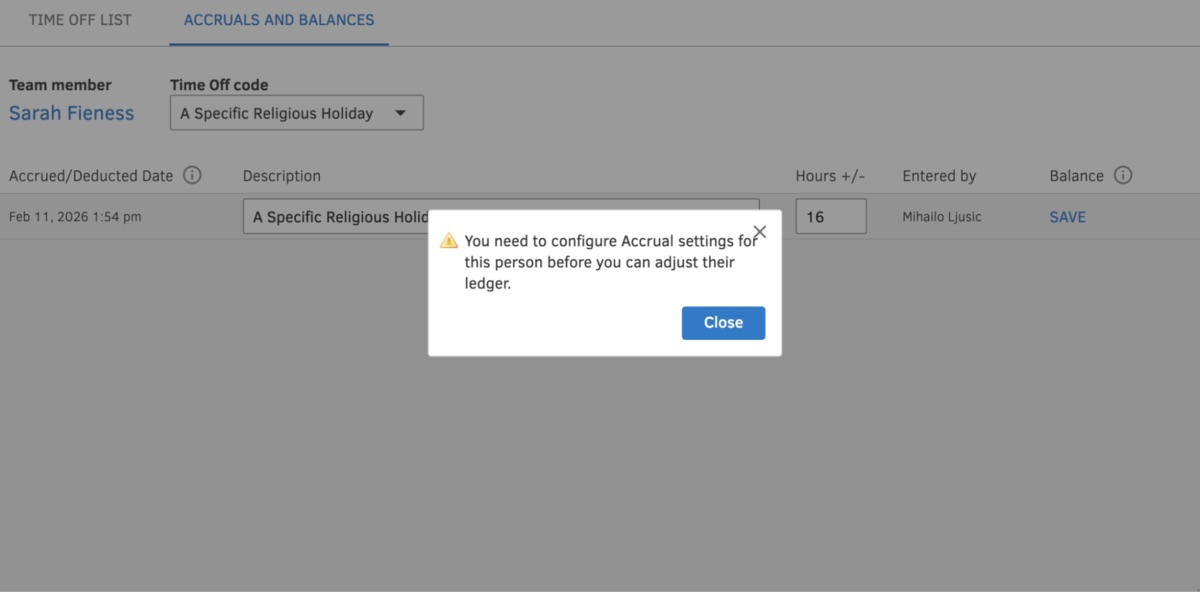
Turns out, there’s an extra step required. You have to go to your settings, set up manual accruals and their maximum limit, then navigate back to this window.
Then you will be allowed to enter the number of hours you want to allow your worker to request. Yes, you heard that right. Bizarrely, if you want to assign multiple off days per time off policy, you’ll have to manually calculate the number of hours for each one. There’s no option to enter the number of available days off.
The same goes for employees requesting time off: They need to manually enter the number of hours they'll be absent for each day.
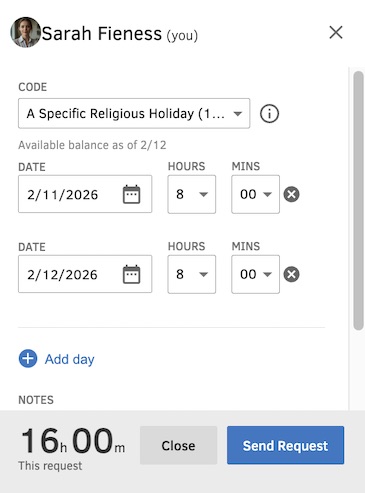
In my opinion, this seems highly impractical. Compared to other PTO tracking solutions, QuickBooks Time’s steps seem redundant, clunky, and unnecessarily slow, especially for 2026.
Another downside is that time-off requests appear as time entries and can’t be excluded from view without a complicated workaround.
Managing your team is one of the fundamental features in QuickBooks Online, named Time team in the Time app.
Adding users is as simple as clicking on Add or Invite team members in the Time team window.
Adding is useful when you need to generate invoices but don’t require your employees to track their time. Instead, you manually enter their time so you can bill your client.
Inviting someone lets you delegate time tracking to your employee. This also allows them to clock in and out of work and track their physical location with the geofence feature.
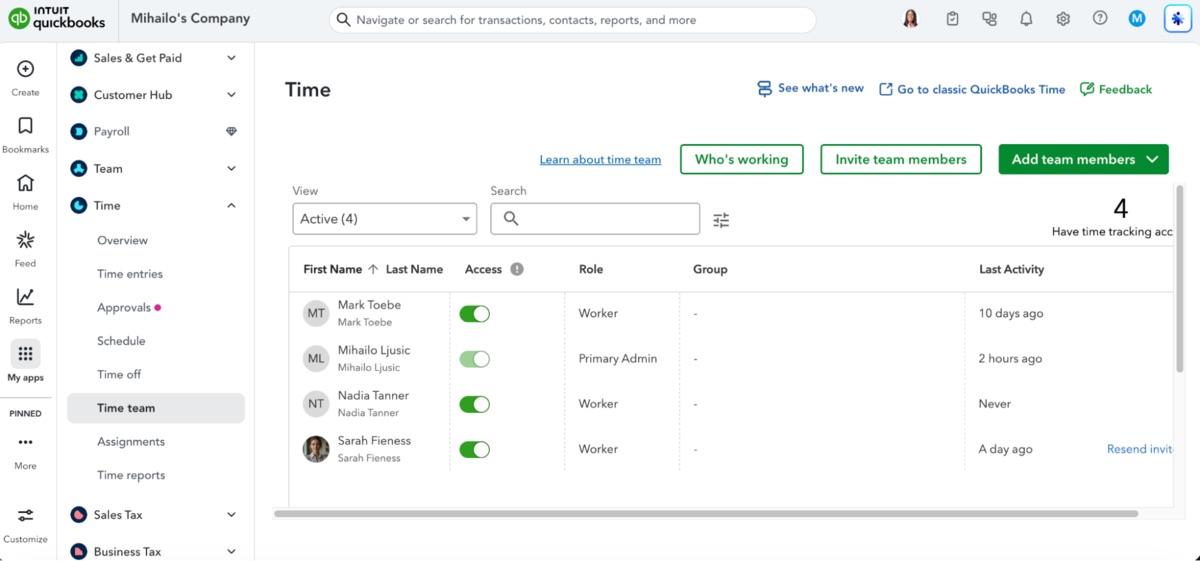
However, this feature is not inconvenience-free. After accidentally adding someone instead of inviting them, I tried to remove them so I wouldn’t have multiple users with the same name. However, this was impossible because the app’s internal logic won’t let you delete users; you can only deactivate and archive them. This was a bit frustrating.
If I disregard the pet peeve with archiving instead of removing users, I haven’t found other major issues. The time team feature looks very similar in the classic interface as well, and the logic is consistent. It does take some time to sync (up to 10 minutes), as is the case with all other data in QuickBooks.
There are 2 kinds of reports featured in the new QuickBooks Online’s Time app in 2026:
Since we’re not covering payroll features, we’ll only take a look at the second one. The Itemized total time reports in QuickBooks Online allow you to select different filters and analyze:
Unlike competitor time report features, QuickBooks Online’s reports feel quite underwhelming — especially in terms of design.
When you navigate to the filters section — where you decide what you include in your report — you are greeted with an ancient interface.
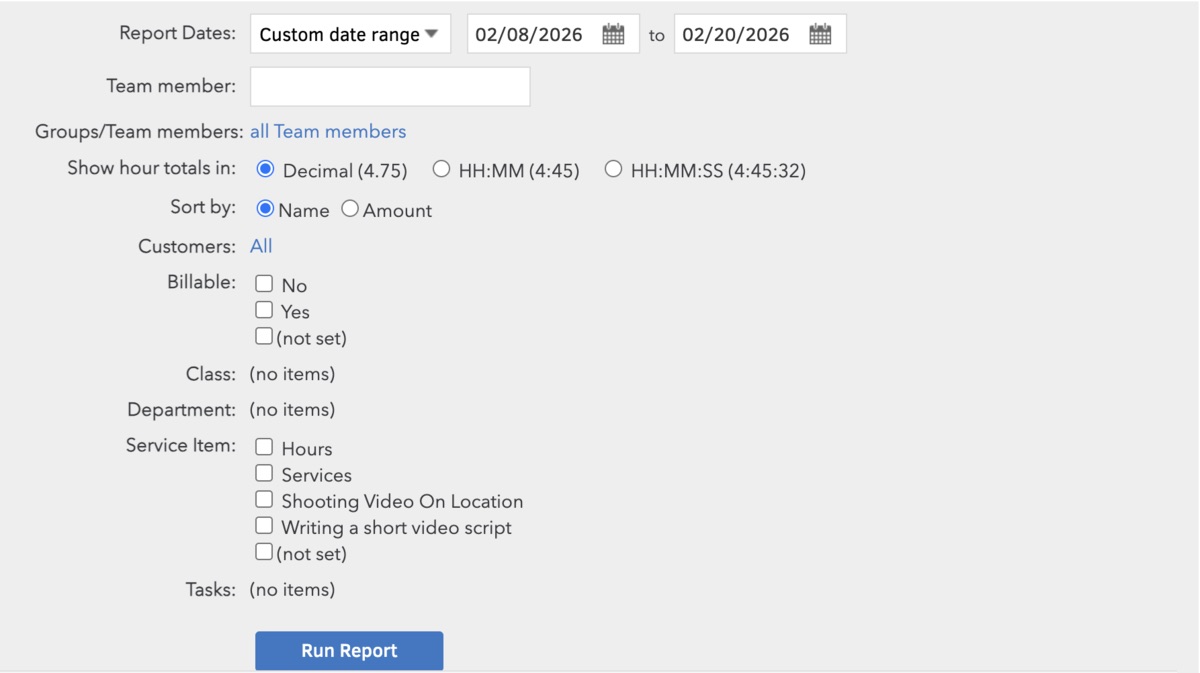
What strikes me as the most frustrating is that you have to enter each user’s name manually as text. Although this is probably fine for smaller teams, zero visual feedback would feel like a nightmare to navigate for anything more than 10 members.
The other filters also look cumbersome and visually unappealing. Not to mention, this feature is included in the new, redesigned interface. But after checking the classic UI, this feature’s design was identical.
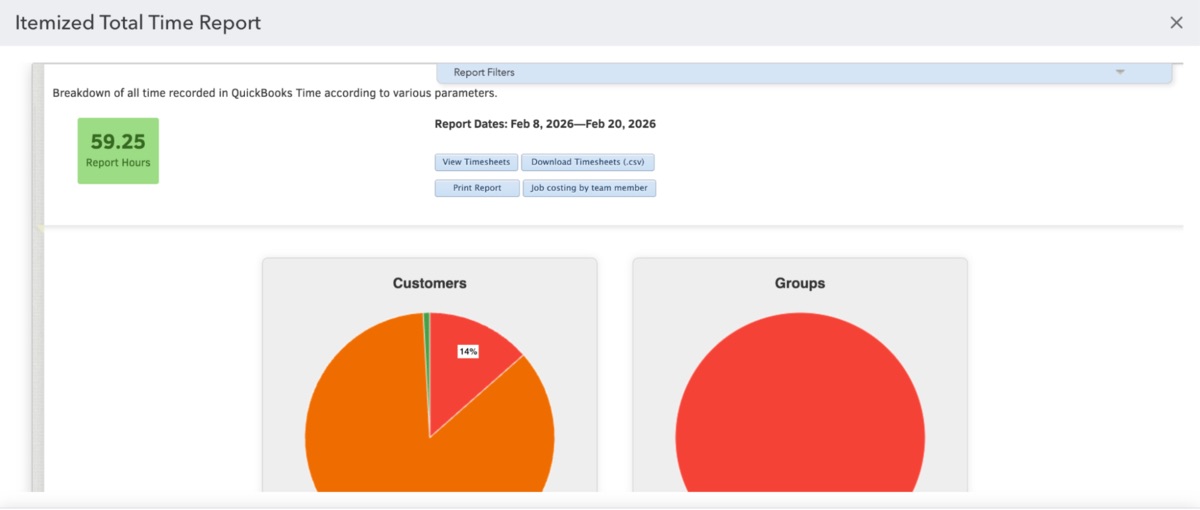
In terms of its functionality and accuracy, Itemized total time reports are accurate and work well. The data is correct, and the filters function as expected.
Projects is one of the features that still haven’t been migrated to the new interface — at least not fully. This functionality also works differently based on what add-ons you purchase in QuickBooks Online.
With my QuickBooks Time Elite subscription, I could only see a window to add a project. The project is just your previously set up customer, but you can also add a new one here. From the options I was offered, I couldn’t find anything more than the date range, location, and project duration.
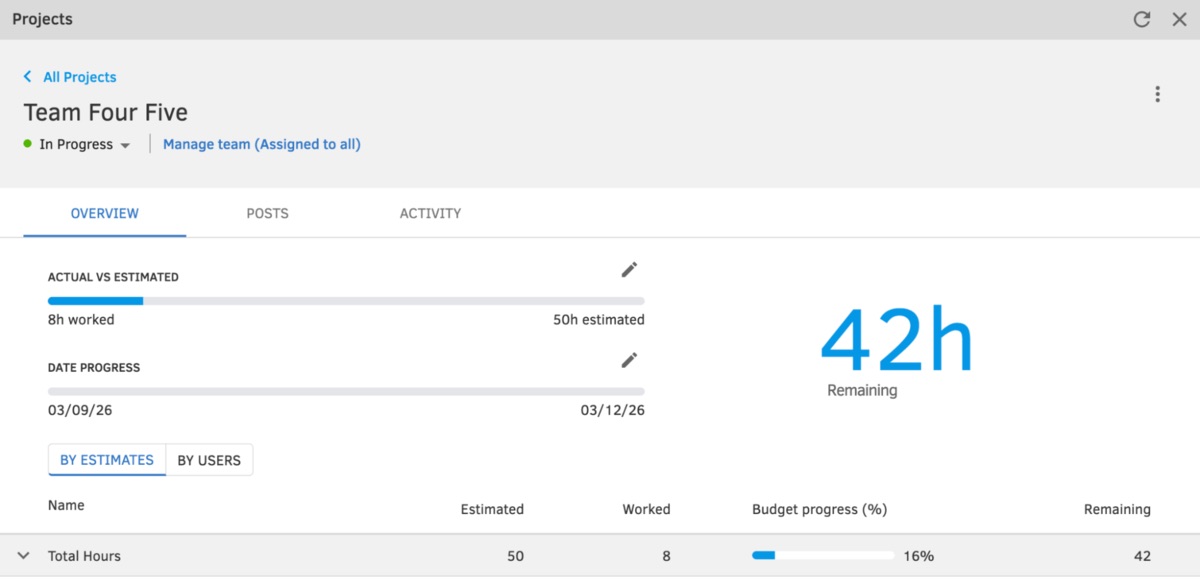
For some reason, QuickBooks Time included previously tracked time for this customer, even though I selected a time range in the future for which no time was tracked. The inconsistent naming of “projects” and “customers” left me very confused.
Since I didn’t like this, I wanted to see if I could start fresh, with no tracked hours. When I tried to delete this project, QuickBooks also deleted my entire customer from both QB Online and QB Time. This left me practically frozen. I’d just deleted my customer, and there was no option to undo it.
I was notified about it, but I was misled into believing I was deleting a simple project estimate. Instead, I deleted what I previously set up. If you’re late in realizing these changes happened, it can cause you a lot of trouble to revert these mistakes. This can cause trouble when creating accurate invoices and creates a serious app-reliability issue.
As far as geofencing goes, I found quite a few obstacles in figuring out its logic — mainly in terms of design and the way QB names things.
Similarly to other points, the new UI’s options were limited. I could only turn on geofencing and the QuickBooks Mileage Tracker. Again, I was basically forced to use the classic interface to actually set up my physical locations.
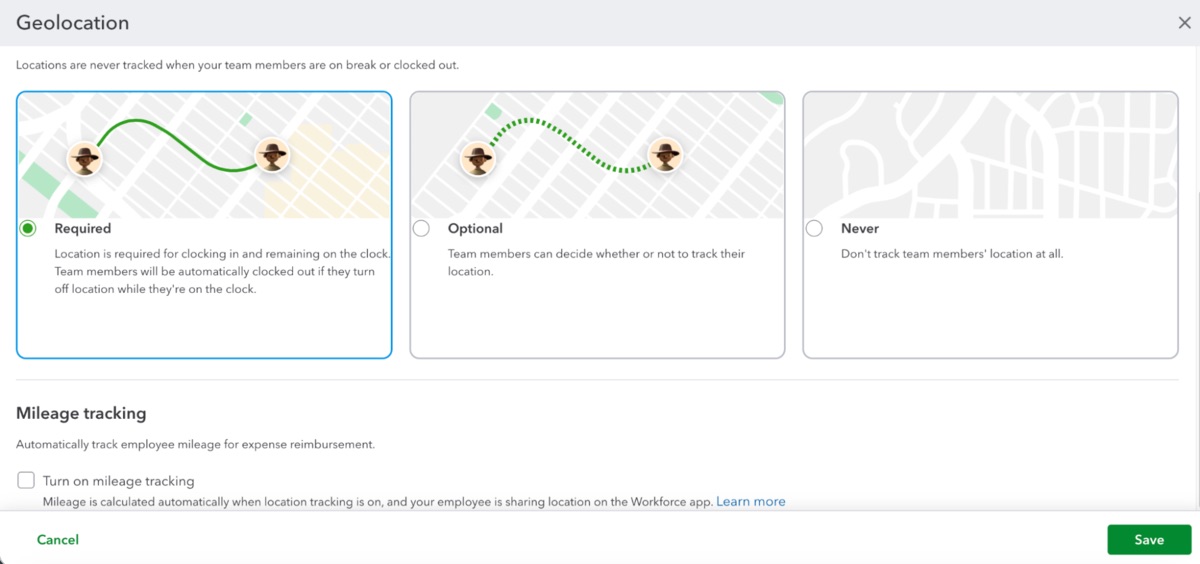
When I opened the classic interface and navigated to Company settings > Location > Geofencing, I was confused once again. I couldn’t set up my location unless I specified a customer first. So, the geofence must be tied to a specific customer’s location in the app.
As I understand it, this is required because locations are historically and technically tied to the physical destination of services or goods, for sales tax and logistics purposes. Basically, this is only an intuitive fit for physical jobs and services such as fieldworkers.
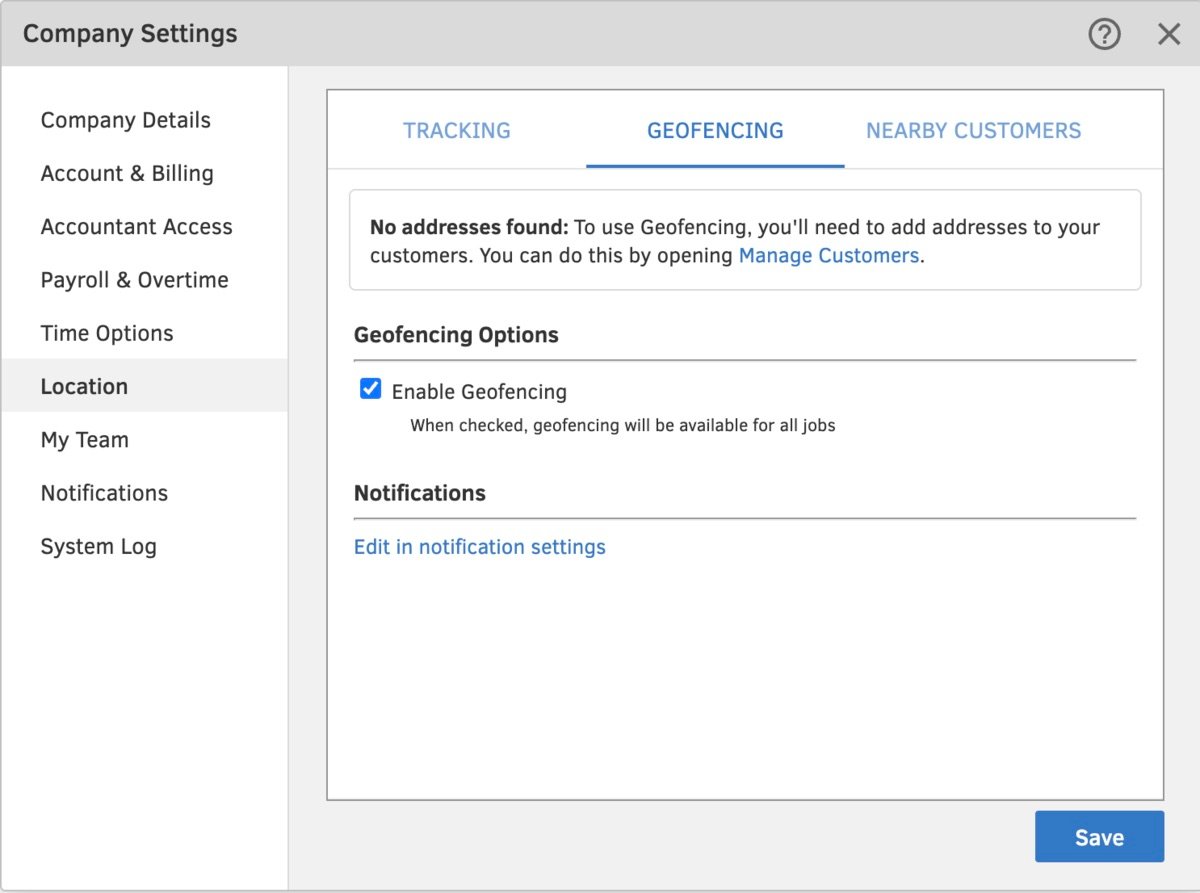
To test out the clocking-in/out with the geofence, I had to download the QuickBooks Workforce mobile app. Then I tried to clock in before arriving at the set location. It was a success: The app helps prevent time theft by tracking your location.
I also tested whether the app would register when my employee’s device left the geographical bounds of the “Customer” (actual location).
I realized that QB’s geofence system is designed to notify the worker on their own mobile device if they leave their work area. It prompts them to clock out or switch jobs when they cross the boundary. But if they don’t do this, the employer won’t get notified in real time. Here’s what the notification looks like for the worker:

As a manager, you also get documented proof for your records and reduce forgotten clock-outs, but you don’t get real-time monitoring of larger teams. If you suspect someone has left the worksite during their shift, you’ll have to manually look up the specific user with the View who’s working option in the Time entries section.
Here’s what the new interface can show you when you manually navigate to a specific user who has left their geofence area:
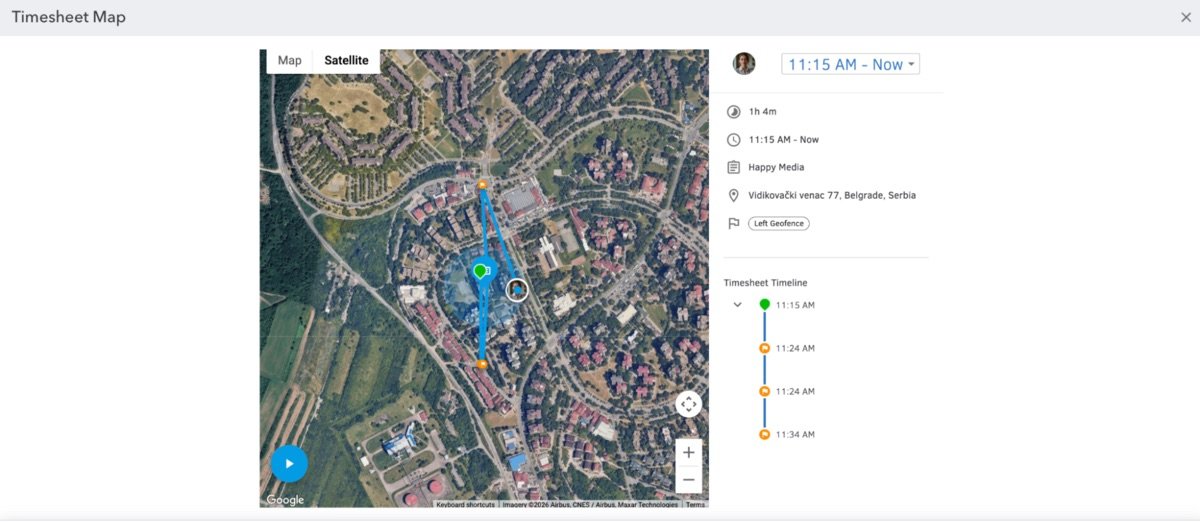
After testing the app for a few hours and using my device with the Workforce app running in the background, I saw no increase in battery consumption, so I can say that’s a big plus.
Finally, the up to 10-minute synchronization delays made me think about the reliability of QB Time. Now, let’s calculate the overall rating for QuickBooks Time’s browser app.
| QuickBooks Time browser app | Rating |
| Time tracking | (3.5/5) |
| Approvals | (3.5/5) |
| Schedule | (3/5) |
| Time off | (3/5) |
| Time team management | (4.2/5) |
| Time reports | (3/5) |
| Projects | (2.5/5) |
| Geofencing | (4/5) |
| Final browser app rating | 3.3/5 |
QuickBooks Time is tied to 2 different mobile apps:
Let’s take a look at how both of them work.
If you want to view your employees’ clock-in time on the go, you can do so with the QuickBooks Workforce app. For that, you’ll need to enter your phone number to receive an installation link.
The good thing about the mobile app is that it’s much more convenient and much cleaner than the QuickBooks Online version. For basic clocking in and clocking out, as well as tracking breaks, the mobile app works as intended.
As an admin, you can use the mobile app to set up fields necessary for time entries. These can include customer, service item, billable/non-billable, and even custom fields. You can also access schedules, create shifts, clock in and out yourself, and view a map of who’s working and where (if geofencing is set up).
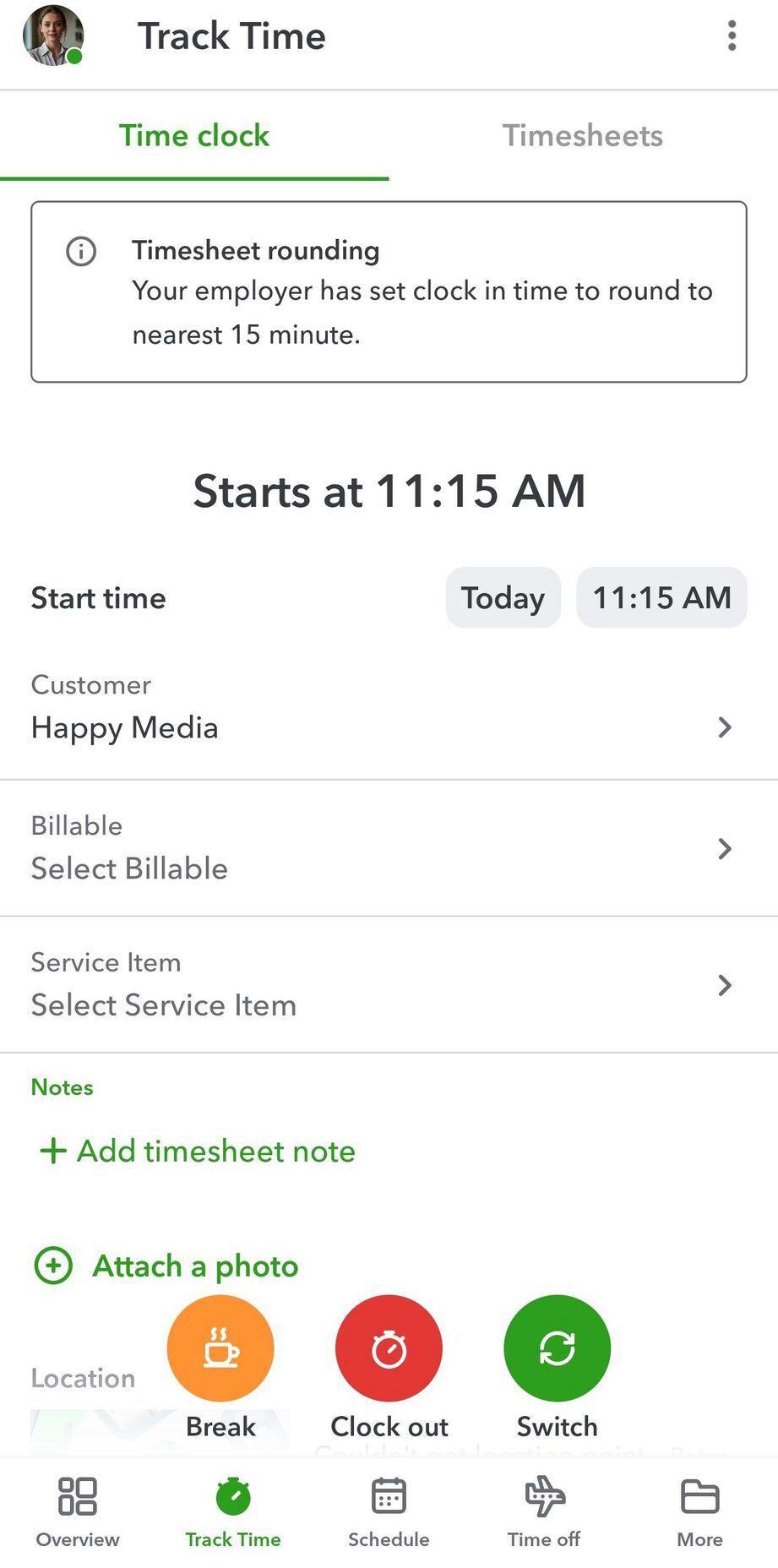
Another thing to note is that the mobile version of the app makes it very easy to clock in, so it’s relatively simple for non-tech-savvy workers and remote workers. If the admin has enabled the geofence, the worker can find their location (or, as QB calls it, “Customer”), click on the clock-in button, and the timer starts. Here’s what that looks like on the phone:
The Time Kiosk app is another separate QuickBooks app, intended for clocking in and out at physical locations. After adding a new kiosk device through QB Online, all 4 of my workspace members showed up on my mobile app screen.
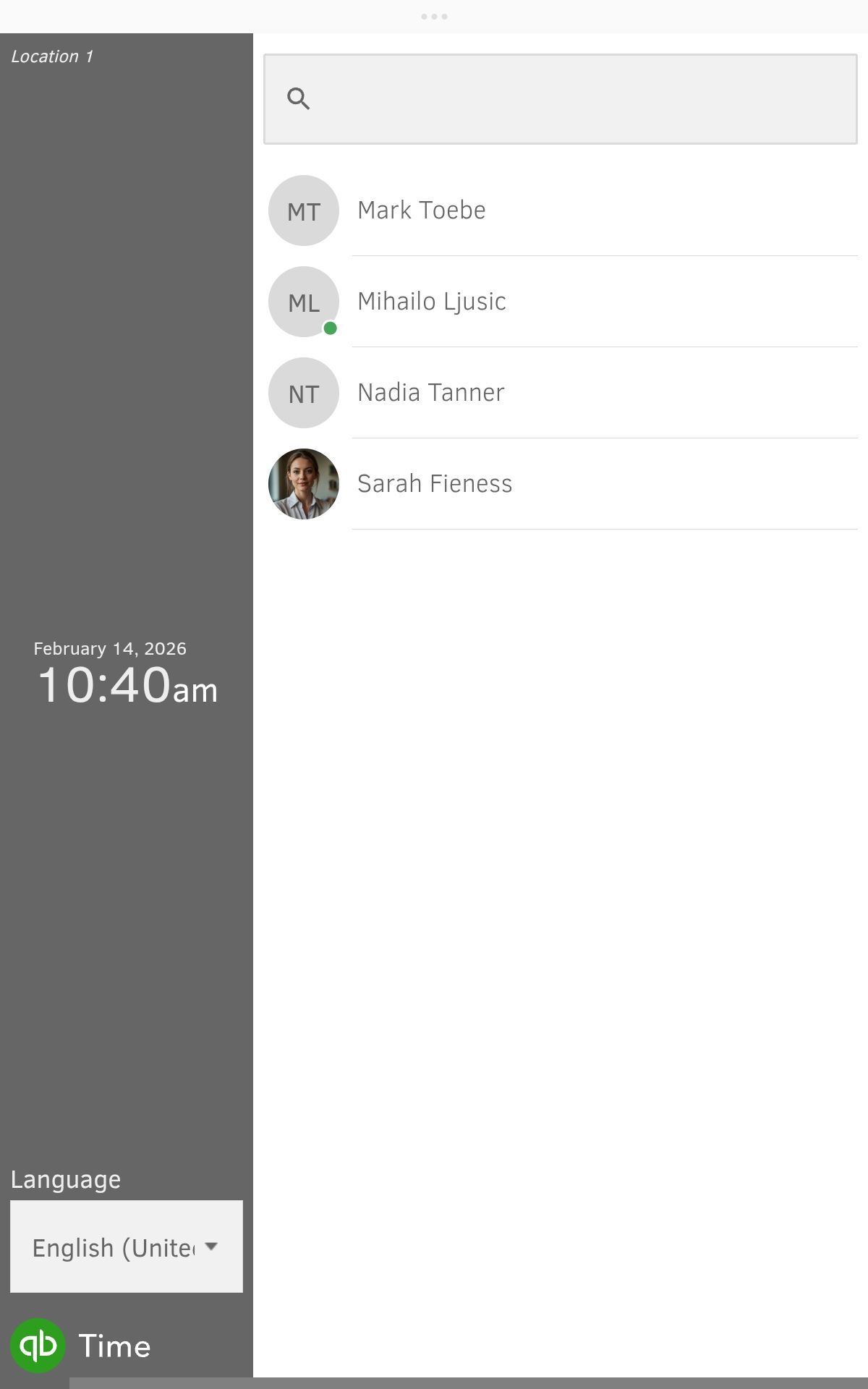
Then I could click each user and set a custom 4-digit PIN for each person.
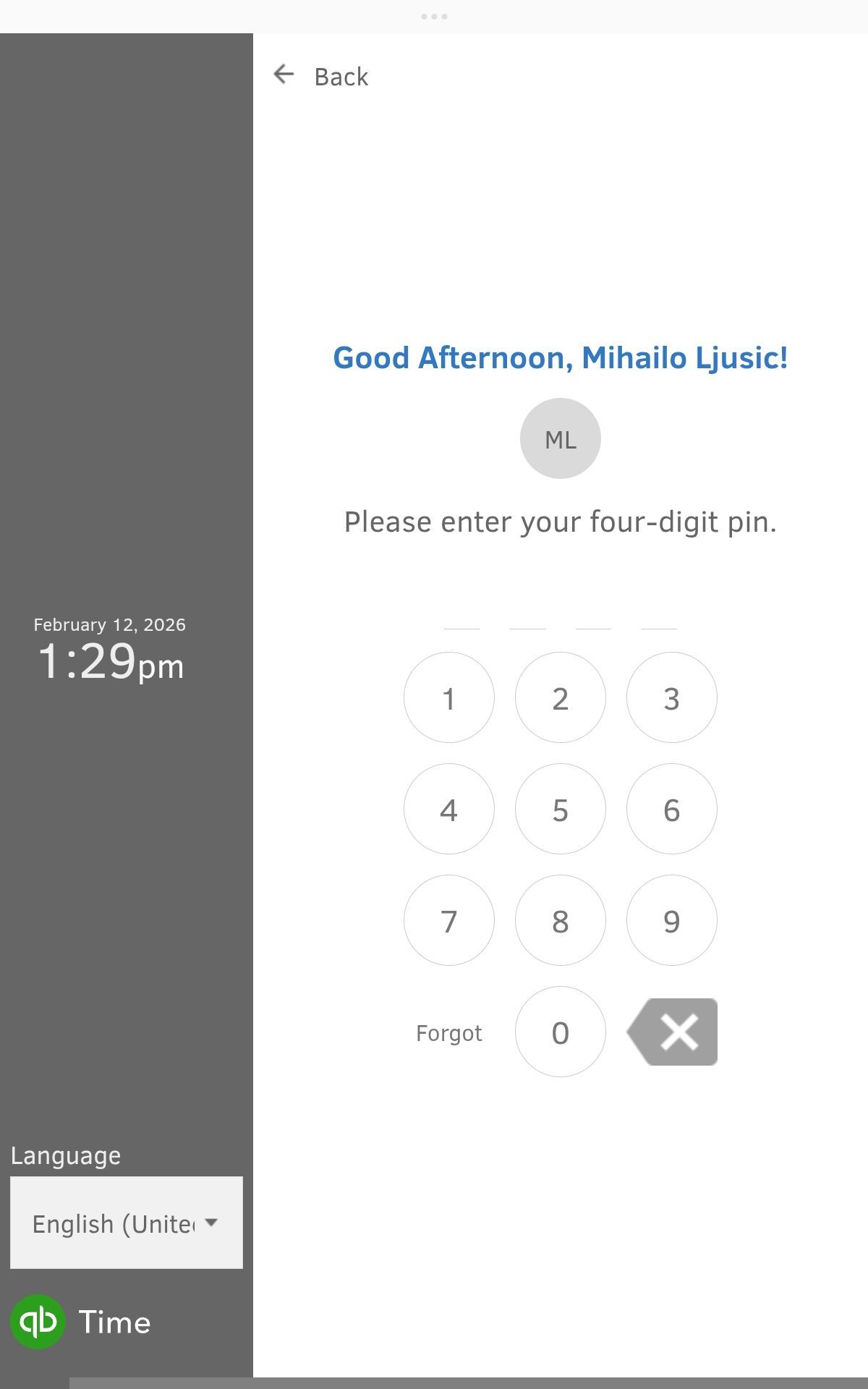
What's really useful about the Time Kiosk is that the buttons are so large you can easily navigate them even if you’re wearing gloves on a construction site (depending on your kiosk device’s screen, of course). It’s also important to note that the app won’t allow anyone to cut their break short if you enable the Workers can’t end break early option.
Another useful Time Kiosk option is the Require photo on clock in/clock out. This helps prevent buddy punching, one of the most notorious time theft issues.
Once you enable the Require photo option, the kiosk device automatically opens the camera on each clock-in and clock-out after you enter your PIN. The device captures your photo and adds it to your time entry.
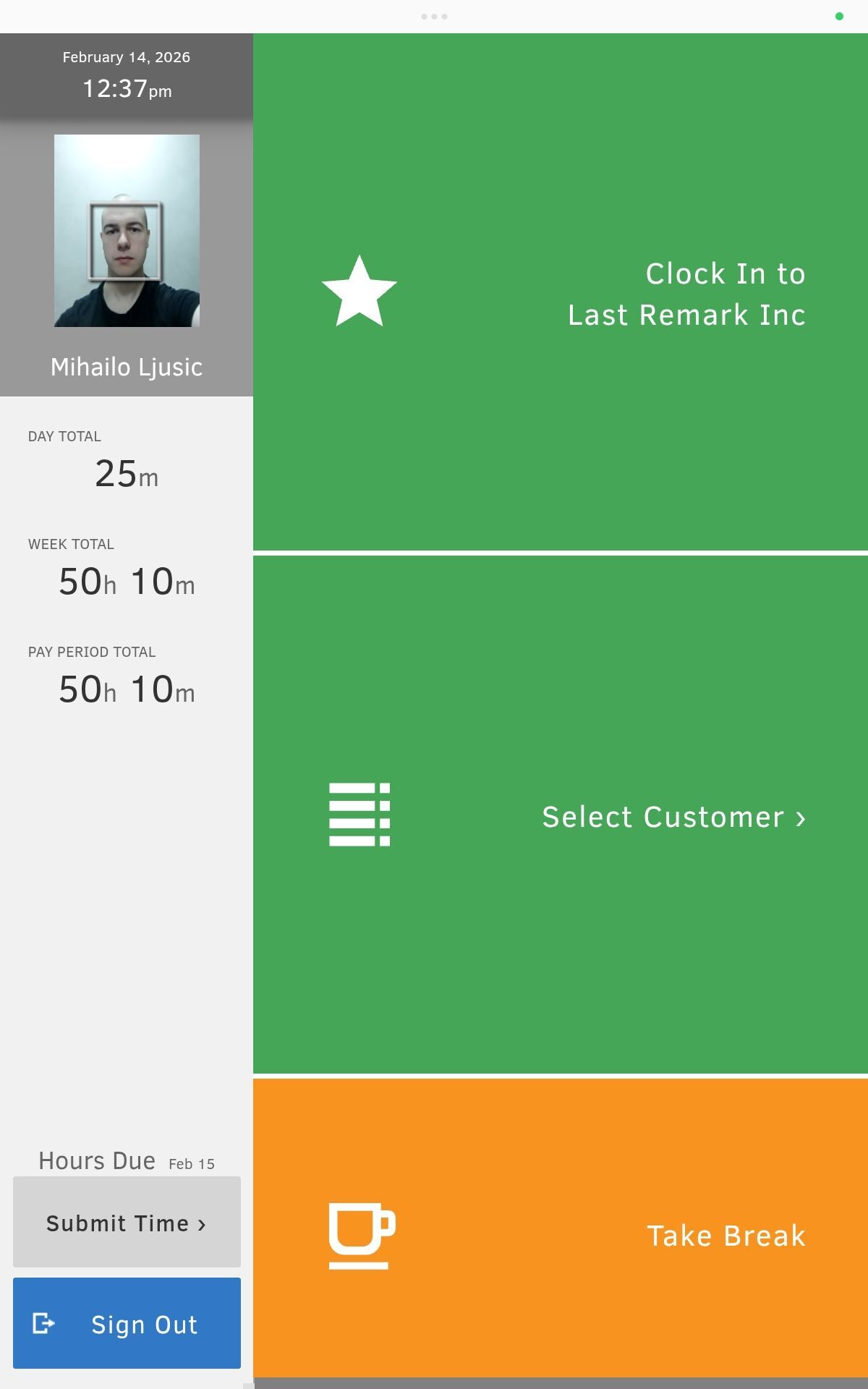
However, it’s important to note that the kiosk app will allow other people to clock out even if the faces don’t match.
So, the photo verification is only a deterrent, not a hard lock. In theory, if your workers share a pin with someone and you don’t check the photos regularly, the kiosk will allow them to clock out. Later, when you manually audit the time entries (e.g., during approvals), you’ll be able to spot any discrepancies.
Keep in mind: You can only view their photos in the classic QuickBooks Time setup.
The latest major news about the app is the transformation of the QuickBooks Time app into a separately billed add-on and its relocation to the QB Online ecosystem. Another big addition is the somewhat frustrating Intuit Intelligence AI Assistant.
Other notable features of QuickBooks Online include the 2026 addition of the assignments feature covered in this review and Business Tax AI (currently in beta).
For other upcoming updates and any changes, you can check out the QuickBooks New Features page or the QuickBooks product updates blog. However, keep in mind that the upcoming news will likely be referred to as “QuickBooks Online changes,” and probably not “QuickBooks Time updates.”
In conclusion, exploring the QuickBooks Online app, with a main focus on its time-tracking add-on, has proved quite a challenge.
My final impression is that the new app is usable, but unintuitive, complex, and inflexible for time tracking. This is especially problematic in 2026, given that other available time-tracking apps far surpass the outdated approach of the QuickBooks legacy software.
QuickBooks Time’s pros include reliable geofencing and the Time Kiosk. The biggest cons include a broken user interface, slow performance, poor customer support, and high prices.
All things considered, it only makes sense to use QuickBooks Time as an addition to the payroll features QuickBooks is known for. As a standalone service for time tracking, it simply doesn’t hold up in its current form.
| QuickBooks Time | Rating |
| Pricing | 2/5 |
| Usability and interface | 2.5/5 |
| Security | 4/5 |
| Customer support | 1.5/5 |
| Customer reviews | 4.6/5 |
| Web app | 3.3/5 |
| Mobile app | 4.8/5 |
| Final verdict | 3.2/5 |
If you’re looking for software specializing in time tracking that integrates with QuickBooks payroll, try Clockify.
Clockify by CAKE.com adapts to teams that frequently switch tasks. With our tool, you can simplify time tracking and send a clean, defensible invoice at the end of the month — and fast.
Clockify’s powerful features offer:
Clockify’s 3 core benefits include:
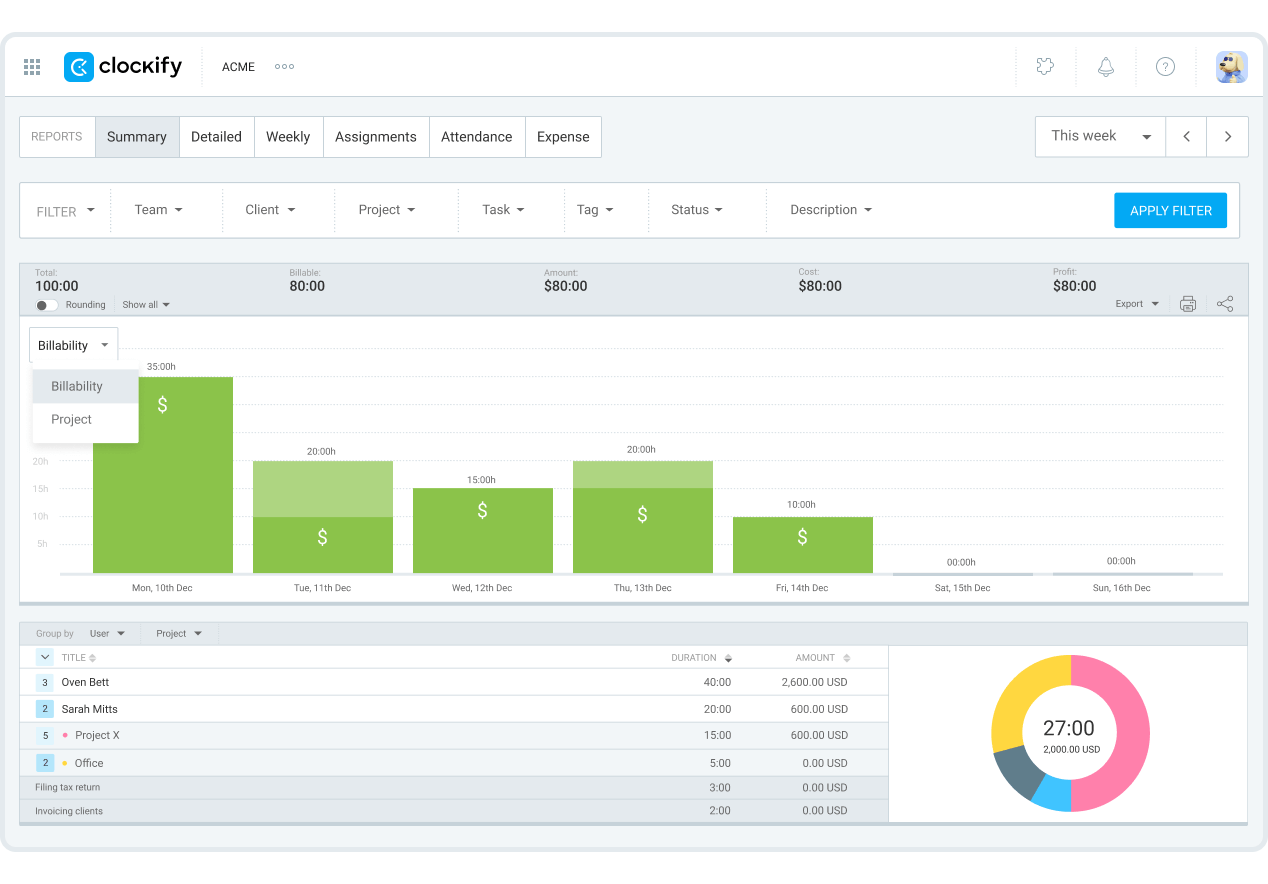
#1: Client-ready reports out of the box — you can send a link to a live dashboard so your client can see the project progress in real time before you export a single PDF or invoice.
#2: 24/7 full human support for all users — whichever plan you’re on, Clockify’s support is always available by phone, chat, or email.
#3: Flexible rates for workspace, projects, tasks, and employees — hierarchy-based rates in Clockify ensure a much smoother invoicing experience, without worrying about service items. If your rates change frequently, Clockify’s set-and-forget logic saves you hours of administrative work.
Check out this concise table to compare QuickBooks Time’s and Clockify’s core features:
| Features | QuickBooks Time | Clockify by CAKE.com |
| Primary use | Tracking time to bill customers Tracking field crews and physical teams Integrating with payroll |
Suitable for most types of time tracking Generating invoices from billable hours Intuitively manage workforce time and capacity |
| Interface | Integrated with other QB tools Still scattered across multiple views Not fully fleshed out for 2026 |
Modern Responsive Easy to navigate |
| Scheduling | Simple but limited Manual Few customization options |
Smaller learning curve Fast and versatile Multiple views Easy to view team availability |
| Time reports | Basic filters Too outdated for 2026 Lacks in responsiveness |
Versatile filtering options Highly flexible Adaptable for different industries |
| Time off | Requires accrual Customizable only through workarounds Confusing, paired with an outdated UI |
Easy time off policy management Much more customizable Manual and automatic time off features |
| Kiosk | Easy to view Simple clock in and clock out Large user-friendly icons Optional “required photo” on clock-in |
Easy to view Simple clock in and clock out Large user-friendly icons No photo clock-in feature |
| Pricing | Requires multiple subscriptions: $38 + $20 base fee + $8 per user per month | One subscription: $4.99 per user per month ($3.99/month if billed annually) |

Here’s an overview of some of the most common questions asked about QuickBooks Time.
QuickBooks Time is one of the most expensive time-tracking solutions on the market. After the recent integration with QuickBooks Online, the app requires both a QuickBooks Online subscription and a QuickBooks Time add-on.
QuickBooks offers time tracking through its QuickBooks Time add-on. A QuickBooks Online subscription is required to enable time tracking, billed separately from the base app, with an additional $8 fee for each user you invite to your workspace.
Certified public accountants (CPA) often prefer QuickBooks Desktop to QuickBooks Online. They often cite slow response time, bank feed issues, and glitches as their primary reasons for avoiding it.
Though frequently targeted by email phishing attacks, QuickBooks Time is a mostly secure and reliable platform. The app’s parent company, Intuit, ensures tight security through PCI, SOC, ISO 27001, and VPAT compliance.
The main disadvantages of QuickBooks include slow speed, an overwhelming interface, bloated code, and a high entry price.
Many features are billed separately and are considered overpriced compared to their competition. The recent integration of multiple QuickBooks apps into a single interface has slowed the app further and made it disorienting.
People are increasingly replacing QuickBooks with Xero for accounting, Gusto for payroll and HR integration, and Clockify for time tracking.
The cheapest option for QuickBooks Time requires you to buy QuickBooks Online and QuickBooks Time as a separate add-on. These subscriptions cost a minimum of $58 per month for the admin (30% less for the first 3 months), and an additional $8 per month per invited user.
If you’re looking for an app specialized in employee time tracking and versatile reporting, Clockify is one of the best free options, with more advanced features available in its paid plans.
The best employee timesheet app depends on your specific needs and scale. Clockify by CAKE.com is praised for its generous free plan, comprehensive features, and ease of use.


