

Alex Beadon
Founder of Together We Launch
"We use Clockify to see where our time is going and how to solve any problems. It’s just so beneficial."
More stories

Find new apps that fit you team's needs
Are you looking for an effective time tracking and productivity monitoring tool for your team?
Time Doctor promises to boost employee productivity with features focused on workforce analytics. But will it come through, or should you consider a better alternative?
In this Time Doctor review, I’ll walk you through my firsthand experience with the app — so let’s dive in.

Time Doctor is timekeeping and employee-monitoring software. It’s designed for remote teams, hybrid workplaces, and businesses that require in-depth visibility into how employees spend their time at work.
In this honest Time Doctor software review, I rated each feature on a scale of 1 to 5.
Before we get into all the features in more detail, here’s a summary of the Time Doctor pros and cons.
| Time Doctor pros | Time Doctor cons |
| ✅ 14-day free trial | ❌ No free plan |
| ✅ Strong productivity analytics | ❌ Limited scheduling options |
| ✅ 60+ integrations | ❌ Technical issues |
| ✅ Highly customizable dashboard | ❌ No GPS tracking |
| ✅ Chat and email support | ❌ No phone support |
| ✅ Offline time tracking | ❌ Monitoring features feel intrusive |
Time Doctor offers monthly and annual billing options for its subscription plans. In my opinion, Time Doctor is on the pricier side and comes with 4 paid plans:
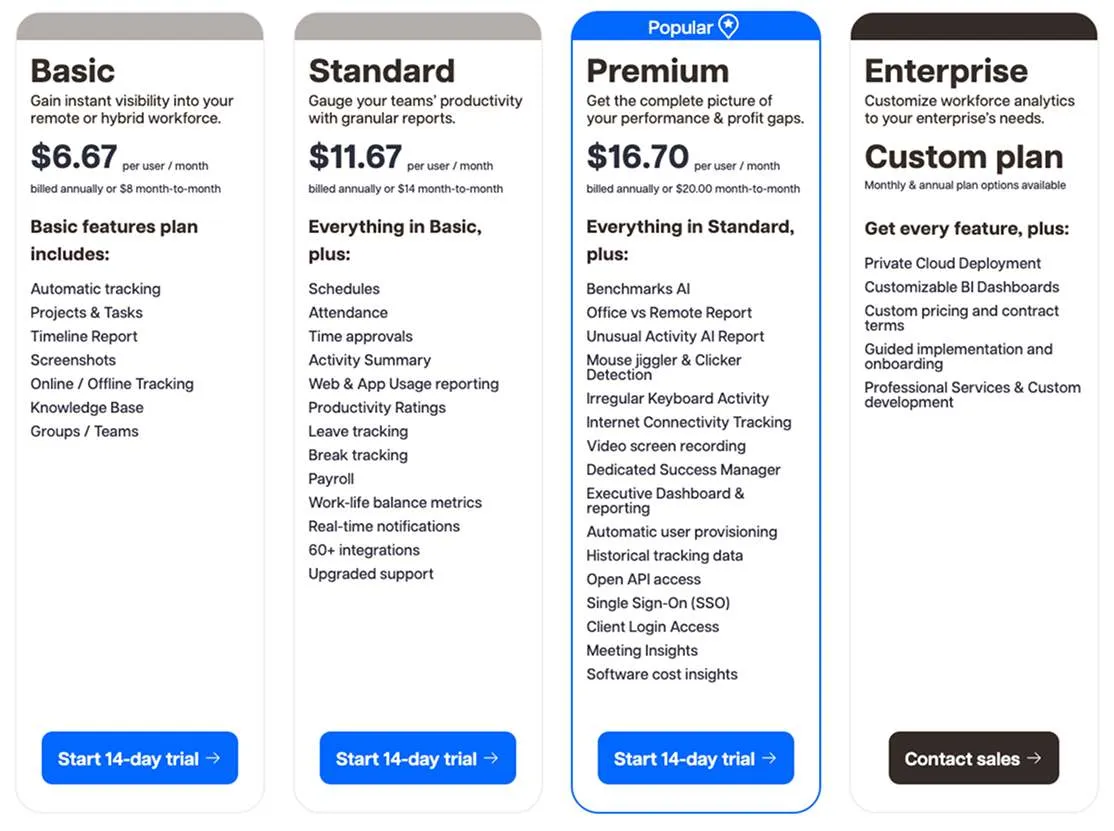
Time Doctor doesn’t offer a free plan (whereas Clockify by CAKE.com does). What it does offer is a 14-day free trial so you can test the features before making a purchase.
Time Doctor’s Basic plan is fairly limited and more suitable for individuals and small teams. With it, you can track work hours, generate timeline reports, and take screenshots.
If you need scheduling and reporting, you’ll need to upgrade to the Standard plan — and pay roughly double the price of the Basic plan.
The Standard plan also includes upgraded support (live chat, email, and callback). However, a dedicated success manager is available only with the Premium plan.
What I find interesting is that Time Doctor allows Basic and Standard plan users to enhance their subscription with paid add-ons.
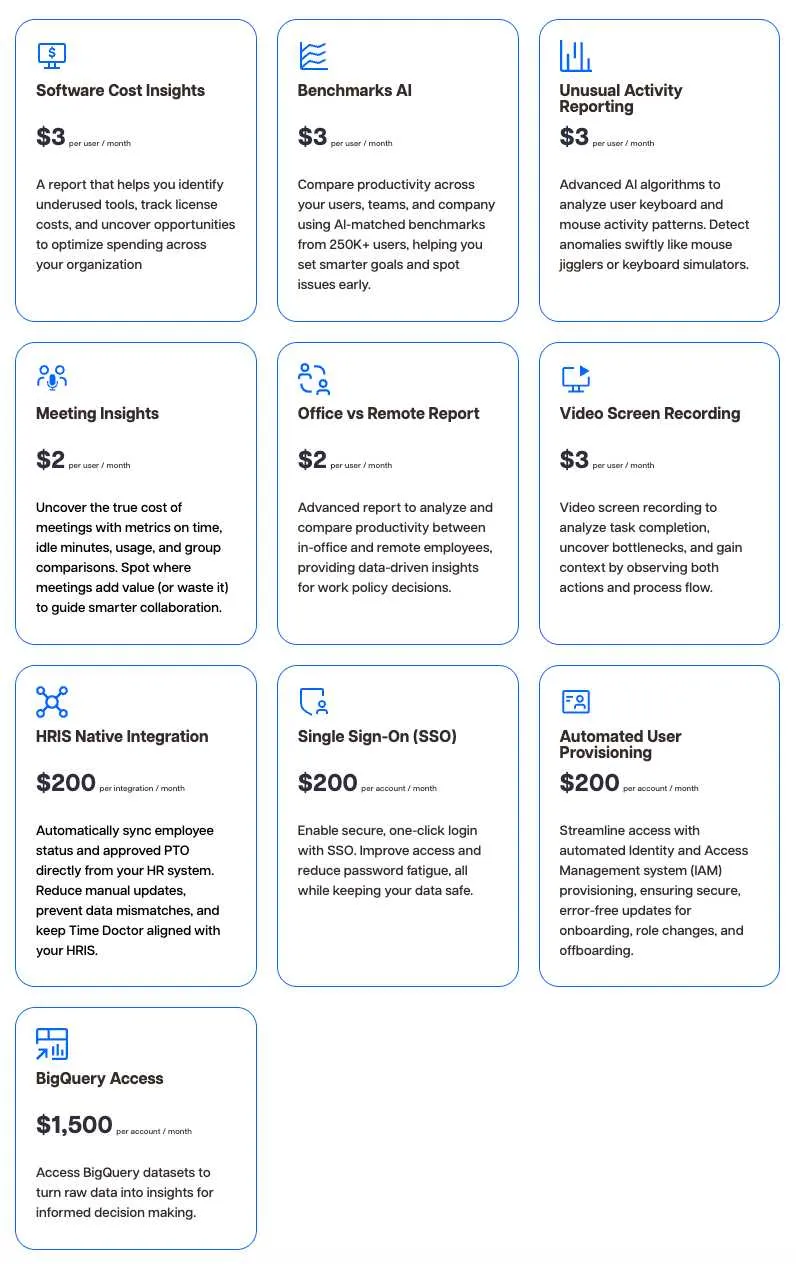
If you’re on the Standard plan and want Meeting Insights (a Premium feature), you can get this add-on for $2 per user per month. Keep in mind that once you start adding features, the total cost can grow quickly. So it’s important to choose the add-ons you truly need.
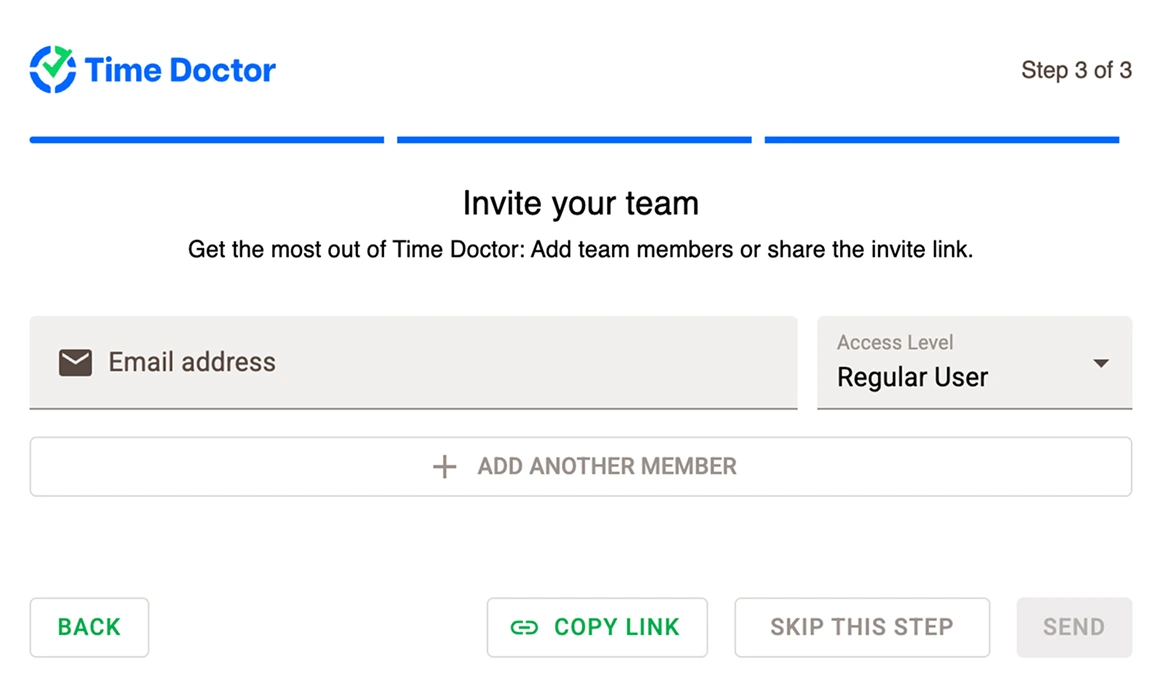
After you create an account, Time Doctor requires you to go through a 3-step setup process:
The Team Dashboard consists of several widgets:
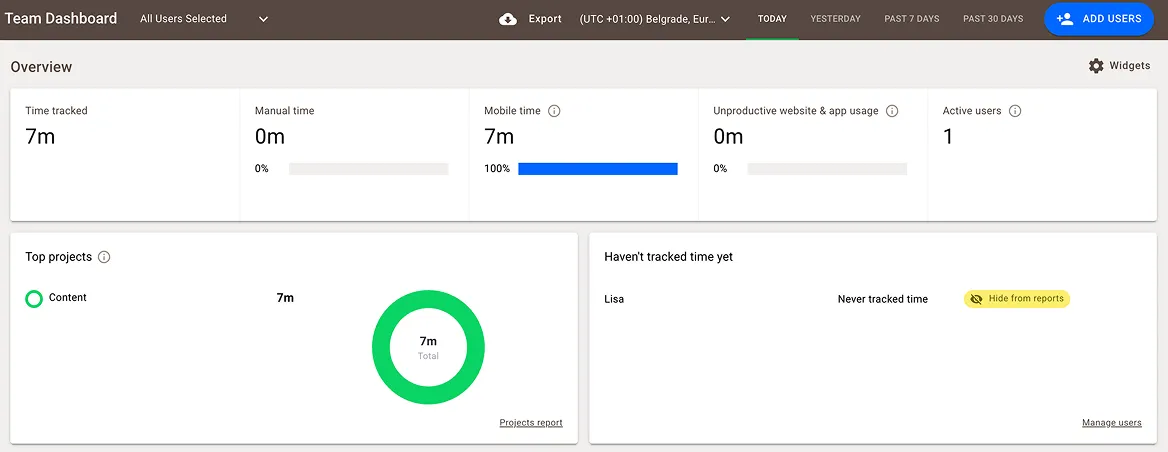
This dashboard reduces manager workload by providing centralized, real-time visibility into team activity.
I also liked how easily I could switch between Team and User Dashboards.
Time Doctor also offers the Executive Dashboard for organization-wide productivity monitoring. To access it, you must have at least 20 active users on your company account.
Compared to the Team Dashboard, the User Dashboard is less customizable. Still, it provides employees with essential insights into their performance, helping them improve.
In my opinion, Time Doctor’s web app has a clean interface that’s somewhat outdated.
Finally, all the main features are located in the top navigation bar. The only feature I couldn’t find was the Timer. What I was surprised to learn is that tracking time with the Timer is only possible when using Time Doctor’s desktop or mobile app.

In the web app, employees can only add time manually and edit their tracked time using the Edit time option (if allowed by the admin). In my experience, accepting changes takes a couple of minutes — a bit frustrating.
All in all, the sheer number of settings and functionalities was overwhelming at first. But once I figured it all out, Time Doctor was easy to use.
Time Doctor follows some of the best security practices to ensure user data is protected:
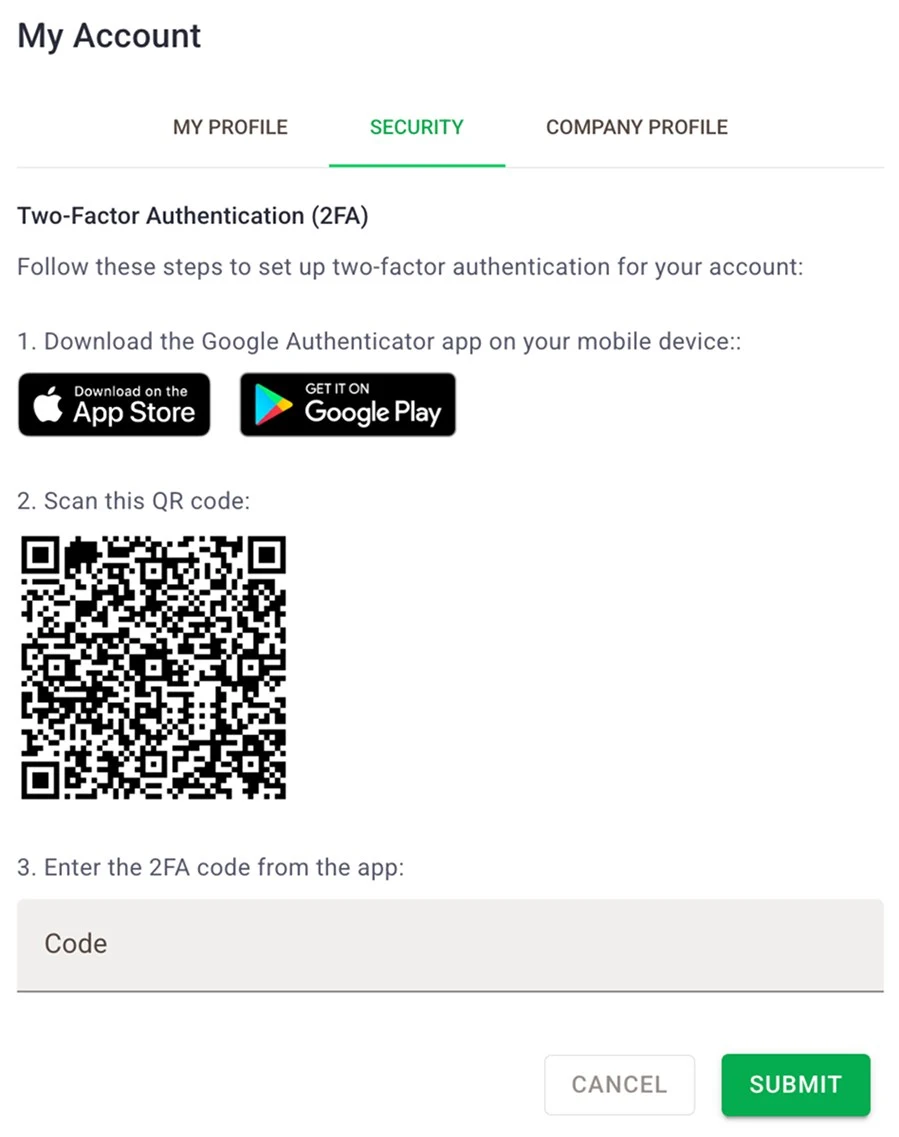
Moreover, Time Doctor is certified to ISO 27001 — the leading international standard for information security management. It’s also GDPR, HIPAA, and SOC 2-compliant.
Similarly, Time Doctor performs daily backups, enabling quick data restoration if needed.
Now, the main question potential users might have is: How well does Time Doctor protect my privacy?
Well, Time Doctor enables employees to delete sensitive screenshots (if allowed by the admin). Yet, it is a monitoring tool, so it records employee activity and captures their screens, which may feel intrusive to some.
To alleviate employee privacy concerns, Time Doctor offers the option to blur screenshots to protect sensitive information.
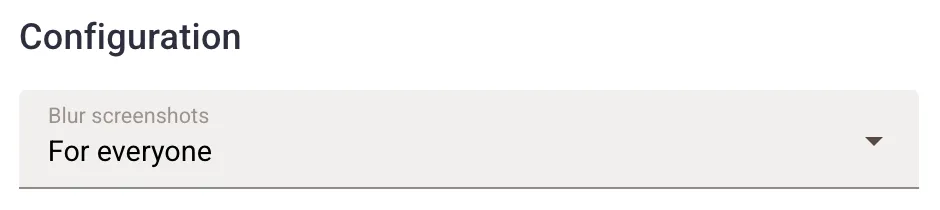
Overall, I was satisfied with the level of security Time Doctor provides. The standards this tool follows made me feel my data would be safe.
Time Doctor provides 24/7 email and chat support. However, these are only available for users on Standard, Premium, and Enterprise plans.
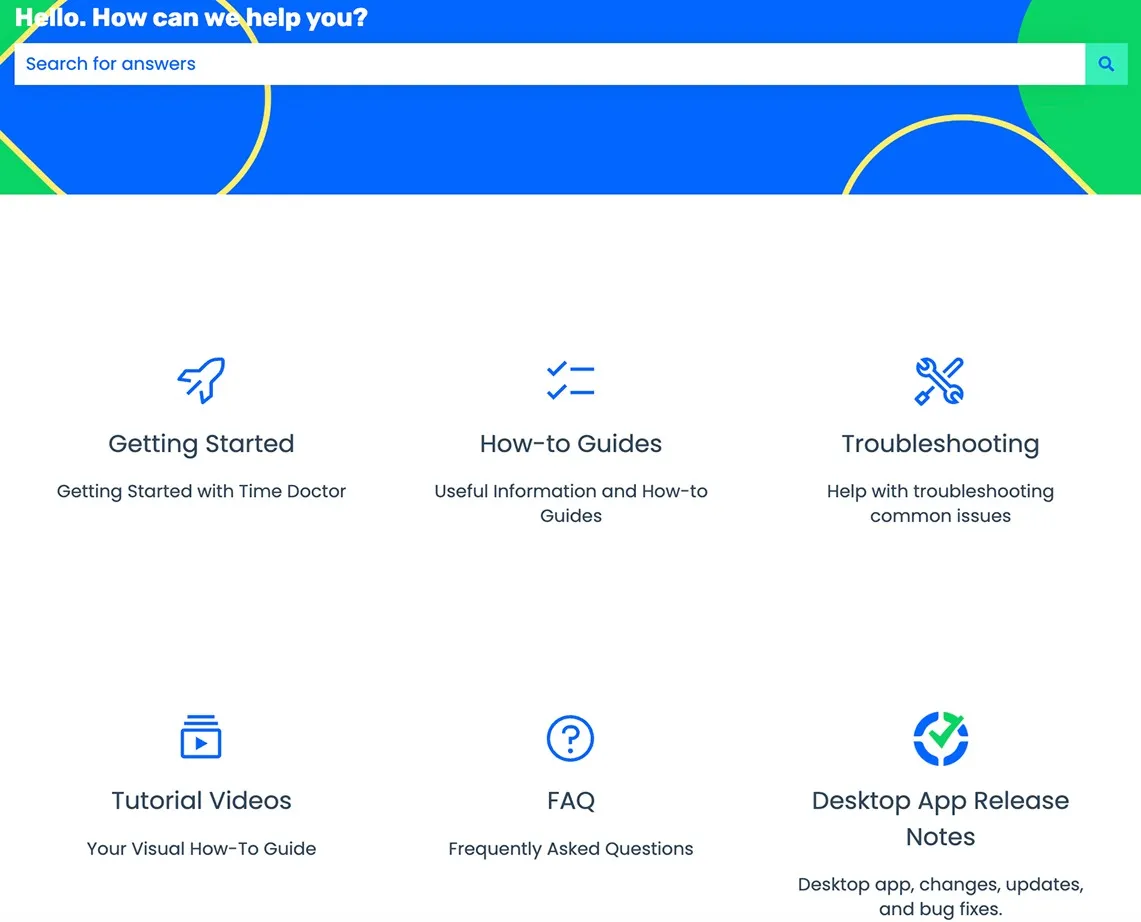
Basic plan users can submit a ticket for help using Time Doctor’s ticket portal. Alternatively, they can try to find answers on Time Doctor’s Help Center page.
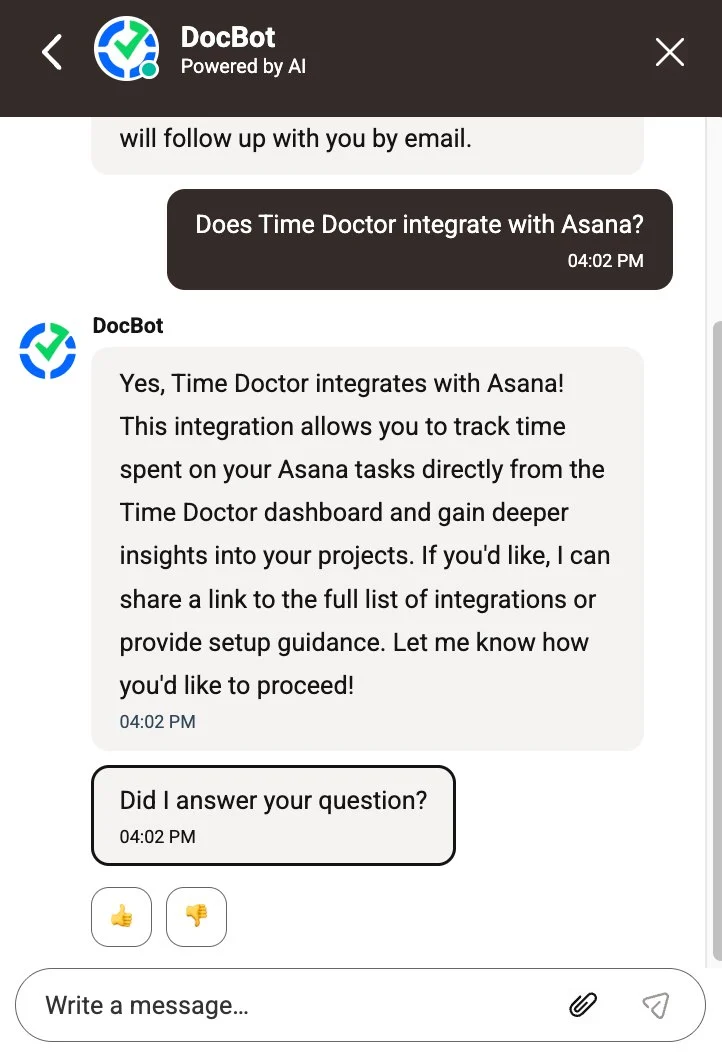
When you reach out to Time Doctor’s chat support, a chatbot responds first. Personally, I’m not a fan of AI chat support — most of the time, it feels more confusing than helpful. But I decided to give Time Doctor’s chatbot a chance.
When I asked a simple question like “Does Time Doctor integrate with Asana?”, the AI customer agent gave me a clear answer:
When I needed assistance with the user role adjustment, I received a rather brief explanation that didn’t help much. For more information, I was simply directed to their resources.
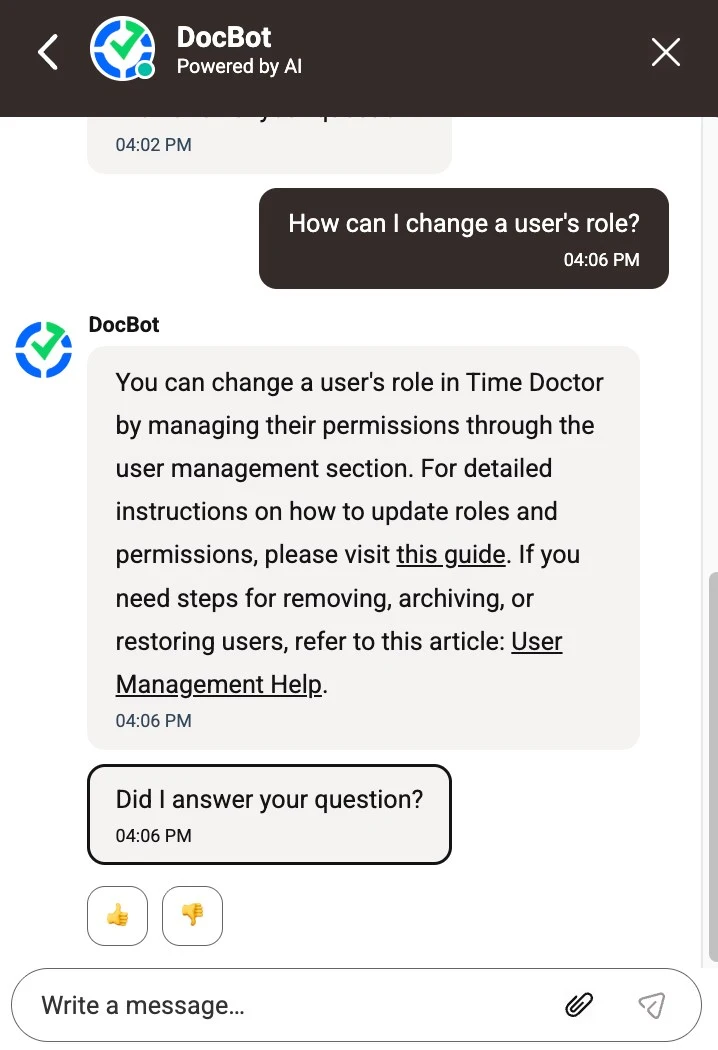
For busy agency owners or managers who need quick help, reading guides or articles may not be an option. The good news is that you can ask to speak with a human customer agent. I tried this out, too, and the reply came faster than I expected. I was also satisfied with the answer.
By comparison, Time Doctor, Buddy Punch, TimeCamp, and Clockify provide email and chat support. However, only Clockify offers human support via phone (available 24/7).
| Customer support options | Time Doctor | Clockify by CAKE.com | Buddy Punch | TimeCamp |
| Yes, 24/7 human support (for paid users on Standard, Premium, and Enterprise plans) | Yes, 24/7 full human support (free for all users) | Yes (for all paid users) Human support available during business hours, Monday through Friday, from 9 a.m. to 6 p.m. (US Central Time) |
Yes (free for all users) The response time is within 24 hours |
|
| Chat | Yes, 24/7 human support (for paid users on Standard, Premium, and Enterprise plans) | Yes, 24/7 full human support (free for all users) | Yes (for all paid users) Human support available during business hours, Monday through Friday, from 9 a.m. to 6 p.m. (US Central Time) |
Yes, 24/7 human support (for all paid users) |
| Phone | No | Yes, 24/7 full human support (free for all users) | No | No |
🎓 Buddy Punch: An Honest Review by a Competitor (2026)
Time Doctor customer reviews are mostly positive. Users mainly appreciate the transparency Time Doctor brings to remote work, and they also praise the app’s user-friendliness.
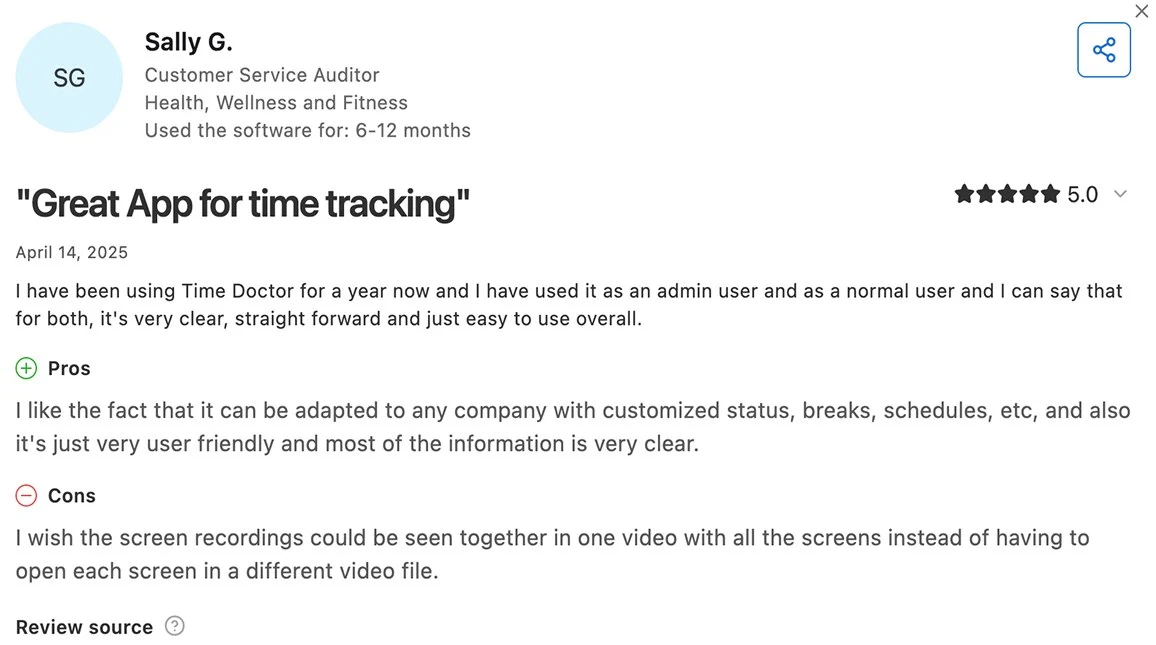
Time Doctor has high user scores on Capterra and G2. Negative reviews on these websites primarily concern the app’s intense monitoring, which makes employees feel micromanaged.
However, the Trustpilot website gives Time Doctor a much lower rating. The most common complaints here are billing and charge issues. One user even called Time Doctor an “absolute nightmare” — see why in the screenshot below:
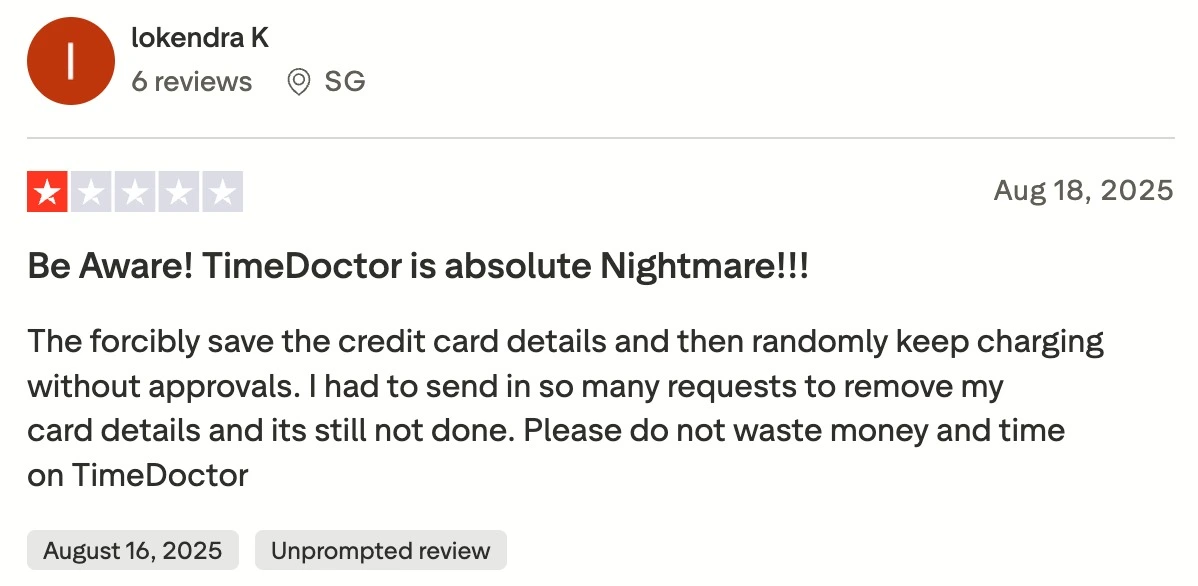
Given the seriousness of these complaints, I expected some reaction from the Time Doctor team. However, they didn’t respond to any of these comments, which struck me as odd.
Overall, here are Time Doctor customer ratings on some of the popular review websites:
The average rating across these 3 websites is 3.4/5.
| Criteria | Pricing | Usability and interface | Security and privacy | Customer support | Customer reviews |
| Rating | 3.5/5 | 3.5/5 | 4/5 | 3.5/5 | 3.4/5 |
Now, let’s go over the main Time Doctor features. I explored the biggest pros and cons of each feature and rated them accordingly.
To record time with the Timer, employees need to install Time Doctor’s desktop app on their computers (or use the mobile app).
Once they’re signed in, employees can track time by selecting a project task. The moment they click the task they’re working on, the Timer starts running.
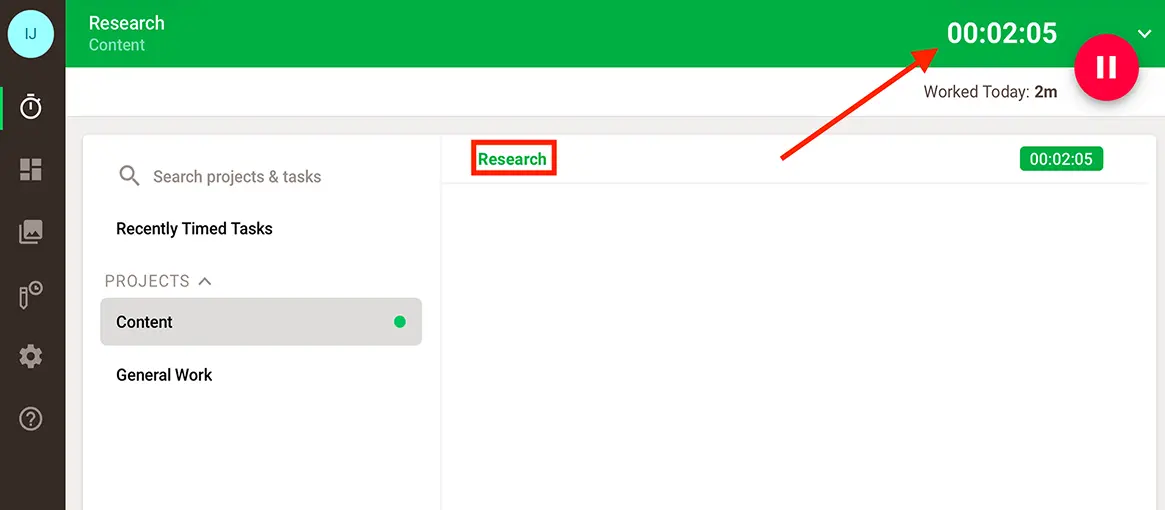
While the Timer was running, I noticed some inconsistencies when switching between the web and desktop apps. Specifically, the Timer and the User Dashboard (in the web version) didn’t display the same tracked time. When I stopped the timer, the recorded times matched — so this was probably just a glitch.
To stop tracking time, I clicked the pause button. Employees can also resume tracking time for a specific task by clicking the play button, as shown below:
This allows them to keep an accurate record of the time spent on that task, even if they get interrupted (e.g., by a meeting).
To minimize missed tracking, I could set a reminder for myself to track time, which I found useful.
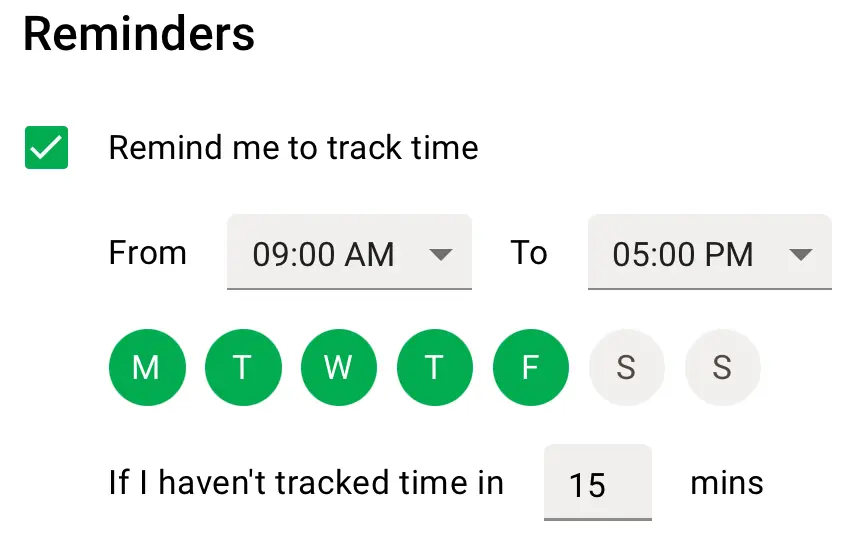
Managers can also enable the Auto‑start tracking each day option in the company settings. This way, desktop apps start tracking employee time at the first computer activity after 5 a.m. (provided they’re signed in).
While this option ensures employees don’t forget to start tracking, I don’t think it’s the best solution. Employees may feel like they’re being monitored from the moment they log in, even if they haven’t begun productive work. This can be stressful.
In sum, Time Doctor has solid time tracking capabilities. But, if you need a kiosk feature for your on-site workers, you’ll have to look elsewhere. For example, competitors like Jibble and Clockify offer a wider range of timekeeping options.
| Timekeeping options | Time Doctor | Clockify | Jibble |
| Timer | ✅ | ✅ | ✅ |
| Manual data entry | ✅ | ✅ | ✅ |
| Calendar | ❌ | ✅ | ❌ |
| Kiosk | ❌ | ✅ | ✅ |
With Time Doctor, you can generate many reports for productivity analysis, including:
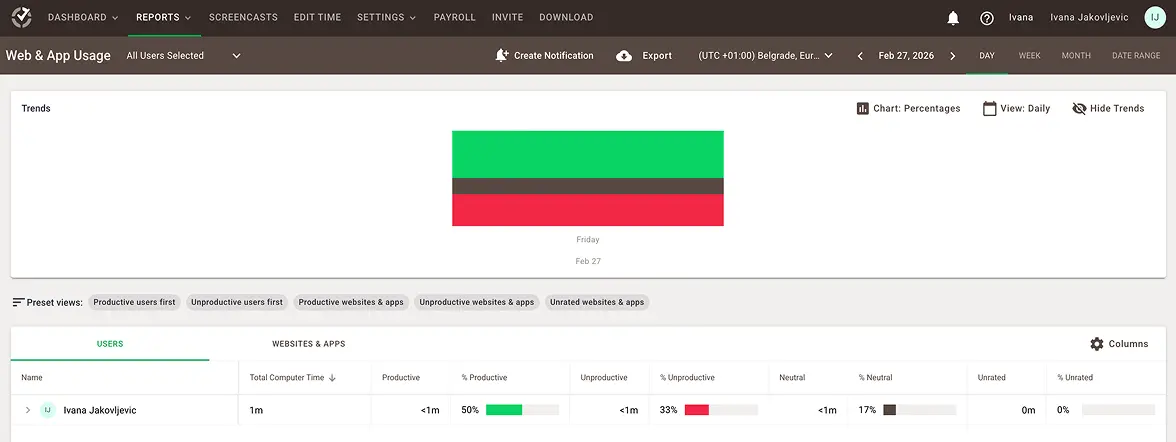
I tried generating the Web & App Usage report (I clicked on Reports and selected Web & App Usage). This report shows the time spent on various apps and websites categorized by productivity.
The report seemed well-structured, which I liked. It includes the trend chart, user list, and user-specific productivity breakdowns.
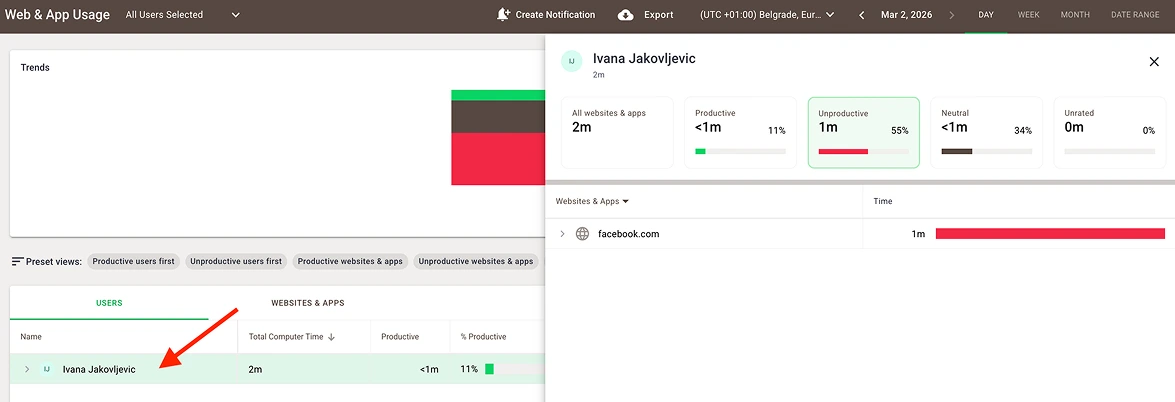
For a more detailed analysis of the user, I clicked the user’s name. Then, I could see which unproductive apps/websites they used and for how long, for instance.
Within the Productivity ratings section, managers can rate apps and websites as:
This enables more accurate performance insights.
Moreover, you can set productivity ratings for a group of users. I find this option helpful when managing multiple teams (e.g., a social media platform might be “productive” for a marketing team, but “unproductive” for developers).
In contrast to Time Doctor, Clockify’s Activity monitoring allows you to set up domain wildcard rules. Managers don’t have to categorize URLs one by one. Instead, they can simply type *.google.com to mark all Google sites as productive.
Time Doctor allows you to export reports as CSV or XLS files. Unfortunately, only custom exports can be downloaded as PDF (whereas Clockify offers this option for Summary, Detailed, Weekly, and Expense reports).
When it comes to employee-monitoring features, Time Doctor offers:
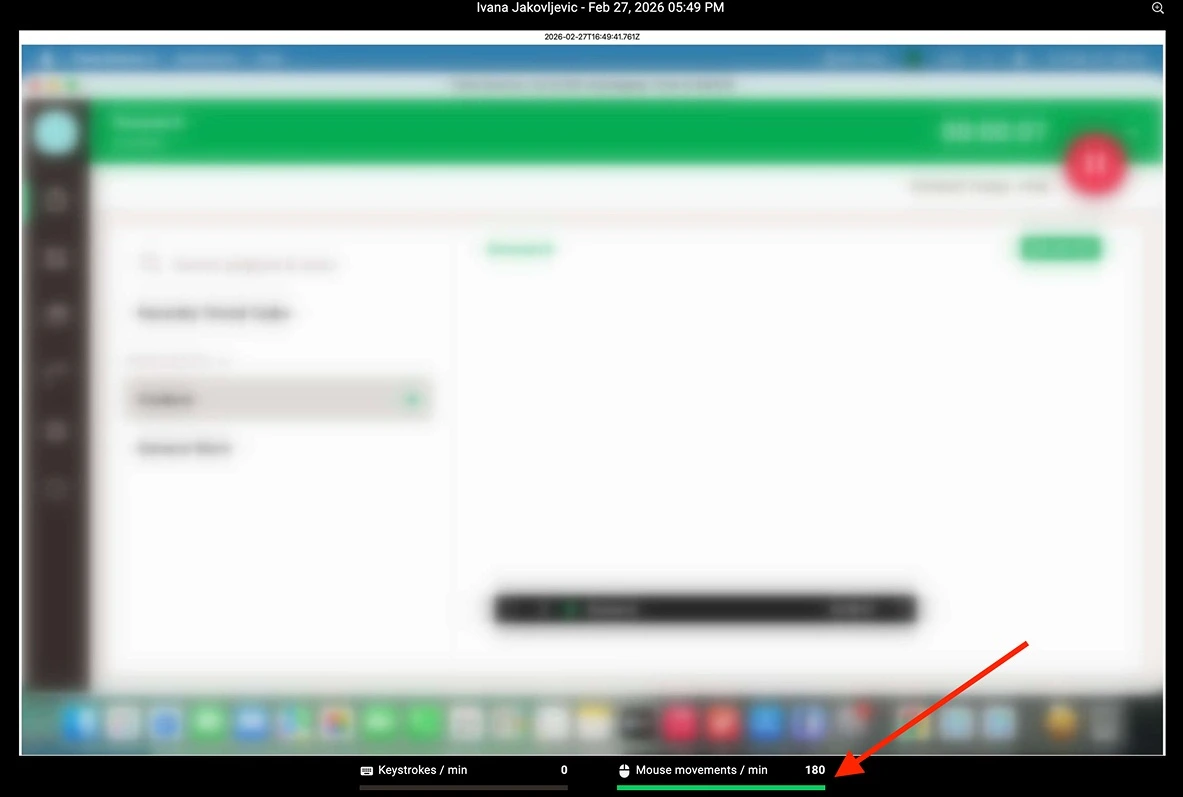
Screenshots are stored within the Screencasts section. For a better view, I could open a specific screenshot by clicking on it.
When screenshots are enabled in Time Doctor, mouse and keyboard activity metrics appear under each screenshot, as shown below:
In the Activity Summary report, I can see each employee’s idle time (i.e., the percentage of all work minutes that were idle).
As I mentioned earlier, screenshots can be blurred. This helps businesses preserve employee morale and avoid increased turnover. Even when blurred, screenshots enable managers to see what employees are doing, without revealing sensitive details.
The Screencast feature offers several options. You can use the Low activity or the Identical screenshots filter (to see only repetitive screenshots). Additionally, you can download or delete screencasts.
If you delete a screenshot, you can’t retrieve it, so you have to be extra careful when deleting items.
What I like about Time Doctor is that it lets me create daily or weekly email notifications. This way, I can stay informed about my employees’ behavior patterns. For example, I can get notified when employees log fewer hours worked or show extended periods of inactivity.
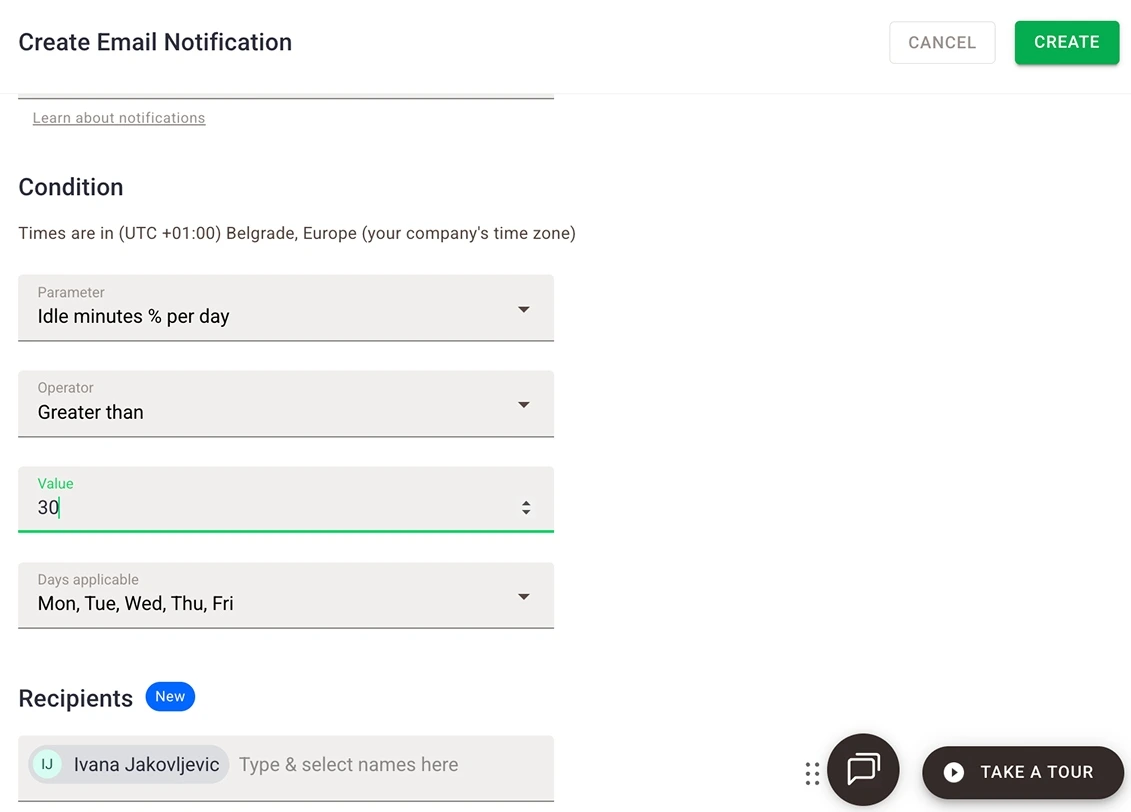
I can also add team members so they get notified — this helps improve employee self-awareness and accountability.
🎓 How to Create Transparent and Accountable Teams
Compared to some of its competitors, Time Doctor’s scheduling functionality is quite limited. The only option you have is to add a shift — no ability to schedule assignments or plan capacity (whereas Clockify by CAKE.com allows this).
To add a shift for a specific day, I had to click Settings, then select Schedules. Then I clicked the plus sign within the day field and selected the Shift option.
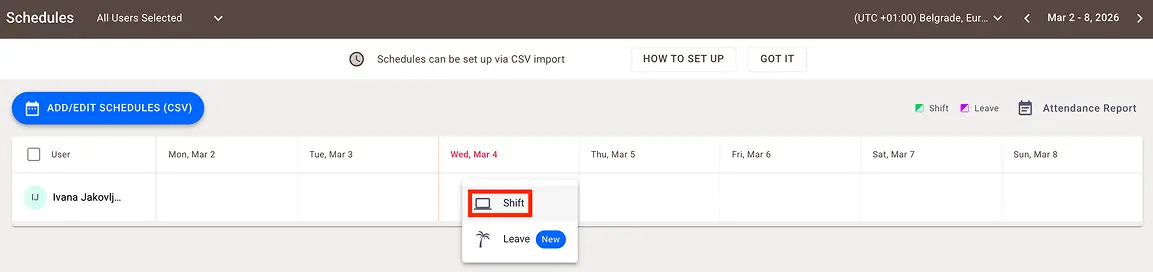
After that, I entered start and end shift times, chose the minimum required hours, and clicked Save.
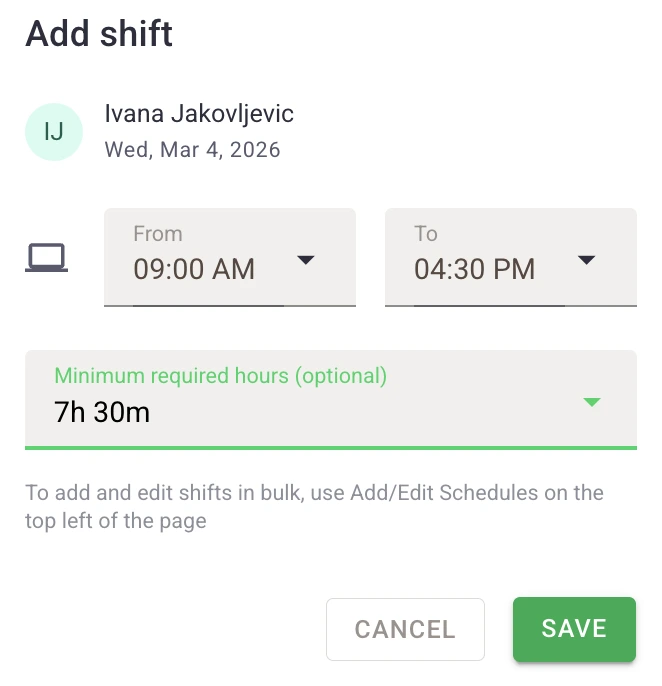
By default, only admins can add, edit, or delete shifts (and leaves) in Time Doctor. Regular users can create shifts for themselves or request leave if permitted by the admin.
Time Doctor provides a quick way to schedule a shift. However, it lacks the shift-swapping option or the ability to copy shifts, which is disappointing.
Managers can add or edit shifts in bulk using the CSV import/export option. But this can be a complicated and time-consuming process.
Adding leaves in Time Doctor is equally easy as adding shifts. Employees can select start and end leave times and mark their leave as paid or unpaid — see below:
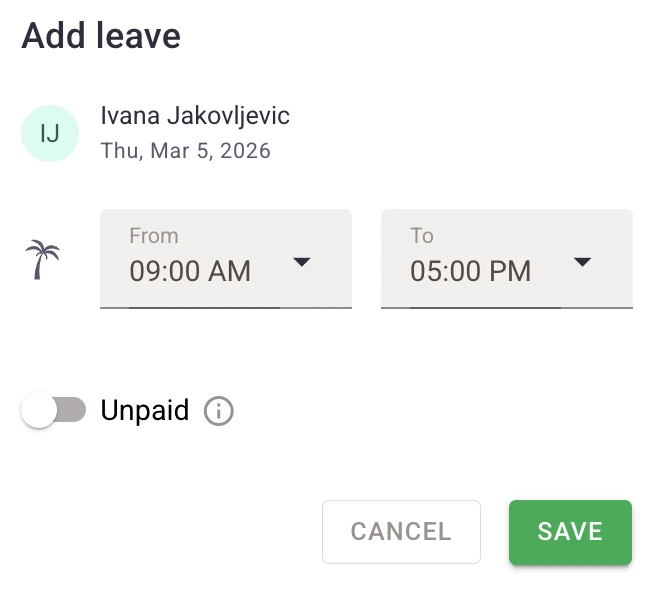
Time Doctor’s leave feature doesn’t allow you to create time-off policies (in contrast, Clockify does). In my opinion, this is a huge minus for Time Doctor.
Without standardized leave policies, managers face serious issues, including increased admin work and compliance risks.
🎓 DCAA-Compliant Timekeeping — Definition, Requirements, and Tips
With Time Doctor’s Payroll feature, managers can easily generate weekly or monthly payroll for their employees.
On the Payroll page, I could quickly review each employee’s total paid time and:
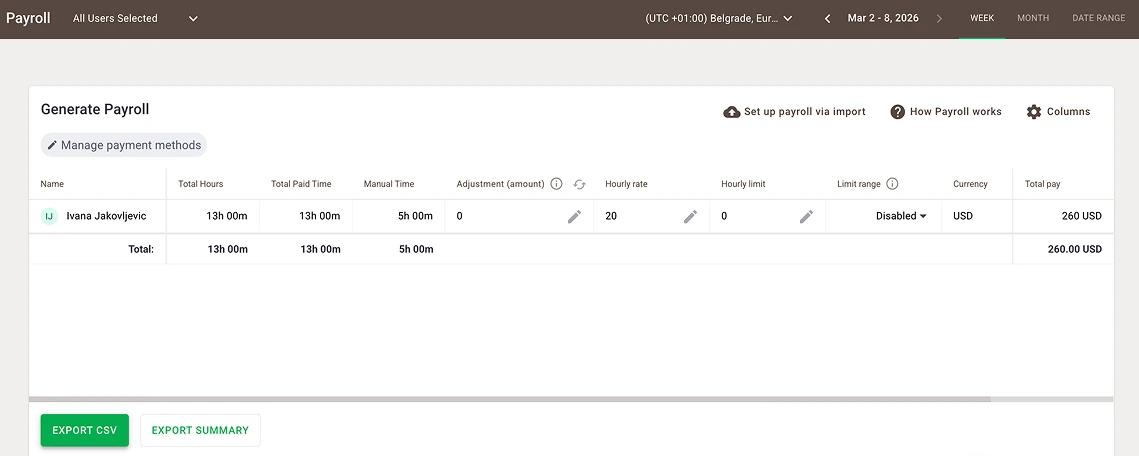
Setting up and generating payroll was pretty straightforward, which I appreciated. To streamline payroll processing, Time Doctor integrates with PayPal, ADP, Wise, Gusto, and Payoneer.
You can export payroll as a CSV file and then upload that file to your preferred payment platform. To export payroll for Gusto, you need to enable Gusto as your payment method. Then, set Gusto as a payment method for each employee (in the Payment method column), and click Export CSV.
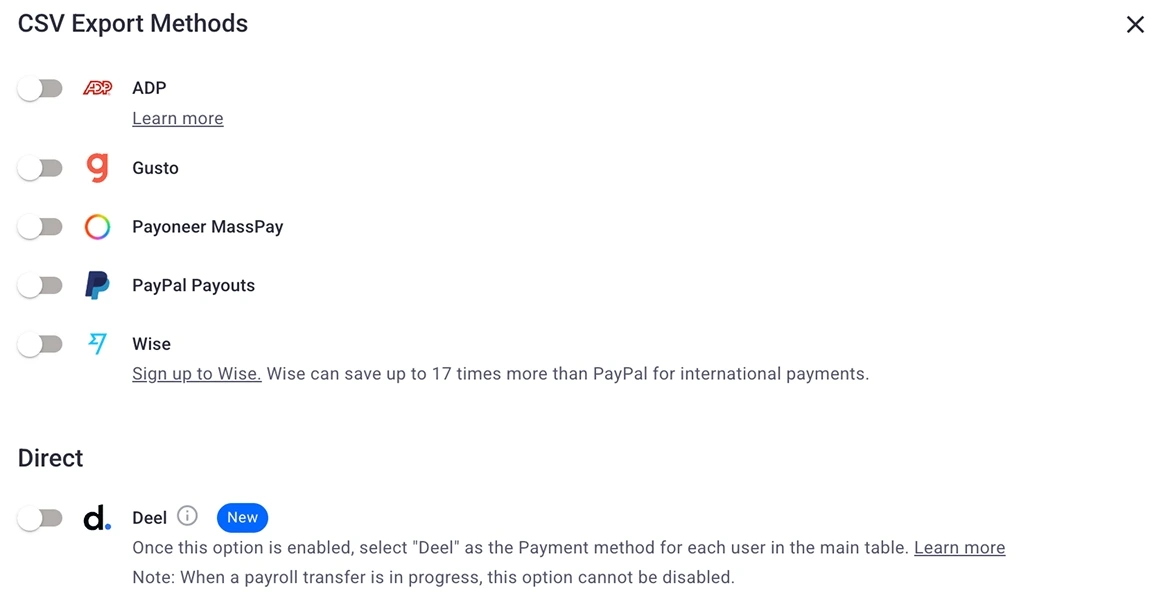
Time Doctor can also integrate directly with Deel, ensuring every minute worked is paid accurately. Sadly, you need to be on the Standard plan to use this option.
To conclude, Time Doctor may not offer a complete payroll solution (as a dedicated software would), but it can make payroll easier for businesses.
I was happy to learn that Time Doctor integrates with more than 60 business tools, including Asana, Trello, Salesforce, and Rippling.
Integrations are grouped by category:
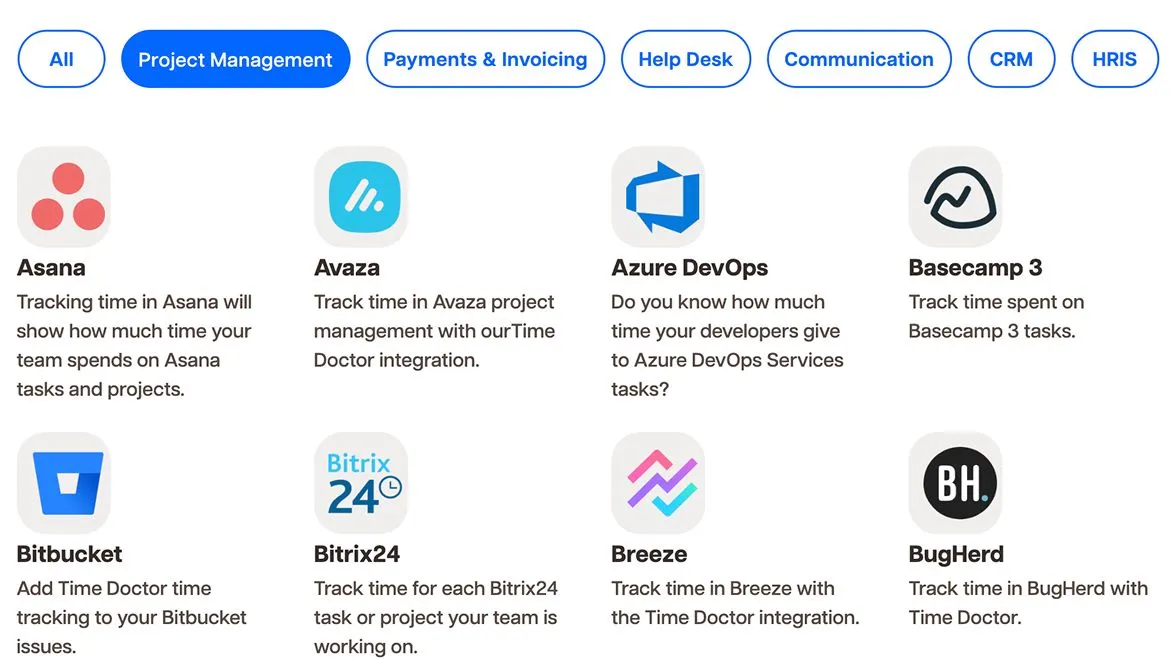
I noticed that Time Doctor doesn’t integrate with Plaky project management software, which is a bummer. Also, all available integrations are paid (whereas Clockify by CAKE.com offers integrations for free).
—
After calculating the average of all key features, I arrived at a final rating for the Time Doctor web app: 3.8/5.
| Time Doctor web app | Rating |
| Time tracking | 3.5/5 |
| Reporting and analytics | 4/5 |
| Employee monitoring | 4/5 |
| Scheduling and leave tracking | 3/5 |
| Payroll | 4/5 |
| Integrations | 4/5 |
| Final rating | 3.8/5 |
After testing the web version, I decided to try out the Time Doctor mobile app (Android).
Time Doctor’s mobile app is basically a start/stop timer. Unlike the web version, the mobile app doesn’t include features such as Scheduling, Reports, or Productivity Dashboards.
Tracking time via the Timer was easy. To start tracking time, I selected a project and clicked the play button next to the task I was working on. To finish recording time, I clicked the pause button, as shown below:
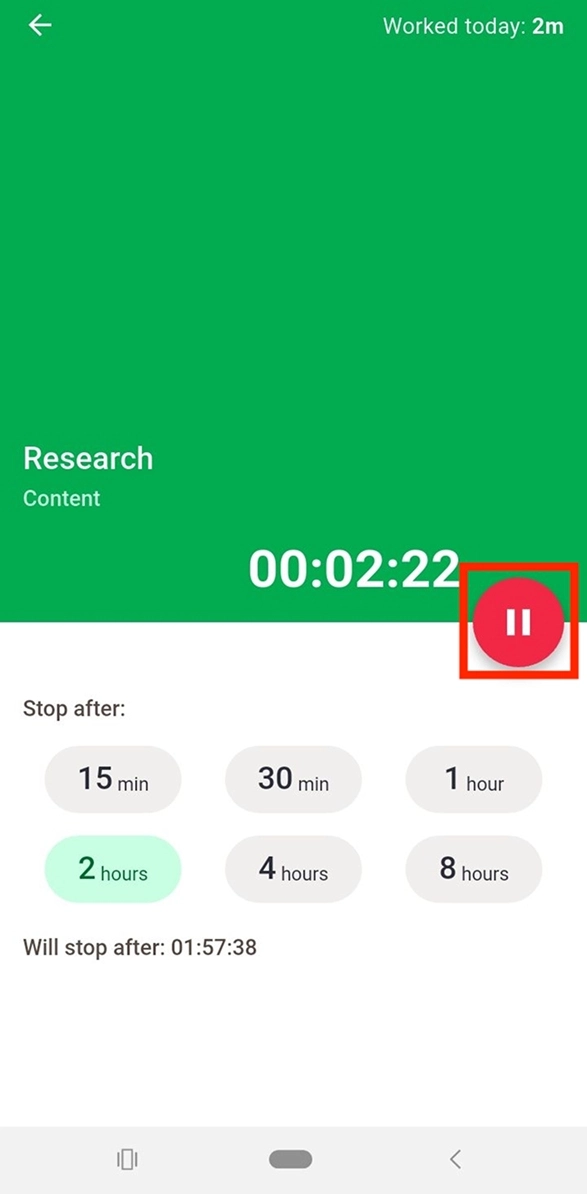
Still, employees should be careful when using this feature. They may accidentally double-tap the pause button (like I did a couple of times), thereby pausing and instantly resuming the Timer instead of stopping it. This can lead to inaccurate time records.
As you can see from the screenshot above, I could also set the Timer to stop automatically after:
This option can be useful if I want to limit the time I’ll track for a specific task.
I also tested how well Time Doctor’s mobile app works without an internet connection. While I was offline, the timer worked fine, and the time was recorded properly.
However, syncing data between the mobile and web apps took longer than I expected. Once I reconnected, I had to wait about 5 minutes before I could see my tracked time in the reports.
All in all, Time Doctor’s Android app is a decent tool for basic on-the-go time tracking. For detailed monitoring and performance analytics, managers will have to use the web version.
My final rating for the mobile app is 2.5/5.
In September 2025, the team behind Time Doctor introduced the Office vs. Remote Report feature. With this report, agency owners can compare employee performance across different work environments (in-office, remote, and hybrid). These insights help them make informed decisions regarding work policies and schedules.
As of Dec. 30, 2025, Time Doctor users can link Time Doctor directly to their HR software (BambooHR, Workday, and others). This way, employee details and approved PTO stay in sync automatically, simplifying payroll and reducing admin work.
As one of the most popular productivity-tracking tools, Time Doctor provides rich workforce analytics. This helps businesses better understand how employees spend their time.
Conversely, Time Doctor’s employee-monitoring features can be anxiety-inducing. Personally, the mere mention of “keyboard activity tracking” makes me uneasy — and I’m probably not the only one feeling that way.
Aside from this, Time Doctor lacks essential features for mobile-first teams, such as GPS tracking and geofencing. This makes it impractical for industries like construction or healthcare.
I also think the customer support could be better. Specifically, not offering phone support is a big downside for me.
So, once I added up all the scores, my final rating for Time Doctor is 3.5/5.
| Time Doctor | Rating |
| Web app | 3.8/5 |
| Mobile app | 2.5/5 |
| Pricing | 3.5/5 |
| Usability and interface | 3.5/5 |
| Security and privacy | 4/5 |
| Customer support | 3.5/5 |
| Customer reviews | 3.4/5 |
| Final verdict | 3.5/5 |
If you need an easy-to-use and affordable time tracker for your business, try Clockify by CAKE.com. Our tool provides superb billing accuracy, making it appealing for budget-conscious organizations.
With Clockify, you get:
Like Time Doctor, Clockify lets you take screenshots of employees’ screens — screenshots are taken only while the Timer is running. Most importantly, employees receive a notification when screenshot capturing is enabled, leaving no room for hidden monitoring. This helps maintain employee trust.
Unlike Time Doctor, Clockify supports GPS location tracking. This is especially important for businesses with field-based teams. With the Location feature, you can see:
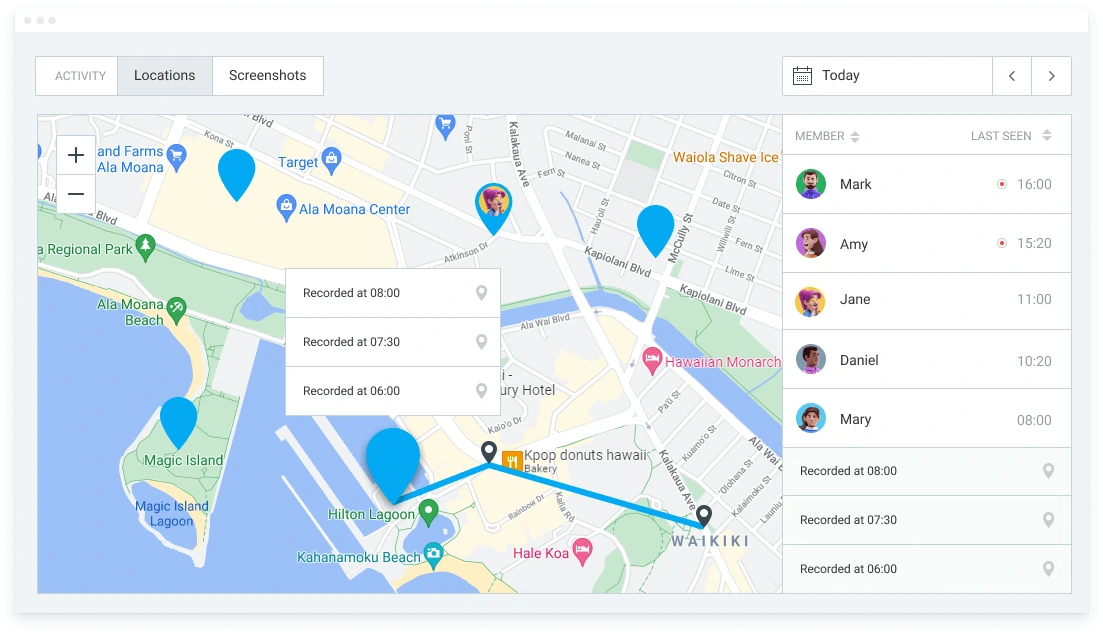
Location tracking enhances team transparency and increases employee productivity, among other benefits.
Clockify offers free human customer support available 24/7. It also provides concierge services for qualified clients on all paid plans.
| Features | Time Doctor | Clockify by CAKE.com |
| Primary use | Time tracking Productivity monitoring |
Time tracking Project budget tracking Billing |
| Time tracking | Timer The option to add time manually |
Timer Timesheets Manual mode Calendar Kiosk |
| Reporting | Productivity Attendance Custom |
Productivity Assignment Project budgets Expense Attendance Custom |
| Scheduling and leave tracking | Basic shift-scheduling The option to request paid or unpaid leave No time-off policies |
Advanced scheduling with task assignment and capacity planning options Easy time-off tracking and management Time-off policies available |
| Free plan | No free plan | Free plan with up to 5 users and unlimited projects |
| Suitable for | Remote, hybrid, and in-office teams | Small-to-medium-sized companies working remotely or in the office, in all industries, including IT, accounting, agency, marketing, advertising, attorneys, developers, construction, transportation, and startups |
| Pricing | Starting at $6.67 per user/month if billed annually | Starting at $3.99 per seat/month if billed annually |
As part of the CAKE.com Bundle, Clockify integrates seamlessly with its sibling apps:

Looking for a full-featured option? Learn more about Clockify as a Time Doctor alternative.
Need more information about Time Doctor? Then check out the following section for answers to frequently asked questions about this app.
Generally, Time Doctor enables accurate tracking of employee work hours and productivity. On occasion, synchronization issues and errors may occur — but these are often temporary.

Yes, Time Doctor can see your screen. When the Screen-monitoring feature is enabled, Time Doctor takes (and stores) periodic screenshots of employee screens. Time Doctor also captures video recordings of user screens (feature available in the Premium plan).
Yes, you can tell if your employer is monitoring your computer. Key signs include:
Also, if your webcam indicator light turns on unexpectedly, this often means an app is currently recording your screen.
Yes, Time Doctor can capture content from all the connected monitors.
Time Doctor doesn’t record the specific keys pressed. It only records the number of keystrokes and mouse movements made by users to measure inactivity.
The potential bad sides of time tracking are:
On the other hand, timekeeping has many advantages, including:
A reliable timekeeping tool like Clockify can even help businesses ensure time tracking compliance. This way, they can avoid legal issues.