

Alex Beadon
Founder of Together We Launch
"We use Clockify to see where our time is going and how to solve any problems. It’s just so beneficial."
More stories

Find new apps that fit you team's needs
Are you looking for a compliant, cost-cutting app to manage your deskless team?
If you’re struggling to control funds and keep field workers accountable, you’re in the right place.
Connecteam promises to simplify scheduling, time tracking, and daily work for your hands-on staff. But will it come through, or should you consider a better alternative?
In this candid Connecteam review, I’ll test the app’s functionalities for reliability. So, let's dive right in.

Connecteam is an employee management app that simplifies daily operations, communication, and HR processes for remote teams. As a mobile-first all-in-one tool, Connecteam tailors its services to industries like:
In this honest Connecteam review, I’ll analyze and rate each feature on a scale of 1 to 5.
But first, here are the main pros and cons of Connecteam in 2026.
| Pros | Cons |
| ✅ 24/7 human support | ❌ Confusing and steep pricing |
| ✅ 14-day free trial | ❌ Complicated user interface |
| ✅ Simple video tutorials | ❌ Slow customer service via email |
| ✅ Free 1-on-1 session during trial | ❌ Too many default fields for shifts |
| ✅ Fully compliant app | ❌ Admins must switch to user view to track personal shifts |
| ✅ Easy clock-in/clock-out system | ❌ Limited integrations |
| ✅ Time off includes user limitations | ❌ No option to import public holidays |
| ✅ GPS tracking and geofencing | ❌ No offline functionality |
Connecteam’s pricing model offers yearly plans that get you an 18% discount (or 2 months for free), which seems like a fair bargain to me. Connecteam offers 4 paid plans for each Hub (or product): Operations, Communications, and HR & Skills.
Plan features change based on the selected Hub, but their prices don’t. Frankly, I found this layout tricky. To illustrate, here’s a rundown of Connecteam’s plans for Operations Hub:
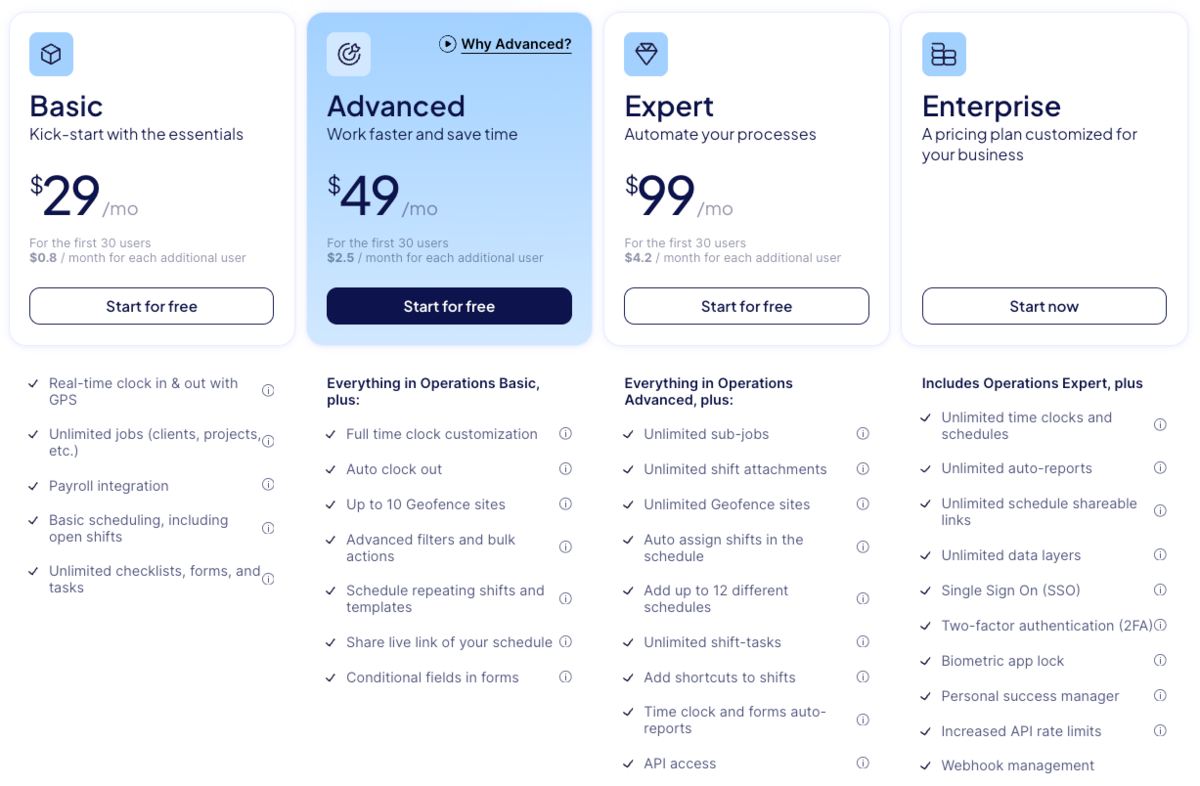
Connecteam offers paid plans at a fixed fee that includes 30 seats, but charges extra for adding users beyond that threshold. So, if I want the Advanced plan for auto clock-out, I must decide whether the additional $2.5 per user per month is worth exceeding the 30-seat limit.
I also noticed Connecteam doesn’t publicly disclose its Enterprise plan pricing. Instead, you negotiate the Enterprise plan price with their account expert, who considers your user count and suggests a set fee. By comparison, Clockify by CAKE.com is more transparent, listing the price for each plan.
Finally, Connecteam delivers small business solutions with 2 forever-free plans:
To subscribe to any plan, I had to complete the 14-day trial with unlocked features across all Hubs. I found this counterintuitive and unexpected.
Upon first opening Connecteam, the app looked clean and well-organized. Its main features are sorted by Hub and listed in the left-hand side bar. You can add or remove features from the panel based on your preferences.
For first-time users, the app launches an interactive start guide with video tutorials and walkthrough steps. The guide allowed me to progress at my own pace, letting me pause to explore each feature.
By default, Connecteam opens to the Overview dashboard. It shows daily activity and quick actions for adding users and admins, sending workspace invites, and more.
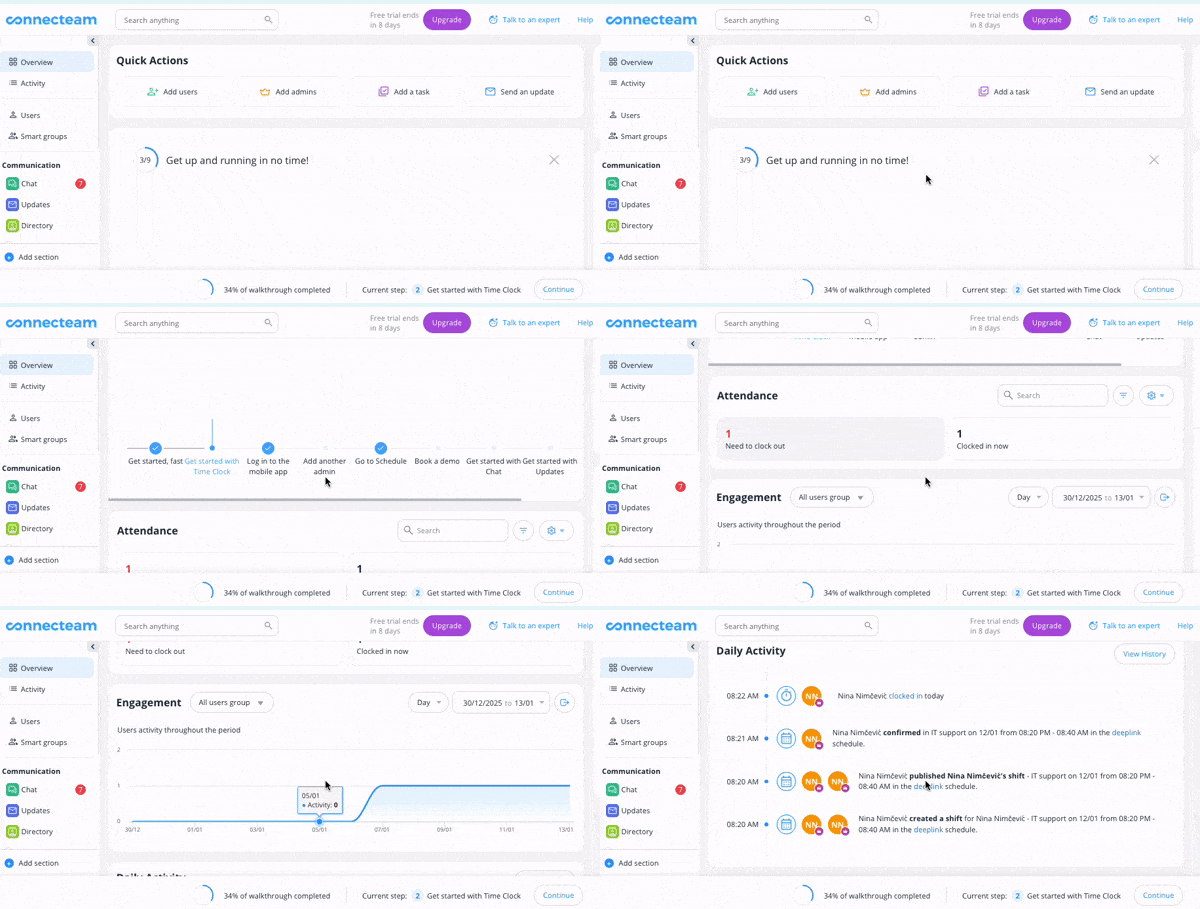
That said, the app’s visual distractions, like pop-ups, made it feel crowded for me. I couldn’t remove all of them, which made it difficult to focus.
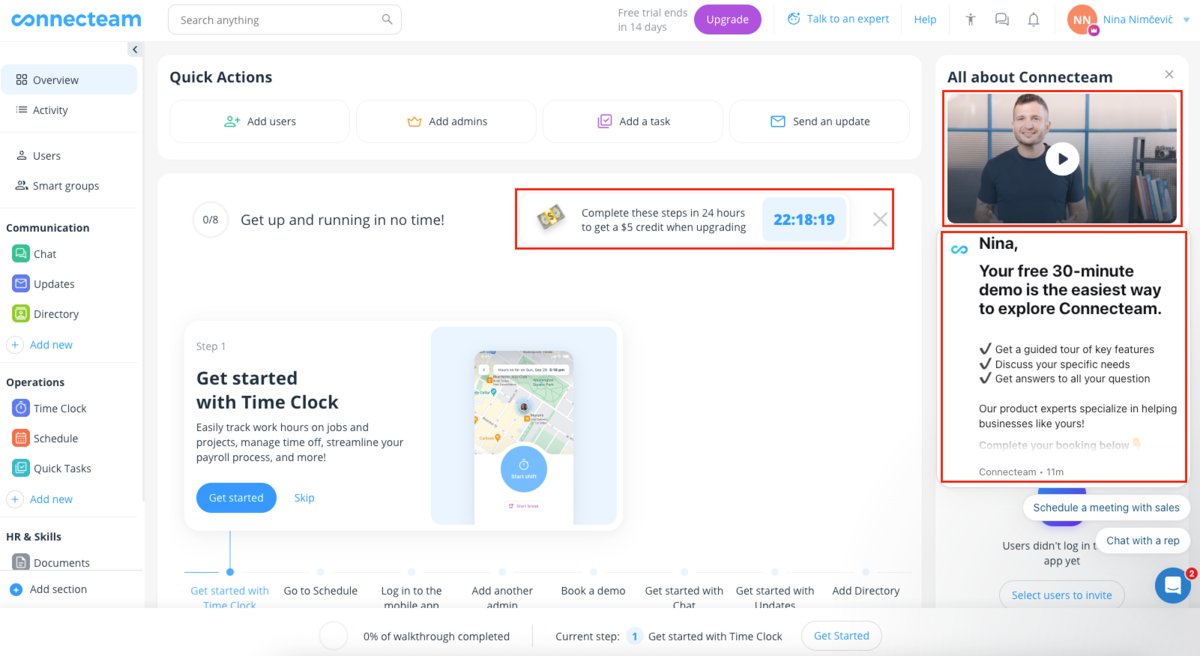
Completing the trial in less than 24 hours gets you a $5 upgrade discount — a generous offer. Personally, the countdown timer made me nervous and distracted me from testing the app.
While reviewing Connecteam, I tried inviting users and admins to my workspace and noticed some constraints. You can send invites to admins by phone or email, but you can only invite users by phone. If I were a business owner, I would want both options when adding users to avoid issues like poor signal.
In Connecteam, I felt that several options were tucked away. For example, I wanted to correct my name but couldn’t do so in my account settings. According to customer support, I can edit my name in the Users section via the side menu — which requires several clicks.
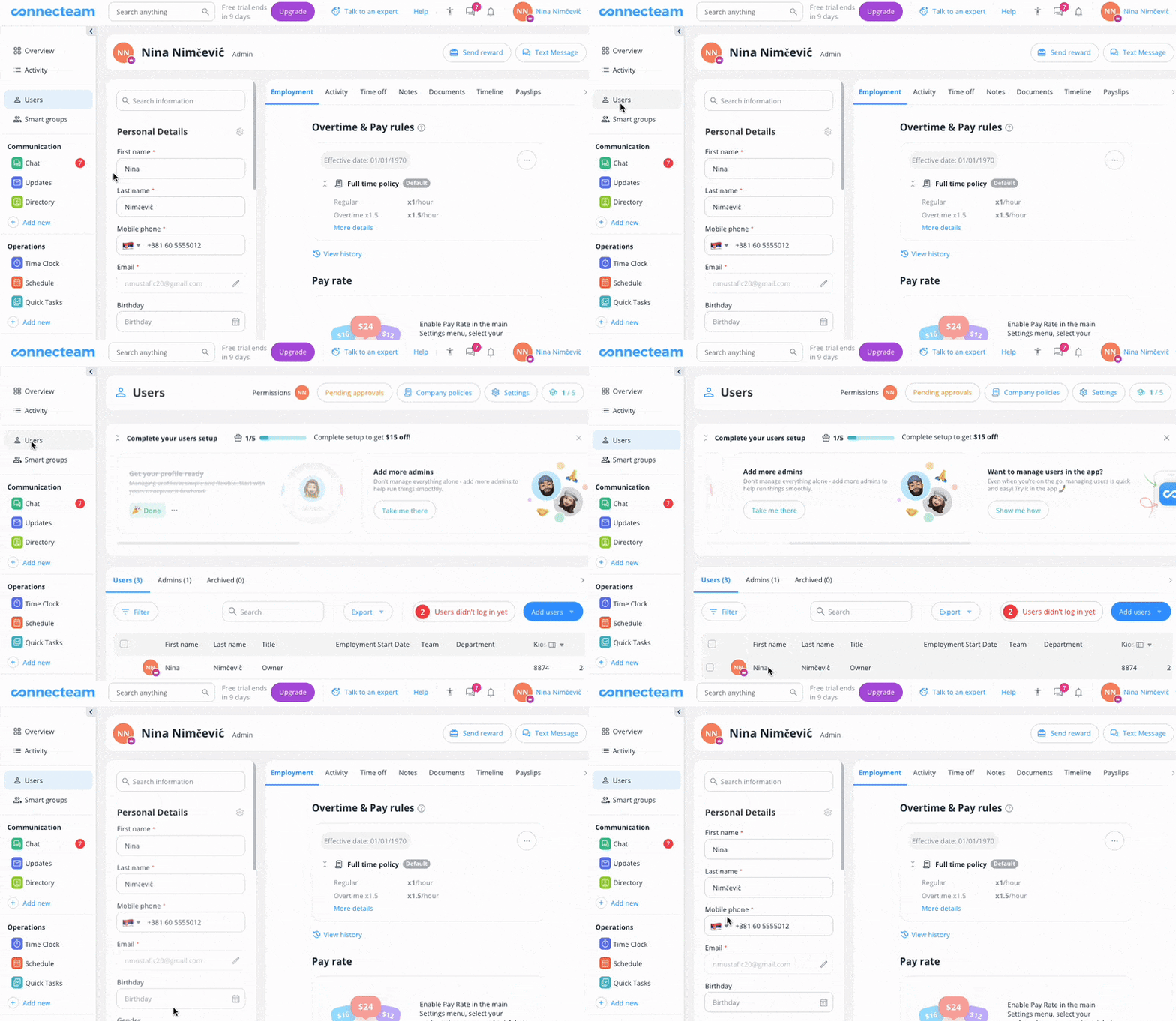
To me, contacting Connecteam’s staff for a mere name change felt unnecessary.
To ensure overall safety, Connecteam has obtained 2 international compliance certifications:
This task management software also aligns with the EU’s General Data Protection Regulation (GDPR) and the US Health Insurance Portability and Accountability Act (HIPAA).
Additionally, Connecteam offers Single Sign-On (SSO) and two-factor authentication (2FA) to help fend off cyberattacks. Oddly enough, 2FA is an admin-only feature. Regular users can access the workspace on their phones using fingerprint or face recognition.
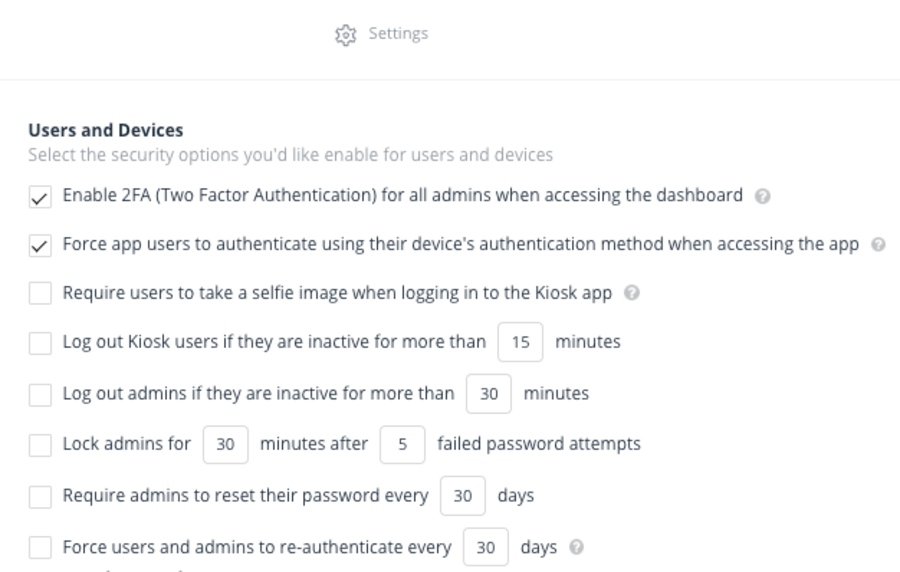
Once you enable 2FA, you’ll be required to sign in with your username and password. Then, you’ll be prompted to enter a temporary PIN code that’s sent to your phone via SMS or email.
Keep in mind that the email option only appears after waiting for 60 seconds. So, if you aren’t patient for 1 whole minute — like I wasn’t — you won’t see this alternative.
For added security, Connecteam offers a separate Kiosk app that lets multiple users log in with individual PINs on the same device. After installing it, I discovered that the Kiosk and Connecteam app only differ by login. For me, a single app with an integrated Kiosk option would be more practical (which Clockify by CAKE.com already delivers).
With several layers of protection and authentication, I felt safe storing my data in Connecteam.
🎓 Fair Labor Standards Act (FLSA) Regulations
Connecteam offers 24/7 human support through in-app live chat and email. Beyond that, the app promises quick answers to questions with their:
As a manager, I wouldn’t have time to skim through articles and videos to solve a specific issue. So, I focused on live chat and email correspondence.
My live chats with Connecteam’s staff always started without delay. Their friendly responses offered quick solutions backed by screenshots, which excited me.
However, their support agent would always ask follow-up questions about my business and intentions. Frankly, the constant pings would only break my focus at work.
After the exchange, I received an email with the full transcript of our interaction. So, if I run into any issues that have already been discussed, I can easily go back to our conversation.
But maybe I got lucky, since other customers say their emails go ignored by Connecteam’s support. Below is one such user complaint.
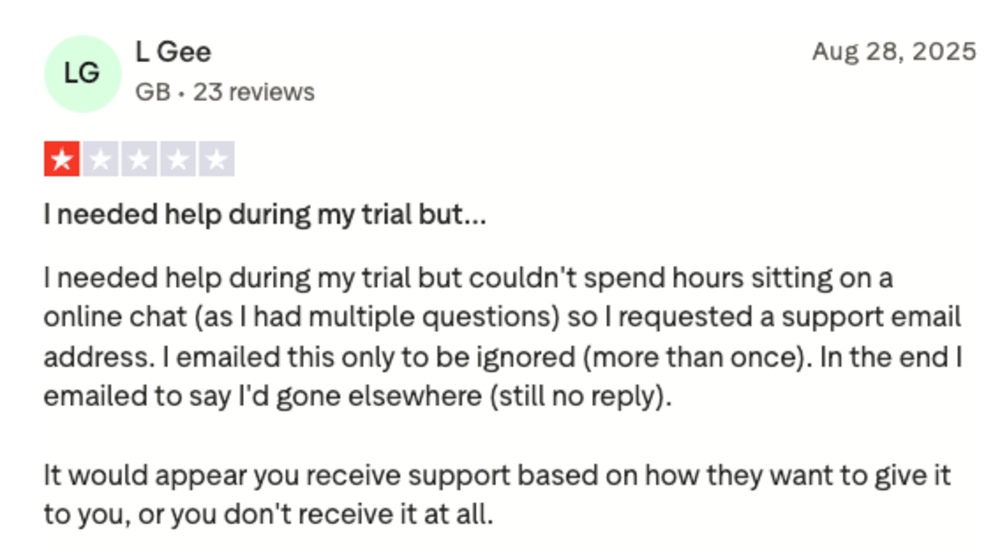
I wanted to check if this issue was a one-time or a frequent occurrence. So, I sent an email to their round-the-clock support team… and waited over an hour for a reply. If I were a nervous manager dealing with a glitch that won’t let me approve time off, I would be annoyed by the tardy response.
Connecteam has received generally positive customer reviews, especially for shift building and tracking. Yet, during my trial, I noticed some limitations and clunkiness — and I’m not alone. Other Connecteam review complaints mention scheduling and timekeeping issues, as well as high pricing.
When it comes to tracking data, I realized that Connecteam doesn’t offer offline mode. This meant that any changes I made would not be saved or stored until I restored my Internet access. This raised alarm bells for me.
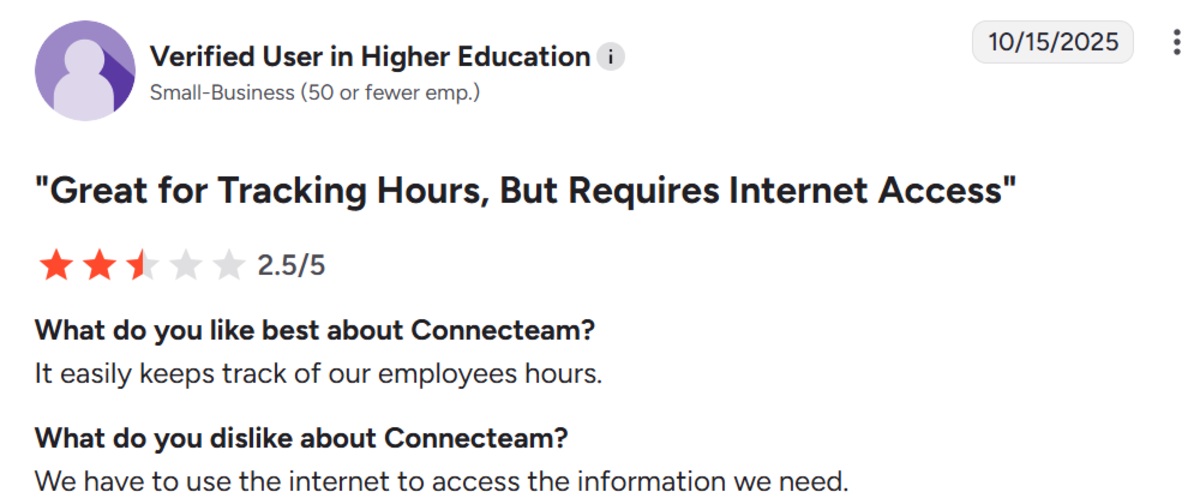
While using Connecteam, I felt like I needed a roadmap to find a specific option. This made fixing issues tough. In my opinion, the app’s steep pricing clashes with its confusing layout.
Other clients complained about flawed scheduling despite costly plans, like the user below.
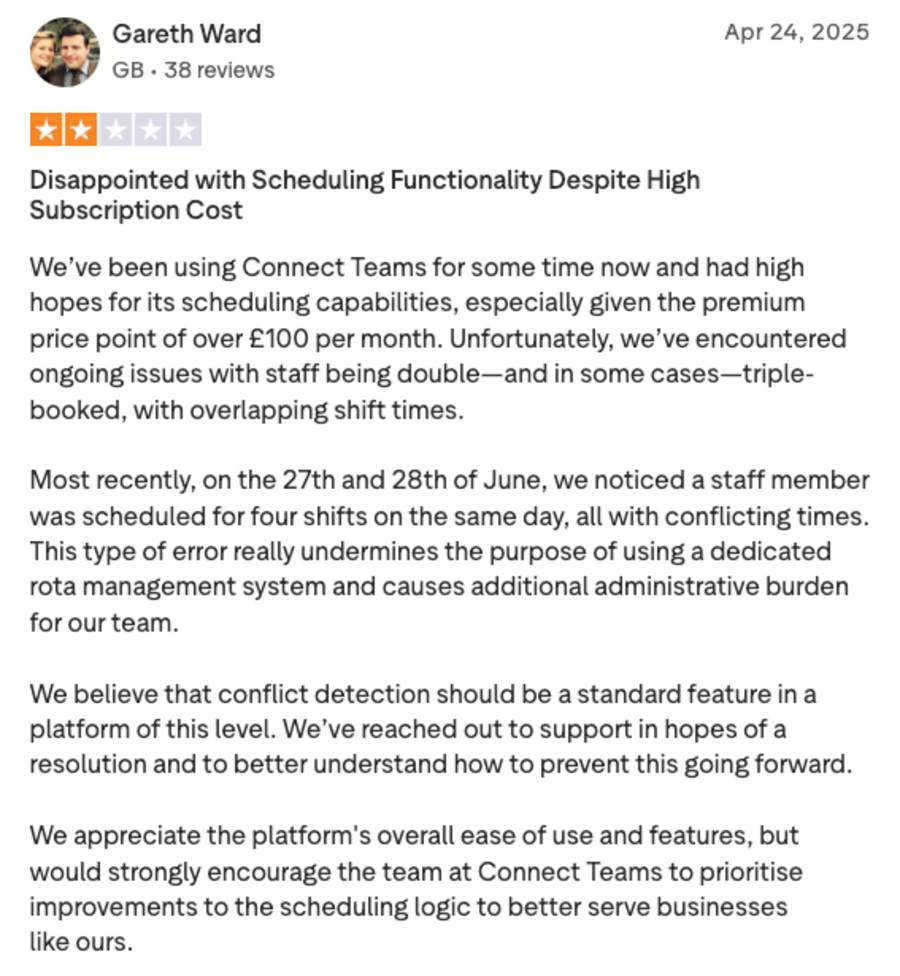
As I see it, glitches causing overloaded schedules and extra labor may sabotage managers in:
On the bright side, I noticed that Connecteam’s support agents try to address reviews. They also invite customers to continue the discussion over email.
Along with many others, I applaud this employee management app for solid admin functions. Yet, switching between admin and user mode required a bit of a learning curve. So, I had trouble remembering how to assign time and track my own.
Some positive reviews also mention awkward admin navigation, like the user complaint below.
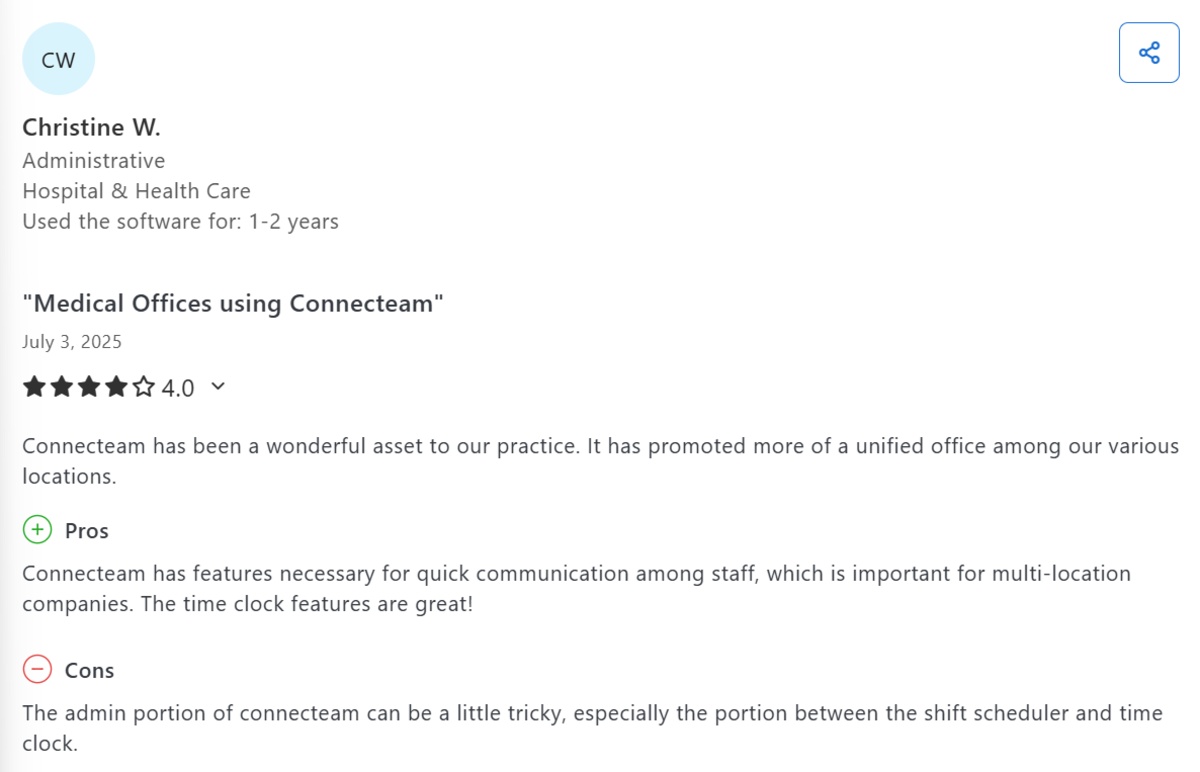
Overall, here’s how customers rate Connecteam on established review websites:
If we sum the 3 scores and divide by 3, Connecteam has an average rating of 4.6 based on all customer reviews.
Connecteam boasts a variety of services for frontline teams, with main features like:
But how efficient is Connecteam for diligent timekeeping, compliance, and payroll?
To answer this question, I’ll explore these features. First on my agenda is a review of Connecteam employee scheduling software.
In Connecteam, scheduling caters to industries dealing with rotary shifts and unpredictable schedules — like construction. You can organize shifts by:
Since you can use jobs to add clients, worksites, or projects, I found this option to be the most flexible.
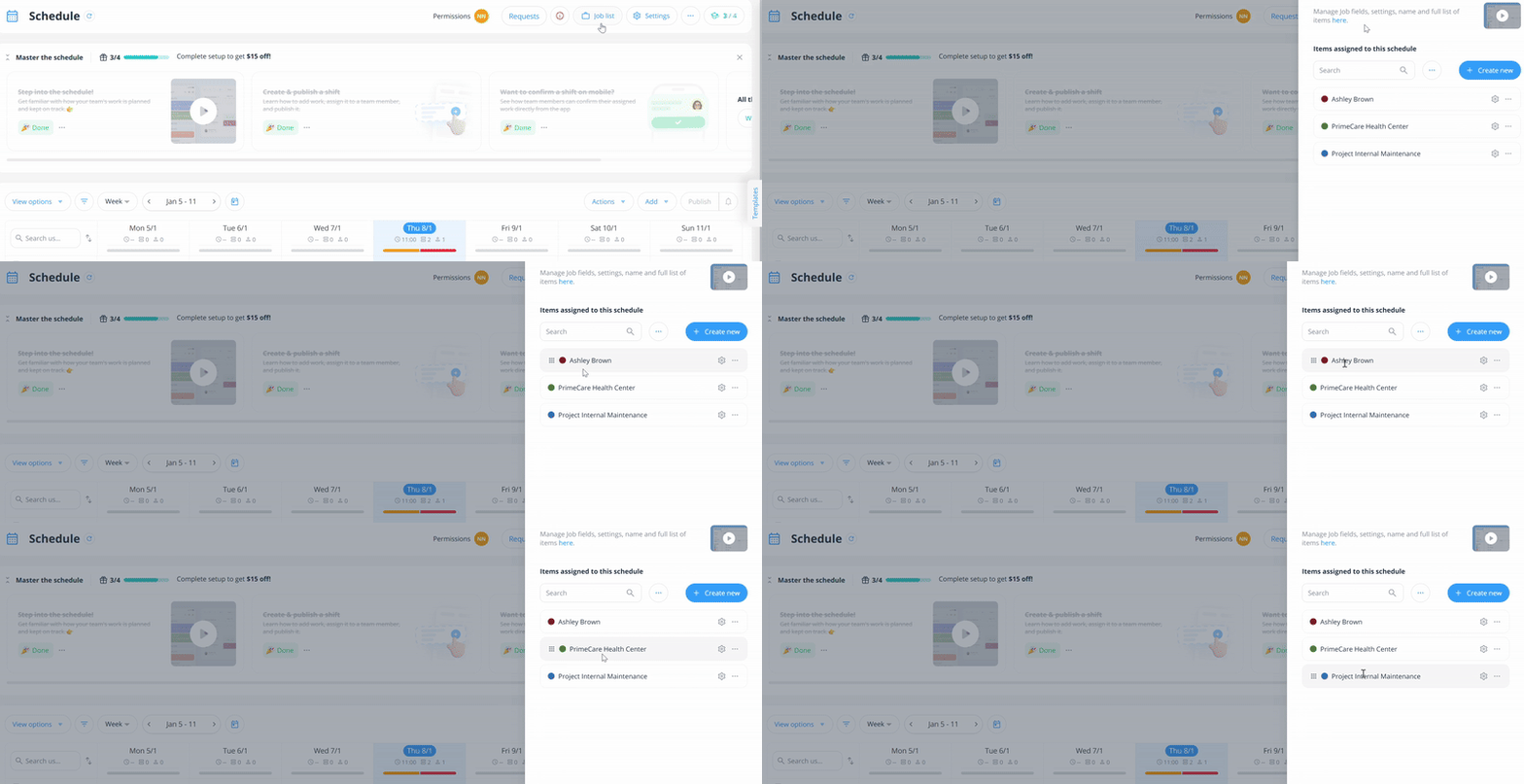
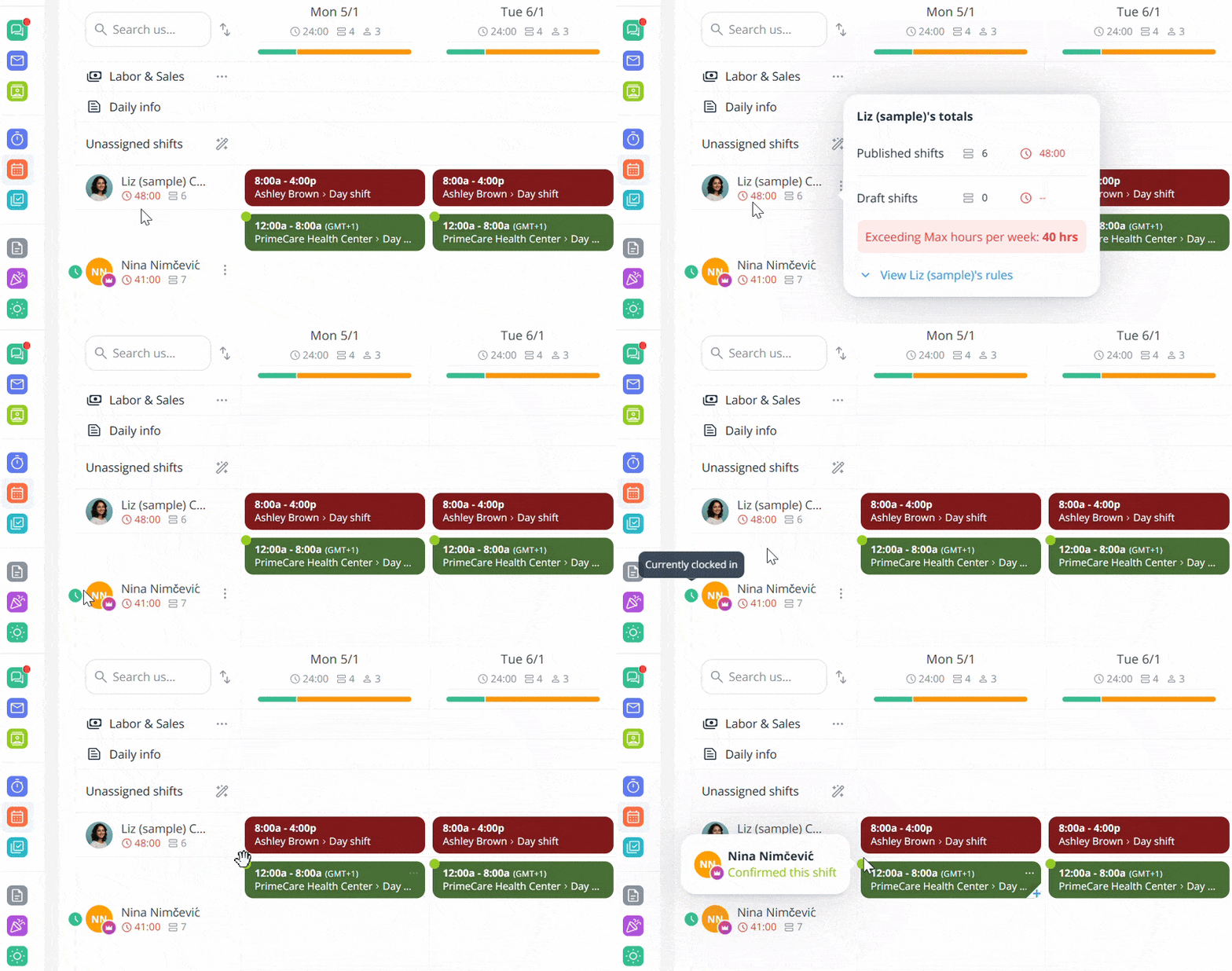
With Connecteam, you can assign shifts to users or let them confirm/reject shifts by phone on a first-come, first-served basis. This meant I didn’t have to manually reassign work — just monitor the handovers.
Each published shift is color-coded by job and sorted by user, highlighting details like:
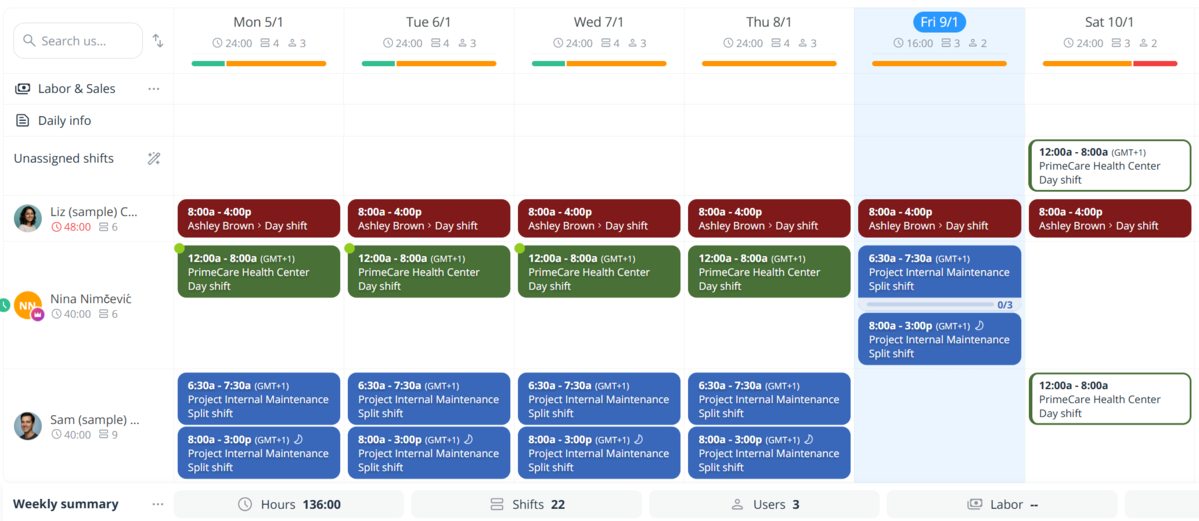
Colorless shifts are either unpublished or unassigned. In my opinion, a more direct indicator would be more helpful for busy managers.
While adding shifts, I had to fill in an overwhelming number of default fields. For me, too many options made errors more likely and caused a lot of backtracking.
Capacity warnings alerted me when employees exceeded their daily limit, helping me avoid overbooking.
Connecteam is also a task management software that lets you easily add tasks to each shift and create a to-do list. However, I felt that shift tasks lacked custom settings, like timestamps and billability labels. For comparison, Clockify already includes these.
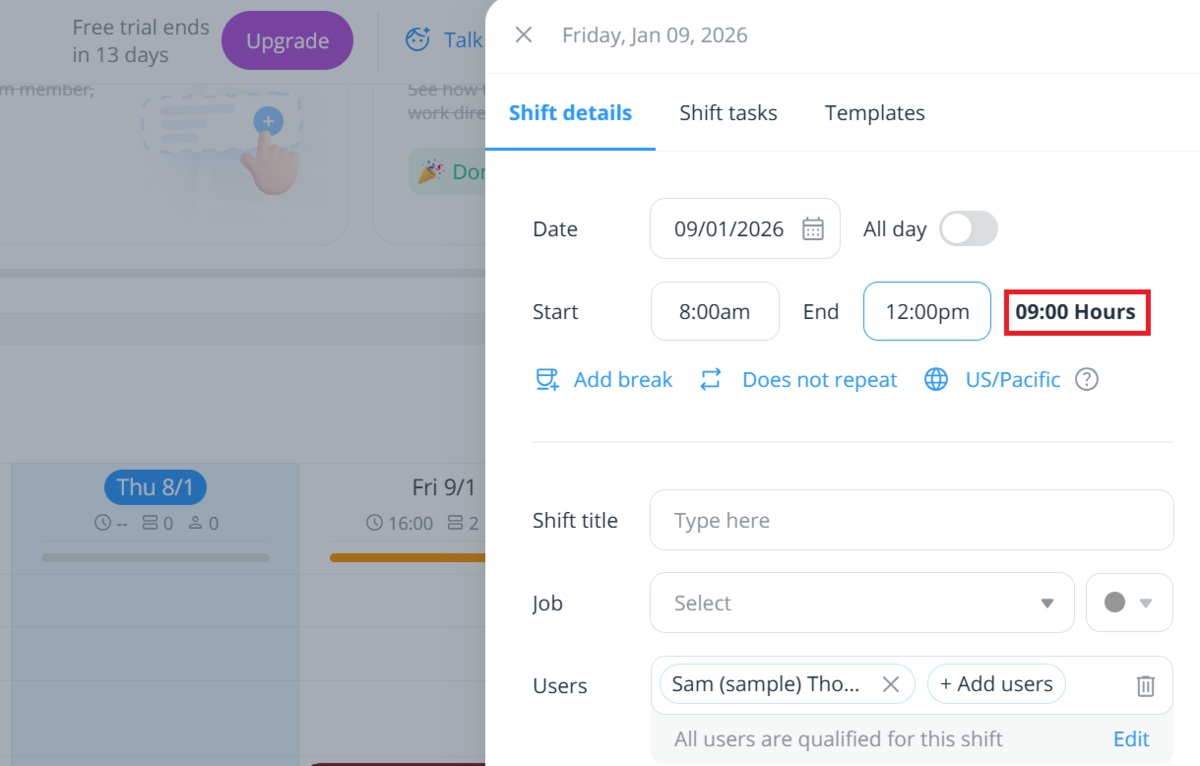
During this Connecteam scheduling app review, I observed some bugs. For instance, the app miscalculates shift length after I add start and end times. The correct number pops up once I click on the calculation, but it still makes me second-guess my actions.
Frankly, I was pleasantly surprised by the variety of scheduling options. However, this section felt busy and unfriendly for beginners. This theme continues in my Connecteam time-tracking features review — up next.
Connecteam is also time clock software that tracks when employees start and end shifts — an asset for non-knowledge work. Time Clock is the first feature on the side panel, under Operations Hub.
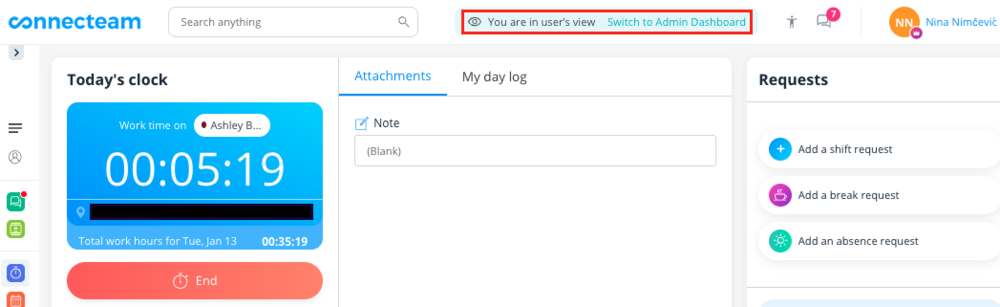
As in the mobile app, you clock in to start the timer on your shift in the browser. However, admins can’t claim and start shifts unless they switch to user view. For me, toggling modes was a hassle.
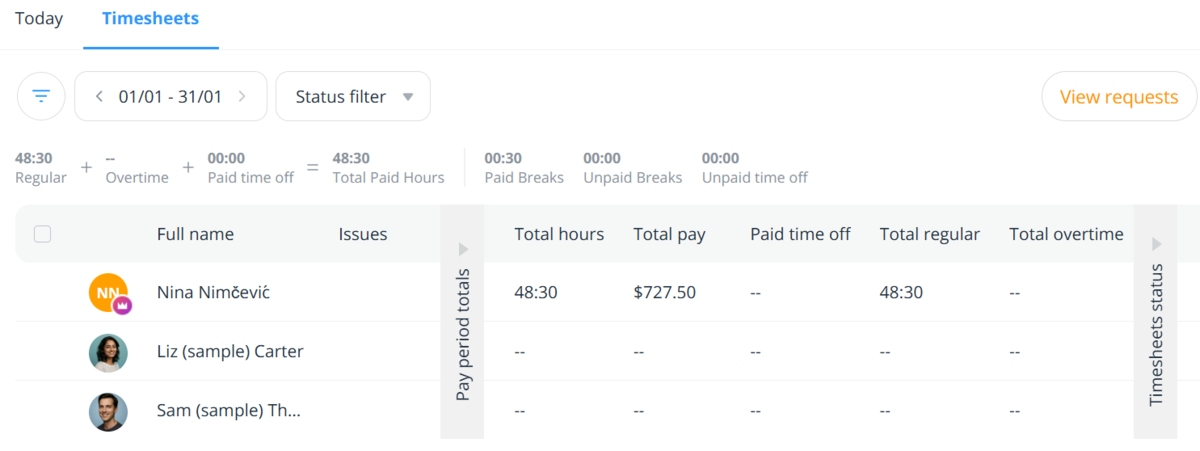
The Time Clock neatly displays employee hours with 2 dashboards —Today and Timesheets. The Today dashboardshows a daily summary of employee activity and location. I could see specific delay times for clock-ins and clock-outs and spot inconsistent users.
Selecting users opens a window with their work details for an extended time. Here, I could finally add or edit work hours — a comprehensive yet confusing way to manage time data. Moreover, editing shift details felt clunky, in my opinion.
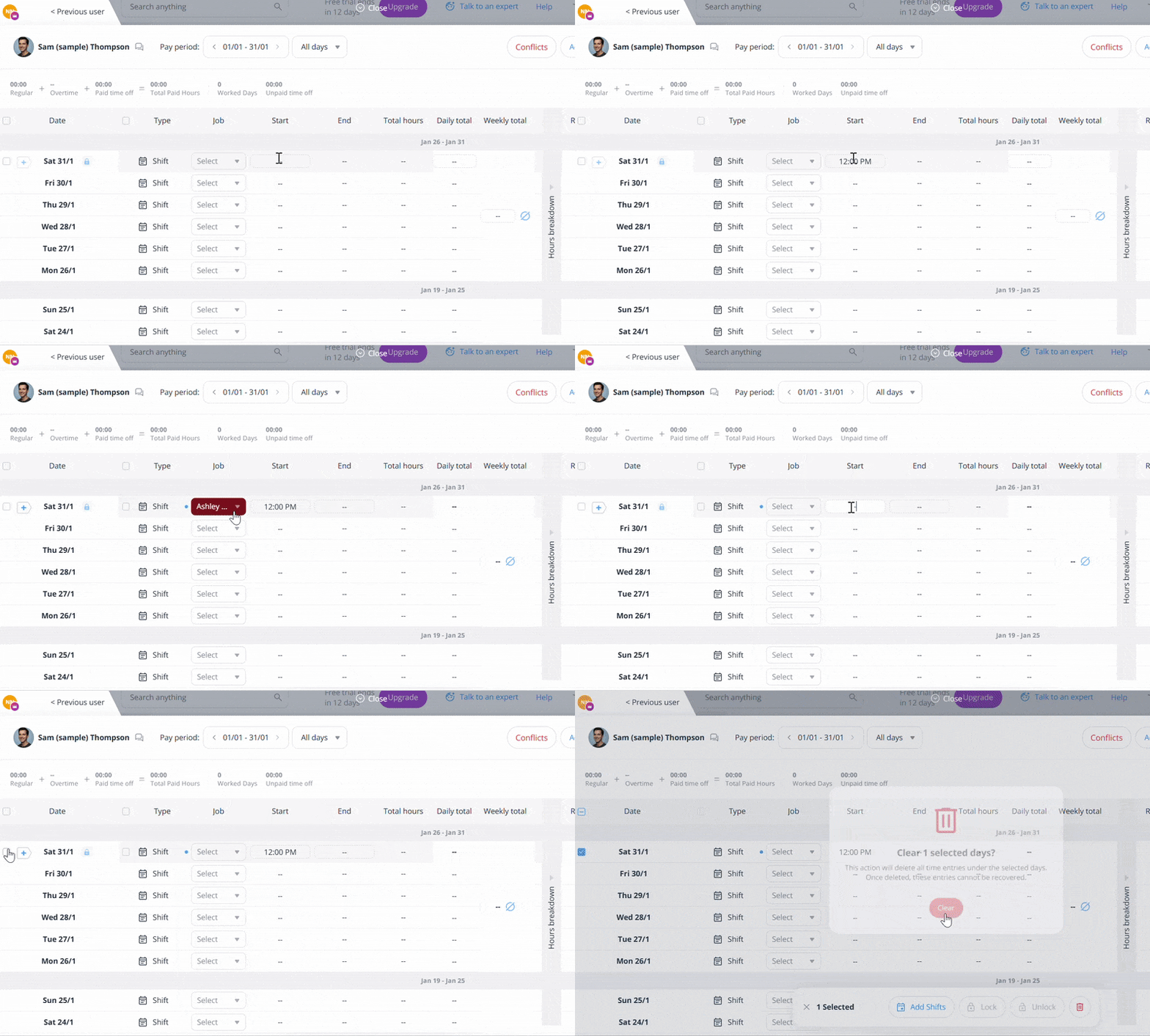
In Timesheets, total hours are broken down per user over a selected time, showing:
Like in the Today dashboard, clicking on users opens a window with detailed activity.
Breaks appear once they’re enabled in settings, where I could set rest time and duration for users. This allowed me to protect company costs and ensure timekeeping compliance.
Phone users tap the Start break button to time breaks. However, browser users like me had to add breaks to our work details, which seemed tedious.
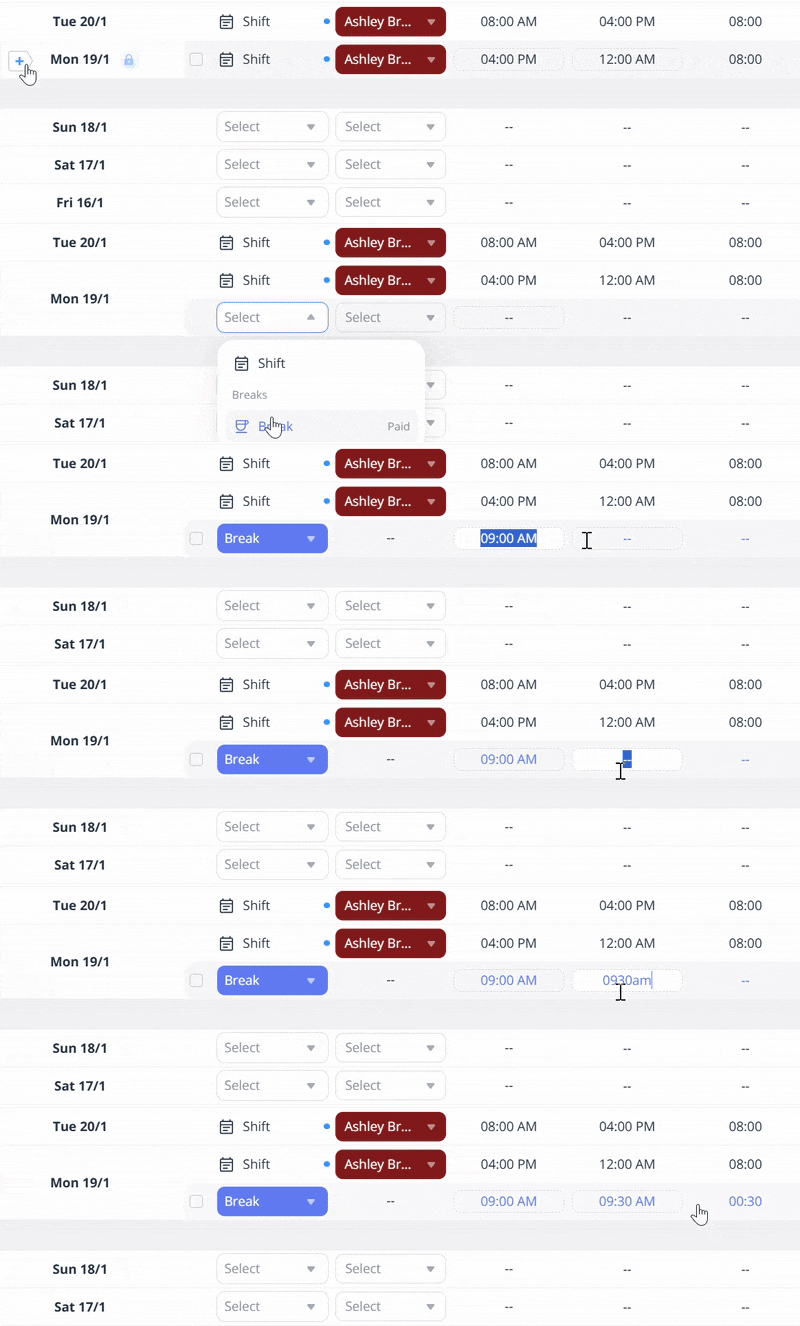
With no way to filter, I struggled to manage in-depth activity data. For comparison, Clockify makes this process smoother with clear, customizable reports and categorized time entries.
Connecteam provides Activity, located at the top of the side menu, for performance metrics and work visibility. It tracks all changes made by users and admins to keep teams transparent and accountable.
In the Activity Analytics tab, I discovered a timeline showing user login info — a useful visual aid. Hovering over the graphs showed daily, weekly, or monthly details like:
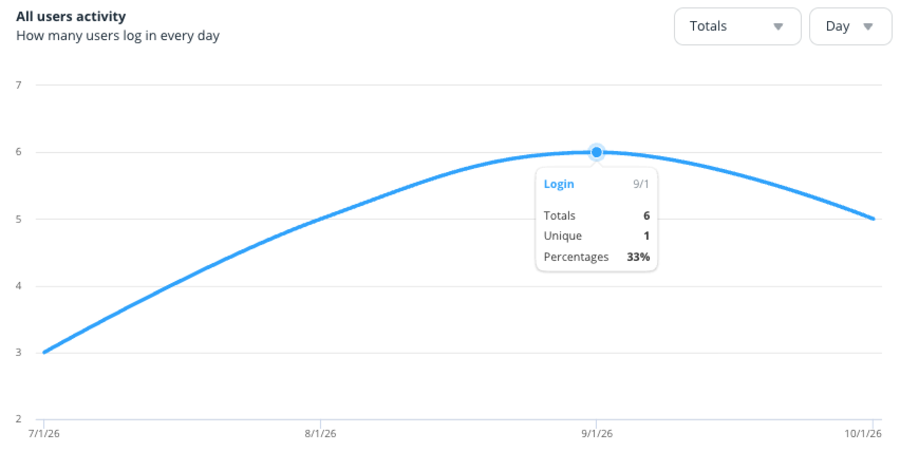
I only wish it had more granular activity insights in one place. Then managers could spot bottlenecks and time wasters for each user, project, or client.
Also, Connecteam compares labor costs and company profits to simplify budgeting. Yet, I would have liked to see more specific costs — like project- and task-related expenses. This would help control budget spending.
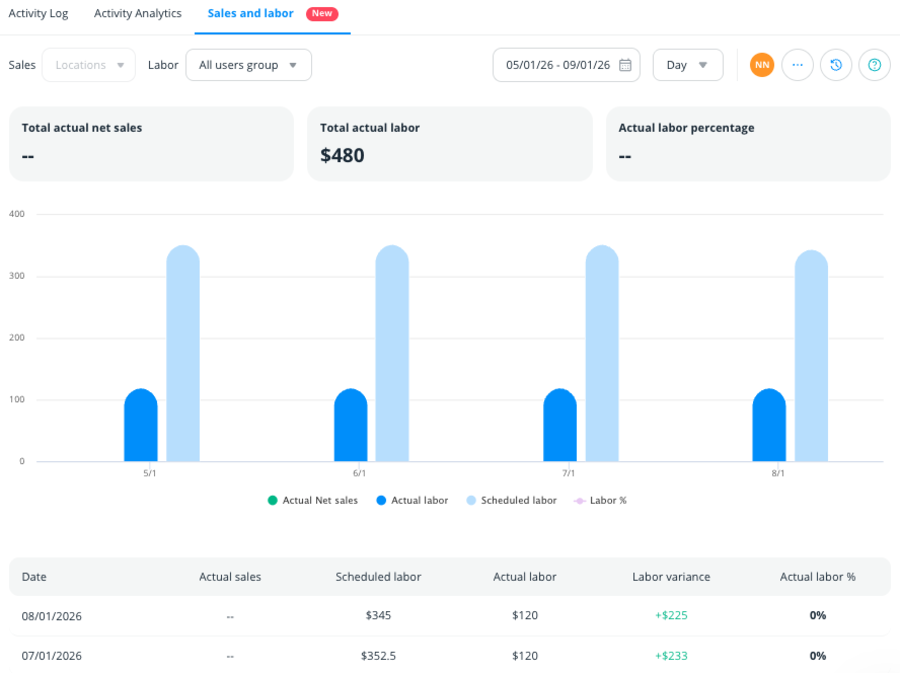
You can view sales data by:
Unfortunately, Connecteam only integrates with Lightspeed, a POS (Point of Sale) system used to manage transactions. This could make billing difficult for those with existing billing software.
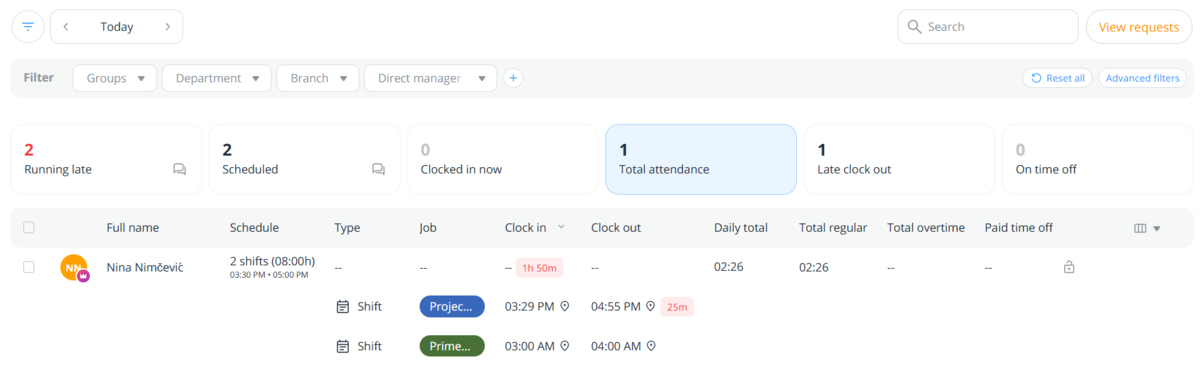
I found specific time analytics back in the Time Clock. Here, Connecteam neatly separates data with quick filters, like Total attendance. However, it only lists active users of the day.
As a manager, I would prefer to see attendance for active and inactive employees, and their reasons for absence, in one spot.
Getting different, automated reports by email was also useful. What most impressed me was the Didn’t show up to a shift report, which lists employees who miss scheduled shifts. This way, I could stay on top of no-shows and discourage time theft.
Ultimately, Connecteam’s reporting provided me with various, although limited, insights. And searching for a specific report felt like I was chasing a rainbow.
Connecteam offers built-in chats for easy communication among mobile teams — which is next on my Connecteam review list. You can navigate the Chat feature in the side panel, as the first option under Communication Hub. I could also access the chatroom via the chat icon next to my profile — a convenient addition.
Connecteam lets you create private and team chats, along with channels (where only admins can post). The app also includes a pre-made All users’ team chat, where all new recruits are automatically added.
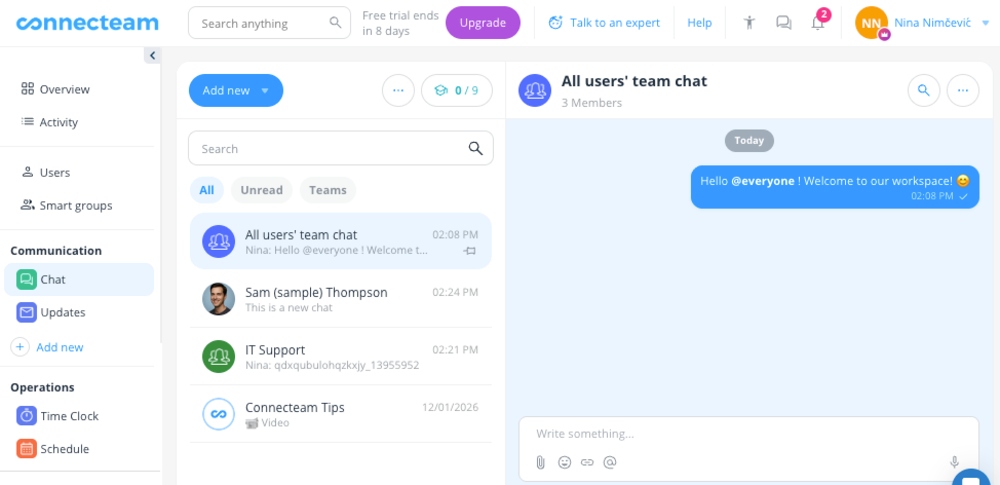
In my chats, I was able to send personalized messages with:
However, I noticed the absence of GIFs. After all, support agents regularly use them in the customer support chat.
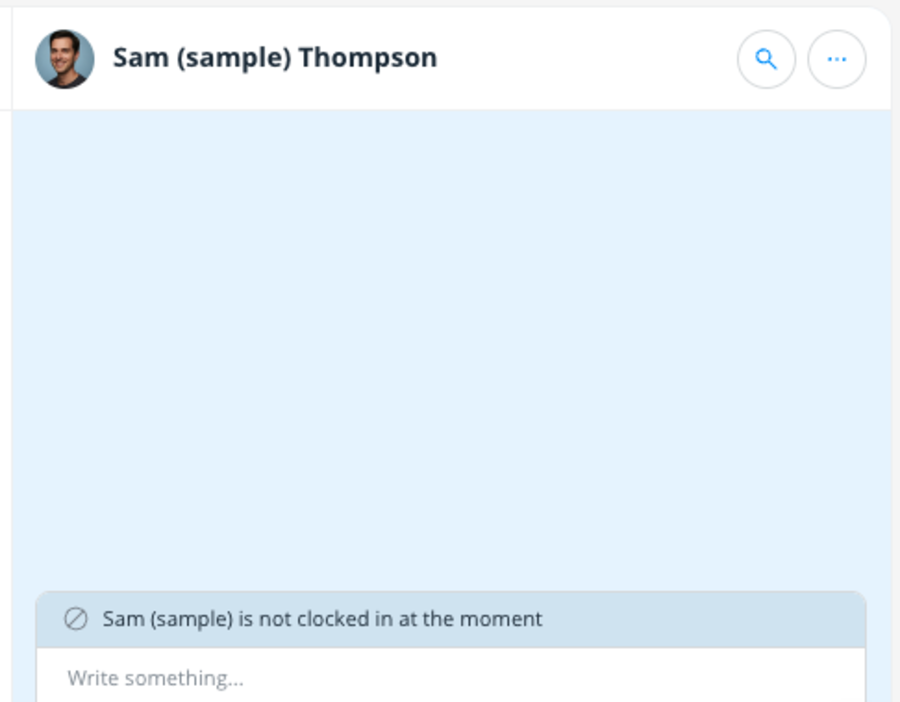
I loved that chats with offline employees have a small note about their absence right above the text box. Too many times have I written to colleagues only to realize they’re not present.
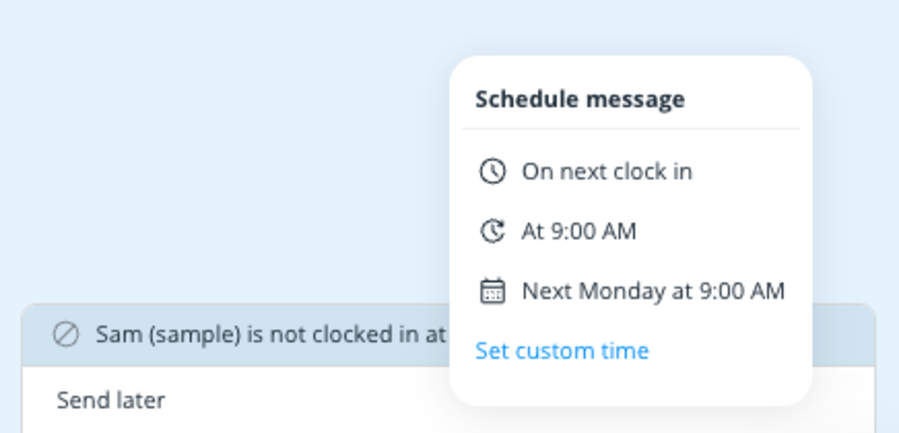
Instead of sending a message that may go unseen, Connecteam lets you schedule messages with practical custom options.
The only drawback I observed was the lack of an option to set message reminders when you’re too busy to read them at once. After all, this option is a lifesaver for large teams with constant updates and private messages.
To help you stay compliant and balance schedules, this employee management app provides a Time Off feature, listed in the side panel under HR & Skills Hub. The neatly organized page lets you navigate:
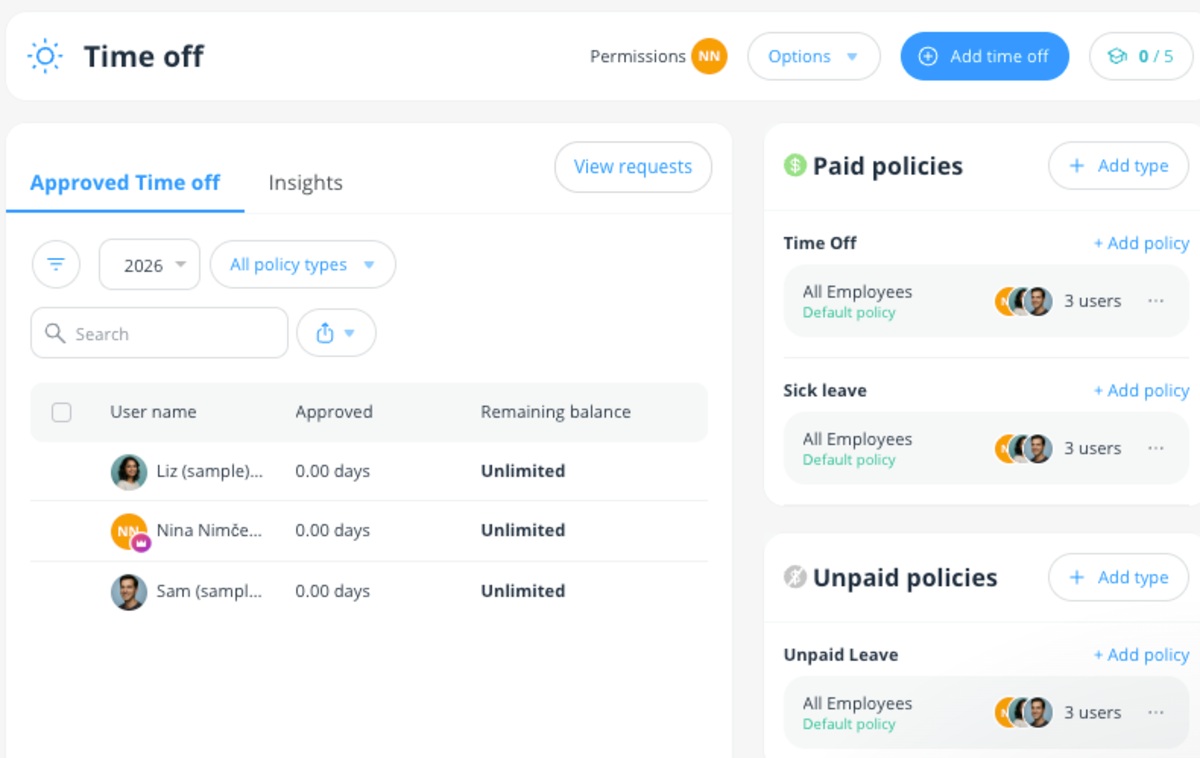
Just like users can send requests, admins can add time off for them in a few steps:
Large businesses with non-knowledge workers can benefit from assigning rest days. They often enforce company-wide shutdowns, where everyone takes time off together, except for the core staff.
I was especially impressed by user limitations, like defining when users can request leave. This eliminates inadequate requests, helping HR managers focus on eligible ones.

Creating and editing policies is straightforward, with the same steps. Upon adding balance, you choose if your employees will accrue time in days or hours — which helps you meet labor law rules.
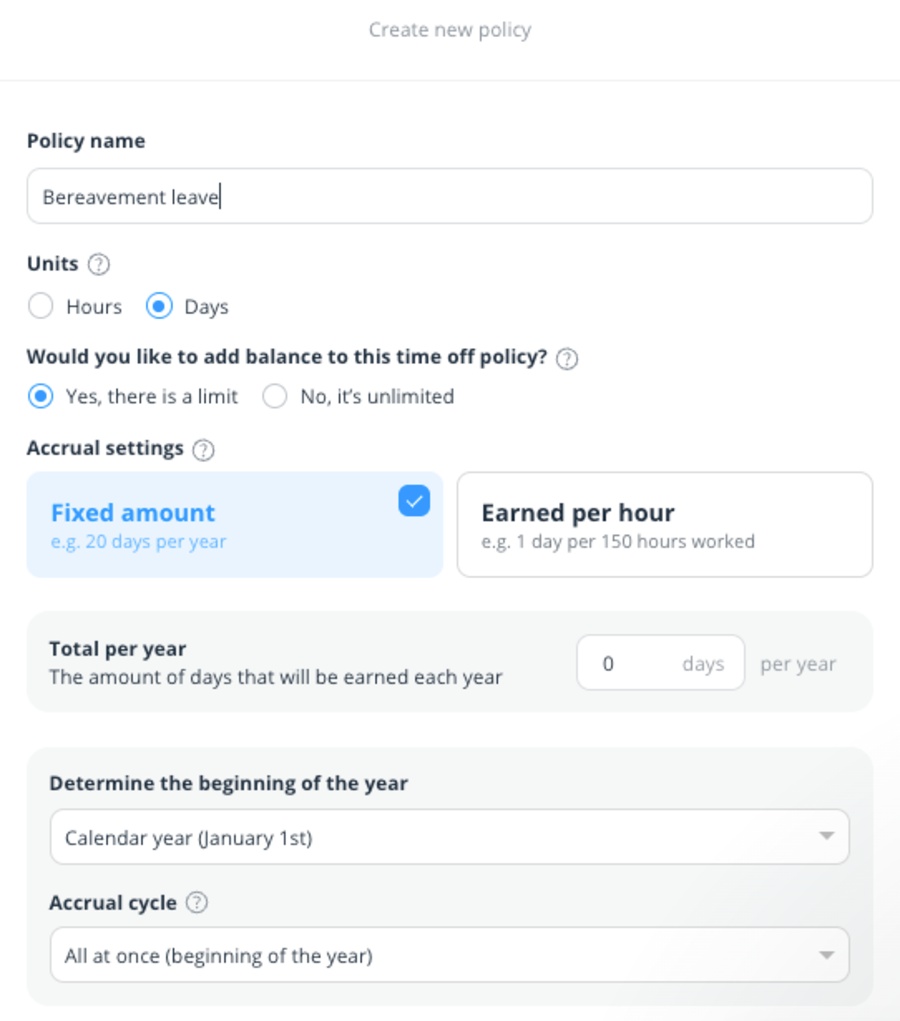
While testing policy settings, I found that you can’t automatically import dates for public holidays. Sure, you have workarounds like manually creating holiday policies. Still, this will result in a lot of admin work.
Finally, Connecteam’s Basic plan includes limited options — policy management and admin approvals. You’ll have to decide if upgrading is worth your buck or if you need to look elsewhere.
🎓 Here’s How to Deal With a Surge of PTO Requests Easily
Tracking worksites is a top priority for every manager with field workers. As part of this Connecteam review, I’ll test how the app helps you track employee locations during work hours.
Connecteam’s Geolocation uses GPS to show employee presence at work by tracking their real-time routes or clock-in and clock-out locations.
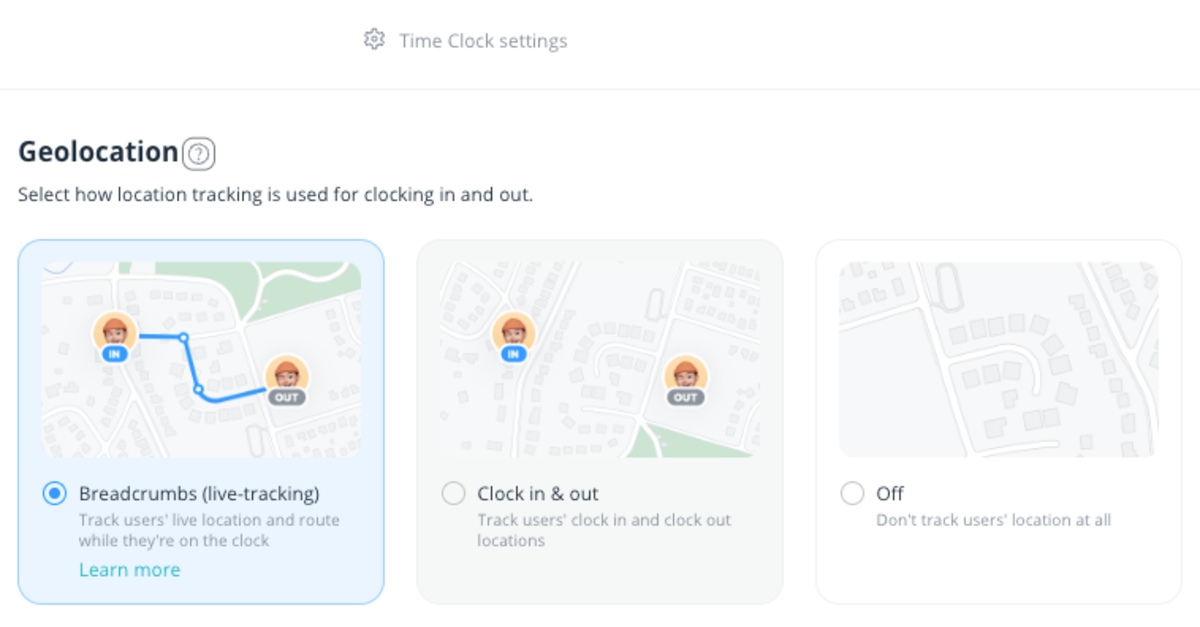
As shown in the image above, Connecteam caters to different company needs. Once you choose a tracking method, users can start their shifts only after sharing their location.
To gain extra control over staff movements, I tried Connecteam’s geofencing. It allows you to create virtual borders around a specific geographic area. You can set it up in the Time Clock settings and:
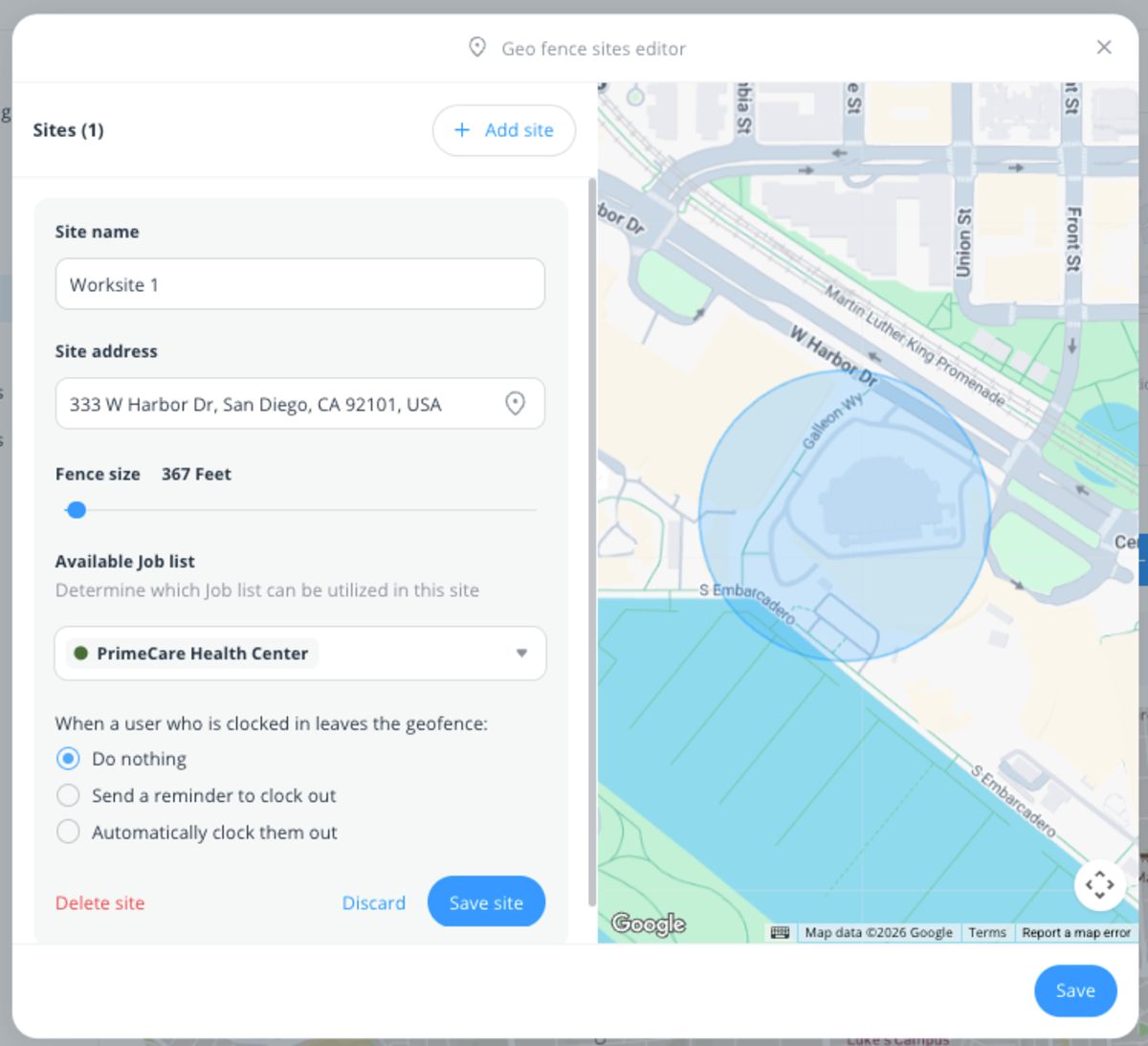
Frontline workers may experience poor phone signals or WiFi. When this happens, you may not see their exact movements or if they cross the geofence. This blind spot bugged me.
Despite the app’s impressive anti-fraud measures, employees can turn off their phones to bypass GPS tracking. According to Connecteam’s help page, workers will remain clocked in, but you won’t be able to receive location updates.
I was also surprised to learn that the most important GPS tracking features are hidden behind expensive plans. For instance, tracking users’ live location is only available in the Expert plan. Geofencing is locked until you upgrade to the Advanced plan, which only supports up to 10 worksites.
Without extra precaution, tracking employee time on paper is risky. Human error can lead to delayed pay and complaints. So, forward-thinking businesses use digital payroll systems. As part of the Connecteam payroll software review, I’ll explore how the app handles employee pay.
First, I had to set everything up for payroll in the Users section. In fact, bulk-selecting employees helped me add the same base and job rates per hour, month, or year.
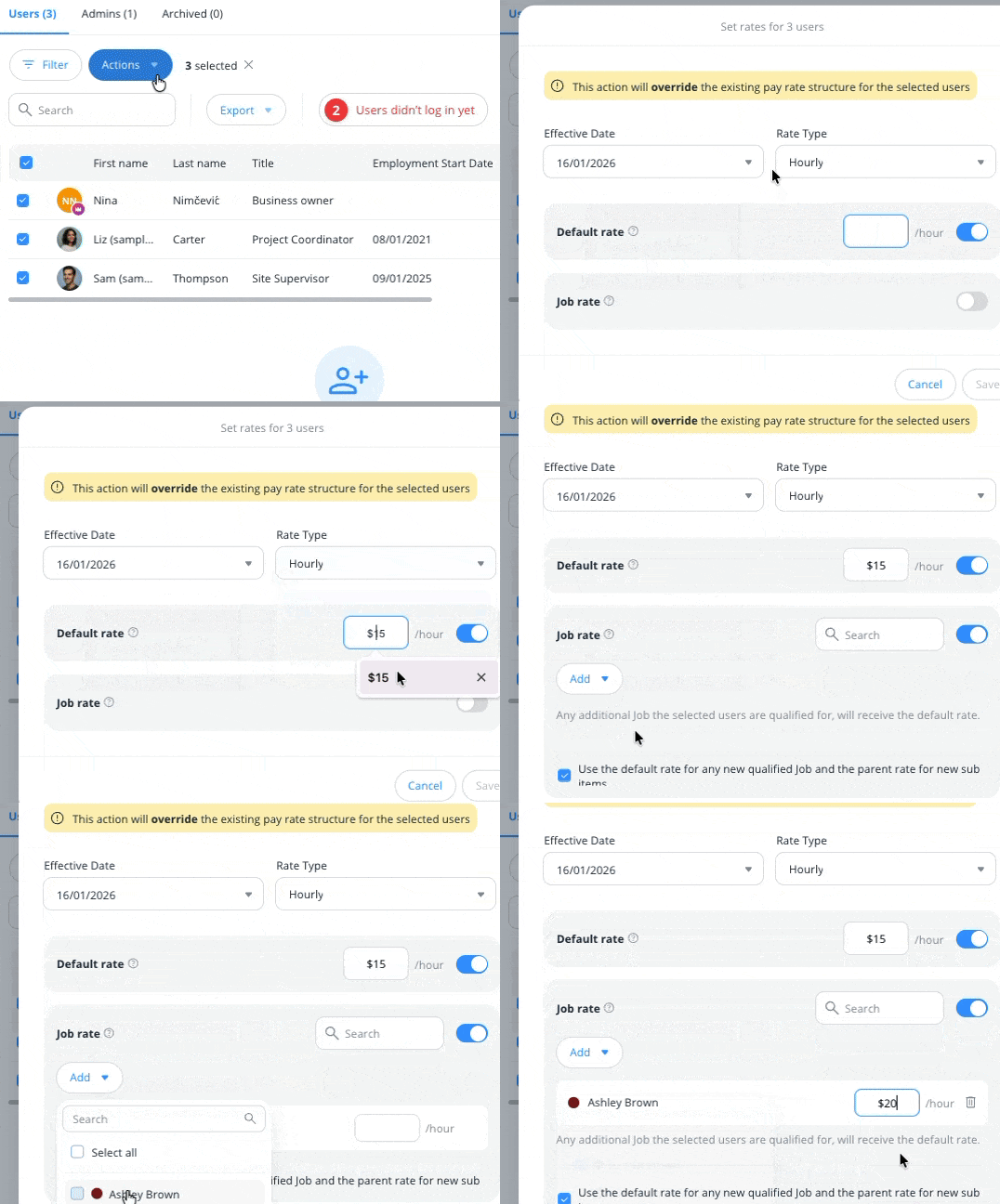
To mark non-billable work, I created jobs like “Training” and applied the default rate. In my opinion, this seemed like a tedious way to make non-billable tasks visible.
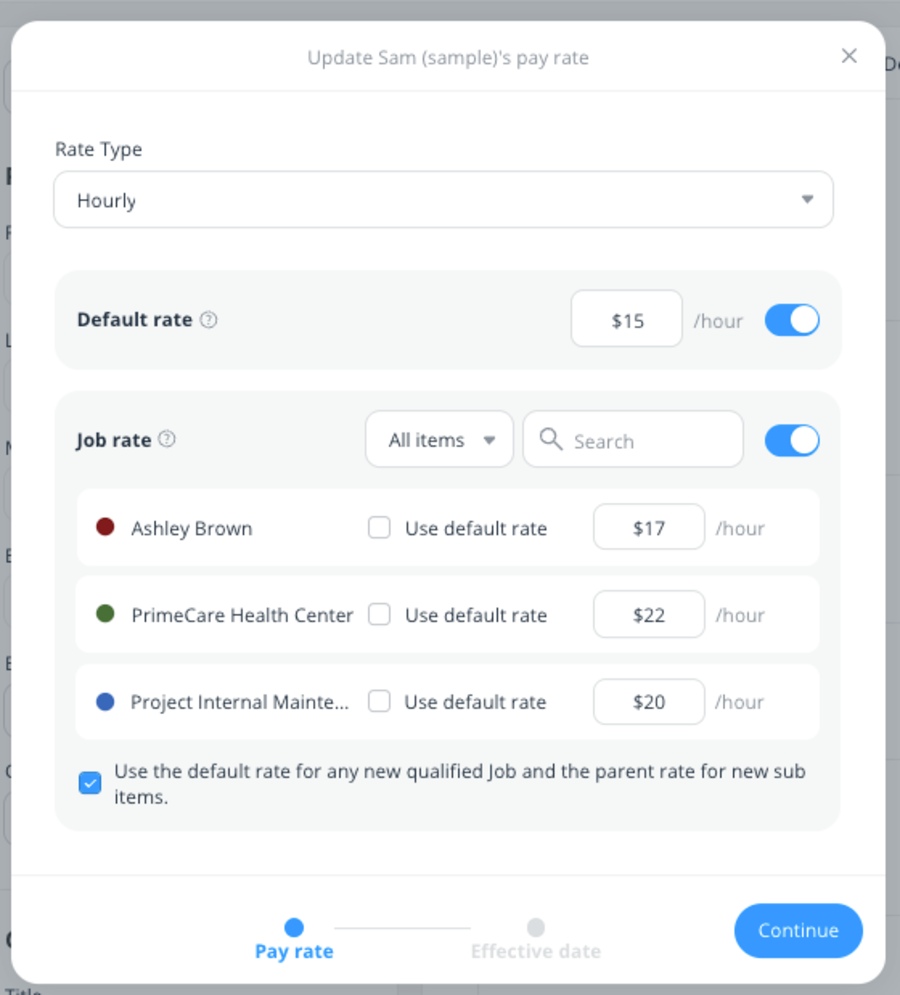
Additionally, people get paid differently based on seniority and expertise. Sure, you can define different user rates, but it takes some effort. I had to enter each user profile and set their wages under Pay rate.
To track overtime, you open Company policies in the Users section and define:
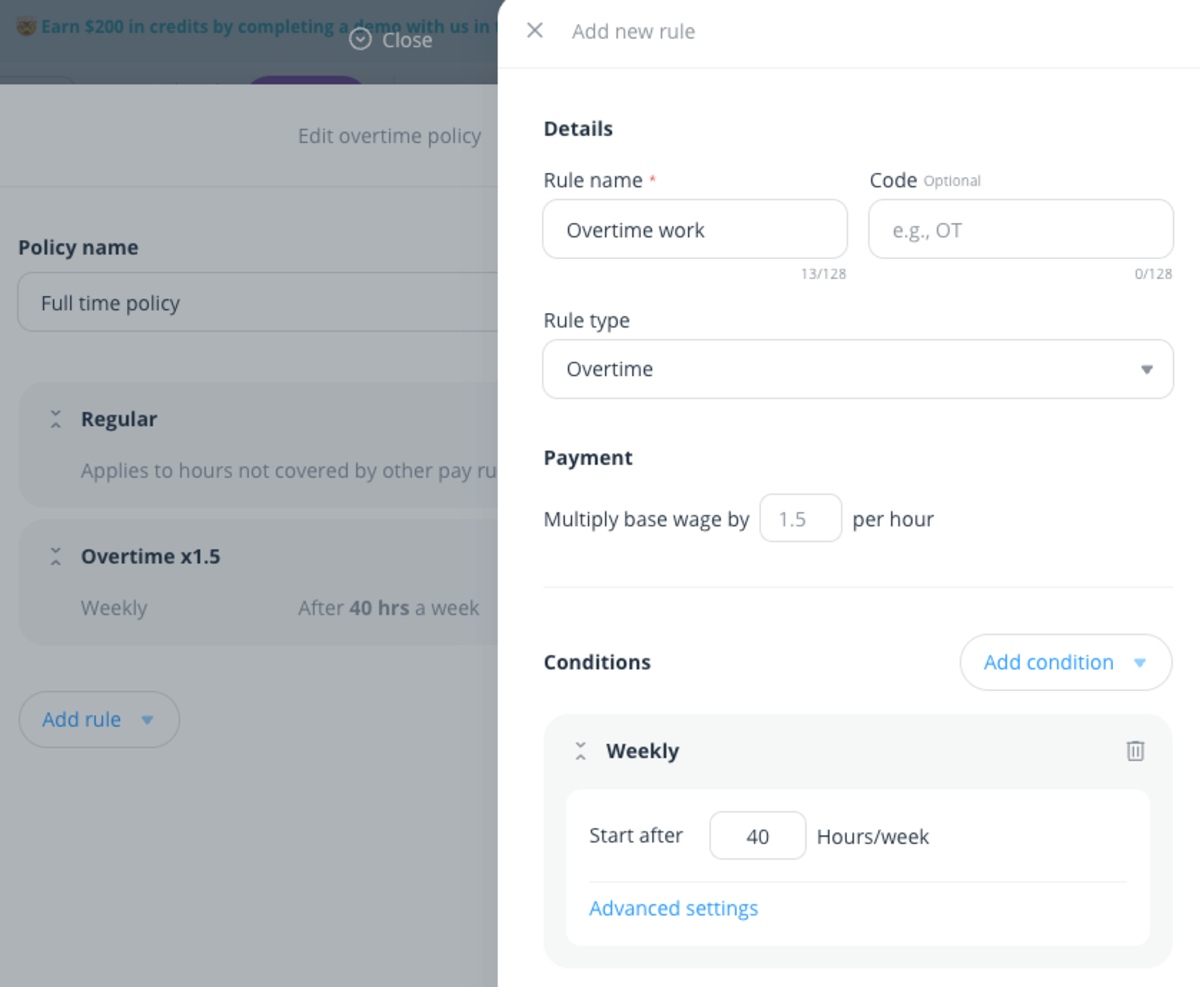
I found overtime settings a bit confusing, fearing that scheduling and overtime policies would overlap. But customer service reassured me that they don’t.
Marking policies as “default” means they will affect everyone, which I found especially practical. This makes busy workspaces easier to navigate.
Connecteam isn’t a payroll app, but it still offered me 3 ways to manage it:
Overall, I would appreciate a simpler payroll setup and fewer steps for defining pay and staff hours.
🎓 5 Steps to Calculating Overtime to Avoid Payroll Mistakes
Connecteam is an esteemed business management platform. So, I was surprised when the number of integrations with other apps amounted to only 13.
Integrations are clearly organized by category, including:
This makes it easy to find specific software integrations.
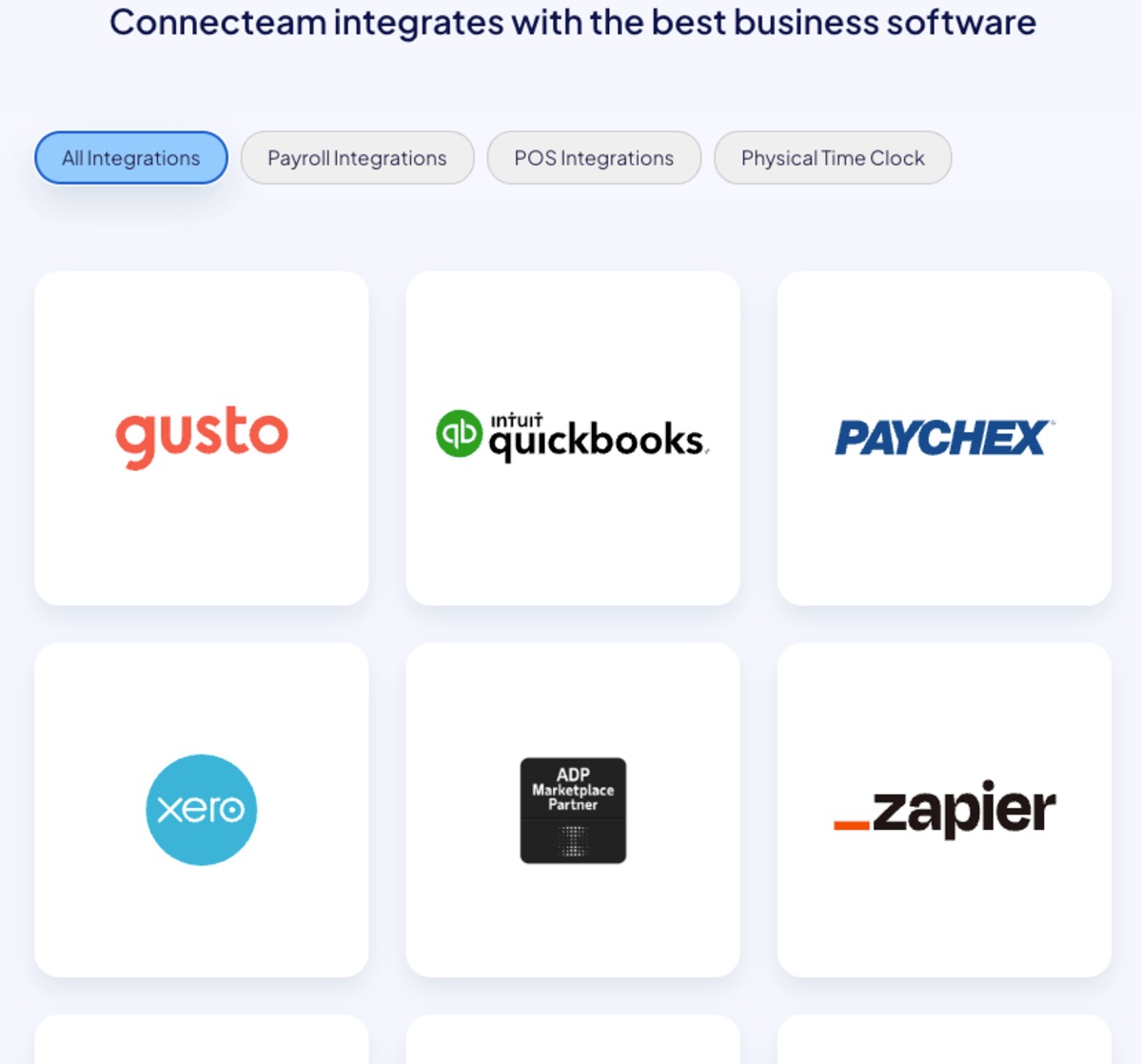
However, I noticed that calendar integrations, such as Google Calendar, weren’t among them. As a big time-tracking fan, I feel that automated tracking of public holidays can make handling time off easier.
Also, integrations with project planning software like Plaky would empower IT firms with in-house and field teams.
—
Now, let’s calculate the overall rating for the Connecteam browser app.
| Connecteam web app | Rating |
| Scheduling | 4/5 |
| Time tracking | 3.5/5 |
| Reporting | 3/5 |
| Chat | 4.5/5 |
| Time off | 4/5 |
| GPS tracking | 3.5/5 |
| Payroll | 3.5/5 |
| Integrations | 3/5 |
| Final rating | 3.6/5 |
The mobile app has surpassed the browser version in lots of ways. Seeing as Connecteam caters to field workers, this didn’t surprise me.
During my Connecteam review, I ran into both pleasant surprises and issues. So, let’s unpack the mobile app.
Connecteam’s mobile app has a crisp and user-friendly design. I found it easier to navigate than the browser app, thanks to fewer features and an easy switch to admin mode.
The core features — the Time Clock and Schedule — are displayed on top. You can access other features and settings from the bottom menu:
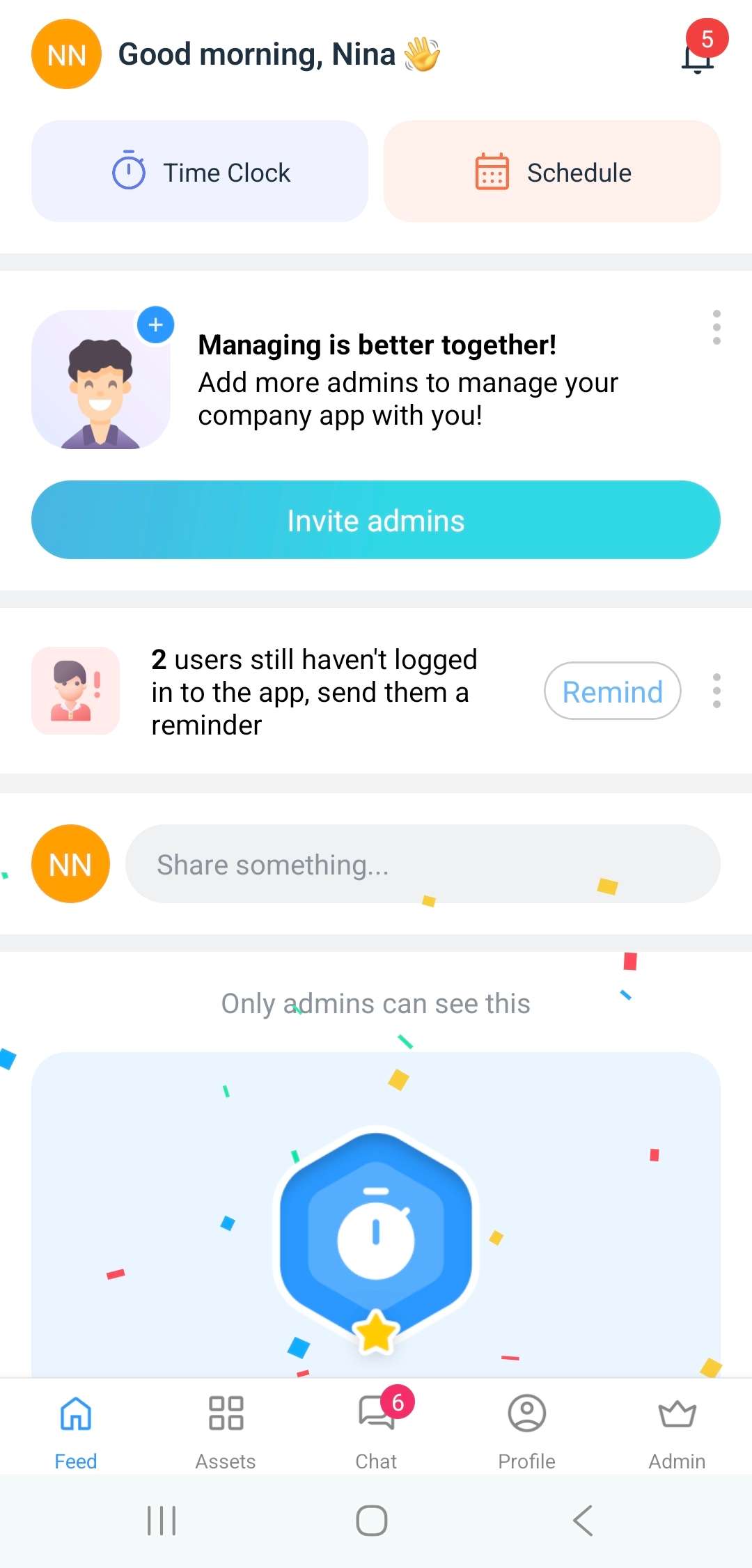
If you go to Assets, you’ll see a list of all features available to users. Just like in the web app, they can only see:
Clicking on the Admin button opens the admin dashboard. From there, I was able to oversee my workspace with quick access to scheduling and time tracking.
As an admin, you can add and pin assets (features). After I activated one, it appeared in the Quick access section, not in the list of all assets below. Settings don’t let you rearrange the layout, so I wonder how customizable the app really is.
The Profile opens your account settings, showing personal data such as available time off and recent activity. I was surprised to find I couldn’t see tangible activity insights — only a list of recent changes.
Setting up the app was a bit tricky due to unpredictable phone authentication options. For me, sending a code via WhatsApp is the only option that worked. You can also log in via email, but this alternative only pops up after 60 seconds.
Scheduling in the mobile app is similar to the browser version but simpler. Still, I noticed a few striking differences.
In Admin mode, you can use the calendar to switch between days, but date ranges aren’t supported. So, I felt that viewing shifts was a bit restrictive.
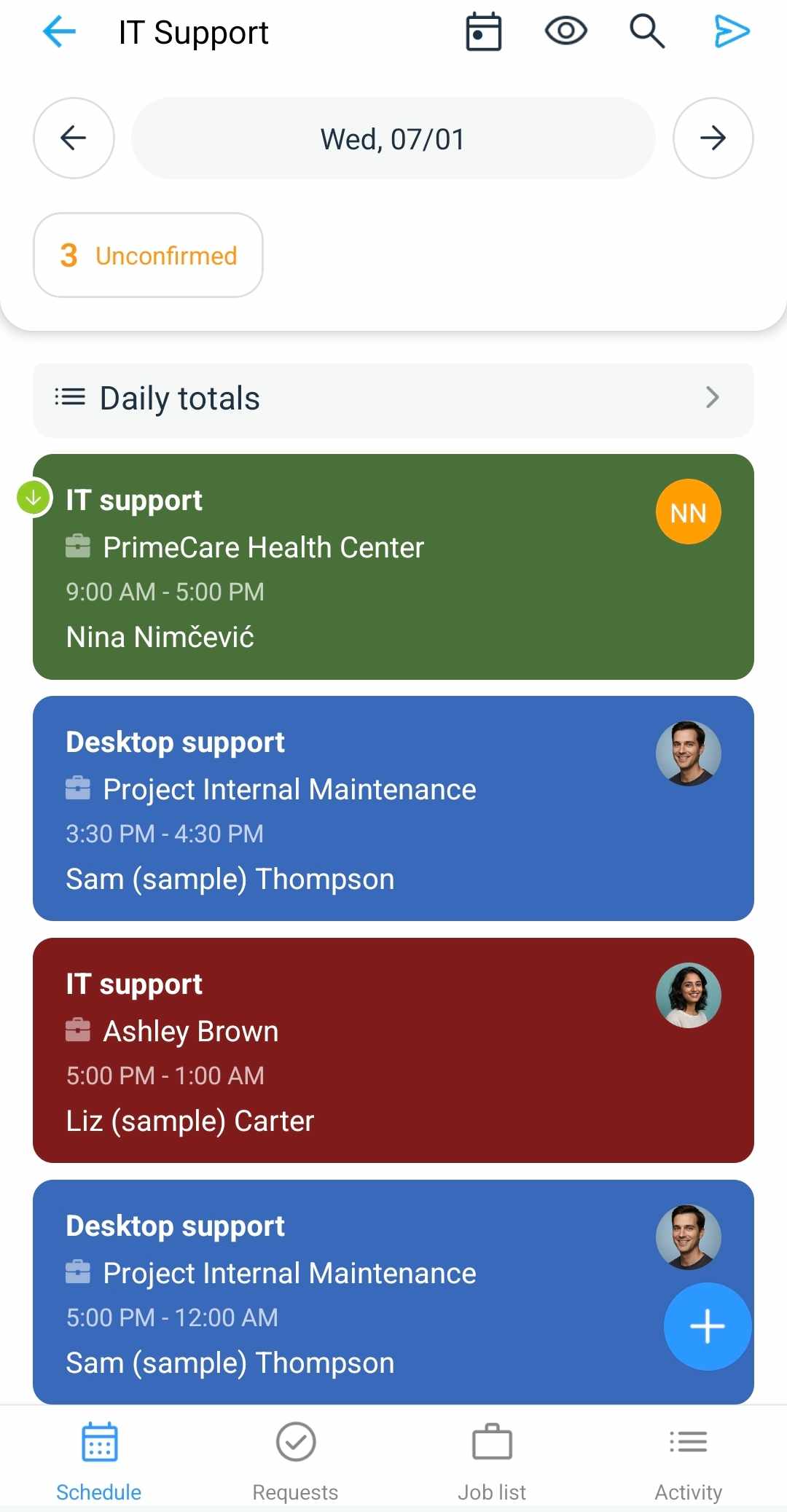
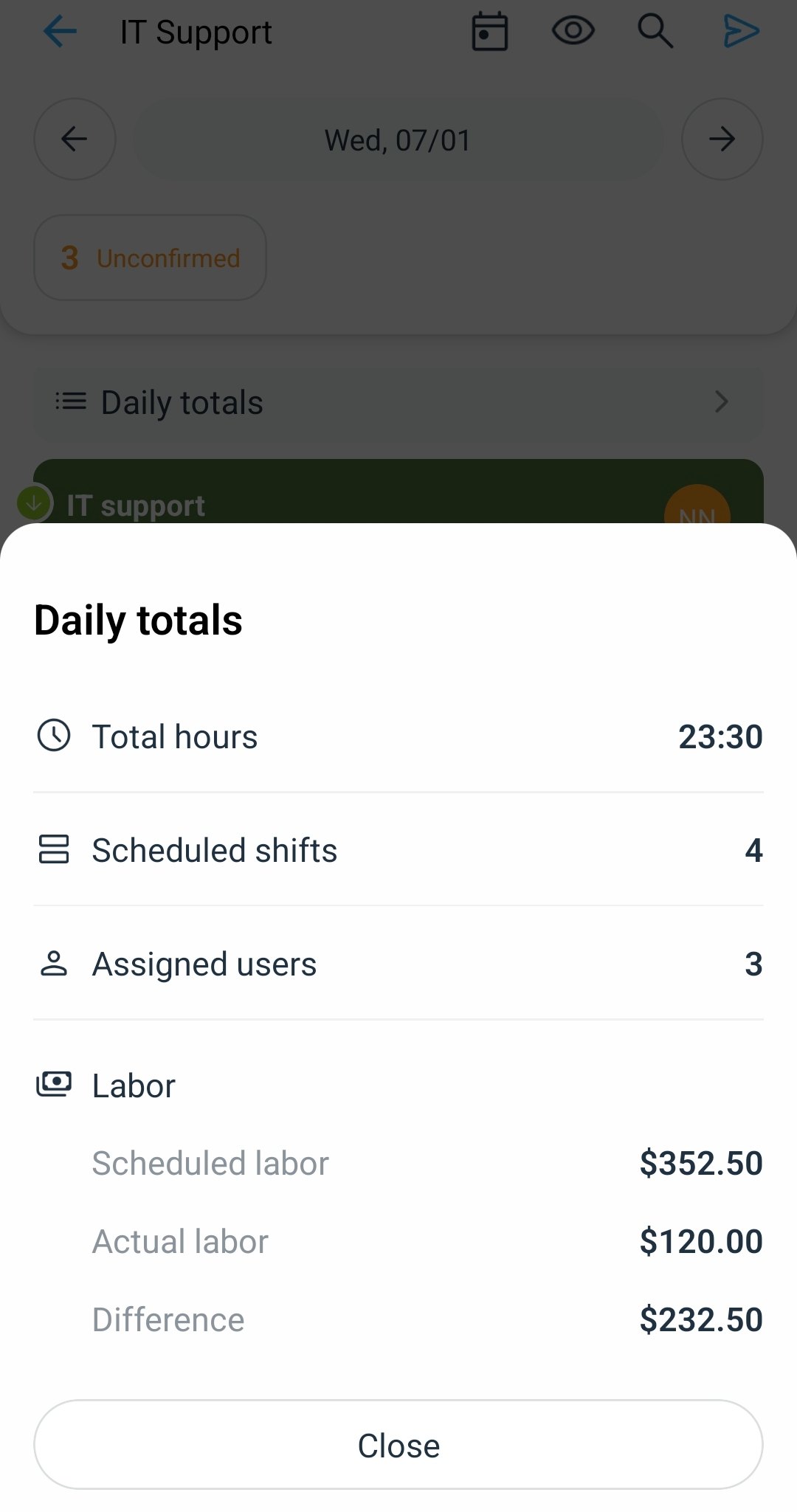
On the other hand, I was impressed that admins can monitor daily totals right from the schedule, which includes:
Accessing brief daily reports was quite practical when I was on the go.
Scheduling shifts works just like in the browser — via a window with default fields.However, I was only able to set shift times using the 24-hour clock. In my opinion, this may hurt businesses in countries that use the 12-hour clock.
Unlike in the web app, users can’t see past data — they can only go so far as yesterday. I support locking previous shifts for security, but workers may need to see earlier work for ongoing projects.
The Time Clock boasts a simpler, more intuitive design than its web version. With advanced filters, I enjoyed pulling up specific time-tracking data — like employees on breaks right now and absences.
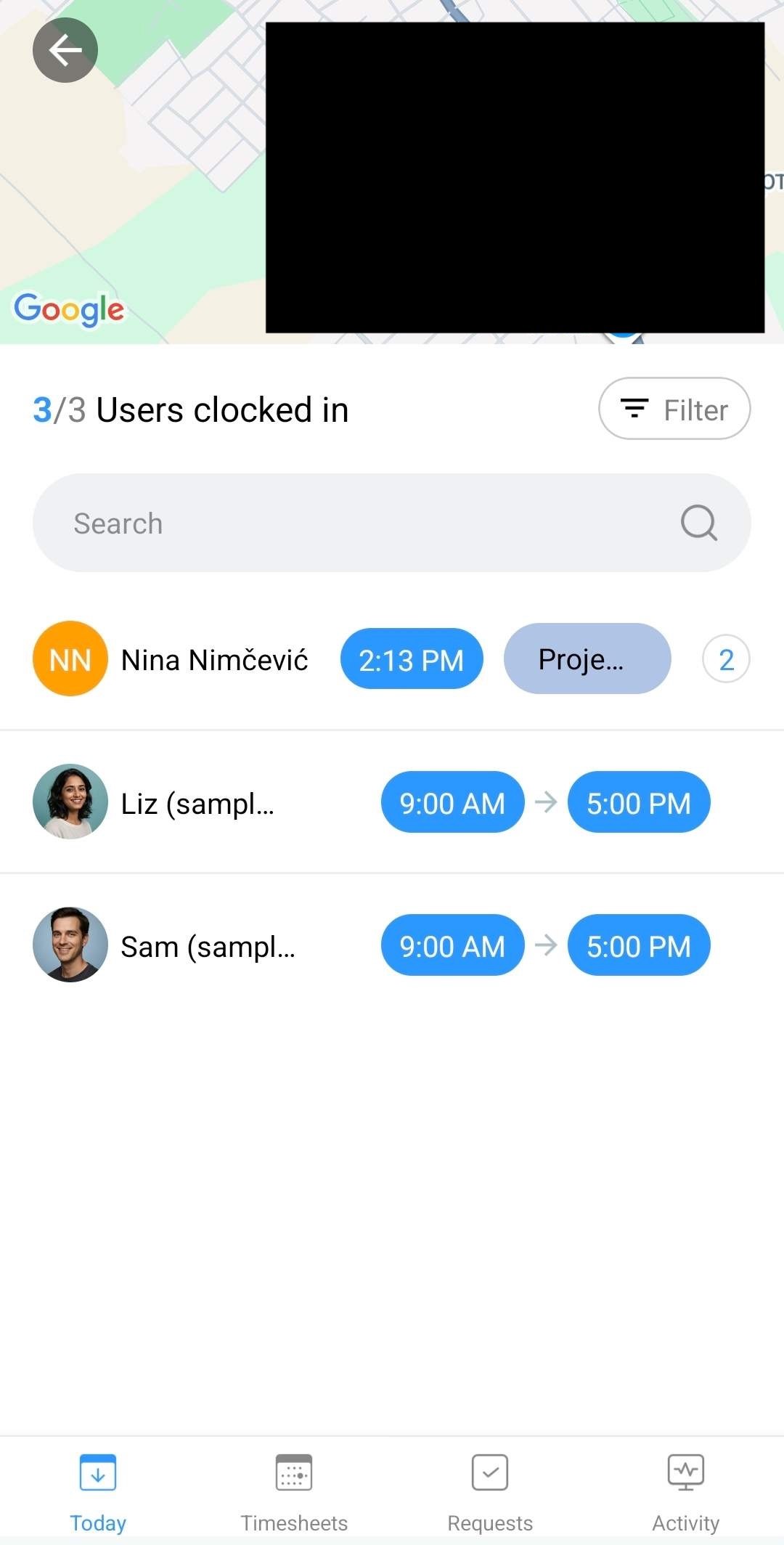
The Timesheets had the same options as in the browser, but felt easier to maneuver on the phone. I only wish it included a breakdown of total pay per user or project. It would’ve made budget tracking easier when I’m on the move.
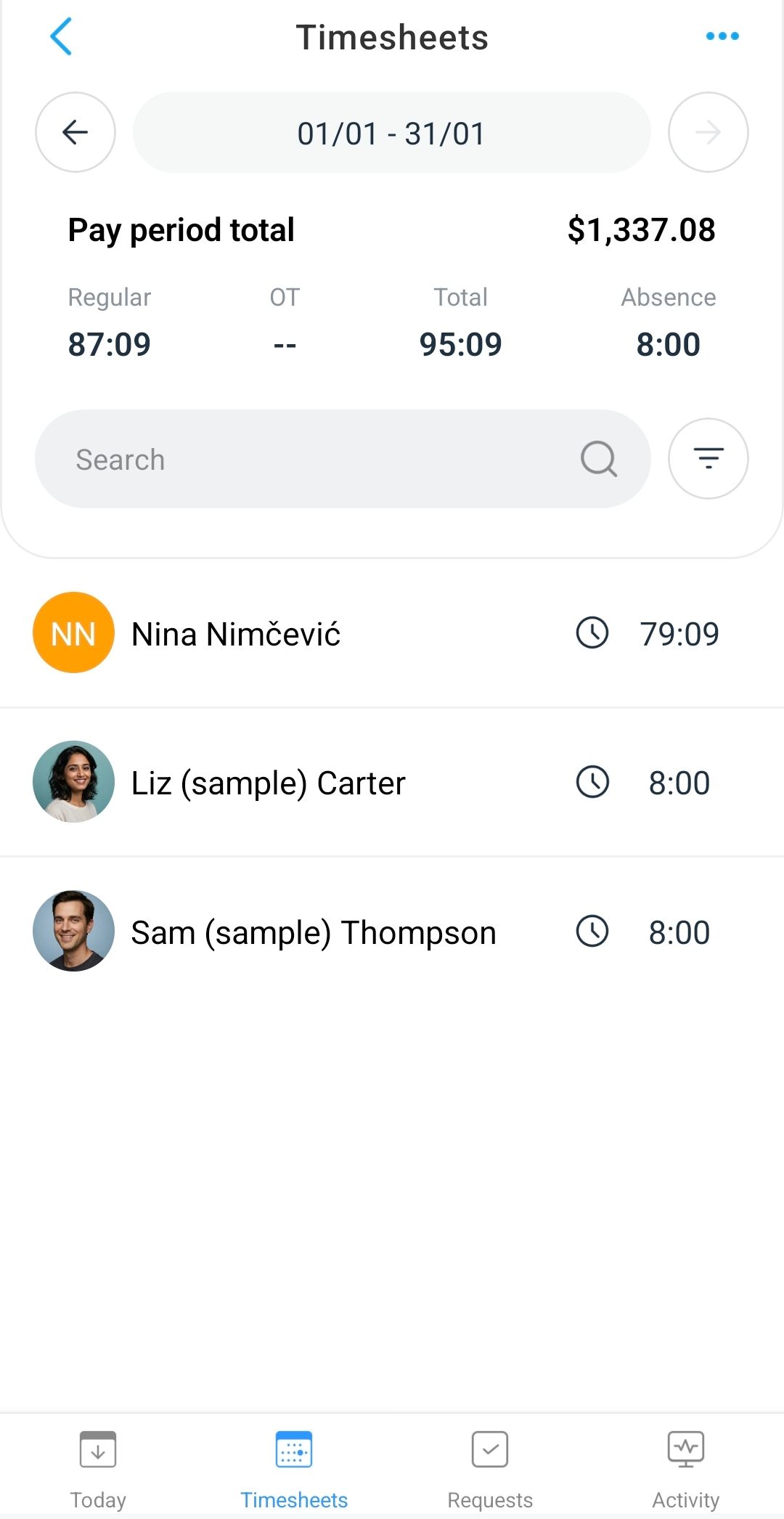
Although user-specific information is neatly displayed, changing something as mundane as the start time required many clicks. I imagine that making similar adjustments for multiple people could take a while.
The Chat is a close replica of the web feature, with the same design and functionality.
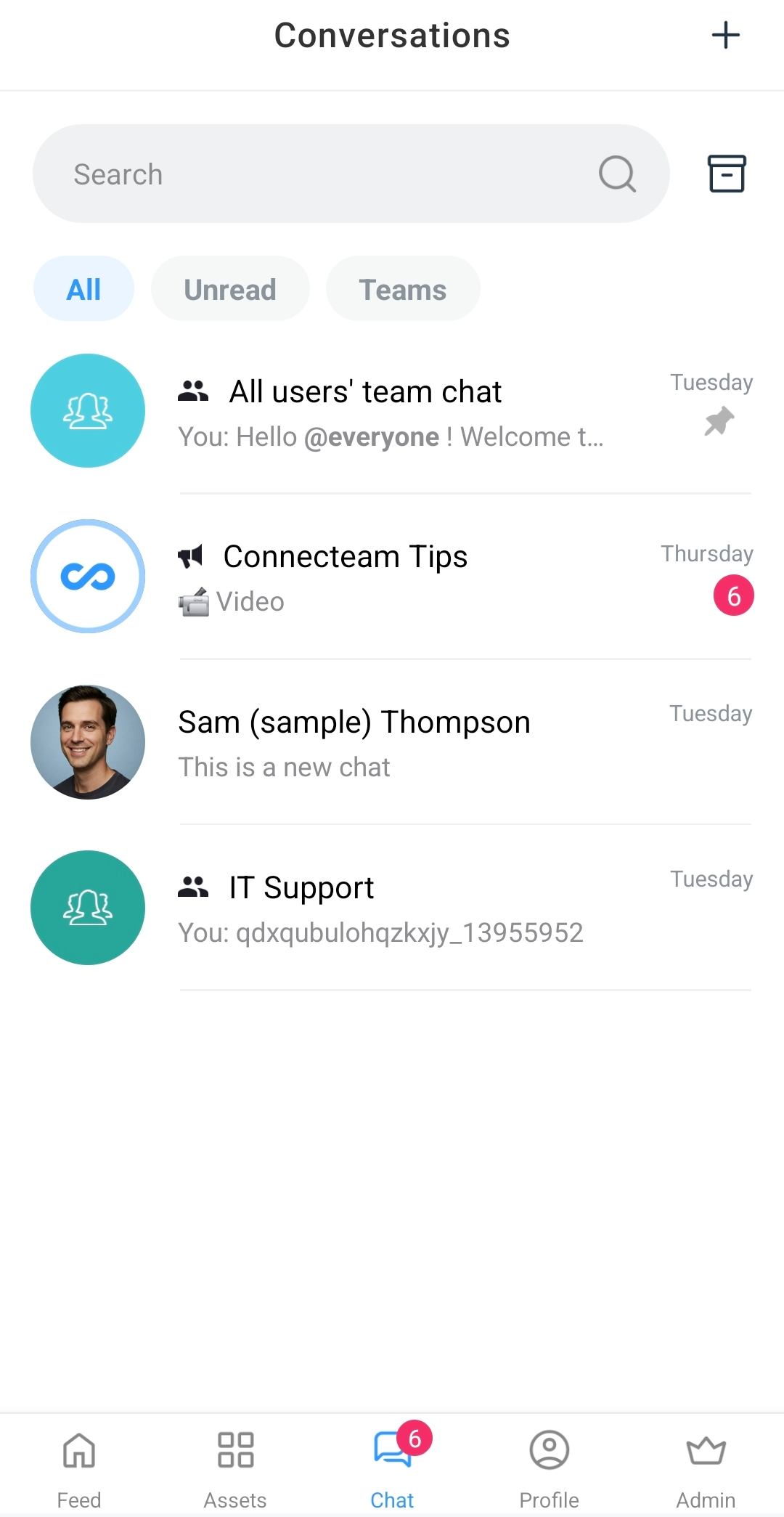
However, I noticed several additions. Chatting over the phone gives you more expressive freedom, as you can search and send GIFs. Beyond that, I was able to take photos and record videos directly in the app.
Being able to send your location was another pleasant surprise. I imagine that this helps managers get quick location updates from field workers.
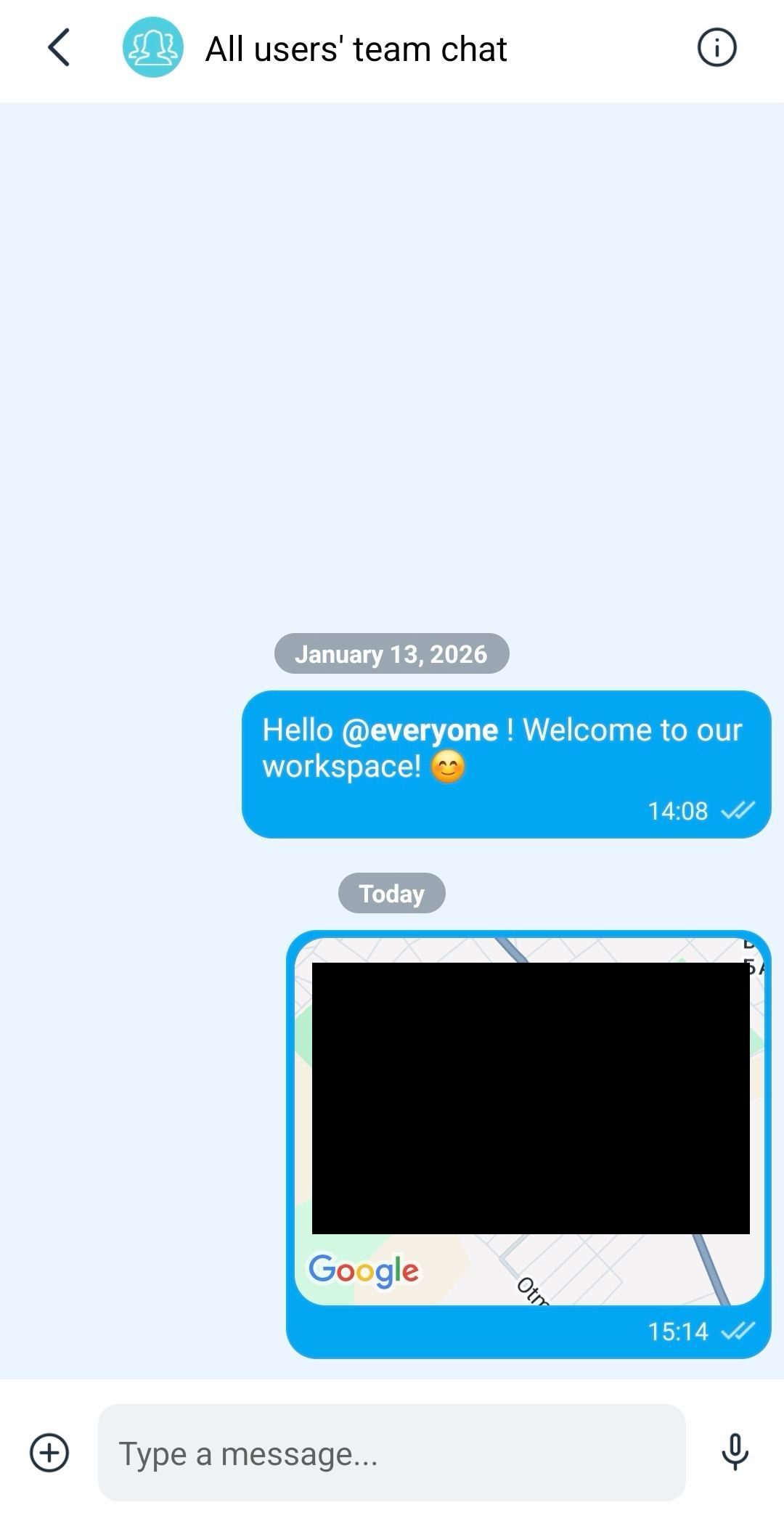
That said, I observed a few drawbacks, like no option to pin messages. With a huge workforce, messages can easily go unnoticed in rapid-fire exchanges. Pinning messages helps employees see important updates in group conversations.
I also realized that you can’t schedule messages like in the web app.
The Time off section clearly shows you your balances and request log. In fact, the Request time off button is conveniently placed at the bottom.
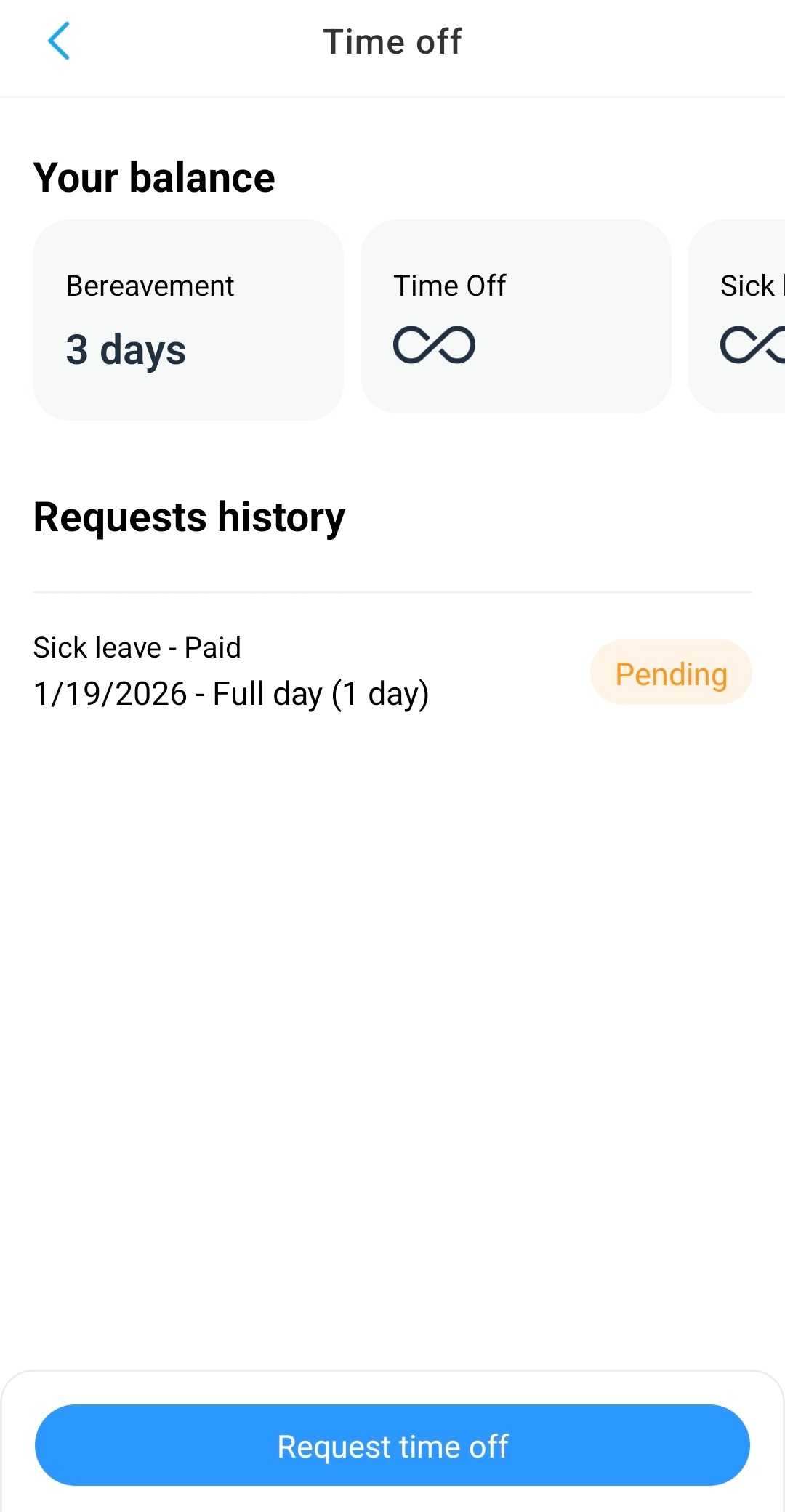
Requesting time off is just as straightforward. I could either request a full-day leave or a specific time during the day.
However, I was only able to request time off using the 24-hour clock. It seems the app relies on my time zone — and changing the time format isn’t supported. This complicated work for me, since I used the 12-hour clock in the browser.
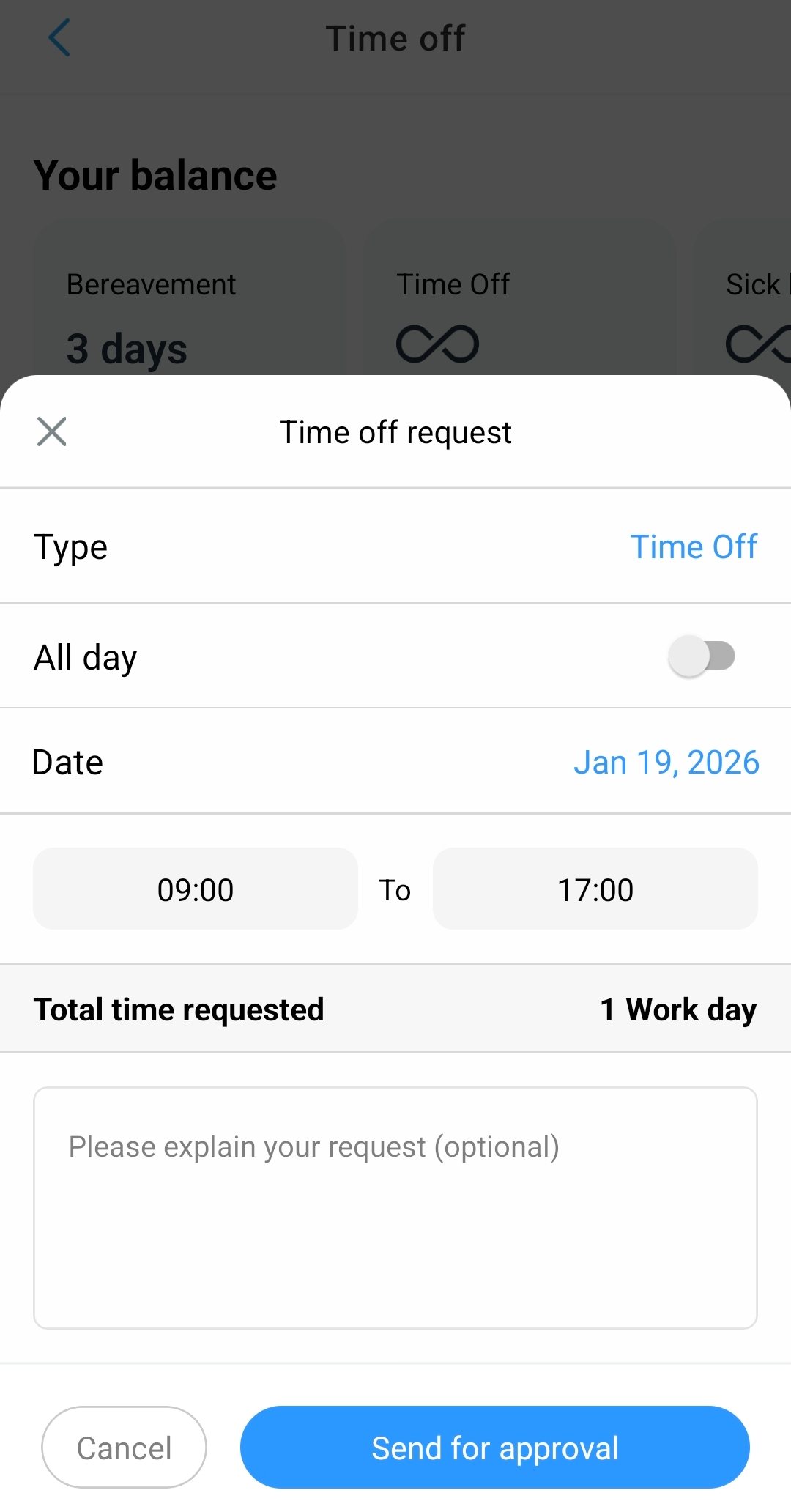
Connecteam displays your requested time in numbers or decimal hours (if you’re asking for a specific time of day). I found this especially helpful for payroll purposes.
To view time off requests, open Admin mode and click Manage time off. I was surprised to see that the pending requests also appear under Assets -> Timeoff.
While in admin mode, you can:
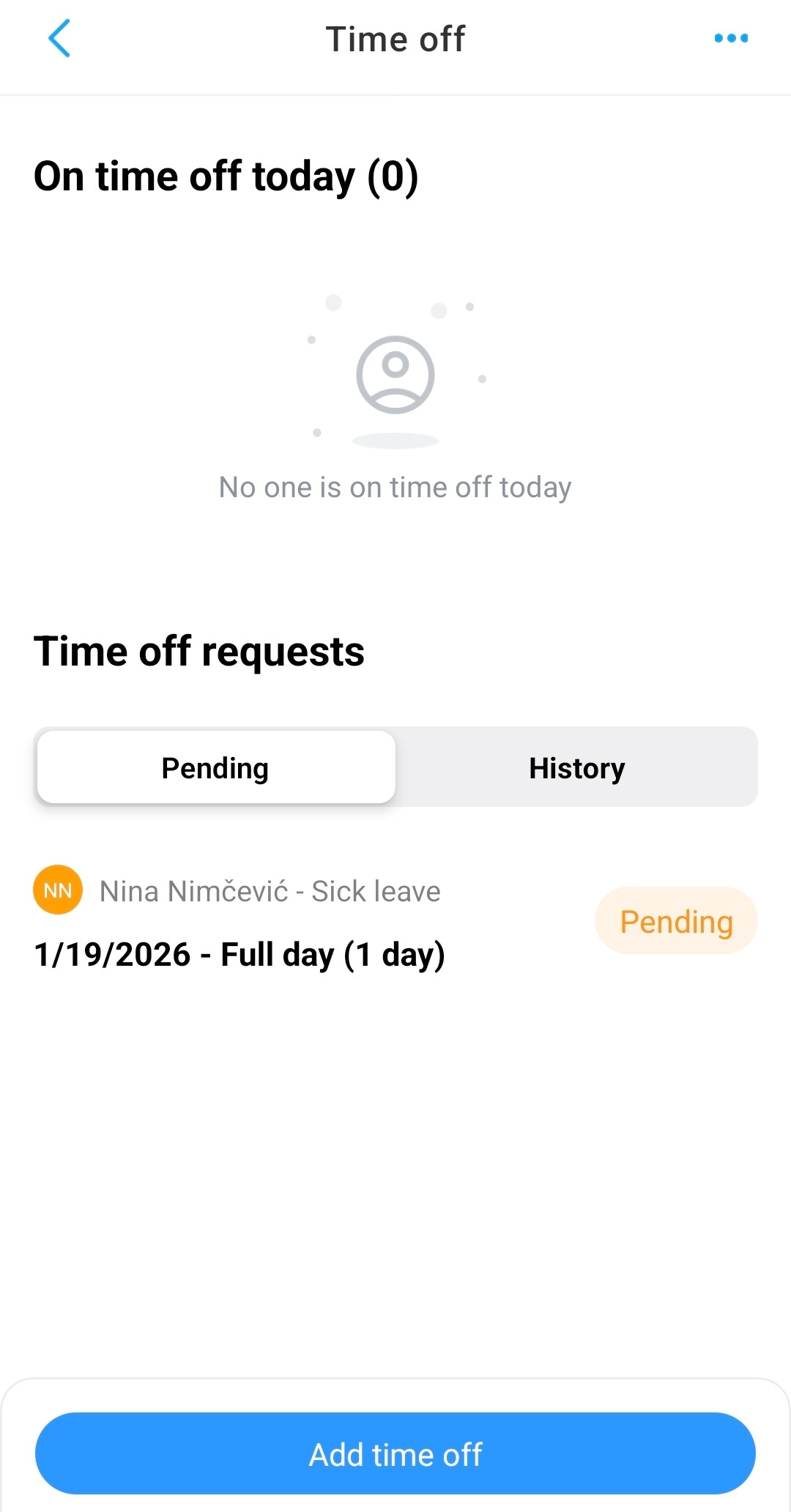
However, I couldn’t see or search requests by user, which made it difficult to monitor time off. And while users can see their balances, admins can’t see approved and remaining rest days for others. Personally, I wish the time off visibility was more transparent.
For a team of 50, Connecteam charges $501 per month for advanced time off, billed annually. This includes Expert plans for all 3 Hubs. Remember, extra fees may vary if you choose different plans for different Hubs.
Here’s a comparison of Connecteam and competitors’ plans with similar time-off features:
| User count | Connecteam (Expert) | Hubstaff (Team) | Clockify (Standard) |
| 50 users | $501 | $500 | $274.5 |
Regarding the final verdict on Connecteam’s mobile app, I give it a similar rating. See the full criteria in the table below.
| Connecteam mobile app | Rating |
| Interface | 3.5/5 |
| Scheduling | 3.5/5 |
| Time tracking | 3.5/5 |
| Chat | 4.5/5 |
| Time off | 3.5/5 |
| Final rating | 3.7/5 |
Connecteam works hard on improving their products. Their newest tweaks are marked by “New” in the Connecteam workspace.
One of them is the AI Agent, which quickly supplies users with in-house information over chat. It’s already listed in the account settings, but I couldn’t try it. The app prompted me to upgrade even though the 14-day trial is supposed to unlock all features.
As I learned, the AI Agent is only available with the Expert plan in the Communications hub — and is not included in the free Small Business plan.
Additionally, Connecteam announced they would soon introduce more POS and payroll integrations, such as:
They post monthly product releases and updates to keep customers notified.
To me, the most outstanding feature of Connecteam was scheduling — its wide range of options gave me more control over shifts. Plus, it offered a similar experience on both the web and mobile app.
Connecteam is suitable for large businesses with field staff that work in shifts. Beyond shift planning, Connecteam is a solid team collaboration tool, as you can sync chats across web and phone.
That said, it’s less practical for project management, time tracking, and thorough reporting — especially for in-office teams.
Unfortunately, its click-heavy interface makes it hard to navigate the browser app. As a result, I found completing regular admin tasks a bit daunting and time-consuming.
Another concern for me was that you can’t use Connecteam offline. That meant my offline work wasn’t saved until I reconnected to the internet. More importantly, I would lose track of my frontline employees’ movements.
After looking at all the factors that impact user experience, I reached my final verdict on Connecteam:
| Connecteam | Rating |
| Web app | 3.6/5 |
| Mobile app | 3.7/5 |
| Interface | 3.5/5 |
| Security | 4.5/5 |
| Customer support | 3.5/5 |
| Customer reviews | 4.6/5 |
| Final verdict | 3.9/5 |
In this Connecteam app review, the app proved to be a fine scheduling and time-off tracking tool. Even so, it may not satisfy your criteria if you’re looking for a robust, powerful tool.
Meet Clockify by CAKE.com a full-featured Connecteam alternative tailored for office and field teams in industries like:
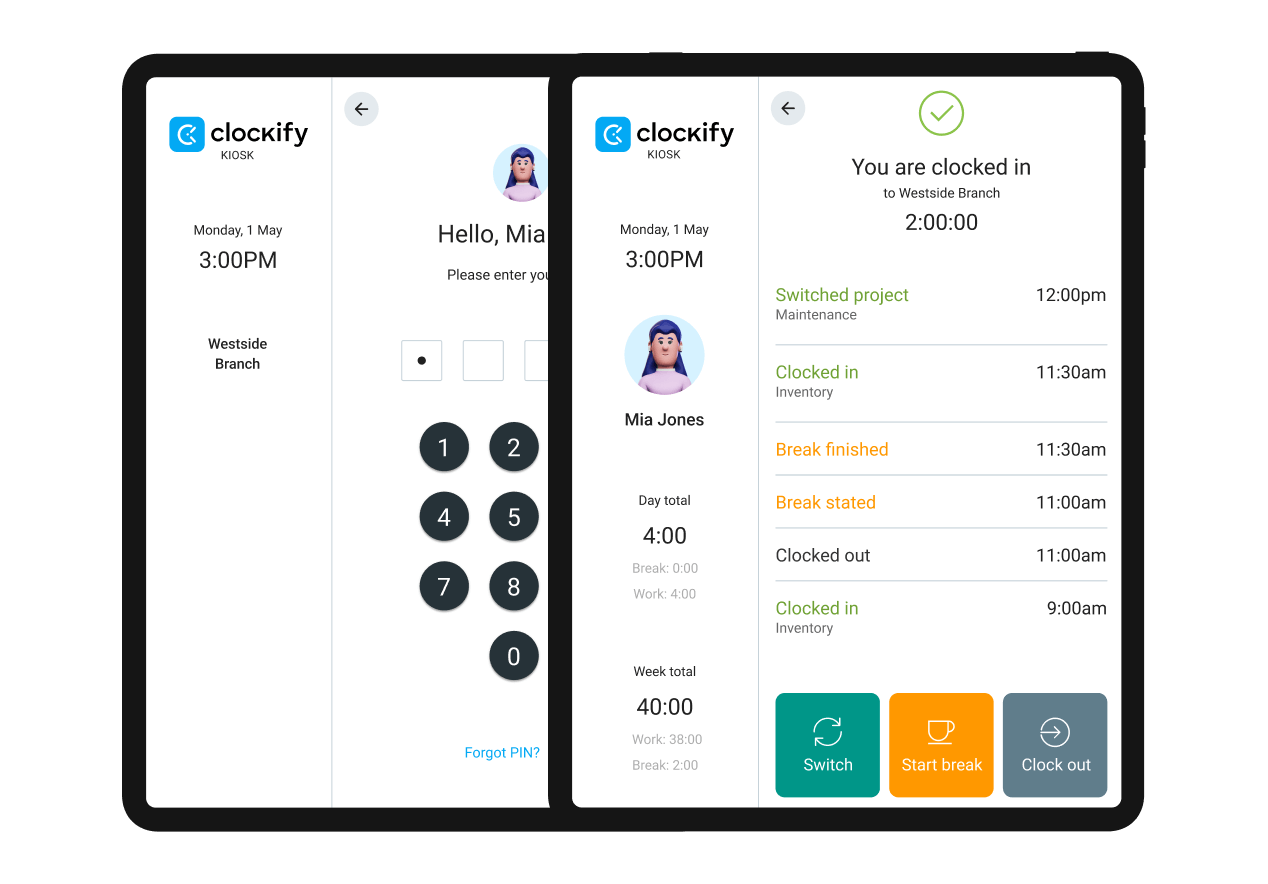
As for time tracking, Clockify offers a reliable clock-in/clock-out system. Unlike Connecteam, Clockify’s kiosk is part of the main (and only) mobile app, so you don’t need to switch apps. The kiosk creates different PINs for everyone to punch in from a shared device.
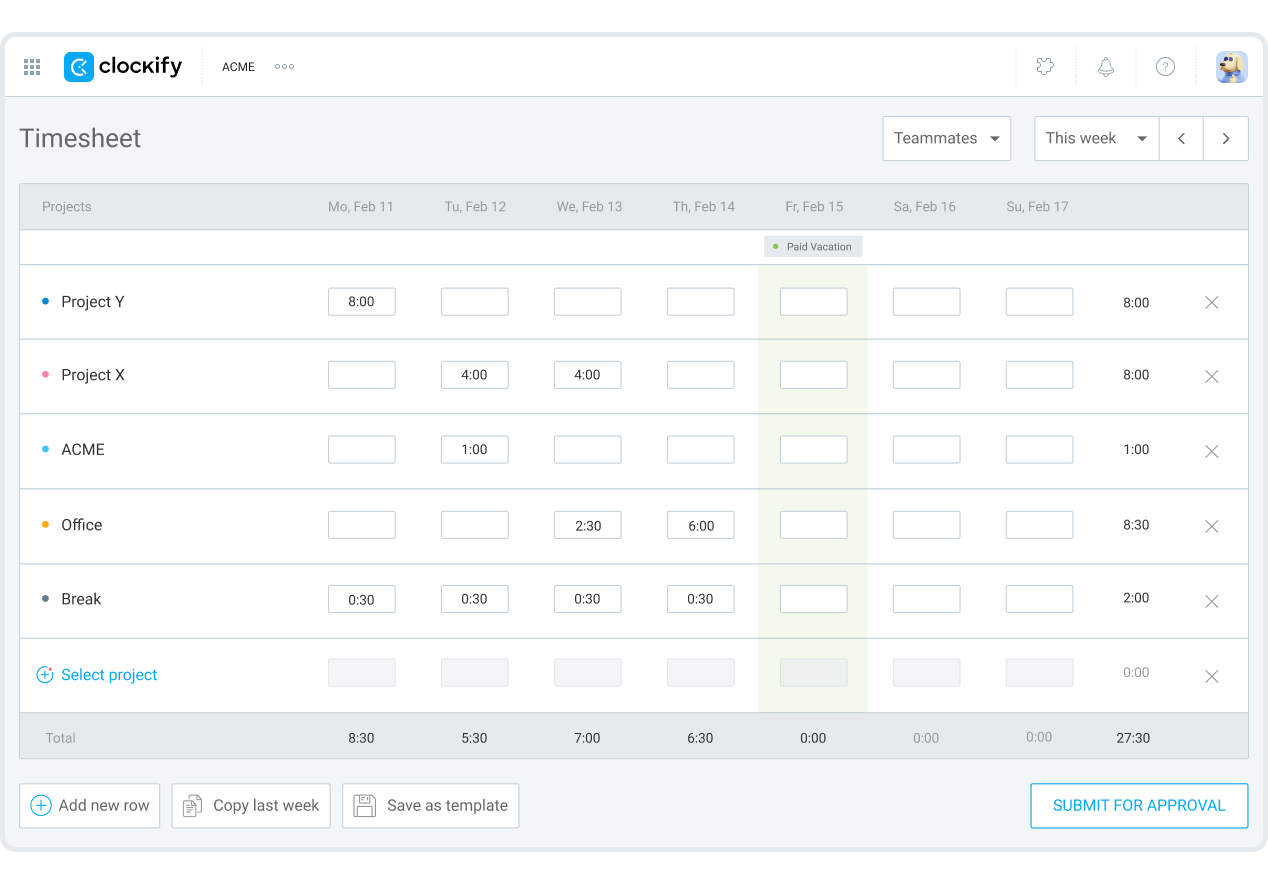
If spreadsheets are more your style, your employees can turn in digital timesheets in a few clicks or taps — see below.
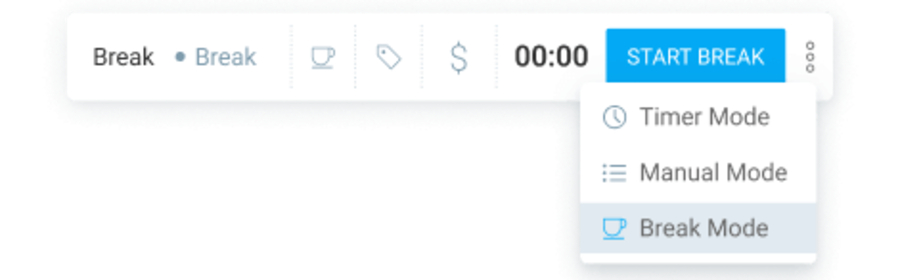
For precise time logging, have your teams use the one-click timer and add time entries for each activity. For convenience, you can choose between automatic, manual, and break mode.
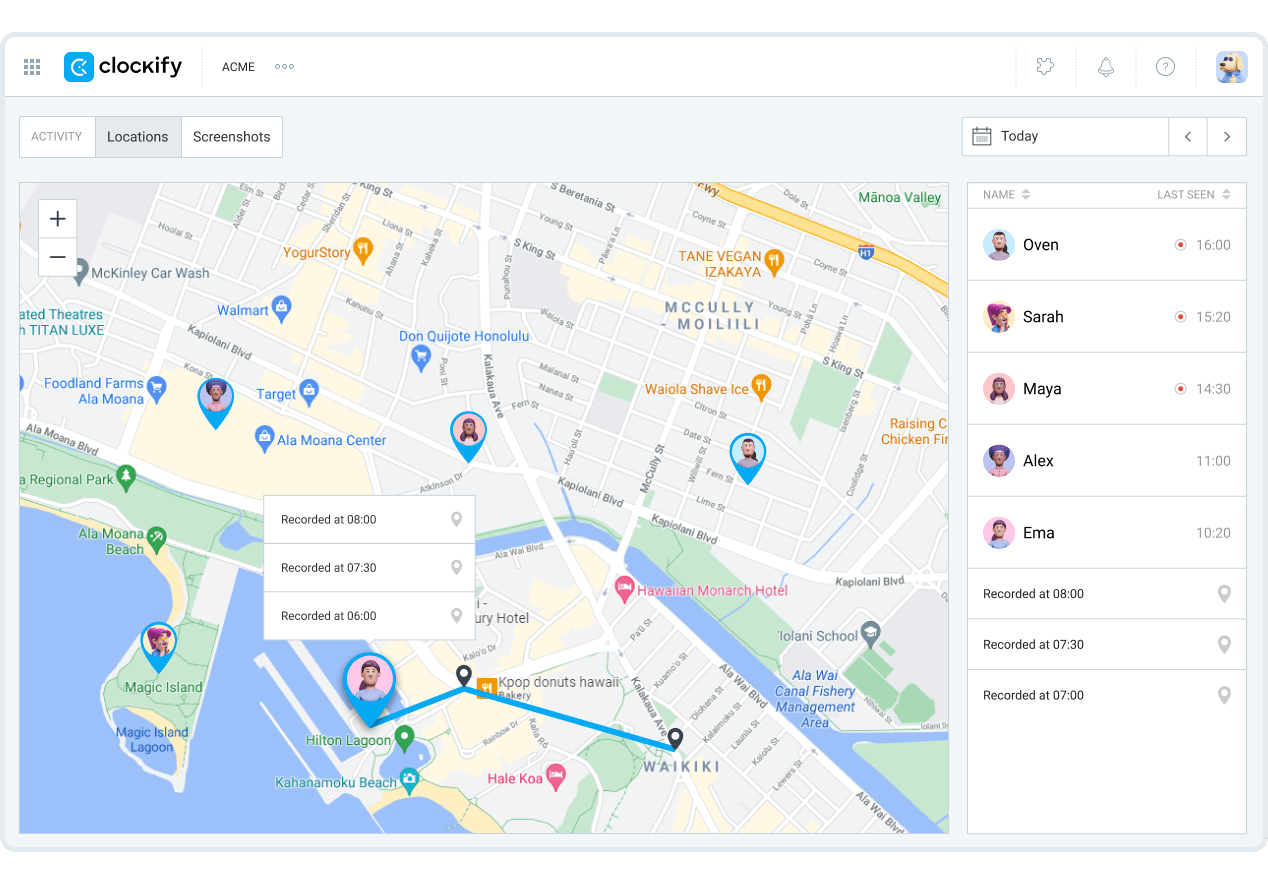
Need to see your employees’ location? Clockify’s GPS tracking shows everyone’s movements and even stores location updates while you’re offline.
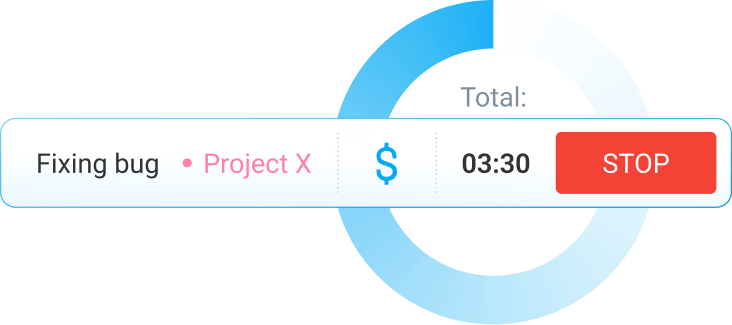
To top it off, Clockify lets you:
To help you see their differences, here’s a side-by-side comparison of Connecteam and Clockify:
| Features | Connecteam | Clockify |
| Primary use | Shift scheduling HR processes |
Time tracking Team scheduling Billing |
| Scheduling | Slot-based scheduling Open shifts Availability |
Team scheduling Assignments Daily capacity |
| Time tracking | Separate kiosk app Timer Timesheets |
Timer Timesheets Calendar Kiosk Auto tracker |
| Project tracking | Projects Shift tasks |
Projects/tasks Budgets Profitability Forecasting |
| Reporting | Robust yet scattered reporting Simple activity log Basic performance analytics Labor cost and sales |
Centralized reporting Team performance Productivity Project budgets Expenses |
| Time off | Manual entry of public holidays Time off approval |
Automatic public holiday import via Google Calendar Time off approval |
| Payroll | Hourly rates Default and job rates Overtime pay Offers 6 payroll integrations |
Hourly rates Default, project, and task rates Overtime Supports 12 payroll integrations |
| GPS tracking | Clock-in location tracking Route tracking Geofencing No offline functionality |
Clock-in location tracking Route tracking GPS tracking works offline |
| Free plan | Limited plan for 11-30 users, with essentials Small Business plan for up to 10 users, with unlocked features |
Free plan for unlimited projects and up to 5 users |
| Suitable for | Construction Transportation Manufacturing Telecommunications |
All industries and work locations — off and on-site, including IT services, hospitality, retail, manufacturing, construction, logistics, transportation, healthcare, public services, security, and more |
| Pricing | Starting at $29 per hub/month for the first 30 users if billed annually Additional fees apply for each new user |
Starting at $5.49 per seat/month if billed annually |
As part of the CAKE.com Bundle, Clockify integrates smoothly with its sibling apps:

If you’re looking for a free, no-nonsense option, read more about Clockify as a Connecteam alternative.
Want to learn more about Connecteam before choosing your ideal timekeeping and payroll solution? See what Connecteam’s (potential) customers ask most often about the app.
After the free 14-day trial ends, you’ll be asked to upgrade to one of Connecteam’s plans. Among them is the $0 Limited Plan. It supports 11 to 30 users (including the workspace owner and admins) but offers bare-bone features.
You can ask for the cost-free Small Business plan to unlock all features. However, you qualify for the plan only if your workspace has up to 10 users. If so, you’ll need to book a demo with an account representative who can help you switch plans. It’s annoying and time-consuming.
Yes, workspace owners and admins can see real-time employee activity in several ways. In the time clock, they can check attendance with quick filters, like:
Furthermore, admins can see who’s clocked in or running late thanks to activity indicators in the scheduling section. They also receive email and app notifications about any absences.
Whether you’re an iPhone or Android user, Connecteam can only track in-app activity and location during office hours. It requires location sharing to start tracking your movements via phone. In fact, you won’t be able to start or end shifts if your GPS isn’t turned on.
Once you’re clocked out, Connecteam will not be able to use or save your location data. Beyond that, Connecteam can only access information stored in the Connecteam mobile app.
Yes, Connecteam uses AI to speed up data collection, scheduling, and more. For instance, their AI Agent serves as a chatbot for staff seeking company information. On the other hand, Connecteam’s AI technology also makes it possible to auto-assign shifts.
Yet both options are available only on the Expert plan. As it stands, you’re not able to test the AI agent in the free 2-week trial.